
Mevent
-
Posts
3,442 -
Joined
-
Last visited
-
Days Won
53
Content Type
Profiles
Warranty Claims
Downloads
Forums
Store
Services
Downloads Plus Support
DOWNLOADS EXTRA
Reels
Everything posted by Mevent
-
Changed Status from Pending to Closed
-
Changed Status from Pending to Work in Progress
-
Changed Status from Pending to Work in Progress
-
Changed Status from Pending to Work in Progress
-
Changed Status from Pending to Closed
-
Hi! Are you sure you're running the latest version of the plugin?
-
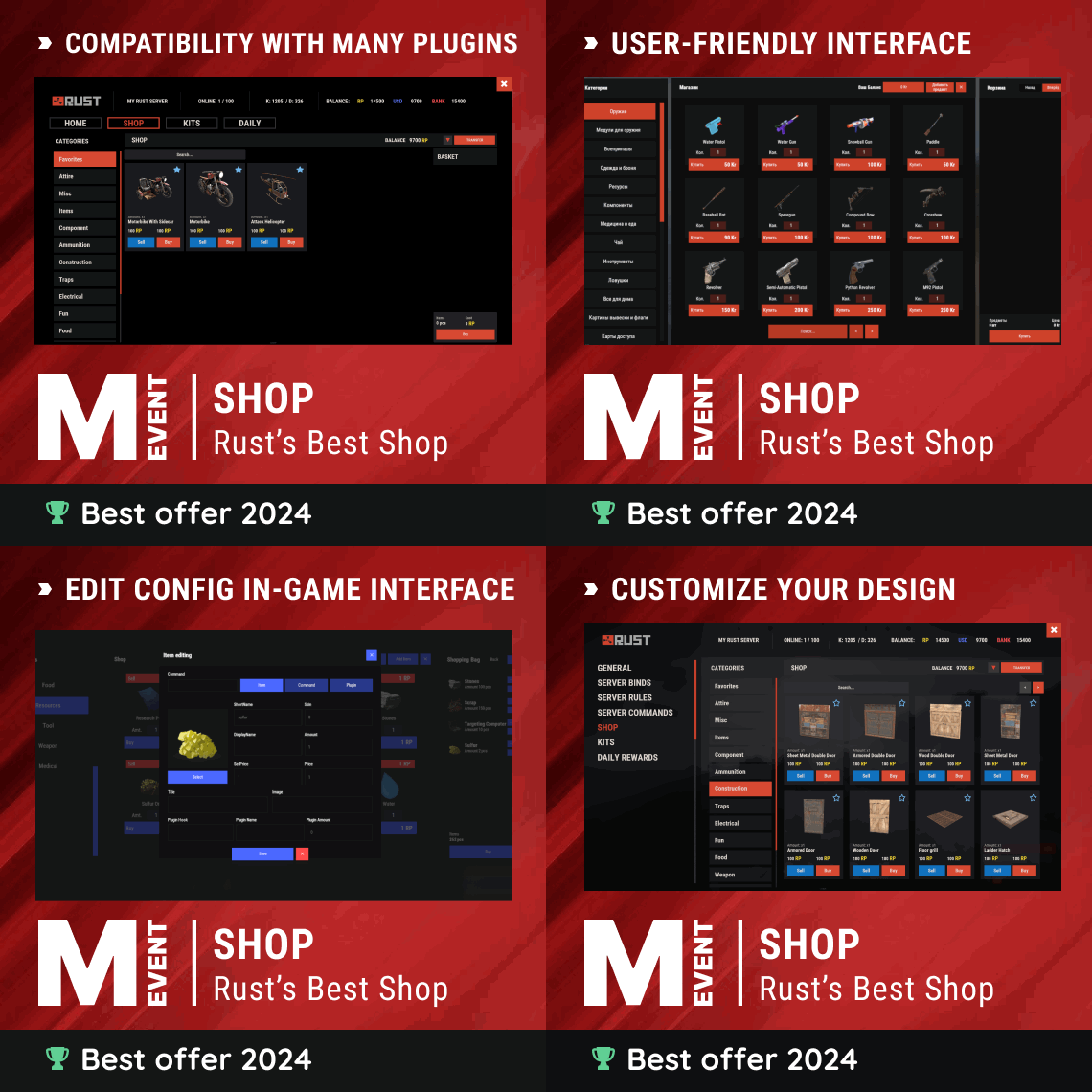 Surprisingly, we've been testing the plugin, migration, and so on for quite some time. Unfortunately, such major updates always leave a mark because it's impossible to test everything. It's important to note that we backup data before migration to ensure the safety of our customers' data. It's also important to note that the latest updates are not all related to the upgrade to version 2.4. Some of them were earlier, but now we have reached them to fix them. Now, this is the most comfortable and performed Shop plugin in Rust.
 -
Changed Status from Pending to Work in Progress
-
Hi! The edit button behavior changed in the latest version. Now you need to enable Admin Mode to see the edit buttons. How to enable Admin Mode: Open the Shop plugin Go to the plugin categories section Click "SHOW ALL" button The edit buttons will now appear This change allows regular players to browse the shop without seeing admin controls, while admins can toggle them on when needed. Hope this helps!
-
You need to download the latest version of the plugin. In particular, all incorrect IDs will be automatically corrected.
-
Changed Status from Pending to Fixed Changed Fixed In to 2.4.3
-
Changed Status from Pending to Closed
-
Changed Status from Pending to Fixed Changed Fixed In to 2.4.3
-
Changed Status from Pending to Fixed Changed Fixed In to 2.4.3
-
Can't stack small generators despite having perms
Mevent replied to Rusty Hook's Support Report in Support
Changed Status from Pending to Fixed Changed Fixed In to 1.2.3 -
Changed Status from Pending to Fixed Changed Fixed In to Next Version
-
Hey! Thanks for the extra reports and patience. We’ve dug into this issue and finally managed to reproduce what OgGinja and Mals were seeing with the template/JSON errors. It turned out to be a bug on our side, not something you misconfigured. The problem is now fixed in the latest build, so you shouldn’t have to redo your whole shop anymore after updating. This bug didn’t show up during our internal testing (that’s why we initially couldn’t catch it), but your feedback helped us track it down. Really sorry for the hassle and the time you’ve already spent rebuilding things – that’s exactly what the auto‑migration was supposed to prevent, not cause. If you run into any more issues after updating to the fixed version, please drop your logs/template and we’ll jump on it right away.
-
Hi! The edit button behavior changed in the latest version. Now you need to enable Admin Mode to see the edit buttons. How to enable Admin Mode: Open the Shop plugin Go to the plugin categories section Click "SHOW ALL" button The edit buttons will now appear This change allows regular players to browse the shop without seeing admin controls, while admins can toggle them on when needed. Hope this helps!
-
Hey! Totally get how frustrating it is when things break after an update and you have to redo your setup, that’s a huge time sink. Shop does have automatic template migration, but as mentioned in the 2.4 changelog: So auto‑migration only runs when Expert Mode is turned off – that’s exactly what it was designed for. When Expert Mode is on, the plugin assumes you fully control the JSON layout and it won’t touch your custom template, because trying to auto‑edit it can actually break things even harder. We do sometimes have to change data structures to keep improving the plugin and add new features, and auto‑migration + backups are there to make that as painless as possible. But with Expert Mode enabled it’s just too risky to modify your template automatically, so manual conversion is required in that case. If you let me know which version you updated from and which template you’re using, I can point you to what exactly needs to be adjusted.
-
Failed to call hook 'OnServerInitialized'
Mevent replied to Simon Tobias's Support Report in Support
Are you sure you've given yourself the required permissions? -
Failed to call hook 'OnServerInitialized'
Mevent replied to Simon Tobias's Support Report in Support
Tell me, which template did you choose?