
Jump to content
Community collections
Collections curated by the community
Explore curated groups of files assembled by the community to help you discover tools and resources that work well together.
View Collections
Galium — Anti-Cheat & Moderation Platform for Rust Organizations Detection, intelligence, and enforcement — unified in one organizational dashboard. Galium is a production anti-cheat service operating since 2022, built for Rust server organizations that need structured moderation at scale — across multiple servers, multiple staff teams, and high player volume. Not a single plugin. Operational infrastructure for Rust organizations. Request Access Join Discord Your browser does not support the video tag. What Galium is Galium is an anti-cheat at its core — designed to detect behavioral abuse through live production signals, risk modeling, and enforcement workflows. Ahead of public launch, that proven detection foundation expanded into a full moderation and management platform — giving organizations one place to run their entire operational stack: ✓ Anti-cheat detection & risk scoring ✓ Teaming violation detection ✓ Toxicity and chat moderation ✓ Mute & ban management (history, reasons, evidence, traceability) ✓ Staff management & role-based permissions ✓ Organization & server management ✓ Automation rules and operational tooling ✓ Integrations (BattleMetrics + ecosystem-ready) Galium doesn't replace "one feature." It replaces fragmentation — plugins, spreadsheets, Discord-only logging, and inconsistent enforcement across servers. Reputation and production history Galium has been running in real competitive Rust environments since 2022 — refined through actual enforcement scenarios, edge cases, and the operational realities of moderating at scale. Over years of production usage, Galium has: ✓ Processed millions of behavioral signals ✓ Evolved risk weighting through real-world outcomes ✓ Prioritized explainability and auditability, not black-box actions ✓ Maintained enforcement consistency across wipes, servers, and staff teams This launch is not a new experiment — it's the public release of infrastructure that's already been proven in production. Built for organizations, not single servers Most "anti-cheat plugins" operate per server. Galium operates at the organization level. That means: ✓ One player identity across your entire org ✓ Risk follows the player, not the server they join ✓ Behavioral profiles persist beyond wipe cycles ✓ Policies and enforcement stay consistent across your infrastructure ✓ Staff actions and decisions are fully traceable across teams No silos. No per-server blind spots. One structured organizational view. Unified moderation control center Galium centralizes your moderation stack into one dashboard — so your team can move fast without losing control. Threat & moderation tools Behavioral analytics and risk overview Teaming detection and investigative context Prioritized cases based on severity, frequency, and recency Enforcement & logging Ban history, mute history, and action timelines Evidence linkage and structured reasons Full audit trails across staff actions Organization operations Server management and org configuration Staff roles, permissions, and governance Subscription and infrastructure controls Automation & integrations Automation rules for repeatable enforcement Sharing agreements and org-level controls BattleMetrics integration + integration-ready architecture Performance and infrastructure mindset Galium is designed for high-population, high-activity environments. ✓ Detection and analysis are designed to avoid server-side performance degradation ✓ Signal processing and intelligence are built to scale with organizational concurrency ✓ Operational clarity is maintained even under peak load ✓ Performance integrity stays preserved — while visibility and enforcement improves. Structured moderation at scale starts here If you operate multiple Rust servers and require centralized visibility, cross-server risk intelligence, and controlled enforcement — Galium provides the infrastructure to support it. Request Access Join Discord Production anti-cheat since 2022 • Built for Rust server organizations
5.0
$33.99
XDQuest: A comprehensive and customizable quest system for your RUST server! XDQuest is a powerful and flexible plugin that introduces a comprehensive and dynamic quest system into your game world. With 31 different types of missions available for players, the possibilities are almost limitless. Players receive various rewards for completing missions, adding even more incentive to accomplish tasks. At the moment, this is the largest and only quest system available! XDQuest is your key to creating endless adventures in the world of RUST. List of features: (The description briefly outlines the functionality and includes screenshots.) Interactive website for creating quests: XDQuest-Creater - On my website, you can easily and quickly create quests. Forget about manually editing JSON files — my user-friendly interface will make the quest creation process simple and enjoyable! The plugin offers four types of rewards: Items Blueprints Custom items Commands It integrates perfectly with various economic systems, and also supports Skill Tree and ZLevels. List of missions Mission setup Reward setup Detailed instructions and settings on the website: XDQuest-Creater - My website features clear and informative instructions that will help you configure the plugin and master all types of missions. You will gain access to it immediately after purchasing the plugin. Discover the simplest and most effective way to configure using my guide! Beautiful and modern UI: The stylish and intuitive interface makes using XDQuest simple and enjoyable. There is a mini-quest list that allows your players to remotely track the progress of their missions. UI UI Mini quest list Example of UI customization (Rusty Wasteland PvE) Capabilities and NPC settings: NPCs have their own voice-overs; currently, they can respond to the user on 4 triggers: 1.Greetings 2.Farewells 3.Task acceptance 4.Task completion You can also upload and use your own sounds for any of these 4 triggers, and the website will assist you with this as well. Dress your NPC however you like and create a unique appearance for them. There is an option to change the location of the NPC. Your NPC resides in a unique dwelling created in accordance with their character and backstory. Available types of missions: Currently, there are 24 different types of tasks available: (The types of missions are constantly being updated) (16 pre-set quests included) Command: Chat commands: /quest.saveposition - saves a custom position (available only to administrators). /quest.saveposition.outpost - saves a custom position within the bounds of a peaceful town (available only to administrators). /quest.tphouse - teleport to a building (available only to administrators). Console commands: xdquest.stat - publishes statistics. xdquest.player.reset [steamid64] - Clears all of a player's missions and everything associated with them. Configuration: Discord  -  DezLife Website editor  -  xdquest.skyplugins.ru
4.7
sale
$19.99 $9.99
Take your players to new heights in the game of Rust, and get a few laughs watching people try to fly one for the first time! Introducing Jetpack! A plugin that allows your players to soar around like never before in the game of Rust. Grab this plugin and give your players something to talk about! Many functions have already been implemented like the ability to shoot while piloting a jetpack, and the plugin will continue to expand and grow with the community. You'll find the configuration covers almost anything you can think of, and you'll see a breakdown of the configuration file in the description below. By default you can simply press the middle mouse wheel to equip and remove the jetpack quickly, you can't run around once you've equipped it. You can customize loot crates the jetpack might appear in, and all of the stats from thrust to rotation and all of the other controls. Be sure to check the permission section and feel free to use the command creatively to give jetpacks as an award for completing other tasks on your server using the commands provided. Make sure you have some lowgrade handy, let's take to the skies!   Сontrols Space bar - thrust W/S keys - pitch axis A/D keys - yaw axis   Chat commands (check config for permissions) /jet - toggle jetpack on & off /givejetpack - give a jetpack to yourself   Console commands (admin only) givejetpack - give a jetpack to yourself givejetpack SteamID - give a jetpack to player using their SteamID   Plugin config en –  example of plugin configuration in English ru –  example of plugin configuration in Russian   Check out the rest of my work: Adem's Codefling Library You can reach out to me in Discord: Adem's Discord Profile Thanks to Jbird for writing, translation, & support: Jbird's Discord Profile Join the Mad Mappers Discord!
5.0
sale
$41.95 $31.95
Welcome to UltimateCases - the most exciting case opening experience for Rust servers! Give your players the thrill of unboxing rare items with beautiful roulette animations, create unlimited custom cases with unique rewards, and build a thriving economy through our advanced key exchange system. Whether you want to reward active players with free cases or monetize your server with premium loot boxes, UltimateCases has everything you need to keep players engaged and coming back for more!     ⭐️ Why Choose UltimateCases? Beautiful Unboxing Experience - Watch your players' excitement as they spin the roulette and discover their rewards! Customizable animations, rarity backgrounds, and sound effects create an unforgettable opening experience. Easy Case Creation - No coding required! Use our in-game visual editor to create cases, add items, set prices, and configure everything you need. Edit cases on the fly without touching configuration files. Monetize Your Server - Turn your server into a profitable venture with our key exchange system. Players can buy keys using any currency (Economics, ServerRewards, scrap, etc.) and you control the economy. Reward Active Players - Keep players engaged with free cases! Set playtime requirements and cooldowns to reward your most dedicated community members. Protect Your Economy - Advanced limits and restrictions prevent abuse. Set daily limits, lifetime limits, minimum playtime requirements, and block case opening during combat or raids. Store Rewards Safely - Built-in inventory system stores all case rewards securely. Players can retrieve items when they're ready, with options to persist items across wipes. Share the Excitement - Announce rare wins in chat and Discord! Customizable logging and webhook integration lets your community celebrate big wins together. NPC Traders at Monuments - Spawn NPCs at monuments where players can exchange keys for currency. Perfect for creating trading hubs and encouraging exploration! VIP Benefits - Reward your supporters with exclusive discounts on case opening and key exchange. Multiple VIP tiers with customizable benefits. Works Everywhere - Seamlessly integrates with ServerPanel, supports all major economy plugins, and works with ImageLibrary for perfect image management.   💰 Key Exchange System Turn any currency into case keys! Our flexible exchange system supports: Multiple Currencies - Use Economics, ServerRewards, BankSystem, IQEconomic, or any item (scrap, sulfur, etc.) as currency for key exchange. Bulk Discounts - Reward players who exchange more keys! Automatic discounts: 5% off for 10+ keys, 10% off for 25+ keys, 15% off for 50+ keys, 20% off for 100+ keys. VIP Discounts - Give your supporters extra savings! Configure permission-based discounts (5%, 10%, 15%, 20%) with custom daily limits. Daily Limits - Prevent abuse by limiting how many keys players can exchange per day. Perfect for controlling your server economy. Monument NPCs - Spawn traders at monuments! Players can visit NPCs at lighthouse, outpost, or any monument to exchange keys. Fully customizable appearance and rates.   📦 Smart Inventory System Never lose a reward again! Our inventory system stores all case rewards safely: Secure Storage - All case rewards are automatically stored in your personal inventory, accessible anytime through the UI. Wipe Protection - Choose whether items persist across server wipes or are cleared automatically. Perfect for seasonal rewards! Safe Retrieval - Items can only be retrieved when it's safe - no retrieving during combat, raids, or building blocked situations. Post-Wipe Cooldown - Optional cooldown after wipe before items can be retrieved, helping maintain server balance.   📬 Video Overview   🖼️ Showcase Templates Fullscreen Template ServerPanel V1 Template ServerPanel V2 Template ServerPanel V4 Template In-Game Editor   Monument Trader How to get Keys?   🎮 Commands /opencases or /cases - Opens the cases interface for players /cases.trader - Chat command for managing Monument Traders (requires ultimatecases.edit permission) /cases.trader create [currencyID] [defaultKeys] [prefab] - Create a new trader bot /cases.trader start <botIndex> - Enter edit mode for a trader /cases.trader move - Update trader position (requires edit mode) /cases.trader rotate <angle> - Set trader rotation (requires edit mode) /cases.trader save - Save and reload trader (requires edit mode) /cases.trader cancel/stop - Cancel edit mode /cases.trader list - Show all configured trader bots /cases.trader teleport <botIndex> - Teleport to a trader bot location /cases.trader help - Show help for trader commands cases.give - Console/Rcon command for giving keys or cases to players (admin only) cases.give <player> keys <amount> - Give keys to a player cases.give <player> case <caseID> [amount] - Give case(s) to a player Examples: cases.give PlayerName keys 100 or cases.give 76561198000000000 case 0 5 cases.convert - Console command for converting cases from old Cases plugin (requires UltimateCasesConverter plugin, admin only) cases.convert - Convert all cases and add them to existing UltimateCases data cases.convert true - Clear existing UltimateCases data before converting (fresh start)   🛡️ Permissions ultimatecases.edit - Permission to edit cases, items, and modals using the in-game editor. Required to access all editor functions and manage Monument Traders. ultimatecases.discount1 - 5% discount on case opening ultimatecases.discount2 - 10% discount on case opening ultimatecases.discount3 - 15% discount on case opening ultimatecases.vip1 - 5% discount on key exchange, with optional custom daily limit ultimatecases.vip2 - 10% discount on key exchange, with optional custom daily limit ultimatecases.vip3 - 15% discount on key exchange, with optional custom daily limit ultimatecases.vip4 - 20% discount on key exchange, with optional custom daily limit Note: Additional permissions can be configured in the config file for demo mode and quick unbox mode. These are optional and can be left empty to disable the features.   📚 FAQ Q: How do I open the Case Editor? A: To open the Case Editor: Make sure you have the ultimatecases.edit permission Open the cases menu using /opencases or /cases Look for the "EDIT" button in the header of the interface (usually in the top-right area) Click the "EDIT" button to open the Case Editor From here you can create new cases, edit existing cases, add items, configure prices, permissions, and all case settings   Q: How do I open the Item Editor? A: To open the Item Editor: First, open the Case Editor (see instructions above) Select a case from the list or create a new case In the case editor, you'll see a section for items Click "ADD ITEM" or click on an existing item to edit it The Item Editor will open where you can configure item type, chance, image, title, description, permissions, and all item-specific settings (weapons, contents, genes, etc.)   Q: How do I open the Modal Editor? A: To open the Modal Editor: Make sure you have the ultimatecases.edit permission Open the cases menu and navigate to any modal window (like the keys exchange modal) Look for the "EDIT" button that appears on modal windows when you have edit permission Click the "EDIT" button to open the Modal Editor From here you can edit modal content, text elements, images, buttons, and all modal settings   Q: How do I create a case? A: It's super easy! Open the cases menu in-game, click the "EDIT" button in the header, then click "ADD CASE" in the Case Editor. Configure the case title, image, price, permission, and add items. No file editing needed! Q: Can players get free cases? A: Yes! Enable Free Case Settings for any case. Set minimum playtime (e.g., 2 hours) and cooldown (e.g., 24 hours). Players meeting requirements can open the case for free once per cooldown period. Q: How do I set up key exchange? A: Go to Exchange Settings in the config. Add currencies (Economics, ServerRewards, scrap, etc.), set exchange rates, configure discounts, and you're done! Players can exchange currency for keys instantly. Q: What can I put in cases? A: Almost anything! Add items (weapons with attachments, containers with contents, blueprints, plant seeds with genes), or execute commands when cases are opened. Full customization for every reward type. Q: How do Monument Traders work? A: Configure NPCs in Exchange Settings to spawn at monuments. Players can visit these NPCs to exchange keys for currency. Set the monument (lighthouse, outpost, etc.), NPC appearance, position, and exchange rate. Q: Can I limit how many cases players can open? A: Absolutely! Set daily limits (e.g., 5 cases per day), total lifetime limits (e.g., 50 cases total), minimum playtime requirements, and block opening for a period after server wipe. Q: How does the inventory system work? A: When players open cases, rewards go to their inventory automatically. Players can access inventory through the UI and retrieve items when ready. Configure whether items persist across wipes. Q: Can I announce rare wins? A: Yes! Enable chat announcements and Discord webhooks. Set rarity threshold (e.g., only announce items with 5% or lower chance), customize message format, and share the excitement with your community! Q: How do I add UltimateCases to ServerPanel? A: In ServerPanel, create a new category with Type: "Plugin", Plugin Name: "UltimateCases", Plugin Hook: "API_OpenPlugin". The plugin integrates seamlessly! Q: Can I give VIP players discounts? A: Yes! Configure permission-based discounts in Case Opening Discounts and Exchange Privilege Settings. Set different discount percentages for different VIP tiers. Q: How do I configure the plugin config file? A: The config file is located at oxide/config/UltimateCases.json (or carbon/config/UltimateCases.json for Carbon). Here's how to configure key settings: Template Selection: Set "Template" to "Fullscreen", "V1", "V2", or "V4" Commands: Modify "Open UI Commands" array to add custom command aliases Key Exchange: Configure "Exchange Settings" → "Currencies" to add currencies (Economics, ServerRewards, items, etc.) Roulette Duration: Set "Roulette Settings" → "Default Duration" (seconds) and "Quick Mode Duration" Sound Effects: Enable/disable sounds in "Sound Effects" section and set effect prefab paths Logging: Configure console, file, chat, and Discord logging in "Logging Settings" Restrictions: Enable/disable case opening restrictions in "Restrictions Settings" Inventory: Configure inventory settings in "Inventory settings" section After editing, reload the plugin: o.reload UltimateCases (Oxide) or c.reload UltimateCases (Carbon).   Q: How do I set up LangAPI for multi-language support? A: To enable LangAPI support: Make sure LangAPI plugin is installed and loaded on your server In UltimateCases config, set "Work with LangAPI?" to true Create language files in oxide/lang/UltimateCases/ (or carbon/lang/UltimateCases/ for Carbon) Create files like en.json, ru.json, etc. with translation keys Use LangAPI's translation system to translate all plugin messages Reload the plugin to apply changes Example translation key structure: { "UI_Header_Title": "Ultimate Cases", "UI_Content_ButtonOpen": "OPEN CASE", "UI_Content_ButtonOpenFREE": "FREE", ... }   Q: How do I set up Monument Traders using commands? A: To create and configure Monument Traders: Make sure you have ultimatecases.edit permission Go to the monument where you want to spawn a trader (e.g., lighthouse, outpost) In server console, use: cases.trader create [currencyID] [defaultKeys] [prefab] currencyID - ID of the currency from Exchange Settings (0, 1, 2, etc.) defaultKeys - Default number of keys per exchange (e.g., 1) prefab - NPC prefab path (e.g., "assets/prefabs/npc/bandit/missionproviders/missionprovider_outpost_b.prefab") Enter edit mode: cases.trader start <botIndex> (use cases.trader list to see bot indices) Position yourself where you want the NPC to spawn Update position: cases.trader move Set rotation: cases.trader rotate <angle> (0-360 degrees) Save: cases.trader save The NPC will spawn automatically at the configured monument   Q: How do I configure custom economy plugins? A: To use a custom economy plugin: In config, find "Custom Economy Settings" Set "Use Custom Economy" to true Set "Type" to "Plugin" Enter "Plugin Name" (exact name as it appears in plugins list) Configure hooks: "Plugin Hook Add" - Hook name for adding balance (e.g., "AddPoints", "Deposit") "Plugin Hook Remove" - Hook name for removing balance (e.g., "TakePoints", "Withdraw") "Plugin Hook Balance" - Hook name for checking balance (e.g., "CheckPoints", "Balance") Test the hooks work correctly by checking plugin documentation Reload the plugin   Q: How do I configure rarity backgrounds? A: To set up rarity backgrounds: In config, find "Rarity Settings" → "Rarity Backgrounds" Add entries with chance ranges and images: "Min" - Minimum chance percentage (e.g., 0) "Max" - Maximum chance percentage (e.g., 1) "Image" - Background image URL for case display "Roulette Item Background Image" - Background image URL for roulette item display Example: Legendary (0-1%), Epic (1-5%), Rare (5-15%), Uncommon (15-50%), Common (50-100%) Items with drop chances within each range will display the corresponding background   Q: How do I configure Discord webhook logging? A: To set up Discord webhook logging: Create a Discord webhook in your Discord server (Server Settings → Integrations → Webhooks → New Webhook) Copy the webhook URL In config, find "Logging Settings" → "Discord" Set "Enabled" to true Paste webhook URL in "Webhook URL" Configure options: "Rare Threshold" - Only log items with chance ≤ X% (0 = log all items) "Embed Color" - Decimal color code (e.g., 15844367 for gold) "Title" - Embed title "Show Player Avatar" - Display player avatar in embed "Show Item Icons" - Display item icons in embed "Group Items" - Group multiple items in single message "Include Statistics" - Add statistics to embed Reload the plugin   Q: How do I configure item rewards with weapons and attachments? A: In the Item Editor: Set "Type" to "Item" Enter the weapon "ShortName" (e.g., "rifle.ak") In "Weapon" section, set "Enabled" to true Set "Ammo Type" (e.g., "ammo.rifle.explosive") Set "Ammo Amount" (e.g., 128) In "Content" section, set "Enabled" to true Add attachments in "Contents" array: "ShortName" - Mod shortname (e.g., "weapon.mod.lasersight") "Condition" - Item condition (0-100) "Amount" - Usually 1 for mods "Position" - Slot index (-1 for auto-assignment) Save the item   Q: How do I configure command rewards in cases? A: To add command rewards: In Item Editor, set "Type" to "Command" In "Command (%steamid%)" field, enter your command Use placeholders: %steamid% - Player's Steam ID %username% - Player's display name %player.x% - Player's X coordinate %player.y% - Player's Y coordinate %player.z% - Player's Z coordinate Multiple commands can be separated by | or line breaks Example: "inventory.giveto %steamid% rifle.ak 1|oxide.usergroup add %steamid% vip"   Q: How do I enable Offline Image Mode? A: To use local images instead of downloading from internet: In config, set "Enable Offline Image Mode" to true Create folder "TheMevent" in oxide/data (or carbon/data for Carbon) Download PluginsStorage (click "CODE" → "Download ZIP") Extract the ZIP and copy all contents to the "TheMevent" folder Reload the plugin: o.reload UltimateCases (Oxide) or c.reload UltimateCases (Carbon) Note: For custom images, place them in the "TheMevent" folder and reference them with the "TheMevent/" prefix (e.g., "TheMevent/MyImage.png").   Q: How do I configure demo mode and quick unbox mode? A: Demo mode allows testing cases without spending keys, and quick unbox mode speeds up animations: In config, find "Roulette Settings" For demo mode: Set "Demo Mode Permission" to a permission name (e.g., "ultimatecases.demo") or leave empty to disable For quick unbox: Set "Quick Unbox Permission" to a permission name (e.g., "ultimatecases.quick") or leave empty to disable Set "Quick Mode Duration" (seconds) - how long the quick animation should last Grant the permissions to players who should have access Reload the plugin   Q: How do I configure case opening restrictions? A: To prevent case opening in certain situations: In config, find "Restrictions Settings" Set "Enabled" to true Enable/disable specific restrictions: "Block During Combat" - Requires NoEscape plugin "Block During Raid" - Requires NoEscape plugin "Block in Building Blocked" - Blocks when player can't build "Block While Swimming" - Blocks when player is swimming "Block When Player is Wounded" - Blocks when player is wounded "Block During Duel" - Requires Duel/Duelist plugin "Block During Helicopter Flight" - Blocks when in helicopter "Block When Player is Sleeping" - Blocks when player is sleeping Reload the plugin     🧪 TEST SERVER Join our test server to experience UltimateCases yourself! Copy the IP Address below to start playing! connect 194.147.90.147:28015   Ready to create the ultimate case opening experience? UltimateCases gives you all the tools you need to build excitement, reward players, and monetize your server. Start creating your first case today!
5.0
$24.99
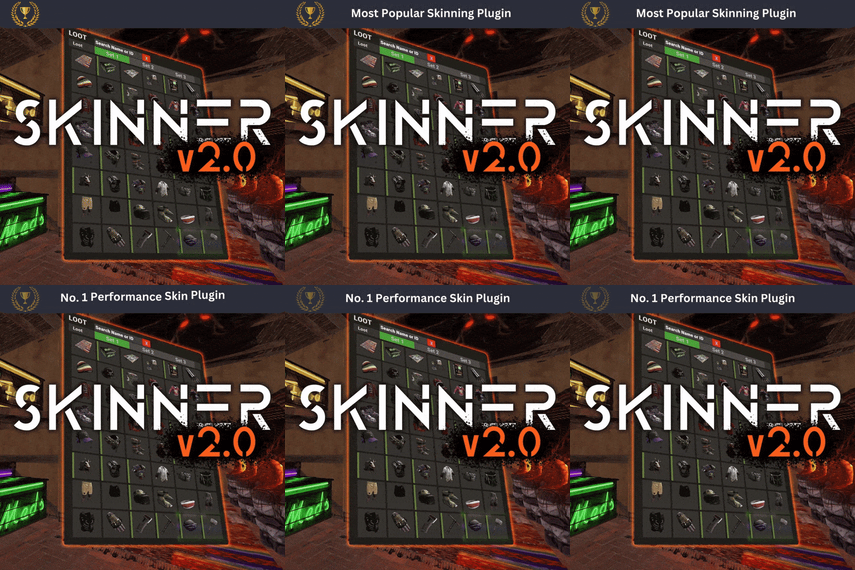
Skinner! The unrivaled no.1 performance skinning plugin. Skin any item in the game with a unique skinbox giving you live skinning, auto skinning and skin sets. Thanks for everyone who has given feed back through the duration of the beta release. Skinner 3.0 is finally here! Visual overhaul! - with dynamic UI menus for permission based player menus Automatic skin filtering and dev modes for new TOS Permission based skin sets Team share skins! Auto unlock owned skins! and More!!! Live Skinning - Skin items in place without moving them Auto import - Automatically import and use all game approved skins Skin Sets - Create a variety of different skin sets for any item Skin Requests - Allows players to request and Admins to accept new skins in game Auto Skins - Automatically apply selected skins to every item that enters your inventory     Skinner 2.0 offers unrivaled performance in plugin efficiency. Our standard testing shows runtime results were 60x faster and memory usage was 200x more efficient than the closest peforming plugin.   SkinMenu Commands: /Skin or /S  - Live skin any item in your inventory by selecting a skin you wish to apply /SkinCraft or /Sc - Create multiple skin sets for use in other functions such as skinauto or skinteam /Skinitem or /Si - Skin a deployable item you are looking at ingame. Args - Spectify 1, 2 or 3 to automatically use a skin set. Automatic Commands: /Skincon or /scon - sets all items in a container you are looking at to your default craft set Args - Optional, spectify 1, 2 or 3 to automatically use a skin set. /Skininv or /sinv - sets all items in your inventory to your default craft set Args - Optional, spectify 1, 2 or 3 to automatically use a skin set. /Skinauto or /Sauto - Automatically apply selected skins to every item that enters your inventory based off your skin sets. Args - Optional, spectify 1, 2 or 3 to automatically use a skin set. /Skinteam or /st - sets all items in your inventory and your teams to your default craft set Args - Optional, spectify 1, 2 or 3 to automatically use a skin set. Toggle - Use /skinteam toggle to opt in or out of the team skin set /SkinBase - Allows you to skin all deployables in your base to your default skincraft skins. Args - Optional, specify item name to filter items being skinned example: /Skinbase sleepingbag to only skin sleeping bags. /SkinAll Command - Skin all the items in all the containers in your base. Args - Optional, specify item by shortname example:   /SkinAll rifle.ak to only skin ak47's. Skin Import Commands: /Skinimport or /sip - Import custom workshop skins Args - WorkshopID example: /Skinimport 2397648701   /Colimport or /cip - Import custom workshop collection using /skinimport collectionID Args - Collection ID example: /Colimport 2921147807   /Skinrequest or /Sr - Request a skin to be added to skinner, requested skins will show in the /Skinrequests UI for approval Args - WorkshopID example: /Skinrequest 2397648701   /Skinrequests or /Srs - Opens the the skinner menu with a box of skins awating approval Button Usage - Select an option and remove the skin to enact the process Try - Recieve a copy of an item with that skin Approve - Adds the skin from the menu to the imported skins list Deny - Removes the skin Note: All chat commands are universal meaning they can be used via the console, rcon(for import commands) and can be customized via the configuration. Player Permissions: Skinner.default - enables /skin command Skinner.items - enables /skinitem command Skinner.craft - enables /skincraft command Skinner.skinauto - enables /skinauto command Skinner.skincon -  enables /skincon command Skinner.skininv - enables /skininv command Skinner.skinbase - for use of the /skinbase command Skinner.skinteam - Allows the use of the /skinteam command Skinner.skinall - for the use of the /skinall command Skinner.skinrequest - enables /skinrequest Cooldowns Permissions: Cooldown settins can be adjusted via the plugin config. Applying the cooldown permission example skinner.default30 will enforce cooldowns on those with the permission. If no cooldown permission is applied no cooldowns will be enforced. If multiple cooldown perms are assigned to a single player they fastest cooldown will be used. "Command based cooldowns ('permission' : 'command' seconds": { "Default30CD": { "skin": 30.0, "skinitem": 30.0, "skincraft": 30.0, "skincon": 30.0, "skininv": 30.0, "skinteam": 30.0, "skinbase": 60.0, "skinall": 60.0 } Admin Permissions: Skinner.import – enables /Skinimport,   /Colimport and /Skinrequests Skinner.bypassauth -   bypasses the building auth requirement when using /Skinitem Skinner.permskintry - enables try feature when using /Skinrequests Warning: trying a skin will make a copy of that item. Only give this perm to admins who are allowed to spawn items. Other Permissions: Skinner.skinautotoggled - applied when a player disables skinauto Skinner.skinteamblock - applied when a player disables team skins Skinner offers multiple ways of importing skins including via the config and through commands: Importing via the config: To import skins via the config insert workshopIDs into the imported skins list as per the code snippet below, once finished reload skinner and the shortname and displayname fields will be automatically populated. You can add extra skins at any stage using this method. "Imported Skins List": { "861142659": {}, "2617744110": {} },   Optionally entire workshop skin collections can be added to conifg, each item skin is automatically imported to your imported skins list on plugin load.   "Import Skin collections (steam workshop ID)": [496517795,2921147807], Importing via commands: Commands can be used to edit the config options for imported skins and collections via RCON, chat commands and the f1 console.   Commands include: /Skinimport WorkshopID /Colimport CollectionID Importing via Skin Requests: Players can requests skins to be added to the game using the skinrequests feature. By using the command /skinrequest WorkshoID a skin gets automatically uploaded to the skin requests box. Admins with the skinner.import permission can open the requests box with the /skinrequests command. Skins from the request box can then be "tried" approved or denied. Each skin requested can be logged to discord using the webhook   in the config. Importing from other plugins: Skinner now has a tool for windows to import data from skinbox, xskins and skincontroller. Simply select your json data file with imported skins into the tool and copy the new imported skins list into the skinner config. https://github.com/Whispers88/SkinDataConverter/releases/tag/Main   Note: The  "Imported Skins (skinid : 'shortnamestring', skinid2 : 'shortnamestring2'": {}" is now redundant and automatically converted to imported skins list. { "Skin Commands (skin items in you inventory": [ "skin", "s", "skinbox", "sb" ], "Skin Items Commands (skin items you have already placed": [ "skinitem", "si", "skindeployed", "sd" ], "Set default items to be skinned": [ "skincraft", "sc" ], "Automatically set all items in you inventory to your default skins": [ "skininv", "sinv" ], "Automatically set all items a container to your default skins": [ "skincon", "scon" ], "Automatically skin all deployables in your base": [ "skinbase", "skinbuilding" ], "Automatically skin all items in your base": [ "skinall", "sa" ], "Automatically skin all items that are moved into you inventory": [ "skinauto", "sauto" ], "Skin your teams inventories with your skin set": [ "skinteam", "st" ], "Request workshop skins via workshop ID": [ "skinrequest", "sr" ], "Approve workshop skin requests": [ "skinrequests", "srs" ], "Set your selected skin set": [ "skinset", "ss" ], "Import Custom Skins": [ "skinimport", "sip" ], "Import Workshop Collection Command": [ "colimport", "cip" ], "Skin Request Notification Discord Webhook": "", "Custom Page Change UI Positon anchor/offset 'min x, min y', 'max x', max y'": [ "0.5 0.0", "0.5 0.0", "198 60", "400 97" ], "Custom Searchbar UI Positon anchor/offset 'min x, min y', 'max x', max y'": [ "0.5 0.0", "0.5 0.0", "410 635", "572 660" ], "Custom Set Selection UI Positon anchor/offset 'min x, min y', 'max x', max y'": [ "0.5 0.0", "0.5 0.0", "250 610", "573 633" ], "Auto import approved skins": true, "Remove player data after inactivity (days)": 14, "Apply names of skins to skinned items": true, "Add Search Bar UI": true, "Use on itemcraft hook (skin items after crafting - not required when using skinauto)": false, "Override spraycan behaviour": false, "Use spraycan effect when holding spraycan and skinning deployables": true, "Blacklisted Skins (skinID)": [], "Blacklisted Itemms (itemID)": [], "Import Skin collections (steam workshop ID)": [], "Command based cooldowns ('permission' : 'command' seconds": { "Default30CD": { "skin": 30.0, "skinitem": 30.0, "skincraft": 30.0, "skincon": 30.0, "skininv": 30.0, "skinteam": 30.0, "skinbase": 60.0, "skinall": 60.0 } }, "Imported Skins List": {} } //Get all Cached skins public Dictionary<int, List<ulong>> GetAllCachedSkins() { return _cachedSkins; } //Check if skin is a Redirect item public bool IsRedirectID(ulong uID) { return HasMask(uID); } //Convert Redirect ID to item ID public int RedirectIDtoItemID(ulong uID) { return (int)UnsetMask(uID); } //Get a list of skins for a particular item public List<ulong>? GetSkinsItemList(int itemid) { _cachedSkins.TryGetValue(itemid, out List<ulong>? cachedSkins); return cachedSkins; }      
5.0
$32.99
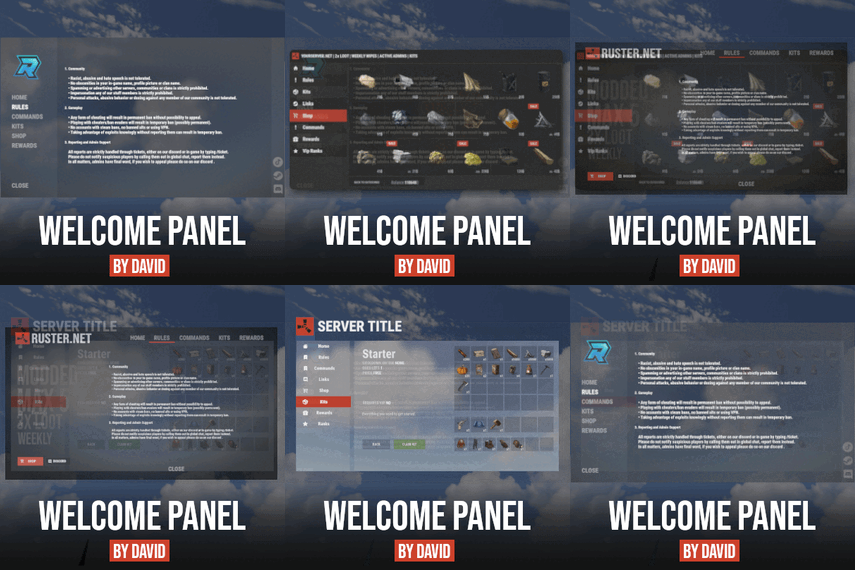
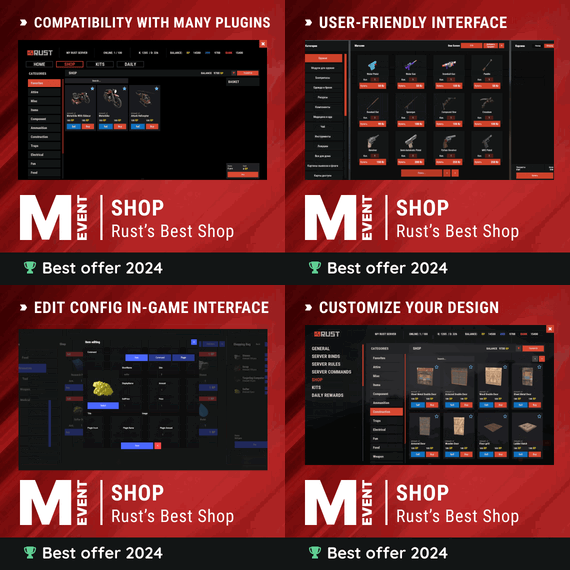
Well rounded shop, with various features. It's standalone plugin which is compatible with WelcomePanel, HumanNpc. This plugin also supports selling commands, wipe block, no escape, sales, permission access.   Multi-currency support Use different currencies for different items. Economics and ServerRewards (RP) is supported as well as scrap or any other ingame item.     Restrictions Combat, raid, spawn and building block supported alongside with  basic cooldowns and wipe block.   NoEscape is required for combat and raid block.       Appearance   Simple and clean design to ensure smooth user experience for your players.   Additionally Shop can be inserted into WelcomePanel to achieve "all in" server panel.   Customization Widely customizable and feature rich Shop which will  fit all needs of your community.         Field Tested Plugin made by experienced developer,  tested by hundreds of server owners and used by some big organizations.       Discord   Customer support available on discord,   Installation - unzip downloaded package and place Shop.cs file into your plugin folder. - after succesfuly loading the plugin, data folder oxide/data/Shop will be generated - take data files provided in plugin package and drop them into your Shop data folder After finishing these steps your shop is ready to used.         Server Currency   If you don't wish to use ingame items as currency make sure you use either Economics or ServerRewards as you currency management as only those two plugins are compatible with Shop. Default currency setting is Economics ("eco"), if you wish to change it navigate to "oxide/data/Shop/Items.json", open this file in some text editor (VSC recommended) and simply select "eco" and mass replace for desired value. (video here) "eco" for Economics "rp" for ServerRewards "scrap" or any other ingame item   Shop Categories To remove, change or add new categories open "oxide/data/Shop/Categories.json" file. There you will find all categories alongside with items lists. If you wish to remove certain items from category, just head over to item list and delete from there.   Items Changing prices In "oxide/data/Shop/Items.json" you will find every item with their properties, to quick search for specific items press "CTRL + F".  By leaving BuyPrice or SellPrice at 0 you will disable selling or buying of said item. Due to multi-currency support prices can be set only in whole numbers, no decimals. To offset for this, you can set minimal amount requirement. For example instead of selling one piece of wood for 0.01$ you can set minimal amount of  100x wood for 1$.   Removing items If you wish to remove some items from Shop, you can do that directly in  "data/Shop/Categories.json" file. Removing items from "Items.json" is not needed as they have no effect unless they are listed in some category. Adding new items To add new item you must first head over to "Items.json" data file and create new entry by copy pasting some of the existing ones. Once done with that you can add the  item into category. To add multiple versions of same item can be created by simply adding unique tag behind shortname, for example "rifle.ak{1}",  "rifle.ak{2}", etc...   Commands Adding new commands Commands can be create at "data/Shop/Commands.json". Plugin can only run server side console commands and then parse steam id or player name with tags {steamid} and {playername}. There are two examples shown in default data file. Server side console commands are common thing and almost all plugins utilize them. Listing commands in categories Simply type in one of your command names into category item list like this "cmd/yourCommandName". Slash cmd in front of command name is there to make difference between ingame item and command.   Cooldowns These are very basic, cooldown is triggered when buy/sell action is triggered. By using minimal amount requirement for items you can manage how much player buy and how often. Cooldowns are managed in "data/Shop/Cooldowns.json". Default data file contains two example of cooldowns but it's simply shortname and amount of seconds.     Restrictions Raid and Combat Block Managed by NoEscape plugin, option to enable these two block can be found in config file. Building Block Prevents players from using shop while they are building block, option can be found in config file. Spawn Block Prevents players from using shop after they respawn, amount of seconds can be set in config file, 0 = disabled. Wipe Block Prevents players from buying specific items after wipe. Settings are located in "data/Shop/ItemsWipeBlock.json", similar as cooldowns.   Sales By Permission (config file) Discount on every item in the shop assigned by permission, multiple permission can be created with their own discount values. By Category (categories data file) Discount for every item within specified category. By Item Discount for specific item in the shop. If item is already in discounted category, higher discount will be applied.   WelcomePanel integration To integrate this plugin into WelcomePanel simply use one of the four configs included in download package. These config were premade for each WelcomePanel template (goes from 1 to 4). In case you have own  highly customized layout for WelcomePanel you will have to adjust "Layout Container" in Shop config file by yourself.                  
4.9
sale
This is a custom package designed by us, featuring 210 unique bases and a specialized loot setup for five different difficulty levels, ranging from Easy to Nightmare. Note:  The building skins in the package showcase images may differ from the spawned bases or use the default building skin. This MEGA PACK is an upgraded version of the FullWiped-110 Bases + Loot Pack we previously offered. If you've already purchased the FullWiped-110 Bases + Loot Pack, you only need to buy the expansion pack, which includes 100 new bases ranging from Easy to Hard. Get it here:  https://codefling.com/bases/raidable-bases-pack-100-bases-expanded-package-from-easy-to-hard Warning: The Raidable Bases plugin requires the Copy Paste plugin to function. You must install both for this bases pack to work. 🔗Raidable Bases (Paid): https://codefling.com/plugins/raidable-bases 🔗Copy Paste (Free): https://umod.org/plugins/copy-paste This Raidable Bases Pack & Loot Tables package includes: 🏡70 Easy Bases            +🗡️Base_Loot Tables   (Easy "Vanilla" and "Enhanced" tables included) 🏡60 Medium Bases       +🗡️Base_Loot Tables   (Medium "Vanilla" and "Enhanced" tables included) 🏡60 Hard Bases            +🗡️Base_Loot Tables   (Hard   "Vanilla" and "Enhanced" tables included) 🏡10 Expert Bases          +🗡️Base_Loot Tables   (Expert "Vanilla" and "Enhanced" tables included) 🏡10 Nightmare Bases   +🗡️Base_Loot Tables   (Nightmare "Vanilla" and "Enhanced" tables included) Beware:   Our loot table package includes only the 5-tier loot tables within the Base_loot folder, ranging from easy to nightmare. It does not include the loot tables from the Difficulty_Loot or Weekday_Loot folders.   VANILLA AND ENHANCED LOOT TABLES FOR RAIDABLE BASES This package includes 10 different base loot table files, ensuring a well-structured and advanced configuration for every difficulty level, from Easy to Nightmare. - 5 loot files for the Vanilla setup (Easy, Medium, Hard, Expert, Nightmare), offering a balanced loot experience with some junk items, staying close to a 1x rate. - 5 loot files for the Enhanced setup (Easy, Medium, Hard, Expert, Nightmare), designed for modded servers with 2x, 3x, or higher gather rates, featuring cleaner loot tables with minimal junk and more valuable rewards. 📁Installation Path: All loot table files are intended for the 📁/oxide/data/RaidableBases/Base_Loot directory. ⚠️Setup Requirement: You must choose and install only one loot table setup at a time—either Vanilla or Enhanced. If you want to switch, you can replace the current files with the other set, but both cannot be active simultaneously. For those exclusively seeking the loot table, we offer it as a standalone product:  https://codefling.com/customizations/raidable-bases-loot-tables-pack (Note: If you've purchased our Raidable Bases Mega Pack & Loot Tables (210 Bases)  package, there is no need to buy this separately.) WARNING: TWO DIFFERENT INSTALLATION METHODS (PLEASE READ BOTH AND APPLY ONLY THE ONE THAT FITS YOUR NEEDS) ⚙️INSTALLATION GUIDE 1: (If you do not have a custom configuration and are not a professional in server configurations, choose this option. However, if you already have your own configuration and profile settings and do not wish to use the optional configs we provide—in other words, if you only need the bases and loot tables—use the second installation guide instead.) ▶  Step 1: Place the Config File From the extracted ZIP files, locate the config folder and find the RaidableBases.json file. Move it to the following directory: 📁/serverfiles/oxide/config ▶  Step 2: Place the Bases From the extracted ZIP files, locate the copypaste folder and move it to the following directory: 📁/serverfiles/oxide/data ▶  Step 3: Place the Base_Loot Tables From the extracted ZIP files, locate the Base_Loot folder and move it to the following directory: 📁/serverfiles/oxide/data/RaidableBases Important: If there are any existing JSON files inside this folder that are not part of our loot tables, delete them to ensure proper functionality. Choose between Vanilla or Enhanced loot tables based on your preference. If the folder is named "Base_Loot (Enhanced loot)", remove the text in parentheses so that the correct folder name is simply: "Base_Loot"   (Otherwise, the loot tables will not work properly.) ▶  Step 4: Place the Profiles Folder From the extracted ZIP files, locate the profiles folder and move it to the following directory: 📁/serverfiles/oxide/data/RaidableBases Why Are Profiles Important? The profiles folder contains crucial settings that allow you to: ✔️ Enable/disable the dome ✔️ Enable/disable NPCs ✔️ Adjust the number of lootable items These are just a few examples—there are dozens of important settings that directly affect how raid bases function. The config file alone is not enough—these files play a major role in customizing your raid bases. ⚡ I strongly recommend reviewing each difficulty setting (Easy to Nightmare) inside the profiles folder and adjusting them based on your needs. ▶  Step 5: Restart the plugin via RCON: o.reload RaidableBases ⚙️INSTALLATION GUIDE 2: (Use this installation method if you do not want to use our configurations and instead prefer to use your own config files and your own 📁/oxide/data/RaidableBases/Profiles configurations.) In this case, you only need to add the bases. To do this, use the following commands in RCON: ▶  Step 1:   You can add bases one by one or in bulk. After executing the commands in RCON, the bases will be registered inside the Profiles configuration. If you do not want to deal with these adjustments, it is recommended to use Installation Guide 1 instead. A- Example RCON commands:   rb.config add "Easy Bases" fullwipedeasy1 rb.config add "Hard Bases" fullwipedhard1 B- Commands to Integrate Raid Bases in Bulk via RCON: rb.config add "Easy Bases" fullwipedeasy1 fullwipedeasy2 fullwipedeasy3 fullwipedeasy4 fullwipedeasy5 fullwipedeasy6 fullwipedeasy7 fullwipedeasy8 fullwipedeasy9 fullwipedeasy10 fullwipedeasy11 fullwipedeasy12 fullwipedeasy13 fullwipedeasy14 fullwipedeasy15 fullwipedeasy16 fullwipedeasy17 fullwipedeasy18 fullwipedeasy19 fullwipedeasy20 fullwipedeasy21 fullwipedeasy22 fullwipedeasy23 fullwipedeasy24 fullwipedeasy25 fullwipedeasy26 fullwipedeasy27 fullwipedeasy28 fullwipedeasy29 fullwipedeasy30 fullwipedeasy31 fullwipedeasy32 fullwipedeasy33 fullwipedeasy34 fullwipedeasy35 fullwipedeasy36 fullwipedeasy37 fullwipedeasy38 fullwipedeasy39 fullwipedeasy40 fullwipedeasy41 fullwipedeasy42 fullwipedeasy43 fullwipedeasy44 fullwipedeasy45 fullwipedeasy46 fullwipedeasy47 fullwipedeasy48 fullwipedeasy49 fullwipedeasy50 fullwipedeasy51 fullwipedeasy52 fullwipedeasy53 fullwipedeasy54 fullwipedeasy55 fullwipedeasy56 fullwipedeasy57 fullwipedeasy58 fullwipedeasy59 fullwipedeasy60 fullwipedeasy61 fullwipedeasy62 fullwipedeasy63 fullwipedeasy64 fullwipedeasy65 fullwipedeasy66 fullwipedeasy67 fullwipedeasy68 fullwipedeasy69 fullwipedeasy70 rb.config add "Medium Bases" fullwipedmed1 fullwipedmed2 fullwipedmed3 fullwipedmed4 fullwipedmed5 fullwipedmed6 fullwipedmed7 fullwipedmed8 fullwipedmed9 fullwipedmed10 fullwipedmed11 fullwipedmed12 fullwipedmed13 fullwipedmed14 fullwipedmed15 fullwipedmed16 fullwipedmed17 fullwipedmed18 fullwipedmed19 fullwipedmed20 fullwipedmed21 fullwipedmed22 fullwipedmed23 fullwipedmed24 fullwipedmed25 fullwipedmed26 fullwipedmed27 fullwipedmed28 fullwipedmed29 fullwipedmed30 fullwipedmed31 fullwipedmed32 fullwipedmed33 fullwipedmed34 fullwipedmed35 fullwipedmed36 fullwipedmed37 fullwipedmed38 fullwipedmed39 fullwipedmed40 fullwipedmed41 fullwipedmed42 fullwipedmed43 fullwipedmed44 fullwipedmed45 fullwipedmed46 fullwipedmed47 fullwipedmed48 fullwipedmed49 fullwipedmed50 fullwipedmed51 fullwipedmed52 fullwipedmed53 fullwipedmed54 fullwipedmed55 fullwipedmed56 fullwipedmed57 fullwipedmed58 fullwipedmed59 fullwipedmed60 rb.config add "Hard Bases" fullwipedhard1 fullwipedhard2 fullwipedhard3 fullwipedhard4 fullwipedhard5 fullwipedhard6 fullwipedhard7 fullwipedhard8 fullwipedhard9 fullwipedhard10 fullwipedhard11 fullwipedhard12 fullwipedhard13 fullwipedhard14 fullwipedhard15 fullwipedhard16 fullwipedhard17 fullwipedhard18 fullwipedhard19 fullwipedhard20 fullwipedhard21 fullwipedhard22 fullwipedhard23 fullwipedhard24 fullwipedhard25 fullwipedhard26 fullwipedhard27 fullwipedhard28 fullwipedhard29 fullwipedhard30 fullwipedhard31 fullwipedhard32 fullwipedhard33 fullwipedhard34 fullwipedhard35 fullwipedhard36 fullwipedhard37 fullwipedhard38 fullwipedhard39 fullwipedhard40 fullwipedhard41 fullwipedhard42 fullwipedhard43 fullwipedhard44 fullwipedhard45 fullwipedhard46 fullwipedhard47 fullwipedhard48 fullwipedhard49 fullwipedhard50 fullwipedhard51 fullwipedhard52 fullwipedhard53 fullwipedhard54 fullwipedhard55 fullwipedhard56 fullwipedhard57 fullwipedhard58 fullwipedhard59 fullwipedhard60 rb.config add "Expert Bases" fullwipedexp1 fullwipedexp2 fullwipedexp3 fullwipedexp4 fullwipedexp5 fullwipedexp6 fullwipedexp7 fullwipedexp8 fullwipedexp9 fullwipedexp10 rb.config add "Nightmare Bases" fullwipednight1 fullwipednight2 fullwipednight3 fullwipednight4 fullwipednight5 fullwipednight6 fullwipednight7 fullwipednight8 fullwipednight9 fullwipednight10 ▶  Step 2: Place the Base_Loot Tables From the extracted ZIP files, locate the Base_Loot folder and move it to the following directory: 📁/serverfiles/oxide/data/RaidableBases Important: If there are any existing JSON files inside this folder that are not part of our loot tables, delete them to ensure proper functionality. Choose between Vanilla or Enhanced loot tables based on your preference. If the folder is named "Base_Loot (Enhanced loot)", remove the text in parentheses so that the correct folder name is simply: "Base_Loot"   (Otherwise, the loot tables will not work properly.) ▶  Step 3: Restart the plugin via RCON: o.reload RaidableBases EXTRA IMPORTANT INFORMATIONS: We do not use a dome, NPCs, or arena walls around raid bases on our servers, and in the ZIP file we provided, these features are also disabled by default. If you want to enable them, you will need to adjust the settings accordingly. For example, to enable the dome, follow the steps below: Navigate to: 📁/oxide/data/RaidableBases/Profiles Open the files inside the Profiles folder with a text editor. Locate the following settings: (This is already set to false because it is required for markers to appear on the map.) "Spawn Silently (No Notification, No Dome, No Map Marker)": false, "Create Dome Around Event Using Spheres (0 = disabled, recommended = 5)": 0, Change the value from 0 to 5 as shown below: "Create Dome Around Event Using Spheres (0 = disabled, recommended = 5)": 5, Additionally, the loot amount for bases varies depending on the difficulty level (easy, medium, hard, expert, and nightmare). You can adjust this setting in the same Profiles location according to your needs: "Amount Of Items To Spawn": 210, For example, in medium bases, this value is set to 210, which determines the total number of items that will appear in crates, furnaces, and the cupboard. Our current configuration is specifically adjusted to prevent players from feeling overwhelmed by massive buildings right after a wipe. We have configured Maintained Events accordingly to ensure a balanced experience. In our setup: - Timed events and purchasable events are disabled. - After a wipe, easy bases will start spawning 30 minutes later. - Nightmare bases will begin spawning 48 hours (2 days) later. Imagine starting the game with just a torch in hand and immediately encountering a nightmare base on the shore. You’d likely quit the game right away—this setting is crucial for us to avoid such scenarios. Configuration Example: 📁/serverfiles/oxide/config "Maintained Events": {   "Always Maintain Max Events": true,   "Max Maintained Events": 30,   "Enable X Hours After Wipe (0 = immediately)": {     "Easy": 0.5,     "Medium": 1.0,     "Hard": 3.0,     "Expert": 24.0,     "Nightmare": 48.0        All of our bases from Easy to Nightmare are equipped with turret protection. If you do not want turrets to spawn in your raidable bases on your server, you can use the following method. Go to the file path /data/RaidableBases/Profiles, open the JSON files inside with a text editor, and apply the following:   "Kill These Prefabs After Paste": [     "assets/prefabs/npc/autoturret/autoturret_deployed.prefab",     "autoturret_deployed" ], If you are satisfied with this package, you can support us by leaving a 5-star review on the site where you purchased it. Your feedback motivates us to continue improving and providing even better configurations for dedicated server owners like you. Thank you!  ❤️    
5.0
This is The Earth Apocalypse, the most known custom map in Rust history, now available on Codefling ! This map has been showcased and played by Facepunch themselves, along with many youtubers such as Frost, hJune and more who made movies/livestreams and videos on it ! The map constantly receive new updates to keep in line with new rust contents.   NEW UPDATE, Version R1365 :  MAJOR MAP OVERHAUL : CLIFF, ROCKS, LAKES, JUNGLE !               The Earth – Apocalypse by Keirox. The craziest rust custom map ever made. Years of hardwork. This map features a post-apocalyptic city, many unique monuments, crazy electricity puzzles, custom caves, and much more… So many places to explore and great things to experience. When this map released it was an huge earthquake to the custom map world thanks to it’s endless amount of content and awesome builts, and it inspirated a lot of people. This map has also been showcased by Facepunch and multiple youtubers.       https://youtu.be/ZHHAceDvsGk – Map Size :  5800 (Ocean) Terrain equal to 3500km – Monuments : Launch Site, Harbor, The Dome, Super Market, Compound,   Giant Excavator, Large Oil Rig, Submarine Labs, Fishing Villages, Farm, Missile Outpost, Nuclear Silo, Ferry, Oil Rig, Radtown – Custom : Installation 07, AC-130 Hangar, The Golden Gate Bridge, AC-130 Crash Site, Apocalyptic City, Infected Scientist Bunker, Mariana Trench, Abandonned Outpost, Custom Caves, Sea Safezone, and more. Performance is on point and everything is setup for vanila gameplay. BotRespawn and Kits data included for optimal experience. Prefabs count : 72,500 Keirox Custom Maps Discord : https://discord.gg/GXz2v7K3FJ Keirox Custom Maps Website : https://rust-keiroxcustommaps.com/  
5.0
sale
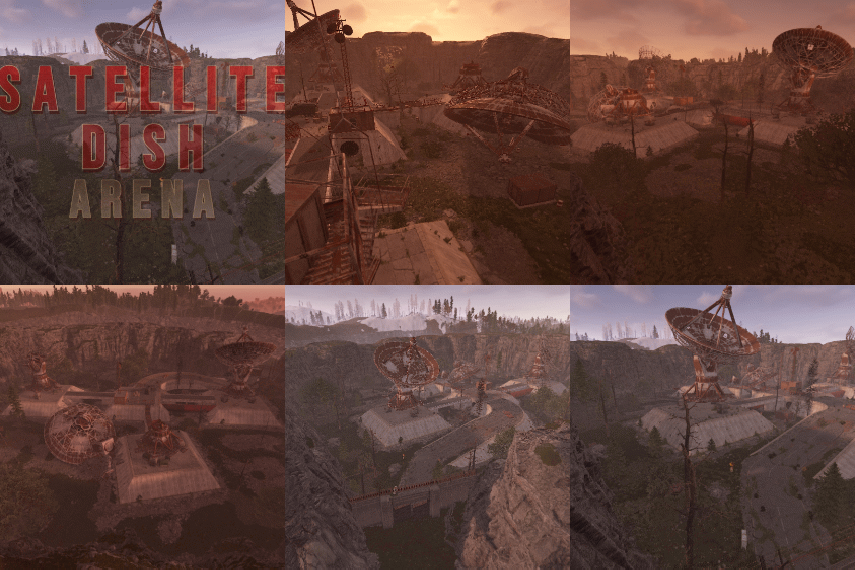
The Monument Events plugin creates amazing events on the monument from preconfigured presets from config. It creates CustomNPCs around the monument which will roam the monument during the event. Then it will spawn CH47 Helicopter which will drop Hackable crates & spawn configured Patrol Helicopters which will roam the monument vicinity. When players try to unlock the Hackable Crate there will be a  CH47 Helicopter which will carry NPC and drop on the monument and will give players an amazing raged experience. ⭐ Key Features 10+ Monument  preset preconfigured (Radtown, Oxum's Gas Station, Abandoned Supermarket, Water Treatment Plant, Power Plant, Ferry Terminal, Small Harbor, Large Harbor, Junkyard, The Dome, Airfield, Train Yard, Satellite Dish, Sewer Branch, Launch Site) PVE/PVP support  Easy setup everything is pre-configured, so drag and drop and it will auto start from the selected time Massive configure option for individual  monuments (Except a few not added) Monument Owner control based on damage Amazing event for engaging players with monuments 📌 Commands /mestart Preset_Name | monumentID - Starts any specific event  (Console & Chat command) /mestop Preset_Name | monumentID - Stops the event  (Console & Chat command) /melist - Shows all available monument events on the map /mestartrandom - Starts a random from presets (Console & Chat command) /meadd edit  PRESET_NAME -  Select a monument for editing spawn points (Chat command) /meadd  npcspawn -  Creates NPC spawn points for the selected monument  (Chat command) /meadd  wavespawn -  Creates Wave Npc spawn points for the selected monument  (Chat command) /meadd  cratespawn -  Creates Crates  spawn points for the selected monument  (Chat command) /meadd stopedit -  Deselect the current editing monument  (Chat command) 📜 Permissions MonumentEvents.admin - Permission required for using commands 🎬 Video Showcase   ⚙️ Configuration 🚀 API & Hooks 💬 Support  
4.8
$29.99
Basements lets players build underground rooms beneath their bases. Place a hatch on your foundation and dig straight down into a hidden basement with walls, ceilings, and full building privileges. Great for stashing loot, setting up secret bunkers, or just adding extra space. Readme Link - Click Here for Instruction and Documentation 👆Highly recommend reading the FAQ section! BUILD Build basements easily from your tool cupboard. Just place an entrance to get started.  EXPAND Expand your basement by drilling underground. But don't forget to bring a headlamp - its dark down there! TRAVERSE Place multiple entryways, building out your labyrinth of tunnels beneath your base.  DECORATE All deployables, electricity, and storage items can be placed in your basement. Take advantage of your new space! RAID Nothing is safe in Rust, including your basement. If all the entrances are destroyed, then the basement is too. Any loot below will float to the surface. Protect the entrance at all costs! API METHODS (For Plugin Developers) // Returns true if the given entityId is part of a basement. bool IsBasementEntity(ulong entityId) // Returns the building ids of the basements connected to a given surface building id. uint[] GetBasementBuildingIds(uint surfaceBuildingId) // Returns the building ids of the surface buildings connected to a given basement building id. uint[] GetSurfaceBuildingIds(uint basementBuildingId) Extension Plugins These are free plugins that add additional functionality to Basements. BasementsManager Provides a UI for admins to view and manage the basements on the server. Useful for debugging & fixing issues. Use with the /bm command, requires the basements.admin permission to use. BasementsManager.cs
4.9
Community Picks
Highest Rated
Top-rated picks trusted and loved by the community.
Trending
Trending Files
Popular picks members are downloading the most right now.
Deals
Great Deals
Discounted picks, limited-time deals, and sale items worth grabbing now.
Community Feedback
Latest Reviews
See what customers are saying about the latest files and updates.
⭐⭐⭐⭐⭐ I've been waiting a long time for something like this. Thank you 
⭐⭐⭐⭐⭐ It took me quite a while to set everything up, but once it’s done, it’s definitely worth it. The system continues to work reliably even after server restarts or map changes, and you don’t have to reconfigure it every time. I give it 5 stars. Right now, I can’t think of anything that needs improving. It helps give certain items on my server a higher value. I’m not using the Money Wash dealer right now, but I’m thinking about switching my entire custom currency to Golden Scrap soon,
love this map brilliant with the naval update. well done  
Great plugin.  We use it on our build server.  Thank you so much!  Note that creative.allusers must be turned OFF server-wide.  Then, you must turn on the convars you'd like for users to be able to use:  e.g. creative.freeplacement, creative.freebuild, creative.unlimitedio - all of these server-wide.  After that. this plugin allows users to simply toggle on/off "Creative Mode", which enables those things you've set as "on" (e.g. creative.freeplacement). This took me several hours of "R
The best plugin of its kind. I tried similar ones before, but after using them I always ended up wanting to do everything manually. This one works with almost all platforms that sell plugins. It sends notifications to both the console and a Discord channel. In Discord it doesn’t spam — it simply edits one message, which is very convenient. It provides extremely useful information: you can set the check frequency, it tells you which plugins need updating, and shows both the insta
Mornin all, got to say after downloading this on my new up and coming server. Reading through post on discussions to make sure I had everything set. Its working GREAT. LIke someone else mentioned in here, I thought all my plugins was updated but found at least 14 that wasnt. Was skeptical they actually needed update but went and verified. Yep, they was out dated. No no longer going to each web page, looking for the update, having several plugins that each one checked only one site and to have mu
Flawless, like all the author's works. Operational support. Dilute the boring Rasta gameplay and let your players feel like superheroes. An excellent plugin that will add even more variability to survival.
Great plugins my players love it. If you could make one where players can build taller or bigger boat that would be Fire.
Awesome looking map. I'm new to custom maps but I was under the impression it was finished seeing it cost more than the game itself. First 5 min I jump through a  second story window from some conveniently place tires at a research base and there was no way out. I opened a few doors only for the windows of a clipped building to be there leaving me no options to get out of the building. Lots of things like this were discovered. Wish I could've demo'd it first. I appreciate the effort and realize
Great plugin! A bunch of config options, nice UI and great support.
2.3m

Downloads

Total number of downloads.

10.6k

Customers

Total customers served.

153.4k

Files Sold

Total number of files sold.

3.3m

Payments Processed

Total payments processed.

×
×
  • Create New...

Important Information

We have placed cookies on your device to help make this website better. You can adjust your cookie settings, otherwise we'll assume you're okay to continue.