
SoftArmy's Wishlist
-
$35.00
Better Npc
This plugin adds variety of NPC sets with very high number of parameter sets on standard and custom monuments. Also it is added during dropping the server AirDrop, locked crate and destroying a tank or helicopter
Dependencies (optional, not required)
AlphaLoot CustomLoot True PVE Kits Economics Server Rewards IQEconomic PveMode
Custom maps
Maps that have default settings for their custom monuments. For these maps, you will not need to create places for the appearance of NPCs, they have already been created by the map developer and are located inside the archive when buying the map
You can also download all these files for all maps here
Detroit: Irreparable Damage Oregon 2: Last Hope Lostly Island Frontier – American Old West Oregon: Land of Dead Badlands Foreign Lands Namalsk Kong: Skull Island Destroyed World Deathland Dreamland Last Train Pandora Railway Island Wasteland Cataclysm: Fury of Nature Last Oasis Crazy Island
Standard monuments
This item of the plugin settings is used for appearing NPCs in all standard monuments. All these settings are located in the Monument folder (oxide/data/BetterNpc/Monument). Each file in this folder corresponds to a standard monument
If there is no standard monument file in the folder, you can create it (you need to name the file the same way as the standard monuments on the map inside the game). You can copy the settings from any other standard monument
Configuration parameters:
Enabled? [true/false] – It allows to enable/disable the appearance of NPC on the monument. If you need NPCs appearing on the map and don’t need it on another map, you can use this option simply The size of the monument – this parameter contains two values. It is the length and width of the monument. This parameter is necessary for random appearance of NPC on the monument and indication of limits of removal of standard NPCs on the monument (if it is necessary) Remove other NPCs? [true/false] – It deletes the standard NPCs inside the limits of this monument Presets – It is a list of all the NPC presets to appear on the monument (the description of the NPC preset settings is located below)
Custom monuments
This item of the plugin settings is responsible for the appearance of NPCs on custom monuments. All these settings are located in the Custom folder (oxide/data/BetterNpc/Custom). Each file in this folder corresponds to a custom monument
If you have bought a map with already configured NPC appearance files for custom monuments you will copy these files into the Custom folder. If you want to create and configure the appearance of NPC in your custom location on the map, you will use the command in the administrators’ chat /SpawnPointAdd {name} (see the description of this command below in the instruction)
Configuration parameters:
Enabled? [true/false] – It allows to enable/disable the appearance of NPC on the monument. If you need NPCs appearing on the map and don’t need it on another map, you can use this option simply Position – It is a position of the custom monument on the map Rotation – It is a rotation of the custom monument on the map (this parameter is necessary for using custom places to appear of NPC on the monument, if the monument is used on more than one map) Radius – It is the radius of the custom monument from the position on the map Remove other NPCs? [true/false] – It removes the standard NPCs inside the limits of this monument Presets – It is a list of all the NPC presets to appear on the monument (the description of the NPC preset settings is located below)
Roads
This item of the plugin settings is used to appear NPCs on all types of roads. All these settings are located in the Road folder (oxide/data/BetterNpc/Road). Each file in this folder corresponds to a particular road type
ExtraNarrow – It is a narrow, unpaved walkway
ExtraWide It is a wide, paved, two-lane, beltway road
Standard – It is a regular, paved road
Configuration parameters:
Enabled? [true/false] – It allows to enable/disable the appearance of NPC on the road. If you need NPCs appearing on the map and don’t need it on another map, you can use this option simply Presets – It is a list of all the NPC presets to appear on the road (the description of the NPC preset settings is located below)
Biomes
This item of the plugin settings is used to appear NPCs on all types of biomes. All these settings are located in the Biome folder (oxide/data/BetterNpc/Biome). Each file in this folder corresponds to a particular biome type (Arctic, Arid, Temperate, Tundra)
Configuration parameters:
Enabled? [true/false] – It allows to enable/disable the appearance of NPC on the biome. If you need NPCs appearing on the map and don’t need it on another map, you can use this option simply Presets – It is a list of all the NPC presets to appear on the biome (the description of the NPC preset settings is located below)
In-game events
This item of the plugin settings is used to appear the NPCs in standard Rust events. All of these settings are located in the Event folder (oxide/data/BetterNpc/Event). Each file in this folder corresponds to its own type of event
The supported events:
When the plane drops the server AirDrop, it will be guarded by specific NPC presets
CH47 – When the chinook drops a locked crate during patrolling the map, it will be guarded by specific NPC presets
Bradley – When someone destroys a tank, its crates will be guarded by specific NPC presets
Helicopter – When someone shoots down a patrol helicopter, its crates will be guarded by specific NPC presets
Configuration parameters:
Enabled? [true/false] – It allows to enable/disable the appearance of NPC on the event. If you need NPCs appearing on the map and don’t need it on another map, you can use this option simply Radius – NPC appearance radius Presets – It is a list of all the NPC presets to appear on the event (the description of the NPC preset settings is located below)
The NPC preset parameters
Enabled? [true/false] – It is enabling/disabling the preset Minimum numbers – Day – It is the minimum number of NPCs from the day preset Maximum numbers – Day – It is the maximum number of NPCs from the day preset Minimum numbers – Night – It is the minimum number of NPCs from the night preset Maximum numbers – Night – It is the maximum number of NPCs from the night preset NPCs setting – It is all NPC settings of this preset (see the description of NPC settings for details) Type of appearance (0 – random; 1 – own list) – It is a type of NPC appearance. You can create your own list of places of NPC appearance. The NPC will appear only randomly. This parameter is not used in Road appearance types Own list of locations – It is your own list of NPC appearances. You need to use the number of locations at least the maximum possible number of NPCs in this preset. This parameter is not used in Road appearance types The path to the crate that appears at the place of death – It is the full path to the crate prefab that appears at the place of death of an NPC. If you don’t need this parameter, you should leave this blank Which loot table should the plugin use (0 – default; 1 – own; 2 – AlphaLoot; 3 – CustomLoot; 4 – loot table of the Rust objects; 5 – combine the 1 and 4 methods) – It is the type of the NPC loot table in this preset. Type 5 includes two types (1 and 4) at the same time and locates items from both types Loot table from prefabs (if the loot table type is 4 or 5) – It is a setting of the loot tables from Rust objects. You can see the loot table of Rust objects description for more details Own loot table (if the loot table type is 1 or 5) – It’s NPC’s own loot table. You can see the description of your own loot table for more details
The NPC settings description
Names is a list of NPC names. It is selected from the list randomly Health – It’s the HP amount of the NPC Roam Range – It’s the patrolling area distance. It’s the distance that the NPC can move from the place of appearance during patrolling Chase Range – It’s the chase range of the target. It’s the distance that the NPC can chase his target from the place of appearance Attack Range Multiplier – It’s the attack range multiplier of the NPC’s weapon Sense Range – It’s a target detection radius Target Memory Duration [sec.] – It’s the time that the NPC can remember his target Scale damage – It’s the damage multiplier from NPC to the player Aim Cone Scale – It’s the spread of NPC shooting, the default value in Rust is 2. It doesn’t take negative values Detect the target only in the NPCs viewing vision cone? [true/false] – It’s the parameter that allows detecting the target only in a certain NPC viewing. If you want to detect the target in 360 degrees, you will set the parameter "False” Vision Cone – It’s the NPC viewing. The range of values is from 20 to 180 degrees. If the previous parameter is False, this parameter is not used Speed – It’s the NPC speed. The default value in Rust is 5 Minimum time of appearance after death [sec.] – It’s the minimum time of NPC appearance after the death. This parameter is not used in the NPC Event places Maximum time of appearance after death [sec.] – It’s the maximum time of NPC appearance after the death. This parameter is not used in the NPC Event places Disable radio effects? [true/false] – You can disable/enable radio effects Is this a stationary NPC? [true/false] – If this parameter is True, the NPC will not move or run Remove a corpse after death? [true/false] – This parameter can control the deleting of NPC corpses (only backpacks are left). This parameter improves efficiency if there are a lot of NPCs Wear items – It’s a list of NPCs’ clothes and armor Belt items – It’s a list of weapons and items NPCs’ fast slots. Medical syringes are used for healing. If you give grenades to an NPC, he will use them. Smoke grenades are used for creating smoke screens (if you don’t need them, you should remove them from your inventory). If you give a Rocket Launcher to an NPC, he will raid the target’s building (if the target is inside it) Kits – It gives a pack of Kits plugin. If you don’t need this parameter, you should leave this blank. I recommend using the previous 2 points to configure NPC items
A description of the Rust loot table settings
Minimum numbers of prefabs –It’s the minimum numbers of prefabs that are needed to appear in the NPC loot table Maximum numbers of prefabs –It’s the maximum numbers of prefabs that are needed to appear in the NPC loot table Use minimum and maximum values? [true/false] – this parameter specifies whether to use the minimum and maximum numbers to limit the number of items List of prefabs – It’s a list of prefabs that need to add in the loot table. It is necessary to indicate the full path to the prefab and the probability of falling out this prefab
A description of the own loot table settings
Minimum numbers of items – It’s the minimum number of items Maximum numbers of items – It’s the maximum number of items Use minimum and maximum values? [true/false] – this parameter specifies whether to use the minimum and maximum numbers to limit the number of items List of items – It’s a total list of all items that can fall out in the NPC loot table. You can specify any standard items, their blueprints and any skinned or custom items
The commands in the chat (for admins only)
/SpawnPointPos {name} – To show the local admin’s position coordinates relative to the place where the NPC {name} appears
/SpawnPointAdd {name} – To create the NPC appearance point {name} in the Admin’s custom coordinates. A file with this name will be created in the folder Custom and you can configure it as you need
/SpawnPointAddPos {number} {name} – To write the local admin’s coordinate into the preset with the positional number {number} (starting from 1) to the place where the NPC {name} appears
/SpawnPointAddWear {number} {name} – To write all the admin’s dressed clothes into the preset with the positional number {number} (starting from 1) to the place where the NPC {name} appears
/SpawnPointAddBelt {number} {name} – To write all the admins’ quick slots cells into a preset with the positional number {number} ( starting from 1) to the place where the NPC {name} appears
/SpawnPointShowPos {number} {name} – To show to the Admin all the custom NPC appearance points in the preset with the positional number {number} ( starting from 1) in the place where the NPC {name} appears
/SpawnPointReload {name} – Reload Spawn Point with the name {name}
Console commands (RCON only)
ShowAllNpc – Shows the number of all NPCs of the BetterNpc plugin on your server
Hooks
object CanAirDropSpawnNpc(SupplyDrop supplyDrop) – It is called before an NPC appearance to guard an AirDrop. The returning of a non-zero value stops an NPC appearance
object CanCh47SpawnNpc(HackableLockedCrate crate) – It is called before an NPC appearance to guard a locked chinook crate. The returning of a non-zero value stops an NPC appearance
object CanBradleySpawnNpc(BradleyAPC bradley) – It is called before an NPC appearance to guard the boxes from crushed Bradley. The returning of a non-zero value stops an NPC appearance
object CanHelicopterSpawnNpc(BaseHelicopter helicopter) – It is called before an NPC appearance to guard the crates from crushed patrol helicopter. The returning of a non-zero value stops an NPC appearance
API
void DestroyController(string name) – It destroys the place of appearance NPC with the name {name}
void CreateController(string name) – It creates the place of appearance NPC with the name {name}
These APIs can be used with standard monuments, custom monuments (NPC locations) and roads. The name of this monument is in standard monuments {name}. It is the name of the file in the Custom and Road folder in custom monuments and roads
My Discord: KpucTaJl#8923
Join the Mad Mappers Discord here!
Check out more of my work here!
Creator of the default configuration – jtedal
-
$12.99
Auto Codelock
By xNullPointer95 in Plugins
xAutoCodelock
xAutoCodelock enhances the building experience by intelligently automating one of the most repetitive tasks in Rust - managing code locks. By automatically placing, configuring, and securing locks using each player’s personal PIN, the plugin removes friction without altering the core gameplay balance.
Players can focus on building, defending, and progressing, while their base security is handled smoothly in the background.
⭐ Features
🔐 Automatic Code Lock Placement (Configurable)
Automatically places a code lock when players build deployables with lock slots (Door etc.). Toggle if code lock item is required or not 🔢 Personal Auto PIN System
Players set a 4-digit PIN once - All future locks use it automatically. 🔒 Auto Lock Newly Placed Locks (Configurable)
Newly created locks are instantly locked for security. 🏠 Tool Cupboard Requirement (Configurable)
Can require building privilege before automation triggers. 👥 Team Access Control (Configurable)
Option to allow or require team members to enter codes. 🛡️ Permission based usage (Configurable)
Control who can use auto codelock via permissions. 👮 Admin Inspect Command
Admins can check player PIN status and if player has permission to use xAutoCodelock. 💾 Persistent PIN Storage
Player PINs saved across restarts. 🧹 Optional Wipe Reset
Automatically clears PIN data on map wipe if enabled.
🎬 Plugin Preview
💬 Player Commands
/xpin 1234 → Set your auto PIN /xpin remove → Remove saved PIN /xpin → Show current PIN 💬 Admin Command
/xpin check <player name or steamid>
🔑 Permissions
xautocodelock.use - Required to use '/xpin' command xautocodelock.admin - Required for the '/xpin check' command
⚙️ Config
{ "CommandSetPin": "xpin", "RequirePermission": true, "PermissionUse": "xautocodelock.use", "PermissionAdminInspect": "xautocodelock.admin", "AutoLockNewCodeLocks": true, "AutoPlaceCodeLocks": true, "AutoGenerateCodeIfNotSet": true, "RequireCodelockItem": true, "RequireToolCupboard": true, "RequireCodeForTeamMembers": true, "ResetDataOnWipe": false }
🌎 Language
{ "NoPermission": "You don't have permission to use this command.", "CommandUsage": "Usage: /{0} 1234 or /{0} remove\n» Current PIN: {1}", "PinNotSet": "NOT SET", "PinRemoved": "Auto PIN removed.\n» New code locks will no longer be configured automatically.", "NoSavedPin": "You don't have a saved auto PIN.", "NoSavedPinAutoGenerateDisabled": "You don't have a saved auto PIN.\n» Set one with /{0} 1234.", "InvalidPin": "PIN must be exactly 4 digits (0000 - 9999).", "PinSet": "Auto PIN set.\n» Newly placed code locks will be automatically locked with your PIN.", "PinAutoGenerated": "No auto PIN was set, so one was generated for you: {0}\n» Use /{1} <pin> to change it.", "InspectUsage": "Usage: /{0} check <player name or steamid>", "InspectPlayerNotFound": "Player not found: {0}", "InspectMultiplePlayers": "Multiple players matched: {0}. Use full name or SteamID.", "InspectSummary": "Inspect: {0} ({1})\nSaved PIN: {2}\nHasPermission: {3}" } -
$9.99
Easy Sailing
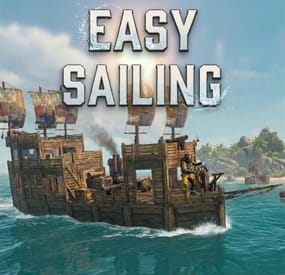
Easy Sailing gives you full control of the sails, engines, and anchors directly from the steering wheel.
Take full command of the seas without ever leaving the wheel.
Easy Sailing is the essential quality-of-life plugin for the Rust Naval Update. It overhauls the default boat controls, allowing captains to manage sails, engines, and anchors directly from the steering wheel. Whether you are a solo player trying to manage a large vessel or a clan captain needing immediate reaction times, Easy Sailing puts the control back in your hands.
⚓ KEY FEATURES
No more running around the deck to manually adjust sails or engines. Do it all from the pilot's seat. Smart Cycling: Intuitive forward and reverse throttle controls that intelligently manage your propulsion methods. Solo Friendly: Makes operating larger player-made boats viable for solo players or small groups. Hybrid Propulsion: Seamlessly blends sail power and engine power for maximum fuel efficiency or maximum speed. Adds tighter turn radius with Ctrl similar to the Tugboat. Optionally allow engines to run without the need for Low Grade Fuel.
⚙️ HOW IT WORKS
Easy Sailing maps the boat's complex mechanics to your standard movement keys `Forward`, `Backward` and `Reload` (Anchor Control) key while mounted at the steering wheel.
THE SPEED CYCLE
Pressing `Forward` (W) and `Backward (S)` cycles through five distinct states: Idle (default), Sailing, Full Speed, Reverse, Full Reverse.
Idle: All propulsion is cut. Sails are raised and engines are turned off.
FORWARD THROTTLE:
Sailing Mode: Sails are lowered to catch the wind. Engines remain off for silent, fuel-free cruising.
Full Speed Mode: Sails remain lowered, and all available engines ignite for maximum thrust.
REVERSE THROTTLE:
Reverse Mode: Sails are lowered and reversed, engines are cut.
Full Reverse Mode: Sails are lowered and reversed, and all available engines ignite in reverse for maximum backward thrust.
Holding Ctrl while turning can allow for a tighter turn radius similar to the Tugboat.
ANCHOR CONTROL
Pressing `Reload` (R) while at the steering wheel will raise or lower the anchor.
PERMISSIONS
easysailing.use: Required for players to use Easy Sailing.
easysailing.freefuel: Bypasses the need for low grade fuel in boat engines.
CONFIGURATION
Show Vital Info (Shows boat info in vitals): Shows your current direction (Reverse, Idle, Sailing, Full Speed) and speed in a Custom Vital.
Enable Drift Mode (Hold Ctrl for tight turns): Holding Ctrl while turning the wheel, allows for tighter turn radius.
Enable Free Fuel (Boats consume no fuel): Bypasses the need for low grade fuel in boat engines.
DEFAULT CONFIGURATION
{ "Show Vital Info (Shows boat info in vitals)": true, "Enable Drift Mode (Hold Ctrl for tight turns)": true, "Enable Free Fuel (Boats consume no fuel)": false }
-
.thumb.gif.adec26ee7eb38920883767a8a783c768.gif)
$29.99$18.59Zombie Hunter Reanimated
Unlock another (Frightening) lane of economic gameplay with Zombie Hunter.
Celebrating 2 years since drop we are here with Version 2.0.0 of Zombie Hunter.
This is a complete rewrite for features, spawn flex, QOL and Much more.
Get licensed, hunt Zombies, sell brains and profit.
Zombies spawn automatically & Randomly at FP Monuments.
You can also save your own custom spawn points via command.
Set a License fee so players have to "Legally" cash out Zombie Brains. The license is optional and the command name is configurable for shop integration.
Build as many Zombie tiers as you want. Each tier has its own settings for Aura - Stats - Combat Settings - Weapon (Melee Only) - Outfit - Marker. You can easily make a High Tier Target stand out from a Low Tier.
Per tier Aura effects let zombies deal radiation, heat, cold, electric or poison effects on nearby players.
An aura can also emit and players are notified when in range.
Top Zombie Hunters leaderboard broadcasts at your interval or players can see it via command.
Players cash out at the Zombie Hunter Cashout Npc. The Npc now features a UI that tries to match the native feel.
Within config you can set the sell amounts via the steps.
Use Economics, Server Rewards, or pay out items to your players.
Discord webhook can track all sales.
View Config below for more info.
ZombieHunter.Admin ZombieHunter.LifetimeLicense
Admin Commands /spawnzombiehunter requires Admin permission and spawns a Zombie Hunter NPC at your current position. /removezombiehunter requires Admin permission and removes the Zombie Hunter NPC you are currently looking at. /az saves a custom spawn point in the data file for zombies to spawn at. Player Commands /buyzl lets a player purchase a Zombie Hunter License if they have sufficient funds. The license requirement can be disabled or bypassed in the config. The command name is configurable. Console / Shop buyzl can also be used as a console command targeting a specific player's Steam ID, which makes it usable for shop plugins to sell licenses to your players. Usage: buyzl id
OnZombieActive() - Called when the field changes from no zombies to atleast one. OnZombieInactive() - Called when no zombies are on the field. OnZombieHunterKill(BasePlayer player) - Called when a player kills a ZH Zombie. OnZombieHunterTrade(BasePlayer player) - Called when a player trades with the Npc. HasZombieLicense(ulong playerID) - Checks if the player has a valid license. GetZombieStats() Returns a Dictionary<ulong, int> - Determines player stats.
{ "Spawn Zombies On Plugin Reload?": false, "Amount to Spawn On Plugin Reload? (Must be less than Max Active Zombies)": 1, "Announce Top Zombie Hunters To Chat Every x Seconds (0 To Disable)": 600, "Enable Spawn Time Restriction?": false, "What time to allow Zombies to Spawn?": 18, "What time should we be over for the Zombies to stop Spawning?": 5, "Clear Kill Counters on Wipe?": false, "Discord Webhook URL": "INSERT_WEBHOOK_URL", "Enable Skill Tree Xp Gain?": false, "Require License for Xp Gain?": true, "Enable Monument Spawns?": true, "Monument Exclusion List - ShortPrefab": [ "tunnel-entrance", "substations" ], "Enable Custom Spawns?": false, "Clear Custom Spawns File On Wipe?": false, "Chat Icon": 0, "Maximum Active Zombies": 3, "Drop Zombie Brains In Pouch?": true, "Base Item for the Zombie Brains?": "blood", "Brains Marketable to the Zombie NPC?": true, "Console Command to Purchase a Zombie License? (For GUI Shops)": "buyzl", "Chat Command to Purchase a Zombie License?": "buyzl", "Require a Zombie License To Cash In Drops to the Zombie Hunter NPC?": true, "Price to Purchase a Zombie Hunter License?": 10000, "Lose Zombie Hunter License on Death?": true, "Clear Licenses on Wipe?": false, "Dynamic Spawn at this Monument": "assets/bundled/prefabs/autospawn/monument/medium/bandit_town.prefab", "Dynamic Spawn Points (Relative to Monument)": [ { "x": 6.74, "y": 1.4, "z": -40.78 }, { "x": -25.3, "y": 2.02, "z": -3.45 } ], "Dynamic Spawn Rotation Correction": 45.0, "Dynamic Spawn Of The Zombie Hunter NPC Enabled?": true, "Economy Plugin - 1 Economics - 2 Server Rewards - 3 Items": 1, "Item Economy Shortname (If Economy Plugin = 3)": "scrap", "Item Economy Skin (If Economy Plugin = 3)": 0, "Item Economy Custom Display Name": "", "Quick Sell Quantity Buttons (max 3 visible)": [ 1, 5, 25 ], "NPC Interaction Cooldown In Seconds": 3.0, "NPC Kit Enabled?": false, "NPC Kit Name?": "", "Amount of Time In Seconds Between Zombie Spawns": 750, "Amount of Time In Seconds for a Zombie to Despawn": 1240, "Enable Spawn SFX?": true, "Enable Despawn SFX?": true, "Announce to Chat When Zombie is Active?": true, "Announce to Chat When Zombie is Claimed?": true, "Enable Bonus Damage In Blight Zones?": false, "Blight Zone Damage Multiplier": 2.0, "Enable Bonus Loot On Death In Blight Zones?": false, "Blight Zone Loot Multiplier": 2.0, "Enable Bonus Health For Zombies Spawned In Blight Zones?": false, "Blight Zone Health Multiplier": 2.0, "Enable Bonus Skill Tree XP For Kills In Blight Zones?": false, "Blight Zone XP Multiplier": 2.0, "Enable Marker Manager from UMOD, To Mark Zombies?": true, "Enable Marker Manager from UMOD, To Mark NPC Location?": true, "Zombie Tiers": [ { "Zombie Name": "Low Tier Zombie", "Skill Tree Xp Value": 100.0, "Zombie Clothing Options": [ { "Shortname": "gloweyes", "Skin": 0 }, { "Shortname": "hat.boonie", "Skin": 818908416 }, { "Shortname": "attire.hide.skirt", "Skin": 807540775 }, { "Shortname": "tshirt", "Skin": 876665516 }, { "Shortname": "burlap.gloves", "Skin": 827694932 }, { "Shortname": "wood.armor.pants", "Skin": 0 } ], "Zombie Total Health": 150, "Zombie Damage Scaling": 1.0, "Seconds Between Attacks": 2.0, "Sense Range": 20.0, "Weapon to Equip?": "longsword", "Weapon Skin ID": 924880337, "Equip Beancans?": true, "Amount of Beancans to Equip?": 5, "Zombie Drop Name": "Low Tier Zombie Brain", "Zombie Drop Skin": 3254396871, "Is the Drop Marketable to the Zombie Hunter NPC?": true, "Sale Price?": 1000.0, "Min Item Drop": 1, "Max Item Drop": 3, "Min Brains Per Kill": 1, "Max Brains Per Kill": 1, "Marker Style": { "Radius": 0.3, "Color": "4E7334", "Outline": "606060", "Alpha": 0.75 }, "Zombie Optional Drops": [ { "Shortname": "humanmeat.spoiled", "Skin": 0, "Custom Name": "", "Amount Min": 3, "Amount Max": 10, "Chance to Drop": 20.0 }, { "Shortname": "ammo.shotgun.slug", "Skin": 0, "Custom Name": "", "Amount Min": 5, "Amount Max": 30, "Chance to Drop": 30.0 }, { "Shortname": "radiationremovetea.advanced", "Skin": 0, "Custom Name": "", "Amount Min": 1, "Amount Max": 2, "Chance to Drop": 40.0 } ], "Aura Effects": [ { "Effect Type (None, Radiation, Heat, Cold, Electric, Poison)": "Radiation", "Enable Proximity Aura?": false, "Enable On Attack Effect?": false, "Aura Radius": 5.0, "Proximity Damage Per Tick": 2.0, "Proximity Duration (seconds)": 8.0, "Proximity Tick Rate (seconds)": 1.0, "Proximity Check Interval (seconds)": 3.0, "On Attack Damage": 5.0, "Enable Aura Sphere?": false, "Aura Sphere Color (Blue, Green, Red, Purple)": "Green" } ] }, { "Zombie Name": "Mid Tier Zombie Target", "Skill Tree Xp Value": 200.0, "Zombie Clothing Options": [ { "Shortname": "hat.gas.mask", "Skin": 0 }, { "Shortname": "tshirt", "Skin": 965885061 }, { "Shortname": "attire.hide.pants", "Skin": 2960205521 }, { "Shortname": "burlap.gloves.new", "Skin": 0 }, { "Shortname": "jacket", "Skin": 834233801 }, { "Shortname": "gloweyes", "Skin": 0 } ], "Zombie Total Health": 225, "Zombie Damage Scaling": 1.5, "Seconds Between Attacks": 1.5, "Sense Range": 30.0, "Weapon to Equip?": "longsword", "Weapon Skin ID": 924880337, "Equip Beancans?": true, "Amount of Beancans to Equip?": 5, "Zombie Drop Name": "Mid Tier Zombie Brain", "Zombie Drop Skin": 3254397311, "Is the Drop Marketable to the Zombie Hunter NPC?": true, "Sale Price?": 2000.0, "Min Item Drop": 1, "Max Item Drop": 3, "Min Brains Per Kill": 1, "Max Brains Per Kill": 1, "Marker Style": { "Radius": 0.4, "Color": "a64242", "Outline": "606060", "Alpha": 0.8 }, "Zombie Optional Drops": [ { "Shortname": "humanmeat.spoiled", "Skin": 0, "Custom Name": "", "Amount Min": 3, "Amount Max": 10, "Chance to Drop": 30.0 }, { "Shortname": "scrap", "Skin": 0, "Custom Name": "", "Amount Min": 120, "Amount Max": 230, "Chance to Drop": 30.0 }, { "Shortname": "maxhealthtea.advanced", "Skin": 0, "Custom Name": "", "Amount Min": 10, "Amount Max": 15, "Chance to Drop": 40.0 } ], "Aura Effects": [ { "Effect Type (None, Radiation, Heat, Cold, Electric, Poison)": "Radiation", "Enable Proximity Aura?": false, "Enable On Attack Effect?": false, "Aura Radius": 7.0, "Proximity Damage Per Tick": 3.0, "Proximity Duration (seconds)": 10.0, "Proximity Tick Rate (seconds)": 1.0, "Proximity Check Interval (seconds)": 3.0, "On Attack Damage": 8.0, "Enable Aura Sphere?": false, "Aura Sphere Color (Blue, Green, Red, Purple)": "Green" } ] }, { "Zombie Name": "High Tier Zombie Target", "Skill Tree Xp Value": 300.0, "Zombie Clothing Options": [ { "Shortname": "gloweyes", "Skin": 0 }, { "Shortname": "pants", "Skin": 2228727332 }, { "Shortname": "attire.hide.vest", "Skin": 0 }, { "Shortname": "mask.bandana", "Skin": 2839354901 }, { "Shortname": "attire.hide.poncho", "Skin": 2949395842 }, { "Shortname": "hat.boonie", "Skin": 2963365014 }, { "Shortname": "shoes.boots", "Skin": 1669982744 } ], "Zombie Total Health": 325, "Zombie Damage Scaling": 2.0, "Seconds Between Attacks": 1.0, "Sense Range": 40.0, "Weapon to Equip?": "longsword", "Weapon Skin ID": 924880337, "Equip Beancans?": true, "Amount of Beancans to Equip?": 5, "Zombie Drop Name": "High Tier Zombie Brain", "Zombie Drop Skin": 3254397772, "Is the Drop Marketable to the Zombie Hunter NPC?": true, "Sale Price?": 3200.0, "Min Item Drop": 1, "Max Item Drop": 3, "Min Brains Per Kill": 1, "Max Brains Per Kill": 1, "Marker Style": { "Radius": 0.6, "Color": "39FF14", "Outline": "000000", "Alpha": 0.9 }, "Zombie Optional Drops": [ { "Shortname": "metal.refined", "Skin": 0, "Custom Name": "", "Amount Min": 200, "Amount Max": 500, "Chance to Drop": 30.0 }, { "Shortname": "scrap", "Skin": 0, "Custom Name": "", "Amount Min": 440, "Amount Max": 600, "Chance to Drop": 30.0 }, { "Shortname": "supertea", "Skin": 0, "Custom Name": "", "Amount Min": 1, "Amount Max": 1, "Chance to Drop": 40.0 } ], "Aura Effects": [ { "Effect Type (None, Radiation, Heat, Cold, Electric, Poison)": "Radiation", "Enable Proximity Aura?": false, "Enable On Attack Effect?": false, "Aura Radius": 10.0, "Proximity Damage Per Tick": 5.0, "Proximity Duration (seconds)": 12.0, "Proximity Tick Rate (seconds)": 1.0, "Proximity Check Interval (seconds)": 3.0, "On Attack Damage": 12.0, "Enable Aura Sphere?": false, "Aura Sphere Color (Blue, Green, Red, Purple)": "Green" } ] } ], "NPC Weapon": "rifle.ak", "NPC Weapon Skin": 3047277939, "Marker Settings": { "Zombie Hunter NPC Marker Style": { "Radius": 0.3, "Color": "038C7F", "Outline": "606060", "Alpha": 0.75 }, "Zombie Hunter NPC Marker Display Name": "Zombie Hunter Cashout" }, "NPC Clothing Options": [ { "Shortname": "pants", "Skin": 2630171764 }, { "Shortname": "hoodie", "Skin": 2630170972 }, { "Shortname": "shoes.boots", "Skin": 547978997 }, { "Shortname": "coffeecan.helmet", "Skin": 1894381558 }, { "Shortname": "roadsign.jacket", "Skin": 1894379005 }, { "Shortname": "roadsign.kilt", "Skin": 1894376712 } ] }
{ "NoPerms": "[<color=#4E7334>Zombie Hunter</color>] You do not have permission to run this <color=#312E8C>Command</color>!", "NoBrains": "You have no <color=#4E7334>Zombie Brains</color> on you that I can pay you for. \nBe safe out there, please come back soon!", "Cooldown": "[<color=#4E7334>Zombie Hunter</color>] :angry: Wait <color=#a642b5>{0}</color> second(s)!, I think I heard a <color=#4E7334>Zombie</color>...", "SellSuccess": "[<color=#4E7334>Zombie Hunter</color>] :eyes: \n\n I can afford to give you {0} for your <color=#038C7F>{1}x</color> <color=#a642b5>{2}</color>(s).", "SellAllSuccess": "[<color=#4E7334>Zombie Hunter</color>] :eyes: \n\n Sold everything marketable: <color=#038C7F>{1}</color> brain(s) for {0}.", "SaleDisabled": "[<color=#4E7334>Zombie Hunter</color>] <color=#038C7F>Sales</color> are Disabled in the Config, Enable and Try again.", "NoLicense": "[<color=#4E7334>Zombie Hunter</color>] :eyebrow: Are you out there Hunting Zombies without a <color=#038C7F>License</color>? \nUse <color=#038C7F>/{0}</color> to purchase one.", "AlreadyLicensed": "[<color=#4E7334>Zombie Hunter</color>] You already have a <color=#312E8C>Zombie Hunter License</color>.", "BuySuccess": "[<color=#4E7334>Zombie Hunter</color>] <color=#312E8C>Zombie Hunter License</color> Obtained. \nYou were charged {0}, Stay Safe, <color=#312E8C>{1}</color>!", "InsufficientFunds": "[<color=#4E7334>Zombie Hunter</color>] You don't have enough funds to purchase a <color=#4E7334>Zombie Hunter License</color>. \nIt costs {0}.", "Despawn": "[<color=#4E7334>Zombie Hunter</color>] The <color=#038C7F>{0}</color> has <color=#312E8C>escaped</color> our hunting parties.", "ZombieSpotted": "[<color=#4E7334>Zombie Hunter</color>]\n\n A <color=#038C7F>{0}</color> has been seen attacking a local near <color=#038C7F>{1}</color>.", "ZombieEliminated": "[<color=#4E7334>Zombie Hunter</color>] The <color=#038C7F>{0}</color> was <color=#4E7334>Eliminated</color> by <color=#312E8C>{1}</color>!", "ZombieDrop": "[<color=#4E7334>Zombie Hunter</color>] The <color=#038C7F>{0}</color> dropped a pouch! Open it and deliver the <color=#038C7F>Zombie Brain</color> to the Zombie Hunter for your Reward!", "Revoked": "[<color=#4E7334>Zombie Hunter</color>] Your <color=#038C7F>Zombie License</color> has been <color=#038C7F>Revoked</color> be wary of Death next time!", "AuraWarning": "[<color=#4E7334>Zombie Hunter</color>] You are caught in <color=#ff7c35>{0}</color>'s aura! <color=#ff4535>Get out before it's too late!</color>", "BlightedZombieEliminated": "[<color=#4E7334>Zombie Hunter</color>] The <color=#39FF14>blighted</color> <color=#ff4444>{0}</color> was <color=#c0c0c0>purged</color> by <color=#ffd700>{1}</color>!" }
-
$29.90
Traffic Drivers
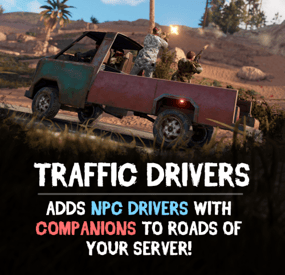
Tired of driving on abandoned roads in Rust? Traffic Drivers adds AI-driven vehicles with armed companions ready to defend their drivers. Customize everything from vehicle setups to AI behavior, making each road feel more dynamic and unpredictable!
Features:
🚗 Dynamic AI Traffic
• AI-powered vehicles patrol Rust’s roads with armed drivers and companions.
• Customizable AI reactions – decide how they respond to attacks!
• Companions will fiercely protect their driver.
🔥 High-Speed Combat & Encounters
• Bots fight back when their vehicle is attacked.
• Drivers can temporarily accelerate when under fire.
• Setup damage rates, loot tables, and AI health settings.
🔧 Full Vehicle Customization
• Set fuel limits or enable infinite fuel.
• Adjust max speed, destroy rules, and car respawn times.
• Optional locks for security
💰 Loot & Rewards System
• Configure loot inside storage modules – control drop rates and item amounts.
• Customize driver & companion inventory – weapons, clothes, and other supplies.
⚙ Spawn Control
• Set limits on active traffic vehicles.
• Adjust minimum road length
• Configure auto-destruction for stuck cars.
• Prevent AI from attacking friendly drivers and companions.
Total Customization & Control:
🛠️ Vehicle Presets:
• Adjust fuel, speed, engine durability, and others.
• Define loot contents inside storage modules.
🎯 Driver & Companion AI:
• Set driver names, health, appearance, and clothing.
• Configure damage resistance and response to attacks.
• Equip companions with custom armor, health, and weapons to protect their driver.
📸 See It in Action! Watch the Video
⚠️ After downloading you’ll also get plugin called DriverController. It’s a single plugin to setup presets of bots and loot between all of my plugins.
📃 Configuration:
{ "Event settings": { "Allowed events (vehicle) count": { "Min": 3.0, "Max": 6.0 }, "Event restart delay": { "Min": 60.0, "Max": 120.0 }, "Prevent NPC from attacking drivers and companions?": true, "Block damage to transport from not players?": true, "Block damage to driver and companion from not players?": true, "Destroy events of this plugin when pause is enabled?": true, "Behavior when Convoy spawns": { "Pause events when Convoy starts?": true }, "Marker text color": { "Color (for HEX, put # at the beginning)": "0.2 0.21 0.62 1" }, "Event name for the marker": "EVENT CAR", "Route recording settings": { "Enable recorded routes usage?": true, "Clear saved routes after wipe?": true, "Minimum distance between points to record in route (used when recording route)": 20.0, "Minimum number of points to save (used when recording route)": 50.0 }, "Route generation": { "Enable route generation": true }, "Controller settings": { "Controller update timer (0 - 0.2)": 0.0 } }, "Car settings": [ { "Activate this event?": true, "Transport type for event (Random2Module, Random3Module, Random4Module, Module2, Module3, Module4)": "Module2", "Driver name (key) from driver settings in DriverController plugin": "DriverCar", "Companion name (key) from companion settings in DriverController plugin (list to occupy free seats in the vehicle)": [ "Companion1", "Companion2" ], "Engine settings": { "Engine parts level (1 - 3)": 1, "Drop the parts when destroying vehicle?": false }, "Loot container settings": { "Enable loot in vehicle container?": true, "Drop the loot when destroying the transport?": false, "Amount of slots": 1, "Name of loot set from loot settings in DriverController plugin (list loot sets for random selection)": [ "ResourcesCar" ] }, "Use Road Routes (has priority over off-road)": true, "Use Off-Road Routes (used if no road routes are available)": true, "Controller settings": { "Max speed (km/h)": 60.0, "Maximum speed when obstacles detected (km/h)": 5.0, "Chase mode settings": { "Chase attacking players?": true, "Max chase distance": 150.0, "Chase timer": 120.0 } }, "Turret Settings (will add the specified amount to each suitable module)": { "Enable Turrets on Vehicle": false, "Disable Turrets on Event End": true, "Maximum Attack Range": 50.0, "Player Damage Multiplier": 0.5, "Max turrets amount": 1, "At what percentage of the module's remaining health remove the turret installed on it": { "Min": 2.0, "Max": 5.0 } }, "Damage receive rate": 1.0, "Fuel settings": { "Enable automatic fuel refueling?": true, "Remove fuel when unlocking vehicle?": true, "Maximum fuel in vehicle": 500 }, "Vehicle headlight settings": { "Enable vehicle headlights?": true, "Use headlights only at night?": true }, "Detonator settings": { "Add C4 to the vehicle after the death of the driver (used to despawn vehicles)": true, "After how many seconds explosives will be blown up": 60.0, "Explosives position offset": { "x": 0.0, "y": 0.8, "z": 0.0 } } }, { "Activate this event?": true, "Transport type for event (Random2Module, Random3Module, Random4Module, Module2, Module3, Module4)": "Random3Module", "Driver name (key) from driver settings in DriverController plugin": "DriverCar", "Companion name (key) from companion settings in DriverController plugin (list to occupy free seats in the vehicle)": [ "Companion1", "Companion2" ], "Engine settings": { "Engine parts level (1 - 3)": 1, "Drop the parts when destroying vehicle?": false }, "Loot container settings": { "Enable loot in vehicle container?": true, "Drop the loot when destroying the transport?": false, "Amount of slots": 1, "Name of loot set from loot settings in DriverController plugin (list loot sets for random selection)": [ "ResourcesCar" ] }, "Use Road Routes (has priority over off-road)": true, "Use Off-Road Routes (used if no road routes are available)": true, "Controller settings": { "Max speed (km/h)": 60.0, "Maximum speed when obstacles detected (km/h)": 5.0, "Chase mode settings": { "Chase attacking players?": true, "Max chase distance": 150.0, "Chase timer": 120.0 } }, "Turret Settings (will add the specified amount to each suitable module)": { "Enable Turrets on Vehicle": false, "Disable Turrets on Event End": true, "Maximum Attack Range": 50.0, "Player Damage Multiplier": 0.5, "Max turrets amount": 1, "At what percentage of the module's remaining health remove the turret installed on it": { "Min": 2.0, "Max": 5.0 } }, "Damage receive rate": 1.0, "Fuel settings": { "Enable automatic fuel refueling?": true, "Remove fuel when unlocking vehicle?": true, "Maximum fuel in vehicle": 500 }, "Vehicle headlight settings": { "Enable vehicle headlights?": true, "Use headlights only at night?": true }, "Detonator settings": { "Add C4 to the vehicle after the death of the driver (used to despawn vehicles)": true, "After how many seconds explosives will be blown up": 60.0, "Explosives position offset": { "x": 0.0, "y": 0.8, "z": 0.0 } } } ] } 📑 DriverController Configuration:
{ "Drivers settings": { "DriverBike": { "Bot health": { "Min": 100.0, "Max": 150.0 }, "Prevent attacking players first?": true, "Damage receive rate": 2.0, "Damage rate": 2.0, "Spawn bag with items instead of corpse on death?": true, "In how many seconds remove bots, after destroying the vehicle? (0 - will not remove)": 120.0, "Clothes": [ { "Item": { "Item shortname or ID": "shoes.boots", "Item skin": 0 }, "Item custom name (if not needed leave empty)": null, "Amount": 1 }, { "Item": { "Item shortname or ID": "wood.armor.pants", "Item skin": 0 }, "Item custom name (if not needed leave empty)": null, "Amount": 1 }, { "Item": { "Item shortname or ID": "pants", "Item skin": 0 }, "Item custom name (if not needed leave empty)": null, "Amount": 1 }, { "Item": { "Item shortname or ID": "wood.armor.jacket", "Item skin": 0 }, "Item custom name (if not needed leave empty)": null, "Amount": 1 }, { "Item": { "Item shortname or ID": "hoodie", "Item skin": 0 }, "Item custom name (if not needed leave empty)": null, "Amount": 1 }, { "Item": { "Item shortname or ID": "riot.helmet", "Item skin": 0 }, "Item custom name (if not needed leave empty)": null, "Amount": 1 } ], "Weapons": [ { "Item": { "Item shortname or ID": "pistol.revolver", "Item skin": 0 }, "Item custom name (if not needed leave empty)": null, "Amount": 1 } ], "Bot loot": { "Enable loot after bot's death?": true, "Amount of slots": 5, "Loot set name (key) from loot settings (you can enter many sets for random selection)": [ "ResourcesDriver" ] } }, "DriverCar": { "Bot health": { "Min": 100.0, "Max": 150.0 }, "Prevent attacking players first?": true, "Damage receive rate": 2.0, "Damage rate": 2.0, "Spawn bag with items instead of corpse on death?": true, "In how many seconds remove bots, after destroying the vehicle? (0 - will not remove)": 120.0, "Clothes": [ { "Item": { "Item shortname or ID": "hazmatsuit", "Item skin": 0 }, "Item custom name (if not needed leave empty)": null, "Amount": 1 } ], "Weapons": [ { "Item": { "Item shortname or ID": "rifle.ak", "Item skin": 0 }, "Item custom name (if not needed leave empty)": null, "Amount": 1 } ], "Bot loot": { "Enable loot after bot's death?": true, "Amount of slots": 5, "Loot set name (key) from loot settings (you can enter many sets for random selection)": [ "ResourcesDriver" ] } }, "DriverBoat": { "Bot health": { "Min": 100.0, "Max": 150.0 }, "Prevent attacking players first?": true, "Damage receive rate": 2.0, "Damage rate": 2.0, "Spawn bag with items instead of corpse on death?": true, "In how many seconds remove bots, after destroying the vehicle? (0 - will not remove)": 120.0, "Clothes": [ { "Item": { "Item shortname or ID": "hazmatsuit", "Item skin": 0 }, "Item custom name (if not needed leave empty)": null, "Amount": 1 } ], "Weapons": [ { "Item": { "Item shortname or ID": "t1_smg", "Item skin": 0 }, "Item custom name (if not needed leave empty)": null, "Amount": 1 } ], "Bot loot": { "Enable loot after bot's death?": true, "Amount of slots": 5, "Loot set name (key) from loot settings (you can enter many sets for random selection)": [ "ResourcesDriver" ] } }, "PilotHeli": { "Bot health": { "Min": 100.0, "Max": 150.0 }, "Prevent attacking players first?": true, "Damage receive rate": 2.0, "Damage rate": 2.0, "Spawn bag with items instead of corpse on death?": true, "In how many seconds remove bots, after destroying the vehicle? (0 - will not remove)": 120.0, "Clothes": [ { "Item": { "Item shortname or ID": "jumpsuit.suit.blue", "Item skin": 0 }, "Item custom name (if not needed leave empty)": null, "Amount": 1 } ], "Weapons": [ { "Item": { "Item shortname or ID": "rifle.ak", "Item skin": 0 }, "Item custom name (if not needed leave empty)": null, "Amount": 1 } ], "Bot loot": { "Enable loot after bot's death?": true, "Amount of slots": 5, "Loot set name (key) from loot settings (you can enter many sets for random selection)": [ "ResourcesDriver" ] } } }, "Companion settings": { "Companion1": { "Bot health": { "Min": 100.0, "Max": 150.0 }, "Prevent attacking players first?": true, "Damage receive rate": 2.0, "Damage rate": 2.0, "Spawn bag with items instead of corpse on death?": true, "In how many seconds remove bots, after destroying the vehicle? (0 - will not remove)": 120.0, "Clothes": [ { "Item": { "Item shortname or ID": "hazmatsuit_scientist_nvgm", "Item skin": 0 }, "Item custom name (if not needed leave empty)": null, "Amount": 1 } ], "Weapons": [ { "Item": { "Item shortname or ID": "rifle.ak", "Item skin": 0 }, "Item custom name (if not needed leave empty)": null, "Amount": 1 } ], "Bot loot": { "Enable loot after bot's death?": true, "Amount of slots": 5, "Loot set name (key) from loot settings (you can enter many sets for random selection)": [ "ResourcesCompanion", "WeaponsCompanion" ] } }, "Companion2": { "Bot health": { "Min": 100.0, "Max": 150.0 }, "Prevent attacking players first?": true, "Damage receive rate": 2.0, "Damage rate": 2.0, "Spawn bag with items instead of corpse on death?": true, "In how many seconds remove bots, after destroying the vehicle? (0 - will not remove)": 120.0, "Clothes": [ { "Item": { "Item shortname or ID": "hazmatsuit.arcticsuit", "Item skin": 0 }, "Item custom name (if not needed leave empty)": null, "Amount": 1 } ], "Weapons": [ { "Item": { "Item shortname or ID": "rifle.ak", "Item skin": 0 }, "Item custom name (if not needed leave empty)": null, "Amount": 1 } ], "Bot loot": { "Enable loot after bot's death?": true, "Amount of slots": 5, "Loot set name (key) from loot settings (you can enter many sets for random selection)": [ "ResourcesCompanion", "WeaponsCompanion" ] } }, "Companion3": { "Bot health": { "Min": 100.0, "Max": 150.0 }, "Prevent attacking players first?": true, "Damage receive rate": 2.0, "Damage rate": 2.0, "Spawn bag with items instead of corpse on death?": true, "In how many seconds remove bots, after destroying the vehicle? (0 - will not remove)": 120.0, "Clothes": [ { "Item": { "Item shortname or ID": "hazmatsuit.lumberjack", "Item skin": 0 }, "Item custom name (if not needed leave empty)": null, "Amount": 1 } ], "Weapons": [ { "Item": { "Item shortname or ID": "rifle.ak", "Item skin": 0 }, "Item custom name (if not needed leave empty)": null, "Amount": 1 } ], "Bot loot": { "Enable loot after bot's death?": true, "Amount of slots": 5, "Loot set name (key) from loot settings (you can enter many sets for random selection)": [ "ResourcesCompanion", "WeaponsCompanion" ] } }, "Companion4": { "Bot health": { "Min": 100.0, "Max": 150.0 }, "Prevent attacking players first?": true, "Damage receive rate": 2.0, "Damage rate": 2.0, "Spawn bag with items instead of corpse on death?": true, "In how many seconds remove bots, after destroying the vehicle? (0 - will not remove)": 120.0, "Clothes": [ { "Item": { "Item shortname or ID": "hazmatsuit.spacesuit", "Item skin": 0 }, "Item custom name (if not needed leave empty)": null, "Amount": 1 } ], "Weapons": [ { "Item": { "Item shortname or ID": "rifle.ak", "Item skin": 0 }, "Item custom name (if not needed leave empty)": null, "Amount": 1 } ], "Bot loot": { "Enable loot after bot's death?": true, "Amount of slots": 5, "Loot set name (key) from loot settings (you can enter many sets for random selection)": [ "ResourcesCompanion", "WeaponsCompanion" ] } } }, "Loot settings": { "ResourcesBike": [ { "Item": { "Item shortname or ID": "wood", "Item skin": 0 }, "Item custom name (if not needed leave empty)": null, "Spawn chance (0-100%)": { "Min": 100.0, "Max": 100.0 }, "Amount": { "Min": 5000.0, "Max": 50000.0 } }, { "Item": { "Item shortname or ID": "stones", "Item skin": 0 }, "Item custom name (if not needed leave empty)": null, "Spawn chance (0-100%)": { "Min": 100.0, "Max": 100.0 }, "Amount": { "Min": 1000.0, "Max": 10000.0 } } ], "ResourcesCar": [ { "Item": { "Item shortname or ID": "wood", "Item skin": 0 }, "Item custom name (if not needed leave empty)": null, "Spawn chance (0-100%)": { "Min": 100.0, "Max": 100.0 }, "Amount": { "Min": 5000.0, "Max": 50000.0 } }, { "Item": { "Item shortname or ID": "stones", "Item skin": 0 }, "Item custom name (if not needed leave empty)": null, "Spawn chance (0-100%)": { "Min": 100.0, "Max": 100.0 }, "Amount": { "Min": 1000.0, "Max": 10000.0 } } ], "ResourcesBoat": [ { "Item": { "Item shortname or ID": "wood", "Item skin": 0 }, "Item custom name (if not needed leave empty)": null, "Spawn chance (0-100%)": { "Min": 100.0, "Max": 100.0 }, "Amount": { "Min": 5000.0, "Max": 50000.0 } }, { "Item": { "Item shortname or ID": "stones", "Item skin": 0 }, "Item custom name (if not needed leave empty)": null, "Spawn chance (0-100%)": { "Min": 100.0, "Max": 100.0 }, "Amount": { "Min": 1000.0, "Max": 10000.0 } } ], "ResourcesHeli": [ { "Item": { "Item shortname or ID": "wood", "Item skin": 0 }, "Item custom name (if not needed leave empty)": null, "Spawn chance (0-100%)": { "Min": 100.0, "Max": 100.0 }, "Amount": { "Min": 5000.0, "Max": 50000.0 } }, { "Item": { "Item shortname or ID": "stones", "Item skin": 0 }, "Item custom name (if not needed leave empty)": null, "Spawn chance (0-100%)": { "Min": 100.0, "Max": 100.0 }, "Amount": { "Min": 1000.0, "Max": 10000.0 } } ], "ResourcesDriver": [ { "Item": { "Item shortname or ID": "wood", "Item skin": 0 }, "Item custom name (if not needed leave empty)": null, "Spawn chance (0-100%)": { "Min": 100.0, "Max": 100.0 }, "Amount": { "Min": 1000.0, "Max": 10000.0 } }, { "Item": { "Item shortname or ID": "stones", "Item skin": 0 }, "Item custom name (if not needed leave empty)": null, "Spawn chance (0-100%)": { "Min": 100.0, "Max": 100.0 }, "Amount": { "Min": 100.0, "Max": 1000.0 } } ], "ResourcesCompanion": [ { "Item": { "Item shortname or ID": "wood", "Item skin": 0 }, "Item custom name (if not needed leave empty)": null, "Spawn chance (0-100%)": { "Min": 100.0, "Max": 100.0 }, "Amount": { "Min": 100.0, "Max": 1000.0 } }, { "Item": { "Item shortname or ID": "stones", "Item skin": 0 }, "Item custom name (if not needed leave empty)": null, "Spawn chance (0-100%)": { "Min": 100.0, "Max": 100.0 }, "Amount": { "Min": 10.0, "Max": 100.0 } } ], "WeaponsCompanion": [ { "Item": { "Item shortname or ID": "rifle.ak", "Item skin": 0 }, "Item custom name (if not needed leave empty)": null, "Spawn chance (0-100%)": { "Min": 40.0, "Max": 80.0 }, "Amount": { "Min": 1.0, "Max": 1.0 } } ] } }