
ARobinhood's Wishlist
-
$5.00
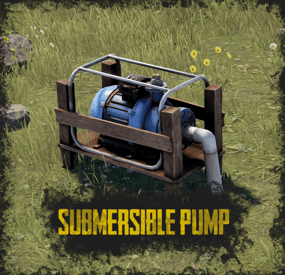
Submersible Pump
By ThePitereq in Plugins
RUST Plugin Test Server
TEST MY PLUGINS THERE!
connect play.thepitereq.ovh:28050
Submersible Pump plugin helps manage river resources on your server.
It allows players to place a water pump with fresh water anywhere on the map.
The water output can be adjusted using the WaterWorks plugin by nivex.
You can build your farm anywhere on the map. Customizable pump crafting and allows you to place pumps on foundations. Configurable height limits. Can be set to work on WaterBases.
/pump - Plugin help command. /pump craft - Crafting submersible pump. givepump - Gives submersible pump to your inventory. (Console Command)
submersiblepump.use – Allows you to craft and place submersible pump. (Needs to be enabled in config) submersiblepump.give – Allows you using givepump command.
{ "Misc - Require Permission": false, "Misc - Pump Item Name": "Submersible Pump", "Misc - Pump Ground Check": true, "Misc - Allow Placing On Water Level": false, "Misc - Allow Hammer Hit Pickup": true, "Limit - Default Pump Limit (0, to disable)": 0, "Limit - Permission Limits": { "submersiblepump.admin": 100, "submersiblepump.vip": 5 }, "Craft - Enable Pump Craft": true, "Craft - Chat Command": "pump", "Craft - Require Blueprint For Pump": true, "Craft - Required Workbench Level (0-3)": 2, "Craft - Pump Craft Cost": [ { "Item Shortname": "metal.fragments", "Item Amount": 1000, "Item Skin": 0 }, { "Item Shortname": "gears", "Item Amount": 10, "Item Skin": 0 }, { "Item Shortname": "metalpipe", "Item Amount": 20, "Item Skin": 0 } ] } -
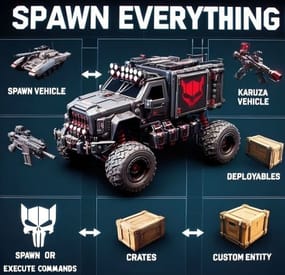
$10.99$8.99Spawn Everything - Spawn all entity, Bases, Item, Deploy Nature, loot, Pickup Entity, Pickup Vehicles
Spawn Everything - Spawn Vehicle, Karuza Vehicle, Deployables, Bases, Item, Recycler, Crates, Custom entity, Execute Commands, Loots, Pickup Entity, Pickup Vehicles, Deploy Nature, Instant Airdrop, and much more...
Spawn Everything - Spawn all entity, Bases, Item, loot, Pickup Entity, Pickup Vehicles, Deploy Nature, Instant Airdrop, allows you to spawn any entity or execute commands, all by using an item, pickup entity or vehicles, and much more.
It is already configured to generate vehicles by default, including custom vehicles from Karuza, Naval Deep Sea entity, Crates, Locked Crate, Deployables, Casino items and much more.
Through the configuration you can add other entities that can be generated,
just enter a prefab name, or a command if you do not have a prefab name, and set the skin of the item that will be used.
It also allows you to limit the spawn, for example if you do not have building permits, avoid spawning in water or allow it only in water,
also being able to choose the minimum depth of the water, allow or not spawn inside buildings, monuments and more.
It is also possible to pick up the generated entity/vehicles, using the hammer.
You can add items to the in-game shop, loot, or wherever you want.
Spawn Bases using copy paste or other plugin.
You can also Deploy Nature and enable instant airdrop.
Ability to enable the cleanup system, to automatically delete deployed entities that are no longer used.
Compatible with Oxide/Umod and Carbon.
ALL AVAILABLE ENTITIES
Here you can find a file with all the entities currently available and the various information on the item to create to spawn the entity
ALL AVAILABLE ENTITIES
----------------------------------------
BUY KARUZA CUSTOM VEHICLES:
Karuza vehicles are included in the configuration, but vehicles must be purchased separately from the Karuza website: https://karuza.dev/
----------------------------------------
PLAYLIST - VIDEO EXAMPLE
Below you can see an example video on how to use the plugin.
--------------------
SOME EXAMPLES OF USE:
Some examples of how the plugin works and the entities that can be spawned by default.
Vehicle Spawn Spawn Custom Vehicles by Karuza Pickup Entity Pickup Vehicle Pickup Karuza Vehicle Spawn Recycler Deploy Nature Ability to enable instant airdrop. Spawn NPC vehicles, such as Bradley, Patrol helicopter, CH47 (Chinook 47) Spawn loot boxes, such as the: Locked Crate, Oil Rig Locked Crate, Bradley APC Crate, Patrol Helicopter Crate, Elite Tier Crate, Elite Tier Crate - Underwater Labs. Crater for mines, to place mines where you want. Survey Crater - For Mining Quarry, Survey Crater Oil - For Pump Jack. Spawn Bases using copy paste or other plugin Spawn Casino entities Spawn custom entities And much more
PERMISSIONS:
spawneverything.admin -- Allows the use of commands reserved for admins, such as giving items for entity spawning to players. spawneverything.fuel.unlimited -- If the entity to be spawned is a vehicle, the vehicle will not need fuel to run. The same can be achieved via the configuration file, for each individual entity. spawneverything.nodamage.enabled -- Spawned entities will not take damage if the player has this permission. spawneverything.nodamage.allow_decay_damage -- Entities for which damage protection has been activated will continue to take damage from decay. spawneverything.nodecay -- Disable entity decay. spawneverything.spawn.not_enabled -- Allows you to spawn entities that have not been enabled in the configuration file. spawneverything.spawn.bypass_building_privilege -- Allows you to spawn entities even if you don't have building permissions, for entities that require building permissions to spawn. spawneverything.spawn.bypass_tc -- Allows entities to be spawned, for entities that cannot be spawned near any Tool Cupboard (TC). spawneverything.spawn.bypass_monument -- Allows entities to be spawned in monuments, for entities that cannot be spawned in monuments. spawneverything.spawn.bypass_road_rails -- Allows entities to be spawned to the road/rails, for entities that cannot be spawned to the road/rails. spawneverything.spawn.bypass_only_outside -- Allows entities to spawn inside buildings, for entities that cannot be spawned inside buildings. spawneverything.spawn.bypass_water -- Allows entities to spawn in water, for entities that cannot be spawned in water. spawneverything.spawn.bypass_respawn_conditions -- Allows you to bypass condition checking for respawned entities after they have been picked up. Picked up entities will always be respawned in the max condition.
COMMANDS FOR PLAYERS
Commands can be typed in chat (by putting the / character in front of the command), or from console.
/se pickup -- Command to pick up entities, without the hammer.
COMMANDS FOR ADMIN
Commands can be typed in chat (by putting the / character in front of the command), from console or Rcon.
To use these commands you must have the role: spawneverything.admin
/se <skinID> <quantity> -- Allows you to give the item to spawn the entity, to yourself. You need to pass these parameters: skinID of the configured entity The quantity of items. /se <skinID> <quantity> <steamID> -- Allows you to give the item to spawn the entity, to a player. You need to pass these parameters: skinID of the configured entity The quantity of items. The SteamID of the player to give the items to Commands can be added or modified in the configuration file: /oxide/config/SpawnEverything.json
ENTITY PICK UP
You can collect the generated entity using the hammer.
By collecting the entity, you will be given back the item for the entity's spawn.
To collect the entity you need to hold down the SHIFT key and hit the entity with the hammer.
You can only collect entities that have been enabled for collection in the configuration file.
Depending on the configurations/roles, the picked up entities can be respawned to the conditions they were in when they were picked up or to the maximum conditions.
INSTANT AIRDROP
In the plugin configuration, you can enable instant airdrop.
USE VIA SHOP, LOOT. VENDING MACHINE
The plugin can use any item for entity spawning.
You need to generate an item with a certain skin id, to get the item that allows the entity to spawn.
The name of the item to use and the skin id are present in the configuration file:
Item name (That will be used to spawn the entity. Default grenade.flashbang) SkinID You can add these items to the in-game Shop, to the loot, in the Vending Machine or wherever you want, very easily.
For example, this item spawns a minicopter:
Item: grenade.flashbang | SkinID: 3366887420
or
ItemID: -936921910 | SkinID: 3366887420
CONFIGURATION
The settings and options can be configured in the SpawnEverything.json under the config directory. The use of an editor and validator is recommended to avoid formatting issues and syntax errors. { "TimeZone": "Europe/London", "Chat Command": [ "se", "spawneverything", "spawner" ], "ChatPrefix": "SpawnEverything", "Enable entity spawn when item is dropped. (Default: FALSE)": false, "Show Pick Up Entity Confirm Dialog. (Default: TRUE)": true, "Pick up entity using a button/key combination. Button to use: -1 DISABLED - 1 (MMB - middle mouse button) - 2 (SHIFT + MMB) - 3 (CTRL + MMB). Default: -1": -1, "Kill all Nature entities when the associated cupboard (TC) is destroyed? Default: false": false, "Add spawnable Resource/Nature to your configuration. (Default: FALSE)": false, "Add Karuza Custom Vehicles to your configuration. (Default: FALSE)": false, "Instant Supply Signal Settings": { "Enable instant Supply Signal drop. Default: FALSE": false, "Spawn Only Outside bases. Default: TRUE": true, "Spawn Cooldown (seconds). [Minimum 1 seconds]. Default: 1": 1, "Bypass Fancy Drop to avoid conflicts with the launch of the Supply Signal. Default: TRUE": true }, "Cleanup system": { "Enable Cleanup System. Default: FALSE": false, "Deletes all player deployed entities when disconnecting. Default: FALSE": false, "Deletes all player vehicles when disconnecting. Default: FALSE": false, "Deletes all player Karuza vehicles when disconnecting. Default: FALSE": false }, "Role Permission": { "vip1": { "Priority. (lower = higher priority)": 1, "Always regenerate picked up entities at maximum conditions. Default FALSE": false, "Global maximum number of active entities for each Enabled Spawnable Entity. (-1 no limit)": -1, "Maximum number of active entities for each Enabled Spawnable Entity. Value = SkinID, Limits (Number of active entities. -1 no limit)": {} }, "vip2": { "Priority. (lower = higher priority)": 2, "Always regenerate picked up entities at maximum conditions. Default FALSE": false, "Global maximum number of active entities for each Enabled Spawnable Entity. (-1 no limit)": -1, "Maximum number of active entities for each Enabled Spawnable Entity. Value = SkinID, Limits (Number of active entities. -1 no limit)": {} }, "vip3": { "Priority. (lower = higher priority)": 3, "Always regenerate picked up entities at maximum conditions. Default FALSE": false, "Global maximum number of active entities for each Enabled Spawnable Entity. (-1 no limit)": -1, "Maximum number of active entities for each Enabled Spawnable Entity. Value = SkinID, Limits (Number of active entities. -1 no limit)": {} }, "default": { "Priority. (lower = higher priority)": 100, "Always regenerate picked up entities at maximum conditions. Default FALSE": false, "Global maximum number of active entities for each Enabled Spawnable Entity. (-1 no limit)": -1, "Maximum number of active entities for each Enabled Spawnable Entity. Value = SkinID, Limits (Number of active entities. -1 no limit)": {} } }, "Entity Drop Item": [ { "Enabled": false, "DisplayName": "Spawn Minicopter", "Description": "Spawn Minicopter", "Item name (That will be used to spawn the entity. Default grenade.flashbang)": "grenade.flashbang", "Spawn PrefabName": "assets/content/vehicles/minicopter/minicopter.entity.prefab", "SkinID": 3366887420, "Item can be stacked? FALSE, the entity will be respawned in the same condition it was in when picked. TRUE, the entity will always be respawned as new. Default: FALSE": false, "Spawn Position Offset": { "Right": 0.0, "Forward": 0.0, "Up": 0.0 }, "Spawn Rotation Offset": { "X": 0.0, "Y": 0.0, "Z": 0.0 }, "Entity Type. Default Rust": "Rust", "Can Pick Up Entity. Default false": true, "Custom Radius Check": 0.0, "Execute Player Commands": [], "Execute Player Commands As Admin": false, "Execute Server Commands": [], "Spawn Cooldown (seconds)": 0, "Usage Cooldown. Cooldown for reuse (seconds) (0 no cooldown)": 0, "Requires Building Privilege to Spawn Entity. (Default: TRUE)": true, "Minimum spawn distance from any Tool Cupboard (TC). [0 = Disabled] (Default: 0)": 0, "Allow Spawn in Monuments. (Default: FALSE)": false, "Disable Spawn in Monuments and Monuments radius. (Default: FALSE)": false, "Disable Spawn On Road/Rails. (Default: FALSE)": false, "Minimum spawn distance from Road/Rails. (Default: 0)": 0, "Spawn Only Outside": true, "Dont Spawn In Water": true, "Requires Water": false, "Minimum Water Depth": 0.0, "Armored": false, "Unlimited Fuel": false, "Fuel Amount": 0 }, { "Enabled": false, "DisplayName": "Spawn Attack Helicopter", "Description": "Spawn Attack Helicopter", "Item name (That will be used to spawn the entity. Default grenade.flashbang)": "grenade.flashbang", "Spawn PrefabName": "assets/content/vehicles/attackhelicopter/attackhelicopter.entity.prefab", "SkinID": 3366893095, "Item can be stacked? FALSE, the entity will be respawned in the same condition it was in when picked. TRUE, the entity will always be respawned as new. Default: FALSE": false, "Spawn Position Offset": { "Right": 0.0, "Forward": 0.0, "Up": 0.0 }, "Spawn Rotation Offset": { "X": 0.0, "Y": 0.0, "Z": 0.0 }, "Entity Type. Default Rust": "Rust", "Can Pick Up Entity. Default false": true, "Custom Radius Check": 0.0, "Execute Player Commands": [], "Execute Player Commands As Admin": false, "Execute Server Commands": [], "Spawn Cooldown (seconds)": 0, "Usage Cooldown. Cooldown for reuse (seconds) (0 no cooldown)": 0, "Requires Building Privilege to Spawn Entity. (Default: TRUE)": true, "Minimum spawn distance from any Tool Cupboard (TC). [0 = Disabled] (Default: 0)": 0, "Allow Spawn in Monuments. (Default: FALSE)": false, "Disable Spawn in Monuments and Monuments radius. (Default: FALSE)": false, "Disable Spawn On Road/Rails. (Default: FALSE)": false, "Minimum spawn distance from Road/Rails. (Default: 0)": 0, "Spawn Only Outside": true, "Dont Spawn In Water": true, "Requires Water": false, "Minimum Water Depth": 0.0, "Armored": false, "Unlimited Fuel": false, "Fuel Amount": 0 }, { "Enabled": false, "DisplayName": "Spawn Scrap Transport Helicopter", "Description": "Spawn Scrap Transport Helicopter", "Item name (That will be used to spawn the entity. Default grenade.flashbang)": "grenade.flashbang", "Spawn PrefabName": "assets/content/vehicles/scrap heli carrier/scraptransporthelicopter.prefab", "SkinID": 3366892516, "Item can be stacked? FALSE, the entity will be respawned in the same condition it was in when picked. TRUE, the entity will always be respawned as new. Default: FALSE": false, "Spawn Position Offset": { "Right": 0.0, "Forward": 0.0, "Up": 0.0 }, "Spawn Rotation Offset": { "X": 0.0, "Y": 0.0, "Z": 0.0 }, "Entity Type. Default Rust": "Rust", "Can Pick Up Entity. Default false": true, "Custom Radius Check": 0.0, "Execute Player Commands": [], "Execute Player Commands As Admin": false, "Execute Server Commands": [], "Spawn Cooldown (seconds)": 0, "Usage Cooldown. Cooldown for reuse (seconds) (0 no cooldown)": 0, "Requires Building Privilege to Spawn Entity. (Default: TRUE)": true, "Minimum spawn distance from any Tool Cupboard (TC). [0 = Disabled] (Default: 0)": 0, "Allow Spawn in Monuments. (Default: FALSE)": false, "Disable Spawn in Monuments and Monuments radius. (Default: FALSE)": false, "Disable Spawn On Road/Rails. (Default: FALSE)": false, "Minimum spawn distance from Road/Rails. (Default: 0)": 0, "Spawn Only Outside": true, "Dont Spawn In Water": true, "Requires Water": false, "Minimum Water Depth": 0.0, "Armored": false, "Unlimited Fuel": false, "Fuel Amount": 0 }, { "Enabled": false, "DisplayName": "Spawn Hot Air Balloon", "Description": "Spawn Hot Air Balloon", "Item name (That will be used to spawn the entity. Default grenade.flashbang)": "grenade.flashbang", "Spawn PrefabName": "assets/prefabs/deployable/hot air balloon/hotairballoon.prefab", "SkinID": 3366893631, "Item can be stacked? FALSE, the entity will be respawned in the same condition it was in when picked. TRUE, the entity will always be respawned as new. Default: FALSE": false, "Spawn Position Offset": { "Right": 0.0, "Forward": 0.0, "Up": 0.0 }, "Spawn Rotation Offset": { "X": 0.0, "Y": 0.0, "Z": 0.0 }, "Entity Type. Default Rust": "Rust", "Can Pick Up Entity. Default false": true, "Custom Radius Check": 0.0, "Execute Player Commands": [], "Execute Player Commands As Admin": false, "Execute Server Commands": [], "Spawn Cooldown (seconds)": 0, "Usage Cooldown. Cooldown for reuse (seconds) (0 no cooldown)": 0, "Requires Building Privilege to Spawn Entity. (Default: TRUE)": true, "Minimum spawn distance from any Tool Cupboard (TC). [0 = Disabled] (Default: 0)": 0, "Allow Spawn in Monuments. (Default: FALSE)": false, "Disable Spawn in Monuments and Monuments radius. (Default: FALSE)": false, "Disable Spawn On Road/Rails. (Default: FALSE)": false, "Minimum spawn distance from Road/Rails. (Default: 0)": 0, "Spawn Only Outside": true, "Dont Spawn In Water": true, "Requires Water": false, "Minimum Water Depth": 0.0, "Armored": false, "Unlimited Fuel": false, "Fuel Amount": 0 }, { "Enabled": false, "DisplayName": "Spawn Armored Hot Air Balloon", "Description": "Spawn Armored Hot Air Balloon", "Item name (That will be used to spawn the entity. Default grenade.flashbang)": "grenade.flashbang", "Spawn PrefabName": "assets/prefabs/deployable/hot air balloon/hotairballoon.prefab", "SkinID": 3366893925, "Item can be stacked? FALSE, the entity will be respawned in the same condition it was in when picked. TRUE, the entity will always be respawned as new. Default: FALSE": false, "Spawn Position Offset": { "Right": 0.0, "Forward": 0.0, "Up": 0.0 }, "Spawn Rotation Offset": { "X": 0.0, "Y": 0.0, "Z": 0.0 }, "Entity Type. Default Rust": "Rust", "Can Pick Up Entity. Default false": true, "Custom Radius Check": 0.0, "Execute Player Commands": [], "Execute Player Commands As Admin": false, "Execute Server Commands": [], "Spawn Cooldown (seconds)": 0, "Usage Cooldown. Cooldown for reuse (seconds) (0 no cooldown)": 0, "Requires Building Privilege to Spawn Entity. (Default: TRUE)": true, "Minimum spawn distance from any Tool Cupboard (TC). [0 = Disabled] (Default: 0)": 0, "Allow Spawn in Monuments. (Default: FALSE)": false, "Disable Spawn in Monuments and Monuments radius. (Default: FALSE)": false, "Disable Spawn On Road/Rails. (Default: FALSE)": false, "Minimum spawn distance from Road/Rails. (Default: 0)": 0, "Spawn Only Outside": true, "Dont Spawn In Water": true, "Requires Water": false, "Minimum Water Depth": 0.0, "Armored": true, "Unlimited Fuel": false, "Fuel Amount": 0 }, { "Enabled": false, "DisplayName": "Spawn Kayak", "Description": "Spawn Kayak", "Item name (That will be used to spawn the entity. Default grenade.flashbang)": "grenade.flashbang", "Spawn PrefabName": "assets/content/vehicles/boats/kayak/kayak.prefab", "SkinID": 3366894316, "Item can be stacked? FALSE, the entity will be respawned in the same condition it was in when picked. TRUE, the entity will always be respawned as new. Default: FALSE": false, "Spawn Position Offset": { "Right": 0.0, "Forward": 0.0, "Up": 0.0 }, "Spawn Rotation Offset": { "X": 0.0, "Y": 0.0, "Z": 0.0 }, "Entity Type. Default Rust": "Rust", "Can Pick Up Entity. Default false": true, "Custom Radius Check": 0.0, "Execute Player Commands": [], "Execute Player Commands As Admin": false, "Execute Server Commands": [], "Spawn Cooldown (seconds)": 0, "Usage Cooldown. Cooldown for reuse (seconds) (0 no cooldown)": 0, "Requires Building Privilege to Spawn Entity. (Default: TRUE)": true, "Minimum spawn distance from any Tool Cupboard (TC). [0 = Disabled] (Default: 0)": 0, "Allow Spawn in Monuments. (Default: FALSE)": false, "Disable Spawn in Monuments and Monuments radius. (Default: FALSE)": false, "Disable Spawn On Road/Rails. (Default: FALSE)": false, "Minimum spawn distance from Road/Rails. (Default: 0)": 0, "Spawn Only Outside": true, "Dont Spawn In Water": false, "Requires Water": true, "Minimum Water Depth": 0.5, "Armored": false, "Unlimited Fuel": false, "Fuel Amount": 0 }, ........................................ ], "VersionNumber": { "Major": 1, "Minor": 6, "Patch": 3 } }
TimeZone: -- Default: Europe/London
Chat Command: -- Here you can add, edit or delete Commands can be typed in chat (by putting the / character in front of the command), or from console.
ChatPrefix: -- Chat message prefix.
Enable entity spawn when item is dropped: If set to FALSE, blocks the entity from spawning if the item is dropped instead of thrown. Default: FALSE
Show Pick Up Entity Confirm Dialog: -- If enabled, show a confirmation dialog when you want to collect the entity for added security and to avoid unintentional errors. Default: TRUE
Pick up entity using a button/key combination. Button to use: -1 DISABLED - 1 (MMB - middle mouse button) - 2 (SHIFT + MMB) - 3 (CTRL + MMB): Key combinations to pick up entities without using the hammer. Default -1
Kill all Nature entities when the associated cupboard (TC) is destroyed?: Destroys Nature/Resource entities when the associated cupboard (TC) is destroyed. NOTE: Entities generated before adding the TC will not be destroyed. Default false
Add spawnable Resource/Nature to your configuration -- If set to TRUE, adds all Resources/Nature to the configuration. Default: FALSE
Add Karuza Custom Vehicles to your configuration: -- If set to TRUE, adds all Karuza custom vehicles to the configuration. Default: FALSE
INSTANT AIRDROP Configuration for instant airdrop:
Enable instant Supply Signal drop: -- If enabled, Supply Drops arrive instantly. Default: FALSE
Spawn Only Outside bases: -- Enable Supply Signals to spawn only outside bases. Default: TRUE
Spawn Cooldown (seconds). [Minimum 1 seconds]: -- Sets a wait time before the Supply Drop arrive, once the Supply Signal is thrown. Minimum 1 seconds. Default: 1
Bypass Fancy Drop to avoid conflicts with the launch of the Supply Signal: -- If enabled, bypasses the FancyDrop plugin to avoid conflicts. Default: TRUE
CLEANUP SYSTEM
If enabled, it allows spawned entities to be automatically deleted after a player disconnects. This is useful for creative servers, but not only:
Enable Cleanup System: Enable or disable the automatic cleanup system. Default: FALSE
Deletes all player deployed entities when disconnecting: Destroys all spawned entities (except vehicles). Default: FALSE
Deletes all player vehicles when disconnecting: Destroys all vehicles (Except Karuza vehicles). Default: FALSE
Deletes all player Karuza vehicles when disconnecting: Destroys all Karuza vehicles. Default: FALSE
GROUPS AND LIMITS - ROLE PERMISSION
The plugin creates 4 default groups: Default, vip1, vip2, vip3.
You can add more groups or rename groups.
For example, if you change the group vip1 to vip_elite, the permission spawneverything.vip_elite will be created
If you create a new group, for example vipvanilla, the permission spawneverything.vipvanilla will be created.
In the configuration file there is this configuration for managing groups:
Role Permission: Here you can set the configurations for the various roles:
Priority. (lower = higher priority) -- Each group has its own property, the lower this number is, the more important the group is. This is useful in the case where a player has more roles assigned. In this case, the group with the lowest priority will be assigned, the most important group. Negative numbers are also allowed.
Always regenerate picked up entities at maximum conditions: Force entity respawn to always be at maximum conditions, even for picked up entities. Default FALSE
Global maximum number of active entities for each Enabled Spawnable Entity. (-1 no limit): Global limit that applies to all entities. Determines how many entities of the same type can be in use at the same time. Default -1 (no limit)
Maximum number of active entities for each Enabled Spawnable Entity. Value = SkinID, Limits (Number of active entities. -1 no limit): Number of entities of the same type that can be in use at the same time. Here you can specify the limit for each individual SkinID. The limit applied here overrides the global limit.
Configuration example:
"Maximum number of active entities for each Enabled Spawnable Entity. Value = SkinID, Limits (Number of active entities. -1 no limit)": { "3366887420": -1, "3366892516": 20, "3366893095": 0 }
SPAWNABLE ENTITY: ITEM CONFIGURATION Here you will insert all the items with their configurations for the spawn of any entity.
Enabled: -- If set to FALSE, the entity cannot be spawned. You can bypass this check with the permission: spawneverything.spawn.not_enabled DisplayName: -- The name of the Item that the player will see when he clicks on it with the mouse.
Description: -- A description of the entity that will be spawned. It has no effect on the player's Item, it is just for internal use to remind you what this Item does.
Item name (That will be used to spawn the entity. Default grenade.flashbang): -- Here you need to specify the name of the item that will be used to spawn this entity.
Spawn PrefabName: -- Here you enter the name of the Prefab that will be generated. It is not mandatory, you can not enter the Prefab Name and instead execute commands that you can define later in the configuration.
SkinID: -- Here you enter the SkinID that will be applied to the item. Based on the SkinID, a different Item will be generated for the spawn of different entities.
You can use existing SkinIDs on the Steam Workshop or create your own Skin.
Item can be stacked? FALSE, the entity will be respawned in the same condition it was in when picked. TRUE, the entity will always be respawned as new:
FALSE: the entity will be respawned in the same condition it was in when picked.
TRUE: the entity will always be respawned as new.
Default: FALSE
Entity Type -- This field is used by the plugin to understand if it is a Rust entity or an entity generated by another plugin. If you do not know what to enter, leave it as default: Rust
Align the entity with the player's direction: Spawns the entity in the direction the player is looking. Default false
Reverse the player's direction for entity generation: If set to TRUE, reverses the player's direction for entity spawning. Default false
Force persistence. Set to TRUE if the spawned entity disappears after a server restart: Set to TRUE if the spawned entity disappears after a server restart. Default false
Can Pick Up Entity. Default false -- Here you can decide whether the entity can be picked up with the hammer or not. It is recommended to disable picking for all items that generate Loot, to avoid abuse.
Spawn Position Offset: -- Here you can specify the position to add relative to the entity spawn point, to fine-tune the positions of entities.
Right: Moves the entity to the right. Use a negative value to move the entity to the left
Forward: Moves the entity forward. Use a negative value to move the entity backwards.
Up: Moves the entity up. Use a negative value to move the entity down.
Spawn Rotation Offset -- Here you can specify the coordinates to add relative to the entity's spawn point, to fine-tune the rotation of the entities.
X: Rotate the entity on the X-axis
Y: Rotate the entity on the Y-axis
Z: Rotate the entity on the Z-axis
Custom Radius Check -- Each spawn checks if there are entities that collide and the radius, within which to check, is automatically determined based on the size of the entity. But in some cases it is necessary to define a custom radius. Here you can decide the radius within which to check if there are entities that collide with the spawn.
Execute Player Commands: -- Here you can enter 1 or more commands that will be executed when the Item is launched. You can use some placeholders that can be passed to the commands %%msg%%: This placeholder can be used to send a message to the player, here is an example command: "%%msg%% test command": This will send a message to the player with the text: "test command" "%%msg%% %%steamid%%": This will send a message to the player with the text: player steamID %%steamid%%: This placeholder is used to insert the player's steamID into the command. %%username%%: This placeholder is used to insert the player username into the command. %%displayName%%: This placeholder is used to insert the player display name (include clan tag) into the command. %%spawnCoordinateX%%: This placeholder is used to insert the spawn coordinate X into the command. %%spawnCoordinateY%%: This placeholder is used to insert the spawn coordinate Y into the command. %%spawnCoordinateZ%%: This placeholder is used to insert the spawn coordinate Z into the command. %%spawnRotationX%%: This placeholder is used to insert the spawn rotation X into the command. %%spawnRotationY%%: This placeholder is used to insert the spawn rotation Y into the command. %%spawnRotationZ%%: This placeholder is used to insert the spawn rotation Z into the command. %%mapGrid%%: This placeholder is used to insert the map grid into the command. %%mapGridLetter%%: This placeholder is used to insert the map grid letter into the command. %%mapGridNumber%%: This placeholder is used to insert the map grid number into the command. -------------------- Here are some possible command examples: "deposit %%steamid%% 1000": Will deposit 1000 RP into the player's account (Economics plugin) "inventory.giveto %%steamid%% "short name" "amount" ": This will send a certain amount of items to the player.
Execute Player Commands As Admin: -- If set to TRUE, runs the command as Admin. Useful for running commands that require server-side Admin permissions. Default: FALSE Execute Server Commands: -- Run a command on the server console with server privileges.
Allow administrative commands such as spawning entities, changing game variables, managing players, etc.
Bypass normal player permission restrictions, as the command is executed as if it were entered directly into the server console. Useful if you want to run a command, that a player normally could not execute, because he does not have permissions. You can use the same placeholders as the property: Execute Player Commands
Spawn Cooldown (seconds): -- Sets a wait time before the entity is spawned, once the item is thrown.
Usage Cooldown. Cooldown for reuse (seconds) (0 no cooldown): Cooldown for entity reuse. Default 0 seconds
Spawn Only Outside: -- If set to TRUE, the entity can only spawn outside of buildings or on the roof. It cannot spawn inside the building. Useful for vehicles or large entities, to avoid them getting stuck inside the base. Default: TRUE. You can bypass this check with the permission: spawneverything.spawn.bypass_only_outside Allow spawning entity only where you have Building Privilege -- If set to TRUE, spawning is only allowed where you have building permissions. Default: FALSE. You can bypass this check with the permission: spawneverything.spawn.bypass_building_privilege
Requires Building Privilege or zones without TC to Spawn Entity: -- If set to TRUE, building permissions will be required to spawn an entity or zones without TC. Default: TRUE. You can bypass this check with the permission: spawneverything.spawn.bypass_building_privilege
Minimum spawn distance from any Tool Cupboard (TC). [0 = Disabled] -- Minimum spawn distance from any Tool Cupboard (TC). [0 = Disabled]. Default: 0. You can bypass this check with the permission: spawneverything.spawn.bypass_tc
Allow Spawn in Monuments: -- If set to FALSE, the entity cannot be spawned inside the monument, but can be spawned outside the monument, within the radius of the monument (Radius means the red radius visible when for example trying to build near a monument). Default: FALSE. You can bypass this check with the permission: spawneverything.spawn.bypass_monument
Disable Spawn in Monuments and Monuments radius: -- If set to true, the entity cannot be spawned inside the monument and outside the monument, within the radius of the monument (Radius means the red radius visible when for example trying to build near a monument). Default: FALSE. You can bypass this check with the permission: spawneverything.spawn.bypass_monument
Disable Spawn On Road/Rails -- Disable entity spawn on the road/rails. Default: FALSE. You can bypass this check with the permission: spawneverything.spawn.bypass_road_rails
Minimum spawn distance from Road/Rails -- Minimum distance from the road/rails for the entity to spawn. Default: 0. You can bypass this check with the permission: spawneverything.spawn.bypass_road_rails
Dont Spawn In Water: -- If set to TRUE, the entity cannot be spawned in water. Useful for vehicles that cannot go in water. Warning: There is one exception. In very shallow water, entities can still be spawned, for example near the coast. The water must not be deeper than 0.5 meters. Default: FALSE. You can bypass this check with the permission: spawneverything.spawn.bypass_water
Requires Water: -- If set to TRUE, the entity can only be spawned in water, useful for vehicles that can only operate in water, such as boats. Default: FALSE
Minimum Water Depth: -- If the entity can only be spawned in water, you can decide the minimum depth of the water. Useful to avoid spawning large entities in very shallow water so they do not get stuck. Default: 0 Meters = Any depth. The value cannot be negative. No Damage -- If set to TRUE, entities will not take damage. Default: FALSE
No Damage - Allow Decay Damage -- Entities for which damage protection has been activated will continue to take damage from decay. Default: FALSE
No Decay -- Disable entity decay. Default: FALSE
Disable resource production, for example for entities of type Resource/Nature -- If set to TRUE, entities do not produce resources, useful for entities of type Resources/Nature
Armored: -- There are entities that have the same Prefab Name, but 1 of the 2 can be generated with armor. In this case, you can decide which entity should have armor, For example Armored Hot Air Balloon.
Unlimited Fuel: -- If the entity is a vehicle, you can choose to spawn the entity with unlimited fuel. This configuration does not apply to Karuza's custom vehicles. You can bypass this check with the permission: spawneverything.fuel.unlimited
Fuel Amount: -- If the entity is a vehicle, you can decide how much fuel the entity will spawn with. Default: 0 fuel. You can bypass this check with the permission: spawneverything.fuel.unlimited
NB: At least 1 of the 2 fields between Spawn PrefabName and Execute Commands is mandatory
LOCALIZATION
The plugin is translated into the following languages:
English Italian Spanish French German Dutch Turkish Russian Ukrainian Chinese (Simplified - zh-CN) Translation files are located in the /oxide/lang folder,here is an example of a /oxide/lang/en/SpawnEverything.json translation file.
You can add translations for other languages by adding them to the folder: /oxide/lang
ALL AVAILABLE ENTITIES
Here you can find a file with all the entities currently available and the various information on the item to create to spawn the entity
ALL AVAILABLE ENTITIES
----------------------------------------
AVAILABLE ENTITIES
By default the plugin is configured with these entities that can be generated:
VEHICLES:
Minicopter, Attack Helicopter, Scrap Transport Helicopter, Hot Air Balloon, Armored Hot Air Balloon, Kayak, Row Boat, RHIB, Tugboat, Submarine Solo, Submarine Duo, Horse, Snowmobile, Tomaha Snowmobile, Sedan, 2 Module Car, 3 Module Car, 4 Module Car, Motorbike, Motorbike With Sidecar, Pedal Bike, Pedal Trike.
NAVAL DEEP SEA:
PT Boat, Cannon - Land.
KARUZA CUSTOM VEHICLES:
All Karuza special vehicles are included, you need to enable the property in the config file to use them.
Requires Karuza Vehicles plugin.
SPECIAL VEHICLES:
Bradley APC, Patrol Helicopter, Chinook 47.
SPECIAL ENTITIES:
Train Casino - Lucky Caboose, Blackjack Machine (Caboose), Card Table (Caboose), Slot Machine (Caboose), Card Table - A, Card Table - B, Card Table - C, Card Table - D, Slot Machine, Recycler, Recycler Safe Zone, Present Drop, Desk A Static, Door Vault, Small Ramp, Plank
CRATE:
Locked Crate, Oil Rig Locked Crate, Bradley APC Crate, Patrol Helicopter Crate, Elite Tier Crate, Elite Tier Crate - Underwater Labs.
CRATER:
Survey Crater - For Mining Quarry, Survey Crater Oil - For Pump Jack.
RESOURCES/NATURE:
Deployment of entities of type Resources/Nature, such as trees
NEW ENTITIES
You can add as many entities as you want via the configuration file.
If you have any difficulties or need to add a particular entity, feel free to open a support request and it will be added to the plugin.
New entities will be added with future releases of the plugin.
ENTITY IMAGE PREVIEW:
Spawn Minicopter Spawn Attack Helicopter Spawn Scrap Transport Helicopter Spawn Hot Air Balloon Spawn Armored Hot Air Balloon Spawn Kayak Spawn Row Boat Spawn RHIB Spawn Tugboat Spawn Submarine Solo Spawn Submarine Duo Spawn Horse Spawn Snowmobile Spawn Tomaha Snowmobile Spawn Sedan Spawn 2 Module Car Spawn 3 Module Car Spawn 4 Module Car Spawn Motorbike Spawn Motorbike With Sidecar Spawn Pedal Bike Spawn Pedal Trike Spawn Recycler Spawn Recycler Safe Zone Spawn Bradley APC Spawn Patrol Helicopter Spawn Chinook 47 Spawn MLRS Launcher Spawn Survey Crater - For Mining Quarry Spawn Survey Crater Oil - For Pump Jack Spawn Locked Crate Spawn Oil Rig Locked Crate Spawn Bradley APC Crate Spawn Patrol Helicopter Crate Spawn Elite Tier Crate Spawn Elite Tier Crate - Underwater Labs Spawn Train Casino - Lucky Caboose Spawn Casino - Blackjack Machine (Caboose) Spawn Casino - Card Table (Caboose) Spawn Casino - Slot Machine (Caboose) Spawn Card Table - A Spawn Card Table - B Spawn Card Table - C Spawn Card Table - D Spawn Casino - Slot Machine Spawn Present Drop Spawn PT Boat Spawn Cannon - Land Spawn Desk A Static Spawn Door Vault Spawn Small Ramp Spawn Plank SPAWN ALL KARUZA VEHICLES SPAWN BASES EXECUTE COMMANDS AND MUCH MORE... Swamp Tree A Swamp Tree B Swamp Tree C Swamp Tree D Swamp Tree E Swamp Tree F Arctic Forest - Douglas Fir A Snow Arctic Forest - Douglas Fir B Snow Arctic Forest - Douglas Fir C Snow Arctic Forest - Pine A Snow Arctic Forest - Pine C Snow Arctic Forest - Pine Dead Snow A Arctic Forest - Pine Dead Snow B Arctic Forest - Pine Dead Snow C Arctic Forest - Pine Dead Snow D Arctic Forest - Pine Dead Snow E Arctic Forest - Pine Dead Snow F Arctic Forest - Pine Sapling A Snow Arctic Forest - Pine Sapling B Snow Arctic Forest - Pine Sapling C Snow Arctic Forest - Pine Sapling D Snow Arctic Forest - Pine Sapling E Snow Arctic Forestside - Pine A Snow Arctic Forestside - Pine B Snow Arctic Forestside - Pine D Snow Arctic Forestside - Pine Dead Snow E Arctic Forestside - Pine Dead Snow F Arctic Forestside - Pine Sapling D Snow Arctic Forestside - Pine Sapling E Snow Arid Beachside - Palm Tree Short A Arid Beachside - Palm Tree Short B Arid Beachside - Palm Tree Short C Arid Beachside - Palm Tree Small A Arid Beachside - Palm Tree Small B Arid Beachside - Palm Tree Small C Arid Cactus 1 Arid Cactus 2 Arid Cactus 3 Arid Cactus 4 Arid Cactus 5 Arid Cactus 6 Arid Cactus 7 Arid Field - Palm Tree Short A Arid Field - Palm Tree Short B Arid Field - Palm Tree Short C Arid Field - Palm Tree Small B Arid Field - Palm Tree Small C Arid Forest - Palm Tree Medium A Arid Forest - Palm Tree Short A Arid Forest - Palm Tree Short B Arid Forest - Palm Tree Short C Arid Forest - Palm Tree Tall A Arid Forest - Palm Tree Tall B Arid Forestside - Palm Tree Short A Arid Forestside - Palm Tree Short B Arid Forestside - Palm Tree Short C Bushes Arctic - Willow Snow A Bushes Arctic - Willow Snow B Bushes Arctic - Willow Snow C Bushes Arctic - Willow Snow D Bushes Arctic - Willow Snow Small A Bushes Arctic - Willow Snow Small B Bushes Arctic Forest - Spicebush A Snow Bushes Arctic Forest - Spicebush C Snow Bushes Arctic Forest - Willow Snow A Bushes Arctic Forest - Willow Snow B Bushes Arctic Forest - Willow Snow C Bushes Arctic Forest - Willow Snow D Bushes Arid Desert - Creosote C Bushes Arid Desert - Creosote D Bushes Arid Desert - Mormon Tea A Bushes Arid Desert - Mormon Tea B Bushes Arid Desert - Mormon Tea C Bushes Arid Desert - Mormon Tea D Bushes Arid Dry - Creosote A Bushes Arid Dry - Creosote B Bushes Arid Grass - Creosote A Bushes Arid Grass - Creosote B Bushes Arid Grass - Creosote C Bushes Arid Grass - Creosote D Bushes Arid Ocotillo A Bushes Arid Ocotillo B Bushes Arid Ocotillo C Bushes Arid Ocotillo D Bushes Arid Ocotillo - Dry A Bushes Arid Ocotillo - Dry B Bushes Arid Ocotillo - Dry C Bushes Arid Ocotillo - Dry D Bushes Temperate - Spicebush A Bushes Temperate - Spicebush B Bushes Temperate - Spicebush C Bushes Temperate - Spicebush D Bushes Temperate - Willow A Bushes Temperate - Willow B Bushes Temperate - Willow C Bushes Temperate - Willow D Bushes Tundra - Spicebush A Bushes Tundra - Spicebush B Bushes Tundra - Spicebush C Bushes Tundra - Spicebush D Temperate Beachside - Birch Small Temperate Beachside - Birch Tiny Temperate Field - American Beech D Temperate Field - American Beech E Temperate Field - Birch Small Temperate Field - Birch Tiny Temperate Field Large - Oak B Temperate Field Large - Oak C Temperate Field Large - Oak D Temperate Field - Oak E Temperate Field - Oak F Temperate Field - Pine B Temperate Field - Pine D Temperate Forest - American Beech A Dead Temperate Forest - American Beech A Temperate Forest - American Beech B Temperate Forest - American Beech C Temperate Forest - Birch Big Temperate Forest - Birch Large Temperate Forest - Birch Medium Temperate Forest Pine - American Beech A Temperate Forest Pine - American Beech B Temperate Forest Pine - American Beech C Temperate Forest Pine - Birch Big Temperate Forest Pine - Birch Large Temperate Forest Pine - Douglas Fir A Temperate Forest Pine - Douglas Fir B Temperate Forest Pine - Douglas Fir C Temperate Forest Pine A Temperate Forest Pine C Temperate Forestside - American Beech D Temperate Forestside - American Beech E Temperate Forestside - American Beech E Dead Temperate Forestside - Birch Medium Temperate Forestside - Birch Small Temperate Forestside - Birch Tiny Temperate Forestside Pine - Douglas Fir D Temperate Forestside Pine B Temperate Forestside Pine D Tundra Field - Birch Big Tundra Field - Birch Large Tundra Field - Birch Medium Tundra Field - Birch Small Tundra Field - Birch Tiny Tundra Field - Pine Dead D Tundra Field - Pine Dead E Tundra Field - Pine Dead F Tundra Field Pine A Tundra Field Pine B Tundra Field Pine D Tundra Field Pine Sapling A Tundra Field Pine Sapling B Tundra Field Pine Sapling C Tundra Field Pine Sapling D Tundra Field Pine Sapling E Tundra Forest - Birch Big Tundra Forest - Birch Large Tundra Forest Dead - Douglas Fir C Tundra Forest - Pine Dead A Tundra Forest - Pine Dead B Tundra Forest - Pine Dead C Tundra Forest - Pine Dead D Tundra Forest - Pine Dead E Tundra Forest - Pine Dead F Tundra Forest - Douglas Fir A Tundra Forest - Douglas Fir B Tundra Forest - Douglas Fir C Tundra Forest - Douglas Fir D Tundra Forest - Pine A Tundra Forest - Pine C Tundra Forest - Pine Dead A Tundra Forest - Pine Dead B Tundra Forest - Pine Dead C Tundra Forest - Pine Dead D Tundra Forest - Pine Dead E Tundra Forest - Pine Dead F Tundra Forest - Pine Sapling A Tundra Forest - Pine Sapling B Tundra Forest - Pine Sapling C Tundra Forest - Pine Sapling D Tundra Forest - Pine Sapling E Tundra Forestside - Birch Medium Tundra Forestside - Birch Small Tundra Forestside - Birch Tiny Tundra Forestside - Douglas Fir D Small Tundra Forestside - Pine B Tundra Forestside - Pine D Wood Pile Stone Ore Metal Ore Sulfur Ore Driftwood 1 Driftwood 2 Driftwood 3 Driftwood 4 Driftwood 5 Driftwood Set 1 Driftwood Set 2 Driftwood Set 3 Logs Dry - Dead Log A Logs Dry - Dead Log B Logs Dry - Dead Log C Logs Snow - Dead Log A Logs Snow - Dead Log B Logs Snow - Dead Log C Logs Wet - Dead Log A Logs Wet - Dead Log B Logs Wet - Dead Log C
- #spawn everything
- #spawn
- (and 36 more)
-

$15.00
IQBearRide
Conquer the world of RUST on a riding bear!
The bear has a portable inventory, increased characteristics such as speed, health and other indicators!
The plugin has an intuitive and pleasant interface for interacting with the bear, as well as an additional interface with instructions for managing it!
Your players will be able to fight on bears, kill other players or animals with the help of a bear!
Break trees and smash barrels!
Permissions :
Rights to use a bear by players - iqbearride.usedbear
Rights to give a bear to a player - iqbearride.givebear
Rights to give a teddy bear to a player - iqbearride.giveteddy
Detailed configuration in the configuration :
You will be able to change various indicators, such as : Movement speed Running speed Speed of turns Bear Growth Time Damage done Number of inventory cells Full interface configuration Full customization of the bear cub item Full customization of the bear item There is a language file and localization!
The plugin has support for many other plugins :
1. IQChat – configured in the plugin configuration
2. IQRates – the bear will mine the same amount as the player. He is affected by the same X production indicators as the player
3. Working with a variety of plugins to multiply mining ratings
4. AnimalLoot – bear prey will be affected by the settings from this plugin
5. IQCraftSystem – you can add the creation of an adult bear to the crafting system
Console Commands :
Permission for this command – iqbearride.givebear
iqbr.bear <SteamID:Name:IP> – Issuance of an adult bear
Permission for this command – iqbearride.giveteddy
iqbr.teddy<SteamID:Name:IP> – Issuing a bear cub
CONFIGURATION
{ "Chance of a bear cub falling out”: 20, "Make a bear immortal (true – yes/false – no)”: false, "The number of hp of the bear”: 1200, "How long does a bear grow in seconds”: 100, "Walking speed”: 5.0, "Leash speed”: 7.5, "Running speed”: 7.5, "Running speed with shift”: 10.0, "Turning speed”: 150.0, "Step size up (If you don’t know what it is, don’t touch this function)”: 1.0, "Step size down (If you don’t know what it is, don’t touch this function)”: 1.0, "Board size length (If you don’t know what it is, don’t touch this function)”: 1.5, "Board size width (If you don’t know what it is, don’t touch this function)”: 0.2, "The maximum height that can climb”: 50.0, "The radius of checking for objects (If you don’t know what it is, don’t touch this function)”: 0.6, "The radius of the rotation balls check (If you do not know what it is, do not touch this function)”: 0.35, "Maximum depth”: 150.0, "Inventory Size”: 24, "The damage inflicted is individual”: { "default”: 50.0, "player”: 20.0 }, "How much health to give when eating”: 50.0, "IQ Chat : Custom prefix in the chat”: "[IQBearRide]”, "IQChat : Custom avatar in the chat (If required)”: "0”, "IQChat : Use UI notifications”: false, "Setting up the Bear Item”: { "DisplayName”: "Bear”, "ShortName”: "stash.small”, "SkinId”: 2445048695 }, "Setting up the Bear Cub item”: { "DisplayName”: "Teddy bear”, "ShortName”: "stash.small”, "SkinId”: 2445033042 }, "Picture To Follow”: "https://i.imgur.com/0sGNhqD.png”, "Picture to ride”: "https://i.imgur.com/xar8gWn.png”, "Picture Raise”: "https://i.imgur.com/973xdCt.png”, "Picture Inventory”: "https://i.imgur.com/OpjOCgL.png”, "Picture Instructions”: "https://i.imgur.com/32JQy4R.png” }
-
$45.95$31.95Clans
Clans gives your players one menu for everything a clan does: create it, invite people, hand out roles, make alliances, set gather quotas and clan skins, and check where the clan sits in the top. If you run ServerPanel, the menu opens inside it as its own category and matches your template, V1, V2 or V4. Without ServerPanel it opens fullscreen, in the Old Style or the New Rust look.
Clans also takes over Rust's own clan system. The F1 clan menu, the clan chat tab, clan names on the map and Rust+ all show Clans data, and in-game clan score events count toward your clan rating. Players get one clan, not two that disagree with each other.
Clan leaders build their own ranks. A role has a name, a color and twelve rights, from inviting and kicking to changing the avatar or toggling ally friendly fire, so a big clan can run itself without handing everyone leader rights. Data lives in JSON, Protobuf or MySQL, and one console command moves it between them. Updating from 1.x keeps your settings: old moderators become roles and the page settings move into the new menu.
🌟 Features of Clans
Five menu layouts – ServerPanel V1, V2 and V4, picked from your ServerPanel template on its own, plus two fullscreen styles, Old Style and New Rust. Every layout is a template file in data/Clans/Templates, where positions, colors and sizes can be changed Clan roles – leaders create roles with their own name and color and pick the rights: invite, kick, promote, demote, alliances, avatar, description, tag color, gather rates, skins, friendly fire and ally friendly fire Rust's clan system runs on Clans – the F1 clan menu, the clan chat tab, clan names on the map and Rust+, with in-game clan score events counting toward the rating Alliances – send, accept, cancel and revoke alliances, with a separate friendly fire switch for allies Friendly fire – per clan, with turret protection for clan mates as an option Gather rates – the clan sets how much of each resource every member has to bring in, and the menu shows how far each member got Clan skins – one set of skins for the whole clan, so you can tell your own people from the enemy at a glance Clan identity – avatar, tag color and a description, each behind its own role right Clan and player tops – pages with a page number field; the columns and the stat tiles on the About Clan page and in profiles are set in the config, each can be turned off or put behind a permission Player and clan profiles – open them from the member lists and the top tables Your menu, your pages – reorder, rename, hide or lock menu categories and pages behind permissions Paid actions – charge for creating, joining, leaving, kicking, disbanding, setting skins or the avatar, and for invites, through any economy plugin or with items Tag rules – minimum and maximum length, a blocked words list and an allowed characters filter. Errors show right in the Create a clan window Clan and alliance chat, with BetterChat support Clans Discord companion plugin – clan events and clan chat go to Discord through webhooks, and clan leaders can set their own webhook Storage – JSON, Protobuf or MySQL, and clans.convertstorage moves everything to another type Cleanup – purge inactive clans, and wipe clans, players or invites on a new map, each on its own switch Built for big servers – the top is rebuilt in small steps, data is written only when something changed, and the menu template is prepared in the background at startup
⚡ Performance
Clans is built for big servers. Statistics, friendly fire checks and turret targeting run without allocating memory on every call, the clan and player top is rebuilt in small steps instead of one long freeze, and data is written to storage only when something changed.
🖼️ Showcase
Fullscreen – Old Style
Fullscreen – New Rust
ServerPanel V1
ServerPanel V2
ServerPanel V4
✨ What Makes It Different
Clan roles – a name, a color and twelve rights per role
Rust's own clan menu shows the same clan
Clan events and chat in Discord
🎮 Commands
Players (the /clan and /clans names can be changed in the config):
/clan – open the clan menu /clan create <tag> – create a clan /clan disband – disband your clan /clan leave – leave your clan /clan join – open your invites /clan invite <name/steamid>, /clan withdraw <name/steamid> – invite a player, cancel an invite /clan kick <name/steamid> – kick a member /clan promote <name/steamid>, /clan demote <name/steamid> – move a member up or down a role /clan allyinvite <tag>, allywithdraw, allyaccept, allycancel, allyrevoke <tag> – manage alliances /clan ff, /clan allyff (also /cff, /aff) – toggle friendly fire for the clan and for allies /clan description <text>, /clan tagcolor <hex> – set the description and the tag color /clan discord – set the clan's Discord webhook (Clans Discord) /cinfo <tag> – information about a clan /c, /cchat – clan chat; /a, /achat – alliance chat Admins (clans.manage, needs clans.admin😞
list, listex – all clans, with members and online status in listex show [name/userId] – one clan and its members msg [clanTag] [message] – send a message to a clan create [name/userId] [clanTag], rename [oldTag] [newTag], disband [clanTag] invite, join, kick, owner, promote, demote [clanTag] [name/userId] Console:
clans.convertstorage <JSON|Protobuf|MySQL> – move all player and clan data to another storage type clans.refreshtop – rebuild the clan and player top now clans.refreshskins – reload the skins players can pick for clan skins clans.reborn.convert (Clans Converter) reads the data file of Clans Reborn (data/Clans.json) and makes clans from it clans.umod.convert (Clans Converter) does the same for the uMod Clans plugin (data/clan_data.json) clans.convert.olddata (Clans Converter) moves player settings from the data of Clans 1.x, such as friendly fire and clan skins clans.import.playerdatabase [field] (Clans Converter) brings player data over from the PlayerDatabase plugin. The field name defaults to Clans, and PlayerDatabase has to be loaded
🛡️ Permissions
clans.admin – the clans.manage command clans.cancreate, clans.canjoin, clans.canleave, clans.candisband, clans.cankick, clans.canskins – each is checked only when its switch is on in the "Permission Settings" section of the config Menu categories, pages, top columns, stat tiles, clan skins and the avatar change can each take a permission name of your own. The plugin registers it on load.
⚙️ Web Config Editor
Manage your Clans settings in our web-based configuration editor. Every section of the config gets its own form, so you can set up roles, pages, top columns, paid actions and storage without editing the JSON file by hand.
Web Config Editor
P.S. Join our Discord at https://discord.gg/mevent and request the "Clans" group for access to the web configuration editor.
🎥 Video
🧪 TEST SERVER
Join our test server to view and experience all our unique features yourself!
Copy the IP Address below to start playing!
connect 155.103.86.38:28015
📚 FAQ
Q: What are the files in the download, and which ones do I need?
A: The archive has three plugin files, and only Clans.cs is required. It is the plugin itself, with the menu, roles, alliances, gather rates, skins, tops and storage, and it runs fine without the other two. ClansDiscord.cs is optional: it posts clan events and clan chat to Discord webhooks, so skip it if you do not use Discord. To use it, put your server webhook into "Admin webhook URL". Every event has its own switch and color, and team chat is off by default. Clan leaders can add their own webhook with the DISCORD button or /clan discord, and you can limit that to a permission and to the hosts you allow. ClansConverter.cs is optional and needed once, only when you move clan data from another plugin: install it, run the matching command from the server console or RCON (they do not work from the in-game F1 console), check that your clans came over, then delete the file. The commands are listed under Console above. If you start from scratch, you do not need it.
Q: How do I add Clans to ServerPanel?
A: In ServerPanel, create a category with Type: Plugin, Plugin Name: Clans, Plugin Hook: API_OpenPlugin. Clans reads your ServerPanel template and picks the matching layout: t1 and t1_1 give V1, t2 and t3 give V2, t4 gives V4. While that category exists, /clan opens it. To force a layout, set "UI Pattern" in the config to V1, V2, V4 or Fullscreen instead of Auto.
Q: Which storage type should I pick?
A: JSON is the default and works out of the box. Protobuf is faster and smaller on disk for big servers. MySQL lets several servers share clan data. You can switch any time with clans.convertstorage.
Q: I am updating from Clans 1.x. What happens to my data?
A: Clans and settings carry over. Old moderator settings and member colors become clan roles, and the page settings move into the new menu categories. The interface settings moved from the config to the template files in data/Clans/Templates. If you used PlayerDatabase, run clans.import.playerdatabase from Clans Converter once.
Q: Does Clans work with my other plugins?
A: Clans has the same API as other popular clans plugins, so plugins that support clans work with it too.
Q: How do I show the clan top on the screen?
A: Install Clans Top.
Q: Which other plugins do I need?
A: ImageLibrary on Oxide, for avatars and icons. Carbon has the image module built in.
Q: Where do I edit the text, or add my own language?
A: oxide/lang/en/Clans.json (or carbon/lang/en/). Copy it to lang/<code>/Clans.json and translate the values. English and Russian are included.
Q: Where can I see an example of the config?
A: Config
🔧 Hooks
void OnClanCreate(string tag) void OnClanCreated(IClan clan, ulong leaderId) void OnClanUpdate(string tag) void OnClanDestroy(string tag) void OnClanDisbanded(string tag, List<ulong> memberUserIDs) void OnClanRenamed(string oldTag, string newTag) void OnClanLeaderChanged(ulong newLeader, ulong oldLeader, string tag) void OnClanMemberJoined(ulong userId, string tag) void OnClanMemberLeft(ulong userId, string tag) void OnClanMemberGone(ulong userId, string tag) void OnClanMemberKicked(ulong userId, ulong actorId, string tag) void OnClanMemberPromoted(ulong userId, ulong actorId, string tag, string role) void OnClanMemberDemoted(ulong userId, ulong actorId, string tag, string role) void OnClanInvite(ulong inviterId, ulong targetId, string tag) void OnClanInviteRejected(ulong userId, string tag) void OnClanInviteWithdrawn(ulong inviterId, ulong targetId, string tag) void OnClanAllianceInvite(string tag, string targetTag, ulong actorId) void OnClanAllianceAccepted(string tag, string targetTag, ulong actorId) void OnClanAllianceInviteRejected(string tag, string targetTag, ulong actorId) void OnClanAllianceInviteWithdrawn(string tag, string targetTag, ulong actorId) void OnClanAllianceRevoked(string tag, string targetTag, ulong actorId) void OnClanChat(BasePlayer player, string message, string tag) void OnClanTopUpdated()
Questions, ideas and bug reports go to our Discord.
-
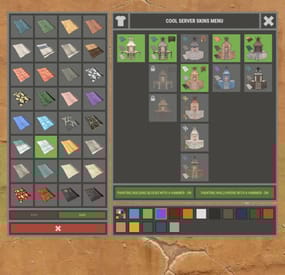
$18.99$15.19XBuildingSkinMenu
XBuildingSkinMenu - building block skins menu for your server.
- Optimization of the interface for different monitor resolutions.
- Storing player data in - oxide/data/XDataSystem/XBuildingSkinMenu
- There is a lang ru/en/uk/es.
- Sound effects when interacting with the menu.
- Possibility to allow only the owner of the cupboard to paint the building blocks of the house.
- Possibility to paint building blocks only when authorized in the cupboard.
- Possibility to paint building blocks with a hit of a hammer.
[ Each player can turn on/off in the main menu for convenience. ]
- Possibility to paint building blocks when upgraded.
- Possibility to use effects when painting.
- Possibility to paint each house separately.
[ You can paint an unlimited number of houses at the same time. ]
- Plugin support - BGrade and IQGradeRemove.
- Chat messages about the started/completed of painting the house.
[ The number of painted building blocks. ]
- Chat messages about the started/completed of painting items/constructions inside the house.
[ The number of painted items/constructions. ]
- Chat messages: the house is already being painted - items/constructions in the house are already being painted.
- To paint the containers, the color chosen by the player through the Spray can is used.
- UI button for easy transition from the XBuildingSkinMenu menu to the XSkinMenu menu. [ And vice versa. ]
- Possibility to choose color in UI.
- Automatic replenishment of the configuration with new skins of building blocks.
- Permissions for each skin.
- Automatically reset selected skins from a player, if revoke away their permission.
Permissions
xbuildingskinmenu.use - access to plugin functionality. [ Skins menu, hammer, building. ] xbuildingskinmenu.painting - access to paint the entire house through the cupboard. xbuildingskinmenu.simpleblock - access to paint high Walls/Gates. [ Hammer hit only. ] xbuildingskinmenu.entity - access to painting items/constructions inside the house. [ Requires XSkinMenu plugin version 1.1.14 and above. ] xbuildingskinmenu.default - default permission for skins. Commands
/bskin - open the building block skins menu. API
ulong GetBuildingSkin(BasePlayer player, string grade) - returns the skin of the building block selected by the player. ulong GetBuildingSkin(BasePlayer player, BuildingGrade.Enum grade) - returns the skin of the building block selected by the player. ulong GetBuildingSkin(BasePlayer player, BuildingBlock block) - returns the skin of the building block selected by the player. Config
{ "General setting": { "Automatically add actual skins of building blocks to the configuration": true, "Only the owner of the cupboard can start painting the house": false, "Use effects when painting home": true, "Use effects when painting items/constructions in the house": true, "Use effects when painting building blocks by hitting a hammer": false, "Enable painting of items/constructions in the house using player skins from the XSkinMenu plugin": false, "Skins for buildings": { "Wood": { "0": { "ImageURL": "", "Permission": "" } }, "Stone": { "0": { "ImageURL": "", "Permission": "" }, "10220": { "ImageURL": "", "Permission": "xbuildingskinmenu.default" }, "10223": { "ImageURL": "", "Permission": "xbuildingskinmenu.default" }, "10225": { "ImageURL": "", "Permission": "xbuildingskinmenu.default" } }, "Metal": { "0": { "ImageURL": "", "Permission": "" }, "10221": { "ImageURL": "", "Permission": "xbuildingskinmenu.default" } }, "TopTier": { "0": { "ImageURL": "", "Permission": "" } } }, "Default skins for new players": { "Wood": 0, "Stone": 0, "Metal": 0, "TopTier": 0 } }, "GUI setting": { "Close the menu by tapping on an empty area of the screen": false, "Material_background_0": "assets/icons/greyout.mat", "Color_background_0": "0 0 0 0", "Color_background_1": "0.517 0.521 0.509 0.95", "Color_background_2": "0.217 0.221 0.209 0.95", "Skin background color": "0.517 0.521 0.509 0.5", "Background color of the selected skin": "0.53 0.77 0.35 0.8", "Close button (icon) color": "1 1 1 0.75", "Color of buttons in cupboard": "0.35 0.45 0.25 1", "Button text color in cupboard": "0.75 0.95 0.41 1", "Hammer button color - On": "0.35 0.45 0.25 1", "Hammer button text color - On": "0.75 0.95 0.41 1", "Hammer button color - Off": "0.65 0.29 0.24 1", "Hammer button text color - Off": "0.92 0.79 0.76 1", "AnchorMin - button 1": "0.5 0", "AnchorMax - button 1": "0.5 0", "OffsetMin - button 1": "395 621.5", "OffsetMax - button 1": "572.5 641.5", "AnchorMin - button 2": "0.5 0", "AnchorMax - button 2": "0.5 0", "OffsetMin - button 2": "395 646.5", "OffsetMax - button 2": "572.5 666.5" } }