Jump to content
Featured framework
Carbon for modern Rust servers
Fast, self-updating, and built for performance with seamless in-game plugin and server management.
1,500+ servers powered by Carbon
$19.99
This plugin allows you to set how many times per day players can raid bases. It is a very straight forward plugin with lots of features to customize it for your server such as scheduled reset times, custom UI, and protection options.     Features: Limit number of raids that players can perform daily Scheduled reset times, even when server is offline Option for "free" raids against your attackers when defending your base Limit sync with teams and clans Assign bonus raid points to individuals Damage thresholds for raids Configurable messages Customizable UI Works with Simple Status Works with Clans Works with protection plugins (configurable) Documentation: A full readme including permissions, command, and config options is available in  this google doc link.   Disclaimer: Like all of my plugins - this plugin is sold as is. I will be happy to take feature requests into consideration but make no guarantees about which ones get implemented. Please refer to the feature list before you make your purchase  🙂
5.0
$49.90
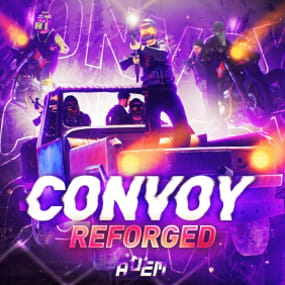
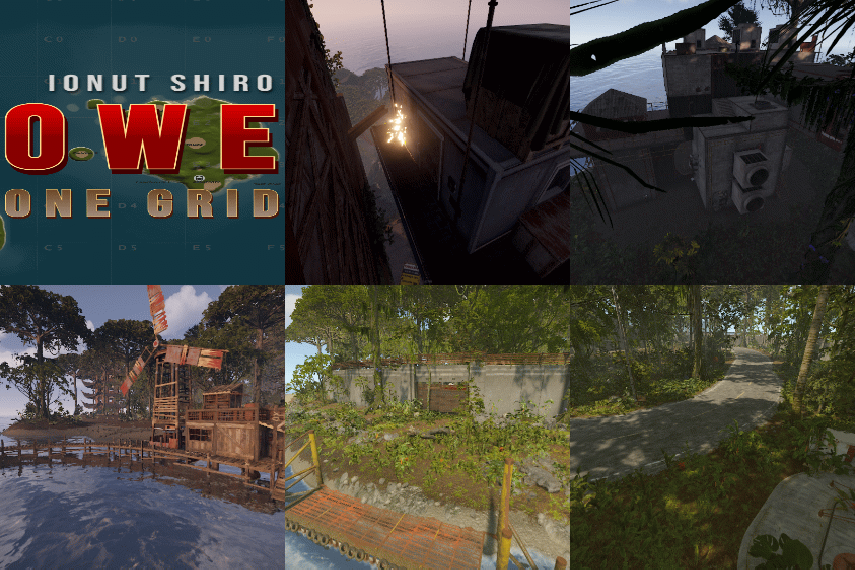
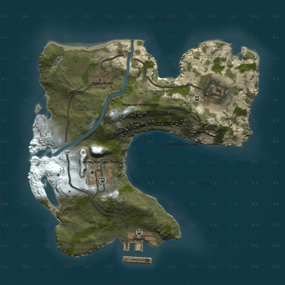
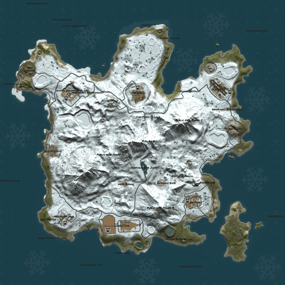
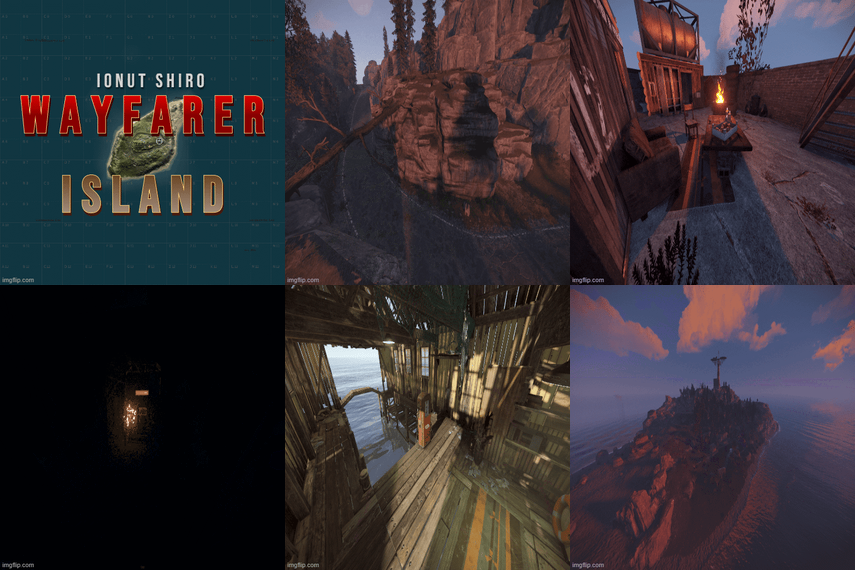
The map is made in a post-apocalyptic style: fog, abandoned scientific bases, anomalous fields, subways, caves and secret bunkers. Players are waiting for dangerous locations, caves, ruined cities and closed doors, behind which you can find valuable resources. The island has become a testing ground for experiments at the Cobalt Research Institute. After the accident at the power reactor, the terrain changed: anomalies appeared, the space became unstable, and research was urgently stopped. Scientists have disappeared, laboratories are empty, technology has gone crazy. Now the island is full of dangers and mysteries. Something continues to work underground, and abnormal zones are growing and being transferred. Those who ventured to explore the area find artifacts and traces of what led to the disaster. Every step here is a choice between prey and death. But the deeper you go, the more you feel that this place is going to disappear or explode... very soon. Features: Prefab Count: ~58к prefabs Size: 4500 A lot of interesting locations to explore Railway Places for the construction of foundations in the form of unusual rocks, caves, landscape and icebergs Custom plugin Map Skinner  (by  Adem) Custom plugin Npc Moving Control  (by  Adem) Custom plugin Emission  (by  Adem) Custom plugin Artifacts (by  Adem) Custom plugin Anomalies (by  Adem) Profile BetterNPC Realistic zombies on the map The atmosphere of the apocalypse This map is constantly supported and updated for the current version of the game with all updates! Description of Plugins: Emission - Once every 2 - 4 hours, a timer message appears and a large-scale change in the weather and effects occurs, radiation begins to spread, the screen shakes, trees fall and the effects of this event appear. Players need to find shelter underground or in their house (the higher the building level, the less radiation damage will be). Commands for plugins: /emissionstart /emissionstop  Anomalies - There are 4 types of Anomalies on the map, they appear after the end of the Emission. 1 anomaly is electrical (damage is inflicted on the player who is inside the anomaly, configured in the config), 2 anomaly is fiery (there are funnels in the radius, if you step on them, flames are released into the air, you can deactivate the anomaly by throwing a stone into the funnel, there is damage to the player), 3 anomaly is a bubble (in the radius of the bubbles breaks, if the player is too close to it, it will be thrown to the side or into the air, damage is caused only by the player falling), 4 anomaly - light (the most dangerous anomaly, when a blue ray appears, you need to turn away from it sharply, otherwise you will be blinded and a lot of damage will be done, it is configured in the config). /spawnanomaly presetName - spawns an anomaly in a random position; /killanomaly - destroys the anomaly closest to the player; /killallanomalies - destroys all anomalies on the map; /spawnanomalymypos presetName - will spawn an anomaly in your position Artifacts - These are stones with some improvements to the player's characteristics, these are increased rates, lack of radiation, increased processing of components (increased extraction of resources from processing), HP recovery (takes away water and food). These artifacts only work in the player's fast slots and have their own HP, which is not repaired. These artifacts can only be found in anomalies with a metal detector in hand. /giveartifact customShortName - give the artifact to yourself giveartifact customShortName userId - give the artifact to the player with the userId Map Skinner - we change this plugin skins on some objects installed on the map, for atmospheric effect. Npc Moving Control - this plugin controls the radius of movement of the NPCs installed in the editor and changes their clothes to random hazmats. These plugins were created for the map as a bonus. When evaluating the map itself, please do not touch on the topic of plugins. The map can work without these plugins.   Custom Monuments: Icarus Cultural Center Zalesye Orbita Station Blocked Tunnel Uranium Mining Unfinished Scanner Yanov Station Hot Runner Cemetery of Onlookers  Loners Cave Radioactive Waste Storage Anomaly Ribs Startup Failure Dead man Mine Supply Depot Dire Thicket Vent Distribution Substation Danger Tunnel Skladovsk Dredger Old Church Secret Bunker Cage Machine Station Repair Factory  interesting places to build a base marked X Shelters for escape from radiation Emission, marked with the letter S Monument Facepunch: Launch Site Missile Silo   Junkyard Harbor 1 and 2 Arctic Research Base Satellite Dish Airfield Bandit Camp Outpost Giant Excavator Pit Water Treatment Military Tunnel The Dome Sewer Branch Ranch Fishing Village 1,2,3  Lighthouse Underwater Lab Railway HQM, Sulfur, Stone Quarry Roadside Monument RadTown Water Well Ziggurat
5.0
sale
Rust CUI Editor Visual Interface Designer for Rust Stop writing UI code blindly. Design your CUI interfaces visually and export ready-to-use code in seconds.   What is this? Rust CUI Editor is a desktop application for creating Rust game UI (CUI) interfaces using a visual drag-and-drop editor. Instead of writing dozens of lines of CuiHelper code and constantly reloading your plugin to see the result, you design everything visually and get clean, working code instantly. Video demonstration 2.0.0 Version (At the moment the version is already newer with new features)   Elements Panel Image (URL/sprite) Label (with outline) Button InputField ScrollView Countdown Draggable Slot NeedsCursor / NeedsKeyboard Layout Horizontal Layout Group Vertical Layout Group Grid Layout Group Content Size Fitter LayoutElement Visual Drag elements on canvas Resize with 8 handles Multi-selection Marquee select Anchor/offset system Element rotation Inline text editing Element locking Alignment Left / Center / Right Top / Middle / Bottom Stretch to parent Match Width/Height Distribute evenly   🆕 Find & Replace Search and replace element properties across the entire project at once. No need to click through each element manually. ► Search by text content, color value, sprite, or material ► Filter results by element type ► Replace single matches or all at once ► Full undo support for bulk replacements   🆕 Inspect Element Dedicated inspection window for any selected element. Shows all properties in structured form alongside the raw CUI JSON output. ► All component properties in one place ► Raw CUI JSON with one-click copy ► Useful for debugging and quick exports ► Opens with shortcut or right-click menu   🆕 Snapshots Save named project states at any point and restore them without losing your current work. Snapshots are completely separate from undo history. ► Create named snapshots before risky changes ► Restore any snapshot at any time — current work is preserved ► Stored in a .snapshots folder next to the project file ► Independent from undo/redo stack   🆕 Wrap in Parent You've built a header with a label and a close button, then realize you forgot to add a background panel behind them. Select all elements, right-click, Wrap in Parent — done. Nothing moves. ► Works with any selection of elements ► New parent is sized to the bounding box of the selection ► All anchors recalculate automatically ► Wrap into Panel, Button, Image, or ScrollView   🆕 Themes Dark Theme Default dark interface. Easy on the eyes during long sessions. Light Theme Full light mode across all panels, dialogs, and overlays. Toggle in settings.   🆕 Plugin Import Load CUI elements directly from an existing .cs plugin source file. The parser reconstructs the full element tree for visual editing. ► Parses CuiHelper and CuiElementContainer patterns ► Resolves local variables and string constants ► Handles loops and repeated element generation ► Substitutes lang message references with preview text ► Works on any Oxide/Carbon plugin file   🆕 Built-in Reference A built-in help system with searchable articles covering the entire CUI system. No need to leave the editor to look something up. ► Articles for every element type and property ► Covers layers, ScrollView, blur materials, anchors, offsets, fonts ► Shortcut reference with all editor hotkeys ► Live demo canvas inside each article ► One-click "Add to project" from any example   🆕 Performance Rewrite Canvas GPU rendering Scene bitmap cache Static layer cache SKPicture cache SKPaint pooling (50+ allocs/frame saved) Text layout cache Typeface cache Pan without full re-render Element Tree Debounced rebuild on rapid changes Bulk update batching Fast flat selection cache O(n) ThumbnailBrush cache Detach() memory leak fixed Color Picker Real-time updates while dragging Only the affected element redraws No full scene invalidation     🆕 Live Preview See your UI exactly as it appears in-game, right inside the editor. Every element is fully rendered with correct Rust scaling, colors, sprites, and fonts. No need to reload your plugin to check the result. Rendering Panels & Images Labels with fonts Rich Text support Sprite tinting FadeIn / FadeOut Interactive Button hover & press ScrollView with inertia Elastic bounce Auto-hiding scrollbars Live Countdown Drag & Drop Draggable elements Slot filter matching MoveToAnchor snap Element swapping KeepOnTop z-order Tools Element Inspector Grid overlay Outlines view Auto-sync with editor Screenshot to PNG All CuiDraggableComponent properties are supported in preview: LimitToParent, MaxDistance, AllowSwapping, DropAnywhere, DragAlpha, ParentPadding, ParentLimitIndex, AnchorOffset, and more. ► Pick up Draggable elements and drop them into Slots ► Filter matching ensures only compatible elements snap ► Swap elements between occupied slots ► Inspector overlay shows element info on hover (shortcut: I) ► Grid and outline overlays for layout debugging (G / O) ► Background selector: dark, light, or any game screenshot ► Auto-sync keeps preview updated as you edit ► Export preview as PNG screenshot (S)   🆕 Smart Hook Generation When your project uses Draggable or Slot elements, the export automatically generates ready-to-use hook methods with proper logic: ► OnCuiDraggableDrag with if/switch blocks for each draggable ► OnCuiDraggableDropped with switch by slot name ► Comments with accepted elements and filter values ► Works in both Snippet and Plugin export modes   🆕 Developer Tools Professional plugin development toolkit with four dedicated tabs: Plugin Settings Author & version Chat/console commands Auto-show hooks Permissions list Plugin references Generate Unload Lang System Multi-language support Visual translation table Per-element lang keys lang.GetMessage() export Canvas preview ImageLibrary Image key/URL table Per-element ImageLib key GetImage() helper Auto OnServerInitialized Auto plugin reference Templates Reusable code templates Custom method generation Placeholder system Per-project settings 🆕 Localization System Full multi-language support for your plugins. Assign lang keys to any text element, manage translations visually, and export with automatic lang.GetMessage() calls. ► Add unlimited languages (en, ru, de, fr, etc.) ► Visual translation table - edit all strings in one place ► Toggle between raw text and lang key per element ► Canvas shows resolved translations in real-time ► Exported code includes full LoadDefaultMessages with all languages 🆕 ImageLibrary Integration Manage image assets directly in the editor. Define image keys and URLs, assign them to elements, and get clean export code with automatic ImageLibrary loading. ► Image key/URL table in Dev Tools ► ImageLib Key property on Image elements ► Export generates GetImage() helper method ► Plugin export auto-adds OnServerInitialized with image loading ► Automatic [PluginReference] ImageLibrary in export 🆕 Syntax Highlighting ► C# syntax highlighting in Export window ► JSON syntax highlighting in Export window ► Color-coded keywords, strings, numbers, comments ► Optimized for large code blocks 🆕 SVG Design Import Import your designs directly from professional design tools: Figma export to SVG and import Illustrator Adobe AI/SVG support Inkscape free vector editor Any SVG standard format ► Automatic source detection optimizes parsing for each tool ► Smart layer hierarchy preservation ► Automatic element type detection (btn_, lbl_, img_, panel_) ► Correct parent-child coordinate conversion   🆕 Figma Plugin & Tools New "Tools" folder included with the editor: ► CuiHelper Plugin for Figma - export designs directly to C# code ► Sample SVG designs - ready-to-import examples for testing and learning ► Documentation - setup guide for Figma plugin   🆕 Smart Resize Mode Default Mode Resize by changing Anchor values Perfect for responsive layouts that scale with screen size Shift + Resize Resize by changing Offset values Perfect for pixel-perfect positioning Orange handles indicate active mode   🆕 Inline Text Editing ► Double-click any text element to edit it directly on canvas ► No need to switch to the property panel, just click and type ► Press Enter or click outside to confirm changes   Guides, Grid & Smart Snapping ► Draggable guides from rulers ► Customizable grid with snap ► Smart guides - auto-snap to edges ► Distance indicators while dragging   Multiple Backgrounds Preview your UI on actual game screenshots: Game view Inventory Loot container Crafting Map Transparent Export Formats Generate ready-to-use code in three formats: C# (CuiHelper) container.Add(new CuiPanel { RectTransform = { AnchorMin = "0.3 0.3", AnchorMax = "0.7 0.7" }, Image = { Color = "0.1 0.1 0.1 0.9" } }, "Overlay", "MyPanel"); JSON [{ "name":"MyPanel", "parent":"Overlay", "components":[...] }] Full Plugin Complete .cs file with: • using statements • class definition • commands & permissions • Lang & ImageLib integration • all UI code   Import Existing Code Already have CUI code? Import it! ► Paste JSON array ► Paste C# CuiHelper code ► Import from PSD files ► Import from SVG files (Figma, Illustrator, Inkscape) ► Import from .cs plugin source files The editor parses your code and recreates all elements for visual editing.   Project Management ► Save/Load project files ► Multiple tabs for different projects ► Recent projects with thumbnails ► Per-project settings ► Close confirmation for unsaved changes   Property Editor Full control over every element property: ► Position (anchors + offsets) ► Colors with Rust format (0-1 RGBA) ► Fonts and text alignment ► Sprite/material selection ► Outline settings ► Fade in/out animations ► Button commands ► Input field parameters ► ScrollView settings ► Rotation and pivot point     Element Hierarchy ► Layer-based structure (Overlay, Hud, HudMenu) ► Parent-child relationships ► Drag & drop reordering ► Visibility toggle ► Lock elements to prevent accidental edits ► Rename with double-click ► Hover a tree node to highlight it on canvas   Additional Tools Measure Tool measure distances on canvas Style Picker copy style between elements Sprite Library browse Rust sprites Color Picker Rust format preview   Quality of Life ► Unlimited undo/redo ► Copy/paste/duplicate elements ► Copy/paste style ► Keyboard shortcuts for everything ► Multiple preset resolutions ► Smooth multiplicative zoom ► Auto-fit canvas to window ► Dark and light themes ► English & Russian localization ► Automatic update notifications   System Requirements ► Windows 10/11 ► .NET 8.0 Runtime (bundled) Installation 1. Download and extract the archive 2. Run RustCUIEditor.exe 3. Start creating!   Questions or support issues? Contact me via CodeFling messages.
5.0
Are you looking to upgrade your server's Raidable Bases or provide your players with the ultimate building inspiration? Look no further! Our team has engineered the most formidable structures in Rust. If you have purchased the full 210 and 120 packs, you do not need to buy these, as these bases are included in:   🛠️ What’s Inside? 36 Professional Designs: From intricate bunkers to massive high-tier fortresses. Tier 5 Difficulty: Specifically crafted for the "Nightmare" experience. Optimization: Built with stability and performance in mind (low entity count where possible). Plug-and-Play: Fully compatible with the CopyPaste plugin. ⚠️ Important Note This pack contains Base Models (.json files) only. It is NOT the Raidable Bases plugin script. You are purchasing the architectural designs created by our expert building team. 💎 Why Choose Our Packs? We don't just build boxes; we create raiding experiences. Every base in this 36-base collection has been tested for flow, trap placement, and durability. Join hundreds of satisfied server owners and level up your gameplay today!
0.0
$32.99
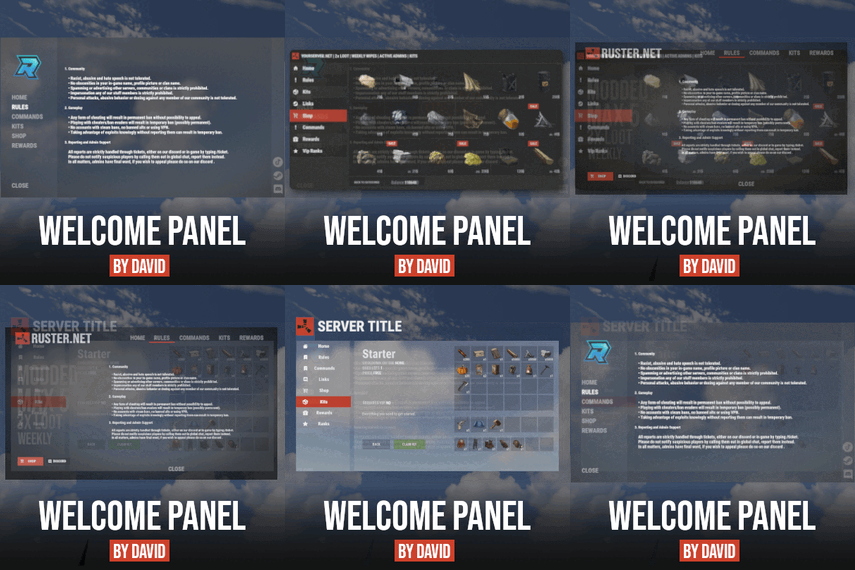
Well rounded shop, with various features. It's standalone plugin which is compatible with WelcomePanel, HumanNpc. This plugin also supports selling commands, wipe block, no escape, sales, permission access.   Multi-currency support Use different currencies for different items. Economics and ServerRewards (RP) is supported as well as scrap or any other ingame item.     Restrictions Combat, raid, spawn and building block supported alongside with  basic cooldowns and wipe block.   NoEscape is required for combat and raid block.       Appearance   Simple and clean design to ensure smooth user experience for your players.   Additionally Shop can be inserted into WelcomePanel to achieve "all in" server panel.   Customization Widely customizable and feature rich Shop which will  fit all needs of your community.         Field Tested Plugin made by experienced developer,  tested by hundreds of server owners and used by some big organizations.       Discord   Customer support available on discord,   Installation - unzip downloaded package and place Shop.cs file into your plugin folder. - after succesfuly loading the plugin, data folder oxide/data/Shop will be generated - take data files provided in plugin package and drop them into your Shop data folder After finishing these steps your shop is ready to used.         Server Currency   If you don't wish to use ingame items as currency make sure you use either Economics or ServerRewards as you currency management as only those two plugins are compatible with Shop. Default currency setting is Economics ("eco"), if you wish to change it navigate to "oxide/data/Shop/Items.json", open this file in some text editor (VSC recommended) and simply select "eco" and mass replace for desired value. (video here) "eco" for Economics "rp" for ServerRewards "scrap" or any other ingame item   Shop Categories To remove, change or add new categories open "oxide/data/Shop/Categories.json" file. There you will find all categories alongside with items lists. If you wish to remove certain items from category, just head over to item list and delete from there.   Items Changing prices In "oxide/data/Shop/Items.json" you will find every item with their properties, to quick search for specific items press "CTRL + F".  By leaving BuyPrice or SellPrice at 0 you will disable selling or buying of said item. Due to multi-currency support prices can be set only in whole numbers, no decimals. To offset for this, you can set minimal amount requirement. For example instead of selling one piece of wood for 0.01$ you can set minimal amount of  100x wood for 1$.   Removing items If you wish to remove some items from Shop, you can do that directly in  "data/Shop/Categories.json" file. Removing items from "Items.json" is not needed as they have no effect unless they are listed in some category. Adding new items To add new item you must first head over to "Items.json" data file and create new entry by copy pasting some of the existing ones. Once done with that you can add the  item into category. To add multiple versions of same item can be created by simply adding unique tag behind shortname, for example "rifle.ak{1}",  "rifle.ak{2}", etc...   Commands Adding new commands Commands can be create at "data/Shop/Commands.json". Plugin can only run server side console commands and then parse steam id or player name with tags {steamid} and {playername}. There are two examples shown in default data file. Server side console commands are common thing and almost all plugins utilize them. Listing commands in categories Simply type in one of your command names into category item list like this "cmd/yourCommandName". Slash cmd in front of command name is there to make difference between ingame item and command.   Cooldowns These are very basic, cooldown is triggered when buy/sell action is triggered. By using minimal amount requirement for items you can manage how much player buy and how often. Cooldowns are managed in "data/Shop/Cooldowns.json". Default data file contains two example of cooldowns but it's simply shortname and amount of seconds.     Restrictions Raid and Combat Block Managed by NoEscape plugin, option to enable these two block can be found in config file. Building Block Prevents players from using shop while they are building block, option can be found in config file. Spawn Block Prevents players from using shop after they respawn, amount of seconds can be set in config file, 0 = disabled. Wipe Block Prevents players from buying specific items after wipe. Settings are located in "data/Shop/ItemsWipeBlock.json", similar as cooldowns.   Sales By Permission (config file) Discount on every item in the shop assigned by permission, multiple permission can be created with their own discount values. By Category (categories data file) Discount for every item within specified category. By Item Discount for specific item in the shop. If item is already in discounted category, higher discount will be applied.   WelcomePanel integration To integrate this plugin into WelcomePanel simply use one of the four configs included in download package. These config were premade for each WelcomePanel template (goes from 1 to 4). In case you have own  highly customized layout for WelcomePanel you will have to adjust "Layout Container" in Shop config file by yourself.                  
4.9
sale
$17.99 $13.99
AdminWarn is designed for situations where players clearly violate server rules or require a direct and serious warning. With the latest update, an optional popup warning mode has been added alongside the mandatory acknowledgment GUI. This allows admins to send clean, non-intrusive messages displayed at the top of the screen. News: To avoid disrupting gameplay (such as PvP), you can use: /warnpopup <SteamID> <message> /warnpopupall <message> The core purpose of AdminWarn remains unchanged: forcing players to acknowledge warnings. Each mandatory warning includes a single confirmation button, ensuring the player has read and accepted it. Acknowledgment events are tracked via Discord webhook logs, including whether the warning was confirmed while the player was online or after reconnecting.   AdminWarn is built for manual use only. It is not an automated warning system. All warnings are intentionally sent by admins using commands.   At the same time, the system works intelligently in the background: - Warnings sent to offline players are stored and automatically shown when they next join, even days later. - For online players, warnings remain active until acknowledged, then are automatically cleared. - All data is fully wipe-aware and automatically cleaned on server wipes.   Each warning includes built-in in-game sound effects. No external or custom audio files are used. This is not a chat message. Warnings are delivered as visual UI elements that require acknowledgment or appear as optional popup notifications. Even if a player closes the game, mandatory warnings will reappear on the next login until confirmed. No movement restrictions are applied.   Warnings can be sent via: - RCON - Server console - In-game admin console (F1) 🚀 Performance: AdminWarn is built with an optimized and efficient code structure, making its presence virtually unnoticeable on the server. It runs smoothly during long uptimes and maintains stable hook memory and performance values under normal server conditions. 🔄 Wipe Behavior: - Restarts: Data preserved (approved warnings are auto-deleted for data optimization) - Server wipe: All warning data automatically cleared - No manual cleanup needed (Most of the time, it is not necessary) 🔧 Commands Chat & Rcon: Note: Player names are not unique and may include different alphabets or special characters. To avoid ambiguity, using Steam64ID is strongly recommended when sending warnings. warn <SteamID> <message> warn <PlayerName> <message> warn <SteamID1>,<SteamID2>,<SteamID3> <message> warn <Name1>,<Name2>,<Name3> <message> warnall <message> warnpopup <SteamID> <message> warnpopup <PlayerName> <message> warnpopup <SteamID1>,<SteamID2>,<SteamID3> <message> warnpopup <Name1>,<Name2>,<Name3> <message> warnpopupall <message> 🔐 Permissions Oxide/Carbon oxide.grant group admin adminwarn.admin c.grant group admin adminwarn.admin 📊 Discord Webhook Logging - Player name/steamid and SteamURL - Warning message / Timestamp - Read status (online/after reconnect) - Logs warning sending - Logs individual warning acknowledgements   AdminWarnLangEn.jsonAdminWarnDefaultConfig.json
5.0
sale
Hello everyone, I’m excited to present a brand new base pack! I’ve put a lot of hard work into this project and I hope you’ll appreciate the quality. In fact, we are already working on the next one! This pack includes 120 completely new, raid-ready bases. You will find 20 unique designs for every difficulty level, from Easy all the way up to Clan Bases. I hope you enjoy these builds! If you’re satisfied, please leave a positive review—it helps a lot. Also, if you have any suggestions for future updates, feel free to leave a comment below! Thank you!"
0.0
$14.99
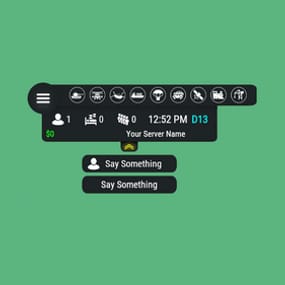
🗒️Features: You can add any  plugin event in the UI  (if it has hooks, usually specified in the plugin description) Has ingame UI menu for configure your Hud The time format is adjusted to the player (depending on his language in the game), it checks which time format is used for this language You can also enable an additional menu that opens on the arrow. You can add various buttons to this menu, for example, to open a store, your server menu, etc. Almost all elements are customizable  [for example: visibility of each element, Logo, Icons, Color e.t.c (check config down below)]                     📕Commands: /h setup - open UI for ingame config /h - show all Server Hud UI commands /h open - open Server Hud UI /h events - open Events Bar /h close - close Server Hud UI /h hide - hide Server Hud UI Q&A: Q: Where i can find a base icon for creating my events icons? A: Take a base icon below this message and using f.e photoshop for create you personal event icon! Q: Where i can find a ready to use icons? A: Here some links to ready to use icons packs(1 free, 2 paid): https://codefling.com/customizations/free-custom-hud-icons https://codefling.com/customizations/custom-hud-icons-paid https://codefling.com/customizations/server-hud-custom-icon-pack API: string API_PlayerHudState(string id) CanHudChangeState(BasePlayer player, string currentState, strint nextState) 🗒️Config: { "Auto reload [If you change the config and save the file the plugin will reload itself]": true, "Main setup": { "Overall layer [you will see the hud in your inventory]": false, "Size ALL [0% - inf]": 100, "Logo [HUD interact button]": "https://media.discordapp.net/attachments/335512864548847617/1134455399756607549/logo.png", "Events background opacity [0% - 100%]": 100, "Background opacity [0% - 100%]": 100, "Position": { "Align [TopLeft | TopRight | BottomLeft | BottomRight": "TopLeft", "Left | Right - offset": 40, "Top | Bottom - offset": 25 }, "Server name": "Your Server Name", "Active players": { "Icon": "https://cdn.discordapp.com/attachments/335512864548847617/1134455395813965934/active.png", "Color": "#fff", "Enable": true }, "Sleep players": { "Icon": "https://cdn.discordapp.com/attachments/335512864548847617/1134455395138670652/sleep.png", "Color": "#fff", "Enable": true }, "Queue players": { "Icon": "https://cdn.discordapp.com/attachments/335512864548847617/1134455393972654171/line.png", "Color": "#fff", "Enable": true }, "Time": true, "Player position [hide permisson - hud.streamer]": { "Enable": true, "true - grid | false - x,z coordinates": true, "Color": "cyan" }, "Economy plugin [Economics | ServerRewards]": { "Currency": "$", "Value color": "#10ff10", "Enable": true }, "Info messages": { "Update interval [in seconds]": 60, "Align [BottomCenter | TopCenter | TopRight]": "BottomCenter", "Width [in px]": 260, "Offset [top | bottom]": 0, "Offset [right]": 15, "Outline color": "#000", "Overall [you will see messages in your invenotory]": true, "Enable": true, "Messages": [ "Welcome to Your Server Name", "Good luck" ] }, "Additional menu": { "Auto close timer [seconds | 0 - disable]": 60, "Auto close after command use": true, "Open/Close button color": "yellow", "Commands background opacity [0% - 100%]": 100, "Enable": true, "Commands": [ { "Background image": "https://media.discordapp.net/attachments/335512864548847617/1134455392420761671/command.png", "Icon [optional]": "https://media.discordapp.net/attachments/335512864548847617/1134455395813965934/active.png", "Command": "chat.say Hello there", "Text": "Say Something", "Outline color": "#000", "Is Console": true }, { "Background image": "https://media.discordapp.net/attachments/335512864548847617/1134455392420761671/command.png", "Icon [optional]": "", "Command": "/shop", "Text": "Say Something", "Outline color": "#000", "Is Console": false } ] } }, "Base Events": [ { "Name": "Bradley", "Active color": "#10ff10", "Icon": "https://media.discordapp.net/attachments/335512864548847617/1134455316654850049/bradley.png", "Color": "#fff", "Enable": true }, { "Name": "PatrolHeli", "Active color": "#10ff10", "Icon": "https://media.discordapp.net/attachments/335512864548847617/1134455315073597530/heli.png", "Color": "#fff", "Enable": true }, { "Name": "CH47", "Active color": "#10ff10", "Icon": "https://media.discordapp.net/attachments/335512864548847617/1134455317485342803/ch47.png", "Color": "#fff", "Enable": true }, { "Name": "Cargo", "Active color": "#10ff10", "Icon": "https://media.discordapp.net/attachments/335512864548847617/1134455317086879794/cargo.png", "Color": "#fff", "Enable": true }, { "Name": "AirDrop", "Active color": "#10ff10", "Icon": "https://cdn.discordapp.com/attachments/335512864548847617/1134455316143161374/airdrop.png", "Color": "#fff", "Enable": true } ], "Custom Events": [ { "Hook OnEventStart": "OnConvoyStart", "Hook OnEventStop": "OnConvoyStop", "Name": "Convoy", "Active color": "#10ff10", "Icon": "https://media.discordapp.net/attachments/335512864548847617/1134455318030598154/convoy.png", "Color": "#fff", "Enable": false }, { "Hook OnEventStart": "OnSputnikEventStart", "Hook OnEventStop": "OnSputnikEventStop", "Name": "Sputnik", "Active color": "#10ff10", "Icon": "https://cdn.discordapp.com/attachments/335512864548847617/1134455315488854016/sputnik.png", "Color": "#fff", "Enable": false }, { "Hook OnEventStart": "OnArmoredTrainEventStart", "Hook OnEventStop": "OnArmoredTrainEventStop", "Name": "ArmoredTrain", "Active color": "#10ff10", "Icon": "https://cdn.discordapp.com/attachments/335512864548847617/1134455315841155173/train.png", "Color": "#fff", "Enable": false }, { "Hook OnEventStart": "OnHarborEventStart", "Hook OnEventStop": "OnHarborEventEnd", "Name": "Harbor", "Active color": "#10ff10", "Icon": "https://cdn.discordapp.com/attachments/335512864548847617/1134455318332592219/harbor.png", "Color": "#fff", "Enable": false } ] }

5.0
Automated chat messages based on chat keywords, timer or various other triggers. Plugin comes with an easy to use  Admin UI for complete setup, and supports special localization for your messages. You can define messages to be sent only to specific Groups or Permissions, and you can allow players to toggle on/off messages if they do not find them useful.   SUPPORTED TRIGGERS  If what you need is not here and still falls under the scope of the plugin description, reach out to me Timed | ChatCommand | AutoReply | NewPlayerJoined | PlayerConnected | PlayerDisconnected | PermissionGranted | PermissionRevoked | AddedToGroup | RemovedFromGroup | PlayerDead | CrateHacked | EnteredDeepSea | LeftDeepSea | EnteredZone | LeftZone | EnteredMonument | LeftMonument   COMMANDS /am.edit - (Admin UI for complete setup) - requires automatedmessages.admin permission /tips -  (Player command for toggling on/off messages) command can be changed in the config file   MESSAGES LOCALIZATION You can switch between languages in Admin UI to setup localized replies for every language the game supports. Check config section below for how to add languages.   Game Tips You can utilize Rust's native game tip UI to show specific messages instead or along with sending it to chat.   VARIABLES Variables can be included in the messages text to show further info based on the trigger or player. The plugin also supports  https://umod.org/plugins/placeholder-api  with the extensive list of variables it brings.   {playername} {playerid} - Player steam id {playercountry} {hacklocation} - Specific to messages with type CrateHacked {wipetimeremaining} - Days/Hours till wipe (based on rust convar settings if a missile silo monument is present) {online} - # of players online {sleeping} - # of players sleeping {joining} - # of players joining   CONFIG SETTINGS  Below are  only settings not currently available in Admin UI, highly recommended to edit triggers or actions using /am.edit Chat Icon (Steam Id)  - Icon that will be used for all messages sent by the plugin, must be a steam id. Toggle Chat Command  - "tips" - Chat command that allows a player to toggle on/off messages. AutoReply Cooldown (in seconds)  - Per action cooldown timer when  players type a keyword set. ChatCommand Cooldown (in seconds) - Per player cooldown timer when a player types a  chat command. ZoneManager Cooldown (in seconds)  - Per player cooldown timer on enter or exit zone. MonumentWatcher Cooldown (in seconds) - Per player cooldown timer on enter or exit monument. Replies Server Languages  - Languages your server will support. Available options:  af, ar, ca, cs, da, de, el, en-PT, en, es-ES, fi, fr, hu, it, ja, ko, nl, no, pl, pt-PT, pt-BR, ro, ru, sr, sv, tr, uk, vi, zh-CN, zh-TW Default Server Language -  Fallback language if player client  language had no available replies, you must have at least one reply for this language for the action to function. AutoReply `Broadcast to all` option to broadcast to team only if keywords sent from team chat - true/false
5.0
Offline Raid Limiter Stop Unfair Offline Raids in Their Tracks Tired of seeing your Rust server overrun by offline raid abuse? Offline Raid Limiter steps in to restore balance and fair play. With powerful tracking and immediate damage blocking, your players can enjoy a more authentic Rust experience—and you can enjoy worry-free server management. Key Benefits Prevent Offline Raid Abuse Daily + Per-Wipe raid limits Run daily limits, wipe limits, or both at the same time (fully configurable). Proximity-Based Tracking: Only counts raids when attackers are within range of a Tool Cupboard (TC), ensuring offline raid limits don’t trigger prematurely. Smart Raid Session Management Team & Additional Raider Tracking: Keeps tabs on individual players as well as entire teams—even if they leave and rejoin. Plus, if additional players jump into the same raid, their involvement is recorded. Edge Case Handling: No more confusion or gaps in coverage if a defender goes offline mid-raid or when multiple attackers are involved. Offline Raid Limiter’s robust logic sorts out these scenarios seamlessly. Instant Damage Blocking Enforce Fair Play: Once a team or individual hits their daily offline raid quota, further damage is blocked automatically. That means no more sneaky workarounds or unstoppable raids. Modded Server UI In-Game Control: For modded servers, gain access to a simple in-game UI that displays raid history, player statistics, and real-time session data. Player-Friendly Features: Grant permissions so your players can check their offline raid counts with the /orl.mystats command—helping everyone stay within the rules. Detailed Alerts & Reporting Discord Integration: Offline Raid Limiter sends comprehensive alerts to Discord, making admin oversight a breeze. Export & Clear Sessions: Use /orl.export to log and share your entire raid history for deeper analysis, then wipe all sessions with a simple console command if you need a fresh start. Designed for Vanilla & Modded Servers Flexible Configuration: If you set your server to "Vanilla,” the plugin automatically disables UI and direct damage blocks, limiting itself to Discord notifications so admins can monitor raiding behind the scenes. Seamless Integration: Works hand-in-hand with Rust’s existing frameworks and requires only the Simple Status & Image Library for certain UI elements. Why Choose Offline Raid Limiter? Enhanced Fairness: Players can’t take shortcuts with offline raids for easy loot. Clear Oversight: Admins see exactly who’s raiding and how often, helping you enforce balanced gameplay. Configurable & User-Friendly: Tailor the plugin to your server’s needs in just a few clicks, with plenty of documentation to guide you. If you’re ready to level the playing field and protect your community from unfair offline raids, Offline Raid Limiter has you covered. Bring your Rust server to new heights of balance, transparency, and peace of mind!   Commands & Usage Player Commands (permission based) /orl.mystats — Shows your overall stats (daily + wipe, plus active limits). /orl.mydaily — Shows your daily offline raids and daily limit. /orl.mywipe — Shows your wipe offline raids and wipe limit. Admin Commands /orl.disable <hours> — Temporarily disables enforcement for X hours. /orl.enable — Re-enables immediately. /orl.clearall — Clears all stored raid sessions (and fully resets tracking). /orl.clearplayer <SteamID64 or name> — Clears raids for a specific player/team. /orl.export — Exports raid sessions to JSON via the debug webhook. /orl.dailyall [top] — Shows a “top raiders” list for daily scope. /orl.wipeall [top] — Shows a “top raiders” list for wipe scope. /orl.dailyplayer <name/id> — Check a player’s daily count. /orl.wipeplayer <name/id> — Check a player’s wipe count.   Damage / Raid Logic OfflineRaidLimiter checks incoming damage to building blocks, doors, external walls, and more. If a team or player has exceeded the daily offline raid limit, all further damage to offline bases is blocked—and you can optionally broadcast an alert to Discord. Key Points to Note About Commands Some commands differ depending on your permissions and server setup. For instance, if a player types /exportraidsessions in chat, it won’t work unless they have OfflineRaidLimiter.admin. For "Vanilla” servers (as set in the config), UI, damage blocking, and certain other features may be disabled—so commands like clearraidsessions and clearraidsforplayer will still work, but may only be visible to server admins via console. When Commands Might Defer Cleanup Commands: If the plugin detects that some raid sessions are still "cooling down” (meaning the raid window hasn’t fully expired), the system may defer clearing them until the next pass. This prevents conflicts with currently active raids. Blocking Logic: After the daily limit is reached, the blocking triggers immediately and remains in place until the next server reset or cleanup routine (depending on how you configure it).  
5.0
Highest Rated
Top-rated picks trusted and loved by the community.
Trending Files
Popular picks members are downloading the most right now.
Great Deals
Discounted picks, limited-time deals, and sale items worth grabbing now.

About Us

Codefling is the largest marketplace for plugins, maps, tools, and more, making it easy for customers to discover new content and for creators to monetize their work.

Downloads
2.5m
Total downloads
Customers
11.2k
Customers served
Files Sold
160.3k
Total sales
Payments
3.4m
Processed total
×
×
  • Create New...

Important Information

We have placed cookies on your device to help make this website better. You can adjust your cookie settings, otherwise we'll assume you're okay to continue.