Jump to content
Featured framework
Carbon for modern Rust servers
Fast, self-updating, and built for performance with seamless in-game plugin and server management.
1,400+ servers powered by Carbon
$9.00
Easy Sailing gives you full control of the sails, engines, and anchors directly from the steering wheel.  Take full command of the seas without ever leaving the wheel. Easy Sailing is the essential quality-of-life plugin for the Rust Naval Update. It overhauls the default boat controls, allowing captains to manage sails, engines, and anchors directly from the steering wheel. Whether you are a solo player trying to manage a large vessel or a clan captain needing immediate reaction times, Easy Sailing puts the control back in your hands.   ⚓ KEY FEATURES No more running around the deck to manually adjust sails or engines. Do it all from the pilot's seat. Smart Cycling: Intuitive forward and reverse throttle controls that intelligently manage your propulsion methods. Solo Friendly: Makes operating larger player-made boats viable for solo players or small groups. Hybrid Propulsion: Seamlessly blends sail power and engine power for maximum fuel efficiency or maximum speed. Adds tighter turn radius with Ctrl similar to the Tugboat. Optionally allow engines to run without the need for Low Grade Fuel. ⚙️ HOW IT WORKS Easy Sailing maps the boat's complex mechanics to your standard movement keys `Forward`, `Backward` and `Reload` (Anchor Control) key while mounted at the steering wheel. THE SPEED CYCLE Pressing `Forward` (W) and `Backward (S)` cycles through five distinct states: Idle (default), Sailing, Full Speed, Reverse, Full Reverse. Idle: All propulsion is cut. Sails are raised and engines are turned off. FORWARD THROTTLE: Sailing Mode: Sails are lowered to catch the wind. Engines remain off for silent, fuel-free cruising. Full Speed Mode: Sails remain lowered, and all available engines ignite for maximum thrust. REVERSE THROTTLE: Reverse Mode: Sails are lowered and reversed, engines are cut. Full Reverse Mode: Sails are lowered and reversed, and all available engines ignite in reverse for maximum backward thrust. Holding Ctrl while turning can allow for a tighter turn radius similar to the Tugboat. ANCHOR CONTROL Pressing `Reload` (R) while at the steering wheel will raise or lower the anchor. PERMISSIONS easysailing.use: Required for players to use Easy Sailing. easysailing.freefuel: Bypasses the need for low grade fuel in boat engines.   CONFIGURATION Show Vital Info (Shows boat info in vitals): Shows your current direction (Reverse, Idle, Sailing, Full Speed) and speed in a Custom Vital. Show Vital Info Only: Does not enable sail and engine controls, but shows the current direction and speed in a Custom Vital. Enable Drift Mode (Hold Ctrl for tight turns): Holding Ctrl while turning the wheel, allows for tighter turn radius. Enable Free Fuel (Boats consume no fuel): Bypasses the need for low grade fuel in boat engines. DEFAULT CONFIGURATION { "Show Vital Info (Shows boat info in vitals)": true, "Show Vital Info Only": false, "Enable Drift Mode (Hold Ctrl for tight turns)": true, "Enable Free Fuel (Boats consume no fuel)": false }  
5.0
sale
This is a custom package created by us, featuring 110 unique bases and a specialized loot setup tailored for five difficulty levels, ranging from Easy to Nightmare. Note:  The building skins in the package showcase images may differ from the spawned bases or use the default building skin. Warning: The Raidable Bases plugin requires the Copy Paste plugin to function. You must install both for this bases pack to work. 🔗 Raidable Bases (Paid): https://codefling.com/plugins/raidable-bases 🔗 Copy Paste (Free): https://umod.org/plugins/copy-paste This Raidable Bases Pack & Loot Tables package includes: 🏡30 Easy Bases            +🗡️Base_Loot Tables   (Easy "Vanilla" and "Enhanced" tables included) 🏡30 Medium Bases       +🗡️Base_Loot Tables   (Medium "Vanilla" and "Enhanced" tables included) 🏡30 Hard Bases            +🗡️Base_Loot Tables   (Hard   "Vanilla" and "Enhanced" tables included) 🏡10 Expert Bases          +🗡️Base_Loot Tables   (Expert "Vanilla" and "Enhanced" tables included) 🏡10 Nightmare Bases   +🗡️Base_Loot Tables   (Nightmare "Vanilla" and "Enhanced" tables included) Beware:   Our loot table package includes only the 5-tier loot tables within the Base_loot folder, ranging from easy to nightmare. It does not include the loot tables from the Difficulty_Loot or Weekday_Loot folders. With a total of 110 bases, this package focuses on simplicity and optimization. Most bases are protected by turrets and traps, and each base is designed with player PC performance and server stability in mind.   VANILLA AND ENHANCED LOOT TABLES FOR RAIDABLE BASES This package includes 10 different base loot table files, ensuring a well-structured and advanced configuration for every difficulty level, from Easy to Nightmare. 5 loot files for the Vanilla setup (Easy, Medium, Hard, Expert, Nightmare), offering a balanced loot experience with some junk items, staying close to a 1x rate. 5 loot files for the Enhanced setup (Easy, Medium, Hard, Expert, Nightmare), designed for modded servers with 2x, 3x, or higher gather rates, featuring cleaner loot tables with minimal junk and more valuable rewards. 📁 Installation Path: All loot table files are intended for the /oxide/data/RaidableBases/Base_Loot directory. ⚠️ Setup Requirement: You must choose and install only one loot table setup at a time—either Vanilla or Enhanced. If you want to switch, you can replace the current files with the other set, but both cannot be active simultaneously. For those exclusively seeking the loot table, we offer it as a standalone product:  https://codefling.com/customizations/raidable-bases-loot-tables-pack (Note: If you've purchased our Raidable Bases Pack & Loot Tables (110 Bases) package, there is no need to buy this separately.)   WARNING: TWO DIFFERENT INSTALLATION METHODS (PLEASE READ BOTH AND APPLY ONLY THE ONE THAT FITS YOUR NEEDS) INSTALLATION GUIDE 1: (If you do not have a custom configuration and are not a professional in server configurations, choose this option. However, if you already have your own configuration and profile settings and do not wish to use the optional configs we provide—in other words, if you only need the bases and loot tables—use the second installation guide instead.) Step 1: Place the Config File From the extracted ZIP files, locate the config folder and find the RaidableBases.json file. Move it to the following directory: 📁 /serverfiles/oxide/config Step 2: Place the Bases From the extracted ZIP files, locate the copypaste folder and move it to the following directory: 📁 /serverfiles/oxide/data Step 3: Place the Base_Loot Tables From the extracted ZIP files, locate the Base_Loot folder and move it to the following directory: 📁 /serverfiles/oxide/data/RaidableBases Important: If there are any existing JSON files inside this folder that are not part of our loot tables, delete them to ensure proper functionality. Choose between Vanilla or Enhanced loot tables based on your preference. If the folder is named "Base_Loot (Enhanced loot)", remove the text in parentheses so that the correct folder name is simply: "Base_Loot"   (Otherwise, the loot tables will not work properly.) Step 4: Place the Profiles Folder From the extracted ZIP files, locate the profiles folder and move it to the following directory: 📁 /serverfiles/oxide/data/RaidableBases Why Are Profiles Important? The profiles folder contains crucial settings that allow you to: ✔️ Enable/disable the dome ✔️ Enable/disable NPCs ✔️ Adjust the number of lootable items These are just a few examples—there are dozens of important settings that directly affect how raid bases function. The config file alone is not enough—these files play a major role in customizing your raid bases. ⚠️ I strongly recommend reviewing each difficulty setting (Easy to Nightmare) inside the profiles folder and adjusting them based on your needs. Step 5: Restart the plugin via RCON: o.reload RaidableBases INSTALLATION GUIDE 2: (Use this installation method if you do not want to use our configurations and instead prefer to use your own config files and your own /oxide/data/RaidableBases/Profiles configurations.) In this case, you only need to add the bases. To do this, use the following commands in RCON:   Step 1:   You can add bases one by one or in bulk. After executing the commands in RCON, the bases will be registered inside the Profiles configuration. If you do not want to deal with these adjustments, it is recommended to use Installation Guide 1 instead. A- Example RCON commands:   rb.config add "Easy Bases" fullwipedeasy1 rb.config add "Hard Bases" fullwipedhard1 B- Commands to Integrate Raid Bases in Bulk via RCON: rb.config add "Easy Bases" fullwipedeasy1 fullwipedeasy2 fullwipedeasy3 fullwipedeasy4 fullwipedeasy5 fullwipedeasy6 fullwipedeasy7 fullwipedeasy8 fullwipedeasy9 fullwipedeasy10 fullwipedeasy11 fullwipedeasy12 fullwipedeasy13 fullwipedeasy14 fullwipedeasy15 fullwipedeasy16 fullwipedeasy17 fullwipedeasy18 fullwipedeasy19 fullwipedeasy20 fullwipedeasy21 fullwipedeasy22 fullwipedeasy23 fullwipedeasy24 fullwipedeasy25 fullwipedeasy26 fullwipedeasy27 fullwipedeasy28 fullwipedeasy29 fullwipedeasy30 rb.config add "Medium Bases" fullwipedmed1 fullwipedmed2 fullwipedmed3 fullwipedmed4 fullwipedmed5 fullwipedmed6 fullwipedmed7 fullwipedmed8 fullwipedmed9 fullwipedmed10 fullwipedmed11 fullwipedmed12 fullwipedmed13 fullwipedmed14 fullwipedmed15 fullwipedmed16 fullwipedmed17 fullwipedmed18 fullwipedmed19 fullwipedmed20 fullwipedmed21 fullwipedmed22 fullwipedmed23 fullwipedmed24 fullwipedmed25 fullwipedmed26 fullwipedmed27 fullwipedmed28 fullwipedmed29 fullwipedmed30 rb.config add "Hard Bases" fullwipedhard1 fullwipedhard2 fullwipedhard3 fullwipedhard4 fullwipedhard5 fullwipedhard6 fullwipedhard7 fullwipedhard8 fullwipedhard9 fullwipedhard10 fullwipedhard11 fullwipedhard12 fullwipedhard13 fullwipedhard14 fullwipedhard15 fullwipedhard16 fullwipedhard17 fullwipedhard18 fullwipedhard19 fullwipedhard20 fullwipedhard21 fullwipedhard22 fullwipedhard23 fullwipedhard24 fullwipedhard25 fullwipedhard26 fullwipedhard27 fullwipedhard28 fullwipedhard29 fullwipedhard30 rb.config add "Expert Bases" fullwipedexp1 fullwipedexp2 fullwipedexp3 fullwipedexp4 fullwipedexp5 fullwipedexp6 fullwipedexp7 fullwipedexp8 fullwipedexp9 fullwipedexp10 rb.config add "Nightmare Bases" fullwipednight1 fullwipednight2 fullwipednight3 fullwipednight4 fullwipednight5 fullwipednight6 fullwipednight7 fullwipednight8 fullwipednight9 fullwipednight10 Step 2: Place the Base_Loot Tables From the extracted ZIP files, locate the Base_Loot folder and move it to the following directory: 📁 /serverfiles/oxide/data/RaidableBases Important: If there are any existing JSON files inside this folder that are not part of our loot tables, delete them to ensure proper functionality. Choose between Vanilla or Enhanced loot tables based on your preference. If the folder is named "Base_Loot (Enhanced loot)", remove the text in parentheses so that the correct folder name is simply: "Base_Loot"   (Otherwise, the loot tables will not work properly.) Step 3: Restart the plugin via RCON: o.reload RaidableBases EXTRA IMPORTANT INFORMATIONS: We do not use a dome, NPCs, or arena walls around raid bases on our servers, and in the ZIP file we provided, these features are also disabled by default. If you want to enable them, you will need to adjust the settings accordingly. For example, to enable the dome, follow the steps below: Navigate to: /oxide/data/RaidableBases/Profiles Open the files inside the Profiles folder with a text editor. Locate the following settings: (This is already set to false because it is required for markers to appear on the map.) "Spawn Silently (No Notification, No Dome, No Map Marker)": false, "Create Dome Around Event Using Spheres (0 = disabled, recommended = 5)": 0, Change the value from 0 to 5 as shown below: "Create Dome Around Event Using Spheres (0 = disabled, recommended = 5)": 5, Additionally, the loot amount for bases varies depending on the difficulty level (easy, medium, hard, expert, and nightmare). You can adjust this setting in the same Profiles location according to your needs: "Amount Of Items To Spawn": 210, For example, in medium bases, this value is set to 210, which determines the total number of items that will appear in crates, furnaces, and the cupboard. Our current configuration is specifically adjusted to prevent players from feeling overwhelmed by massive buildings right after a wipe. We have configured Maintained Events accordingly to ensure a balanced experience. In our setup: - Timed events and purchasable events are disabled. - After a wipe, easy bases will start spawning 30 minutes later. - Nightmare bases will begin spawning 48 hours (2 days) later. Imagine starting the game with just a torch in hand and immediately encountering a nightmare base on the shore. You’d likely quit the game right away—this setting is crucial for us to avoid such scenarios. Configuration Example: serverfiles/oxide/config "Maintained Events": {   "Always Maintain Max Events": true,   "Max Maintained Events": 30,   "Enable X Hours After Wipe (0 = immediately)": {     "Easy": 0.5,     "Medium": 1.0,     "Hard": 3.0,     "Expert": 24.0,     "Nightmare": 48.0       All of our bases from Easy to Nightmare are equipped with turret protection. If you do not want turrets to spawn in your raidable bases on your server, you can use the following method. Go to the file path /data/RaidableBases/Profiles, open the JSON files inside with a text editor, and apply the following:   "Kill These Prefabs After Paste": [     "assets/prefabs/npc/autoturret/autoturret_deployed.prefab",     "autoturret_deployed" ], If you are satisfied with this package, you can support us by leaving a 5-star review on the site where you purchased it. Your feedback motivates us to continue improving and providing even better configurations for dedicated server owners like you. Please leave a review here:  https://codefling.com/bases/raidable-bases-pack-loot-tables-110-bases?tab=reviews Thank you! ❤️ Support:  FULLWIPED DISCORD  
5.0
Welcome to Wallpaper Planner a lightweight, fast, and user-friendly extension for Rust that enhances the default wallpaper tool with a powerful custom skin selector. 📐 Features 🔳 Custom UI: Access a sleek, in-game wallpaper selector by middle-clicking (FIRE_THIRD) while holding the wallpaper tool. The plugin automatically detects whether you're aiming at a wall, floor, or ceiling and opens the correct category. ⭐ Favourites System: Mark your favourite skins in each category, then easily toggle a view that shows only your most liked wallpapers. 👑 VIP Skins (New): Offer exclusive VIP-only wallpapers, floors, and ceilings to supporters or special groups. Create unlimited VIP tiers in the config (e.g. wallpaperplanner.vip, wallpaperplanner.vip1, wallpaperplanner.vip2, etc.). Assign unique skins to each tier. Players with the matching permission automatically see their extra VIP skins in the UI. 🎨 100% Custom All wallpapers are exclusively made for this plugin. No DLC or official skins are used, though some designs may be inspired by existing skins. 🎨 More Skins Incoming: New exclusive custom wallpapers are added regularly. You can also import your own Workshop skins with ease. 🔐 Permissions wallpaperplanner.use — Grants access to the wallpaper planner UI. wallpaperplanner.outside — Allows use of wallpapers outside of a player’s base. (Please note: This is currently in Beta. Not all skins perform perfectly on exterior surfaces or Armoured Tier walls.) wallpaperplanner.admin — Enables admin-only tools to rename, delete, or manage skins directly through the UI. 💬 Chat Commands /wallpaperplanner — Use this if you prefer a custom keybind instead of the middle mouse button. Must be used while holding the wallpaper planner. Example: Bind to H key Open console (F1) and enter: bind H "chat.say /wallpaperplanner" List of input keys to use in config that rust accepts. BACKWARD LEFT RIGHT JUMP DUCK SPRINT USE FIRE_PRIMARY FIRE_SECONDARY RELOAD FIRE_THIRD DISABLED ⛔ DISABLED Input Key (New): Server owners can now disable the UI keybind system entirely. In the config, set: "UI input key": "DISABLED" This prevents the menu from opening with FIRE_THIRD, allowing admins to enforce custom binds (e.g. /wallpaperplanner only).
5.0
Galium — Anti-Cheat & Moderation Platform for Rust Organizations Detection, intelligence, and enforcement — unified in one organizational dashboard. Galium is a production anti-cheat service operating since 2022, built for Rust server organizations that need structured moderation at scale — across multiple servers, multiple staff teams, and high player volume. Not a single plugin. Operational infrastructure for Rust organizations. Request Access Join Discord Your browser does not support the video tag. What Galium is Galium is an anti-cheat at its core — designed to detect behavioral abuse through live production signals, risk modeling, and enforcement workflows. Ahead of public launch, that proven detection foundation expanded into a full moderation and management platform — giving organizations one place to run their entire operational stack: ✓ Anti-cheat detection & risk scoring ✓ Teaming violation detection ✓ Toxicity and chat moderation ✓ Mute & ban management (history, reasons, evidence, traceability) ✓ Staff management & role-based permissions ✓ Organization & server management ✓ Automation rules and operational tooling ✓ Integrations (BattleMetrics + ecosystem-ready) Galium doesn't replace "one feature." It replaces fragmentation — plugins, spreadsheets, Discord-only logging, and inconsistent enforcement across servers. Reputation and production history Galium has been running in real competitive Rust environments since 2022 — refined through actual enforcement scenarios, edge cases, and the operational realities of moderating at scale. Over years of production usage, Galium has: ✓ Processed millions of behavioral signals ✓ Evolved risk weighting through real-world outcomes ✓ Prioritized explainability and auditability, not black-box actions ✓ Maintained enforcement consistency across wipes, servers, and staff teams This launch is not a new experiment — it's the public release of infrastructure that's already been proven in production. Built for organizations, not single servers Most "anti-cheat plugins" operate per server. Galium operates at the organization level. That means: ✓ One player identity across your entire org ✓ Risk follows the player, not the server they join ✓ Behavioral profiles persist beyond wipe cycles ✓ Policies and enforcement stay consistent across your infrastructure ✓ Staff actions and decisions are fully traceable across teams No silos. No per-server blind spots. One structured organizational view. Unified moderation control center Galium centralizes your moderation stack into one dashboard — so your team can move fast without losing control. Threat & moderation tools Behavioral analytics and risk overview Teaming detection and investigative context Prioritized cases based on severity, frequency, and recency Enforcement & logging Ban history, mute history, and action timelines Evidence linkage and structured reasons Full audit trails across staff actions Organization operations Server management and org configuration Staff roles, permissions, and governance Subscription and infrastructure controls Automation & integrations Automation rules for repeatable enforcement Sharing agreements and org-level controls BattleMetrics integration + integration-ready architecture Performance and infrastructure mindset Galium is designed for high-population, high-activity environments. ✓ Detection and analysis are designed to avoid server-side performance degradation ✓ Signal processing and intelligence are built to scale with organizational concurrency ✓ Operational clarity is maintained even under peak load ✓ Performance integrity stays preserved — while visibility and enforcement improves. Structured moderation at scale starts here If you operate multiple Rust servers and require centralized visibility, cross-server risk intelligence, and controlled enforcement — Galium provides the infrastructure to support it. Request Access Join Discord Production anti-cheat since 2022 • Built for Rust server organizations
5.0
$30.00
Manage your Rust server easier and more efficiently with the AdminMenu plugin. Track players, interact with them, edit their data and permissions, as well as change server convars and manage plugins. Features: Menu retains its state after closing, you won't lose everything you did before. Ability to fully translate the menu into any language.   Large range of permissions for each action, will allow you to flexibly customize the admin menu for each group of administrators. Quick menu that allows you to perform quick actions Full list of players with the ability to filter by online, offline, admins and moderators. Also has a frame of different colors depending on the level of authorization. Wide range of information and actions for the selected player. Editing convars with search. Has a complete list of editable convars with descriptions for some of them. Extensive issue menu by category, with easy management of name, skin and amount (manual, +1, +100, +1000, +10000). Plugin management menu. It is possible to reload, unload or load a plugin easily and quickly. Updates occur in real time. Ability to create your own custom buttons that execute several commands Quick Start: You install the plugin in the plugins folder. Give yourself the adminmenu.fullaccess permission.   Commands, use one of your choice, one for the player and one for the admin group:   o.grant user [name or steamid] adminmenu.fullaccess   o.grant group admin adminmenu.fullaccess Press the X button (swap  seat button) or type adminmenu in the console. Enjoy   Useful stuff: You can quickly open a player in the admin menu. To do this, point at the player and press X. You don't have to hover over the player exactly, you will be able to open players within a certain radius of the place you are looking at.   CUSTOM BUTTONS Custom buttons are buttons that when pressed will execute commands on behalf of the administrator, commands can be several, below will be the details. At the moment, custom buttons can be created in two places: in the quick menu and in the menu when selecting a player. These places are separated in the config. Button Fields: "Execution as server" - Call the command on behalf of the server, not the administrator "Label"  - Text that will be on the button, for each such inscription creates a field in the lang file, accordingly you can translate this text into several languages. "Commands" - Array of commands that will be executed on behalf of the administrator. Chat commands require a special entry, see examples. "Permission"- permission to display and use the button. You need to write the permission that will be after  "adminmenu.". Example: if you enter the permission "test"  the permission will be adminmenu.test "Position"  - The location for the button, the first number is responsible for the row number, the second for the position within the row, starts from 0.There are limits of locations, if you have gone beyond the limit - the button will not be displayed. Common Tags: {adminUID} - administrator's id. {position} - administrator coordinates (underfoot) {view_position} - the position where the administrator is looking (can be used for spawning or something similar) {view_direction_forward} - forward view direction of the administrator {view_direction_backward} - the direction the administrator is looking backwards {view_direction_left} - direction of the administrator’s view to the left {view_direction_right} - administrator’s view direction to the right Tags for target only: {steamid}, {steamID}, {userID}, {STEAMID}, {USERID} - mean the same thing, namely the id of the selected player. {target_position} - target coordinates (underfoot)   Example of commands: chat.say \"/{chat command}\" vanish ban {steamID} teleport {steamID} {adminUID}     More information about the grant menu: The grant menu includes the full list of items including hidden items as well as custom items created by the CustomItemDefinitions library. The menu can be accessed from the navigation or from the menu of the selected player. When issuing itself has categories. Search works in any registry by any part of the name or short name.   Has a page system at any stage. More information about the buttons in the Quick Menu: [Teleport to 0 0 0] - Teleport to coordinates 0 0 0. Requires  adminmenu.quickmenu.teleportto000 permission [Teleport to Deathpoint] - Teleport to your deathpoint. Requires adminmenu.quickmenu.teleporttodeath  permission [Teleport to Spawn point] - Teleport to a random spawn point. Requires adminmenu.quickmenu.teleporttospawnpoint  permission [Kill Self] - Kill Self, kills even when immortal. Does not require permission. [Heal Self] - Fully heal yourself. Requires  adminmenu.quickmenu.healself  permission   [Call Heli] - Call Helicopter to yourself (arrives in time). Requires adminmenu.quickmenu.helicall  permission [Spawn Bradley] - Spawn bradley on yourself. Requires adminmenu.quickmenu.spawnbradley  permission More information about the buttons in the menu of the selected player: [Teleport Self To] - Teleport yourself to the selected player. Requires adminmenu.userinfo.teleportselfto permission [Teleport To Self] - Teleport the selected player to yourself. Requires adminmenu.userinfo.teleporttoself  permission [Teleport To Auth] - Teleportation to random authorization (TC). Requires adminmenu.userinfo.teleporttoauth permission [Teleport to Deathpoint] - Teleportation to a player's deathpoint. Requires adminmenu.userinfo.teleporttodeath  permission [Heal] - Full healing, including metabolism. Requires adminmenu.userinfo.fullheal  permission [Heal 50%] - Half healing. Requires adminmenu.userinfo.halfheal permission. [View Inventory] - View and edit player's inventory. Requires adminmenu.userinfo.viewinv  permission [Strip Inventory] - Clear player's inventory. Requires adminmenu.userinfo.stripinventory permission [Unlock Blueprints] - Unlock all Blueprints. Requires adminmenu.userinfo.unlockblueprints  permission [Revoke Blueprints] - Reset all Blueprints. Requires adminmenu.userinfo.revokeblueprints permission.   [Kill] - Kill a player. Requires adminmenu.userinfo.kill  permission [Kick] - Kick a player. Requires adminmenu.userinfo.kick permission [Ban] - Ban a player. Requires adminmenu.userinfo.ban  permission More information about the buttons in the menu of the selected group: [Remove Group] - Remove group, has confirmation. Requires adminmenu.groupinfo.removegroup  permission [Clone Group] - Clone group with the ability to copy users. Requires adminmenu.groupinfo.clonegroup permission Permissions: adminmenu.use - Ability to use admin menu with basic set. Open tab quick menu (each button has its own permission, without permissions is present only kill yourself button) and the list of players. adminmenu.fullaccess - Full access to all functions without the need for each permission, includes also adminmenu.use. It is recommended to give only to the main administrators. adminmenu.quickmenu.teleportto000 - Access to the button in the quick menu, teleportation to coordinates 0 0 0 0. adminmenu.quickmenu.teleporttodeath - Access to the button in the quick menu, teleportation to the point of your death. adminmenu.quickmenu.teleporttospawnpoint - Access to the button in the quick menu, teleportation to a random spawn point. adminmenu.quickmenu.healself - Access button in quickmenu, heal yourself completely. adminmenu.quickmenu.helicall - Access to the button in the quick menu, call a helicopter to yourself (arrives in time). adminmenu.quickmenu.spawnbradley - Access button in quickmenu, spawn bradley. adminmenu.userinfo.teleportselfto - Access to the button in the menu of the selected player, teleportation to the selected player. adminmenu.userinfo.teleporttoself - Access to the button in the menu of the selected player, teleport the selected player to himself. adminmenu.userinfo.teleporttoauth - Access to the button in the menu of the selected player, teleportation to random authorization (TC). adminmenu.userinfo.teleporttodeath - Access to the button in the menu of the selected player, teleportation to the place of death of the player. adminmenu.userinfo.fullheal - Access to the button in the menu of the selected player, full healing, including metabolism. adminmenu.userinfo.halfheal - Access to the button in the menu of the selected player, half healing. adminmenu.userinfo.viewinv - Access to the button in the selected player's menu, view and edit the player's inventory. adminmenu.userinfo.stripinventory - Access to the button in the menu of the selected player, clear the player's inventory. adminmenu.userinfo.unlockblueprints - Access the button in the menu of the selected player, unlock all drafts. adminmenu.userinfo.revokeblueprints - Access to the button in the menu of the selected player, reset all drafts. adminmenu.userinfo.kill - Access the button in the selected player's menu to kill the player. adminmenu.userinfo.kick - Access the button in the selected player's menu to kick the player. adminmenu.userinfo.ban - Access to the button in the menu of the selected player, ban the player. adminmenu.groupinfo.removegroup - Access to the button in the menu of the selected group, the ability to remove the group. adminmenu.groupinfo.clonegroup - Access to the button in the menu of the selected group, the ability to clone the group. adminmenu.convars - View and edit convars. adminmenu.permissionmanager - View and edit permissions in groups, player groups, create, delete and clone groups (requires additional permissions from these buttons). adminmenu.pluginmanager - Access to plugin management, reloading, unloading, loading plugins. adminmenu.give - Access to give resources, as well as yourself and the selected player.
4.9
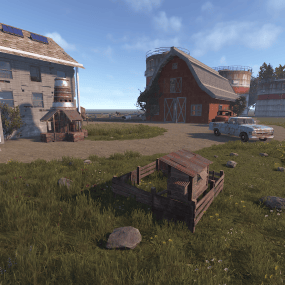
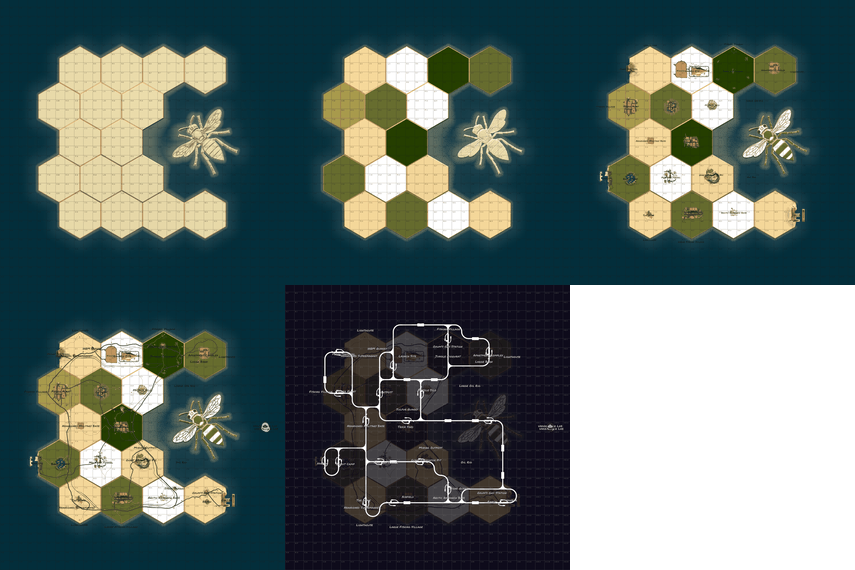
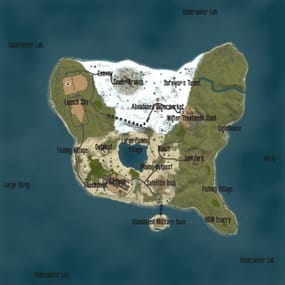
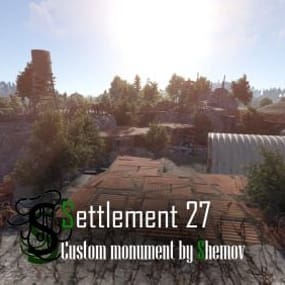
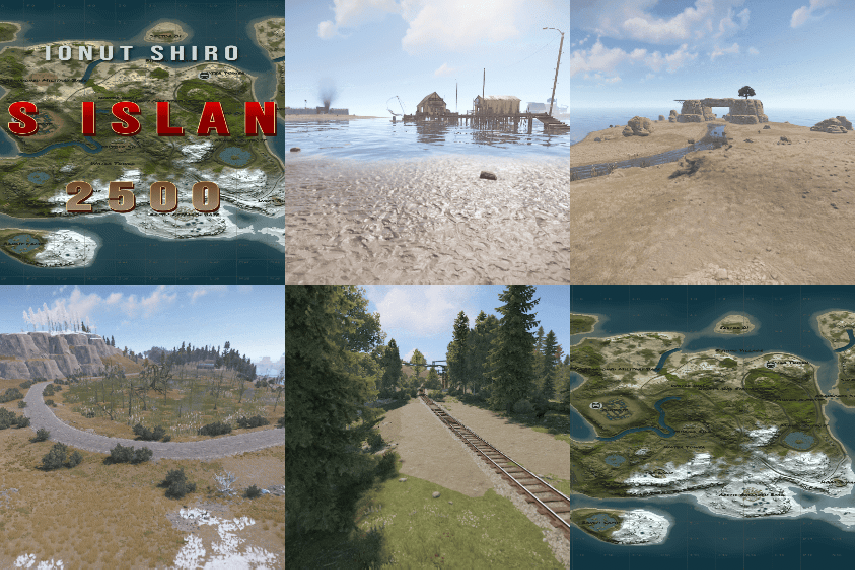
Welcome to "Decay: The Last Haven," a custom map for the game RUST that immerses players in a post-apocalyptic world where survival is a luxury. This expansive map, with a size of 4500, boasts around 70,000 prefabs, creating a rich and detailed environment. It's fully compatible with BetterNPC plugins(Config for bots in the  file), and Train Homes, featuring three stations for the plugin. The map showcases a double-track surface railway, offering two metro entrances with separate branches for spawning trains, complemented by an intricate underground railway system. The layout includes evenly spaced monuments to optimize the FPS load for clients, ensuring smooth gameplay. Players can find custom building spots in the subway, marked as 'XU' on the minimap, amidst a network of bridges that are navigable by tugboats. The map's design incorporates a multitude of rivers, allowing tugboats and other water transport to access any point on the map with ease. For those seeking a strategic advantage, the map presents custom monuments in ample quantity for a comfortable and engaging gaming experience. Builders will appreciate the custom sites, indicated by 'X' on the minimap, while the heart of the map features fresh water and lush vegetation, ideal for farmers. Explorers can discover a large number of small settlements and standalone buildings, not marked on the road map, offering hidden gems throughout the landscape. Adventurous players can delve into underwater farm zones, denoted by 'O' on the minimap, and explore the depths of an underwater laboratory. To add to the excitement, the map is equipped with ziplines, providing a thrilling way to traverse this desolate yet captivating world. "Decay: The Last Haven" is not just a map; it's a testament to the resilience of humanity in the face of desolation, offering a sanctuary for those brave enough to claim it. Features: Map size:  4500; Prefabs count:  ~65K; Compatible with BetterNPC plugins (Config for bots in the  file) & Train Homes ( 3 stations for plug-in ); Double-track surface railway with 2 entrances to the metro with separate branches for spawn trains; Underground railway; Evenly spaced monuments to spread the FPS load of client; Custom places for building in the subway (XU on the minimap); A lot of bridges ( The tugboat passes ); A large number of rivers, tugboats and other water transport can pass to any point on the map; Designed custom monuments in sufficient quantity for a comfortable game; Custom building sites (X on the minimap); Fresh water and vegetation for farmers are in the center of the map; A large number of small settlements/single buildings not marked on the road map by road; Underwater farm zones (O on the minimap); Underwater Laboratory; Ziplines. Custom monuments: Nuclear Cargo; Settlement; Bandit Settlement; Wood Industry; Industrial Settlement; Office Area; Reverpost; Shorpek; Warehouse Settlement; Bandit Ship; Slave Ship; Rebel Ship; RW Station; A large number of small settlements/single buildings not marked on the road map by road; A lots custom places to build a base. ( "X"/"XU"  on map  ); Underwater farm zones ( "O" on map ). Monuments: Combined Outpost; Launch Site; The Dome; Ziggurat; PowerPlant; JunkYard; Harbor; Airfield; Arctic Research Base; Desert Military Base; Ferry Terminal; Large fishing village; Oxum`s Gas Station; Abandoned supermarket; Fishing villages; Lighthouses; Satellite Dish; Nuclear Missile Silo; Water Treatment Plant; Train Yard; Giant Excavator Pit; Underwater laboratory; Ranch; Underground railway; Quarries(HQM,Stone, Sulfur); Large oilrig; Oilrig. My Discord: shemov A password is attached to the map.  You can edit it.
5.0
sale
$41.95 $31.95
Welcome to UltimateCases - the most exciting case opening experience for Rust servers! Give your players the thrill of unboxing rare items with beautiful roulette animations, create unlimited custom cases with unique rewards, and build a thriving economy through our advanced key exchange system. Whether you want to reward active players with free cases or monetize your server with premium loot boxes, UltimateCases has everything you need to keep players engaged and coming back for more!     ⭐️ Why Choose UltimateCases? Beautiful Unboxing Experience - Watch your players' excitement as they spin the roulette and discover their rewards! Customizable animations, rarity backgrounds, and sound effects create an unforgettable opening experience. Easy Case Creation - No coding required! Use our in-game visual editor to create cases, add items, set prices, and configure everything you need. Edit cases on the fly without touching configuration files. Monetize Your Server - Turn your server into a profitable venture with our key exchange system. Players can buy keys using any currency (Economics, ServerRewards, scrap, etc.) and you control the economy. Reward Active Players - Keep players engaged with free cases! Set playtime requirements and cooldowns to reward your most dedicated community members. Protect Your Economy - Advanced limits and restrictions prevent abuse. Set daily limits, lifetime limits, minimum playtime requirements, and block case opening during combat or raids. Store Rewards Safely - Built-in inventory system stores all case rewards securely. Players can retrieve items when they're ready, with options to persist items across wipes. Share the Excitement - Announce rare wins in chat and Discord! Customizable logging and webhook integration lets your community celebrate big wins together. NPC Traders at Monuments - Spawn NPCs at monuments where players can exchange keys for currency. Perfect for creating trading hubs and encouraging exploration! VIP Benefits - Reward your supporters with exclusive discounts on case opening and key exchange. Multiple VIP tiers with customizable benefits. Works Everywhere - Seamlessly integrates with ServerPanel, supports all major economy plugins, and works with ImageLibrary for perfect image management.   💰 Key Exchange System Turn any currency into case keys! Our flexible exchange system supports: Multiple Currencies - Use Economics, ServerRewards, BankSystem, IQEconomic, or any item (scrap, sulfur, etc.) as currency for key exchange. Bulk Discounts - Reward players who exchange more keys! Automatic discounts: 5% off for 10+ keys, 10% off for 25+ keys, 15% off for 50+ keys, 20% off for 100+ keys. VIP Discounts - Give your supporters extra savings! Configure permission-based discounts (5%, 10%, 15%, 20%) with custom daily limits. Daily Limits - Prevent abuse by limiting how many keys players can exchange per day. Perfect for controlling your server economy. Monument NPCs - Spawn traders at monuments! Players can visit NPCs at lighthouse, outpost, or any monument to exchange keys. Fully customizable appearance and rates.   📦 Smart Inventory System Never lose a reward again! Our inventory system stores all case rewards safely: Secure Storage - All case rewards are automatically stored in your personal inventory, accessible anytime through the UI. Wipe Protection - Choose whether items persist across server wipes or are cleared automatically. Perfect for seasonal rewards! Safe Retrieval - Items can only be retrieved when it's safe - no retrieving during combat, raids, or building blocked situations. Post-Wipe Cooldown - Optional cooldown after wipe before items can be retrieved, helping maintain server balance.   📬 Video Overview   🖼️ Showcase Templates Fullscreen Template ServerPanel V1 Template ServerPanel V2 Template ServerPanel V4 Template In-Game Editor   Monument Trader How to get Keys?   🎮 Commands /opencases or /cases - Opens the cases interface for players /cases.trader - Chat command for managing Monument Traders (requires ultimatecases.edit permission) /cases.trader create [currencyID] [defaultKeys] [prefab] - Create a new trader bot /cases.trader start <botIndex> - Enter edit mode for a trader /cases.trader move - Update trader position (requires edit mode) /cases.trader rotate <angle> - Set trader rotation (requires edit mode) /cases.trader save - Save and reload trader (requires edit mode) /cases.trader cancel/stop - Cancel edit mode /cases.trader list - Show all configured trader bots /cases.trader teleport <botIndex> - Teleport to a trader bot location /cases.trader help - Show help for trader commands cases.give - Console/Rcon command for giving keys or cases to players (admin only) cases.give <player> keys <amount> - Give keys to a player cases.give <player> case <caseID> [amount] - Give case(s) to a player Examples: cases.give PlayerName keys 100 or cases.give 76561198000000000 case 0 5 cases.convert - Console command for converting cases from old Cases plugin (requires UltimateCasesConverter plugin, admin only) cases.convert - Convert all cases and add them to existing UltimateCases data cases.convert true - Clear existing UltimateCases data before converting (fresh start)   🛡️ Permissions ultimatecases.edit - Permission to edit cases, items, and modals using the in-game editor. Required to access all editor functions and manage Monument Traders. ultimatecases.discount1 - 5% discount on case opening ultimatecases.discount2 - 10% discount on case opening ultimatecases.discount3 - 15% discount on case opening ultimatecases.vip1 - 5% discount on key exchange, with optional custom daily limit ultimatecases.vip2 - 10% discount on key exchange, with optional custom daily limit ultimatecases.vip3 - 15% discount on key exchange, with optional custom daily limit ultimatecases.vip4 - 20% discount on key exchange, with optional custom daily limit Note: Additional permissions can be configured in the config file for demo mode and quick unbox mode. These are optional and can be left empty to disable the features.   📚 FAQ Q: How do I open the Case Editor? A: To open the Case Editor: Make sure you have the ultimatecases.edit permission Open the cases menu using /opencases or /cases Look for the "EDIT" button in the header of the interface (usually in the top-right area) Click the "EDIT" button to open the Case Editor From here you can create new cases, edit existing cases, add items, configure prices, permissions, and all case settings   Q: How do I open the Item Editor? A: To open the Item Editor: First, open the Case Editor (see instructions above) Select a case from the list or create a new case In the case editor, you'll see a section for items Click "ADD ITEM" or click on an existing item to edit it The Item Editor will open where you can configure item type, chance, image, title, description, permissions, and all item-specific settings (weapons, contents, genes, etc.)   Q: How do I open the Modal Editor? A: To open the Modal Editor: Make sure you have the ultimatecases.edit permission Open the cases menu and navigate to any modal window (like the keys exchange modal) Look for the "EDIT" button that appears on modal windows when you have edit permission Click the "EDIT" button to open the Modal Editor From here you can edit modal content, text elements, images, buttons, and all modal settings   Q: How do I create a case? A: It's super easy! Open the cases menu in-game, click the "EDIT" button in the header, then click "ADD CASE" in the Case Editor. Configure the case title, image, price, permission, and add items. No file editing needed! Q: Can players get free cases? A: Yes! Enable Free Case Settings for any case. Set minimum playtime (e.g., 2 hours) and cooldown (e.g., 24 hours). Players meeting requirements can open the case for free once per cooldown period. Q: How do I set up key exchange? A: Go to Exchange Settings in the config. Add currencies (Economics, ServerRewards, scrap, etc.), set exchange rates, configure discounts, and you're done! Players can exchange currency for keys instantly. Q: What can I put in cases? A: Almost anything! Add items (weapons with attachments, containers with contents, blueprints, plant seeds with genes), or execute commands when cases are opened. Full customization for every reward type. Q: How do Monument Traders work? A: Configure NPCs in Exchange Settings to spawn at monuments. Players can visit these NPCs to exchange keys for currency. Set the monument (lighthouse, outpost, etc.), NPC appearance, position, and exchange rate. Q: Can I limit how many cases players can open? A: Absolutely! Set daily limits (e.g., 5 cases per day), total lifetime limits (e.g., 50 cases total), minimum playtime requirements, and block opening for a period after server wipe. Q: How does the inventory system work? A: When players open cases, rewards go to their inventory automatically. Players can access inventory through the UI and retrieve items when ready. Configure whether items persist across wipes. Q: Can I announce rare wins? A: Yes! Enable chat announcements and Discord webhooks. Set rarity threshold (e.g., only announce items with 5% or lower chance), customize message format, and share the excitement with your community! Q: How do I add UltimateCases to ServerPanel? A: In ServerPanel, create a new category with Type: "Plugin", Plugin Name: "UltimateCases", Plugin Hook: "API_OpenPlugin". The plugin integrates seamlessly! Q: Can I give VIP players discounts? A: Yes! Configure permission-based discounts in Case Opening Discounts and Exchange Privilege Settings. Set different discount percentages for different VIP tiers. Q: How do I configure the plugin config file? A: The config file is located at oxide/config/UltimateCases.json (or carbon/config/UltimateCases.json for Carbon). Here's how to configure key settings: Template Selection: Set "Template" to "Fullscreen", "V1", "V2", or "V4" Commands: Modify "Open UI Commands" array to add custom command aliases Key Exchange: Configure "Exchange Settings" → "Currencies" to add currencies (Economics, ServerRewards, items, etc.) Roulette Duration: Set "Roulette Settings" → "Default Duration" (seconds) and "Quick Mode Duration" Sound Effects: Enable/disable sounds in "Sound Effects" section and set effect prefab paths Logging: Configure console, file, chat, and Discord logging in "Logging Settings" Restrictions: Enable/disable case opening restrictions in "Restrictions Settings" Inventory: Configure inventory settings in "Inventory settings" section After editing, reload the plugin: o.reload UltimateCases (Oxide) or c.reload UltimateCases (Carbon).   Q: How do I set up LangAPI for multi-language support? A: To enable LangAPI support: Make sure LangAPI plugin is installed and loaded on your server In UltimateCases config, set "Work with LangAPI?" to true Create language files in oxide/lang/UltimateCases/ (or carbon/lang/UltimateCases/ for Carbon) Create files like en.json, ru.json, etc. with translation keys Use LangAPI's translation system to translate all plugin messages Reload the plugin to apply changes Example translation key structure: { "UI_Header_Title": "Ultimate Cases", "UI_Content_ButtonOpen": "OPEN CASE", "UI_Content_ButtonOpenFREE": "FREE", ... }   Q: How do I set up Monument Traders using commands? A: To create and configure Monument Traders: Make sure you have ultimatecases.edit permission Go to the monument where you want to spawn a trader (e.g., lighthouse, outpost) In server console, use: cases.trader create [currencyID] [defaultKeys] [prefab] currencyID - ID of the currency from Exchange Settings (0, 1, 2, etc.) defaultKeys - Default number of keys per exchange (e.g., 1) prefab - NPC prefab path (e.g., "assets/prefabs/npc/bandit/missionproviders/missionprovider_outpost_b.prefab") Enter edit mode: cases.trader start <botIndex> (use cases.trader list to see bot indices) Position yourself where you want the NPC to spawn Update position: cases.trader move Set rotation: cases.trader rotate <angle> (0-360 degrees) Save: cases.trader save The NPC will spawn automatically at the configured monument   Q: How do I configure custom economy plugins? A: To use a custom economy plugin: In config, find "Custom Economy Settings" Set "Use Custom Economy" to true Set "Type" to "Plugin" Enter "Plugin Name" (exact name as it appears in plugins list) Configure hooks: "Plugin Hook Add" - Hook name for adding balance (e.g., "AddPoints", "Deposit") "Plugin Hook Remove" - Hook name for removing balance (e.g., "TakePoints", "Withdraw") "Plugin Hook Balance" - Hook name for checking balance (e.g., "CheckPoints", "Balance") Test the hooks work correctly by checking plugin documentation Reload the plugin   Q: How do I configure rarity backgrounds? A: To set up rarity backgrounds: In config, find "Rarity Settings" → "Rarity Backgrounds" Add entries with chance ranges and images: "Min" - Minimum chance percentage (e.g., 0) "Max" - Maximum chance percentage (e.g., 1) "Image" - Background image URL for case display "Roulette Item Background Image" - Background image URL for roulette item display Example: Legendary (0-1%), Epic (1-5%), Rare (5-15%), Uncommon (15-50%), Common (50-100%) Items with drop chances within each range will display the corresponding background   Q: How do I configure Discord webhook logging? A: To set up Discord webhook logging: Create a Discord webhook in your Discord server (Server Settings → Integrations → Webhooks → New Webhook) Copy the webhook URL In config, find "Logging Settings" → "Discord" Set "Enabled" to true Paste webhook URL in "Webhook URL" Configure options: "Rare Threshold" - Only log items with chance ≤ X% (0 = log all items) "Embed Color" - Decimal color code (e.g., 15844367 for gold) "Title" - Embed title "Show Player Avatar" - Display player avatar in embed "Show Item Icons" - Display item icons in embed "Group Items" - Group multiple items in single message "Include Statistics" - Add statistics to embed Reload the plugin   Q: How do I configure item rewards with weapons and attachments? A: In the Item Editor: Set "Type" to "Item" Enter the weapon "ShortName" (e.g., "rifle.ak") In "Weapon" section, set "Enabled" to true Set "Ammo Type" (e.g., "ammo.rifle.explosive") Set "Ammo Amount" (e.g., 128) In "Content" section, set "Enabled" to true Add attachments in "Contents" array: "ShortName" - Mod shortname (e.g., "weapon.mod.lasersight") "Condition" - Item condition (0-100) "Amount" - Usually 1 for mods "Position" - Slot index (-1 for auto-assignment) Save the item   Q: How do I configure command rewards in cases? A: To add command rewards: In Item Editor, set "Type" to "Command" In "Command (%steamid%)" field, enter your command Use placeholders: %steamid% - Player's Steam ID %username% - Player's display name %player.x% - Player's X coordinate %player.y% - Player's Y coordinate %player.z% - Player's Z coordinate Multiple commands can be separated by | or line breaks Example: "inventory.giveto %steamid% rifle.ak 1|oxide.usergroup add %steamid% vip"   Q: How do I enable Offline Image Mode? A: To use local images instead of downloading from internet: In config, set "Enable Offline Image Mode" to true Create folder "TheMevent" in oxide/data (or carbon/data for Carbon) Download PluginsStorage (click "CODE" → "Download ZIP") Extract the ZIP and copy all contents to the "TheMevent" folder Reload the plugin: o.reload UltimateCases (Oxide) or c.reload UltimateCases (Carbon) Note: For custom images, place them in the "TheMevent" folder and reference them with the "TheMevent/" prefix (e.g., "TheMevent/MyImage.png").   Q: How do I configure demo mode and quick unbox mode? A: Demo mode allows testing cases without spending keys, and quick unbox mode speeds up animations: In config, find "Roulette Settings" For demo mode: Set "Demo Mode Permission" to a permission name (e.g., "ultimatecases.demo") or leave empty to disable For quick unbox: Set "Quick Unbox Permission" to a permission name (e.g., "ultimatecases.quick") or leave empty to disable Set "Quick Mode Duration" (seconds) - how long the quick animation should last Grant the permissions to players who should have access Reload the plugin   Q: How do I configure case opening restrictions? A: To prevent case opening in certain situations: In config, find "Restrictions Settings" Set "Enabled" to true Enable/disable specific restrictions: "Block During Combat" - Requires NoEscape plugin "Block During Raid" - Requires NoEscape plugin "Block in Building Blocked" - Blocks when player can't build "Block While Swimming" - Blocks when player is swimming "Block When Player is Wounded" - Blocks when player is wounded "Block During Duel" - Requires Duel/Duelist plugin "Block During Helicopter Flight" - Blocks when in helicopter "Block When Player is Sleeping" - Blocks when player is sleeping Reload the plugin     🧪 TEST SERVER Join our test server to experience UltimateCases yourself! Copy the IP Address below to start playing! connect 194.147.90.147:28015   Ready to create the ultimate case opening experience? UltimateCases gives you all the tools you need to build excitement, reward players, and monetize your server. Start creating your first case today!
5.0
$32.99
🌃 Metropolis: Where Concrete Meets Carnage  Dive into Metropolis, a densely packed, abandoned city map where danger lurks on every street corner and the highest loot awaits the bold. This 4700-sized environment transforms the survival sandbox into an intense urban battleground, perfect for players craving high-stakes PVP and intricate exploration. The heart of the map is the vast Metropolis itself—an urban labyrinth heavily patrolled by two formidable Bradleys and overseen by airborne Scientists. Navigate the city's depths to find multiple puzzle rooms (2 Red, 1 Blue, 2 Green) and unlock the abundant loot scattered throughout its concrete canyons.   Custom Safe Zone: New Haven Outpost This once-abandoned locale has been meticulously re-energized by a team of Cobalt scientists, providing the starting population with an abundance of supplies and services. This monument retains all the essential features of the original Outpost—and delivers much more: Striking Architecture: The central compound is now secured by large, custom glass walls, creating a visually stunning and unique aesthetic. Custom Water Features: A tranquil, custom-built lake and an elegant fountain enhance the environment. Functional water catchers are installed, providing players with a reliable source of hydration. Expanded Services: A custom Air Wolf vendor has been integrated for convenient helicopter purchases. High-Stakes Casino: An all-new, dedicated casino allows players to safely gamble their riches, adding a fun and high-risk activity to the safe zone. Ample Safe Loot: Players can safely gather a generous amount of loot scattered throughout the outpost.   Thrills and Exploration Experience the map's unique flair with a custom-built, fully working rollercoaster that is plug-in controlled to spawn a vehicle for your player with the press of a button! Explore intricate infrastructure including underground train tunnels, underground roads, and custom bridges, as well as two Heli Towers offering verticality to the fight.    💧 Water Treatment & Sewer Branch Reimagined Welcome to the New Sewer Treatment Plant, a monument that takes the best features of both Water Treatment Plant and Sewer Branch to create one incredible, high-value loot location. This massive, abandoned facility is loaded with features and rewards. Cobalt's Control: Don't be fooled by the ruin; Cobalt Scientists still maintain control over the facility's sewer drains. Underground Puzzles: Navigate two new, exclusive puzzles deep within the piping, featuring a dedicated Blue and Green keycard room. Lurking Danger: Keep your guard up—a scientist or two may still be lurking in the shadows, guarding their subterranean assets.     Map Prefabs Count: 25249 | Map Size: 4700 Monument List Custom Monuments and Prefabs Metropolis New Haven Outpost Murder Farm The Roller Coaster Sewage Treatment Plant 19 custom build locations Underground Train Tunnels Underground Roads Custom Bridges 2x Heli Towers Mod Room For Staff Facepunch Monuments Bandit Camp Launch Site Artic Research Stone, Hqm, & Sulfer Quarry Rad Town Power Plant Airfield Trainyard Jungle Ziggurat 2x Mining Outpost Large Harbor Small Harbor 3x Oxums gas Station 2x lighthouse Supermarket Large Barn Ranch Military Tunnel Ferry Terminal Giant Excavator Abandoned Cabins Large Fishing Village 2x Small Fishing Village Large Oil Rig Small Oil Rig 2x WaterWell For any Assistance or questions Please contact me on Discord @ https://discord.gg/HNhPTPZVmd   Acknowledgements Shoutout to Substrata for helping with making the plugin for the rollercoaster. Shoutout to MrLiquid and the Luffy Map Testing team for their help polishing this map. Shoutout to Milky for help with making the video.
5.0
$29.99
Basements lets players build underground rooms beneath their bases. Place a hatch on your foundation and dig straight down into a hidden basement with walls, ceilings, and full building privileges. Great for stashing loot, setting up secret bunkers, or just adding extra space. Readme Link - Click Here for Instruction and Documentation 👆Highly recommend reading the FAQ section! BUILD Build basements easily from your tool cupboard. Just place an entrance to get started.  EXPAND Expand your basement by drilling underground. But don't forget to bring a headlamp - its dark down there! TRAVERSE Place multiple entryways, building out your labyrinth of tunnels beneath your base.  DECORATE All deployables, electricity, and storage items can be placed in your basement. Take advantage of your new space! RAID Nothing is safe in Rust, including your basement. If all the entrances are destroyed, then the basement is too. Any loot below will float to the surface. Protect the entrance at all costs! API METHODS (For Plugin Developers) // Returns true if the given entityId is part of a basement. bool IsBasementEntity(ulong entityId) // Returns the building ids of the basements connected to a given surface building id. uint[] GetBasementBuildingIds(uint surfaceBuildingId) // Returns the building ids of the surface buildings connected to a given basement building id. uint[] GetSurfaceBuildingIds(uint basementBuildingId) Extension Plugins These are free plugins that add additional functionality to Basements. BasementsManager Provides a UI for admins to view and manage the basements on the server. Useful for debugging & fixing issues. Use with the /bm command, requires the basements.admin permission to use. BasementsManager.cs
4.9
sale
$40.00 $31.95
ServerPanel adds a player information menu to your server, where you can both share important and useful information with your players and integrate your plugins into it!     🌟  Features User-Friendly Interface: Intuitive GUI for easy navigation and interaction. Economy Integration: Supports various economy plugins for seamless financial management. Dynamic Menu Categories: Organize functionalities into customizable categories for better user experience. Extensive Configuration Options: Almost every aspect of the plugin can be customized, including messages, colors, sizes, fonts, tion. Auto-Open Menu: Automatically displays the menu upon player connection, configurable per server settings. Block Settings: Control access to the menu during building, raiding, or combat situations to enhance gameplay balance. Multiple Economy Head Fields: Display various economic metrics such as balance, server rewards, and bank information. Permission Management: Fine-tune permissions for different user roles to control access to features. Localization Support: Easily translate and customize all messages for different languages. Performance Optimized: Designed to minimize server lag while providing rich functionality. Customizable Hooks: Integrate with existing economy systems using customizable hooks for adding, removing, and displaying balances. Editor Position Change: Admins can now change editor positions with a simple click, choosing between left, center, or right alignments. Command Enhancements: Commands are now processed with multiple arguments separated by "|", enabling bulk command processing.   🎮  Commands /info –  open menu /sp.install  (or) /welcome.install –  open installer menu sp.migrations –  console command for updating plugin data structure when upgrading to new versions. Automatically creates backups before making changes. sp.migrations list – shows available migrations and whether they need to run sp.migrations run <version> – runs specific migration (e.g., "1.3.0") sp.migrations run <version> force – forces migration even if not detected as needed   🛡️  Permissions serverpanel.edit – allows players to edit the plugin settings and open the edit menu serverpanelinstaller.admin - required to access the plugin installation functions   🎥  Video   🖼️  Showcase Templates Template V1 Template V2 Template V3 Template V5 Editor Installer   🧪  TEST SERVER Join our test server to view and experience all our unique features yourself! Copy the IP Address below to start playing! connect 194.147.90.239:28015   📊  Update Fields ServerPanel supports dynamic update fields that can be used in your templates to display real-time information. These fields are automatically updated and can be used in text components, headers, and other interface elements. Player Information {online_players} – Number of currently online players {sleeping_players} – Number of sleeping players {all_players} – Total number of players (online + sleeping) {max_players} – Maximum server capacity {player_kills} – Player's kill count (requires KillRecords, Statistics, or UltimateLeaderboard) {player_deaths} – Player's death count (requires KillRecords, Statistics, or UltimateLeaderboard) {player_username} – Player's display name {player_avatar} – Player's Steam ID for avatar display Economy {economy_economics} – Economics plugin balance {economy_server_rewards} – ServerRewards points {economy_bank_system} – BankSystem balance Note: Economy fields are fully customizable in "oxide/config/ServerPanel.json" under "Economy Header Fields". You can add support for any economy plugin by configuring the appropriate hooks (Add, Balance, Remove). Custom keys can be created and used in templates just like the default ones. Server Information {server_name} – Server hostname {server_description} – Server description {server_url} – Server website URL {server_headerimage} – Server header image URL {server_fps} – Current server FPS {server_entities} – Number of entities on server {seed} – World seed {worldsize} – World size {ip} – Server IP address {port} – Server port {server_time} – Current server time (YYYY-MM-DD HH:MM:SS) {tod_time} – Time of day (24-hour format) {realtime} – Server uptime in seconds {map_size} – Map size in meters {map_url} – Custom map URL {save_interval} – Auto-save interval {pve} – PvE mode status (true/false) Player Stats {player_health} – Current health {player_maxhealth} – Maximum health {player_calories} – Calorie level {player_hydration} – Hydration level {player_radiation} – Radiation poisoning level {player_comfort} – Comfort level {player_bleeding} – Bleeding amount {player_temperature} – Body temperature {player_wetness} – Wetness level {player_oxygen} – Oxygen level {player_poison} – Poison level {player_heartrate} – Heart rate Player Position {player_position_x} – X coordinate {player_position_y} – Y coordinate (height) {player_position_z} – Z coordinate {player_rotation} – Player rotation (degrees) Player Connection {player_ping} – Connection time in seconds {player_ip} – Player's IP address {player_auth_level} – Authorization level (0=Player, 1=Moderator, 2=Admin) {player_steam_id} – Steam ID {player_connected_time} – Connection start time {player_idle_time} – Idle time (HH:MM:SS) Player States {player_sleeping} – Is sleeping (true/false) {player_wounded} – Is wounded (true/false) {player_dead} – Is dead (true/false) {player_building_blocked} – Is building blocked (true/false) {player_safe_zone} – Is in safe zone (true/false) {player_swimming} – Is swimming (true/false) {player_on_ground} – Is on ground (true/false) {player_flying} – Is flying (true/false) {player_admin} – Is admin (true/false) {player_developer} – Is developer (true/false) Network & Performance {network_in} – Network input (currently shows 0) {network_out} – Network output (currently shows 0) {fps} – Server FPS {memory} – Memory allocations {collections} – Garbage collections count Usage Example: You can use these fields in any text component like: "Welcome {player_username}! Server has {online_players}/{max_players} players online."   🔧  API Documentation for Developers ServerPanel provides an API for plugin developers to integrate their plugins into the menu system. Required Methods API_OpenPlugin(BasePlayer player) - Main integration method that returns CuiElementContainer OnServerPanelClosed(BasePlayer player) - Called when panel closes (cleanup) OnServerPanelCategoryPage(BasePlayer player, int category, int page) - Called when category changes (cleanup) OnReceiveCategoryInfo(int categoryID) - Receives your category ID Integration Example [PluginReference] private Plugin ServerPanel; private int _serverPanelCategoryID = -1; private void OnServerInitialized() { ServerPanel?.Call("API_OnServerPanelProcessCategory", Name); } private void OnReceiveCategoryInfo(int categoryID) { _serverPanelCategoryID = categoryID; } private void OnServerPanelCategoryPage(BasePlayer player, int category, int page) { // Cleanup when player switches categories } private CuiElementContainer API_OpenPlugin(BasePlayer player) { var container = new CuiElementContainer(); // Create base panels (required structure) container.Add(new CuiPanel() { RectTransform = {AnchorMin = "0 0", AnchorMax = "1 1"}, Image = {Color = "0 0 0 0"} }, "UI.Server.Panel.Content", "UI.Server.Panel.Content.Plugin", "UI.Server.Panel.Content.Plugin"); container.Add(new CuiPanel() { RectTransform = {AnchorMin = "0 0", AnchorMax = "1 1"}, Image = {Color = "0 0 0 0"} }, "UI.Server.Panel.Content.Plugin", "YourPlugin.Background", "YourPlugin.Background"); // Add your plugin's UI elements here container.Add(new CuiLabel { RectTransform = {AnchorMin = "0.1 0.8", AnchorMax = "0.9 0.9"}, Text = {Text = "Your Plugin Interface", FontSize = 16, Align = TextAnchor.MiddleCenter, Color = "1 1 1 1"} }, "YourPlugin.Background", "YourPlugin.Title"); // Add buttons, panels, etc. using "YourPlugin.Background" as parent return container; } private void OnServerPanelClosed(BasePlayer player) { // Cleanup when panel closes } Header Update Fields API_OnServerPanelAddHeaderUpdateField(Plugin plugin, string updateKey, Func<BasePlayer, string> updateFunction) - Registers a per-player string provider for a header placeholder. Returns true on success. API_OnServerPanelRemoveHeaderUpdateField(Plugin plugin, string updateKey = null) - Unregisters a specific updateKey for your plugin, or all keys for your plugin when updateKey is null. Returns true on success. Usage Example [PluginReference] private Plugin ServerPanel; private void OnServerInitialized() { // Register a dynamic header field for each player ServerPanel?.Call("API_OnServerPanelAddHeaderUpdateField", this, "{player_kdr}", (Func<BasePlayer, string>)(player => GetKdr(player))); } private string GetKdr(BasePlayer player) { // Compute and return the value to display in the header for this player return "1.23"; } Using in UI: Place your key (e.g., {player_kdr}) directly in Header Field texts. The value will be updated per player using your function.   📚  FAQ Q: Why can't I open the menu? A:  Make sure that the plugin is installed and activated on your server. If the problem persists, contact the server administrator. Q: How do I enable Expert Mode? (disables automatic template updates) A: In the data file "Template.json", turn on the "Use an expert mod?" option: "Use an expert mod?": true, P.S.  "Template.json” is located in the "oxide/data/ServerPanel" directory (if you use Oxide) or in the "carbon/data/ServerPanel" directory (if you use Carbon) Q: I see black images with Rust logo or get error 429 when loading images. What should I do? A: These issues occur when there are problems downloading images from the internet. To fix this, enable Offline Image Mode which will use local images instead: Enable the mode in config: Open "oxide/config/ServerPanel.json" (or "carbon/config/ServerPanel.json" for Carbon) Set "Enable Offline Image Mode": true Set up the images: Create folder "TheMevent" in "oxide/data" (or "carbon/data" for Carbon) Download PluginsStorage (click "CODE" → "Download ZIP") Extract the ZIP and copy all contents to the "TheMevent" folder Reload the plugin: Type o.reload ServerPanel (Oxide) or c.reload ServerPanel (Carbon) Note: If using a hosting service, you may need to use their file manager or FTP to upload the files. Q: Does ServerPanel work only with Mevent's plugins? A: Currently, ServerPanel integrates seamlessly with Mevent's plugins (Shop, Kits, Daily Rewards, etc.). However, other developers can use the provided API to integrate their plugins into the menu system. The plugin system is designed to be extensible for third-party integrations. Q: Why do integrated plugins (Shop, Kits) have different window sizes? A: Different plugins may use different templates for integration. Make sure all your integrated plugins use the same template version (V1, V2, etc.) that matches your ServerPanel template. Update the template in each plugin to ensure consistent sizing. Q: The panel displays differently for different players. How can I make it show the same on everyone's screen? A: This issue occurs when players have different UI scale settings. To fix this and ensure consistent display for all players: Open the "Template.json" file located in "oxide/data/ServerPanel" (or "carbon/data/ServerPanel" for Carbon) Find the "Parent (Overlay/Hud)" setting in the "Background" section Change the value from "Overlay" to "OverlayNonScaled" Save the file and restart your server or reload the plugin Q: How can I change the video displayed in the ServerPanel interface to my own custom video? A: Yes, you can replace the default video with your own! You need to find and modify the command: serverpanel_broadcastvideo [your_video_url] Replace [your_video_url] with the direct link to your video. For best compatibility, we recommend hosting your video on imgur.com. Q: My custom images are not loading or show as blank/question marks. What image hosting should I use? A: For custom images, we recommend using imgbb.com for image hosting. Avoid Imgur and services without direct access to the image. For the most reliable experience, use Offline Image Mode with local images instead. Q: How can I make plugin UIs open outside of the ServerPanel menu instead of inside categories? A: You can configure buttons to execute chat commands that open plugin UIs independently. To do this: In your button configuration, set "Chat Button": true Set the "Commands" field to "chat.say /command" (replace "command" with the actual plugin command) Example: To open the Cases plugin outside the menu: "Chat Button": true "Commands": "chat.say /cases" This will execute the command as if the player typed it in chat, opening the plugin's interface independently rather than within the ServerPanel menu. Q: Text in V4 template is shifting or sliding out of place. How can I fix this? A: This issue occurs when text width isn't properly configured. ServerPanel provides "TITLE LOCALIZATION" settings to control text width for categories and pages: Open the ServerPanel editor (click the "ADMIN MODE" button to open the edit menu) Select the category or page you want to edit (click to "EDIT CATEGORY" or "EDIT PAGE" button) In the editor, find the "TITLE LOCALIZATION" section For each language (en, ru, etc.), you'll see three columns: LANGUAGE - The language code TEXT - The localized text content WIDTH (px) - The width setting in pixels Adjust the "WIDTH (px)" value to match your text length. Longer text requires larger width values Save your changes and test in-game Tip: Start with a width value around 100-150 pixels for short text, and increase it for longer titles. You can adjust this value until the text displays correctly without shifting.
5.0
Community Picks
Highest Rated
Top-rated picks trusted and loved by the community.
Deals
Great Deals
Discounted picks, limited-time deals, and sale items worth grabbing now.
Fresh Updates
Recently Updated
Recently improved files with fresh updates, fixes, and new content.

About Us

Codefling is the largest marketplace for plugins, maps, tools, and more, making it easy for customers to discover new content and for creators to monetize their work.

Downloads
2.4m
Total downloads
Customers
10.8k
Customers served
Files Sold
155.5k
Marketplace sales
Payments
3.3m
Processed total
×
×
  • Create New...

Important Information

We have placed cookies on your device to help make this website better. You can adjust your cookie settings, otherwise we'll assume you're okay to continue.