
ExtraEvents can run multiple different and custom competitive events for players to win prizes; each event is highly configurable including chat/GameTip messages & items, commands, and/or kits rewards for one or more winners; regularly optimized to be as lightweight & efficient as possible; additional events and features planned.
The configuration may seem long but it's simply repetitive to allow for greater customization. ExtraEvents comes out of the box running a random event every 1-2 hours with a scrap reward of 100 for the top player and a participation reward of 10 scrap for everyone else who participates in the event! Custom events and rewards can be added.
Join my Discord for support and updates: https://discord.gg/teSffnDQ7N
Events Included
AnimalAnnihilation - Kill animals to win!
BarrelBreakers - Break barrels to win!
BerryBash - Gather wild berries to win!
BotBash - Kill bots to win!
CrateClash - Loot crates to win!
FishingFrenzy - Catch fish to win!
HempHunters - Gather wild hemp to win!
MushroomMadness - Gather wild mushrooms to win!
OreWar - Mine ore nodes to win!
PlayerBattle - Kill players to win!
ResourceRumble - Collect resources to win!
RoadsignRun - Destroy roadsigns to win!
TreeTrimmers - Chop trees to win!
TunnelTussle - Kill tunnel dwellers to win!
UnderwaterWar - Kill underwater lab scientists to win!
Additional Events Included
HighQualBrawl - Collect high quality metal ore at 3x (configurable) the normal rate
MetalMash - Collect metal ore at 3x (configurable) the normal rate
ResourceRun - Collect resources at 2x (configurable) the normal rate!
StoneSmash - Collect stones at 3x (configurable) the normal rate
SulfurSpree - Collect sulfur ore at 3x (configurable) the normal rate
WoodWhirl - Collect wood at 3x (configurable) the normal rate
Custom Events Can Be Added!
Event Types
destroy - counts destroyed/killed NPCs, players, barrels, roadsigns, etc.
loot - counts looted crates & loot containers
collect - adds collected resources/entity amounts together (adds total number of entities collected [500 wood, 1000 metal.ore, 10 cloth, etc.])
dispense - counts collected resource/entity types (counts entity types distributed [wood = 1 point, metal.ore = 1 point, cloth = 1 point, etc.])
fish - counts caught fish or killed sharks
gather - Adds gathered resources/entity amounts together when picked up from the ground (adds total number of entities collected [10 cloth, 1 mushroom, 1 red.berry, etc.])
Permissions
extraevents.admin
Admin Commands (Console & Chat) (requires extraevents.admin permission)
extraevents start - Start random event manually (regardless of Minimum Players Online) [/extraevents start]
extraevents start EventName - Start event manually (case sensitive (uses Event key/identifier, not DisplayNames)) [/extraevents start EventName]
extraevents end - End current event [/extraevents end]
Player Chat Commands
/extraevents ui - Toggle the UI visibility
/extraevents image - Toggle event image visiblity independent from UI
/extraevents sound - Toggle event sounds
ADD CUSTOM EVENTS
"BoarBrawl": {
"Enable Event": true,
"Event Name": "BoarBrawl",
"Event Description": "Kill boar to win!",
"Event Type (destroy, loot, collect, dispense, fish, gather)": "destroy",
"Event Length (seconds)": 600,
"Event Entities": [
"boar"
],
"Enable Event Permission": false,
"Event Permission": "extraevents.boarbrawl",
"Show UI And Notifications To Players Without Event Permission?": false,
"Restrict Event to Deep Sea Players Only?": false,
"Show UI And Notifications to Deep Sea Players Only?": false,
"Event Image(s)": [
{
"Enable Image": true,
"Image URL": "https://avatars.cloudflare.steamstatic.com/9df6fd69fc80ebe9387bb7a58ff4ee01d092af11_full.jpg",
"Image Transparency (0.0 - 100.0)": 75.0,
"Image Anchors Min (x y)": "0.8 0.2",
"Image Anchors Max (x y)": "0.83 0.245"
}
],
"Event Leaderboard": {
"Enable Leaderboard UI": true,
"UI Anchors Min (x y)": "0.695 0.025",
"UI Anchors Max (x y)": "0.83 0.1975",
"UI Background Color (r g b a)": "255 255 255 0.2",
"UI Text Color (r g b a)": "255 255 255 1.0",
"UI Text Outline Color (r g b a)": "0 0 0 0.25",
"UI Text Alignment (left, right, center)": "center",
"UI Player List Text Alignment (left, right, center)": "center",
"UI Pending Participation Message": "No one has played... yet."
},
"Event Notifications": {
"Enable Chat Notifications": true,
"Event Chat Prefix": "",
"Event Chat Icon (Steam64 ID)": 0,
"Enable GameTip Notifications": false,
"GameTip Style (info OR alert OR error)": "info",
"GameTip Duration (seconds)": 3.0,
"Enable Event Upcoming Notification": false,
"Event Upcoming Delay (seconds) (time before event starts after Event Upcoming Notification)": 30,
"Event Upcoming": "The <color=purple>{event_name}</color> event will start in {upcoming_announcement_delay} seconds! <color=purple>{event_description}</color>",
"Event Starting": "The <color=purple>{event_name}</color> event has started! <color=purple>{event_description}</color>",
"Event Starting Sound": "assets/bundled/prefabs/fx/item_unlock.prefab",
"Event Ending": "The <color=purple>{event_name}</color> event has ended.",
"Event Ending Sound": "assets/bundled/prefabs/fx/item_unlock.prefab",
"No Participants": "No one participated in the <color=purple>{event_name}</color> event",
"Multiple Winners Notification Delay (seconds)": 4.0
},
"Event Reward(s)": [
{
"Enable Reward": true,
"Reward Probability %": 100,
"Reward Notification": {
"Enable Reward Notification": true,
"Only Send Reward Notification To Winning Player?": false,
"Reward Notification": "<color=purple>{player_name}</color> scored <color=purple>first place</color> in the <color=purple>{event_name}</color> event with <color=purple>{points_scored} points</color> and won <color=purple>{rewards_list}</color>!",
"Separate {rewards_list} With Commas?": true
},
"Min Number from Item(s) List": 999,
"Max Number from Item(s) List": 999,
"Randomize Item(s) List": false,
"Item(s)": [
{
"Enable Item": true,
"Item Probability %": 100,
"Item Display Name": "Scrap",
"Change Item Name to Item Display Name in Player Inventory": false,
"Item Shortname": "scrap",
"Item Skin ID": 0,
"Min Item Amount": 100,
"Max Item Amount": 100
}
],
"Command(s)": [
{
"Enable Command": false,
"Command Probability %": 100,
"Command Display Name": "VIP Role",
"Command": "oxide.usergroup add {player.id} vip"
}
],
"Kit(s) (plugin required)": [
{
"Enable Kit": false,
"Kit Probability %": 100,
"Kit Display Name": "PVP Kit",
"Kit": "pvpkit"
}
]
}
],
"Participation Reward": {
"Enable Participation Reward": true,
"Give Participation Reward to Event Reward(s) Winner(s)?": false,
"Participation Reward Probability %": 100,
"Participation Reward Notification": {
"Enable Participation Reward Notification": true,
"Only Send Participation Reward Notification To Participating Players?": false,
"Participation Reward Notification": "Everyone else who participated in the <color=purple>{event_name}</color> event received <color=purple>{rewards_list}</color>!",
"Separate {rewards_list} With Commas?": true
},
"Min Number from Participation Reward Item(s) List": 999,
"Max Number from Participation Reward Item(s) List": 999,
"Randomize Participation Reward Item(s) List": false,
"Participation Reward Item(s)": [
{
"Enable Participation Reward Item": true,
"Participation Reward Item Probability %": 100,
"Participation Reward Item Display Name": "Scrap",
"Change Item Name to Participation Reward Item Display Name in Player Inventory": false,
"Participation Reward Item Shortname": "scrap",
"Participation Reward Item Skin ID": 0,
"Participation Reward Min Item Amount": 10,
"Participation Reward Max Item Amount": 10
}
],
"Participation Reward Command(s)": [
{
"Enable Participation Reward Command": false,
"Participation Reward Command Probability %": 100,
"Participation Reward Command Display Name": "Participant Role",
"Participation Reward Command": "oxide.usergroup add {player.id} participant"
}
],
"Participation Reward Kit(s) (plugin required)": [
{
"Enable Participation Reward Kit": false,
"Participation Reward Kit Probability %": 100,
"Participation Reward Kit Display Name": "Farm Kit",
"Participation Reward Kit": "farmkit"
}
]
}
}
Add extra winner positions to each event by adding to the Event Reward(s) [] group and extra Rewards by adding to the Item(s) [], Command(s) [], and Kits[] groups.
Example (First winner receives 100 Scrap, 1 Pookie, and 10,000 RP. Second winner receives 5,000 RP and Farm Kit)
"Event Reward(s)": [
{
"Enable Reward": true,
"Reward Probability %": 100,
"Reward Notification": {
"Enable Reward Notification": true,
"Only Send Reward Notification To Winning Player?": false,
"Reward Notification": "{player_name} scored first place in the {event_name} event with {points_scored} points and won {rewards_list}!",
"Separate {rewards_list} With Commas?": true
},
"Min Number from Item(s) List": 999,
"Max Number from Item(s) List": 999,
"Randomize Item(s) List": false,
"Item(s)": [
{
"Enable Item": true,
"Item Probability %": 100,
"Item Display Name": "Pookie",
"Change Item Name to Item Display Name in Player Inventory": false,
"Item Shortname": "pookie.bear",
"Item Skin ID": 0,
"Min Item Amount": 1,
"Max Item Amount": 1
},
{
"Enable Item": true,
"Item Probability %": 100,
"Item Display Name": "Scrap",
"Change Item Name to Item Display Name in Player Inventory": false,
"Item Shortname": "scrap",
"Item Skin ID": 0,
"Min Item Amount": 100,
"Max Item Amount": 100
}
],
"Command(s)": [
{
"Enable Command": true,
"Command Probability %": 100,
"Command Display Name": "10,000 RP",
"Command": "sr add {player.id} 10000"
}
],
"Kit(s) (plugin required)": [
{
"Enable Kit": false,
"Kit Probability %": 100,
"Kit Display Name": "PVP Kit",
"Kit": "pvpkit"
}
]
},
{
"Enable Reward": true,
"Reward Probability %": 100,
"Reward Notification": {
"Enable Reward Notification": true,
"Only Send Reward Notification To Winning Player?": false,
"Reward Notification": "{player_name} scored second place in the {event_name} event with {points_scored} points and won {rewards_list}!",
"Separate {rewards_list} With Commas?": true
},
"Min Number from Item(s) List": 999,
"Max Number from Item(s) List": 999,
"Randomize Item(s) List": false,
"Item(s)": [
{
"Enable Item": false,
"Item Probability %": 100,
"Item Display Name": "Scrap",
"Change Item Name to Item Display Name in Player Inventory": false,
"Item Shortname": "scrap",
"Item Skin ID": 0,
"Min Item Amount": 100,
"Max Item Amount": 100
}
],
"Command(s)": [
{
"Enable Command": true,
"Command Probability %": 100,
"Command Display Name": "5,000 RP",
"Command": "sr add {player.id} 5000"
}
],
"Kit(s) (plugin required)": [
{
"Enable Kit": true,
"Kit Probability %": 100,
"Kit Display Name": "Farm Kit",
"Kit": "farmkit"
}
]
}
]
FAQ
Q: Is there a limit to the number of custom events I can create?
Add as many custom events as you want! All custom "Event Types" and "Additional Event Types" must have a unique key/identifier (EX: "OreWar_Metal", "ResourceRumble_Stones", "ScarecrowSniper", etc.), must use the correct "Event Type" (EX: "dispense", "collect", "destroy", etc.), and must target the appropriate "Event Entities" (EX: "metal.ore", "stones", "scarecrow", etc.)
Q: Can I add custom Additional Event Types?
Yes! Same as the "Event Types" you can have as many "Additional Event Types" as you'd like, so long as they have a unique key/identifier (EX: "ResourceRun_Stones", etc.), use the correct "Event Type" (EX: "multiply"), and target the appropriate "Event Entities" (EX: "metal.ore", "stones", etc.)
Q: Is there a limit to the number of reward positions?
Nope, the sky is the limit! The plugin will automatically read any reward position you add to the Event Reward(s)[] group. Give rewards to the top 100 players if you want.
Q: Is there a limit to the number of items, commands, kits, etc. each player can win?
Again the sky is the limit! The plugin will read each item[], command[], kit[], etc. you add to the reward position as long as it is valid and enabled. Invalid items, commands, kits, etc. will be attempted and skipped on failure.
Q: Can I remove an entire event from the config file if I'm not using it?
No, if you remove an entire event from the configuration file it will re-add that event in its default state on reload. Use "Enable Event": false, to completely disable specific events.
Q: What is the ExtraEvents.data file? What does it do? Why can't I read it? Can I delete it?
The ExtraEvents.data file simply stores PlayerIDs for players who have disabled their event UIs & images and that is all. ExtraEvents uses an efficient ProtoBuf method of saving data to optimize performance (originally created by Google) which saves this file in binary and is why your average reader cannot compile it. If you delete the ExtraEvents.data file it will enable the UI and images for all of your players and they would have to disable it again manually.
Q: What is (r g b a)?
(r g b a) stands for (red green blue alpha[opacity]) and is a way of formatting colors, specifically for UI elements in our case. You can convert HEX (#FF0000) to RGBA (255 0 0 1.0) using online guides. Support for HEX and English colors coming soon. https://www.w3schools.com/colors/colors_hexadecimal.asp
Q: Can I add multiple images per event?
Sure, it will display any image you have in the Event Image(s)[] group.
Hooks for Developers
private void OnExtraEventStart(string eventIdentifier, string eventName, string eventDesc)
{
PrintWarning($"Event Identifier: {eventIdentifier} Event Start Name: {eventName} Event Desc: {eventDesc}");
}
private void OnExtraEventEnd(string eventIdentifier, string eventName, string eventDesc)
{
PrintWarning($"Event Identifier: {eventIdentifier} Event End Name: {eventName} Event Desc: {eventDesc}");
}
private void OnExtraEventWinnerItem(ItemDefinition item, BasePlayer winningPlayer)
{
PrintWarning($"Item Name: {item.displayName.english} Winner Name: {winningPlayer.displayName}");
}
private void OnExtraEventWinnerCommand(string command, BasePlayer winningPlayer)
{
PrintWarning($"Command: {command} Winner Name: {winningPlayer.displayName}");
}
private void OnExtraEventWinnerKit(string kitName, object kitSuccess, BasePlayer winningPlayer)
{
PrintWarning($"Kit: {kitName} Success: {kitSuccess} Winner Name: {winningPlayer.displayName}");
}
private void OnExtraEventParticipationItem(ItemDefinition item, BasePlayer winningPlayer)
{
PrintWarning($"Item Name: {item.displayName.english} Winner Name: {winningPlayer.displayName}");
}
private void OnExtraEventParticipationCommand(string command, BasePlayer winningPlayer)
{
PrintWarning($"Command: {command} Winner Name: {winningPlayer.displayName}");
}
private void OnExtraEventParticipationKit(string kitName, object kitSuccess, BasePlayer winningPlayer)
{
PrintWarning($"Kit: {kitName} Success: {kitSuccess} Winner Name: {winningPlayer.displayName}");
}
Default Lang
{
"Chat Prefix": "<color=purple>ExtraEvents:</color>",
"No Permission": "You do not have permission to use this command.",
"Chat Command Reply No Admin Permission": "Command Usage:\n/{chat_command} ui - Toggle the event UI\n/{chat_command} image - Toggle the event images\n/{chat_command} sound - Toggle the event sounds",
"Chat Command Reply With Admin Permission": "Command Usage:\n/{chat_command} ui - Toggle the event UI\n/{chat_command} image - Toggle the event images\n/{chat_command} sound - Toggle the event sounds\n/{chat_command} start - Start random event\n/{chat_command} start EventName - Start specific event\n/{chat_command} end - End current event",
"Console Command Reply With Admin Permission": "Command Usage:\n/{chat_command} start - Start random event\n/{chat_command} start EventName - Start specific event\n/{chat_command} end - End current event",
"No Event Found": "Cannot find the requested event: {event_name}",
"Upcoming Event": "An upcoming event is already queued: {event_name}",
"Active Event": "An event is already active: {event_name}",
"No Active Event": "There is no event currently active.",
"UI Enabled": "ExtraEvents UI Enabled",
"UI Disabled": "ExtraEvents UI Disabled",
"Image Enabled": "ExtraEvents Image Enabled",
"Image Disabled": "ExtraEvents Image Disabled",
"Sound Enabled": "ExtraEvents Sound Enabled",
"Sound Disabled": "ExtraEvents Sound Disabled",
"AnimalAnnihilation_Event_Name": "AnimalAnnihilation",
"AnimalAnnihilation_Event_Description": "Kill animals to win!",
"AnimalAnnihilation_Event_Chat_Prefix": "",
"AnimalAnnihilation_UI_Pending_Participation_Message": "No one has played... yet.",
"AnimalAnnihilation_Event_Upcoming": "The <color=purple>{event_name}</color> event will start in {upcoming_announcement_delay} seconds! <color=purple>{event_description}</color>",
"AnimalAnnihilation_Event_Starting": "The <color=purple>{event_name}</color> event has started! <color=purple>{event_description}</color>",
"AnimalAnnihilation_Event_Ending": "The <color=purple>{event_name}</color> event has ended.",
"AnimalAnnihilation_No_Participants": "No one participated in the <color=purple>{event_name}</color> event",
"AnimalAnnihilation_Reward_1": "<color=purple>{player_name}</color> scored <color=purple>first place</color> in the <color=purple>{event_name}</color> event with <color=purple>{points_scored} points</color> and won <color=purple>{rewards_list}</color>!",
"AnimalAnnihilation_Participation_Reward_Notification": "Everyone else who participated in the <color=purple>{event_name}</color> event received <color=purple>{rewards_list}</color>!",
"BarrelBreakers_Event_Name": "BarrelBreakers",
"BarrelBreakers_Event_Description": "Break barrels to win!",
"BarrelBreakers_Event_Chat_Prefix": "",
"BarrelBreakers_UI_Pending_Participation_Message": "No one has played... yet.",
"BarrelBreakers_Event_Upcoming": "The <color=purple>{event_name}</color> event will start in {upcoming_announcement_delay} seconds! <color=purple>{event_description}</color>",
"BarrelBreakers_Event_Starting": "The <color=purple>{event_name}</color> event has started! <color=purple>{event_description}</color>",
"BarrelBreakers_Event_Ending": "The <color=purple>{event_name}</color> event has ended.",
"BarrelBreakers_No_Participants": "No one participated in the <color=purple>{event_name}</color> event",
"BarrelBreakers_Reward_1": "<color=purple>{player_name}</color> scored <color=purple>first place</color> in the <color=purple>{event_name}</color> event with <color=purple>{points_scored} points</color> and won <color=purple>{rewards_list}</color>!",
"BarrelBreakers_Participation_Reward_Notification": "Everyone else who participated in the <color=purple>{event_name}</color> event received <color=purple>{rewards_list}</color>!",
"BerryBlast_Event_Name": "BerryBlast",
"BerryBlast_Event_Description": "Gather wild berries to win!",
"BerryBlast_Event_Chat_Prefix": "",
"BerryBlast_UI_Pending_Participation_Message": "No one has played... yet.",
"BerryBlast_Event_Upcoming": "The <color=purple>{event_name}</color> event will start in {upcoming_announcement_delay} seconds! <color=purple>{event_description}</color>",
"BerryBlast_Event_Starting": "The <color=purple>{event_name}</color> event has started! <color=purple>{event_description}</color>",
"BerryBlast_Event_Ending": "The <color=purple>{event_name}</color> event has ended.",
"BerryBlast_No_Participants": "No one participated in the <color=purple>{event_name}</color> event",
"BerryBlast_Reward_1": "<color=purple>{player_name}</color> scored <color=purple>first place</color> in the <color=purple>{event_name}</color> event with <color=purple>{points_scored} points</color> and won <color=purple>{rewards_list}</color>!",
"BerryBlast_Participation_Reward_Notification": "Everyone else who participated in the <color=purple>{event_name}</color> event received <color=purple>{rewards_list}</color>!",
"BotBash_Event_Name": "BotBash",
"BotBash_Event_Description": "Kill bots to win!",
"BotBash_Event_Chat_Prefix": "",
"BotBash_UI_Pending_Participation_Message": "No one has played... yet.",
"BotBash_Event_Upcoming": "The <color=purple>{event_name}</color> event will start in {upcoming_announcement_delay} seconds! <color=purple>{event_description}</color>",
"BotBash_Event_Starting": "The <color=purple>{event_name}</color> event has started! <color=purple>{event_description}</color>",
"BotBash_Event_Ending": "The <color=purple>{event_name}</color> event has ended.",
"BotBash_No_Participants": "No one participated in the <color=purple>{event_name}</color> event",
"BotBash_Reward_1": "<color=purple>{player_name}</color> scored <color=purple>first place</color> in the <color=purple>{event_name}</color> event with <color=purple>{points_scored} points</color> and won <color=purple>{rewards_list}</color>!",
"BotBash_Participation_Reward_Notification": "Everyone else who participated in the <color=purple>{event_name}</color> event received <color=purple>{rewards_list}</color>!",
"CrateClash_Event_Name": "CrateClash",
"CrateClash_Event_Description": "Loot crates to win!",
"CrateClash_Event_Chat_Prefix": "",
"CrateClash_UI_Pending_Participation_Message": "No one has played... yet.",
"CrateClash_Event_Upcoming": "The <color=purple>{event_name}</color> event will start in {upcoming_announcement_delay} seconds! <color=purple>{event_description}</color>",
"CrateClash_Event_Starting": "The <color=purple>{event_name}</color> event has started! <color=purple>{event_description}</color>",
"CrateClash_Event_Ending": "The <color=purple>{event_name}</color> event has ended.",
"CrateClash_No_Participants": "No one participated in the <color=purple>{event_name}</color> event",
"CrateClash_Reward_1": "<color=purple>{player_name}</color> scored <color=purple>first place</color> in the <color=purple>{event_name}</color> event with <color=purple>{points_scored} points</color> and won <color=purple>{rewards_list}</color>!",
"CrateClash_Participation_Reward_Notification": "Everyone else who participated in the <color=purple>{event_name}</color> event received <color=purple>{rewards_list}</color>!",
"FishingFrenzy_Event_Name": "FishingFrenzy",
"FishingFrenzy_Event_Description": "Catch fish to win!",
"FishingFrenzy_Event_Chat_Prefix": "",
"FishingFrenzy_UI_Pending_Participation_Message": "No one has played... yet.",
"FishingFrenzy_Event_Upcoming": "The <color=purple>{event_name}</color> event will start in {upcoming_announcement_delay} seconds! <color=purple>{event_description}</color>",
"FishingFrenzy_Event_Starting": "The <color=purple>{event_name}</color> event has started! <color=purple>{event_description}</color>",
"FishingFrenzy_Event_Ending": "The <color=purple>{event_name}</color> event has ended.",
"FishingFrenzy_No_Participants": "No one participated in the <color=purple>{event_name}</color> event",
"FishingFrenzy_Reward_1": "<color=purple>{player_name}</color> scored <color=purple>first place</color> in the <color=purple>{event_name}</color> event with <color=purple>{points_scored} points</color> and won <color=purple>{rewards_list}</color>!",
"FishingFrenzy_Participation_Reward_Notification": "Everyone else who participated in the <color=purple>{event_name}</color> event received <color=purple>{rewards_list}</color>!",
"HempHunters_Event_Name": "HempHunters",
"HempHunters_Event_Description": "Gather wild hemp to win!",
"HempHunters_Event_Chat_Prefix": "",
"HempHunters_UI_Pending_Participation_Message": "No one has played... yet.",
"HempHunters_Event_Upcoming": "The <color=purple>{event_name}</color> event will start in {upcoming_announcement_delay} seconds! <color=purple>{event_description}</color>",
"HempHunters_Event_Starting": "The <color=purple>{event_name}</color> event has started! <color=purple>{event_description}</color>",
"HempHunters_Event_Ending": "The <color=purple>{event_name}</color> event has ended.",
"HempHunters_No_Participants": "No one participated in the <color=purple>{event_name}</color> event",
"HempHunters_Reward_1": "<color=purple>{player_name}</color> scored <color=purple>first place</color> in the <color=purple>{event_name}</color> event with <color=purple>{points_scored} points</color> and won <color=purple>{rewards_list}</color>!",
"HempHunters_Participation_Reward_Notification": "Everyone else who participated in the <color=purple>{event_name}</color> event received <color=purple>{rewards_list}</color>!",
"MushroomMadness_Event_Name": "MushroomMadness",
"MushroomMadness_Event_Description": "Gather wild mushrooms to win!",
"MushroomMadness_Event_Chat_Prefix": "",
"MushroomMadness_UI_Pending_Participation_Message": "No one has played... yet.",
"MushroomMadness_Event_Upcoming": "The <color=purple>{event_name}</color> event will start in {upcoming_announcement_delay} seconds! <color=purple>{event_description}</color>",
"MushroomMadness_Event_Starting": "The <color=purple>{event_name}</color> event has started! <color=purple>{event_description}</color>",
"MushroomMadness_Event_Ending": "The <color=purple>{event_name}</color> event has ended.",
"MushroomMadness_No_Participants": "No one participated in the <color=purple>{event_name}</color> event",
"MushroomMadness_Reward_1": "<color=purple>{player_name}</color> scored <color=purple>first place</color> in the <color=purple>{event_name}</color> event with <color=purple>{points_scored} points</color> and won <color=purple>{rewards_list}</color>!",
"MushroomMadness_Participation_Reward_Notification": "Everyone else who participated in the <color=purple>{event_name}</color> event received <color=purple>{rewards_list}</color>!",
"OreWar_Event_Name": "OreWar",
"OreWar_Event_Description": "Mine ore nodes to win!",
"OreWar_Event_Chat_Prefix": "",
"OreWar_UI_Pending_Participation_Message": "No one has played... yet.",
"OreWar_Event_Upcoming": "The <color=purple>{event_name}</color> event will start in {upcoming_announcement_delay} seconds! <color=purple>{event_description}</color>",
"OreWar_Event_Starting": "The <color=purple>{event_name}</color> event has started! <color=purple>{event_description}</color>",
"OreWar_Event_Ending": "The <color=purple>{event_name}</color> event has ended.",
"OreWar_No_Participants": "No one participated in the <color=purple>{event_name}</color> event",
"OreWar_Reward_1": "<color=purple>{player_name}</color> scored <color=purple>first place</color> in the <color=purple>{event_name}</color> event with <color=purple>{points_scored} points</color> and won <color=purple>{rewards_list}</color>!",
"OreWar_Participation_Reward_Notification": "Everyone else who participated in the <color=purple>{event_name}</color> event received <color=purple>{rewards_list}</color>!",
"PlayerBattle_Event_Name": "PlayerBattle",
"PlayerBattle_Event_Description": "Kill other players to win!",
"PlayerBattle_Event_Chat_Prefix": "",
"PlayerBattle_UI_Pending_Participation_Message": "No one has played... yet.",
"PlayerBattle_Event_Upcoming": "The <color=purple>{event_name}</color> event will start in {upcoming_announcement_delay} seconds! <color=purple>{event_description}</color>",
"PlayerBattle_Event_Starting": "The <color=purple>{event_name}</color> event has started! <color=purple>{event_description}</color>",
"PlayerBattle_Event_Ending": "The <color=purple>{event_name}</color> event has ended.",
"PlayerBattle_No_Participants": "No one participated in the <color=purple>{event_name}</color> event",
"PlayerBattle_Reward_1": "<color=purple>{player_name}</color> scored <color=purple>first place</color> in the <color=purple>{event_name}</color> event with <color=purple>{points_scored} points</color> and won <color=purple>{rewards_list}</color>!",
"PlayerBattle_Participation_Reward_Notification": "Everyone else who participated in the <color=purple>{event_name}</color> event received <color=purple>{rewards_list}</color>!",
"ResourceRumble_Event_Name": "ResourceRumble",
"ResourceRumble_Event_Description": "Collect resources to win!",
"ResourceRumble_Event_Chat_Prefix": "",
"ResourceRumble_UI_Pending_Participation_Message": "No one has played... yet.",
"ResourceRumble_Event_Upcoming": "The <color=purple>{event_name}</color> event will start in {upcoming_announcement_delay} seconds! <color=purple>{event_description}</color>",
"ResourceRumble_Event_Starting": "The <color=purple>{event_name}</color> event has started! <color=purple>{event_description}</color>",
"ResourceRumble_Event_Ending": "The <color=purple>{event_name}</color> event has ended.",
"ResourceRumble_No_Participants": "No one participated in the <color=purple>{event_name}</color> event",
"ResourceRumble_Reward_1": "<color=purple>{player_name}</color> scored <color=purple>first place</color> in the <color=purple>{event_name}</color> event with <color=purple>{points_scored} points</color> and won <color=purple>{rewards_list}</color>!",
"ResourceRumble_Participation_Reward_Notification": "Everyone else who participated in the <color=purple>{event_name}</color> event received <color=purple>{rewards_list}</color>!",
"RoadsignRun_Event_Name": "RoadsignRun",
"RoadsignRun_Event_Description": "Destroy roadsigns to win!",
"RoadsignRun_Event_Chat_Prefix": "",
"RoadsignRun_UI_Pending_Participation_Message": "No one has played... yet.",
"RoadsignRun_Event_Upcoming": "The <color=purple>{event_name}</color> event will start in {upcoming_announcement_delay} seconds! <color=purple>{event_description}</color>",
"RoadsignRun_Event_Starting": "The <color=purple>{event_name}</color> event has started! <color=purple>{event_description}</color>",
"RoadsignRun_Event_Ending": "The <color=purple>{event_name}</color> event has ended.",
"RoadsignRun_No_Participants": "No one participated in the <color=purple>{event_name}</color> event",
"RoadsignRun_Reward_1": "<color=purple>{player_name}</color> scored <color=purple>first place</color> in the <color=purple>{event_name}</color> event with <color=purple>{points_scored} points</color> and won <color=purple>{rewards_list}</color>!",
"RoadsignRun_Participation_Reward_Notification": "Everyone else who participated in the <color=purple>{event_name}</color> event received <color=purple>{rewards_list}</color>!",
"TreeTrimmers_Event_Name": "TreeTrimmers",
"TreeTrimmers_Event_Description": "Chop trees to win!",
"TreeTrimmers_Event_Chat_Prefix": "",
"TreeTrimmers_UI_Pending_Participation_Message": "No one has played... yet.",
"TreeTrimmers_Event_Upcoming": "The <color=purple>{event_name}</color> event will start in {upcoming_announcement_delay} seconds! <color=purple>{event_description}</color>",
"TreeTrimmers_Event_Starting": "The <color=purple>{event_name}</color> event has started! <color=purple>{event_description}</color>",
"TreeTrimmers_Event_Ending": "The <color=purple>{event_name}</color> event has ended.",
"TreeTrimmers_No_Participants": "No one participated in the <color=purple>{event_name}</color> event",
"TreeTrimmers_Reward_1": "<color=purple>{player_name}</color> scored <color=purple>first place</color> in the <color=purple>{event_name}</color> event with <color=purple>{points_scored} points</color> and won <color=purple>{rewards_list}</color>!",
"TreeTrimmers_Participation_Reward_Notification": "Everyone else who participated in the <color=purple>{event_name}</color> event received <color=purple>{rewards_list}</color>!",
"TunnelTussle_Event_Name": "TunnelTussle",
"TunnelTussle_Event_Description": "Kill tunnel dwellers to win!",
"TunnelTussle_Event_Chat_Prefix": "",
"TunnelTussle_UI_Pending_Participation_Message": "No one has played... yet.",
"TunnelTussle_Event_Upcoming": "The <color=purple>{event_name}</color> event will start in {upcoming_announcement_delay} seconds! <color=purple>{event_description}</color>",
"TunnelTussle_Event_Starting": "The <color=purple>{event_name}</color> event has started! <color=purple>{event_description}</color>",
"TunnelTussle_Event_Ending": "The <color=purple>{event_name}</color> event has ended.",
"TunnelTussle_No_Participants": "No one participated in the <color=purple>{event_name}</color> event",
"TunnelTussle_Reward_1": "<color=purple>{player_name}</color> scored <color=purple>first place</color> in the <color=purple>{event_name}</color> event with <color=purple>{points_scored} points</color> and won <color=purple>{rewards_list}</color>!",
"TunnelTussle_Participation_Reward_Notification": "Everyone else who participated in the <color=purple>{event_name}</color> event received <color=purple>{rewards_list}</color>!",
"UnderwaterWar_Event_Name": "UnderwaterWar",
"UnderwaterWar_Event_Description": "Kill underwater lab scientists to win!",
"UnderwaterWar_Event_Chat_Prefix": "",
"UnderwaterWar_UI_Pending_Participation_Message": "No one has played... yet.",
"UnderwaterWar_Event_Upcoming": "The <color=purple>{event_name}</color> event will start in {upcoming_announcement_delay} seconds! <color=purple>{event_description}</color>",
"UnderwaterWar_Event_Starting": "The <color=purple>{event_name}</color> event has started! <color=purple>{event_description}</color>",
"UnderwaterWar_Event_Ending": "The <color=purple>{event_name}</color> event has ended.",
"UnderwaterWar_No_Participants": "No one participated in the <color=purple>{event_name}</color> event",
"UnderwaterWar_Reward_1": "<color=purple>{player_name}</color> scored <color=purple>first place</color> in the <color=purple>{event_name}</color> event with <color=purple>{points_scored} points</color> and won <color=purple>{rewards_list}</color>!",
"UnderwaterWar_Participation_Reward_Notification": "Everyone else who participated in the <color=purple>{event_name}</color> event received <color=purple>{rewards_list}</color>!",
"HighQualBrawl_Event_Name": "HighQualBrawl",
"HighQualBrawl_Event_Description": "Collect high quality metal ore at 3x the normal rate!",
"HighQualBrawl_Event_Chat_Prefix": "",
"HighQualBrawl_Event_Upcoming": "The <color=purple>{event_name}</color> event will start in {upcoming_announcement_delay} seconds! <color=purple>{event_description}</color>",
"HighQualBrawl_Event_Starting": "The <color=purple>{event_name}</color> event has started! <color=purple>{event_description}</color>",
"HighQualBrawl_Event_Ending": "The <color=purple>{event_name}</color> event has ended.",
"MetalMash_Event_Name": "MetalMash",
"MetalMash_Event_Description": "Collect metal ore at 3x the normal rate!",
"MetalMash_Event_Chat_Prefix": "",
"MetalMash_Event_Upcoming": "The <color=purple>{event_name}</color> event will start in {upcoming_announcement_delay} seconds! <color=purple>{event_description}</color>",
"MetalMash_Event_Starting": "The <color=purple>{event_name}</color> event has started! <color=purple>{event_description}</color>",
"MetalMash_Event_Ending": "The <color=purple>{event_name}</color> event has ended.",
"ResourceRun_Event_Name": "ResourceRun",
"ResourceRun_Event_Description": "Collect resources at 2x the normal rate!",
"ResourceRun_Event_Chat_Prefix": "",
"ResourceRun_Event_Upcoming": "The <color=purple>{event_name}</color> event will start in {upcoming_announcement_delay} seconds! <color=purple>{event_description}</color>",
"ResourceRun_Event_Starting": "The <color=purple>{event_name}</color> event has started! <color=purple>{event_description}</color>",
"ResourceRun_Event_Ending": "The <color=purple>{event_name}</color> event has ended.",
"StoneSmash_Event_Name": "StoneSmash",
"StoneSmash_Event_Description": "Collect stones at 3x the normal rate!",
"StoneSmash_Event_Chat_Prefix": "",
"StoneSmash_Event_Upcoming": "The <color=purple>{event_name}</color> event will start in {upcoming_announcement_delay} seconds! <color=purple>{event_description}</color>",
"StoneSmash_Event_Starting": "The <color=purple>{event_name}</color> event has started! <color=purple>{event_description}</color>",
"StoneSmash_Event_Ending": "The <color=purple>{event_name}</color> event has ended.",
"SulfurSpree_Event_Name": "SulfurSpree",
"SulfurSpree_Event_Description": "Collect sulfur ore at 3x the normal rate!",
"SulfurSpree_Event_Chat_Prefix": "",
"SulfurSpree_Event_Upcoming": "The <color=purple>{event_name}</color> event will start in {upcoming_announcement_delay} seconds! <color=purple>{event_description}</color>",
"SulfurSpree_Event_Starting": "The <color=purple>{event_name}</color> event has started! <color=purple>{event_description}</color>",
"SulfurSpree_Event_Ending": "The <color=purple>{event_name}</color> event has ended.",
"WoodWhirl_Event_Name": "WoodWhirl",
"WoodWhirl_Event_Description": "Collect wood at 3x the normal rate!",
"WoodWhirl_Event_Chat_Prefix": "",
"WoodWhirl_Event_Upcoming": "The <color=purple>{event_name}</color> event will start in {upcoming_announcement_delay} seconds! <color=purple>{event_description}</color>",
"WoodWhirl_Event_Starting": "The <color=purple>{event_name}</color> event has started! <color=purple>{event_description}</color>",
"WoodWhirl_Event_Ending": "The <color=purple>{event_name}</color> event has ended."
}
Default Config
{
"General Options": {
"Chat Prefix": "<color=purple>ExtraEvents:</color>",
"Chat Icon (Steam64 ID)": 76561199519603325,
"Minimum Players Online to Automatically Start Random Event": 3,
"Auto Random Event Start Time Min (seconds)": 3600,
"Auto Random Event Start Time Max (seconds)": 7200,
"Enable Console Messages": true,
"Enable Log File": true,
"Chat Command": "extraevents",
"Admin Permission": "extraevents.admin",
"All Events Permission (optional, overrides individual event permissions if enabled)": "extraevents.all"
},
"Event Types": {
"AnimalAnnihilation": {
"Enable Event": true,
"Event Name": "AnimalAnnihilation",
"Event Description": "Kill animals to win!",
"Event Type (destroy, loot, collect, dispense, fish, gather)": "destroy",
"Event Length (seconds)": 600,
"Event Entities": [
"chicken",
"stag",
"boar",
"wolf",
"wolf2",
"bear",
"polarbear",
"crocodile",
"panther",
"tiger",
"snake.entity"
],
"Enable Event Permission": false,
"Event Permission": "extraevents.animalannihilation",
"Show UI And Notifications To Players Without Event Permission?": false,
"Restrict Event to Deep Sea Players Only?": false,
"Show UI And Notifications to Deep Sea Players Only?": false,
"Event Image(s)": [
{
"Enable Image": true,
"Image URL": "https://avatars.cloudflare.steamstatic.com/9df6fd69fc80ebe9387bb7a58ff4ee01d092af11_full.jpg",
"Image Transparency (0.0 - 100.0)": 75.0,
"Image Anchors Min (x y)": "0.8 0.2",
"Image Anchors Max (x y)": "0.83 0.245"
}
],
"Event Leaderboard": {
"Enable Leaderboard UI": true,
"UI Anchors Min (x y)": "0.695 0.025",
"UI Anchors Max (x y)": "0.83 0.1975",
"UI Background Color (r g b a)": "255 255 255 0.2",
"UI Text Color (r g b a)": "255 255 255 1.0",
"UI Text Outline Color (r g b a)": "0 0 0 0.25",
"UI Text Alignment (left, right, center)": "center",
"UI Player List Text Alignment (left, right, center)": "center",
"UI Pending Participation Message": "No one has played... yet."
},
"Event Notifications": {
"Enable Chat Notifications": true,
"Event Chat Prefix": "",
"Event Chat Icon (Steam64 ID)": 0,
"Enable GameTip Notifications": false,
"GameTip Style (info OR alert OR error)": "info",
"GameTip Duration (seconds)": 3.0,
"Enable Event Upcoming Notification": false,
"Event Upcoming Delay (seconds) (time before event starts after Event Upcoming Notification)": 30,
"Event Upcoming": "The <color=purple>{event_name}</color> event will start in {upcoming_announcement_delay} seconds! <color=purple>{event_description}</color>",
"Event Starting": "The <color=purple>{event_name}</color> event has started! <color=purple>{event_description}</color>",
"Event Starting Sound": "assets/bundled/prefabs/fx/item_unlock.prefab",
"Event Ending": "The <color=purple>{event_name}</color> event has ended.",
"Event Ending Sound": "assets/bundled/prefabs/fx/item_unlock.prefab",
"No Participants": "No one participated in the <color=purple>{event_name}</color> event",
"Multiple Winners Notification Delay (seconds)": 4.0
},
"Event Reward(s)": [
{
"Enable Reward": true,
"Reward Probability %": 100,
"Reward Notification": {
"Enable Reward Notification": true,
"Only Send Reward Notification To Winning Player?": false,
"Reward Notification": "<color=purple>{player_name}</color> scored <color=purple>first place</color> in the <color=purple>{event_name}</color> event with <color=purple>{points_scored} points</color> and won <color=purple>{rewards_list}</color>!",
"Separate {rewards_list} With Commas?": true
},
"Min Number from Item(s) List": 999,
"Max Number from Item(s) List": 999,
"Randomize Item(s) List": false,
"Item(s)": [
{
"Enable Item": true,
"Item Probability %": 100,
"Item Display Name": "Scrap",
"Change Item Name to Item Display Name in Player Inventory": false,
"Item Shortname": "scrap",
"Item Skin ID": 0,
"Min Item Amount": 100,
"Max Item Amount": 100
}
],
"Command(s)": [
{
"Enable Command": false,
"Command Probability %": 100,
"Command Display Name": "VIP Role",
"Command": "oxide.usergroup add {player.id} vip"
}
],
"Kit(s) (plugin required)": [
{
"Enable Kit": false,
"Kit Probability %": 100,
"Kit Display Name": "PVP Kit",
"Kit": "pvpkit"
}
]
}
],
"Participation Reward": {
"Enable Participation Reward": true,
"Give Participation Reward to Event Reward(s) Winner(s)?": false,
"Participation Reward Probability %": 100,
"Participation Reward Notification": {
"Enable Participation Reward Notification": true,
"Only Send Participation Reward Notification To Participating Players?": false,
"Participation Reward Notification": "Everyone else who participated in the <color=purple>{event_name}</color> event received <color=purple>{rewards_list}</color>!",
"Separate {rewards_list} With Commas?": true
},
"Min Number from Participation Reward Item(s) List": 999,
"Max Number from Participation Reward Item(s) List": 999,
"Randomize Participation Reward Item(s) List": false,
"Participation Reward Item(s)": [
{
"Enable Participation Reward Item": true,
"Participation Reward Item Probability %": 100,
"Participation Reward Item Display Name": "Scrap",
"Change Item Name to Participation Reward Item Display Name in Player Inventory": false,
"Participation Reward Item Shortname": "scrap",
"Participation Reward Item Skin ID": 0,
"Participation Reward Min Item Amount": 10,
"Participation Reward Max Item Amount": 10
}
],
"Participation Reward Command(s)": [
{
"Enable Participation Reward Command": false,
"Participation Reward Command Probability %": 100,
"Participation Reward Command Display Name": "Participant Role",
"Participation Reward Command": "oxide.usergroup add {player.id} participant"
}
],
"Participation Reward Kit(s) (plugin required)": [
{
"Enable Participation Reward Kit": false,
"Participation Reward Kit Probability %": 100,
"Participation Reward Kit Display Name": "Farm Kit",
"Participation Reward Kit": "farmkit"
}
]
}
},
"BarrelBreakers": {
"Enable Event": true,
"Event Name": "BarrelBreakers",
"Event Description": "Break barrels to win!",
"Event Type (destroy, loot, collect, dispense, fish, gather)": "destroy",
"Event Length (seconds)": 600,
"Event Entities": [
"loot-barrel-1",
"loot-barrel-2",
"loot_barrel_1",
"loot_barrel_2",
"oil_barrel"
],
"Enable Event Permission": false,
"Event Permission": "extraevents.barrelbreakers",
"Show UI And Notifications To Players Without Event Permission?": false,
"Restrict Event to Deep Sea Players Only?": false,
"Show UI And Notifications to Deep Sea Players Only?": false,
"Event Image(s)": [
{
"Enable Image": true,
"Image URL": "https://avatars.cloudflare.steamstatic.com/9df6fd69fc80ebe9387bb7a58ff4ee01d092af11_full.jpg",
"Image Transparency (0.0 - 100.0)": 75.0,
"Image Anchors Min (x y)": "0.8 0.2",
"Image Anchors Max (x y)": "0.83 0.245"
}
],
"Event Leaderboard": {
"Enable Leaderboard UI": true,
"UI Anchors Min (x y)": "0.695 0.025",
"UI Anchors Max (x y)": "0.83 0.1975",
"UI Background Color (r g b a)": "255 255 255 0.2",
"UI Text Color (r g b a)": "255 255 255 1.0",
"UI Text Outline Color (r g b a)": "0 0 0 0.25",
"UI Text Alignment (left, right, center)": "center",
"UI Player List Text Alignment (left, right, center)": "center",
"UI Pending Participation Message": "No one has played... yet."
},
"Event Notifications": {
"Enable Chat Notifications": true,
"Event Chat Prefix": "",
"Event Chat Icon (Steam64 ID)": 0,
"Enable GameTip Notifications": false,
"GameTip Style (info OR alert OR error)": "info",
"GameTip Duration (seconds)": 3.0,
"Enable Event Upcoming Notification": false,
"Event Upcoming Delay (seconds) (time before event starts after Event Upcoming Notification)": 30,
"Event Upcoming": "The <color=purple>{event_name}</color> event will start in {upcoming_announcement_delay} seconds! <color=purple>{event_description}</color>",
"Event Starting": "The <color=purple>{event_name}</color> event has started! <color=purple>{event_description}</color>",
"Event Starting Sound": "assets/bundled/prefabs/fx/item_unlock.prefab",
"Event Ending": "The <color=purple>{event_name}</color> event has ended.",
"Event Ending Sound": "assets/bundled/prefabs/fx/item_unlock.prefab",
"No Participants": "No one participated in the <color=purple>{event_name}</color> event",
"Multiple Winners Notification Delay (seconds)": 4.0
},
"Event Reward(s)": [
{
"Enable Reward": true,
"Reward Probability %": 100,
"Reward Notification": {
"Enable Reward Notification": true,
"Only Send Reward Notification To Winning Player?": false,
"Reward Notification": "<color=purple>{player_name}</color> scored <color=purple>first place</color> in the <color=purple>{event_name}</color> event with <color=purple>{points_scored} points</color> and won <color=purple>{rewards_list}</color>!",
"Separate {rewards_list} With Commas?": true
},
"Min Number from Item(s) List": 999,
"Max Number from Item(s) List": 999,
"Randomize Item(s) List": false,
"Item(s)": [
{
"Enable Item": true,
"Item Probability %": 100,
"Item Display Name": "Scrap",
"Change Item Name to Item Display Name in Player Inventory": false,
"Item Shortname": "scrap",
"Item Skin ID": 0,
"Min Item Amount": 100,
"Max Item Amount": 100
}
],
"Command(s)": [
{
"Enable Command": false,
"Command Probability %": 100,
"Command Display Name": "VIP Role",
"Command": "oxide.usergroup add {player.id} vip"
}
],
"Kit(s) (plugin required)": [
{
"Enable Kit": false,
"Kit Probability %": 100,
"Kit Display Name": "PVP Kit",
"Kit": "pvpkit"
}
]
}
],
"Participation Reward": {
"Enable Participation Reward": true,
"Give Participation Reward to Event Reward(s) Winner(s)?": false,
"Participation Reward Probability %": 100,
"Participation Reward Notification": {
"Enable Participation Reward Notification": true,
"Only Send Participation Reward Notification To Participating Players?": false,
"Participation Reward Notification": "Everyone else who participated in the <color=purple>{event_name}</color> event received <color=purple>{rewards_list}</color>!",
"Separate {rewards_list} With Commas?": true
},
"Min Number from Participation Reward Item(s) List": 999,
"Max Number from Participation Reward Item(s) List": 999,
"Randomize Participation Reward Item(s) List": false,
"Participation Reward Item(s)": [
{
"Enable Participation Reward Item": true,
"Participation Reward Item Probability %": 100,
"Participation Reward Item Display Name": "Scrap",
"Change Item Name to Participation Reward Item Display Name in Player Inventory": false,
"Participation Reward Item Shortname": "scrap",
"Participation Reward Item Skin ID": 0,
"Participation Reward Min Item Amount": 10,
"Participation Reward Max Item Amount": 10
}
],
"Participation Reward Command(s)": [
{
"Enable Participation Reward Command": false,
"Participation Reward Command Probability %": 100,
"Participation Reward Command Display Name": "Participant Role",
"Participation Reward Command": "oxide.usergroup add {player.id} participant"
}
],
"Participation Reward Kit(s) (plugin required)": [
{
"Enable Participation Reward Kit": false,
"Participation Reward Kit Probability %": 100,
"Participation Reward Kit Display Name": "Farm Kit",
"Participation Reward Kit": "farmkit"
}
]
}
},
"BerryBlast": {
"Enable Event": true,
"Event Name": "BerryBlast",
"Event Description": "Gather wild berries to win!",
"Event Type (destroy, loot, collect, dispense, fish, gather)": "gather",
"Event Length (seconds)": 600,
"Event Entities": [
"black.berry",
"blue.berry",
"green.berry",
"red.berry",
"white.berry",
"yellow.berry"
],
"Enable Event Permission": false,
"Event Permission": "extraevents.berryblast",
"Show UI And Notifications To Players Without Event Permission?": false,
"Restrict Event to Deep Sea Players Only?": false,
"Show UI And Notifications to Deep Sea Players Only?": false,
"Event Image(s)": [
{
"Enable Image": true,
"Image URL": "https://avatars.cloudflare.steamstatic.com/9df6fd69fc80ebe9387bb7a58ff4ee01d092af11_full.jpg",
"Image Transparency (0.0 - 100.0)": 75.0,
"Image Anchors Min (x y)": "0.8 0.2",
"Image Anchors Max (x y)": "0.83 0.245"
}
],
"Event Leaderboard": {
"Enable Leaderboard UI": true,
"UI Anchors Min (x y)": "0.695 0.025",
"UI Anchors Max (x y)": "0.83 0.1975",
"UI Background Color (r g b a)": "255 255 255 0.2",
"UI Text Color (r g b a)": "255 255 255 1.0",
"UI Text Outline Color (r g b a)": "0 0 0 0.25",
"UI Text Alignment (left, right, center)": "center",
"UI Player List Text Alignment (left, right, center)": "center",
"UI Pending Participation Message": "No one has played... yet."
},
"Event Notifications": {
"Enable Chat Notifications": true,
"Event Chat Prefix": "",
"Event Chat Icon (Steam64 ID)": 0,
"Enable GameTip Notifications": false,
"GameTip Style (info OR alert OR error)": "info",
"GameTip Duration (seconds)": 3.0,
"Enable Event Upcoming Notification": false,
"Event Upcoming Delay (seconds) (time before event starts after Event Upcoming Notification)": 30,
"Event Upcoming": "The <color=purple>{event_name}</color> event will start in {upcoming_announcement_delay} seconds! <color=purple>{event_description}</color>",
"Event Starting": "The <color=purple>{event_name}</color> event has started! <color=purple>{event_description}</color>",
"Event Starting Sound": "assets/bundled/prefabs/fx/item_unlock.prefab",
"Event Ending": "The <color=purple>{event_name}</color> event has ended.",
"Event Ending Sound": "assets/bundled/prefabs/fx/item_unlock.prefab",
"No Participants": "No one participated in the <color=purple>{event_name}</color> event",
"Multiple Winners Notification Delay (seconds)": 4.0
},
"Event Reward(s)": [
{
"Enable Reward": true,
"Reward Probability %": 100,
"Reward Notification": {
"Enable Reward Notification": true,
"Only Send Reward Notification To Winning Player?": false,
"Reward Notification": "<color=purple>{player_name}</color> scored <color=purple>first place</color> in the <color=purple>{event_name}</color> event with <color=purple>{points_scored} points</color> and won <color=purple>{rewards_list}</color>!",
"Separate {rewards_list} With Commas?": true
},
"Min Number from Item(s) List": 999,
"Max Number from Item(s) List": 999,
"Randomize Item(s) List": false,
"Item(s)": [
{
"Enable Item": true,
"Item Probability %": 100,
"Item Display Name": "Scrap",
"Change Item Name to Item Display Name in Player Inventory": false,
"Item Shortname": "scrap",
"Item Skin ID": 0,
"Min Item Amount": 100,
"Max Item Amount": 100
}
],
"Command(s)": [
{
"Enable Command": false,
"Command Probability %": 100,
"Command Display Name": "VIP Role",
"Command": "oxide.usergroup add {player.id} vip"
}
],
"Kit(s) (plugin required)": [
{
"Enable Kit": false,
"Kit Probability %": 100,
"Kit Display Name": "PVP Kit",
"Kit": "pvpkit"
}
]
}
],
"Participation Reward": {
"Enable Participation Reward": true,
"Give Participation Reward to Event Reward(s) Winner(s)?": false,
"Participation Reward Probability %": 100,
"Participation Reward Notification": {
"Enable Participation Reward Notification": true,
"Only Send Participation Reward Notification To Participating Players?": false,
"Participation Reward Notification": "Everyone else who participated in the <color=purple>{event_name}</color> event received <color=purple>{rewards_list}</color>!",
"Separate {rewards_list} With Commas?": true
},
"Min Number from Participation Reward Item(s) List": 999,
"Max Number from Participation Reward Item(s) List": 999,
"Randomize Participation Reward Item(s) List": false,
"Participation Reward Item(s)": [
{
"Enable Participation Reward Item": true,
"Participation Reward Item Probability %": 100,
"Participation Reward Item Display Name": "Scrap",
"Change Item Name to Participation Reward Item Display Name in Player Inventory": false,
"Participation Reward Item Shortname": "scrap",
"Participation Reward Item Skin ID": 0,
"Participation Reward Min Item Amount": 10,
"Participation Reward Max Item Amount": 10
}
],
"Participation Reward Command(s)": [
{
"Enable Participation Reward Command": false,
"Participation Reward Command Probability %": 100,
"Participation Reward Command Display Name": "Participant Role",
"Participation Reward Command": "oxide.usergroup add {player.id} participant"
}
],
"Participation Reward Kit(s) (plugin required)": [
{
"Enable Participation Reward Kit": false,
"Participation Reward Kit Probability %": 100,
"Participation Reward Kit Display Name": "Farm Kit",
"Participation Reward Kit": "farmkit"
}
]
}
},
"BotBash": {
"Enable Event": true,
"Event Name": "BotBash",
"Event Description": "Kill bots to win!",
"Event Type (destroy, loot, collect, dispense, fish, gather)": "destroy",
"Event Length (seconds)": 600,
"Event Entities": [
"Scientist",
"scientistnpc_roam",
"scientistnpc_patrol",
"scientistnpc_junkpile_pistol",
"scientistnpc_peacekeeper",
"scientistnpc_excavator",
"scientistnpc_full_any",
"scientistnpc_full_lr300",
"scientistnpc_oilrig",
"scientistnpc_cargo",
"scientistnpc_cargo_turret_any",
"scientistnpc_cargo_turret_lr300",
"scientistnpc_heavy",
"scientistnpc_full_shotgun",
"scientistnpc_outbreak",
"scarecrow",
"zombie",
"npc_underwaterdweller",
"npc_tunneldweller",
"scientistnpc_ptboat",
"scientistnpc_rhib",
"scientist2"
],
"Enable Event Permission": false,
"Event Permission": "extraevents.botbash",
"Show UI And Notifications To Players Without Event Permission?": false,
"Restrict Event to Deep Sea Players Only?": false,
"Show UI And Notifications to Deep Sea Players Only?": false,
"Event Image(s)": [
{
"Enable Image": true,
"Image URL": "https://avatars.cloudflare.steamstatic.com/9df6fd69fc80ebe9387bb7a58ff4ee01d092af11_full.jpg",
"Image Transparency (0.0 - 100.0)": 75.0,
"Image Anchors Min (x y)": "0.8 0.2",
"Image Anchors Max (x y)": "0.83 0.245"
}
],
"Event Leaderboard": {
"Enable Leaderboard UI": true,
"UI Anchors Min (x y)": "0.695 0.025",
"UI Anchors Max (x y)": "0.83 0.1975",
"UI Background Color (r g b a)": "255 255 255 0.2",
"UI Text Color (r g b a)": "255 255 255 1.0",
"UI Text Outline Color (r g b a)": "0 0 0 0.25",
"UI Text Alignment (left, right, center)": "center",
"UI Player List Text Alignment (left, right, center)": "center",
"UI Pending Participation Message": "No one has played... yet."
},
"Event Notifications": {
"Enable Chat Notifications": true,
"Event Chat Prefix": "",
"Event Chat Icon (Steam64 ID)": 0,
"Enable GameTip Notifications": false,
"GameTip Style (info OR alert OR error)": "info",
"GameTip Duration (seconds)": 3.0,
"Enable Event Upcoming Notification": false,
"Event Upcoming Delay (seconds) (time before event starts after Event Upcoming Notification)": 30,
"Event Upcoming": "The <color=purple>{event_name}</color> event will start in {upcoming_announcement_delay} seconds! <color=purple>{event_description}</color>",
"Event Starting": "The <color=purple>{event_name}</color> event has started! <color=purple>{event_description}</color>",
"Event Starting Sound": "assets/bundled/prefabs/fx/item_unlock.prefab",
"Event Ending": "The <color=purple>{event_name}</color> event has ended.",
"Event Ending Sound": "assets/bundled/prefabs/fx/item_unlock.prefab",
"No Participants": "No one participated in the <color=purple>{event_name}</color> event",
"Multiple Winners Notification Delay (seconds)": 4.0
},
"Event Reward(s)": [
{
"Enable Reward": true,
"Reward Probability %": 100,
"Reward Notification": {
"Enable Reward Notification": true,
"Only Send Reward Notification To Winning Player?": false,
"Reward Notification": "<color=purple>{player_name}</color> scored <color=purple>first place</color> in the <color=purple>{event_name}</color> event with <color=purple>{points_scored} points</color> and won <color=purple>{rewards_list}</color>!",
"Separate {rewards_list} With Commas?": true
},
"Min Number from Item(s) List": 999,
"Max Number from Item(s) List": 999,
"Randomize Item(s) List": false,
"Item(s)": [
{
"Enable Item": true,
"Item Probability %": 100,
"Item Display Name": "Scrap",
"Change Item Name to Item Display Name in Player Inventory": false,
"Item Shortname": "scrap",
"Item Skin ID": 0,
"Min Item Amount": 100,
"Max Item Amount": 100
}
],
"Command(s)": [
{
"Enable Command": false,
"Command Probability %": 100,
"Command Display Name": "VIP Role",
"Command": "oxide.usergroup add {player.id} vip"
}
],
"Kit(s) (plugin required)": [
{
"Enable Kit": false,
"Kit Probability %": 100,
"Kit Display Name": "PVP Kit",
"Kit": "pvpkit"
}
]
}
],
"Participation Reward": {
"Enable Participation Reward": true,
"Give Participation Reward to Event Reward(s) Winner(s)?": false,
"Participation Reward Probability %": 100,
"Participation Reward Notification": {
"Enable Participation Reward Notification": true,
"Only Send Participation Reward Notification To Participating Players?": false,
"Participation Reward Notification": "Everyone else who participated in the <color=purple>{event_name}</color> event received <color=purple>{rewards_list}</color>!",
"Separate {rewards_list} With Commas?": true
},
"Min Number from Participation Reward Item(s) List": 999,
"Max Number from Participation Reward Item(s) List": 999,
"Randomize Participation Reward Item(s) List": false,
"Participation Reward Item(s)": [
{
"Enable Participation Reward Item": true,
"Participation Reward Item Probability %": 100,
"Participation Reward Item Display Name": "Scrap",
"Change Item Name to Participation Reward Item Display Name in Player Inventory": false,
"Participation Reward Item Shortname": "scrap",
"Participation Reward Item Skin ID": 0,
"Participation Reward Min Item Amount": 10,
"Participation Reward Max Item Amount": 10
}
],
"Participation Reward Command(s)": [
{
"Enable Participation Reward Command": false,
"Participation Reward Command Probability %": 100,
"Participation Reward Command Display Name": "Participant Role",
"Participation Reward Command": "oxide.usergroup add {player.id} participant"
}
],
"Participation Reward Kit(s) (plugin required)": [
{
"Enable Participation Reward Kit": false,
"Participation Reward Kit Probability %": 100,
"Participation Reward Kit Display Name": "Farm Kit",
"Participation Reward Kit": "farmkit"
}
]
}
},
"CrateClash": {
"Enable Event": true,
"Event Name": "CrateClash",
"Event Description": "Loot crates to win!",
"Event Type (destroy, loot, collect, dispense, fish, gather)": "loot",
"Event Length (seconds)": 600,
"Event Entities": [
"crate_basic",
"crate_elite",
"crate_normal",
"crate_normal_2",
"crate_normal_2_food",
"crate_normal_2_medical",
"crate_underwater_basic",
"crate_underwater_advanced",
"crate_tools",
"crate_mine",
"minecart",
"vehicle_parts",
"hiddenhackablecrate",
"codelockedhackablecrate",
"codelockedhackablecrate_oilrig",
"supply_drop",
"bradley_crate",
"heli_crate",
"crate_ammunition",
"crate_fuel",
"crate_medical",
"crate_food_1",
"crate_food_2",
"foodbox",
"loot_trash",
"trash-pile-1",
"tech_parts_1",
"tech_parts_2",
"wagon_crate_normal",
"wagon_crate_normal_2",
"wagon_crate_normal_2_food",
"wagon_crate_normal_2_medical",
"giftbox_loot",
"presentdrop",
"xmastunnellootbox",
"crate_basic_jungle"
],
"Enable Event Permission": false,
"Event Permission": "extraevents.crateclash",
"Show UI And Notifications To Players Without Event Permission?": false,
"Restrict Event to Deep Sea Players Only?": false,
"Show UI And Notifications to Deep Sea Players Only?": false,
"Event Image(s)": [
{
"Enable Image": true,
"Image URL": "https://avatars.cloudflare.steamstatic.com/9df6fd69fc80ebe9387bb7a58ff4ee01d092af11_full.jpg",
"Image Transparency (0.0 - 100.0)": 75.0,
"Image Anchors Min (x y)": "0.8 0.2",
"Image Anchors Max (x y)": "0.83 0.245"
}
],
"Event Leaderboard": {
"Enable Leaderboard UI": true,
"UI Anchors Min (x y)": "0.695 0.025",
"UI Anchors Max (x y)": "0.83 0.1975",
"UI Background Color (r g b a)": "255 255 255 0.2",
"UI Text Color (r g b a)": "255 255 255 1.0",
"UI Text Outline Color (r g b a)": "0 0 0 0.25",
"UI Text Alignment (left, right, center)": "center",
"UI Player List Text Alignment (left, right, center)": "center",
"UI Pending Participation Message": "No one has played... yet."
},
"Event Notifications": {
"Enable Chat Notifications": true,
"Event Chat Prefix": "",
"Event Chat Icon (Steam64 ID)": 0,
"Enable GameTip Notifications": false,
"GameTip Style (info OR alert OR error)": "info",
"GameTip Duration (seconds)": 3.0,
"Enable Event Upcoming Notification": false,
"Event Upcoming Delay (seconds) (time before event starts after Event Upcoming Notification)": 30,
"Event Upcoming": "The <color=purple>{event_name}</color> event will start in {upcoming_announcement_delay} seconds! <color=purple>{event_description}</color>",
"Event Starting": "The <color=purple>{event_name}</color> event has started! <color=purple>{event_description}</color>",
"Event Starting Sound": "assets/bundled/prefabs/fx/item_unlock.prefab",
"Event Ending": "The <color=purple>{event_name}</color> event has ended.",
"Event Ending Sound": "assets/bundled/prefabs/fx/item_unlock.prefab",
"No Participants": "No one participated in the <color=purple>{event_name}</color> event",
"Multiple Winners Notification Delay (seconds)": 4.0
},
"Event Reward(s)": [
{
"Enable Reward": true,
"Reward Probability %": 100,
"Reward Notification": {
"Enable Reward Notification": true,
"Only Send Reward Notification To Winning Player?": false,
"Reward Notification": "<color=purple>{player_name}</color> scored <color=purple>first place</color> in the <color=purple>{event_name}</color> event with <color=purple>{points_scored} points</color> and won <color=purple>{rewards_list}</color>!",
"Separate {rewards_list} With Commas?": true
},
"Min Number from Item(s) List": 999,
"Max Number from Item(s) List": 999,
"Randomize Item(s) List": false,
"Item(s)": [
{
"Enable Item": true,
"Item Probability %": 100,
"Item Display Name": "Scrap",
"Change Item Name to Item Display Name in Player Inventory": false,
"Item Shortname": "scrap",
"Item Skin ID": 0,
"Min Item Amount": 100,
"Max Item Amount": 100
}
],
"Command(s)": [
{
"Enable Command": false,
"Command Probability %": 100,
"Command Display Name": "VIP Role",
"Command": "oxide.usergroup add {player.id} vip"
}
],
"Kit(s) (plugin required)": [
{
"Enable Kit": false,
"Kit Probability %": 100,
"Kit Display Name": "PVP Kit",
"Kit": "pvpkit"
}
]
}
],
"Participation Reward": {
"Enable Participation Reward": true,
"Give Participation Reward to Event Reward(s) Winner(s)?": false,
"Participation Reward Probability %": 100,
"Participation Reward Notification": {
"Enable Participation Reward Notification": true,
"Only Send Participation Reward Notification To Participating Players?": false,
"Participation Reward Notification": "Everyone else who participated in the <color=purple>{event_name}</color> event received <color=purple>{rewards_list}</color>!",
"Separate {rewards_list} With Commas?": true
},
"Min Number from Participation Reward Item(s) List": 999,
"Max Number from Participation Reward Item(s) List": 999,
"Randomize Participation Reward Item(s) List": false,
"Participation Reward Item(s)": [
{
"Enable Participation Reward Item": true,
"Participation Reward Item Probability %": 100,
"Participation Reward Item Display Name": "Scrap",
"Change Item Name to Participation Reward Item Display Name in Player Inventory": false,
"Participation Reward Item Shortname": "scrap",
"Participation Reward Item Skin ID": 0,
"Participation Reward Min Item Amount": 10,
"Participation Reward Max Item Amount": 10
}
],
"Participation Reward Command(s)": [
{
"Enable Participation Reward Command": false,
"Participation Reward Command Probability %": 100,
"Participation Reward Command Display Name": "Participant Role",
"Participation Reward Command": "oxide.usergroup add {player.id} participant"
}
],
"Participation Reward Kit(s) (plugin required)": [
{
"Enable Participation Reward Kit": false,
"Participation Reward Kit Probability %": 100,
"Participation Reward Kit Display Name": "Farm Kit",
"Participation Reward Kit": "farmkit"
}
]
}
},
"FishingFrenzy": {
"Enable Event": true,
"Event Name": "FishingFrenzy",
"Event Description": "Catch fish to win!",
"Event Type (destroy, loot, collect, dispense, fish, gather)": "fish",
"Event Length (seconds)": 600,
"Event Entities": [
"fish",
"fish.herring",
"fish.yellow_perch",
"fish.brown_trout",
"fish.anchovy",
"fish.sardine",
"simpleshark",
"fish.troutsmall",
"fish.catfish",
"fish.salmon",
"fish.orangeroughy"
],
"Enable Event Permission": false,
"Event Permission": "extraevents.fishingfrenzy",
"Show UI And Notifications To Players Without Event Permission?": false,
"Restrict Event to Deep Sea Players Only?": false,
"Show UI And Notifications to Deep Sea Players Only?": false,
"Event Image(s)": [
{
"Enable Image": true,
"Image URL": "https://avatars.cloudflare.steamstatic.com/9df6fd69fc80ebe9387bb7a58ff4ee01d092af11_full.jpg",
"Image Transparency (0.0 - 100.0)": 75.0,
"Image Anchors Min (x y)": "0.8 0.2",
"Image Anchors Max (x y)": "0.83 0.245"
}
],
"Event Leaderboard": {
"Enable Leaderboard UI": true,
"UI Anchors Min (x y)": "0.695 0.025",
"UI Anchors Max (x y)": "0.83 0.1975",
"UI Background Color (r g b a)": "255 255 255 0.2",
"UI Text Color (r g b a)": "255 255 255 1.0",
"UI Text Outline Color (r g b a)": "0 0 0 0.25",
"UI Text Alignment (left, right, center)": "center",
"UI Player List Text Alignment (left, right, center)": "center",
"UI Pending Participation Message": "No one has played... yet."
},
"Event Notifications": {
"Enable Chat Notifications": true,
"Event Chat Prefix": "",
"Event Chat Icon (Steam64 ID)": 0,
"Enable GameTip Notifications": false,
"GameTip Style (info OR alert OR error)": "info",
"GameTip Duration (seconds)": 3.0,
"Enable Event Upcoming Notification": false,
"Event Upcoming Delay (seconds) (time before event starts after Event Upcoming Notification)": 30,
"Event Upcoming": "The <color=purple>{event_name}</color> event will start in {upcoming_announcement_delay} seconds! <color=purple>{event_description}</color>",
"Event Starting": "The <color=purple>{event_name}</color> event has started! <color=purple>{event_description}</color>",
"Event Starting Sound": "assets/bundled/prefabs/fx/item_unlock.prefab",
"Event Ending": "The <color=purple>{event_name}</color> event has ended.",
"Event Ending Sound": "assets/bundled/prefabs/fx/item_unlock.prefab",
"No Participants": "No one participated in the <color=purple>{event_name}</color> event",
"Multiple Winners Notification Delay (seconds)": 4.0
},
"Event Reward(s)": [
{
"Enable Reward": true,
"Reward Probability %": 100,
"Reward Notification": {
"Enable Reward Notification": true,
"Only Send Reward Notification To Winning Player?": false,
"Reward Notification": "<color=purple>{player_name}</color> scored <color=purple>first place</color> in the <color=purple>{event_name}</color> event with <color=purple>{points_scored} points</color> and won <color=purple>{rewards_list}</color>!",
"Separate {rewards_list} With Commas?": true
},
"Min Number from Item(s) List": 999,
"Max Number from Item(s) List": 999,
"Randomize Item(s) List": false,
"Item(s)": [
{
"Enable Item": true,
"Item Probability %": 100,
"Item Display Name": "Scrap",
"Change Item Name to Item Display Name in Player Inventory": false,
"Item Shortname": "scrap",
"Item Skin ID": 0,
"Min Item Amount": 100,
"Max Item Amount": 100
}
],
"Command(s)": [
{
"Enable Command": false,
"Command Probability %": 100,
"Command Display Name": "VIP Role",
"Command": "oxide.usergroup add {player.id} vip"
}
],
"Kit(s) (plugin required)": [
{
"Enable Kit": false,
"Kit Probability %": 100,
"Kit Display Name": "PVP Kit",
"Kit": "pvpkit"
}
]
}
],
"Participation Reward": {
"Enable Participation Reward": true,
"Give Participation Reward to Event Reward(s) Winner(s)?": false,
"Participation Reward Probability %": 100,
"Participation Reward Notification": {
"Enable Participation Reward Notification": true,
"Only Send Participation Reward Notification To Participating Players?": false,
"Participation Reward Notification": "Everyone else who participated in the <color=purple>{event_name}</color> event received <color=purple>{rewards_list}</color>!",
"Separate {rewards_list} With Commas?": true
},
"Min Number from Participation Reward Item(s) List": 999,
"Max Number from Participation Reward Item(s) List": 999,
"Randomize Participation Reward Item(s) List": false,
"Participation Reward Item(s)": [
{
"Enable Participation Reward Item": true,
"Participation Reward Item Probability %": 100,
"Participation Reward Item Display Name": "Scrap",
"Change Item Name to Participation Reward Item Display Name in Player Inventory": false,
"Participation Reward Item Shortname": "scrap",
"Participation Reward Item Skin ID": 0,
"Participation Reward Min Item Amount": 10,
"Participation Reward Max Item Amount": 10
}
],
"Participation Reward Command(s)": [
{
"Enable Participation Reward Command": false,
"Participation Reward Command Probability %": 100,
"Participation Reward Command Display Name": "Participant Role",
"Participation Reward Command": "oxide.usergroup add {player.id} participant"
}
],
"Participation Reward Kit(s) (plugin required)": [
{
"Enable Participation Reward Kit": false,
"Participation Reward Kit Probability %": 100,
"Participation Reward Kit Display Name": "Farm Kit",
"Participation Reward Kit": "farmkit"
}
]
}
},
"HempHunters": {
"Enable Event": true,
"Event Name": "HempHunters",
"Event Description": "Gather wild hemp to win!",
"Event Type (destroy, loot, collect, dispense, fish, gather)": "gather",
"Event Length (seconds)": 600,
"Event Entities": [
"cloth"
],
"Enable Event Permission": false,
"Event Permission": "extraevents.hemphunters",
"Show UI And Notifications To Players Without Event Permission?": false,
"Restrict Event to Deep Sea Players Only?": false,
"Show UI And Notifications to Deep Sea Players Only?": false,
"Event Image(s)": [
{
"Enable Image": true,
"Image URL": "https://avatars.cloudflare.steamstatic.com/9df6fd69fc80ebe9387bb7a58ff4ee01d092af11_full.jpg",
"Image Transparency (0.0 - 100.0)": 75.0,
"Image Anchors Min (x y)": "0.8 0.2",
"Image Anchors Max (x y)": "0.83 0.245"
}
],
"Event Leaderboard": {
"Enable Leaderboard UI": true,
"UI Anchors Min (x y)": "0.695 0.025",
"UI Anchors Max (x y)": "0.83 0.1975",
"UI Background Color (r g b a)": "255 255 255 0.2",
"UI Text Color (r g b a)": "255 255 255 1.0",
"UI Text Outline Color (r g b a)": "0 0 0 0.25",
"UI Text Alignment (left, right, center)": "center",
"UI Player List Text Alignment (left, right, center)": "center",
"UI Pending Participation Message": "No one has played... yet."
},
"Event Notifications": {
"Enable Chat Notifications": true,
"Event Chat Prefix": "",
"Event Chat Icon (Steam64 ID)": 0,
"Enable GameTip Notifications": false,
"GameTip Style (info OR alert OR error)": "info",
"GameTip Duration (seconds)": 3.0,
"Enable Event Upcoming Notification": false,
"Event Upcoming Delay (seconds) (time before event starts after Event Upcoming Notification)": 30,
"Event Upcoming": "The <color=purple>{event_name}</color> event will start in {upcoming_announcement_delay} seconds! <color=purple>{event_description}</color>",
"Event Starting": "The <color=purple>{event_name}</color> event has started! <color=purple>{event_description}</color>",
"Event Starting Sound": "assets/bundled/prefabs/fx/item_unlock.prefab",
"Event Ending": "The <color=purple>{event_name}</color> event has ended.",
"Event Ending Sound": "assets/bundled/prefabs/fx/item_unlock.prefab",
"No Participants": "No one participated in the <color=purple>{event_name}</color> event",
"Multiple Winners Notification Delay (seconds)": 4.0
},
"Event Reward(s)": [
{
"Enable Reward": true,
"Reward Probability %": 100,
"Reward Notification": {
"Enable Reward Notification": true,
"Only Send Reward Notification To Winning Player?": false,
"Reward Notification": "<color=purple>{player_name}</color> scored <color=purple>first place</color> in the <color=purple>{event_name}</color> event with <color=purple>{points_scored} points</color> and won <color=purple>{rewards_list}</color>!",
"Separate {rewards_list} With Commas?": true
},
"Min Number from Item(s) List": 999,
"Max Number from Item(s) List": 999,
"Randomize Item(s) List": false,
"Item(s)": [
{
"Enable Item": true,
"Item Probability %": 100,
"Item Display Name": "Scrap",
"Change Item Name to Item Display Name in Player Inventory": false,
"Item Shortname": "scrap",
"Item Skin ID": 0,
"Min Item Amount": 100,
"Max Item Amount": 100
}
],
"Command(s)": [
{
"Enable Command": false,
"Command Probability %": 100,
"Command Display Name": "VIP Role",
"Command": "oxide.usergroup add {player.id} vip"
}
],
"Kit(s) (plugin required)": [
{
"Enable Kit": false,
"Kit Probability %": 100,
"Kit Display Name": "PVP Kit",
"Kit": "pvpkit"
}
]
}
],
"Participation Reward": {
"Enable Participation Reward": true,
"Give Participation Reward to Event Reward(s) Winner(s)?": false,
"Participation Reward Probability %": 100,
"Participation Reward Notification": {
"Enable Participation Reward Notification": true,
"Only Send Participation Reward Notification To Participating Players?": false,
"Participation Reward Notification": "Everyone else who participated in the <color=purple>{event_name}</color> event received <color=purple>{rewards_list}</color>!",
"Separate {rewards_list} With Commas?": true
},
"Min Number from Participation Reward Item(s) List": 999,
"Max Number from Participation Reward Item(s) List": 999,
"Randomize Participation Reward Item(s) List": false,
"Participation Reward Item(s)": [
{
"Enable Participation Reward Item": true,
"Participation Reward Item Probability %": 100,
"Participation Reward Item Display Name": "Scrap",
"Change Item Name to Participation Reward Item Display Name in Player Inventory": false,
"Participation Reward Item Shortname": "scrap",
"Participation Reward Item Skin ID": 0,
"Participation Reward Min Item Amount": 10,
"Participation Reward Max Item Amount": 10
}
],
"Participation Reward Command(s)": [
{
"Enable Participation Reward Command": false,
"Participation Reward Command Probability %": 100,
"Participation Reward Command Display Name": "Participant Role",
"Participation Reward Command": "oxide.usergroup add {player.id} participant"
}
],
"Participation Reward Kit(s) (plugin required)": [
{
"Enable Participation Reward Kit": false,
"Participation Reward Kit Probability %": 100,
"Participation Reward Kit Display Name": "Farm Kit",
"Participation Reward Kit": "farmkit"
}
]
}
},
"MushroomMadness": {
"Enable Event": true,
"Event Name": "MushroomMadness",
"Event Description": "Gather wild mushrooms to win!",
"Event Type (destroy, loot, collect, dispense, fish, gather)": "gather",
"Event Length (seconds)": 600,
"Event Entities": [
"mushroom"
],
"Enable Event Permission": false,
"Event Permission": "extraevents.mushroommadness",
"Show UI And Notifications To Players Without Event Permission?": false,
"Restrict Event to Deep Sea Players Only?": false,
"Show UI And Notifications to Deep Sea Players Only?": false,
"Event Image(s)": [
{
"Enable Image": true,
"Image URL": "https://avatars.cloudflare.steamstatic.com/9df6fd69fc80ebe9387bb7a58ff4ee01d092af11_full.jpg",
"Image Transparency (0.0 - 100.0)": 75.0,
"Image Anchors Min (x y)": "0.8 0.2",
"Image Anchors Max (x y)": "0.83 0.245"
}
],
"Event Leaderboard": {
"Enable Leaderboard UI": true,
"UI Anchors Min (x y)": "0.695 0.025",
"UI Anchors Max (x y)": "0.83 0.1975",
"UI Background Color (r g b a)": "255 255 255 0.2",
"UI Text Color (r g b a)": "255 255 255 1.0",
"UI Text Outline Color (r g b a)": "0 0 0 0.25",
"UI Text Alignment (left, right, center)": "center",
"UI Player List Text Alignment (left, right, center)": "center",
"UI Pending Participation Message": "No one has played... yet."
},
"Event Notifications": {
"Enable Chat Notifications": true,
"Event Chat Prefix": "",
"Event Chat Icon (Steam64 ID)": 0,
"Enable GameTip Notifications": false,
"GameTip Style (info OR alert OR error)": "info",
"GameTip Duration (seconds)": 3.0,
"Enable Event Upcoming Notification": false,
"Event Upcoming Delay (seconds) (time before event starts after Event Upcoming Notification)": 30,
"Event Upcoming": "The <color=purple>{event_name}</color> event will start in {upcoming_announcement_delay} seconds! <color=purple>{event_description}</color>",
"Event Starting": "The <color=purple>{event_name}</color> event has started! <color=purple>{event_description}</color>",
"Event Starting Sound": "assets/bundled/prefabs/fx/item_unlock.prefab",
"Event Ending": "The <color=purple>{event_name}</color> event has ended.",
"Event Ending Sound": "assets/bundled/prefabs/fx/item_unlock.prefab",
"No Participants": "No one participated in the <color=purple>{event_name}</color> event",
"Multiple Winners Notification Delay (seconds)": 4.0
},
"Event Reward(s)": [
{
"Enable Reward": true,
"Reward Probability %": 100,
"Reward Notification": {
"Enable Reward Notification": true,
"Only Send Reward Notification To Winning Player?": false,
"Reward Notification": "<color=purple>{player_name}</color> scored <color=purple>first place</color> in the <color=purple>{event_name}</color> event with <color=purple>{points_scored} points</color> and won <color=purple>{rewards_list}</color>!",
"Separate {rewards_list} With Commas?": true
},
"Min Number from Item(s) List": 999,
"Max Number from Item(s) List": 999,
"Randomize Item(s) List": false,
"Item(s)": [
{
"Enable Item": true,
"Item Probability %": 100,
"Item Display Name": "Scrap",
"Change Item Name to Item Display Name in Player Inventory": false,
"Item Shortname": "scrap",
"Item Skin ID": 0,
"Min Item Amount": 100,
"Max Item Amount": 100
}
],
"Command(s)": [
{
"Enable Command": false,
"Command Probability %": 100,
"Command Display Name": "VIP Role",
"Command": "oxide.usergroup add {player.id} vip"
}
],
"Kit(s) (plugin required)": [
{
"Enable Kit": false,
"Kit Probability %": 100,
"Kit Display Name": "PVP Kit",
"Kit": "pvpkit"
}
]
}
],
"Participation Reward": {
"Enable Participation Reward": true,
"Give Participation Reward to Event Reward(s) Winner(s)?": false,
"Participation Reward Probability %": 100,
"Participation Reward Notification": {
"Enable Participation Reward Notification": true,
"Only Send Participation Reward Notification To Participating Players?": false,
"Participation Reward Notification": "Everyone else who participated in the <color=purple>{event_name}</color> event received <color=purple>{rewards_list}</color>!",
"Separate {rewards_list} With Commas?": true
},
"Min Number from Participation Reward Item(s) List": 999,
"Max Number from Participation Reward Item(s) List": 999,
"Randomize Participation Reward Item(s) List": false,
"Participation Reward Item(s)": [
{
"Enable Participation Reward Item": true,
"Participation Reward Item Probability %": 100,
"Participation Reward Item Display Name": "Scrap",
"Change Item Name to Participation Reward Item Display Name in Player Inventory": false,
"Participation Reward Item Shortname": "scrap",
"Participation Reward Item Skin ID": 0,
"Participation Reward Min Item Amount": 10,
"Participation Reward Max Item Amount": 10
}
],
"Participation Reward Command(s)": [
{
"Enable Participation Reward Command": false,
"Participation Reward Command Probability %": 100,
"Participation Reward Command Display Name": "Participant Role",
"Participation Reward Command": "oxide.usergroup add {player.id} participant"
}
],
"Participation Reward Kit(s) (plugin required)": [
{
"Enable Participation Reward Kit": false,
"Participation Reward Kit Probability %": 100,
"Participation Reward Kit Display Name": "Farm Kit",
"Participation Reward Kit": "farmkit"
}
]
}
},
"OreWar": {
"Enable Event": true,
"Event Name": "OreWar",
"Event Description": "Mine ore nodes to win!",
"Event Type (destroy, loot, collect, dispense, fish, gather)": "dispense",
"Event Length (seconds)": 600,
"Event Entities": [
"sulfur.ore",
"metal.ore",
"stones"
],
"Enable Event Permission": false,
"Event Permission": "extraevents.orewar",
"Show UI And Notifications To Players Without Event Permission?": false,
"Restrict Event to Deep Sea Players Only?": false,
"Show UI And Notifications to Deep Sea Players Only?": false,
"Event Image(s)": [
{
"Enable Image": true,
"Image URL": "https://avatars.cloudflare.steamstatic.com/9df6fd69fc80ebe9387bb7a58ff4ee01d092af11_full.jpg",
"Image Transparency (0.0 - 100.0)": 75.0,
"Image Anchors Min (x y)": "0.8 0.2",
"Image Anchors Max (x y)": "0.83 0.245"
}
],
"Event Leaderboard": {
"Enable Leaderboard UI": true,
"UI Anchors Min (x y)": "0.695 0.025",
"UI Anchors Max (x y)": "0.83 0.1975",
"UI Background Color (r g b a)": "255 255 255 0.2",
"UI Text Color (r g b a)": "255 255 255 1.0",
"UI Text Outline Color (r g b a)": "0 0 0 0.25",
"UI Text Alignment (left, right, center)": "center",
"UI Player List Text Alignment (left, right, center)": "center",
"UI Pending Participation Message": "No one has played... yet."
},
"Event Notifications": {
"Enable Chat Notifications": true,
"Event Chat Prefix": "",
"Event Chat Icon (Steam64 ID)": 0,
"Enable GameTip Notifications": false,
"GameTip Style (info OR alert OR error)": "info",
"GameTip Duration (seconds)": 3.0,
"Enable Event Upcoming Notification": false,
"Event Upcoming Delay (seconds) (time before event starts after Event Upcoming Notification)": 30,
"Event Upcoming": "The <color=purple>{event_name}</color> event will start in {upcoming_announcement_delay} seconds! <color=purple>{event_description}</color>",
"Event Starting": "The <color=purple>{event_name}</color> event has started! <color=purple>{event_description}</color>",
"Event Starting Sound": "assets/bundled/prefabs/fx/item_unlock.prefab",
"Event Ending": "The <color=purple>{event_name}</color> event has ended.",
"Event Ending Sound": "assets/bundled/prefabs/fx/item_unlock.prefab",
"No Participants": "No one participated in the <color=purple>{event_name}</color> event",
"Multiple Winners Notification Delay (seconds)": 4.0
},
"Event Reward(s)": [
{
"Enable Reward": true,
"Reward Probability %": 100,
"Reward Notification": {
"Enable Reward Notification": true,
"Only Send Reward Notification To Winning Player?": false,
"Reward Notification": "<color=purple>{player_name}</color> scored <color=purple>first place</color> in the <color=purple>{event_name}</color> event with <color=purple>{points_scored} points</color> and won <color=purple>{rewards_list}</color>!",
"Separate {rewards_list} With Commas?": true
},
"Min Number from Item(s) List": 999,
"Max Number from Item(s) List": 999,
"Randomize Item(s) List": false,
"Item(s)": [
{
"Enable Item": true,
"Item Probability %": 100,
"Item Display Name": "Scrap",
"Change Item Name to Item Display Name in Player Inventory": false,
"Item Shortname": "scrap",
"Item Skin ID": 0,
"Min Item Amount": 100,
"Max Item Amount": 100
}
],
"Command(s)": [
{
"Enable Command": false,
"Command Probability %": 100,
"Command Display Name": "VIP Role",
"Command": "oxide.usergroup add {player.id} vip"
}
],
"Kit(s) (plugin required)": [
{
"Enable Kit": false,
"Kit Probability %": 100,
"Kit Display Name": "PVP Kit",
"Kit": "pvpkit"
}
]
}
],
"Participation Reward": {
"Enable Participation Reward": true,
"Give Participation Reward to Event Reward(s) Winner(s)?": false,
"Participation Reward Probability %": 100,
"Participation Reward Notification": {
"Enable Participation Reward Notification": true,
"Only Send Participation Reward Notification To Participating Players?": false,
"Participation Reward Notification": "Everyone else who participated in the <color=purple>{event_name}</color> event received <color=purple>{rewards_list}</color>!",
"Separate {rewards_list} With Commas?": true
},
"Min Number from Participation Reward Item(s) List": 999,
"Max Number from Participation Reward Item(s) List": 999,
"Randomize Participation Reward Item(s) List": false,
"Participation Reward Item(s)": [
{
"Enable Participation Reward Item": true,
"Participation Reward Item Probability %": 100,
"Participation Reward Item Display Name": "Scrap",
"Change Item Name to Participation Reward Item Display Name in Player Inventory": false,
"Participation Reward Item Shortname": "scrap",
"Participation Reward Item Skin ID": 0,
"Participation Reward Min Item Amount": 10,
"Participation Reward Max Item Amount": 10
}
],
"Participation Reward Command(s)": [
{
"Enable Participation Reward Command": false,
"Participation Reward Command Probability %": 100,
"Participation Reward Command Display Name": "Participant Role",
"Participation Reward Command": "oxide.usergroup add {player.id} participant"
}
],
"Participation Reward Kit(s) (plugin required)": [
{
"Enable Participation Reward Kit": false,
"Participation Reward Kit Probability %": 100,
"Participation Reward Kit Display Name": "Farm Kit",
"Participation Reward Kit": "farmkit"
}
]
}
},
"PlayerBattle": {
"Enable Event": true,
"Event Name": "PlayerBattle",
"Event Description": "Kill other players to win!",
"Event Type (destroy, loot, collect, dispense, fish, gather)": "destroy",
"Event Length (seconds)": 600,
"Event Entities": [
"player"
],
"Enable Event Permission": false,
"Event Permission": "extraevents.playerbattle",
"Show UI And Notifications To Players Without Event Permission?": false,
"Restrict Event to Deep Sea Players Only?": false,
"Show UI And Notifications to Deep Sea Players Only?": false,
"Event Image(s)": [
{
"Enable Image": true,
"Image URL": "https://avatars.cloudflare.steamstatic.com/9df6fd69fc80ebe9387bb7a58ff4ee01d092af11_full.jpg",
"Image Transparency (0.0 - 100.0)": 75.0,
"Image Anchors Min (x y)": "0.8 0.2",
"Image Anchors Max (x y)": "0.83 0.245"
}
],
"Event Leaderboard": {
"Enable Leaderboard UI": true,
"UI Anchors Min (x y)": "0.695 0.025",
"UI Anchors Max (x y)": "0.83 0.1975",
"UI Background Color (r g b a)": "255 255 255 0.2",
"UI Text Color (r g b a)": "255 255 255 1.0",
"UI Text Outline Color (r g b a)": "0 0 0 0.25",
"UI Text Alignment (left, right, center)": "center",
"UI Player List Text Alignment (left, right, center)": "center",
"UI Pending Participation Message": "No one has played... yet."
},
"Event Notifications": {
"Enable Chat Notifications": true,
"Event Chat Prefix": "",
"Event Chat Icon (Steam64 ID)": 0,
"Enable GameTip Notifications": false,
"GameTip Style (info OR alert OR error)": "info",
"GameTip Duration (seconds)": 3.0,
"Enable Event Upcoming Notification": false,
"Event Upcoming Delay (seconds) (time before event starts after Event Upcoming Notification)": 30,
"Event Upcoming": "The <color=purple>{event_name}</color> event will start in {upcoming_announcement_delay} seconds! <color=purple>{event_description}</color>",
"Event Starting": "The <color=purple>{event_name}</color> event has started! <color=purple>{event_description}</color>",
"Event Starting Sound": "assets/bundled/prefabs/fx/item_unlock.prefab",
"Event Ending": "The <color=purple>{event_name}</color> event has ended.",
"Event Ending Sound": "assets/bundled/prefabs/fx/item_unlock.prefab",
"No Participants": "No one participated in the <color=purple>{event_name}</color> event",
"Multiple Winners Notification Delay (seconds)": 4.0
},
"Event Reward(s)": [
{
"Enable Reward": true,
"Reward Probability %": 100,
"Reward Notification": {
"Enable Reward Notification": true,
"Only Send Reward Notification To Winning Player?": false,
"Reward Notification": "<color=purple>{player_name}</color> scored <color=purple>first place</color> in the <color=purple>{event_name}</color> event with <color=purple>{points_scored} points</color> and won <color=purple>{rewards_list}</color>!",
"Separate {rewards_list} With Commas?": true
},
"Min Number from Item(s) List": 999,
"Max Number from Item(s) List": 999,
"Randomize Item(s) List": false,
"Item(s)": [
{
"Enable Item": true,
"Item Probability %": 100,
"Item Display Name": "Scrap",
"Change Item Name to Item Display Name in Player Inventory": false,
"Item Shortname": "scrap",
"Item Skin ID": 0,
"Min Item Amount": 100,
"Max Item Amount": 100
}
],
"Command(s)": [
{
"Enable Command": false,
"Command Probability %": 100,
"Command Display Name": "VIP Role",
"Command": "oxide.usergroup add {player.id} vip"
}
],
"Kit(s) (plugin required)": [
{
"Enable Kit": false,
"Kit Probability %": 100,
"Kit Display Name": "PVP Kit",
"Kit": "pvpkit"
}
]
}
],
"Participation Reward": {
"Enable Participation Reward": true,
"Give Participation Reward to Event Reward(s) Winner(s)?": false,
"Participation Reward Probability %": 100,
"Participation Reward Notification": {
"Enable Participation Reward Notification": true,
"Only Send Participation Reward Notification To Participating Players?": false,
"Participation Reward Notification": "Everyone else who participated in the <color=purple>{event_name}</color> event received <color=purple>{rewards_list}</color>!",
"Separate {rewards_list} With Commas?": true
},
"Min Number from Participation Reward Item(s) List": 999,
"Max Number from Participation Reward Item(s) List": 999,
"Randomize Participation Reward Item(s) List": false,
"Participation Reward Item(s)": [
{
"Enable Participation Reward Item": true,
"Participation Reward Item Probability %": 100,
"Participation Reward Item Display Name": "Scrap",
"Change Item Name to Participation Reward Item Display Name in Player Inventory": false,
"Participation Reward Item Shortname": "scrap",
"Participation Reward Item Skin ID": 0,
"Participation Reward Min Item Amount": 10,
"Participation Reward Max Item Amount": 10
}
],
"Participation Reward Command(s)": [
{
"Enable Participation Reward Command": false,
"Participation Reward Command Probability %": 100,
"Participation Reward Command Display Name": "Participant Role",
"Participation Reward Command": "oxide.usergroup add {player.id} participant"
}
],
"Participation Reward Kit(s) (plugin required)": [
{
"Enable Participation Reward Kit": false,
"Participation Reward Kit Probability %": 100,
"Participation Reward Kit Display Name": "Farm Kit",
"Participation Reward Kit": "farmkit"
}
]
}
},
"ResourceRumble": {
"Enable Event": true,
"Event Name": "ResourceRumble",
"Event Description": "Collect resources to win!",
"Event Type (destroy, loot, collect, dispense, fish, gather)": "collect",
"Event Length (seconds)": 600,
"Event Entities": [
"sulfur.ore",
"metal.ore",
"hq.metal.ore",
"stones",
"wood",
"cloth",
"leather"
],
"Enable Event Permission": false,
"Event Permission": "extraevents.resourcerumble",
"Show UI And Notifications To Players Without Event Permission?": false,
"Restrict Event to Deep Sea Players Only?": false,
"Show UI And Notifications to Deep Sea Players Only?": false,
"Event Image(s)": [
{
"Enable Image": true,
"Image URL": "https://avatars.cloudflare.steamstatic.com/9df6fd69fc80ebe9387bb7a58ff4ee01d092af11_full.jpg",
"Image Transparency (0.0 - 100.0)": 75.0,
"Image Anchors Min (x y)": "0.8 0.2",
"Image Anchors Max (x y)": "0.83 0.245"
}
],
"Event Leaderboard": {
"Enable Leaderboard UI": true,
"UI Anchors Min (x y)": "0.695 0.025",
"UI Anchors Max (x y)": "0.83 0.1975",
"UI Background Color (r g b a)": "255 255 255 0.2",
"UI Text Color (r g b a)": "255 255 255 1.0",
"UI Text Outline Color (r g b a)": "0 0 0 0.25",
"UI Text Alignment (left, right, center)": "center",
"UI Player List Text Alignment (left, right, center)": "center",
"UI Pending Participation Message": "No one has played... yet."
},
"Event Notifications": {
"Enable Chat Notifications": true,
"Event Chat Prefix": "",
"Event Chat Icon (Steam64 ID)": 0,
"Enable GameTip Notifications": false,
"GameTip Style (info OR alert OR error)": "info",
"GameTip Duration (seconds)": 3.0,
"Enable Event Upcoming Notification": false,
"Event Upcoming Delay (seconds) (time before event starts after Event Upcoming Notification)": 30,
"Event Upcoming": "The <color=purple>{event_name}</color> event will start in {upcoming_announcement_delay} seconds! <color=purple>{event_description}</color>",
"Event Starting": "The <color=purple>{event_name}</color> event has started! <color=purple>{event_description}</color>",
"Event Starting Sound": "assets/bundled/prefabs/fx/item_unlock.prefab",
"Event Ending": "The <color=purple>{event_name}</color> event has ended.",
"Event Ending Sound": "assets/bundled/prefabs/fx/item_unlock.prefab",
"No Participants": "No one participated in the <color=purple>{event_name}</color> event",
"Multiple Winners Notification Delay (seconds)": 4.0
},
"Event Reward(s)": [
{
"Enable Reward": true,
"Reward Probability %": 100,
"Reward Notification": {
"Enable Reward Notification": true,
"Only Send Reward Notification To Winning Player?": false,
"Reward Notification": "<color=purple>{player_name}</color> scored <color=purple>first place</color> in the <color=purple>{event_name}</color> event with <color=purple>{points_scored} points</color> and won <color=purple>{rewards_list}</color>!",
"Separate {rewards_list} With Commas?": true
},
"Min Number from Item(s) List": 999,
"Max Number from Item(s) List": 999,
"Randomize Item(s) List": false,
"Item(s)": [
{
"Enable Item": true,
"Item Probability %": 100,
"Item Display Name": "Scrap",
"Change Item Name to Item Display Name in Player Inventory": false,
"Item Shortname": "scrap",
"Item Skin ID": 0,
"Min Item Amount": 100,
"Max Item Amount": 100
}
],
"Command(s)": [
{
"Enable Command": false,
"Command Probability %": 100,
"Command Display Name": "VIP Role",
"Command": "oxide.usergroup add {player.id} vip"
}
],
"Kit(s) (plugin required)": [
{
"Enable Kit": false,
"Kit Probability %": 100,
"Kit Display Name": "PVP Kit",
"Kit": "pvpkit"
}
]
}
],
"Participation Reward": {
"Enable Participation Reward": true,
"Give Participation Reward to Event Reward(s) Winner(s)?": false,
"Participation Reward Probability %": 100,
"Participation Reward Notification": {
"Enable Participation Reward Notification": true,
"Only Send Participation Reward Notification To Participating Players?": false,
"Participation Reward Notification": "Everyone else who participated in the <color=purple>{event_name}</color> event received <color=purple>{rewards_list}</color>!",
"Separate {rewards_list} With Commas?": true
},
"Min Number from Participation Reward Item(s) List": 999,
"Max Number from Participation Reward Item(s) List": 999,
"Randomize Participation Reward Item(s) List": false,
"Participation Reward Item(s)": [
{
"Enable Participation Reward Item": true,
"Participation Reward Item Probability %": 100,
"Participation Reward Item Display Name": "Scrap",
"Change Item Name to Participation Reward Item Display Name in Player Inventory": false,
"Participation Reward Item Shortname": "scrap",
"Participation Reward Item Skin ID": 0,
"Participation Reward Min Item Amount": 10,
"Participation Reward Max Item Amount": 10
}
],
"Participation Reward Command(s)": [
{
"Enable Participation Reward Command": false,
"Participation Reward Command Probability %": 100,
"Participation Reward Command Display Name": "Participant Role",
"Participation Reward Command": "oxide.usergroup add {player.id} participant"
}
],
"Participation Reward Kit(s) (plugin required)": [
{
"Enable Participation Reward Kit": false,
"Participation Reward Kit Probability %": 100,
"Participation Reward Kit Display Name": "Farm Kit",
"Participation Reward Kit": "farmkit"
}
]
}
},
"RoadsignRun": {
"Enable Event": true,
"Event Name": "RoadsignRun",
"Event Description": "Destroy roadsigns to win!",
"Event Type (destroy, loot, collect, dispense, fish, gather)": "destroy",
"Event Length (seconds)": 600,
"Event Entities": [
"roadsign1",
"roadsign2",
"roadsign3",
"roadsign4",
"roadsign5",
"roadsign6",
"roadsign7",
"roadsign8",
"roadsign9"
],
"Enable Event Permission": false,
"Event Permission": "extraevents.roadsignrun",
"Show UI And Notifications To Players Without Event Permission?": false,
"Restrict Event to Deep Sea Players Only?": false,
"Show UI And Notifications to Deep Sea Players Only?": false,
"Event Image(s)": [
{
"Enable Image": true,
"Image URL": "https://avatars.cloudflare.steamstatic.com/9df6fd69fc80ebe9387bb7a58ff4ee01d092af11_full.jpg",
"Image Transparency (0.0 - 100.0)": 75.0,
"Image Anchors Min (x y)": "0.8 0.2",
"Image Anchors Max (x y)": "0.83 0.245"
}
],
"Event Leaderboard": {
"Enable Leaderboard UI": true,
"UI Anchors Min (x y)": "0.695 0.025",
"UI Anchors Max (x y)": "0.83 0.1975",
"UI Background Color (r g b a)": "255 255 255 0.2",
"UI Text Color (r g b a)": "255 255 255 1.0",
"UI Text Outline Color (r g b a)": "0 0 0 0.25",
"UI Text Alignment (left, right, center)": "center",
"UI Player List Text Alignment (left, right, center)": "center",
"UI Pending Participation Message": "No one has played... yet."
},
"Event Notifications": {
"Enable Chat Notifications": true,
"Event Chat Prefix": "",
"Event Chat Icon (Steam64 ID)": 0,
"Enable GameTip Notifications": false,
"GameTip Style (info OR alert OR error)": "info",
"GameTip Duration (seconds)": 3.0,
"Enable Event Upcoming Notification": false,
"Event Upcoming Delay (seconds) (time before event starts after Event Upcoming Notification)": 30,
"Event Upcoming": "The <color=purple>{event_name}</color> event will start in {upcoming_announcement_delay} seconds! <color=purple>{event_description}</color>",
"Event Starting": "The <color=purple>{event_name}</color> event has started! <color=purple>{event_description}</color>",
"Event Starting Sound": "assets/bundled/prefabs/fx/item_unlock.prefab",
"Event Ending": "The <color=purple>{event_name}</color> event has ended.",
"Event Ending Sound": "assets/bundled/prefabs/fx/item_unlock.prefab",
"No Participants": "No one participated in the <color=purple>{event_name}</color> event",
"Multiple Winners Notification Delay (seconds)": 4.0
},
"Event Reward(s)": [
{
"Enable Reward": true,
"Reward Probability %": 100,
"Reward Notification": {
"Enable Reward Notification": true,
"Only Send Reward Notification To Winning Player?": false,
"Reward Notification": "<color=purple>{player_name}</color> scored <color=purple>first place</color> in the <color=purple>{event_name}</color> event with <color=purple>{points_scored} points</color> and won <color=purple>{rewards_list}</color>!",
"Separate {rewards_list} With Commas?": true
},
"Min Number from Item(s) List": 999,
"Max Number from Item(s) List": 999,
"Randomize Item(s) List": false,
"Item(s)": [
{
"Enable Item": true,
"Item Probability %": 100,
"Item Display Name": "Scrap",
"Change Item Name to Item Display Name in Player Inventory": false,
"Item Shortname": "scrap",
"Item Skin ID": 0,
"Min Item Amount": 100,
"Max Item Amount": 100
}
],
"Command(s)": [
{
"Enable Command": false,
"Command Probability %": 100,
"Command Display Name": "VIP Role",
"Command": "oxide.usergroup add {player.id} vip"
}
],
"Kit(s) (plugin required)": [
{
"Enable Kit": false,
"Kit Probability %": 100,
"Kit Display Name": "PVP Kit",
"Kit": "pvpkit"
}
]
}
],
"Participation Reward": {
"Enable Participation Reward": true,
"Give Participation Reward to Event Reward(s) Winner(s)?": false,
"Participation Reward Probability %": 100,
"Participation Reward Notification": {
"Enable Participation Reward Notification": true,
"Only Send Participation Reward Notification To Participating Players?": false,
"Participation Reward Notification": "Everyone else who participated in the <color=purple>{event_name}</color> event received <color=purple>{rewards_list}</color>!",
"Separate {rewards_list} With Commas?": true
},
"Min Number from Participation Reward Item(s) List": 999,
"Max Number from Participation Reward Item(s) List": 999,
"Randomize Participation Reward Item(s) List": false,
"Participation Reward Item(s)": [
{
"Enable Participation Reward Item": true,
"Participation Reward Item Probability %": 100,
"Participation Reward Item Display Name": "Scrap",
"Change Item Name to Participation Reward Item Display Name in Player Inventory": false,
"Participation Reward Item Shortname": "scrap",
"Participation Reward Item Skin ID": 0,
"Participation Reward Min Item Amount": 10,
"Participation Reward Max Item Amount": 10
}
],
"Participation Reward Command(s)": [
{
"Enable Participation Reward Command": false,
"Participation Reward Command Probability %": 100,
"Participation Reward Command Display Name": "Participant Role",
"Participation Reward Command": "oxide.usergroup add {player.id} participant"
}
],
"Participation Reward Kit(s) (plugin required)": [
{
"Enable Participation Reward Kit": false,
"Participation Reward Kit Probability %": 100,
"Participation Reward Kit Display Name": "Farm Kit",
"Participation Reward Kit": "farmkit"
}
]
}
},
"TreeTrimmers": {
"Enable Event": true,
"Event Name": "TreeTrimmers",
"Event Description": "Chop trees to win!",
"Event Type (destroy, loot, collect, dispense, fish, gather)": "dispense",
"Event Length (seconds)": 600,
"Event Entities": [
"wood"
],
"Enable Event Permission": false,
"Event Permission": "extraevents.treetrimmers",
"Show UI And Notifications To Players Without Event Permission?": false,
"Restrict Event to Deep Sea Players Only?": false,
"Show UI And Notifications to Deep Sea Players Only?": false,
"Event Image(s)": [
{
"Enable Image": true,
"Image URL": "https://avatars.cloudflare.steamstatic.com/9df6fd69fc80ebe9387bb7a58ff4ee01d092af11_full.jpg",
"Image Transparency (0.0 - 100.0)": 75.0,
"Image Anchors Min (x y)": "0.8 0.2",
"Image Anchors Max (x y)": "0.83 0.245"
}
],
"Event Leaderboard": {
"Enable Leaderboard UI": true,
"UI Anchors Min (x y)": "0.695 0.025",
"UI Anchors Max (x y)": "0.83 0.1975",
"UI Background Color (r g b a)": "255 255 255 0.2",
"UI Text Color (r g b a)": "255 255 255 1.0",
"UI Text Outline Color (r g b a)": "0 0 0 0.25",
"UI Text Alignment (left, right, center)": "center",
"UI Player List Text Alignment (left, right, center)": "center",
"UI Pending Participation Message": "No one has played... yet."
},
"Event Notifications": {
"Enable Chat Notifications": true,
"Event Chat Prefix": "",
"Event Chat Icon (Steam64 ID)": 0,
"Enable GameTip Notifications": false,
"GameTip Style (info OR alert OR error)": "info",
"GameTip Duration (seconds)": 3.0,
"Enable Event Upcoming Notification": false,
"Event Upcoming Delay (seconds) (time before event starts after Event Upcoming Notification)": 30,
"Event Upcoming": "The <color=purple>{event_name}</color> event will start in {upcoming_announcement_delay} seconds! <color=purple>{event_description}</color>",
"Event Starting": "The <color=purple>{event_name}</color> event has started! <color=purple>{event_description}</color>",
"Event Starting Sound": "assets/bundled/prefabs/fx/item_unlock.prefab",
"Event Ending": "The <color=purple>{event_name}</color> event has ended.",
"Event Ending Sound": "assets/bundled/prefabs/fx/item_unlock.prefab",
"No Participants": "No one participated in the <color=purple>{event_name}</color> event",
"Multiple Winners Notification Delay (seconds)": 4.0
},
"Event Reward(s)": [
{
"Enable Reward": true,
"Reward Probability %": 100,
"Reward Notification": {
"Enable Reward Notification": true,
"Only Send Reward Notification To Winning Player?": false,
"Reward Notification": "<color=purple>{player_name}</color> scored <color=purple>first place</color> in the <color=purple>{event_name}</color> event with <color=purple>{points_scored} points</color> and won <color=purple>{rewards_list}</color>!",
"Separate {rewards_list} With Commas?": true
},
"Min Number from Item(s) List": 999,
"Max Number from Item(s) List": 999,
"Randomize Item(s) List": false,
"Item(s)": [
{
"Enable Item": true,
"Item Probability %": 100,
"Item Display Name": "Scrap",
"Change Item Name to Item Display Name in Player Inventory": false,
"Item Shortname": "scrap",
"Item Skin ID": 0,
"Min Item Amount": 100,
"Max Item Amount": 100
}
],
"Command(s)": [
{
"Enable Command": false,
"Command Probability %": 100,
"Command Display Name": "VIP Role",
"Command": "oxide.usergroup add {player.id} vip"
}
],
"Kit(s) (plugin required)": [
{
"Enable Kit": false,
"Kit Probability %": 100,
"Kit Display Name": "PVP Kit",
"Kit": "pvpkit"
}
]
}
],
"Participation Reward": {
"Enable Participation Reward": true,
"Give Participation Reward to Event Reward(s) Winner(s)?": false,
"Participation Reward Probability %": 100,
"Participation Reward Notification": {
"Enable Participation Reward Notification": true,
"Only Send Participation Reward Notification To Participating Players?": false,
"Participation Reward Notification": "Everyone else who participated in the <color=purple>{event_name}</color> event received <color=purple>{rewards_list}</color>!",
"Separate {rewards_list} With Commas?": true
},
"Min Number from Participation Reward Item(s) List": 999,
"Max Number from Participation Reward Item(s) List": 999,
"Randomize Participation Reward Item(s) List": false,
"Participation Reward Item(s)": [
{
"Enable Participation Reward Item": true,
"Participation Reward Item Probability %": 100,
"Participation Reward Item Display Name": "Scrap",
"Change Item Name to Participation Reward Item Display Name in Player Inventory": false,
"Participation Reward Item Shortname": "scrap",
"Participation Reward Item Skin ID": 0,
"Participation Reward Min Item Amount": 10,
"Participation Reward Max Item Amount": 10
}
],
"Participation Reward Command(s)": [
{
"Enable Participation Reward Command": false,
"Participation Reward Command Probability %": 100,
"Participation Reward Command Display Name": "Participant Role",
"Participation Reward Command": "oxide.usergroup add {player.id} participant"
}
],
"Participation Reward Kit(s) (plugin required)": [
{
"Enable Participation Reward Kit": false,
"Participation Reward Kit Probability %": 100,
"Participation Reward Kit Display Name": "Farm Kit",
"Participation Reward Kit": "farmkit"
}
]
}
},
"TunnelTussle": {
"Enable Event": true,
"Event Name": "TunnelTussle",
"Event Description": "Kill tunnel dwellers to win!",
"Event Type (destroy, loot, collect, dispense, fish, gather)": "destroy",
"Event Length (seconds)": 600,
"Event Entities": [
"npc_tunneldweller"
],
"Enable Event Permission": false,
"Event Permission": "extraevents.tunneltussle",
"Show UI And Notifications To Players Without Event Permission?": false,
"Restrict Event to Deep Sea Players Only?": false,
"Show UI And Notifications to Deep Sea Players Only?": false,
"Event Image(s)": [
{
"Enable Image": true,
"Image URL": "https://avatars.cloudflare.steamstatic.com/9df6fd69fc80ebe9387bb7a58ff4ee01d092af11_full.jpg",
"Image Transparency (0.0 - 100.0)": 75.0,
"Image Anchors Min (x y)": "0.8 0.2",
"Image Anchors Max (x y)": "0.83 0.245"
}
],
"Event Leaderboard": {
"Enable Leaderboard UI": true,
"UI Anchors Min (x y)": "0.695 0.025",
"UI Anchors Max (x y)": "0.83 0.1975",
"UI Background Color (r g b a)": "255 255 255 0.2",
"UI Text Color (r g b a)": "255 255 255 1.0",
"UI Text Outline Color (r g b a)": "0 0 0 0.25",
"UI Text Alignment (left, right, center)": "center",
"UI Player List Text Alignment (left, right, center)": "center",
"UI Pending Participation Message": "No one has played... yet."
},
"Event Notifications": {
"Enable Chat Notifications": true,
"Event Chat Prefix": "",
"Event Chat Icon (Steam64 ID)": 0,
"Enable GameTip Notifications": false,
"GameTip Style (info OR alert OR error)": "info",
"GameTip Duration (seconds)": 3.0,
"Enable Event Upcoming Notification": false,
"Event Upcoming Delay (seconds) (time before event starts after Event Upcoming Notification)": 30,
"Event Upcoming": "The <color=purple>{event_name}</color> event will start in {upcoming_announcement_delay} seconds! <color=purple>{event_description}</color>",
"Event Starting": "The <color=purple>{event_name}</color> event has started! <color=purple>{event_description}</color>",
"Event Starting Sound": "assets/bundled/prefabs/fx/item_unlock.prefab",
"Event Ending": "The <color=purple>{event_name}</color> event has ended.",
"Event Ending Sound": "assets/bundled/prefabs/fx/item_unlock.prefab",
"No Participants": "No one participated in the <color=purple>{event_name}</color> event",
"Multiple Winners Notification Delay (seconds)": 4.0
},
"Event Reward(s)": [
{
"Enable Reward": true,
"Reward Probability %": 100,
"Reward Notification": {
"Enable Reward Notification": true,
"Only Send Reward Notification To Winning Player?": false,
"Reward Notification": "<color=purple>{player_name}</color> scored <color=purple>first place</color> in the <color=purple>{event_name}</color> event with <color=purple>{points_scored} points</color> and won <color=purple>{rewards_list}</color>!",
"Separate {rewards_list} With Commas?": true
},
"Min Number from Item(s) List": 999,
"Max Number from Item(s) List": 999,
"Randomize Item(s) List": false,
"Item(s)": [
{
"Enable Item": true,
"Item Probability %": 100,
"Item Display Name": "Scrap",
"Change Item Name to Item Display Name in Player Inventory": false,
"Item Shortname": "scrap",
"Item Skin ID": 0,
"Min Item Amount": 100,
"Max Item Amount": 100
}
],
"Command(s)": [
{
"Enable Command": false,
"Command Probability %": 100,
"Command Display Name": "VIP Role",
"Command": "oxide.usergroup add {player.id} vip"
}
],
"Kit(s) (plugin required)": [
{
"Enable Kit": false,
"Kit Probability %": 100,
"Kit Display Name": "PVP Kit",
"Kit": "pvpkit"
}
]
}
],
"Participation Reward": {
"Enable Participation Reward": true,
"Give Participation Reward to Event Reward(s) Winner(s)?": false,
"Participation Reward Probability %": 100,
"Participation Reward Notification": {
"Enable Participation Reward Notification": true,
"Only Send Participation Reward Notification To Participating Players?": false,
"Participation Reward Notification": "Everyone else who participated in the <color=purple>{event_name}</color> event received <color=purple>{rewards_list}</color>!",
"Separate {rewards_list} With Commas?": true
},
"Min Number from Participation Reward Item(s) List": 999,
"Max Number from Participation Reward Item(s) List": 999,
"Randomize Participation Reward Item(s) List": false,
"Participation Reward Item(s)": [
{
"Enable Participation Reward Item": true,
"Participation Reward Item Probability %": 100,
"Participation Reward Item Display Name": "Scrap",
"Change Item Name to Participation Reward Item Display Name in Player Inventory": false,
"Participation Reward Item Shortname": "scrap",
"Participation Reward Item Skin ID": 0,
"Participation Reward Min Item Amount": 10,
"Participation Reward Max Item Amount": 10
}
],
"Participation Reward Command(s)": [
{
"Enable Participation Reward Command": false,
"Participation Reward Command Probability %": 100,
"Participation Reward Command Display Name": "Participant Role",
"Participation Reward Command": "oxide.usergroup add {player.id} participant"
}
],
"Participation Reward Kit(s) (plugin required)": [
{
"Enable Participation Reward Kit": false,
"Participation Reward Kit Probability %": 100,
"Participation Reward Kit Display Name": "Farm Kit",
"Participation Reward Kit": "farmkit"
}
]
}
},
"UnderwaterWar": {
"Enable Event": true,
"Event Name": "UnderwaterWar",
"Event Description": "Kill underwater lab scientists to win!",
"Event Type (destroy, loot, collect, dispense, fish, gather)": "destroy",
"Event Length (seconds)": 600,
"Event Entities": [
"npc_underwaterdweller"
],
"Enable Event Permission": false,
"Event Permission": "extraevents.underwaterwar",
"Show UI And Notifications To Players Without Event Permission?": false,
"Restrict Event to Deep Sea Players Only?": false,
"Show UI And Notifications to Deep Sea Players Only?": false,
"Event Image(s)": [
{
"Enable Image": true,
"Image URL": "https://avatars.cloudflare.steamstatic.com/9df6fd69fc80ebe9387bb7a58ff4ee01d092af11_full.jpg",
"Image Transparency (0.0 - 100.0)": 75.0,
"Image Anchors Min (x y)": "0.8 0.2",
"Image Anchors Max (x y)": "0.83 0.245"
}
],
"Event Leaderboard": {
"Enable Leaderboard UI": true,
"UI Anchors Min (x y)": "0.695 0.025",
"UI Anchors Max (x y)": "0.83 0.1975",
"UI Background Color (r g b a)": "255 255 255 0.2",
"UI Text Color (r g b a)": "255 255 255 1.0",
"UI Text Outline Color (r g b a)": "0 0 0 0.25",
"UI Text Alignment (left, right, center)": "center",
"UI Player List Text Alignment (left, right, center)": "center",
"UI Pending Participation Message": "No one has played... yet."
},
"Event Notifications": {
"Enable Chat Notifications": true,
"Event Chat Prefix": "",
"Event Chat Icon (Steam64 ID)": 0,
"Enable GameTip Notifications": false,
"GameTip Style (info OR alert OR error)": "info",
"GameTip Duration (seconds)": 3.0,
"Enable Event Upcoming Notification": false,
"Event Upcoming Delay (seconds) (time before event starts after Event Upcoming Notification)": 30,
"Event Upcoming": "The <color=purple>{event_name}</color> event will start in {upcoming_announcement_delay} seconds! <color=purple>{event_description}</color>",
"Event Starting": "The <color=purple>{event_name}</color> event has started! <color=purple>{event_description}</color>",
"Event Starting Sound": "assets/bundled/prefabs/fx/item_unlock.prefab",
"Event Ending": "The <color=purple>{event_name}</color> event has ended.",
"Event Ending Sound": "assets/bundled/prefabs/fx/item_unlock.prefab",
"No Participants": "No one participated in the <color=purple>{event_name}</color> event",
"Multiple Winners Notification Delay (seconds)": 4.0
},
"Event Reward(s)": [
{
"Enable Reward": true,
"Reward Probability %": 100,
"Reward Notification": {
"Enable Reward Notification": true,
"Only Send Reward Notification To Winning Player?": false,
"Reward Notification": "<color=purple>{player_name}</color> scored <color=purple>first place</color> in the <color=purple>{event_name}</color> event with <color=purple>{points_scored} points</color> and won <color=purple>{rewards_list}</color>!",
"Separate {rewards_list} With Commas?": true
},
"Min Number from Item(s) List": 999,
"Max Number from Item(s) List": 999,
"Randomize Item(s) List": false,
"Item(s)": [
{
"Enable Item": true,
"Item Probability %": 100,
"Item Display Name": "Scrap",
"Change Item Name to Item Display Name in Player Inventory": false,
"Item Shortname": "scrap",
"Item Skin ID": 0,
"Min Item Amount": 100,
"Max Item Amount": 100
}
],
"Command(s)": [
{
"Enable Command": false,
"Command Probability %": 100,
"Command Display Name": "VIP Role",
"Command": "oxide.usergroup add {player.id} vip"
}
],
"Kit(s) (plugin required)": [
{
"Enable Kit": false,
"Kit Probability %": 100,
"Kit Display Name": "PVP Kit",
"Kit": "pvpkit"
}
]
}
],
"Participation Reward": {
"Enable Participation Reward": true,
"Give Participation Reward to Event Reward(s) Winner(s)?": false,
"Participation Reward Probability %": 100,
"Participation Reward Notification": {
"Enable Participation Reward Notification": true,
"Only Send Participation Reward Notification To Participating Players?": false,
"Participation Reward Notification": "Everyone else who participated in the <color=purple>{event_name}</color> event received <color=purple>{rewards_list}</color>!",
"Separate {rewards_list} With Commas?": true
},
"Min Number from Participation Reward Item(s) List": 999,
"Max Number from Participation Reward Item(s) List": 999,
"Randomize Participation Reward Item(s) List": false,
"Participation Reward Item(s)": [
{
"Enable Participation Reward Item": true,
"Participation Reward Item Probability %": 100,
"Participation Reward Item Display Name": "Scrap",
"Change Item Name to Participation Reward Item Display Name in Player Inventory": false,
"Participation Reward Item Shortname": "scrap",
"Participation Reward Item Skin ID": 0,
"Participation Reward Min Item Amount": 10,
"Participation Reward Max Item Amount": 10
}
],
"Participation Reward Command(s)": [
{
"Enable Participation Reward Command": false,
"Participation Reward Command Probability %": 100,
"Participation Reward Command Display Name": "Participant Role",
"Participation Reward Command": "oxide.usergroup add {player.id} participant"
}
],
"Participation Reward Kit(s) (plugin required)": [
{
"Enable Participation Reward Kit": false,
"Participation Reward Kit Probability %": 100,
"Participation Reward Kit Display Name": "Farm Kit",
"Participation Reward Kit": "farmkit"
}
]
}
}
},
"Additional Event Types": {
"HighQualBrawl": {
"Enable Event": true,
"Event Name": "HighQualBrawl",
"Event Description": "Collect high quality metal ore at 3x the normal rate!",
"Event Type (multiply)": "multiply",
"Event Length (seconds)": 600,
"Event Multiplier": 3.0,
"Event Entities": [
"hq.metal.ore"
],
"Enable Event Permission": false,
"Event Permission": "extraevents.highqualbrawl",
"Show UI And Notifications To Players Without Event Permission?": false,
"Restrict Event to Deep Sea Players Only?": false,
"Show UI And Notifications to Deep Sea Players Only?": false,
"Event Image(s)": [
{
"Enable Image": true,
"Image URL": "https://avatars.cloudflare.steamstatic.com/9df6fd69fc80ebe9387bb7a58ff4ee01d092af11_full.jpg",
"Image Transparency (0.0 - 100.0)": 75.0,
"Image Anchors Min (x y)": "0.8 0.2",
"Image Anchors Max (x y)": "0.83 0.245"
}
],
"Event UI": {
"Enable UI": true,
"UI Anchors Min (x y)": "0.695 0.025",
"UI Anchors Max (x y)": "0.83 0.1975",
"UI Background Color (r g b a)": "255 255 255 0.2",
"UI Text Color (r g b a)": "255 255 255 1.0",
"UI Text Outline Color (r g b a)": "0 0 0 0.25",
"UI Text Alignment (left, right, center)": "center"
},
"Event Notifications": {
"Enable Chat Notifications": true,
"Event Chat Prefix": "",
"Event Chat Icon (Steam64 ID)": 0,
"Enable GameTip Notifications": false,
"GameTip Style (info OR alert OR error)": "info",
"GameTip Duration (seconds)": 3.0,
"Enable Event Upcoming Notification": false,
"Event Upcoming Delay (seconds) (time before event starts after Event Upcoming Notification)": 30,
"Event Upcoming": "The <color=purple>{event_name}</color> event will start in {upcoming_announcement_delay} seconds! <color=purple>{event_description}</color>",
"Event Starting": "The <color=purple>{event_name}</color> event has started! <color=purple>{event_description}</color>",
"Event Starting Sound": "assets/bundled/prefabs/fx/item_unlock.prefab",
"Event Ending": "The <color=purple>{event_name}</color> event has ended.",
"Event Ending Sound": "assets/bundled/prefabs/fx/item_unlock.prefab"
}
},
"MetalMash": {
"Enable Event": true,
"Event Name": "MetalMash",
"Event Description": "Collect metal ore at 3x the normal rate!",
"Event Type (multiply)": "multiply",
"Event Length (seconds)": 600,
"Event Multiplier": 3.0,
"Event Entities": [
"metal.ore"
],
"Enable Event Permission": false,
"Event Permission": "extraevents.metalmash",
"Show UI And Notifications To Players Without Event Permission?": false,
"Restrict Event to Deep Sea Players Only?": false,
"Show UI And Notifications to Deep Sea Players Only?": false,
"Event Image(s)": [
{
"Enable Image": true,
"Image URL": "https://avatars.cloudflare.steamstatic.com/9df6fd69fc80ebe9387bb7a58ff4ee01d092af11_full.jpg",
"Image Transparency (0.0 - 100.0)": 75.0,
"Image Anchors Min (x y)": "0.8 0.2",
"Image Anchors Max (x y)": "0.83 0.245"
}
],
"Event UI": {
"Enable UI": true,
"UI Anchors Min (x y)": "0.695 0.025",
"UI Anchors Max (x y)": "0.83 0.1975",
"UI Background Color (r g b a)": "255 255 255 0.2",
"UI Text Color (r g b a)": "255 255 255 1.0",
"UI Text Outline Color (r g b a)": "0 0 0 0.25",
"UI Text Alignment (left, right, center)": "center"
},
"Event Notifications": {
"Enable Chat Notifications": true,
"Event Chat Prefix": "",
"Event Chat Icon (Steam64 ID)": 0,
"Enable GameTip Notifications": false,
"GameTip Style (info OR alert OR error)": "info",
"GameTip Duration (seconds)": 3.0,
"Enable Event Upcoming Notification": false,
"Event Upcoming Delay (seconds) (time before event starts after Event Upcoming Notification)": 30,
"Event Upcoming": "The <color=purple>{event_name}</color> event will start in {upcoming_announcement_delay} seconds! <color=purple>{event_description}</color>",
"Event Starting": "The <color=purple>{event_name}</color> event has started! <color=purple>{event_description}</color>",
"Event Starting Sound": "assets/bundled/prefabs/fx/item_unlock.prefab",
"Event Ending": "The <color=purple>{event_name}</color> event has ended.",
"Event Ending Sound": "assets/bundled/prefabs/fx/item_unlock.prefab"
}
},
"ResourceRun": {
"Enable Event": true,
"Event Name": "ResourceRun",
"Event Description": "Collect resources at 2x the normal rate!",
"Event Type (multiply)": "multiply",
"Event Length (seconds)": 600,
"Event Multiplier": 2.0,
"Event Entities": [
"sulfur.ore",
"metal.ore",
"hq.metal.ore",
"stones",
"wood",
"cloth",
"leather"
],
"Enable Event Permission": false,
"Event Permission": "extraevents.resourcerun",
"Show UI And Notifications To Players Without Event Permission?": false,
"Restrict Event to Deep Sea Players Only?": false,
"Show UI And Notifications to Deep Sea Players Only?": false,
"Event Image(s)": [
{
"Enable Image": true,
"Image URL": "https://avatars.cloudflare.steamstatic.com/9df6fd69fc80ebe9387bb7a58ff4ee01d092af11_full.jpg",
"Image Transparency (0.0 - 100.0)": 75.0,
"Image Anchors Min (x y)": "0.8 0.2",
"Image Anchors Max (x y)": "0.83 0.245"
}
],
"Event UI": {
"Enable UI": true,
"UI Anchors Min (x y)": "0.695 0.025",
"UI Anchors Max (x y)": "0.83 0.1975",
"UI Background Color (r g b a)": "255 255 255 0.2",
"UI Text Color (r g b a)": "255 255 255 1.0",
"UI Text Outline Color (r g b a)": "0 0 0 0.25",
"UI Text Alignment (left, right, center)": "center"
},
"Event Notifications": {
"Enable Chat Notifications": true,
"Event Chat Prefix": "",
"Event Chat Icon (Steam64 ID)": 0,
"Enable GameTip Notifications": false,
"GameTip Style (info OR alert OR error)": "info",
"GameTip Duration (seconds)": 3.0,
"Enable Event Upcoming Notification": false,
"Event Upcoming Delay (seconds) (time before event starts after Event Upcoming Notification)": 30,
"Event Upcoming": "The <color=purple>{event_name}</color> event will start in {upcoming_announcement_delay} seconds! <color=purple>{event_description}</color>",
"Event Starting": "The <color=purple>{event_name}</color> event has started! <color=purple>{event_description}</color>",
"Event Starting Sound": "assets/bundled/prefabs/fx/item_unlock.prefab",
"Event Ending": "The <color=purple>{event_name}</color> event has ended.",
"Event Ending Sound": "assets/bundled/prefabs/fx/item_unlock.prefab"
}
},
"StoneSmash": {
"Enable Event": true,
"Event Name": "StoneSmash",
"Event Description": "Collect stones at 3x the normal rate!",
"Event Type (multiply)": "multiply",
"Event Length (seconds)": 600,
"Event Multiplier": 3.0,
"Event Entities": [
"stones"
],
"Enable Event Permission": false,
"Event Permission": "extraevents.stonesmash",
"Show UI And Notifications To Players Without Event Permission?": false,
"Restrict Event to Deep Sea Players Only?": false,
"Show UI And Notifications to Deep Sea Players Only?": false,
"Event Image(s)": [
{
"Enable Image": true,
"Image URL": "https://avatars.cloudflare.steamstatic.com/9df6fd69fc80ebe9387bb7a58ff4ee01d092af11_full.jpg",
"Image Transparency (0.0 - 100.0)": 75.0,
"Image Anchors Min (x y)": "0.8 0.2",
"Image Anchors Max (x y)": "0.83 0.245"
}
],
"Event UI": {
"Enable UI": true,
"UI Anchors Min (x y)": "0.695 0.025",
"UI Anchors Max (x y)": "0.83 0.1975",
"UI Background Color (r g b a)": "255 255 255 0.2",
"UI Text Color (r g b a)": "255 255 255 1.0",
"UI Text Outline Color (r g b a)": "0 0 0 0.25",
"UI Text Alignment (left, right, center)": "center"
},
"Event Notifications": {
"Enable Chat Notifications": true,
"Event Chat Prefix": "",
"Event Chat Icon (Steam64 ID)": 0,
"Enable GameTip Notifications": false,
"GameTip Style (info OR alert OR error)": "info",
"GameTip Duration (seconds)": 3.0,
"Enable Event Upcoming Notification": false,
"Event Upcoming Delay (seconds) (time before event starts after Event Upcoming Notification)": 30,
"Event Upcoming": "The <color=purple>{event_name}</color> event will start in {upcoming_announcement_delay} seconds! <color=purple>{event_description}</color>",
"Event Starting": "The <color=purple>{event_name}</color> event has started! <color=purple>{event_description}</color>",
"Event Starting Sound": "assets/bundled/prefabs/fx/item_unlock.prefab",
"Event Ending": "The <color=purple>{event_name}</color> event has ended.",
"Event Ending Sound": "assets/bundled/prefabs/fx/item_unlock.prefab"
}
},
"SulfurSpree": {
"Enable Event": true,
"Event Name": "SulfurSpree",
"Event Description": "Collect sulfur ore at 3x the normal rate!",
"Event Type (multiply)": "multiply",
"Event Length (seconds)": 600,
"Event Multiplier": 3.0,
"Event Entities": [
"sulfur.ore"
],
"Enable Event Permission": false,
"Event Permission": "extraevents.sulfurspree",
"Show UI And Notifications To Players Without Event Permission?": false,
"Restrict Event to Deep Sea Players Only?": false,
"Show UI And Notifications to Deep Sea Players Only?": false,
"Event Image(s)": [
{
"Enable Image": true,
"Image URL": "https://avatars.cloudflare.steamstatic.com/9df6fd69fc80ebe9387bb7a58ff4ee01d092af11_full.jpg",
"Image Transparency (0.0 - 100.0)": 75.0,
"Image Anchors Min (x y)": "0.8 0.2",
"Image Anchors Max (x y)": "0.83 0.245"
}
],
"Event UI": {
"Enable UI": true,
"UI Anchors Min (x y)": "0.695 0.025",
"UI Anchors Max (x y)": "0.83 0.1975",
"UI Background Color (r g b a)": "255 255 255 0.2",
"UI Text Color (r g b a)": "255 255 255 1.0",
"UI Text Outline Color (r g b a)": "0 0 0 0.25",
"UI Text Alignment (left, right, center)": "center"
},
"Event Notifications": {
"Enable Chat Notifications": true,
"Event Chat Prefix": "",
"Event Chat Icon (Steam64 ID)": 0,
"Enable GameTip Notifications": false,
"GameTip Style (info OR alert OR error)": "info",
"GameTip Duration (seconds)": 3.0,
"Enable Event Upcoming Notification": false,
"Event Upcoming Delay (seconds) (time before event starts after Event Upcoming Notification)": 30,
"Event Upcoming": "The <color=purple>{event_name}</color> event will start in {upcoming_announcement_delay} seconds! <color=purple>{event_description}</color>",
"Event Starting": "The <color=purple>{event_name}</color> event has started! <color=purple>{event_description}</color>",
"Event Starting Sound": "assets/bundled/prefabs/fx/item_unlock.prefab",
"Event Ending": "The <color=purple>{event_name}</color> event has ended.",
"Event Ending Sound": "assets/bundled/prefabs/fx/item_unlock.prefab"
}
},
"WoodWhirl": {
"Enable Event": true,
"Event Name": "WoodWhirl",
"Event Description": "Collect wood at 3x the normal rate!",
"Event Type (multiply)": "multiply",
"Event Length (seconds)": 600,
"Event Multiplier": 3.0,
"Event Entities": [
"wood"
],
"Enable Event Permission": false,
"Event Permission": "extraevents.woodwhirl",
"Show UI And Notifications To Players Without Event Permission?": false,
"Restrict Event to Deep Sea Players Only?": false,
"Show UI And Notifications to Deep Sea Players Only?": false,
"Event Image(s)": [
{
"Enable Image": true,
"Image URL": "https://avatars.cloudflare.steamstatic.com/9df6fd69fc80ebe9387bb7a58ff4ee01d092af11_full.jpg",
"Image Transparency (0.0 - 100.0)": 75.0,
"Image Anchors Min (x y)": "0.8 0.2",
"Image Anchors Max (x y)": "0.83 0.245"
}
],
"Event UI": {
"Enable UI": true,
"UI Anchors Min (x y)": "0.695 0.025",
"UI Anchors Max (x y)": "0.83 0.1975",
"UI Background Color (r g b a)": "255 255 255 0.2",
"UI Text Color (r g b a)": "255 255 255 1.0",
"UI Text Outline Color (r g b a)": "0 0 0 0.25",
"UI Text Alignment (left, right, center)": "center"
},
"Event Notifications": {
"Enable Chat Notifications": true,
"Event Chat Prefix": "",
"Event Chat Icon (Steam64 ID)": 0,
"Enable GameTip Notifications": false,
"GameTip Style (info OR alert OR error)": "info",
"GameTip Duration (seconds)": 3.0,
"Enable Event Upcoming Notification": false,
"Event Upcoming Delay (seconds) (time before event starts after Event Upcoming Notification)": 30,
"Event Upcoming": "The <color=purple>{event_name}</color> event will start in {upcoming_announcement_delay} seconds! <color=purple>{event_description}</color>",
"Event Starting": "The <color=purple>{event_name}</color> event has started! <color=purple>{event_description}</color>",
"Event Starting Sound": "assets/bundled/prefabs/fx/item_unlock.prefab",
"Event Ending": "The <color=purple>{event_name}</color> event has ended.",
"Event Ending Sound": "assets/bundled/prefabs/fx/item_unlock.prefab"
}
}
},
"Version": {
"Major": 1,
"Minor": 16,
"Patch": 3
}
}
![[UI] Custom Items Creator](https://codefling.com/uploads/monthly_2026_10/ogra(3).thumb.gif.5e4623ffacf80eb59ec1a595297e1956.gif)
![Nightmare In Rust 3K [Halloween Custom Map]](https://codefling.com/uploads/monthly_2026_09/reel_20.jpg)
What's New
Fresh uploads, new releases, and recently updated files.
-
 $29.98
By Razor
-
-
sale
$7.99$4.99By illknown
-
sale
$4.99$3.99By crash
-
sale
$10.00$8.50By Ionut Shiro
-
sale
$5.00$4.25By Ionut Shiro
-
sale
$10.00$8.50By Ionut Shiro
-
-
sale
![More information about "The Legend Of Morningstar [ Halloween Themed Map ]"](https://codefling.com/cdn-cgi/image/width=285,height=285,quality=80,fit=cover,format=webp/https://codefling.com/uploads/monthly_2026_10/b46nfn.thumb.gif.ccfb1aa983849e70515244846359364b.gif)
$25.00$21.25By Ionut Shiro
-
By Shemov
-
sale
-
sale
$18.99$18.49By DesignCrew
-
sale
$19.99$16.99By Mercury
-
sale
![More information about "Forgotten Island [ Fantasy Medieval Themed Map ]"](https://codefling.com/cdn-cgi/image/width=285,height=285,quality=80,fit=cover,format=webp/https://codefling.com/uploads/monthly_2026_10/b40034.thumb.gif.4b3dd9a417e89c0f2a65a21c6f56c71f.gif)
$25.00$21.25By Ionut Shiro
Highest Rated
Top-rated picks trusted and loved by the community.
-
sale
$40.00$30.00By nivex
-
 $16.99
By David
-
sale

$40.00$31.95By Mevent
-
-
 $29.99
By imthenewguy
-
sale

$29.99$19.99By LosGranada
-
 $24.99
By Whispers88
-
-
 $14.99
By Sheo
-
-
 Free
FreeBy Steenamaroo
-
sale
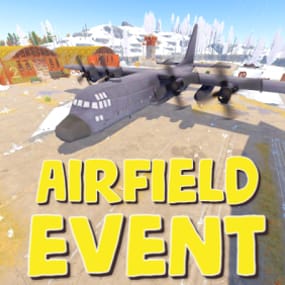
$19.99$15.99By Fruster
-
 $14.99
By David
-
sale
$45.99$36.79By Monster
.thumb.gif.30bb4fb1ad6b9cbba98fad72b9533086.gif)
.thumb.png.ac72dca13c4e30a2d2181ddd2b0fdc0a.png)
.thumb.png.bcb832e22f0a48b6833fee517e444bff.png)
Great Deals
Discounted picks, limited-time deals, and sale items worth grabbing now.
-
sale
$3.00$2.55By Ionut Shiro
-
sale
$24.99$14.99By Khan
-
sale
$6.00$5.10By Ionut Shiro
-
sale
$9.30$7.91By Shemov
-
sale
$19.95$15.95By Mevent
-
sale
$3.99$1.00 -
sale
$20.00$16.00By Razor
-
sale
$12.30$10.46By Shemov
-
sale
By Scalbox
-
sale
$27.00$22.95By Ionut Shiro
-
sale
$5.00$4.25By Ionut Shiro
-
sale
-
sale
![More information about "Portugal [ Rust Custom Map ]"](https://codefling.com/cdn-cgi/image/width=285,height=285,quality=80,fit=cover,format=webp/https://codefling.com/uploads/monthly_2026_09/b17kua.thumb.gif.f8e717407c64eace72648c14c629c894.gif)
$12.00$10.20By Ionut Shiro
-
sale
$11.99$9.59By Monster
Recently Updated
Recently improved files with fresh updates, fixes, and new content.
-
 $22.00
By CrazyRust
-
sale
-
 $9.99
$9.99By Mercury
-
 $40.00
By The_Kiiiing
-
sale
.thumb.png.51d5a4f2fea1966184b3a801f24ed76a.png)
$15.00$10.00By TombRaider
-
 $15.00
By Carl.py
-
$29.98
By Razor
-
 $8.49
$8.49By tofurahie
-
 $15.00
By supreme
-
 $14.99
By Iftebinjan
-
 $25.00
By Iftebinjan
-
 $14.99
By Iftebinjan
-
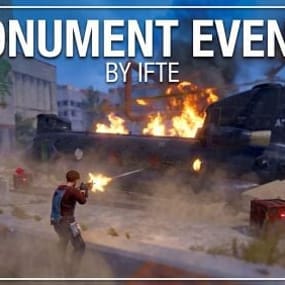
-
 $20.00
By Iftebinjan
Latest Reviews
See what customers are saying about their experience with files.
Love this map. We are doing a quest series that will ultimately end on this map. It's perfect for what we need, and there are places we haven't explored yet while we are still building the map.
The cube floating in the sky is pretty cool. There is a teleporter in it. And an Easter egg. Go find it!
Thanks Niko, for awesome map.

The Ultimate Quests plugin is a fantastic addition to our servers and offers a great questing experience for our players.
The well organized quest tree makes it easy to navigate through quests and keeps everything clear and intuitive.
One of the biggest advantages is the huge selection of preconfigured quests. This variety keeps players engaged and gives them plenty of reasons to keep coming back.
The web based configuration editor is another great feature, making it incredibly easy to fi
We are extremely happy with Mevent’s Rust Plugin Skills!
The plugin has been very well received by our community, and it has quickly become a valuable addition to our servers.
The clean and well organized interface makes everything easy to navigate, while the great range of features offers everything we could ask for. The web-based configuration editor is another major advantage, making setup and customization simple and convenient, even without having to deal with complicated configuration f
[NpcSpawn] Зображення Preset_KpucTaJl не знайдено. Можливо, ви не завантажили його в папку .../oxide/data/Images/.
Вивантажений плагін NpcSpawn v3.4.8 від KpucTaJl.
Веб-запит створив виняток (Url: http://37.153.157.216:5000/Api/GetPluginVersions?pluginName=NpcSpawn) (NullReferenceException: Посилання на об'єкт не встановлено на екземпляр об'єкта)
в Oxide.Core.Libraries.WebRequests+WebRequest.<WaitForResponse>b__44_0 (System.IAsyncResult res) [0x00000] в <15f61ddda771464d8246ebd
I got this mod as a gift a few days Ago. . I REALLY like the ui. it looks like... so good. Works well. I hotkeyed the ore/map function to make it quicker but yeah. Love it so far, does exactly what it says itll do and looks great! Would recommend.
Great collection of bases, filled with traps to make it a challenging raid as described. 10/10
Only bad thing to say is that the easy bases have to much metal doors, but great design and love the traps placement!
Love the decorations!
No regrets about buying this pack, immense value for money.
Hope SavageBuilder will bring more bases in the future ❤️ !


I always track this author's releases because the quality is guaranteed. Installed this on our x100 server, announced it, and it immediately sparked a wild hunt for the patrol helicopter. The mass PvP was insane. 5 stars!

Definition of a Great Plugin:
Keeps Players Engaged
Has PvE Settings to make event/loot protected
Can be configured for someone to solo, or as many as 20 players.
Ability to adjust loot tables.
Configurable NPCS, Health, Roam, Vision, Damage Dealt, Damage Received, Distance Pursued, Distance Invulnerable and much more.
Add Chance Percentage for Bradley To Join Event
Add Chance Percentage for Heli(s) To Join Event, and when to join and how far to fly before they arrive, etc.
For only $1
.thumb.png.c7790b6c782f69b9138ef5896e26d274.png)
A great map, beautiful landscapes, and perfectly optimized! I recommend this mapper; he’s a 100% professional. Thank you, @gshemov.