
Nightcore_Dabz's Wishlist
-
$40.00
Train Bases
By LeroyJenkins420 in Plugins
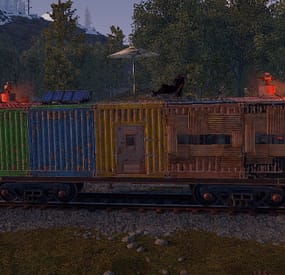
This plugin allows any player to find and build on a train directly on the rails in either a 1x5 or 1x3 configuration.
Features:
Throttle syncing for trains (syncs throttles when updated) Build anything almost anywhere (on trains) Limited to 2x1 or 5x1 carts Can be built inside of some monument (Trainyard, etc) Can be built inside underground tunnels Electrical entities powered by the train Configurable Health Preset Support NO MAP EDITING REQUIRED!!!
How To Use:
To use this plugin you need to:
1. Put the plugin in your plugins folder and enjoy!
Chat Commands:
/blacklist: Admin only, will blacklist items in your inventory, this will prevent these items from being placed on the train.
/killtrains: Admin only, will kill all trains on the server.
Args: All - kills all trains Built - kills only built trains Unbuilt - kills only unbuilt trains
Config:
Bounds defines the buildable area on the train, default is 1x5 or 1x2 for work carts. Larger building bounds may or may not be supported in the future.
Building grade support 0-4
0: twigs 1: wood 2: stone 3: metal 4: high quality { "Version Number": { "Major": 1, "Minor": 1, "Patch": 7 }, "Upgrade Chance (0-100 = %0-100 chance)": 50.0, "Building Grade to spawn as": 3, "Train Wagon Start Health": 5000.0, "Train Engine Force": 250000.0, "Blacklisted Entities (shortnames)": [ "example1", "example2", "For ShortNames Go to:", "https://docs.carbonmod.gg/references/items/", "https://www.corrosionhour.com/rust-item-list/" ], "Sync Train Throttles": true, "Max Train Pop": 24.0, "Max coupled trains": 12, "Max Train Couple Speed": 9.0, "Message Prefix": "<size=18px><color=#51a3f5>[</color><color=#FFFFFF>T</color><color=#FF0000>B</color><color=#51a3f5>]</color></size>" } Note: Presets can be found in a seperate folder (TrainBases > TrainPresets)
Please also be aware that at this time bounds are only setup for default types. EX: you can create presets for WagonC, however if you create presets for locomotive the player will be able to build infinitely off the train. Default types meaning train types that come with presets by default (wagonc, wagonb, etc).
The bounding system will be re-engineered shortly to allow for dynamic bound creation.
Note: weighted chance modifiers can be modified for each preset valid arguments for these modifiers are 0-100 and affect the likelihood of that preset spawning.
- #trainserver
- #train
- (and 11 more)
-
$15.00
Meteor Event
By ThePitereq in Plugins
RUST Plugin Test Server
TEST MY PLUGINS THERE!
connect play.thepitereq.ovh:28050
Meteor Event plugin allows you to create custom meteor shower events on your server.
You can set up timed events that initiate a meteor shower, containing unlimited possible entities and the option to activate big rocks that require explosives to destroy.
The resources from meteors can be multiplied and modified.
Additionally, you can create custom global events with fully customized gathering sources.
Set up custom timed events. Create an infinite number of meteor presets. Supports two types of meteors: normal and large meteors that require explosives. Configure various aspects such as meteor scale, yield, explosive damage, radiation, item output, and more. Run custom events, per-player events, and random player events. Number of meteors adjustable based on the online player count. Fully customize drops for any RUST entity and ambient events, and choose which tools are used to gather meteors. Players can call their own meteor showers, and you can configure random meteors to strike players while destroying regular rocks around the map. Features a highly configurable calling command. Configurable Discord webhook shower announcements Customizable falling angles for events. Set multiple different timed events.
/ms - Opens the Meteor Event Control UI. msadmin run <profileName> <amount> - Starts a custom meteor shower of profile <profileName> with <amount> meteors. (Console Command) msadmin direct <profileName> [amount] [playerId] - Spawns [amount] meteors of profile <profileName> above [playerId]'s head. (Console Command) msadmin kill - Kills all meteors around the map. (Console Command)
meteorevent.admin - Allows you to use admin features meteorevent.use - Allows use of the /ms command, if permission required. (Configurable) meteorevent.purchase.{profile.Key} - Allows to purchase & call certain meteor events. (Configurable)
Configuration Hints
Used Economy Plugin
0 - None
1 - Economics
2 - ServerRewards
3 - BankSystem
4 - ShoppyStock Explosive Config
The key value - shortname of the damage entity, it's not an item shortname, it's an 3D model that's visible in-game. For explosive ammo use ammo.rifle.explosive. Config Walkthrough
Global Meteor Config
Configuration part for any type and any spawned meteor.
Meteor Prefabs
This is a full list of available meteors that can fall from the sky. Here is a default list of them:
barrel - The Big Barrel Event Prefab. It's a very big barrel with a fully custom gather method that contains 2000 Scrap and 10,000 Metal by default. falling_star - The ambient event that runs sometimes in the sky but never falls onto the ground. All it does is spawn falling stars in the sky, so you can have a cool effects at night. metal_ore - Regular metal ore meteor prefab. stone_ore - Regular stone ore meteor prefab. sulfur_ore - Regular sulfur ore meteor prefab. toilet - Funny meteor that was made during plugin development. It also contains a fully custom gather that contains HQM and Metal. Meteor Profiles
This part of the config is what's visible when you open the /ms command. If you want to make a working meteor event, you need to add a new section here. By default, there are 4 profiles:
barrel - Runs Big Barrel Event that contains "barrel" prefabs. default - Runs regular Meteor Event that contains "metal_ore", "stone_ore" and "sulfur_ore" prefabs. falling_stars - Runs Falling Stars Event that contains "falling_star" prefabs. toilets - Runs Falling Stars Event that contains "toilet" prefabs. IMPORTANT!
The keys in `Meteor Profiles And Spawn Weights (profile: spawn weight)` must be equal to the keys in the `Meteor Prefabs` section, or the plugin won't work correctly!
The Angle in the Falling Angle Config represents how fast and in which direction the meteors are falling. X and Z are diagonal values, and Y is a vertical value. Making values higher will make meteors fall faster, and the opposite.
Timed Events
Random timed events for your server. You don't need to put all Meteor Profiles here, just those that you want to make automatic.
Enable Random Direct Falling Meteors On Mining Regular Ones and Random Direct Falling Meteor Options
This option will mean that if a player breaks a regular meteor on the map, there will be a chance to call a direct meteor on him. The default config contains an annotation to the "default" meteor profile, but this event takes 30 seconds by default, so the meteor will fall in the next 30 seconds, not instantaneously.
void OnMeteorShowerStart(int meteorAmount, string profile, bool isDirect, BasePlayer directPlayer) - When meteor event is starting. void OnFallingMeteorSpawned(string meteorPrefabKey, SphereEntity parentEntity, BaseEntity meteorEntity) - When falling meteor has been spawned. void OnMeteorLanded(BaseEntity meteorEntity, string meteorPrefabKey) - When meteor lands on the ground. void OnMeteorsKilled() - When all meteors are removed. void OnFallingMeteorsKilled() - Ran when last still falling meteor is destroyed.
{ "Commands": [ "ms", "meteor" ], "Command Require Permission": false, "Enable Logs": true, "Enable Plugin Hooks": false, "Global Meteor Config": { "Destroy Meteors Underwater": false, "Destroy Trees On Impact Radius (0 to disable)": 25.0, "Max Meteors On Map At One Time": 80, "Falling Meteor Ground Check Radius (increase might be required if meteors are falling slowly)": 25.0, "Kill Meteors On Roads": true, "Kill Meteors On Rail Tracks": true, "Kill Meteors On Monuments": false, "Fix For Meteor MeshCollider Message (console spam fix only, might have performance impact if enabled)": false, "Meteor Spread On Map (higher = smaller impact radius)": 2.5, "Explosive Ammo Max Shoot Distance": 50.0 }, "Meteor Prefabs": { "barrel": { "Meteor Prefab Path": "assets/bundled/prefabs/radtown/loot_barrel_1.prefab", "Max Meteor Flight Time (0, to not destroy)": 0.0, "Meteor Lifetime (0, to not destroy)": 1800.0, "Minimum Scale": 12.0, "Maximum Scale": 12.0, "Yield Multiplier": 2.0, "Scale Yield By Size": true, "Meteor Radiation Chance (0-100)": 100.0, "Meteor Radiation Amount": 12.5, "Scale Radiation With Size": true, "Run Atmosphere Enter Sound": true, "Enable Meteor Flame": true, "Enable Meteor Smoke": true, "Falling - Randomize Meteor X Rotation": false, "Falling - Randomize Meteor Y Rotation": true, "Falling - Randomize Meteor Z Rotation": false, "Landed - Randomize Meteor X Rotation": false, "Landed - Randomize Meteor Y Rotation": true, "Landed - Randomize Meteor Z Rotation": false, "Landed Entity Offset": { "x": 0.0, "y": 0.0, "z": 0.0 }, "Required Tool To Destroy - Whitelist (shortnames)": [], "Required Tool To Destroy - Blacklist (shortnames)": [], "Fully Custom Gather System Tools": { "Items Per Meteor": [ { "Shortname": "scrap", "Skin ID": 0, "Amount": 2000, "Display Name": "", "Only On Last Hit": false }, { "Shortname": "metal.fragments", "Skin ID": 0, "Amount": 10000, "Display Name": "", "Only On Last Hit": false } ], "Fully Custom Gather System Tools (key value is tool shortname)": { "hammer.salvaged": { "Require Exact Skin ID": false, "Tool Skin ID": 0, "Tool Damage Dealt Percentage": 3.0 } } }, "Additional Output Per Hit": [], "Big Meteor Config": { "Chance (0-100)": 0.0, "Minimum Scale": 5.0, "Maximum Scale": 7.0, "Output Per Hit": [], "Call OnDispenserGather hook": true, "Explosive Config (key value is explosive prefab shortname, see website for more info)": {}, "Crate Inside Chance (0-100)": 0.0, "Crates Spawned Inside (prefab names: spawn weight)": {} }, "Marker Config": { "Marker Type (None/Normal/Explosion)": "Normal", "Marker Alpha (normal only)": 0.75, "Marker Color #1 (normal only)": "#E0D5C30", "Marker Color #2 (normal only)": "#6E665A", "Marker Radius (normal only)": 0.15, "Map Marker Text (normal only, disabled if empty)": "Space Barrel" } }, "falling_star": { "Meteor Prefab Path": "assets/bundled/prefabs/modding/cinematic/cinelights/cinelight_point_cool.prefab", "Max Meteor Flight Time (0, to not destroy)": 1.5, "Meteor Lifetime (0, to not destroy)": 30.0, "Minimum Scale": 2.0, "Maximum Scale": 5.0, "Yield Multiplier": 2.0, "Scale Yield By Size": true, "Meteor Radiation Chance (0-100)": 0.0, "Meteor Radiation Amount": 0.0, "Scale Radiation With Size": true, "Run Atmosphere Enter Sound": false, "Enable Meteor Flame": false, "Enable Meteor Smoke": false, "Falling - Randomize Meteor X Rotation": true, "Falling - Randomize Meteor Y Rotation": true, "Falling - Randomize Meteor Z Rotation": true, "Landed - Randomize Meteor X Rotation": false, "Landed - Randomize Meteor Y Rotation": true, "Landed - Randomize Meteor Z Rotation": false, "Landed Entity Offset": { "x": 0.0, "y": 0.0, "z": 0.0 }, "Required Tool To Destroy - Whitelist (shortnames)": [], "Required Tool To Destroy - Blacklist (shortnames)": [], "Fully Custom Gather System Tools": { "Items Per Meteor": [], "Fully Custom Gather System Tools (key value is tool shortname)": {} }, "Additional Output Per Hit": [], "Big Meteor Config": { "Chance (0-100)": 0.0, "Minimum Scale": 5.0, "Maximum Scale": 7.0, "Output Per Hit": [], "Call OnDispenserGather hook": true, "Explosive Config (key value is explosive prefab shortname, see website for more info)": {}, "Crate Inside Chance (0-100)": 0.0, "Crates Spawned Inside (prefab names: spawn weight)": {} }, "Marker Config": { "Marker Type (None/Normal/Explosion)": "Explosion", "Marker Alpha (normal only)": 0.75, "Marker Color #1 (normal only)": "#E01300", "Marker Color #2 (normal only)": "#7D0B00", "Marker Radius (normal only)": 0.4, "Map Marker Text (normal only, disabled if empty)": "" } }, "metal_ore": { "Meteor Prefab Path": "assets/bundled/prefabs/autospawn/resource/ores/metal-ore.prefab", "Max Meteor Flight Time (0, to not destroy)": 0.0, "Meteor Lifetime (0, to not destroy)": 1800.0, "Minimum Scale": 0.5, "Maximum Scale": 2.0, "Yield Multiplier": 2.0, "Scale Yield By Size": true, "Meteor Radiation Chance (0-100)": 0.0, "Meteor Radiation Amount": 0.0, "Scale Radiation With Size": true, "Run Atmosphere Enter Sound": true, "Enable Meteor Flame": true, "Enable Meteor Smoke": true, "Falling - Randomize Meteor X Rotation": true, "Falling - Randomize Meteor Y Rotation": true, "Falling - Randomize Meteor Z Rotation": true, "Landed - Randomize Meteor X Rotation": false, "Landed - Randomize Meteor Y Rotation": true, "Landed - Randomize Meteor Z Rotation": false, "Landed Entity Offset": { "x": 0.0, "y": 0.0, "z": 0.0 }, "Required Tool To Destroy - Whitelist (shortnames)": [], "Required Tool To Destroy - Blacklist (shortnames)": [ "rock", "stone.pickaxe" ], "Fully Custom Gather System Tools": { "Items Per Meteor": [], "Fully Custom Gather System Tools (key value is tool shortname)": {} }, "Additional Output Per Hit": [ { "Required Gather Per Hit (0 to disable)": 20, "Shortname": "metal.ore", "Skin ID": 0, "Amount": 35, "Display Name": "", "Chance (0-100)": 35.0, "Only On Last Hit": false }, { "Required Gather Per Hit (0 to disable)": 20, "Shortname": "metal.refined", "Skin ID": 0, "Amount": 2, "Display Name": "", "Chance (0-100)": 2.0, "Only On Last Hit": false } ], "Big Meteor Config": { "Chance (0-100)": 5.0, "Minimum Scale": 5.0, "Maximum Scale": 7.0, "Output Per Hit": [ { "Shortname": "metal.ore", "Skin ID": 0, "Amount": 900, "Display Name": "", "Chance (0-100)": 100.0, "Only On Last Hit": false }, { "Shortname": "hq.metal.ore", "Skin ID": 0, "Amount": 20, "Display Name": "", "Chance (0-100)": 100.0, "Only On Last Hit": true } ], "Call OnDispenserGather hook": true, "Explosive Config (key value is explosive prefab shortname, see website for more info)": { "ammo.rifle.explosive": { "Damage Dealt": 5.0, "Resource Multiplier": 0.1 }, "explosive.timed.deployed": { "Damage Dealt": 50.0, "Resource Multiplier": 1.0 }, "rocket_basic": { "Damage Dealt": 35.0, "Resource Multiplier": 0.7 } }, "Crate Inside Chance (0-100)": 5.0, "Crates Spawned Inside (prefab names: spawn weight)": { "assets/bundled/prefabs/radtown/crate_normal.prefab": 3, "assets/bundled/prefabs/radtown/crate_normal_2.prefab": 5, "assets/prefabs/misc/supply drop/supply_drop.prefab": 1 } }, "Marker Config": { "Marker Type (None/Normal/Explosion)": "Normal", "Marker Alpha (normal only)": 0.75, "Marker Color #1 (normal only)": "#E01300", "Marker Color #2 (normal only)": "#7D0B00", "Marker Radius (normal only)": 0.15, "Map Marker Text (normal only, disabled if empty)": "" } }, "stone_ore": { "Meteor Prefab Path": "assets/bundled/prefabs/autospawn/resource/ores/stone-ore.prefab", "Max Meteor Flight Time (0, to not destroy)": 0.0, "Meteor Lifetime (0, to not destroy)": 1800.0, "Minimum Scale": 0.5, "Maximum Scale": 2.0, "Yield Multiplier": 2.0, "Scale Yield By Size": true, "Meteor Radiation Chance (0-100)": 0.0, "Meteor Radiation Amount": 0.0, "Scale Radiation With Size": true, "Run Atmosphere Enter Sound": true, "Enable Meteor Flame": true, "Enable Meteor Smoke": true, "Falling - Randomize Meteor X Rotation": true, "Falling - Randomize Meteor Y Rotation": true, "Falling - Randomize Meteor Z Rotation": true, "Landed - Randomize Meteor X Rotation": false, "Landed - Randomize Meteor Y Rotation": true, "Landed - Randomize Meteor Z Rotation": false, "Landed Entity Offset": { "x": 0.0, "y": 0.0, "z": 0.0 }, "Required Tool To Destroy - Whitelist (shortnames)": [], "Required Tool To Destroy - Blacklist (shortnames)": [ "rock", "stone.pickaxe" ], "Fully Custom Gather System Tools": { "Items Per Meteor": [], "Fully Custom Gather System Tools (key value is tool shortname)": {} }, "Additional Output Per Hit": [ { "Required Gather Per Hit (0 to disable)": 20, "Shortname": "stones", "Skin ID": 0, "Amount": 50, "Display Name": "", "Chance (0-100)": 35.0, "Only On Last Hit": false }, { "Required Gather Per Hit (0 to disable)": 20, "Shortname": "metal.refined", "Skin ID": 0, "Amount": 2, "Display Name": "", "Chance (0-100)": 2.0, "Only On Last Hit": false } ], "Big Meteor Config": { "Chance (0-100)": 5.0, "Minimum Scale": 5.0, "Maximum Scale": 7.0, "Output Per Hit": [ { "Shortname": "stones", "Skin ID": 0, "Amount": 1500, "Display Name": "", "Chance (0-100)": 100.0, "Only On Last Hit": false } ], "Call OnDispenserGather hook": true, "Explosive Config (key value is explosive prefab shortname, see website for more info)": { "ammo.rifle.explosive": { "Damage Dealt": 5.0, "Resource Multiplier": 0.1 }, "explosive.timed.deployed": { "Damage Dealt": 50.0, "Resource Multiplier": 1.0 }, "rocket_basic": { "Damage Dealt": 35.0, "Resource Multiplier": 0.7 } }, "Crate Inside Chance (0-100)": 5.0, "Crates Spawned Inside (prefab names: spawn weight)": { "assets/bundled/prefabs/radtown/crate_normal.prefab": 3, "assets/bundled/prefabs/radtown/crate_normal_2.prefab": 5, "assets/prefabs/misc/supply drop/supply_drop.prefab": 1 } }, "Marker Config": { "Marker Type (None/Normal/Explosion)": "Normal", "Marker Alpha (normal only)": 0.75, "Marker Color #1 (normal only)": "#E01300", "Marker Color #2 (normal only)": "#7D0B00", "Marker Radius (normal only)": 0.15, "Map Marker Text (normal only, disabled if empty)": "" } }, "sulfur_ore": { "Meteor Prefab Path": "assets/bundled/prefabs/autospawn/resource/ores/sulfur-ore.prefab", "Max Meteor Flight Time (0, to not destroy)": 0.0, "Meteor Lifetime (0, to not destroy)": 1800.0, "Minimum Scale": 0.5, "Maximum Scale": 2.0, "Yield Multiplier": 2.0, "Scale Yield By Size": true, "Meteor Radiation Chance (0-100)": 0.0, "Meteor Radiation Amount": 0.0, "Scale Radiation With Size": true, "Run Atmosphere Enter Sound": true, "Enable Meteor Flame": true, "Enable Meteor Smoke": true, "Falling - Randomize Meteor X Rotation": true, "Falling - Randomize Meteor Y Rotation": true, "Falling - Randomize Meteor Z Rotation": true, "Landed - Randomize Meteor X Rotation": false, "Landed - Randomize Meteor Y Rotation": true, "Landed - Randomize Meteor Z Rotation": false, "Landed Entity Offset": { "x": 0.0, "y": 0.0, "z": 0.0 }, "Required Tool To Destroy - Whitelist (shortnames)": [], "Required Tool To Destroy - Blacklist (shortnames)": [ "rock", "stone.pickaxe" ], "Fully Custom Gather System Tools": { "Items Per Meteor": [], "Fully Custom Gather System Tools (key value is tool shortname)": {} }, "Additional Output Per Hit": [ { "Required Gather Per Hit (0 to disable)": 20, "Shortname": "sulfur.ore", "Skin ID": 0, "Amount": 20, "Display Name": "", "Chance (0-100)": 35.0, "Only On Last Hit": false }, { "Required Gather Per Hit (0 to disable)": 20, "Shortname": "metal.refined", "Skin ID": 0, "Amount": 2, "Display Name": "", "Chance (0-100)": 2.0, "Only On Last Hit": false } ], "Big Meteor Config": { "Chance (0-100)": 5.0, "Minimum Scale": 5.0, "Maximum Scale": 7.0, "Output Per Hit": [ { "Shortname": "sulfur.ore", "Skin ID": 0, "Amount": 450, "Display Name": "", "Chance (0-100)": 100.0, "Only On Last Hit": false } ], "Call OnDispenserGather hook": true, "Explosive Config (key value is explosive prefab shortname, see website for more info)": { "ammo.rifle.explosive": { "Damage Dealt": 5.0, "Resource Multiplier": 0.1 }, "explosive.timed.deployed": { "Damage Dealt": 50.0, "Resource Multiplier": 1.0 }, "rocket_basic": { "Damage Dealt": 35.0, "Resource Multiplier": 0.7 } }, "Crate Inside Chance (0-100)": 5.0, "Crates Spawned Inside (prefab names: spawn weight)": { "assets/bundled/prefabs/radtown/crate_normal.prefab": 3, "assets/bundled/prefabs/radtown/crate_normal_2.prefab": 5, "assets/prefabs/misc/supply drop/supply_drop.prefab": 1 } }, "Marker Config": { "Marker Type (None/Normal/Explosion)": "Normal", "Marker Alpha (normal only)": 0.75, "Marker Color #1 (normal only)": "#E01300", "Marker Color #2 (normal only)": "#7D0B00", "Marker Radius (normal only)": 0.15, "Map Marker Text (normal only, disabled if empty)": "" } }, "toilet": { "Meteor Prefab Path": "assets/bundled/prefabs/static/toilet_b.static.prefab", "Max Meteor Flight Time (0, to not destroy)": 0.0, "Meteor Lifetime (0, to not destroy)": 1800.0, "Minimum Scale": 1.2, "Maximum Scale": 3.0, "Yield Multiplier": 2.0, "Scale Yield By Size": true, "Meteor Radiation Chance (0-100)": 100.0, "Meteor Radiation Amount": 12.5, "Scale Radiation With Size": true, "Run Atmosphere Enter Sound": true, "Enable Meteor Flame": true, "Enable Meteor Smoke": true, "Falling - Randomize Meteor X Rotation": true, "Falling - Randomize Meteor Y Rotation": true, "Falling - Randomize Meteor Z Rotation": true, "Landed - Randomize Meteor X Rotation": false, "Landed - Randomize Meteor Y Rotation": true, "Landed - Randomize Meteor Z Rotation": false, "Landed Entity Offset": { "x": 0.0, "y": 0.0, "z": 0.0 }, "Required Tool To Destroy - Whitelist (shortnames)": [], "Required Tool To Destroy - Blacklist (shortnames)": [], "Fully Custom Gather System Tools": { "Items Per Meteor": [ { "Shortname": "metal.refined", "Skin ID": 0, "Amount": 300, "Display Name": "", "Only On Last Hit": false }, { "Shortname": "metal.fragments", "Skin ID": 0, "Amount": 5000, "Display Name": "", "Only On Last Hit": false } ], "Fully Custom Gather System Tools (key value is tool shortname)": { "hammer.salvaged": { "Require Exact Skin ID": false, "Tool Skin ID": 0, "Tool Damage Dealt Percentage": 3.0 }, "paddle": { "Require Exact Skin ID": false, "Tool Skin ID": 0, "Tool Damage Dealt Percentage": 2.5 } } }, "Additional Output Per Hit": [], "Big Meteor Config": { "Chance (0-100)": 5.0, "Minimum Scale": 5.0, "Maximum Scale": 7.0, "Output Per Hit": [ { "Shortname": "metal.refined", "Skin ID": 0, "Amount": 50, "Display Name": "", "Chance (0-100)": 100.0, "Only On Last Hit": false } ], "Call OnDispenserGather hook": true, "Explosive Config (key value is explosive prefab shortname, see website for more info)": { "ammo.rifle.explosive": { "Damage Dealt": 5.0, "Resource Multiplier": 0.1 }, "explosive.timed.deployed": { "Damage Dealt": 50.0, "Resource Multiplier": 1.0 }, "rocket_basic": { "Damage Dealt": 35.0, "Resource Multiplier": 0.7 } }, "Crate Inside Chance (0-100)": 0.0, "Crates Spawned Inside (prefab names: spawn weight)": {} }, "Marker Config": { "Marker Type (None/Normal/Explosion)": "Normal", "Marker Alpha (normal only)": 0.75, "Marker Color #1 (normal only)": "#E0D5C30", "Marker Color #2 (normal only)": "#6E665A", "Marker Radius (normal only)": 0.15, "Map Marker Text (normal only, disabled if empty)": "Space Toilet" } } }, "Meteor Profiles": { "barrel": { "Randomized Impact Radius (if direct meteor)": 10.0, "Direct Meteor Falling Angle": { "x": 0.0, "y": -2.0, "z": 0.0 }, "Meteor Event Length (in seconds)": 10.0, "Incoming Shower Sound Effect Prefab (disabled if empty)": "assets/prefabs/tools/pager/effects/beep.prefab", "Send Message About Meteor Event On Chat": true, "Spawn Height": 500.0, "Falling Angle Config": [ { "Appear Weight": 1, "Angle": { "x": 0.0, "y": -0.6, "z": 0.0 }, "Falling Radius Offset": { "x": 0.0, "y": 0.0, "z": 0.0 } } ], "Meteor Profiles And Spawn Weights (profile: spawn weight)": { "barrel": 1 }, "Purchase Config": { "Allow Purchasing": false, "Used Economy Plugin (see website for reference)": 0, "Used Economy Currency (if ShoppyStock used)": "rp", "Required Permission": true, "Direct Meteor Shower (on player)": false, "Allow To Spawn Large Meteors": false, "Meteors Amount": 10, "Item Shortname Required To Purchase Meteor Shower (empty if currency)": "scrap", "Item Skin ID Required To Purchase Meteor Shower (empty if currency)": 0, "Item/Currency Amount Required To Purchase Meteor Shower": 1000, "Cooldown After Purchasing Meteor Shower (in seconds)": 3600 } }, "default": { "Randomized Impact Radius (if direct meteor)": 10.0, "Direct Meteor Falling Angle": { "x": 0.0, "y": -9.0, "z": 0.0 }, "Meteor Event Length (in seconds)": 30.0, "Incoming Shower Sound Effect Prefab (disabled if empty)": "assets/prefabs/tools/pager/effects/beep.prefab", "Send Message About Meteor Event On Chat": true, "Spawn Height": 500.0, "Falling Angle Config": [ { "Appear Weight": 1, "Angle": { "x": 3.5, "y": -4.6, "z": 0.0 }, "Falling Radius Offset": { "x": -300.0, "y": 0.0, "z": 0.0 } }, { "Appear Weight": 1, "Angle": { "x": -3.5, "y": -4.6, "z": 1.2 }, "Falling Radius Offset": { "x": 300.0, "y": 0.0, "z": -100.0 } } ], "Meteor Profiles And Spawn Weights (profile: spawn weight)": { "metal_ore": 1, "stone_ore": 1, "sulfur_ore": 1 }, "Purchase Config": { "Allow Purchasing": true, "Used Economy Plugin (see website for reference)": 0, "Used Economy Currency (if ShoppyStock used)": "rp", "Required Permission": true, "Direct Meteor Shower (on player)": true, "Allow To Spawn Large Meteors": false, "Meteors Amount": 3, "Item Shortname Required To Purchase Meteor Shower (empty if currency)": "scrap", "Item Skin ID Required To Purchase Meteor Shower (empty if currency)": 0, "Item/Currency Amount Required To Purchase Meteor Shower": 1000, "Cooldown After Purchasing Meteor Shower (in seconds)": 3600 } }, "falling_stars": { "Randomized Impact Radius (if direct meteor)": 10.0, "Direct Meteor Falling Angle": { "x": 0.0, "y": -9.0, "z": 0.0 }, "Meteor Event Length (in seconds)": 60.0, "Incoming Shower Sound Effect Prefab (disabled if empty)": "", "Send Message About Meteor Event On Chat": false, "Spawn Height": 500.0, "Falling Angle Config": [ { "Appear Weight": 1, "Angle": { "x": 45.5, "y": -4.2, "z": 12.7 }, "Falling Radius Offset": { "x": 0.0, "y": 0.0, "z": 0.0 } }, { "Appear Weight": 1, "Angle": { "x": -56.5, "y": -3.2, "z": -14.2 }, "Falling Radius Offset": { "x": 0.0, "y": 0.0, "z": 0.0 } } ], "Meteor Profiles And Spawn Weights (profile: spawn weight)": { "falling_star": 1 }, "Purchase Config": { "Allow Purchasing": false, "Used Economy Plugin (see website for reference)": 0, "Used Economy Currency (if ShoppyStock used)": "rp", "Required Permission": true, "Direct Meteor Shower (on player)": false, "Allow To Spawn Large Meteors": false, "Meteors Amount": 10, "Item Shortname Required To Purchase Meteor Shower (empty if currency)": "scrap", "Item Skin ID Required To Purchase Meteor Shower (empty if currency)": 0, "Item/Currency Amount Required To Purchase Meteor Shower": 1000, "Cooldown After Purchasing Meteor Shower (in seconds)": 3600 } }, "toilets": { "Randomized Impact Radius (if direct meteor)": 10.0, "Direct Meteor Falling Angle": { "x": 0.0, "y": -9.0, "z": 0.0 }, "Meteor Event Length (in seconds)": 60.0, "Incoming Shower Sound Effect Prefab (disabled if empty)": "assets/prefabs/tools/pager/effects/beep.prefab", "Send Message About Meteor Event On Chat": true, "Spawn Height": 500.0, "Falling Angle Config": [ { "Appear Weight": 1, "Angle": { "x": 3.5, "y": -4.6, "z": 0.0 }, "Falling Radius Offset": { "x": -300.0, "y": 0.0, "z": 0.0 } }, { "Appear Weight": 1, "Angle": { "x": -3.5, "y": -4.6, "z": 1.2 }, "Falling Radius Offset": { "x": 300.0, "y": 0.0, "z": -100.0 } } ], "Meteor Profiles And Spawn Weights (profile: spawn weight)": { "toilet": 1 }, "Purchase Config": { "Allow Purchasing": false, "Used Economy Plugin (see website for reference)": 0, "Used Economy Currency (if ShoppyStock used)": "rp", "Required Permission": true, "Direct Meteor Shower (on player)": false, "Allow To Spawn Large Meteors": false, "Meteors Amount": 10, "Item Shortname Required To Purchase Meteor Shower (empty if currency)": "scrap", "Item Skin ID Required To Purchase Meteor Shower (empty if currency)": 0, "Item/Currency Amount Required To Purchase Meteor Shower": 1000, "Cooldown After Purchasing Meteor Shower (in seconds)": 3600 } } }, "Timed Events": { "default": { "Event Every X Seconds (minimal time, in seconds)": 1200, "Event Every X Seconds (maximal time, in seconds)": 2400, "Used Meteor Config Keys (profile: spawn weight)": { "default": 10, "falling_stars": 1 }, "Direct Meteors To Players": false, "Meteor Amount Based On Player Count": true, "Meteor Count (if based on player count - per player)": 4.0, "Max Meteor Count": 40, "Chance To Start Event (0-100)": 100.0, "Commands Ran On Start": [], "Webhook Message": { "Enabled": false, "Embed": true, "Webhook": "", "Inline": true, "Color": 0, "Title": "Meteor Shower", "Message": "Meteor Shower with {0} meteors is incoming!" } }, "toilets": { "Event Every X Seconds (minimal time, in seconds)": 28800, "Event Every X Seconds (maximal time, in seconds)": 50400, "Used Meteor Config Keys (profile: spawn weight)": { "toilets": 1 }, "Direct Meteors To Players": true, "Meteor Amount Based On Player Count": false, "Meteor Count (if based on player count - per player)": 10.0, "Max Meteor Count": 10, "Chance To Start Event (0-100)": 5.0, "Commands Ran On Start": [ "say There is {meteorCount} falling toilets in the sky!" ], "Webhook Message": { "Enabled": false, "Embed": true, "Webhook": "", "Inline": true, "Color": 0, "Title": "Meteor Shower", "Message": "Meteor Shower with {0} meteors is incoming!" } } }, "Enable Random Direct Falling Meteors On Mining Regular Ones": true, "Random Direct Falling Meteor Options": [ { "Spawn Chance (0-100)": 1.0, "Meteor Profile Name (not prefab key)": "default", "Meteor Min Amount": 1, "Meteor Max Amount": 3, "Allow To Spawn Large Meteors": false }, { "Spawn Chance (0-100)": 0.0, "Meteor Profile Name (not prefab key)": "toilets", "Meteor Min Amount": 1, "Meteor Max Amount": 3, "Allow To Spawn Large Meteors": false } ] } -
$24.99
Pocket Dimensions
Introducing portable 3 x 3 bases in a box - that you can carry in your inventory! Deploy them and open them to go inside - to store, craft, smelt, grow, party... live. Expand and maintain the upkeep to protect from raiders. Pick them up and deploy somewhere else. Think outside of the box... and inside too!
Questions? Support? Join the discord: https://discord.nikhub.dev
WATCH THE TUTORIAL BY SRTBULL!
AS FEATURED BY SHADOWFRAX! (around 0:55 mark)
Just like the TARDIS from Doctor Who, they're bigger on the inside! In the "real" Rust world, an entire 9x9x9 metre large (over 25000 cubic foot) Pocket Dimension fits neatly inside of a Small Wooden Box. You can skin that box any way you like to camouflage or disguise it - whatever the player's Workshop Skins / server skin plugins allow.
Players can convert existing buildings into Pocket Dimensions easily with one button in the Tool Cupboard's UI. Or if that's too much of an effort, entire, fresh, ready-to-be-moved-in Copy Paste files can be sold as boxes with your own, custom defined skin - this is entirely optional and requires Copy Paste, more on that in the dedicated section below. Whether to allow either approach is entirely up to your configuration.
By default, the configuration allows raiding the Pocket Dimensions in several different ways - but if you're planning on running this plugin on a PVE server and you don't want any of that, there's many configuration options that can be adjusted to enhance your server experience. Both styles of servers have their own dedicated sections on this page - just read below.
Make sure you maintain the integrity of your Pocket Dimension! If any of the external structures (wall/doorway) of the Pocket Dimension building either 1) decays 2) is raided 3) is removed by an admin/plugin, or 4) the box housing the dimension itself gets destroyed, the Dimension will Collapse, teleporting all players inside of it, and dropping all contents of storage containers, turrets, the Tool Cupboard, and anything else that can store any items, to the location where the box is/was last deployed. Easy come, easy go!
You can pick the Pocket Dimension boxes up and move them somewhere else at any time, and everything will still be there. You can even deploy Pocket Dimensions inside Pocket Dimensions inside Pocket Dimensions... a box-ception! By default, the configuration does not allow picking up boxes with players inside of them, but you can toggle this setting.
Quick Start
As an admin: make sure you grant your groups/players appropriate permissions from the list below. Make sure Copy Paste, No Escape and Server Rewards / Economics are loaded in and configured properly, if you're planning on utilising any of the extended capabilities. More on the support for those plugins below. That also goes for any potentially compatible plugins that dispense/support skinned box templates from the config, like Kits or Shop by Mevent, or Copy Paste - based plugins, like Raidable Bases. As a player: make a 3 x 3 x 3 cube that meets the validity requirements (more on that below) - if you have the proper permission and the appropriate amount of required currency, open the Tool Cupboard and press the pink "Convert to Pocket Dimension" button. If built correctly, you will now receive a box containing that entire cube inside. Alternatively, deploy a new Small Wooden Box skinned with a skin ID mentioned in the config that references a valid Copy Paste template - no construction by players necessary, but still possible. This plugin comes with several pre-built, already known to be valid Pocket Dimensions, ready to be enjoyed by your players. Permissions (Oxide.Grant user YourName [permission name starting with pocketdimensions.])
This plugin utilises the plain Oxide permission system. For a quick setup on a typical server, grant yourself the pocketdimensions.admin permission, and grant the default group in Oxide the pocketdimensions.player.all permission.
pocketdimensions.admin - this permission is required to execute the admin commands mentioned in the section Admin Commands just below this section. pocketdimensions.player.all - this permission is the quick-start equivalent of giving all 4 permissions mentioned below. Don't grant this if you want a more customised permission setup. For example, if you don't want to allow respawning inside and converting by players, and you only want to allow deployment/pickup and entering/exiting, use the combination of the 4 permissions below. pocketdimensions.deploy.pickup - holders of this permission can deploy and pick up Pocket Dimension boxes, be it already existing ones and fresh ones based on skin ID/Copy Paste file combo in your config. Of course, this takes into account building block/other conditions, too. pocketdimensions.player.enter.exit - holders of this permission can enter Pocket Dimensions by opening their boxes, and exit them by interacting with their portals. If a player doesn't have that permission, they will be informed upon opening/interaction, and barred from traversing in/out. pocketdimensions.player.convert - holders of this permission can create new Pocket Dimensions by converting an existing building from its Tool Cupboard's UI - as long as they have the required amount of currency (certain required item / Server Rewards / Economics), and the building itself meets the structural requirements. Players without this permission won't even see the conversion button in the UI. pocketdimensions.player.respawn - holders of this permission can respawn on bags, beds and towels deployed inside Pocket Dimensions. If a player doesn't have that permission, and a bag is deployed by them (or someone else bags them in) inside a Pocket Dimension, the players will not see that bag on their Death Screen as a possible respawn location. Admin Commands (require the pocketdimensions.admin permission)
These commands can be executed both from console and the chat - in case of chat, they must be prefixed with a forward slash ( / ), and in case of console, no forward slash.
/pd.check
Come close to a TC and look directly at it, then issue this command from the chat or F1 console. It will perform the validity check without actually converting anything. If any problems are found, it will tell you exactly what's wrong. Useful for making your own Copy Paste templates.
/pd.convert
Come close to a TC and look directly at it, then issue this command from the chat or F1 console. It will first perform the validity check. If any problems are found, it will tell you exactly what's wrong. Then, if no problems are found, it will convert the building into a Pocket Dimension and you will receive it as a deployable Small Wooden Box item.
/pd.lostnfound
When a Pocket Dimension Item despawns, is recycled, is placed in a container that gets destroyed, or is otherwise removed from the world, the Dimension that it represents will be marked as "lost". This special marking will NOT happen as long as the Item still exists in a container (including players' inventories) somewhere in the World. Pocket Dimensions marked as "lost" can then be reclaimed as a newly created Item tied to the building by an admin, deployed and inspected, and given back to the rightful owner... or Collapsed by the admin, if the admin has a hunch that the player "lost" their dimension on purpose so nobody would be able to access anything while the player was offline.
Using this command will either give you ALL newly reclaimed box items (so make sure you have room in your inventory), or it will tell you there's nothing in the lost-and-found to be reclaimed.
/pd.givebox [skin ID or Copy Paste filename] [optionally: player partial name / full steam ID]
Use this command to create a Small Wooden Box item, skinned with a special skin mentioned in your config, and then given to a player. A new Pocket Dimension based on the Copy Paste template will be created inside of that box the first time it's deployed somewhere.
This command requires Copy Paste to be installed to work properly, and a properly set up Skin ID - to - Copy Paste filename entries in your config. The filenames mentioned must exist in your Copy Paste data folder, too.
Use the first parameter to identify the template mentioned in your Copy Paste section of the config either by its skin ID or its Copy Paste file name. Multiple skin IDs can lead to the same Copy Paste filename, so if you're identifying the template by filename, the skin ID of the first entry in your config that leads to this file name will be picked as the skin of the newly created and given box.
If the optional second parameter is not provided, it will be assumed a freshly skinned box should be given to the player executing this command - typically an admin. This command can be used by plugins that support executing commands with the STEAM ID or player name parameter.
/pd.emergencycleanup
Use this as a last resort to completely get rid of ALL Pocket Dimensions entities on the server for whatever reason. This is a very experimental plugin after all and things COULD go wrong... This includes all the Pocket Dimension buildings, their contents, loot inside of them, and the boxes containing Pocket Dimensions deployed in the world. If a dimension was not deployed as a box, but held as an Item in a container, those items will NOT be removed, but when deployed, the player will be informed that its associated Pocket Dimension was raided or decayed away. USE WITH CAUTION, THIS COMMAND CANNOT BE UNDONE.
Those are all the admin commands so far. There's no player commands, as I consider them to be the last resort option when there's just no other elegant way of player input/interaction.
What makes buildings "valid" candidates to be used as a Pocket Dimension?
Not every building is viable to be converted. Generally speaking, a 3 x 3 x 3 cube with exactly 1 external single doorway anywhere on the side must be constructed - and nothing else on the outside (apart from the potential exception for Solar Panels / Wind Turbines on the roof, if your config allows them). The building blocks can be of any tier or a mix of tiers - from Twig to Armoured. It doesn't matter what's inside of the cube, only the outer "shell" matters. Once converted into a Pocket Dimension, players can build/expand/demolish inside just like they would with regular bases.
To be more specific, when a check for the validity of a building is made, the following criteria are tested for, and the answer to each consecutive question must be "yes" before the test proceeds to the next question - if the answer is "no", the player will be informed of the reason:
Does the building have exactly 9 square foundations overall? Does the building have exactly 9 square floors overall (presumably, for the ceilings)? Does the building have at least 1 single doorway overall? Does the building have at least 35 normal walls overall? Are the 9 square foundations all at the same level? For each of the 9 square foundations, does it have a matching square floor for ceiling, exactly 9 metres above it? Is the building's middle foundation NOT marked as belonging to a Pocket Dimension already? Does the building have either a normal wall (or a single doorway, but only one) all 4 sides, and not a wall frame, window frame, or a missing building block, to make the shell "air-tight" and prevent players from falling out of the Dimension into the void? Does the building have exactly 1 single doorway - no more, no less - on the external shell? Is the only external doorway currently "empty", i.e. no doors / vending machines are deployed there at this moment? If the config doesn't allow Solar Panels / Wind Turbines placed on the ceiling, is the building free of those potentially forbidden structures? Are all the electrical/water entities inside of the 3 x 3 x 3 cube free of any wire/hose connections to entities outside of that cube? (if Solar Panels / Wind Turbines are allowed in your config, those entities get a special pass at this stage of the check) Is the building free of ANY entities "sticking out" from the 3 x 3 x 3 cube - for instance roofs, honeycombs, porches, SAM sites, stairs etc, or Solar Panels / Windmills if your config does not allow them? If the answer to all those questions is a resounding "yes" - don't worry, it's the plugin's job to ask and answer those, not you! - the building is considered valid and as such can be converted into a Pocket Dimension! You will be informed of the result, whether it was successful or not.
Raiding Pocket Dimensions (only applies to the default PVP-enabled settings)
This is the default behaviour on a fresh configuration. If you're planning on running this plugin on a PVE server (player vs. environment, i.e. no raiding/hurting between human players themselves), you can skip this section and go straight to the Recommended PVE Settings section below.
There are two main ways of raiding a Pocket Dimension:
From the inside, by damaging the building structures belonging to the external shell - either the wall or the doorway housing the exit portal From the outside, by damaging the deployed Pocket Dimension box. By default, no locks can be placed on boxes containing Pocket Dimensions, to allow players raiding from the inside, too - but this setting can be toggled if you only want players to raid the boxes in the boring way. Of course, anything INSIDE of the Pocket Dimension can - and should - be locked!
When raiding from the outside, on default configuration, the dimensional box will take 2% (1/50) of the damage it would normally take if it were just a regular Small Wooden Box. In other words, on default configuration, it takes about 7-8 C4 charges to make the dimension inside of it Collapse (so more or less as much as an Armoured-tier foundation).
Just like with regular vanilla building raids, the same strategies (or combinations of those) can be applied here, too:
The Deep - get in, take the goods, get out, leave, say GG to the building owner, who gets to keep their Pocket Dimension. The quintessence of sportsmanship in Rust raiding. The Grief - get in, take the goods (or not), make the building unusable till it eventually decays (and the dimension Collapses), leave. Highly malicious, but sometimes the only option... The Yoink - get in, take the goods, re-seal the entrance, and claim the dimension as now yours. You might want to move its box to another location though. The End - get in, and immediately start damaging one of the external blocks of the shell (typically the doorway housing the exit portal, or a wall next to it - or even both!). As soon as one of the external shell elements is gone (or is "ent killed" by an admin, or removed with a plugin), the entire dimension Collapses. More on dimensional Collapses in the section below. Recommended PVE Settings (only applies to default PVE-enabled settings)
This will require adjusting some config settings and reloading the plugin. If you're planning on running this plugin on a PVP server (player vs. player, i.e. raiding/hurting between human players allowed), go back to the Raiding Pocket Dimensions section above - most default settings should work fine in the majority of scenarios. To find out what each of these recommended settings does, check out the Configuration section below for details.
"DimensionalBoxesSubtractItemConditionWhenPickingUp": 0.0, "DimensionalBoxesAllowLockingWithLocks": true, "DimensionalBoxesAllowDamage": false, "DimensionaBoxesDamageResistanceDivisor": 50.0, "DimensionalBoxesAlwaysHaveStability": true, "DimensionalBoxesCheckForPlayersInsideWhenPickingUp": false, "DimensionalBoxesCheckBuildingBlockOutsideWhenEnteringDimension": true, "DimensionalBoxesCheckTCAuthInsideWhenEnteringDimension": false, "DimensionalBoxesCheckTCAuthInsideWhenPickingUp": false, "DimensionalPocketsAllowSolarAndWindmill": true, "DimensionalPocketsTrapImmunityAfterTeleport": 5.0, "DimensionalPocketsExteriorBlocksAllowNonDecayDamage": false, "DimensionalPocketsActualAltitudeMin": 3200.0, "DimensionalPocketsActualAltitudeMax": 3900.0, "DimensionaPocketsAllowVendingMachineBroadcast": true, "EffectPlayerTeleportAppear": "assets/prefabs/missions/portal/proceduraldungeon/effects/appear.prefab", "EffectPlayerTeleportDisappear": "assets/prefabs/missions/portal/proceduraldungeon/effects/disappear.prefab", "EffectsPlayerTeleportEnable": true, Collapse of a Pocket Dimension
All good things eventually come to an end. "Collapse" in this context means that a certain Pocket Dimension and all its associated entities get destroyed and in the end, it's as if the Pocket Dimension never existed at all - save for all the juicy loot dropped from it.
This can happen when...
The box containing a Pocket Dimension gets "ent killed" by an admin/plugin, or gets damaged to the point of destruction One of the external shell structures inside of the Pocket Dimension (wall/external doorway) gets "ent killed" by an admin plugin, or decays/gets damaged to the point of destruction The exit portal housed in the external doorway gets "ent killed" by an admin/plugin Under normal circumstances, on a typical PVP server, you only expect the Pocket Dimensions to Collapse when they decay away, are raided, or purposefully removed by an admin (by "ent killing" the box or the external shell structure).
If the Dimensions suddenly disappear with no apparent reason, it probably comes from another plugin's functionality, for example Abandoned Bases - but that's a completely expected outcome in this case: the Pocket Dimensions should behave as much as normal bases on the server as possible! On the topic of Abandoned Bases, if you use that plugin, you should definitely NOT allow locks on boxes containing Pocket Dimensions - otherwise the now-unlocked abandoned Pocket Dimension won't be accessible, as the box itself will not count as a base, and it will stay locked!
During the Collapse, the last known position of the box associated with the Dimension will serve as the nexus point, where...
All players inside of the dimension, asleep or online, alive or as dead bodies or bodybags, will be teleported to the nexus point, unharmed All entities that have an inventory, i.e. something stored inside of them - TC, boxes, turrets, traps, lockers etc - will drop their grey loot bags at the nexus points, as if all those entities were raided at the same time All building blocks and other structures will die, crumbling with gibs at the nexus point If the collapsing Dimension also contains Pocket Dimensions inside of it, and so on (A.K.A. box-ception), the entire "tree" collapses as well, at the root. That way, the best way to raid is always at the Dimension deployed directly in the world (the first one in the "box-ception" sequence), because it involved the least materials and effort.
Works great with CopyPaste (and any plugin utilising it, like Raidable Bases)
This plugin is fully compatible with Copy Paste and includes it as an optional dependency: i.e. Copy Paste is not needed for Pocket Dimensions to operate, but can potentially enhance the player's experience with extra capabilities. It's strongly recommended. Both the uMod version and the custom patched version distributed to work with Raidable Bases will work.
As an admin, you can /copy and /paste a building and either convert it straight away (either with a command or in the Tool Cupboard UI), or just check if it's a valid candidate to be converted - more on validity below. You can also define some Skin IDs as special in the plugin configuration: when boxes with those particular skins are spawned for the first time (either being deployed by players, spawned/pasted by other plugins - Copy Paste itself or plugins utilising it, like Raidable Bases, or entirely separate plugins ), whatever Copy Paste filename you define, this box will be instantly made into a Pocket Dimension containing everything from the building that was copied under that name. And after that, the box can be re-skinned without any issues, too.
You can also use the /pd.give command to give individual fresh Pocket Dimensions to players, by name or steam ID (look in the section Admin Commands above) from the server / F1 console or the chat - it's made in a way that shop/kit plugins relying on custom commands can utilise those easily. Useful if you don't want your players to convert their own buildings.
Pocket Dimensions plugin even comes with a few predefined templates for those, so you can see how to set up your own. Just issue the /pd.give command without any arguments to get the list. If you want them to work properly, make sure you install the latest version of Copy Paste, and also upload the included Copy Paste files to the proper folder on your server.
Compatible with Server Rewards / Economics
Converting a valid building to a pocket dimension should NOT be free - and it isn't. By default, players need to deposit 500 Scrap into the TC - or have that amount ready in their inventory, both will work. You can adjust the amount and the shortname of the currency item in your config to your liking. You can even make it so that not only the shortname of this currency item is checked, but also its skin - useful if you have plugins that come with custom items.
But you can also use Server Rewards or Economics as potential currencies, too! Check out the Configuration section above for more details. For this, either Server Rewards or Economics must be installed, depending on which one you want to use.
Additionally, boxes with skin IDs mentioned in your config (leading to Copy Paste templates) can be sold in the Server Rewards shop, so it works both ways.
Compatibility with No Escape
If you don't use the No Escape plugin on your server, you can skip this section.
Pocket Dimensions are just regular bases in many regards, so damaging any entities belonging to them will impose a Raid Block, and attacking any players inside will impose a Combat Block.
Both of these count as an Escape Block. If this plugin detects that a player is Escape Blocked, several optional restrictions can be enabled/disabled in the Pocket Dimension config, to change how this Escape Block affects the gameplay for affected players:
Entering Pocket Dimensions Exiting Pocket Dimensions Deploying Pocket Dimension Items into Boxes Picking up Pocket Dimension Boxes into Items Compatibility with other plugins
Any plugin capable of issuing /utilising skinned items / spawning skinned Small Wooden Boxes, should work with Pocket Dimensions right out of the box (pun not intended). If there are any that have issues, please don't hesitate to let me know.
Configuration (oxide/config/PocketDimensions.json)
Below is a rundown of all the config values (and their defaults) that, combined with player permissions, will affect the gameplay on your server. Everything apart from the advanced stuff (like positioning/styling of the TC UI Button, or the CopyPaste templates) is explained in this section:
"DimensionalBoxesSubtractItemConditionWhenPickingUp": 0.0,
It would be highly inconvenient to be forced to constantly fix your Pocket Dimension box pretty much every time you pick it up, so this value will determine how much condition (in the range of 0.0 to 1.0, representing 0% to 100%) will be lost - and by default, it's 0.0, so the box will only lose condition when damaged. Set it to higher values (but never more than 1.0) to discourage players from moving their boxes too much, too effortlessly.
"DimensionalBoxesAllowLockingWithLocks": false,
Self-explanatory. By default, if a Key Lock or a Code Lock is placed on a Pocket Dimension box (be it automatically, with plugins, or manually, by players), the lock will just fall to the ground. It's to give the raiding players an opportunity to do the arguably HARDER option for raiding (statistically speaking) a dimension - from the inside. Set this to true to disable this behaviour and allow locks.
"DimensionalBoxesAllowDamage": true,
By default, boxes containing Pocket Dimensions will take damage - this enables the arguably easier raiding option, to raid from the outside, by destroying the box. How much damage is taken depends on the ResistanceDivisor value defined below. Set this to false if you want to make deployed Pocket Dimensions indestructible from the outside, by not letting players damage the box that contains it.
"DimensionaBoxesDamageResistanceDivisor": 50.0,
This value will determine how much stronger a Dimensional box is compared to its regular Small Wooden Box counterpart. For example, the default value of 50 means that it takes 50 times less damage, i.e 2% (1 divided over 50). Increase and decrease this value to make raiding from the outside harder or easier, accordingly.
"DimensionalBoxesAlwaysHaveStability": true,
This setting is true by default and it means that if a floor/foundation that the Dimensional box is placed on is suddenly destroyed, the box itself will remain floating in the air, instead of being destroyed along with it. It basically treats all boxes with Pocket Dimensions as if they were always placed directly on indestructible terrain. Of course, this never applies to Dimensions that are collapsing - no child Dimension in a "box-ception" sequence will ever remain floating "in Narnia". Set this to false if you want to make raiding the Dimensions from the outside easier if a box is not placed directly on actual terrain.
"DimensionalBoxesCheckForPlayersInsideWhenPickingUp": true,
If a player is inside of a Pocket Dimension and its box was just picked up, the player inside is now stuck, until the box gets re-deployed somewhere else. On the other hand... entire 30-man teams could be "smuggled" this way, all tucked quietly inside! Thus, by default, you cannot pick up pocket dimensions with players inside, and it's also not recommended to allow players to respawn inside, either, for the same reason. Set this to false if you really know what you're doing.
"DimensionalBoxesCheckBuildingBlockOutsideWhenEnteringDimension": false,
In vanilla Rust, if a box is unlocked, it can be opened, even if the player attempting it is not authorised on the TC. As such, this value is set to false, so that even if you're not authorised on the TC, you can still enter inside of a Dimensional Box. Set this value to true if you want that extra layer of security, in lieu of having a lock on the box that contains a Dimension.
"DimensionalBoxesCheckTCAuthInsideWhenEnteringDimension": false,
This setting, on the other hand, makes sure that an authorization on the TC is needed INSIDE of the pocket dimension itself (if there's one present at that point). For the same reason as above, it's set to false, but if you're feeling extra EXTRA paranoid, feel free to set it to false, and the only players that will be able to enter a Pocket Dimension were those originally authed on the TC before it as converted - and others bagged in later, but this requires the pocketdimensions.player.respawn permission, too.
"DimensionalBoxesCheckTCAuthInsideWhenPickingUp": false,
Similar to above, but related to picking up the Dimensional Box - of course, all the other checks for picking up are tested for, too (like building block outside). By default, this value is set to false, but if you want, you can toggle it to true, so that the only way to pick up a pocket dimension is to be authorised on its TC inside.
"DimensionalPocketsAllowSolarAndWindmill": false,
Allowing pretty much unlimited AND unchallenged electrical power inside of a Pocket Dimension can have several consequences for gameplay - and as such the default is false. Also, when the wires connection to the Solar/Wind generators on the roof are severed, the only way to restore them is with an intervention of an admin using "noclip". If you don't want your players to rely on fuel generators when inside of a Pocket Dimension, set this to true.
"DimensionalPocketsAllowTestGenerators": true,
Similar to the setting above, just dealing with Test Generators (either the static one, static invisible one, or deployable one). Normally those cannot be obtained by regular players (unless admins/plugins are involveds), and as such, this setting is true. If you have plugins/kits that make it possible for players to get them/spawn them, you should set it to false.
"DimensionalPocketsTrapImmunityAfterTeleport": 1.5,
When you enter an unknown Pocket Dimension, you never know if a shotgun trap or a turret are placed aiming right at the entry portal. Similarly, when you're inside of a Pocket Dimension, you don't know what's going on outside, so you can never be sure if somebody hasn't placed a trap aiming at the box containing the Dimension. Because of that, the default cooldown to be targeted by auto-traps right after a player enters/exits a pocket dimension is set to 1.5 seconds. Make it longer or shorter as you please, just not negative, and preferably no longer than 60 seconds.
"DimensionalPocketsExteriorBlocksAllowNonDecayDamage": true,
This effectively enables Collapsing an entire Pocket Dimension by attacking one of its external shell blocks (wall/doorway) from the inside - and as such, it's set to true. If you want to make the entire external shell impervious to damage (other than decay damage), set this to false.
"DimensionalPocketsActualAltitudeMin": 3200.0,
So here's the trick: in reality, the actual Pocket Dimension buildings exist at a randomly picked position on the map, but high up in the sky, and players are physically teleported to and from them - so it creates an illusion of being in a completely secluded place outside of "normal reality", where you can't even hear anything happening on the actual map. Similar to how Halloween Portals work. This setting defines the minimum random altitude at which Pocket Dimensions will physically reside for the duration of the wipe - by default, 3200 metres (3.2 kilometres, or roughly 2 miles). Adjust it if you have any other plugins that spawn things high up in the sky. IT'S NOT RECOMMENDED TO SET IT TO LOWER THAN 1000 - PLAYERS INSIDE MIGHT THEN HEAR THINGS HAPPENING ON THE ACTUAL MAP, LIKE C4, SUPPLY PLANES, HELI ETC.
"DimensionalPocketsActualAltitudeMax": 3900.0,
Similar to the setting above, this defines the maximum altitude. Both settings, together, effectively create a cuboid space high up in the sky, where Pocket Dimensions are expected to actually physically reside, at randomly picked locations. By default, this value is set to 3900.0, and there's a very good reason for that: AT EXACTLY 4000 METRES OF ALTITUDE, ALL PLAYERS WILL INSTANTLY DIE, INCLUDING ADMINS IN GOD MODE, AND THIS IS VANILLA RUST BEHAVIOUR. AS SUCH, IT IS NOT RECOMMENDED TO SET THIS VALUE TO HIGHER THAN DEFAULT.
"DimensionaPocketsAllowVendingMachineBroadcast": false,
While on the topic of maintaining an illusion - allowing players to effectively broadcast the location of their Pocket Dimension on the map would definitely break that illusion, so this value is false by default. Players who try to enable broadcasting in the Vending Machines deployed inside Pocket Dimensions will receive a warning instead, and the broadcast won't be enabled. Set this to true if you honestly couldn't care less about a visual detail like that.
"DimensionalPocketsRespawningInsideRequiresDeployment": true,
A safeguard against players trying to respawn inside bags/beds/towelrs in dimensions that are not currently deployed, to prevent the players from being effectively stuck inside (until they respawn somewhere else, at least, or until the box is re-deployed on the outside).
"DimensionalPocketsTeleportingInsideRequiresDeployment": true,
Similar to the setting above, but rather than dealing with respawning inside sleeping bags, this will prevent players from teleporting into a pocket dimension that is currently not deployed (works for any type of warp/teleport plugin). NOTE: Admins who are currently in noclip are allowed to teleport as they please, this is only checked for regular players.
"DimensionalPocketsMaxInceptionDepth": 10,
If you want to limit the amount of dimensions inside of dimensions inside of dimensions etc, this is the setting for you. If you change this value mid-wipe, only newly deployed boxes will be checked to see if they stay within the limit, and it won't affect already existing dimension trees.
"DimensionalPocketsLocationMinTemperature": 15.0,
When a new random location for a pocket dimension is checked, this setting will ensure that the biome-based temperature at 12PM (noon) will always be larger than this value. Decrease this value if you want a cooler climate.
"DimensionalPocketsLocationMaxTemperature": 32.0,
Similar to the setting above, this will put the upper limit on the biome-based temperature at 12PM (noon) when a new random location for a Pocket Dimension is considered. Increase this value if you don't mind a hotter climate.
"EffectPlayerTeleportAppear": "assets/prefabs/missions/portal/proceduraldungeon/effects/appear.prefab",
This is a purely cosmetic setting. When a player enters or exits a Pocket Dimension, it counts as a teleport. An audio-visual effect of your choosing will be played at the player's new location when that happens. By default, it's the same one used for the Halloween Dungeon. You can use most prefab effect on this list, just filter by "effect" in the "Search" box.
"EffectPlayerTeleportDisappear": "assets/prefabs/missions/portal/proceduraldungeon/effects/disappear.prefab",
The counterpart of the setting above - it just creates an effect at the old position of the player that's being teleported. And similarly, it's an effect from the Halloween Dungeon. Check out the prefab list I linked above if you want to use a different effect. You can use the Play FX plugin to test all the ones you can find in-game first, before you commit.
"EffectsPlayerTeleportEnable": true,
Effects can be loud and attract attention. Maybe you don't want. By default, the teleport effects are enabled, but if you set this setting's value to false, no special effects will be played while players are entering or exiting.
"CheckEscapeBlockWhenEnteringDimensions": true,
If you have No Escape installed, this will prevent players that are Escape Blocked from entering Pocket dimensions, like the name suggests. By default it's true. Feel free to change it to false if you believe that players raiding from the outside should still be able to enter inside.
"CheckEscapeBlockWhenExitingDimensions": true,
Again, if you don't have No Escape installed, ignore this setting and the next two after that. Similar to above, just when exiting the dimensions. Players will be informed that they cannot exit or enter dimensions for the reason of being Escape Blocked. Change the default value to false if you feel like the Escape Block should not matter for exiting.
"CheckEscapeBlockWhenDeployingDimensions": true,
No Escape specific setting number 3. You get it by now: if this setting is true (and it IS by default), Escape Blocked players won't be able to deploy any Pocket Dimension Items into their Box form that can be entered. Change the default "true" value to false if you consider this restriction to be too tight.
"CheckEscapeBlockWhenPickingUpDimensions": true,
And the last setting that's applicable to No Escape - it's the reverse of the one above. By default, players with an Escape Block imposed on them cannot pick up boxes with Pocket Dimensions inside. Change this to false if you beg to differ.
"ForbiddenCommandsInsideDimensions": ["tp","warp","back","home","tpr","tpa","kit"],
This blacklist contains the default chat and console commands that players without the admin permission will NOT be able run, while they themselves are within the Pocket Dimension layer altitude range. You can add or remove your own sets of commands (do not include the forward slash).
"ForbiddenCommandsCheckingEnabled": true,
If you set this to false, this will disable relying on the blacklist above, and any command will be permitted inside a Pocket Dimension to be executed by any player.
"ConversionCostCurrencyUsed": "CustomItemAmount",
By default, conversion from a normal base to a Pocket Dimension costs a certain physical Item that exists in Rust, and that setting is reflected by the value of "CustomItemAmount". If you instead prefer Server Rewards / Economics to be used to pay for conversion, set this value to "ServerRewards" or "Economics", respectively. You can even set this to "NoCost" - and the conversion will be free for the player (but the base will still need to be built correctly and maintained).
"ConversionCostAmount": 500,
500 scrap to convert sounds like a moderate amount. 500 RP, or ¤500 however, do not - so you can adjust this amount to be higher or lower however you like,depending on your currency used. Only integers larger than 0 are accepted.
"ConversionCostCustomItemShortname": "scrap",
What else but "scrap" by default - the universal currency. Of course, if you picked Server Rewards or Economics instead, this setting won't matter in the slightest. Whatever valid item shortname from the approved list you pick, this is what players will be charged for conversion. Since not everything can be put in the TC, it will also check the player's inventory for that item.
"ConversionCostCustomItemOverrideName": null,
Again, this only applies to the "CustomItemAmount" option. If you want to use a completely custom item, for example, one registered by another plugin, that has a different icon/behaviour, those items often have a custom name. If this value is null (with no quotes) or empty (just the "" quotes), the Item's definition name translated to the client's language will be used.
"ConversionCostCustomItemSkinID": 0,
And finally: if you only want to accept certain skinned variants of an item - again, useful for plugins with custom items like Water Bases - set the default value of 0 to any valid item ID available on the Steam Workshop. This setting will also be ignored if your currency is not set to "CustomItemAmount".
There's a few more settings, but these are all the most important ones that will shape your unique server experience.
Translation support (oxide/lang/en/PocketDimensions.json)
Almost every string the players see, including the text displaying in the chat and the GUI, can be edited. Just load the plugin and let it generate the file - after you edit it, reload the plugin.
Hooks/API (for plugin developers)
You can call these through Interface.CallHook() as well, if you don't want to add a [PluginReference]
//get an array of BasePortal entities that are assigned to Dimensional Pockets // - or null if none are present var portalArray = PocketDimensions?.CallHook("GetDimensionalPortals") as BasePortal[]; //get an array of BuildingManager.Building instances that are assigned to Dimensional Pockets // - or null if none are present var pocketArray = PocketDimensions?.CallHook("GetDimensionalPockets") as BuildingManager.Building[]; //get an array of StorageContainer entities that are assigned to Dimensional Pockets // - or null if none are present var boxArray = PocketDimensions?.CallHook("GetDimensionalBoxes") as StorageContainer[]; //pass a BasePortal entity and get a boolean true if it's assigned to a Dimensional Pocket // - or false if it's not var isDimensionalPortal = PocketDimensions?.CallHook("CheckIsDimensionalBox", basePortal).Equals(true); //pass a BuildingManager.Building instance and get a boolean true if it's assigned to a Dimensional Pocket // - or false if it's not var isDimensionalPocket = PocketDimensions?.CallHook("CheckIsDimensionalPocket", building).Equals(true); //pass a StorageContainer entity and get a boolean true if it's assigned to a Dimensional Pocket //- or false if it's not var isDimensionalBox = PocketDimensions?.CallHook("CheckIsDimensionalBox", storageContainer).Equals(true); //pass a BuildingBlock entity and get a boolean true if it's assigned to a Dimensional Pocket SPECIFICALLY as a Shell Block // - or false if it's not var isDimensionalShellBlock = PocketDimensions?.CallHook("CheckIsDimensionalShellBlock", buildingBlock).Equals(true); //pass a DecayEntity entity and get a boolean true if inside a DimensionalPocket Building // - or false if it's not var doesBelongToDimensionalPocket = PocketDimensions?.CallHook("CheckBelongsToDimensionalPocket", decayEntity).Equals(true); //pass a global::Item instance and get a boolean true if it's assigned to a Dimensional Pocket // - or false if it's not. //You must also specify whether you're looking for "fresh", unopened dimensions in that item OR an already existing dimensions. //If you want to check both cases, you must do two separate checks, passing a different boolean (true when looking for fresh, //false when not) as the second (counting from 0th) argument. var isDimensionalItem = PocketDimensions?.CallHook("CheckIsDimensionalItem", item, lookingForFresh).Equals(true);
- #dimensions
- (and 11 more)
-
$15.00
Radial Menu
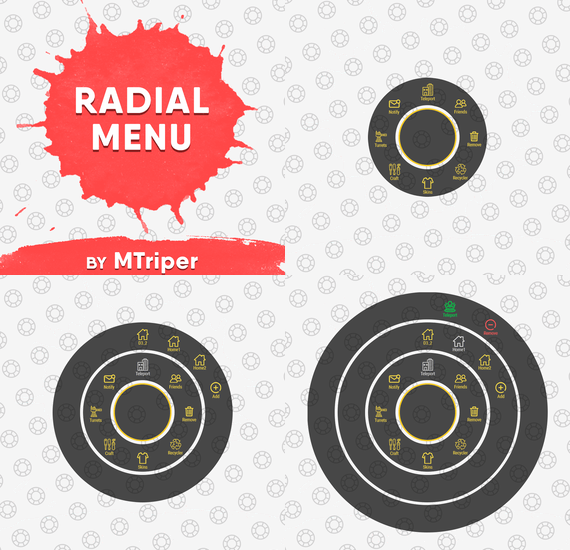
The radial menu is a customizable quick access panel with all popular and frequently used server commands. It makes it a lot easier and faster to interact with various server mechanics, be it teleportation, trades, setting house points and various panels.
Features
Allows to almost completely eliminate the manual entry of commands by the player. Automatic calculation and arrangement of any number of sections/subsections on a circle. Several display effects. Tracks a press of the MMB or on command (can be keyed to the same MMB). Checks for the privileges of a particular command, before executing it. Ability to use your own panel images. Full customization of the location and scale of icons and panel. Support for popular plugins (NTeleportation, TeleportGUI, Clans, Friends and Rust teams). Executing console or chat commands.
General settings
Track MMB presses to open a radial menu? - if the player has a MMB bind, the plugin will not open the Radial Menu.
The command to open the radial menu - you can use both the command and the MMB tracking. When using MMB tracking and the command at the same time: If a player has a MMB bind, his bind will be executed when he clicks on it, and the Radial Menu will not open. If there is no bind, the player can use both the command and the MMB press.
Upload images to players when they connect? - when a player connects to the server, the plugin will automatically download 3 images of menu rings to his client. This avoids displaying black rectangles when opening the menu while the plugin is downloading the images to the client.
Section/Subsection settings
The plugin has main sections (level 1), subsections at level 1 (level 2) and subsections at level 2 (level 3).
Section name - the name of the section, which is displayed under the icon.
Enable this section? – on/off section.
Section permission [required] - permission required for the plugin to work (without dots). Add "_add" to the end of the name so that the plugin does not register or check permissions for child subsections.
Section icon - direct link to the icon (recommended size 64x64).
Fill icon with color below? - Completely fills the icon with the color set below.
Inactive/active section color [HEX or Unity RGBA] - The plugin supports 2 types of colors: HEX (e.g. "#57de54" or "#57de54ff") and Unity RGBA ("0.34 0.87 0.33 1").
Command executed on behalf of the player - if you do not have subsections in this section, the command (without the "/" if chat) that will be executed for that player is specified here. You can specify multiple commands using commas (e.g. "radar ui, vanish, adminpanel hide"). If there are subsections in this section, the command is not specified. Specify %steamid% or %username% so that the plugin replaces them with the data of the player on whose behalf the command is executed.
Command type - Where to run this command: true - chat, false - console.
Permissions for above command - if the command above is specified, you can specify the privileges of that command in this field (e.g. "removertool.normal, removertool.structure, removertool.external"). The plugin will check if the player has these privileges before executing the command.
Show this section only to those with permissions above? - allows to draw the section automatically (without giving permissions to this plugin) if the player has command permissions.
Show this section even to those who don't have permissions? - forcibly displays the section to all players, even those who do not have privileges to it (if you click on it, a message about lack of permissions will be displayed in chat).
Subsections layout [n - number] - this setting is responsible for how subsections are arranged.
0 - automatically. Suppose you have 10 subsections, then 360 degrees / 10 subsections = 36 degrees. The plugin will automatically position the 10 subsections every 36 degrees (clockwise, starting from the top). n - from the beginning. The plugin will arrange the subsections clockwise, starting from the top, not automatically, but in a certain step. For example, you have 3 subsections, but you do not want them to be automatically scattered all around the circle, you want them to be displayed at the top, with some small step, this step will be calculated due to the conditional number of subsections n (for example, 15). Now 360 degrees / 15 conditional subsections = 24 degrees, then your 3 subsections will be positioned from the beginning and there will be 24 degrees between them. -n - from the active item. The plugin will arrange the subsections relative to the active section. For example, you have 3 subsections, but you don't want them to be automatically scattered all around the circle, and you also don't want them to be arranged in some clockwise, starting from the top. By choosing this type of arrangement, the subsections will be located in the same place as the active section, in the increments you specify. It works the same way as above, only n is specified with a minus sign (for example, -15, the minus is needed for the plugin to understand what type of arrangement to use). All examples of the layout of the subsections are present in the standard config.
Permissions
It may be unclear how permissions work in this plugin. Let's figure it out with a simple example from the standard config.
It's not hard to figure out that this is the home point section of the standard config. To exclude identical names of permissions the plugin converts them to this form.
Because of the large number of permissions generated by the plugin, there are mechanics for reducing them. If you add "_all" to any section, in the "permission" field, the plugin will not register the permissions of child subsections. For example, if the player has the permission "_homes_all", then all displayed houses, all commands (add, remove, etc.), in general everything that belongs to the section "_homes_all" will obey and is checked by the permission "radialmenu._homes_all". The "permission" fields of the child sections still have to be filled in for the plugin to work.
I strongly recommend using the "Permissions Manager" plugin to set privileges for players or groups. It draws a simple interface, through which it is very easy to add or remove permissions.
Teleportation
The plugin supports work with teleportation plugins (set/remove/teleport to home point) NTeleportation, TeleportGUI and Teleportation by OxideBro (for RU server owners).
To do this, in the main section (level 1), you must specify the permission of the "_homes" section, this is necessary for the plugin to understand that it will work with the teleport plugin.
Next, in the subsection "_homes" (level 2) you must add the MAXIMUM number of displayed house points, for example 5. If the player has more house points than this number, then only the first 5 will be displayed, if less, then all of them will be displayed. For each such point, you must set its unique name, which begins with "home_n", where "n" is any unique number or word (e.g. home_1, home_2, etc.). In addition to the house points here you can place a section with the establishment of the house point, its name should be "home_add", and the command "home add {0}" (command your plugin teleport), where {0} - the name of the new house point, the plugin itself will set it relative to the square in which the player at the moment is (for example D3, if there are several in the square, then D3h1, D3h2, etc.).
After that, in the subsections (level 3) of each such house point, you can specify commands relating specifically to it. For example: "home {0}", "home remove {0}" or any other commands, where {0} is the name of the specific house, the plugin itself will substitute it when executing the command.
If you find all of the above complicated, you can take a look at the standard config as an example.
Friends
The plugin supports work with plugins Friends, Clans by k1lly0u and Rust teams.
Here everything is set up similar to Teleportation. But for the plugin to understand what to work with, in the main section (level 1) you must specify one of the three options:
"_teammates" - the plugin will work with Rust teams "_friends" - the plugin will work with the Friends plugin "_clans" - the plugin will work with the Clans plugin In subsections (level 2) you must add the MAXIMUM number of displayed friends, for example 8. If the player has more friends than this number, then only the first 8 will be displayed, if less, then all of them will be displayed. For each friend you must set its unique name, which begins with "friend_n", where "n" is any unique number or word (for example friend_1, friend_2, etc.).
After that, in the subsections (level 3) of each friend you can specify commands specific to him. For example: "tpr {0}", "trade {0}" or any other commands, where {0} is the nickname of the player, the plugin itself will substitute it when executing the command.
An example of the configuration of this section is also present in the standard config.
Plugin Config
Example of plugin configuration in English
Example of plugin configuration in Russian. If you need Russian config, open it (RadialMenu.cs) before loading the plugin, and at the top set the variable "isRus = true". Then save and upload this file to your server.
-
$19.99
JetPack
Take your players to new heights in the game of Rust, and get a few laughs watching people try to fly one for the first time! Introducing Jetpack! A plugin that allows your players to soar around like never before in the game of Rust. Grab this plugin and give your players something to talk about! Many functions have already been implemented like the ability to shoot while piloting a jetpack, and the plugin will continue to expand and grow with the community.
You'll find the configuration covers almost anything you can think of, and you'll see a breakdown of the configuration file in the description below. By default you can simply press the middle mouse wheel to equip and remove the jetpack quickly, you can't run around once you've equipped it. You can customize loot crates the jetpack might appear in, and all of the stats from thrust to rotation and all of the other controls. Be sure to check the permission section and feel free to use the command creatively to give jetpacks as an award for completing other tasks on your server using the commands provided. Make sure you have some lowgrade handy, let's take to the skies!
Сontrols
Space bar - thrust W/S keys - pitch axis A/D keys - yaw axis
Chat commands (check config for permissions)
/jet - toggle jetpack on & off /givejetpack - give a jetpack to yourself
Console commands (admin only)
givejetpack - give a jetpack to yourself givejetpack SteamID - give a jetpack to player using their SteamID
Plugin config
en – example of plugin configuration in English
ru – example of plugin configuration in Russian
Check out the rest of my work: Adem's Codefling Library
You can reach out to me in Discord: Adem's Discord Profile
Thanks to Jbird for writing, translation, & support: Jbird's Discord Profile
Join the Mad Mappers Discord!