
KD Gaming 5x's Wishlist
-
$35.00$29.75Better Npc
This plugin adds variety of NPC sets with very high number of parameter sets on standard and custom monuments. Also it is added during dropping the server AirDrop, locked crate and destroying a tank or helicopter
Dependencies (optional, not required)
AlphaLoot CustomLoot True PVE Kits Economics Server Rewards IQEconomic PveMode
Custom maps
Maps that have default settings for their custom monuments. For these maps, you will not need to create places for the appearance of NPCs, they have already been created by the map developer and are located inside the archive when buying the map
You can also download all these files for all maps here
Detroit: Irreparable Damage Oregon 2: Last Hope Lostly Island Frontier – American Old West Oregon: Land of Dead Badlands Foreign Lands Namalsk Kong: Skull Island Destroyed World Deathland Dreamland Last Train Pandora Railway Island Wasteland Cataclysm: Fury of Nature Last Oasis Crazy Island
Standard monuments
This item of the plugin settings is used for appearing NPCs in all standard monuments. All these settings are located in the Monument folder (oxide/data/BetterNpc/Monument). Each file in this folder corresponds to a standard monument
If there is no standard monument file in the folder, you can create it (you need to name the file the same way as the standard monuments on the map inside the game). You can copy the settings from any other standard monument
Configuration parameters:
Enabled? [true/false] – It allows to enable/disable the appearance of NPC on the monument. If you need NPCs appearing on the map and don’t need it on another map, you can use this option simply The size of the monument – this parameter contains two values. It is the length and width of the monument. This parameter is necessary for random appearance of NPC on the monument and indication of limits of removal of standard NPCs on the monument (if it is necessary) Remove other NPCs? [true/false] – It deletes the standard NPCs inside the limits of this monument Presets – It is a list of all the NPC presets to appear on the monument (the description of the NPC preset settings is located below)
Custom monuments
This item of the plugin settings is responsible for the appearance of NPCs on custom monuments. All these settings are located in the Custom folder (oxide/data/BetterNpc/Custom). Each file in this folder corresponds to a custom monument
If you have bought a map with already configured NPC appearance files for custom monuments you will copy these files into the Custom folder. If you want to create and configure the appearance of NPC in your custom location on the map, you will use the command in the administrators’ chat /SpawnPointAdd {name} (see the description of this command below in the instruction)
Configuration parameters:
Enabled? [true/false] – It allows to enable/disable the appearance of NPC on the monument. If you need NPCs appearing on the map and don’t need it on another map, you can use this option simply Position – It is a position of the custom monument on the map Rotation – It is a rotation of the custom monument on the map (this parameter is necessary for using custom places to appear of NPC on the monument, if the monument is used on more than one map) Radius – It is the radius of the custom monument from the position on the map Remove other NPCs? [true/false] – It removes the standard NPCs inside the limits of this monument Presets – It is a list of all the NPC presets to appear on the monument (the description of the NPC preset settings is located below)
Roads
This item of the plugin settings is used to appear NPCs on all types of roads. All these settings are located in the Road folder (oxide/data/BetterNpc/Road). Each file in this folder corresponds to a particular road type
ExtraNarrow – It is a narrow, unpaved walkway
ExtraWide It is a wide, paved, two-lane, beltway road
Standard – It is a regular, paved road
Configuration parameters:
Enabled? [true/false] – It allows to enable/disable the appearance of NPC on the road. If you need NPCs appearing on the map and don’t need it on another map, you can use this option simply Presets – It is a list of all the NPC presets to appear on the road (the description of the NPC preset settings is located below)
Biomes
This item of the plugin settings is used to appear NPCs on all types of biomes. All these settings are located in the Biome folder (oxide/data/BetterNpc/Biome). Each file in this folder corresponds to a particular biome type (Arctic, Arid, Temperate, Tundra)
Configuration parameters:
Enabled? [true/false] – It allows to enable/disable the appearance of NPC on the biome. If you need NPCs appearing on the map and don’t need it on another map, you can use this option simply Presets – It is a list of all the NPC presets to appear on the biome (the description of the NPC preset settings is located below)
In-game events
This item of the plugin settings is used to appear the NPCs in standard Rust events. All of these settings are located in the Event folder (oxide/data/BetterNpc/Event). Each file in this folder corresponds to its own type of event
The supported events:
When the plane drops the server AirDrop, it will be guarded by specific NPC presets
CH47 – When the chinook drops a locked crate during patrolling the map, it will be guarded by specific NPC presets
Bradley – When someone destroys a tank, its crates will be guarded by specific NPC presets
Helicopter – When someone shoots down a patrol helicopter, its crates will be guarded by specific NPC presets
Configuration parameters:
Enabled? [true/false] – It allows to enable/disable the appearance of NPC on the event. If you need NPCs appearing on the map and don’t need it on another map, you can use this option simply Radius – NPC appearance radius Presets – It is a list of all the NPC presets to appear on the event (the description of the NPC preset settings is located below)
The NPC preset parameters
Enabled? [true/false] – It is enabling/disabling the preset Minimum numbers – Day – It is the minimum number of NPCs from the day preset Maximum numbers – Day – It is the maximum number of NPCs from the day preset Minimum numbers – Night – It is the minimum number of NPCs from the night preset Maximum numbers – Night – It is the maximum number of NPCs from the night preset NPCs setting – It is all NPC settings of this preset (see the description of NPC settings for details) Type of appearance (0 – random; 1 – own list) – It is a type of NPC appearance. You can create your own list of places of NPC appearance. The NPC will appear only randomly. This parameter is not used in Road appearance types Own list of locations – It is your own list of NPC appearances. You need to use the number of locations at least the maximum possible number of NPCs in this preset. This parameter is not used in Road appearance types The path to the crate that appears at the place of death – It is the full path to the crate prefab that appears at the place of death of an NPC. If you don’t need this parameter, you should leave this blank Which loot table should the plugin use (0 – default; 1 – own; 2 – AlphaLoot; 3 – CustomLoot; 4 – loot table of the Rust objects; 5 – combine the 1 and 4 methods) – It is the type of the NPC loot table in this preset. Type 5 includes two types (1 and 4) at the same time and locates items from both types Loot table from prefabs (if the loot table type is 4 or 5) – It is a setting of the loot tables from Rust objects. You can see the loot table of Rust objects description for more details Own loot table (if the loot table type is 1 or 5) – It’s NPC’s own loot table. You can see the description of your own loot table for more details
The NPC settings description
Names is a list of NPC names. It is selected from the list randomly Health – It’s the HP amount of the NPC Roam Range – It’s the patrolling area distance. It’s the distance that the NPC can move from the place of appearance during patrolling Chase Range – It’s the chase range of the target. It’s the distance that the NPC can chase his target from the place of appearance Attack Range Multiplier – It’s the attack range multiplier of the NPC’s weapon Sense Range – It’s a target detection radius Target Memory Duration [sec.] – It’s the time that the NPC can remember his target Scale damage – It’s the damage multiplier from NPC to the player Aim Cone Scale – It’s the spread of NPC shooting, the default value in Rust is 2. It doesn’t take negative values Detect the target only in the NPCs viewing vision cone? [true/false] – It’s the parameter that allows detecting the target only in a certain NPC viewing. If you want to detect the target in 360 degrees, you will set the parameter "False” Vision Cone – It’s the NPC viewing. The range of values is from 20 to 180 degrees. If the previous parameter is False, this parameter is not used Speed – It’s the NPC speed. The default value in Rust is 5 Minimum time of appearance after death [sec.] – It’s the minimum time of NPC appearance after the death. This parameter is not used in the NPC Event places Maximum time of appearance after death [sec.] – It’s the maximum time of NPC appearance after the death. This parameter is not used in the NPC Event places Disable radio effects? [true/false] – You can disable/enable radio effects Is this a stationary NPC? [true/false] – If this parameter is True, the NPC will not move or run Remove a corpse after death? [true/false] – This parameter can control the deleting of NPC corpses (only backpacks are left). This parameter improves efficiency if there are a lot of NPCs Wear items – It’s a list of NPCs’ clothes and armor Belt items – It’s a list of weapons and items NPCs’ fast slots. Medical syringes are used for healing. If you give grenades to an NPC, he will use them. Smoke grenades are used for creating smoke screens (if you don’t need them, you should remove them from your inventory). If you give a Rocket Launcher to an NPC, he will raid the target’s building (if the target is inside it) Kits – It gives a pack of Kits plugin. If you don’t need this parameter, you should leave this blank. I recommend using the previous 2 points to configure NPC items
A description of the Rust loot table settings
Minimum numbers of prefabs –It’s the minimum numbers of prefabs that are needed to appear in the NPC loot table Maximum numbers of prefabs –It’s the maximum numbers of prefabs that are needed to appear in the NPC loot table Use minimum and maximum values? [true/false] – this parameter specifies whether to use the minimum and maximum numbers to limit the number of items List of prefabs – It’s a list of prefabs that need to add in the loot table. It is necessary to indicate the full path to the prefab and the probability of falling out this prefab
A description of the own loot table settings
Minimum numbers of items – It’s the minimum number of items Maximum numbers of items – It’s the maximum number of items Use minimum and maximum values? [true/false] – this parameter specifies whether to use the minimum and maximum numbers to limit the number of items List of items – It’s a total list of all items that can fall out in the NPC loot table. You can specify any standard items, their blueprints and any skinned or custom items
The commands in the chat (for admins only)
/SpawnPointPos {name} – To show the local admin’s position coordinates relative to the place where the NPC {name} appears
/SpawnPointAdd {name} – To create the NPC appearance point {name} in the Admin’s custom coordinates. A file with this name will be created in the folder Custom and you can configure it as you need
/SpawnPointAddPos {number} {name} – To write the local admin’s coordinate into the preset with the positional number {number} (starting from 1) to the place where the NPC {name} appears
/SpawnPointAddWear {number} {name} – To write all the admin’s dressed clothes into the preset with the positional number {number} (starting from 1) to the place where the NPC {name} appears
/SpawnPointAddBelt {number} {name} – To write all the admins’ quick slots cells into a preset with the positional number {number} ( starting from 1) to the place where the NPC {name} appears
/SpawnPointShowPos {number} {name} – To show to the Admin all the custom NPC appearance points in the preset with the positional number {number} ( starting from 1) in the place where the NPC {name} appears
/SpawnPointReload {name} – Reload Spawn Point with the name {name}
Console commands (RCON only)
ShowAllNpc – Shows the number of all NPCs of the BetterNpc plugin on your server
Hooks
object CanAirDropSpawnNpc(SupplyDrop supplyDrop) – It is called before an NPC appearance to guard an AirDrop. The returning of a non-zero value stops an NPC appearance
object CanCh47SpawnNpc(HackableLockedCrate crate) – It is called before an NPC appearance to guard a locked chinook crate. The returning of a non-zero value stops an NPC appearance
object CanBradleySpawnNpc(BradleyAPC bradley) – It is called before an NPC appearance to guard the boxes from crushed Bradley. The returning of a non-zero value stops an NPC appearance
object CanHelicopterSpawnNpc(BaseHelicopter helicopter) – It is called before an NPC appearance to guard the crates from crushed patrol helicopter. The returning of a non-zero value stops an NPC appearance
API
void DestroyController(string name) – It destroys the place of appearance NPC with the name {name}
void CreateController(string name) – It creates the place of appearance NPC with the name {name}
These APIs can be used with standard monuments, custom monuments (NPC locations) and roads. The name of this monument is in standard monuments {name}. It is the name of the file in the Custom and Road folder in custom monuments and roads
My Discord: KpucTaJl#8923
Join the Mad Mappers Discord here!
Check out more of my work here!
Creator of the default configuration – jtedal
-
$22.00
Marketplace+ (with AuctionHouse)
Overview
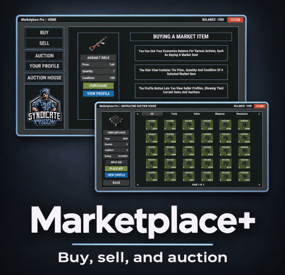
Buy, sell, and auction items through a polished in-game marketplace. Players use /market to browse listings, manage inventory, place bids, and run their own sales. Servers can seed wipe defaults, brand the UI, and choose the currency mode that fits their economy.
Warning
Economics and Server Rewards cannot both be enabled. Pick one virtual currency, or use item currency instead.
Oxide and Carbon are both supported.
Economics, Server Rewards, and NoEscape are optional. Install only what you need for the currency / block features you enable.
Features
Buy and sell market. Players list items with price and quantity, then buyers purchase into market inventory. Auction house. Timed auctions with starting bids, duration input, and held balance while bidding. Currency modes. Item currency (scrap or custom item/skin/name), Economics, or Server Rewards RP. Server defaults. Start a wipe with preconfigured sale and auction listings. Player profiles. Seller profiles, market inventory, and claim flow for purchased or returned items. Custom items. Skins, custom display names, attachments, ammo, condition, and genetics data are supported. VIP limits. Permission-based listing, auction, and inventory slot limits. Branding. Hex colors, logo/icons, language file text, and optional Steam avatars. Filters. Search and filter listings by price, condition, attachments, ammunition, and more. Tool Cupboard checks. Optional TC privilege requirement for sales and purchases. Chat announcements. Optional broadcast when players create listings or auctions. NoEscape support. Optional raid / escape / combat block checks on sell actions. Commands
/market opens the marketplace UI Command names are configurable under Open Market Commands.
Currency Modes
Pick one mode.
Item currency
Scrap by default, or any custom item / skin / display name.
"Economics Currency Settings": { "Use Economics": false }, "Server Rewards Currency Settings": { "Use Server Rewards (RP)": false }, "Item Currency Settings": { "Item ID": -932201673, "Custom Skin ID": 0, "Custom Display Name": "Scrap" } Economics
Requires Economics.
"Economics Currency Settings": { "Use Economics": true, "Unload If Null Economics": false }, "Server Rewards Currency Settings": { "Use Server Rewards (RP)": false } Server Rewards (RP)
Requires Server Rewards.
"Economics Currency Settings": { "Use Economics": false }, "Server Rewards Currency Settings": { "Use Server Rewards (RP)": true, "Unload If Null Server Rewards": false } Tip
After changing currency mode, run oxide.reload MarketplacePlus and open /market to confirm the balance line updates.
Use Economics price limits for both Economics and Server Rewards modes. Item price limits are used only in item currency mode.
Permissions
Use the onboard listing / auction / inventory permission settings to limit how many items players can list, auction, or store.
Enable Use Listing Permissions, Use Auction Permissions, and/or Use Inventory Permissions Set default limits Grant higher-limit permission tiers to VIP groups This is how you restrict auctioning or selling to VIP only.
Dependencies
Economics - optional, for money balance mode Server Rewards - optional, for RP balance mode NoEscape - optional, for raid / escape / combat block on sell Configuration
Tip
Quick start
Install MarketplacePlus.cs Reload once so the config generates Pick a currency mode above Set branding / logo / colors if wanted Reload again In-game: /market Auction duration input accepts formats like 30d30h30m30s.
Tool Cupboard checks
"Require Tool Cupboard Privilege For Sales": true, "Require Tool Cupboard Privilege For Purchases": true Sales covers listing items and creating auctions Purchases covers buying and bidding Player must be TC authorized when enabled Chat announcements
"Announce New Listings In Chat": true, "Announce New Auctions In Chat": true Broadcasts when players list an item or start an auction.
Warning
If both Economics and Server Rewards are set to true, Server Rewards is disabled automatically and a console warning is printed.
Existing configs are migrated on load. New keys for Server Rewards, TC checks, and announcements are added for you.
More Information
Change the main menu logo in Branding Settings Edit most UI text in the language file Confirm tips show during buy, bid, and sell UI is sized to avoid stretching Compatible with Oxide and Carbon Support
Need help? Open a support ticket on this page or join Discord: https://discord.gg/GG2Vdvkhvg
-

$24.99
MyRustServer
By LosGranada in Tools
MyRustServer is a Rust Server Tool that allows you to create and manage your own Rust Server in just a few clicks.
The tool brings many possibilities and options that simplify your life as a server admin.
No unnecessary creation of batch files, easy installation of the server and extensions, easy updating of your plugins, wipe your server with one click and manage your players.
Join the discord for better and faster support
❤️ Big thanks to everyone who supports the project and helped me ❤️
You can run MyRustServer on up to 4 different systems. You can create as many servers on one system as your hardware allows. It is a standalone program for Windows Only, with which you can host your own server, connecting to other server host service providers is not possible. No Support for OneDrive Drives. No Support for Cracked Servers.
The dashboard shows you all relevant information about your server. Here you control your server. Auto Restart Server Auto Update Server Auto Update Oxide/Carbon Only Updates on Startup Force Restart Set Game Mode (Vanilla, Survival, Softcore, Hardcore, Weapontest and Primitive) Set CPU Affinity Set Process Priority Start/Restart Kill and Save Server
With the installer you can easily install and update your server. No batch files are used. Server Install or Update Server (Master, BETA, AUX01, AUX02, AUX03) Verify Server Files Repair Server Files Install Discord Extension Install RustEdit Install Rust.UI Oxide Install Oxide (Public, Staging) Update/Uninstall Oxide Show Server in Modded/Community Permisson Manager Carbon Install Carbon (Production, Preview, Edge, Staging, AUX02, AUX03) Update/Uninstall Carbon Show Server in Modded/Community
Under Settings you give your server your personal touch. Here you can set everything for your server. Server Settings Name Logo URL Web URL App Logo URL Description Tags Max Players Add Users (Admins, Mods) RCON Password Add Ports to Windows Firewall Server Port RCON Port Query Port App Port Server IP RCON IP Add Custom Maps Server Map (Procedural, Custom, Barren, Hapis Island, Craggy, Savas Island, Savas Island Island_koth) Map Size Map Seed Start Configs (convars) Backups (MRS, Oxide/Carbon, Server, Harmony) Advanced Settings Create Backup on Server Start Minimize Server Console at Startup Start Rust Server on MyRustServer Startup Disable MyRustServer Console Process Start Commands for RustDedicated.exe
In Plugins you can easily manage your plugins. No annoying manual reload after editing. Plugins Reload Update View Website Enable/Disable Delete Update Check Plugins for Update (Supported sites for checking are: uMod, Codefling, Lone.Design, Chaos, RustWorkshop, Github, ModPulse, RustPlugins, ServerArmour, ImperialPlugins, MyVector, SkyPlugins, Game4Freak) Update Plguin (Only plugins from uMod can be updated directly from MyRustServer.) Editor Edit Configs/Data Auto Reload Plugin on Save Reload Search by Text Plugin Installer Install Plugins from uMod
Here you can create your own schedule if I don't have time at the moment. Wipe Shedule Blueprints, Map, Backpacks, Logs, Player Deaths, Player Identities, Player Stats, Player Tokens, Custom Folder/File Custom Map New Map Seed on Wipe Custom Seed Date to Server Title Customs (Wipe Shedule) Custom Maps Custom Seed Wipe Blueprints, Map, Backpacks, Logs, Player Deaths, Player Identities, Player Stats, Player Tokens, Custom Folder/File Custom Map New Map Seed on Wipe Custom Seed
See exactly who is on your server. Online Player List Offline Player List Banned Player List Give Item Open Steam profile Copy SteamID Copy Name Check IP Kick Player Ban Player Teleport to Me to Player Teleport Player to Me Set/Remove Admin/Mod White List Kick Max Allowed Bans Kick Max Allowed Ping Enable Whitelist Block Country
View Server Console Send Commands/Say to your Server Add Quick Commands
Connect your server to your Discord to use as remote control or status information. Start Bot on MyRustServer Startup Bot Commands: send Commands talk to Server check server status start the server stop the server restart the server kill the server version status update server update Oxide update Carbon check plugins Webhooks: Send Server Startup Send Server Online Send Server Offline Send Server Restart Send Client Update Send Server Update Send Oxide Update Send Carbon Update Send Wipe Notification Send Low FPS Warning Send Plugins Update
Personalize your server messages. Send Server Messages (Restart, Updates and Wipe) Send Custom Messages Send Custom Commands Sets for each Message a Time
Determine how long your server needs until it is reloaded. Server Restart Server Update Update Oxide/Carbon Server Wipe
- #rust server tool
- #rust server management
- (and 28 more)
-
$30.00
Triangulation
Welcome to a new arctic event where players will need to brave the arctic biome to deal with packs of aggressive feral animals!
Description
The event begins with a chat warning explaining that scientists studying the arctic area of the island have been attacked by vicious animals and need to quickly be evacuated. Since leaving in such a hurry, they left their drilling rig behind, which extracts a lot of profitable resources, currently the location of the rig is not known. Players are able to find and use this rig, since it is left unguarded, but first they have to find it's location. The team left behind three signal receivers at different locations on the island. The player needs to scan each of them sequentially. This won't be as easy as it sounds, utilizing the signal receivers seems to be a big part of what is aggravating the packs of animals nearby that led to the attack. The animals seem so crazed by the signal receivers running that they will attack and try to destroy them when the players use them to triangulate the location of the drilling rig. Players should protect the receivers if they have any hopes to retrieve the location of the rig, they will need to use all three receivers to find it. The rig will need quite a few batteries to run, players should loot these after running each scan. To incentivize keeping these scanners running, loot is provided with each successful scan of the area. The more health each scanner has upon completing the scan the more batteries will be received as a reward. The more batteries are in the rig, the longer it will run and the richer the reward will be in the end.
In the plugin configuration you can change almost anything you can think of, the loot in each location, the signal receivers and drillig rig parameters, timers, attack waves, animal configuration, and almost any customization you can think of will be found in the config file. Put on some warm clothing and head out to meet the new challenge!
Dependencies Required
AnimalSpawn
Dependencies (optional, not required)
TruePVE GUI Announcements Notify Discord Messages NTeleportation Economics Server Rewards IQEconomic XPerience
Chat commands (only for administrators)
/tstart - start the event
/tstop - end the event
Console commands (RCON only)
tstart - start the event
tstop - end the event
Plugin Config
en - example of plugin configuration in English ru - example of plugin configuration in Russian
Hooks
void OnTriangulationStart() – called when the event starts
void OnTriangulationEnd() – called when the event ends
void OnTriangulationWinner(ulong winnerId) – called at the end of the event, where the winnerId is the player who did more actions to complete the event
void OnTriangulationReceiverSpawn(Vector3 pos, float radius) - called when the signal receiver spawn on the map
void OnTriangulationDrillSpawn(Vector3 pos, float radius) - called when the drilling rig spawn on the map
My Discord: kpuctajl
Join the Mad Mappers Discord here!
Check out more of my work here!
- #event
- #facepunch
- (and 17 more)
-

$10.00
Custom Magazine
This plugin will add multiple extended magazines to your server
Description
Facepunch just released the extended magazine into the game, which adds 25% to the capacity of ammo that it can originally hold
With Custom Magazine's, you can now add several types of extended magazines! By default, you can now also add 50%, 75%, and even 100% capacity increases! At 100%, this will double any weapons capacity! You can change those capacity increase percentages in the configuration, remove them, or even add your own! You can configure spawning of these items in standard Rust crates!
Console commands (RCON only)
givemagazine {skinid} {steamid} - This is the console command to give an extended magazine from the plugin configuration with a Steam Workshop SkinID ({skinid}) to a player using their SteamID ({steamid})
Plugin Config
en - example of plugin configuration in English
ru - example of plugin configuration in Russian
My Discord: KpucTaJl#8923
Join the Mad Mappers Discord here!
Check out more of my work here!