
Magnumk's Wishlist
-

$9.99
LuckyBlock
Random events with rarity A crate that owes you nothing Looting is the most predictable part of a wipe: you know what a barrel holds before you break it. Lucky Blocks fix that. Any container on the map can quietly turn into one, wrapped on all six faces in the texture of its rarity, and opening it doesn't give loot — it rolls. A Common block pays a few scrap; a Legendary one drops an airdrop on your head. A Cursed one has nothing good inside it at all, and the player can see that before deciding to touch it.
31 Event types built in 5 Tiers, Common to Cursed 35 Events preconfigured 0 Dependencies ✓Rarity you can read across the field — every tier carries its own workshop decal, colour and name ✓The Cursed tier only hurts — a visible risk your players choose to take, and no competitor has one ✓Hand blocks out as an item — a shop reward the player places where they want and opens when they want ✓Any event is a list of server commands — whatever your other plugins can do belongs on the wheel too ✓Rare blocks announce themselves — chat with a grid reference, a marker on the map, an embed in Discord 01 — Tiers Five rarities, five different wheels A block belongs to a tier from the moment it spawns until somebody opens it. The tier decides how the block looks, how often it appears, who is allowed to open it and which events can come out of it. Common, Rare, Epic, Legendary and Cursed ship configured, with the events already spread across them by weight.
The block tells you what it is Each tier has its own Steam Workshop decal, published with the plugin and set in the config, plus a name in its own colour. A player crossing a field sees a gold block and a black one and knows the difference without opening either. Cursed: the whole point of looking first Ten events, all of them bad: the concrete box with C4 counting down, a patrol helicopter aimed at the opener, meteors, bears, radiation, a wound, an inventory dropped on the ground. Walk past it or gamble that the roll lands on the least painful one. Weights, not percentages Spawn weight per tier, event weight inside a tier. Raise one number and everything else rebalances itself; set it to zero and that tier or event stops appearing. Adding a sixth tier is a copy of a block in the config. A tier can belong to a group Give a tier a permission and only that group can open its blocks. Legendary for VIPs, Cursed for everyone, the rest open to the server — blocks still spawn for all players, they just don't open for the wrong hands. 02 — Events Thirty-one ways it can end An event is a list of server commands with a weight and a description, so the built-in ones and yours sit in the same table and roll against each other. %steamid% in a command is replaced with the player who opened the block.
Reward Money through Economics, ServerRewards, BankSystem or IQEconomic. A kit by name. An item with a skin, a rain of items landing around the player, an airdrop, a blueprint unlocked, every piece of gear repaired, full health with the boosters running, or any vehicle and entity spawned by its prefab name. Chaos A patrol helicopter sent straight at the opener. Meteors falling over the area. Lightning. Bears or scientists in a ring around the player, a wall of fireballs, radiation, a teleport to a random point or to a monument, a swap of positions with the closest player, everything stripped off, or the sealed concrete cube with nine C4 counting down inside it. Trolling The camera spinning for half a minute. An explosion with no damage behind it. Heavy armour that cannot be taken off. Night vision goggles for a while, an inventory dropped at the player's feet. Server wide An airdrop called in for every player online, and Lucky Rain: a ring of fresh blocks around the one just opened, which turns a single find into a crowd within a minute. 03 — Blocks as an item Sell one, let the player open it where they like Fill the item skin id on a tier and that tier becomes a box in the inventory. One console command hands it out, so your shop, your cases and your event plugin can all give lucky blocks as a reward without knowing anything about this plugin.
Placed like any deployable The player deploys the box the usual way, so the game itself checks building privilege, the surface and the slope. The plugin only replaces what was placed with a block of that tier. It waits as long as it has to A block a player placed ignores the despawn timer and comes back after a restart, in the same spot. It is never announced and never appears on the map either, so buying one doesn't paint a target on the buyer's base. One way in A placed block cannot be picked back up. Once it is on the ground the only thing left to do with it is open it. 04 — What the server sees A rare block is an event, not a private find Announcements are set per tier, so Common blocks stay quiet and a Legendary one starts a race. Spawn and opening are separate switches — announce the find without telling everyone what came out of it, or the other way round.
Chat with a grid reference The message names the tier in its own colour and the grid square it landed in, which is enough to send half the server running and not enough to lead them to the exact rock. A marker for as long as it lives A circle in the colour of the tier sits on the map while the block is there and disappears with it, whether it was opened or despawned. The same news in Discord One webhook url in the config and every announcement is mirrored as an embed coloured like the tier, so the players who are not online still see the server is alive. Who opens the most The plugin counts openings per player and per tier and shows the top ten in chat. Statistics reset themselves on a wipe. Reliability Nothing left in the map save ✓Blocks are never written into the save, so a restart leaves no leftovers — only blocks placed by players come back, from the plugin's own data file ✓A block costs seven network entities, and a limit in the config keeps that budget where you put it ✓Configs from 1.x upgrade themselves: the old event list becomes the Common tier and keeps its skin ✓Hooks the setup does not need stay unsubscribed, so a server that gives out no blocks as items never listens for deployables ✓Spawns can be blocked underwater, above the ocean and inside any monument — the monument list fills itself from your map ✓Runs on Oxide and Carbon, needs no other plugin, and every message lives in the language files, English and Russian included Commands and permissions Three commands, and one of them is for players /lbtop Top ten openers on the server. Open to everyone. /lbtest [tier] Puts a block of that tier where you are looking, or a random one. Needs luckyblock.admin. luckyblock.give Console or RCON: luckyblock.give <steamID|name> <tier> [amount], the line your shop calls. luckyblock.admin Spawning blocks and handing them out. luckyblock.<tier> Whatever you write in a tier's permission field, registered on load. Leave it empty and the tier is open to everyone. For developers Four methods, three hooks A tier is always named by its key in the config, Common, Rare, Legendary and so on: that is what the hooks hand you and what every method takes. Everything goes through a plain plugin reference, LuckyBlock?.Call<bool>("GiveLuckyBlock", player, "Legendary", 1), nothing to add as a dependency.
Methods IsLuckyBlock (BaseEntity entity) → bool
True for a live lucky block of this plugin, so your loot or damage rules can step around it. GetLuckyBlockTier (BaseEntity entity) → string
Tier name of that block, null when the entity is not one. SpawnLuckyBlock (Vector3 position, string tier) → bool
Puts a block of that tier at the position, an empty tier rolls a random one by weight. It behaves like a natural spawn: despawns by the timer, gets announced and marked on the map when the tier says so. False when the tier is not in the config, or nothing can roll because every weight is zero. GiveLuckyBlock (BasePlayer player, string tier, int amount) → bool
Hands the block over as an item, amount clamped to 1..100. False when the tier does not exist or has no item skin id, such a tier can only spawn on the map. Hooks OnLuckyBlockSpawned (LootContainer block, string tier)
A block appeared: spawned on the map, placed by a player, or restored after a restart. CanOpenLuckyBlock (BasePlayer player, LootContainer block, string tier) → object
A player is trying to open one. Return anything but null to veto. It runs after the tier permission and before the cooldown and the daily limit, so your refusal shows before the built-in ones. OnLuckyBlockOpened (BasePlayer player, LootContainer block, string tier)
The tier event has already fired, the block is about to vanish. Questions Before you buy I am on 1.x. What happens to my config? It migrates on the first load. Your event list becomes the Common tier with the skin you were using, and the other four tiers arrive next to it, ready to be tuned or deleted. Can I add my own events? That is the main way to use it. An event is a list of server commands with a weight, and %steamid% stands for the player who opened the block. Anything with a console command belongs on the wheel. Can I use my own artwork? Yes. Five decals come with the plugin and are set in the config out of the box; a skin id is just a config value, so your own decal from the Spray Decal Creator takes its place in one line. What does it cost the server? Seven network entities per block, and the block limit in the config caps the total. Blocks replace loot containers that already exist, so nothing is added to the map that wasn't going to be there. Will the deadly events wreck bases? No. The C4 in the concrete cube is a visual: it kills the player who opened the block and leaves the neighbourhood standing. What happens on a restart or a wipe? Spawned blocks are gone and new ones appear as loot respawns. Blocks players placed themselves come back where they were. Statistics start over on a new save.- #luckyblock
- #lucky block
- (and 27 more)
-

$19.99
Custom Item Vending
By imthenewguy in Plugins
This plugin allows your players to list and sell custom items through their vending machines.
By creating a store via the back of the vending machine, players can list any item (custom or vanilla) for sale through their machines.
Players can then interact with the players vending machine to purchase their wares, just like vanilla rust.
This is ideal for any server, but especially for servers with heavy role play elements, or servers that use a lot of custom items.
Custom Item Vending can receive data from other plugins for both a currency and an item properties.
Custom items can be added manually through the config, or sent via an API directly from another plugin.
Allows players to sell items for vanilla items, custom items, economics and server rewards. Customizable limit on how many listings each vending machine can have. A map marker that will display what is currently being sold (and is in stock) in the machine. Floating text at the front of each custom item machine indicating what is being sold and its stock level. Supports almost every custom item, identifying them uniquely based on skin, name, text field, slot count and condition. Economics and Server rewards are withdrawn from the back of the machine.
The only requirement to use this plugin is the permission: customitemvending.create.
This is require to turn a regular vending machine into a Custom Item Vending machine.
Please note that due to the nature of the plugin and the way the map's vending listings are handled via client side, it is not possible to use market drones to obtain items using this plugin.
-
![More information about "Building Sites [Super Sized Bundle]"](https://codefling.com/cdn-cgi/image/width=285,height=275,quality=80,fit=cover,format=webp/https://codefling.com/uploads/monthly_2025_09/adem_prev_sites_prev_1.thumb.jpg.e63b8b7d1ba98b9e3733caa76fff8f17.jpg)
$19.99
Building Sites [Super Sized Bundle]
By Adem in Customizations
‼️Note: This is an add-on, not a standalone plugin. It requires the BuildingSites plugin to be installed (sold separately).
SuperSized is an add-on for BuildingSites that introduces 10 new locations — one coastal and nine land-based.
Its defining feature is massive buildable areas, perfectly suited for ambitious structures, large bases, or clan settlements.
Installation Instructions:
Make sure you have the latest version of the BuildingSites plugin installed Move the contents of the data/BuildingSites folder from the archive you downloaded into the oxide/data/BuildingSites folder on your server Reload the plugin Check out the rest of my work: Adem's Codefling Library
You can reach out to me in Discord: Adem's Discord Profile
Join the Mad Mappers Discord!
- #building
- #building site
- (and 5 more)
-
$25.00
ZStickers
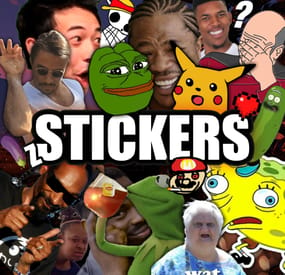
Forget about emoji, STICKERS are the next best thing to use in chat.
This plugin gives you and your players the ability to unlock stickers that can be used to express yourself in chat. Besides that, it adds a sticker market: Here stickers can be traded, which adds a great way for your players to make some good money on rare stickers.
Stickers are shown by using their :tag: in chat. By default, stickers are shown to every online player (players can turn them off individually by command). They popup on their screen and disappear in a few seconds. The possibilities are endless, and a lot of fun and interaction are guaranteed. You can add your own memes, cat pictures, word art or whatever image you can think of, tip: sneaky spiders give good results.
Sticker Editor
The main command for stickers is /sticker, but you will need some stickers first! Add any new stickers by using this command:
/sticker add :stickername: https://imgur.com/yoursticker.png After adding a sticker, you can find it in the sticker browser. Open the UI by using:
/sticker For admins (or people with the right permission) there is an in game sticker editor. From the browser, click the pencil icon on any sticker to start editing the sticker. The 3x3 grid sets your sticker’s start position, then you can align your sticker with the other values.
A group can be entered or chosen by clicking the … icon.
The 4 main tiers are only used for colors and not for real rarity, the only important tier here is the HIDE tier. Every sticker in this tier will not be available for players. Stickers are added in the hidden tier by default, so make sure to select another tier when you finish editing your sticker.
The TOTAL field is the maximum amount of copies of this sticker to be owned by players in total *. The right field shows the current number of owners.
* Stickers are limited!
Every sticker added to the plugin requires you to set up a maximum number of ‘owners’ for that sticker. The sticker can only be unlocked this many times.
Note that players can also have duplicate stickers. A sticker that has almost reached its max owners will be way harder to get when buying stickers. This rarity is useful in the sticker market and the recycler.
In the config file are settings for inactive players. After a certain amount of inactive days, X stickers will be taken from the player and become available again in the market.
Sticker Browser
Browse your stickers and click any sticker for details. The sticker browser has handy filters to quickly find the sticker you are looking for. Use the lock icons to toggle (un)locked stickers. Sorting is possible by age, a-z, rarity, collections (groups) and availability.
On the right side of the screen all sticker groups are shown.
These are basically collections of stickers that can be used like sticker packs. Collect them all!
Click any of the stickers to get more details, trade or recycle them. The eye icon on top of the sticker sends a chat message to show the sticker. Only visible for admins are the edit button (pencil) and lock/unlock button. The number on the top right shows the amount of this sticker you own. This sticker will be shown if a player who owns it uses :care: in global chat.
Buy Stickers
Players need sticker tokens to be able to unlock new random stickers.
Different packs with tokens can be set up in the config file. The (token) price of a sticker can also be configured. At the moment only random stickers are available.
You can unlock specific stickers for players by command. Tokens can also be given by (server) command, for example to be used as a vote or quest reward.
Sticker Market
In the sticker market, players can trade stickers they own. After setting a price, the sticker will be shown in the list of available trades. Other players can then buy the sticker and ownership will be transferred.
Sellers get paid in the same currency as the one setup for buying sticker tokens. In case you use items as a currency, the seller has to be online to make a trade.
Failed trades are being removed after a (configurable) amount of time.
Sticker Recycler
Besides trading your stickers, you can also decide to recycle them for sticker tokens.
The reward for recycling depends on the rarity of the sticker at that moment and the amount of the same sticker being recycled.
Recycling more of the same sticker results in higher rewards.
Permissions
zstickers.admin - needed for all sticker management zstickers.use - enables /sticker command zstickers.trade - allows to trade stickers zstickers.teamchat - allows players to use stickers in team chat (ninja mode)
Commands
/sticker - almost everything can be done inside the UI /sticker add :stickername: https://imgur.com/sticker.png - add stickers /sticker give <player name or id> <amount> - gives player x number of sticker tokens /sticker unlock <player name or id> :stickername: - unlocks a sticker for a player /sticker hide - hide all stickers /sticker show - show stickers again There are some debug commands in case something looks off (please report):
/sticker list - prints your unlocked stickers to chat /sticker clearallmystickers - clears all your stickers /sticker valid - validates all stickers and their owners /sticker update - refresh all sticker stats / find missing stickers /sticker cleanuptrades - manually cleans up sticker trades /sticker debug - logs what's happening to console /sticker stats - shows totals of stickers and their availability
Console commands
These commands can be used by admins and other plugins.
sticker givetokens <player name or id> <amount> - gives a player sticker tokens sticker unlock <player name or id> :stickername: - unlocks a sticker for a player sticker import <sticker pack name> - import sticker pack, see below for more info sticker import <sticker pack name> hidden - import a sticker pack but hide all stickers instead of using the sticker pack tiers
Config & Data
The config file is pretty straight forward. You can add or remove token packs. The currency is set by picking one of the numbers. If you want to use items as currency, make sure to setup the shortname of the item. Optionally you can add a skin ID too, so only items with a certain skin can be used to buy sticker tokens.
The plugin will create 3 files in /oxide/data/ZStickers/:
market_data.json - contains all trades, this data is automatically managed/wiped player_stickers.json - contains ownership data and token balance, you CAN wipe this, but this is not required: Players can keep their stickers forever, as long as they are active. stickers.json - contains all sticker data - don't wipe this if you want to keep your stickers. If you wipe this file, make sure to wipe the others too. New in version 1.1.0 is the ability to configure the buttons used to buy stickers. Check out the config below: The first item is the default buy-button (buy 1 sticker for 5 tokens). The 2nd item is a new custom buy button: Here you but 5 stickers at once for 22 tokens. Optionally you can also define what permission is needed to see the button and what collection (group) the sticker should be picked from.
Import Sticker Packs
Sticker packs are a way to easily add or share a bunch of stickers. They come with predefined settings, so it's basically plug and play. For sticker packs, a data folder called 'import' is created
/oxide/data/ZStickers/import/ Sticker packs can be added here to easy import a list of stickers. If the import folder is not there, you can create it yourself.
Add the sticker pack json file(s) to the folder and run the import command from your console. Results will be shown in your console. Stickers with the same :tag: can not be added this way. Make sure to remove other sticker first.
If you don't want the stickers to be visible for everyone right away, add the parameter 'hidden' to the import command. This will put all stickers in the hidden tier. Console command for example:
sticker import SuperCoolPack hidden
Dependencies & Plugin support
Required plugins: ImageLibrary
Optional currency plugins: ServerRewards, ZCoins
Economics plugin is added but untested, let me know if this works for you. This plugin will be fully supported.
Note: You can use any item with any skin if you're not using any of these plugins on your server.
Support / Contact me
If you encounter any problems or if you have any suggestions, feature requests or questions, please message me on Discord (josh.z) for the fastest response.
This plugin is made with love and I feel it's never really 'done'. I'd love to discuss your ideas for it on my Discord server here: https://discord.gg/KveEUQhGsZ
There's also a cool dude there (Nexus) who always sees your questions quicker than I do. If my response takes too long, find Nexus!
-
$15.00
Advanced Fishing
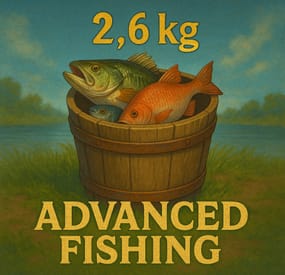
Advanced Fishing is a powerful and fully customizable plugin that completely overhauls the fishing system in Rust. With weight-based fish, immersive mechanics, item-based trading, and full UI integration, fishing becomes a profitable and rewarding gameplay loop!
Use Cases:
Create an immersive fishing economy on your PvE or modded servers. Reward players for fishing tournaments or daily quests. Add rare fish with high value or special lore. Enable custom progression with powerful fishing rods.
◼◼◼◼ Key Features ◼◼◼◼
Enhanced Fishing Mechanics
Every fish has a randomized weight, affecting catch difficulty and selling price. Custom rods can influence the weight range of caught fish. Realistic movement based on fish weight and lure tension. Fishing Bucket System
Players must place a Fishing Bucket nearby to start fishing. The bucket stores caught fish with limited capacity. Dynamic floating text notifications when catching fish. Can be picked up or opened with smart interaction logic. Purchase from Fishing Villages (optional, via vending machine). Fish Exchange & Economy
Sell fish via NPC vending machines ("Fish Exchange"). Full support for: Item-based currency (e.g., scrap), Economics balance, or ServerRewards points. Price is calculated per kilogram with randomness and dynamic seeding. Custom Items Support
Fully integrated with CustomItemDefinitions. Create your own fish, bait, and fishing rods with unique stats and skins. Customize catch chance, bait levels, depth ranges, strain modifiers, and more. UI & Localization
Clean and responsive UI for viewing and exchanging caught fish. Shows total price, per-fish breakdown, and an EXCHANGE button. Full localization of messages and interface.