
Magnumk's Wishlist
-
$40.00
BotReSpawn
By Steenamaroo in Plugins
Spawns set numbers of customised npcs at monuments,
various events, supply drops, biomes, custom locations, and 'toplayer'.
Plugin Description.
Highly customisable and intuitive npc plugin, setup exclusively via UI.
See images for an overview of the available options globally, and per npc profile.
Every option in the UI is clickable, showing a detailed description of its use.
Optional dependencies -
Kits (free at uMod.org) CustomLoot
Permissions.
botrespawn.allowed - Required for non-admin use
Chat commands.
/botrespawn - Opens UI. /botrespawn add *profilename* - Adds a custom profile then opens UI. (please don't use spaces or hyphens) /botrespawn remove *profilename* - Removes a custom profile. /botrespawn info - Tells you about the npc you're looking at. Console commands.
bot.count - Gives total number of spawned npcs. bots.count - Gives a breakdown of spawned npcs per profile. botrespawn toplayer NameOrId ProfileName amount(optional) botrespawn enable/disable "Profile name here" botrespawn tempspawn "Profile name here" - Spawns npcs from a profile at random points around that profile's location addspawn - Enabled via UI, in Edit Spawnpoints menu - for keybinding. botrespawn showspawns - Added for binding convenience. botrespawn checknav - Added for binding convenience. * Note = addspawn and showspawns commands require the user to select "Edit with console commands" first, from a profile's spawnpoints menu.
Default locations.
All major monuments are automatically included, plus profiles for the four biomes.
The following events also have default profiles
Airdrop (supply grenade optional) Locked Crate Spawn Locked Crate Hack Start APC Kill PatrolHeli Kill CH47 Kill
Configurable via json, per profile.
BotNames BotNamePrefix Announcement_Text Instant_Death_From_Headshot_Allowed_Weapons (accepts item shortnames) See note at end for weapon list formatting.
Everything else is configurable via UI - All options have a description in UI, accessible by clicking the name/label.
Kits.
Kits are managed, per profile, in UI.
As with BotSpawn, kit probability can be balanced by assigning a number to a kit.
When selecting multiple kits, increasing a kit's number increases its chances of being picked.
Only kits with weapons in the belt are shown in UI.
Most weapons are supported for npc use, including normal bullet and melee weapons,
rocket launchers, bows, crossbows, MGLs, nailguns, flamethrowers, etc.
Throwable explosives can be used but throwable melee (like spears) can be used but will not be thrown.
Spawnpoints.
Adding and managing spawnpoints is done, per profile, in UI,
or by enabling 'add by command' in spawnpoints menu, then using 'addspawn' console command.
You can bind this command for your convenience.
When opting to use the 'addspawn' command, a button will show in UI main page, allowing you to quickly return to the profile you were editing.
A new feature is that each spawn point can have overrides, forcing that specific npc to have different values to the rest of the profile's npcs.
At present you can override
Stationary Kits Health RoamRange
If you choose to use Parent_Monument, you can select it via UI, but do so before you add custom spawn points (if applicable).
Parent_Monument ensures that your profile and its spawn points will relocate after a map change,
so that they are in the same place, relative to that chosen monument.
If a profile uses custom spawn points, but does not have enough custom spawn points to cover the whole population,
it will spawn randomly placed npcs to make up the numbers, in accordance with the profile "Radius" setting.
EG :
Day_Time_Spawn_Amount 10
Number of custom spawn points 5
Result : 5 npcs on custom spawn points, and 5 randomly placed around the area, within the specified radius.
Murderer
Murderer true/false is no longer an option.
Instead, the AI will respond differently based on the weapons you give it.
If you want the AI to run directly at victims and attack, give it melee weapons only.
I believe you can still make murderer-style kits, although you also have Frankenstein clothing options built into the the UI options now.
Peacekeeper
Peacekeeper is now based on whether or not players are marked hostile.
An additional option 'Peacekeeper_Uses_Damage' restores the old behaviour,
where peacekeeper npcs will completely ignore players until attacked by them.
Configuration.
"DataPrefix": "default", (tells BotReSpawn which data files to load),
Allow_Parented_HackedCrates Allow_HackableCrates_With_OwnerID Allow_HackableCrates_From_CH47 Allow_HackableCrates_At_Oilrig Allow_All_Other_HackedCrates
Disable_WaterWells Disable_Substations Disable_UndergroundCaves Disable_UnderwaterLabs
"UseServerTime": Uses server IsNight check, instead of manual day/hour settings, "Show_Profiles_Seconds": 10, "DayStartHour": 8, "NightStartHour": 20, "SuicideBoom": true, (toggles explosion sound for suicide npcs), "Animal_Safe": true, "Supply_Enabled": false, (spawn 'airdrop' bots for user-called supplys), "Ignore_Skinned_Supply_Grenades": true, "Remove_BackPacks_Percent": 100 is always : 0 is never, "Remove_KeyCard": true, (any keycards in bot default loot will be destroyed), "Remove_Frankenstein_Parts": true, (any frankenstein parts in bot default loot will be destroyed), "Ignore_Sleepers": true/false, "Pve_Safe": true, (bots will not be injured by fire/barbs, etc.), "Max_Chute_Fall_Speed": 100, "Chute_Speed_Variation": 100, "Staggered_Despawn": false, "Disable_Non_Parented_Custom_Profiles_After_Wipe": false "Announce_Toplayer": false "RustRewards_Whole_Numbers": true "XPerience_Whole_Numbers: true "NPCs_Damage_Armour": true "Limit_ShortRange_Weapon_Use": false "Allow_Ai_Dormant": false "Prevent_Biome_Ai_Dormant": false "Scale_Meds_To_Health": false (increases npc heal amount relative to npc's max health. "Ignore_Factions": false - Makes all profiles fight all profiles if true. "Reduce_Damage_Over_Distance: false "Deaggro_Memory_Duration: 20 - Number of seconds it takes an npc to forget you outside deaggro range/line of sight. "Ignore_HackableCrates_With_OwnerID" - Makes hackable crate profiles only respond to crates with OwnerID 0 (server spawned) "NPCs_Assist_NPCs" - true/false. When a botrespawn npc is attacked, nearby botrespawn npcs will also respond and defend. "Enable_Targeting_Hook": false "Allow_AlphaLoot": true Can be used to prevent AlphaLoot from giving loot to BotReSpawn npcs. "Parachute_From_Height": 200 "Smooth_Damage_Scale": false "Allow_Oilrigs": false - NPCs here must be custom spawn point and stationary true. "Show_Spawns_Duration": 20, These values are adjustable and described in detail in in-game UI, with the exception of DataPrefix.
Profile values.
Each profile value and description is not listed here, but all (apart from text strings) are now configurable via UI,
and have sensible default values.
Every option has a full in-game description, accessible by clicking an option's name/label.
If any specific setting/value is unclear, please just ask in CF discord, my discord, or the support section here.
Notes :
Durations which used to be in seconds are now in minutes.
"Type" is an internal use variable - Users should not change this option.
Profile copy/paste does not include location, Parent_Monument, or custom spawnpoints.
BotNames, and Headshot weapons should be formatted as follows:
["name1"], for single or ["name1", "name2", "name3"], for many.
["rifle.lr300"], for single or [ "rifle.lr300", "pistol.m92" ], for many.
Faction and Subfaction of 0 means this profile will not fight any other, and will not be attacked by any other.
Faction and Subfaction settings greater than 1 are used for configuring which profiles should be allies / enemies.
API :
string[] AddGroupSpawn(Vector3 location, string profileName, string group, int quantity) string[] RemoveGroupSpawn(string group) string NPCProfile(NPCPlayer npc) (returns "No Name" for non BotReSpawn npcs) object OnBotReSpawnNPCTarget(ScientistNPC npc, BasePlayer player) void OnBotReSpawnNPCSpawned(ScientistNPC npc, string profilename, string group) void OnBotReSpawnNPCKilled(ScientistNPC npc, string profilename, string group, HitInfo info) bool IsBotReSpawn(NPCPlayer npc) bool IsBotReSpawn(ulong id)
For preventing BotReSpawn npc spawns for event profiles.
object OnBotReSpawnCrateDropped(HackableLockedCrate crate) object OnBotReSpawnCrateHackBegin(HackableLockedCrate crate) object OnBotReSpawnAPCKill(BradleyAPC apc) object OnBotReSpawnPatrolHeliKill(PatrolHelicopterAI heli) object OnBotReSpawnCH47Kill(CH47HelicopterAIController ch) object OnBotReSpawnAirdrop(SupplyDrop drop)
Example usage.
[PluginReference] private Plugin BotReSpawn; Vector3 location = new Vector3(0,0,0); string[] Spawn = BotReSpawn?.Call("AddGroupSpawn", location, "The Dome 0", "MadeUpNameHere", 5) as string[]; Puts($"{Spawn[0]}"); Puts($"{Spawn[1]}"); Passing 0 for quantity will spawn the appropriate amount of npcs for the time of day, according to the profile.
Method call OnBotReSpawnNPCSpawned(ScientistNPC npc, string profile, string group, notifies of spawned npcs.
Example.
void OnBotReSpawnNPCSpawned(ScientistNPC npc, string profile, string group) { if (String.IsNullOrEmpty(group)) Puts($"BotReSpawn spawned an npc from profile {profile}"); else Puts($"BotReSpawn spawned an npc from profile {profile} - API group name {group}"); }
FAQ.
Q: My npcs don't move and/or won't attack
A: If you have any PVE plugins or settings please try disabling those temporarily to test.
A: Make sure the server has the following settings.
nav_wait true nav_disable false ai.think true A: If you use Rust Admin, please ensure that the animal AI option is enabled.
A: If you have Vanish installed please try unloading it. If this worked, check you don't have the permission for permanent Vanish.
Q: There's a million options. Where do I start?
A: Open the UI with /botrespawn and set AutoSpawn to true for at least one monument, then click the button to reload that profile.
A: Everything else is preference/user customisation.
A: If the monument has a building/structure near the middle, like Dome, you may need to increase the spawn radius option to get going.
Q: My bots won't die / my bots take damage when attacking people.
A: Make sure Godmode permissions allow you to do damage.
A: Same for vanish ^.
A: Ensure you don't have a PVE plugin which is causing this damage behaviour.
Q: I take damage when attacking my bots.
A: This can also be caused by server, or plugin, PVE settings.
Q: Will X kill my bots?
A: Radiation, drowning, falling, and helicopters should not kill your bots.
A: Turrets targeting bots can be toggled. Bradleys targeting bots can be toggled.
A: Fire (campfires etc) will kill your bots. Damage from barbs, cacti etc will kill your bots, but can be prevented with the 'Pve_Safe' config option set to true.
Q: What weapons can my bots use?
A: As far as I know they should use all weapons except for throwable melee (eg. spears).
A: Flamethrowers, nail guns, rocket launchers, bows, grenade launchers, etc were added in a recent update.
A: Throwable explosives can be used as 'backup' weapons and are thrown when line-of-sight is temporarily broken.
A: All npcs, even those with throwables, must have at least one valid held weapon to use.
Q: Can I have custom profile locations?
A: Yes. Your custom locations are stored in data with a filename of *YourPrefix*-CustomProfiles.json.
Use chat command '/botrespawn add NewNameHere' to create a profile at your present location.
A: Doing so will open the UI, at the page for your new profile's settings.
Q: Can I spawn bots at events.
A: Yes. There are event profiles for aidrop, hackable crate spawn and hack start, and the destruction of CH47, Patrol Heli, and APC.
For the airdrop profile, spawn at user-supply call is an additional option, found in the global config.
Q: Can I have specific custom spawn points? (underground, etc)
A: Yes. Use the built in UI to create custom spawn points and set UseCustomSpawns to true, for some profile..
A: That BotReSpawn profile will now ignore radius settings and use the precise spawn points from your file.
A: Event profiles which can occur underground should work automatically now (crate spawn/crate hack).
A: Even if parachutes are enabled, these profiles should still work with underground-spawning npcs, if the event takes place under ground.
Q: My bot kits aren't working.
A: Kits which don't have a valid weapon in the belt will not be made available in the UI.
A: Please redeem the kit yourself to an empty inventory, to ensure that the expected items are definitely in it.
Q: How can I prove that bots have spawned? I can't find them.
A: Type bot.count into console for a total number, or bots.count for a per-profile breakdown.
A: Respawn timer is taken into account so if you spawn one and kill him, bot.count will show 0 until respawn.
Q: bot.count console command shows that there are 0 bots.
A: Double check that at least one monument is set "AutoSpawn": true in your config, and reload the plugin.
A: Also, don't forget their respawn timer. If they're all dead when you do bot.count, it will show 0.
-
$40.00
Loot Table & Stacksize GUI
By The_Kiiiing in Plugins
Say goodbye to configuration and data files. This plugin lets yo edit the loot of (almost) every lootable object directly over a custom UI. It also includes a graphical stack size editor thus making it ideal for anyone who is not familiar with editing config files.
Do not use in combination with any other stack size controller or loot plugin.
New with version 2.2.16: Use AI to edit loot configurations
Loottable AI agents guide.md.txt
You can now use AI or a regular text editor to edit your loot configs. To enable this feature, set "Use json loot configs from folder config/Loottable" to true in the config file. Then use the command
loottable dump_json to migrate your existing configuration.
Make sure to give the configuration guide to your AI agent so it knows what to do.
Russian lang file (файл русского языка)
You can now enjoy the interface of Loottable in Russian. Just download the file and place it in the /oxide/lang/ru/ folder
Loottable.json
DISCLAIMER: Translations are provided by the community and I can not guarantee for their accuracy
NEW with version 2.2.7:
You can now add new items to all your configurations with the click of a button on the settings page. This only works for items that have been newly added with the last rust update. Amount and drop chance will be set to the vanilla values. This can also be done via command loottable add_new_items
NEW with version 2.1.16:
Improved item search
You can now search for hidden items by adding h: to the start of your search (e.g. the search h:cable will show the cable tunnel item which is hidden by default). This works in both item editor and stack size controller. Full support for CustomItemDefinitions
NEW with version 2.1.7: Direct Loot Refresh
Players with the permission loottable.test can use a button to directly refresh the loot in the crate they are currently looting.
Features:
User friendly GUI - no need to edit config files Loot configuration for every prefab in the game Stack size controller supports individual stack sizes for every prefab Support for custom items Support for third party plugins Fully backwards compatible with version 1.x.x Default config included for every prefab Configuration for Smelting Speed, Recycler Speed and Efficiency Supply Drop configuration
Supported prefabs:
Crates, Barrels NPCs Trees, Ores, Animal corpses Excavator, Quarries Christmas Presents, Eggs, Loot Bags Collectables like Hemp, Corn, etc.
Additional Configuration:
Smelting Speed Supply Drop Recycler Speed / Efficiency
Commands:
loottable - Open the Loottable UI loottable reload - Manually refresh loot loottable remove_dlc_items - Remove all DLC items from your loot configs. This action can not be undone loottable add_new_items - Add all new items from this months rust update to your configurations. This action can not be undone
Permission:
loottable.edit - Required to use the Loottable UI
Required Dependencies (Oxide only):
Image Library: https://umod.org/plugins/image-library
Translations:
This plugin fully supports translation. Out of the box only english is included. For item names to be translated, the plugin https://umod.org/plugins/rust-translation-api is required. English translations are located in /oxide/lang/en/Loottable.json
For Developers:
Loot Api:
Developers can use the Loot Api to register loot profiles for custom NPCs or other plugin related loot.
It is highly recommended to use the provided wrapper to access the API. Documentation is also included:
https://gist.github.com/TheKiiiing/53a37e8bbb48d8a24c8e8b21b9da37ac
Loot Api Example:
void OnLoottableInit() { LoottableApi.ClearPresets(); LoottableApi.CreatePresetCategory(this, "Crates"); LoottableApi.CreatePreset(this, "c_locked", "Locked Crate", "crate_hackable"); LoottableApi.CreatePreset(this, "c_elite", "Elite Crate", "crate_elite"); LoottableApi.CreatePreset(this, "c_military", "Military Crate", "crate_military"); LoottableApi.CreatePreset(this, "c_normal", "Normal Crate", "crate_normal"); LoottableApi.CreatePresetCategory(this, "NPCs"); LoottableApi.CreatePreset(this, true, "npc_cargo", "Cargo Ship NPC", "npc_militunnel"); LoottableApi.CreatePreset(this, true, "npc_control", "Control Center NPC", "npc_militunnel"); } void SpawnNpc() { // Spawn NPC here ScientistNPC npc; // Assign a loot preset to the NPC LoottableApi.AssignPreset(this, scientist, "npc_control"); } void SpawnCrate() { // Spawn crate here LootContainer crate; // Assign a preset to the crate if (LoottableApi.AssignPreset(this, container, "c_locked")) { // The container has been filled with loot return; } else { // The container is not handled by Loottable // Default loot logic goes here } } The resulting configuration page would look like this:
Custom Items API:
Developers can use the Custom Items Api to add a custom item to the Loottable item list. If an item is marked as persistent it will remain in the custom item list until it is removed by ClearCustomItems. All non-persistent items will be removed after the plugin that registered them has been unloaded.
(void) AddCustomItem(Plugin plugin, int itemId, ulong skinId) (void) AddCustomItem(Plugin plugin, int itemId, ulong skinId, bool persistent) //(v1.0.27 or higher) (void) AddCustomItem(Plugin plugin, int itemId, ulong skinId, string customName) (void) AddCustomItem(Plugin plugin, int itemId, ulong skinId, string customName, bool persistent) //(v1.0.27 or higher) (void) ClearCustomItems(Plugin plugin) //(v1.0.27 or higher)
Hooks:
(void) OnLoottableInit() This hook is called when Loottable is ready to receive API calls. This happens either on server boot or when the plugin is loaded. Use this hook to register custom items and loot presets.
(object) OnContainerPopulate(LootContainer container) This hook is called every time a loot container is about to be populated with loot. Returning a non-null value prevents the plugin from spawning loot into that crate.
(object) OnCorpsePopulate(LootableCorpse corpse) This hook is called every time an npc corpse is about to be populated with loot. Returning a non-null value prevents the plugin from spawning loot into that corpse.
(object) OnCustomAirdrop(SupplySignal signal) This hook is called every time a custom supply drop is about to be delivered. Returning a non-null value will cancel the custom supply drop.
Outdated documentation for Version 1:
New with version 1.0.27:
Custom Items can now be created and edited directly in the GUI. They can be created from any existing item and modified in the Item Select menu
You can now create and load backups of your configuration. Commands (F1 or Server Console):
loottable.backup load <name> - Load backup with the given name from the backups folder (will wipe your current configuration) loottable.backup create <name> - Create backup of everything with the given name Backups will be created in the data/Loottable/backups folder. To load a backup, the backup file needs to be present in that folder. When creating backups in the in-game console, the permission loottable.debug is required.
IMPORTANT: DO NOT LOAD BACKUPS FORM SOURCES YOU DO NOT TRUST, they might cause harm to your server
New with version 1.0.16:
Custom Items:
Now you can add custom items used by other plugins directly to your loot table. Other plugins can can register these items using the api (documentation below).
Screenshots:
Overview of crates and their current loot table
Stacksize Editor
Commands:
loottable - Open the editor loottable refresh - Manually refresh crate loot loottable flags - List available flags (explained below) loottable flags <name> <1|0> - Enable / disable a certain flag loottable reload_vanilla_profiles - Manually re-download vanilla loot profiles (only for debuging)
Permission:
loottable.edit - Required to use the editor
Flags:
There are flags to disable some limits in the editor. Only enable these flags if you really need to as they might cause unexpected behavior of the editor. There are currently 3 flags available:
Debug If enabled, the Debug flag provides more detailed information about errors and other actions in the editor. Don't enable this flag unless you want your console full of spam.
UnlockGatherMultiplier allows you to use gahter multipliers less than one and higher than 1000. Note that multipliers less than one might lead to unexpected results in some cases.
DisableItemLimit Probably the safest flag to use is DisableItemLimit as it simply lets you set stack sizes and every other item amount in the editor as high as 2,147,483,647 which is the biggest possible value of a 32-bit integer.
UnlockFurnaceMultiplier lets you use any value as the furnace speed multiplier. Don't enable this flag unless you know what you are doing, since the default value range from 0.1 to 100 should cover most use cases and larger values might impact server performance.
UnlockItemMultiplier unlocks the multiplier when multiplying a loot table.
DisableStackingHooks will disable all stacking related hooks. Enable if you encounter problems when stacking items.
RefreshLootOnExit controls if all crates get refreshed after closing the editor or when reloading the plugin. Enable this only for testing, there might be an increase in entities.
Refer to the Commands section for more information about enableing flags.
Vanilla Configurations:
Since version 1.0.7 there are vanilla loot profiles available for most crates and NPCs. These profiles can be loaded using the "Load default loot table" button at the top center of the editor.
DISCLAIMER:
The vanilla loot profiles in the editor might not exactly match the vanilla loot distribution of the game as it uses a completely different loot distribution system than Rust. These profiles rather serve as a reference point for custom loot profiles.
Important for Carbon users:
In order for this plugin to work with carbon, Harmony references need to be enabled. This can be done with the following command:
c.harmonyreference 1
Required Dependencies (Oxide only):
Image Library: https://umod.org/plugins/image-library
Custom Items API:
Add a custom item to the item list. If an item is marked as persistent it will remain in the custom item list until it is removed by ClearCustomItems. All non-persistent items will be removed after the plugin that registered them has been unloaded.
(void) AddCustomItem(Plugin plugin, int itemId, ulong skinId) (void) AddCustomItem(Plugin plugin, int itemId, ulong skinId, bool persistent) //(v1.0.27 or higher) (void) AddCustomItem(Plugin plugin, int itemId, ulong skinId, string customName) (void) AddCustomItem(Plugin plugin, int itemId, ulong skinId, string customName, bool persistent) //(v1.0.27 or higher) (void) ClearCustomItems(Plugin plugin) //(v1.0.27 or higher) Example:
Its recommended to delay the call a little bit to make sure Loottable is loaded
private void Init() { timer.In(1f, () => { Loottable?.Call("AddCustomItem", this, -946369541, 2664651800, "High Quality Fuel"); }); }
Hooks:
(object) OnContainerPopulate(LootContainer container) This hook is called every time a loot container is about to be populated with loot. Returning a non-null value prevents the plugin from spawning loot into that crate.
(object) OnCorpsePopulate(LootableCorpse corpse) This hook is called every time an npc corpse is about to be populated with loot. Returning a non-null value prevents the plugin from spawning loot into that corpse.
(object) OnCustomAirdrop(SupplySignal signal) This hook is called every time a custom supply drop is about to be delivered. Returning a non-null value will cancel the custom supply drop.
Loottable configuration guide for AI agents.md.txt Loottable configuration guide for AI agents.md.txt
- #loot
- #customloot
- (and 13 more)
-
$45.00
Tiers Mode
Rust / Server Plugins
TiersMode
Tier-Based ProgressionRust Plugin
A new stage. New possibilities. Your wipe, at your pace.
Create a staged progression system for your Rust server. Decide when players can access building grades, items, events, vendors and vehicles, and adjust crafting and gathering as the wipe progresses.
4 default tiers
Add and customize your own stages
Per-tier rules
Building, events, access and rates
In-game editing
Manage blocked items with /tier edit
01 / Video demo
See TiersMode in action
Watch the video demo for a look at TiersMode.
Watch on YouTube
02 / Progression
Set the pace of your wipe
Add a tier-based game mode to an existing modded server or build a new server around staged progression. TiersMode generates four tiers by default, and you can create additional stages and configure each one independently.
Give every tier its own name, icon URL and color. Set stage duration in minutes: 60 for one hour, or 1,440 for one day. Customize what becomes available as your server moves through the tiers. 03 / Player information
Keep players informed as the server progresses
On-screen counter. Display the current tier and the time remaining until the next stage. Tier information window. Enable or disable the information screen and control whether players can view upcoming tiers. Configurable modal alerts. Notify players about restrictions, tier changes and events such as airdrops, Cargo Ship arrivals or Oil Rig respawns. Custom announcements. Send a server-wide modal message with /tieralert. Chat messages. Configure alert notifications and a welcome message explaining the game mode. Discord announcements. Announce wipe starts and tier changes using the Discord Messages plugin. Server title. Optionally update the server title using the configured tier placeholder. 04 / Building & workbenches
Control building progression and research
Tool cupboard limits. Set a maximum number of cupboards per player or allow unlimited placement. Cupboard destruction alerts. Optionally notify the server when a player destroys another player's tool cupboard. Building grades. Set the maximum upgrade level allowed in each tier. Workbench research. Allow or block research through workbenches by tier. Workbench placement. Allow all workbenches, block placement, or permit only the workbenches specified for that stage. 05 / Events & trading
Decide when major events and services become available
Server events
Enable or disable Cargo Ship, Oil Rig, Chinook, Patrol Helicopter, Airdrop and Bradley APC events for each tier.
Vendors and public trading
Control helicopter, boat and horse vendors, drone use and public monument vending machines.
06 / Spawns & vehicles
Unlock cards and vehicles stage by stage
Keycard spawns. Choose which access cards can spawn in each tier. Start with green cards and introduce blue and red cards later. Car spawns. Choose which modular car sizes can appear around the map, or disable car spawns for a tier. Vehicle access. Allow or block MLRS, Workcart and Locomotive use independently. 07 / Rates & gathering
Match crafting and resource rates to each tier
Configure crafting speed, research time and recycling time independently for each stage. Keep vanilla values or adjust the pace as progression advances.
The integrated gather system supports Dispenser Gather, Dispenser Bonus, Collectible Pickup, Growable Gathered, Survey Gather, Quarry Gather and Excavator Gather.
Use one gather system for these rates: disable TiersMode's gather system if another gather plugin controls them, or remove the overlapping plugin before enabling the integrated system.
08 / Restrictions & automation
Edit blocked items in game and run commands per tier
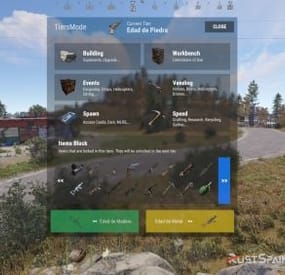
Use /tier edit to manage the items blocked by each stage through the administrative interface, without manually searching for their names in the configuration.
Block crafting of items restricted in the current tier. Prevent placement of specified deployables when the player lacks building privilege. Run your configured server commands when a tier loads, including on tier changes and server restarts. Use tier commands to enable or disable other plugins, trigger their events, or apply your own stage-specific server setup.
09 / Commands
Player and administrator commands
Command Purpose /tier Open the tier information window when enabled. /tier edit Open the blocked-item editor. Requires tiersmode.admin. /tieralert textmsg Send a custom modal alert to online players. Requires tiersmode.admin. 10 / Permissions
Fine-tune access and bypass permissions
Permission Purpose tiersmode.admin Access the tier editor and custom alert command. Assign to administrators only. tiersmode.bypass.use_workcart Bypass the Workcart use restriction. tiersmode.bypass.use_locomotive Bypass the Locomotive use restriction. tiersmode.bypass.use_mlrs Bypass the MLRS use restriction. tiersmode.bypass.limit_cupboard Bypass the tool cupboard limit. tiersmode.bypass.block_items Bypass item restrictions. tiersmode.bypass.block_place_no_building Bypass specified deployable restrictions without building privilege. tiersmode.bypass.upgrade Bypass the maximum building upgrade level. tiersmode.bypass.block_place_all_workbench Bypass workbench placement restrictions. tiersmode.bypass.block_research Bypass workbench research restrictions. tiersmode.bypass.block_vending_helis Bypass helicopter vendor restrictions. tiersmode.bypass.block_vending_boat Bypass boat vendor restrictions. tiersmode.bypass.block_vending_horses Bypass horse vendor restrictions. tiersmode.instant_research Instant research. tiersmode.alerts.block Disable alerts for the player. tiersmode.instant_recycler Instant recycling. 11 / Default configuration
Four tiers to use as your starting point
This example uses four stages: Wood Age, Stone Age, Metal Age and Explosive Age. Each lasts 1,440 minutes, with progressively higher building grades and different events, rates and restrictions. Tier names in the configuration are customizable and appear in Spanish in this example.
Adjust the server title, image URLs, Discord webhook placeholder and server commands for your own setup. Discord announcements require the Discord Messages plugin when enabled.
{ "Automatic Server Title": { "Enabled Auto Changue": true, "Base title to modify": "RustSpain.com | Tiers Mode ({0})" }, "GUI Config": { "On-Screen GUI Counter": true, "Counter Config": { "Color Title": "1.0 1.0 1.0 0.70", "Color Subtitle": "1.0 1.0 1.0 0.70", "Color Button": "0.46 0.46 0.46 0.49", "Show Icon/Color": true, "Show Button Info": true }, "Enabled Alert Modal": true, "Modal Config": { "Duration Show": 10.0, "Color Title": "1.0 1.0 1.0 0.70", "Color Description": "1.0 1.0 1.0 0.70", "Sound Alert": true, "Prefab Sound": "assets/prefabs/tools/pager/effects/beep.prefab" }, "Enabled Alert Modal Changue Tier": true, "Modal Changue Config": { "Duration Show": 15.0, "Color Title": "1.0 1.0 1.0 0.70", "Color Description": "1.0 1.0 1.0 0.70", "Sound Alert": true, "Prefab Sound": "assets/bundled/prefabs/fx/item_unlock.prefab" }, "Enabled Alert Modal Events": true, "Modal Events Config": { "Duration Show": 15.0, "Color Title": "1.0 1.0 1.0 0.70", "Color Description": "1.0 1.0 1.0 0.70", "Sound Alert": true, "Prefab Sound": "assets/prefabs/tools/pager/effects/vibrate.prefab" }, "Enabled Custom Alert Modal": true, "Modal Custom Config": { "Duration Show": 15.0, "Color Title": "1.0 1.0 1.0 0.70", "Color Description": "1.0 1.0 1.0 0.70", "Sound Alert": true, "Prefab Sound": "assets/prefabs/tools/pager/effects/vibrate.prefab" }, "Windows Info Config": { "Show GUI Info Window on Enter": true, "Show GUI Info use Command": true, "Show Previous Tier Button": true, "Show Next Tier Button": true, "Color Title": "1.00 1.00 1.00 1.00", "Color Text": "0.90 0.90 0.90 1.00", "Color Header Info": "0.0 0.0 0.0 1.0", "Color Button Close": "0.20 0.20 0.20 0.80" } }, "Messages": { "Enabled Chat": true, "Enabled Welcome Chat": true, "Use Discord Message Plugin": true, "Webhook Channel Announcement Change of Stag": "Put here your Webhook of the Channel where you want to announce the changes of Tiers." }, "Tiers": [ { "Tier Name": "Edad de Madera", "Tier Icon URL": "https://img.rustspain.com/tiers/1.png", "Tier Color": "0.17 0.75 0.42 0.50", "Duration of the tier in Minutes": 1440, "Cupboards": { "Limit Maximum Placed Cupboards": true, "Maximum Cupboards per player": 3, "Global Alert for Destruction of Cupboard": false, "Config Destruction Alert": { "Show Name of the player who destroyed it in the info": true, "Show Position in info": true }, "Maximum Upgrade Level (1 = Wood, 2 = Stones, 3 = Metal, 4 = HQ)": 1 }, "Workbench": { "Allow research from Workbench": false, "Allow Place All Workbench": false, "Allow placing only the following workbenches": [ "assets/prefabs/deployable/tier 1 workbench/workbench1.deployed.prefab" ] }, "Events": { "Cargoship": false, "Oil Rig": false, "Chinook": false, "Patrol Helicopter": true, "Airdrop": true, "Bradley APC": false }, "Sellers": { "Helicopter Sale": false, "Boat Sales": false, "Horse Sales": false, "Use of Drones": false, "Use of Public Vending Machine (Rads)": false }, "Spawn": { "Spawn Cards": [ "keycard_green_pickup" ], "Spawn Vehicles (Cars)": [], "Use Vehicle MLRS": false, "Use Vehicle Workcart": true, "Use Vehicle Locomotive": true }, "Speed": { "Crafting Rate (1.0 = Vanilla | 0.0 = Instant)": 1.0, "Research Seconds (10.0 = Vanilla | 0.0 = Instant)": 10.0, "Recycler Seconds (5.0 = Vanilla | 0.0 = Instant)": 5.0, "Gather System (If you use another plugin for the Gather disable this or remove the other one)": false, "Gather Config (Setting 0.0 will disable this option and it will work as vanilla)": { "DispenserGather": 0.0, "DispenserBonus": 1.0, "CollectiblePickup": 0.0, "GrowableGathered": 0.0, "SurveyGather": 0.0, "QuarryGather": 0.0, "ExcavatorGather": 0.0 } }, "Lists": { "Items lock Craft": true, "Items lock": [ "shotgun.waterpipe", "shotgun.pump", "pistol.semiauto", "pistol.revolver", "rifle.semiauto", "maxhealthtea", "radiationresisttea", "healingtea", "ammo.rifle", "ammo.shotgun.fire", "ammo.shotgun", "ammo.shotgun.slug" ], "Deployable lock without Building Permissions": false, "Items lock without Building Permissions": { "trap.bear": "assets/prefabs/deployable/bear trap/beartrap.prefab", "trap.landmine": "assets/prefabs/deployable/landmine/landmine.prefab" }, "Server Commands": [ "o.unload Backpack", "o.unload TheStorm" ] } }, { "Tier Name": "Edad de Piedra", "Tier Icon URL": "https://img.rustspain.com/tiers/2.png", "Tier Color": "0.06 0.58 0.86 0.50", "Duration of the tier in Minutes": 1440, "Cupboards": { "Limit Maximum Placed Cupboards": true, "Maximum Cupboards per player": 5, "Global Alert for Destruction of Cupboard": false, "Config Destruction Alert": { "Show Name of the player who destroyed it in the info": true, "Show Position in info": true }, "Maximum Upgrade Level (1 = Wood, 2 = Stones, 3 = Metal, 4 = HQ)": 2 }, "Workbench": { "Allow research from Workbench": false, "Allow Place All Workbench": false, "Allow placing only the following workbenches": [ "assets/prefabs/deployable/tier 1 workbench/workbench1.deployed.prefab" ] }, "Events": { "Cargoship": true, "Oil Rig": false, "Chinook": true, "Patrol Helicopter": true, "Airdrop": true, "Bradley APC": false }, "Sellers": { "Helicopter Sale": false, "Boat Sales": true, "Horse Sales": true, "Use of Drones": false, "Use of Public Vending Machine (Rads)": false }, "Spawn": { "Spawn Cards": [ "keycard_green_pickup", "keycard_blue_pickup" ], "Spawn Vehicles (Cars)": [ "2module_car_spawned.entity" ], "Use Vehicle MLRS": false, "Use Vehicle Workcart": false, "Use Vehicle Locomotive": false }, "Speed": { "Crafting Rate (1.0 = Vanilla | 0.0 = Instant)": 0.6, "Research Seconds (10.0 = Vanilla | 0.0 = Instant)": 8.0, "Recycler Seconds (5.0 = Vanilla | 0.0 = Instant)": 4.0, "Gather System (If you use another plugin for the Gather disable this or remove the other one)": true, "Gather Config (Setting 0.0 will disable this option and it will work as vanilla)": { "DispenserGather": 1.5, "DispenserBonus": 1.5, "CollectiblePickup": 1.5, "GrowableGathered": 1.5, "SurveyGather": 1.5, "QuarryGather": 1.5, "ExcavatorGather": 1.5 } }, "Lists": { "Items lock Craft": true, "Items lock": [ "weapon.mod.8x.scope", "rifle.bolt", "hmlmg", "pistol.python", "smg.thompson", "shotgun.double", "roadsign.gloves", "roadsign.kilt", "hazmatsuit.arcticsuit", "explosives", "submarine.torpedo.straight", "ammo.rocket.basic", "ammo.rocket.hv", "ammo.rifle.incendiary", "ammo.pistol.fire", "ammo.rocket.fire", "ammo.rifle.hv", "ammo.pistol.hv" ], "Deployable lock without Building Permissions": true, "Items lock without Building Permissions": { "trap.bear": "assets/prefabs/deployable/bear trap/beartrap.prefab", "trap.landmine": "assets/prefabs/deployable/landmine/landmine.prefab" }, "Server Commands": [ "o.unload Backpack", "o.unload TheStorm" ] } }, { "Tier Name": "Edad de Metal", "Tier Icon URL": "https://img.rustspain.com/tiers/3.png", "Tier Color": "0.87 0.75 0.05 0.50", "Duration of the tier in Minutes": 1440, "Cupboards": { "Limit Maximum Placed Cupboards": false, "Maximum Cupboards per player": 5, "Global Alert for Destruction of Cupboard": false, "Config Destruction Alert": { "Show Name of the player who destroyed it in the info": true, "Show Position in info": true }, "Maximum Upgrade Level (1 = Wood, 2 = Stones, 3 = Metal, 4 = HQ)": 3 }, "Workbench": { "Allow research from Workbench": false, "Allow Place All Workbench": false, "Allow placing only the following workbenches": [ "assets/prefabs/deployable/tier 1 workbench/workbench1.deployed.prefab", "assets/prefabs/deployable/tier 2 workbench/workbench2.deployed.prefab" ] }, "Events": { "Cargoship": true, "Oil Rig": true, "Chinook": true, "Patrol Helicopter": true, "Airdrop": true, "Bradley APC": true }, "Sellers": { "Helicopter Sale": true, "Boat Sales": true, "Horse Sales": true, "Use of Drones": false, "Use of Public Vending Machine (Rads)": true }, "Spawn": { "Spawn Cards": [ "keycard_green_pickup", "keycard_blue_pickup", "keycard_red_pickup" ], "Spawn Vehicles (Cars)": [ "2module_car_spawned.entity", "3module_car_spawned.entity", "4module_car_spawned.entity" ], "Use Vehicle MLRS": false, "Use Vehicle Workcart": false, "Use Vehicle Locomotive": false }, "Speed": { "Crafting Rate (1.0 = Vanilla | 0.0 = Instant)": 0.3, "Research Seconds (10.0 = Vanilla | 0.0 = Instant)": 6.0, "Recycler Seconds (5.0 = Vanilla | 0.0 = Instant)": 3.0, "Gather System (If you use another plugin for the Gather disable this or remove the other one)": true, "Gather Config (Setting 0.0 will disable this option and it will work as vanilla)": { "DispenserGather": 2.0, "DispenserBonus": 2.0, "CollectiblePickup": 2.0, "GrowableGathered": 2.0, "SurveyGather": 2.0, "QuarryGather": 2.0, "ExcavatorGather": 2.0 } }, "Lists": { "Items lock Craft": true, "Items lock": [ "rifle.l96", "lmg.m249", "multiplegrenadelauncher", "pistol.m92", "shotgun.spas12", "rifle.m39", "explosive.timed", "weapon.mod.muzzlebrake", "weapon.mod.muzzleboost", "chainsaw", "jackhammer", "weapon.mod.extendedmags", "ammo.rocket.mlrs", "ammo.grenadelauncher.he", "ammo.grenadelauncher.buckshot", "ammo.grenadelauncher.smoke", "ammo.rifle.explosive" ], "Deployable lock without Building Permissions": false, "Items lock without Building Permissions": { "trap.bear": "assets/prefabs/deployable/bear trap/beartrap.prefab", "trap.landmine": "assets/prefabs/deployable/landmine/landmine.prefab" }, "Server Commands": [ "o.load Backpack", "o.unload TheStorm" ] } }, { "Tier Name": "Edad Explosiva", "Tier Icon URL": "https://img.rustspain.com/tiers/4.png", "Tier Color": "0.80 0.26 0.13 0.50", "Duration of the tier in Minutes": 1440, "Cupboards": { "Limit Maximum Placed Cupboards": false, "Maximum Cupboards per player": 5, "Global Alert for Destruction of Cupboard": false, "Config Destruction Alert": { "Show Name of the player who destroyed it in the info": true, "Show Position in info": true }, "Maximum Upgrade Level (1 = Wood, 2 = Stones, 3 = Metal, 4 = HQ)": 4 }, "Workbench": { "Allow research from Workbench": true, "Allow Place All Workbench": true, "Allow placing only the following workbenches": [ "assets/prefabs/deployable/tier 1 workbench/workbench1.deployed.prefab", "assets/prefabs/deployable/tier 2 workbench/workbench2.deployed.prefab", "assets/prefabs/deployable/tier 3 workbench/workbench3.deployed.prefab" ] }, "Events": { "Cargoship": true, "Oil Rig": true, "Chinook": true, "Patrol Helicopter": true, "Airdrop": true, "Bradley APC": true }, "Sellers": { "Helicopter Sale": true, "Boat Sales": true, "Horse Sales": true, "Use of Drones": true, "Use of Public Vending Machine (Rads)": true }, "Spawn": { "Spawn Cards": [ "keycard_green_pickup", "keycard_blue_pickup", "keycard_red_pickup" ], "Spawn Vehicles (Cars)": [ "2module_car_spawned.entity", "3module_car_spawned.entity", "4module_car_spawned.entity" ], "Use Vehicle MLRS": true, "Use Vehicle Workcart": false, "Use Vehicle Locomotive": false }, "Speed": { "Crafting Rate (1.0 = Vanilla | 0.0 = Instant)": 0.0, "Research Seconds (10.0 = Vanilla | 0.0 = Instant)": 4.0, "Recycler Seconds (5.0 = Vanilla | 0.0 = Instant)": 2.0, "Gather System (If you use another plugin for the Gather disable this or remove the other one)": true, "Gather Config (Setting 0.0 will disable this option and it will work as vanilla)": { "DispenserGather": 3.0, "DispenserBonus": 3.0, "CollectiblePickup": 3.0, "GrowableGathered": 3.0, "SurveyGather": 3.0, "QuarryGather": 3.0, "ExcavatorGather": 3.0 } }, "Lists": { "Items lock Craft": true, "Items lock": [], "Deployable lock without Building Permissions": true, "Items lock without Building Permissions": { "trap.bear": "assets/prefabs/deployable/bear trap/beartrap.prefab", "trap.landmine": "assets/prefabs/deployable/landmine/landmine.prefab", "water.catcher.large": "assets/prefabs/deployable/water catcher/water_catcher_large.prefab", "water.catcher.small": "assets/prefabs/deployable/water catcher/water_catcher_small.prefab" }, "Server Commands": [] } } ] } 12 / Language & support
Make the game mode fit your community
Language files are generated in English by default. A Spanish translation is available on request.
For questions, problems, suggestions or help with your setup, contact ninco90 on Discord.
A custom configuration service is also available for an additional fee if you would like the game mode configured around your server's preferences.
Give every stage of your wipe its own rules
Start with the four default tiers, adjust the timing and unlocks, and build a progression experience around your community.
-
$20.00
Admin Map
Admin Map is an innovative plugin for the game of Rust, designed to make server administration easier and improve the quality of the gaming experience. Focused on optimization and functionality, this plugin provides admins with the tools to effectively control players, minimizing the negative impact on the server and other participants.
Main features:
Interactive map with players: Admin Map provides server admins with a detailed and user-friendly map showing the positions of all players. This allows admins to easily monitor player activity and movements, and quickly detect suspicious activity. Large variety of different admin map layers:
- Marker,
- Text , (It's still there, but it no longer looks the same due to the Facepunch update on August 6.)
- Sleeper,
- TC,
- Stash,
- Sleeping Bag Quick Commands on Players: The plugin allows admins to perform quick actions on players directly from the map. Send messages, punish or help players in real time, minimizing reaction time and increasing interaction efficiency. Minimal server load: One of the key features of Admin Map is its low server load. All processing takes place solely on the client side, which means that the plugin will not slow down the server or create additional delays for players. This makes it an ideal choice even for servers with high traffic. Ease of use: The plugin's intuitive user interface provides admins with easy access to functionality. Navigating the map, sending commands and monitoring players is done with minimal effort, making server administration easy. Customization: Admin Map provides admins with the option to customize the functionality to suit their needs. Scanning area, available commands, buttons, permissions and other options. Support in RUST+: You will be able to view players online on the map directly in your phone without going to the server! Admin Map is an innovative solution that combines convenience, functionality and optimization. It provides administrators with tools to effectively manage players without negatively impacting gameplay and other server participants. The Admin Map plugin is an essential asset for any Rust server administrator looking to create a comfortable and safe gaming environment.
Permissions:
adminmap.allow - for use adminmap and hardcore bypass adminmap.<button perm> - any permissions specified in the button settings adminmap.teleport2marker - teleportation by marker via CTRL+RMB adminmap.invis - hide player from the player map adminmap.rust+ - enable rust+ admin map adminmap.rust+.invis - hide from rust+ admin map (recommended in case of giving the map to players)
Commands:
/amap - show sidebar /amap off - disable everything and hide the sidebar
Color designations on the cupboards map:
Default Config:
{ "Auto show sidebar panel": true, "Open the admin menu instead of the action menu": false, "Text Map Settings": { "Font size": 8.0, "Use color generation for teams?": true, "Color for team": "ffaf4d", "Color for solo player": "9bd92f", "Color for sleeper": "404040" }, "Command Buttons": [ { "Permission (adminmap.<perm>)": "", "Label": "TP", "Command": "teleport {steamid}", "Color": "1 1 1 1" }, { "Permission (adminmap.<perm>)": "", "Label": "TP2ME", "Command": "teleport {steamid} {admin.steamid}", "Color": "1 1 1 1" }, { "Permission (adminmap.<perm>)": "", "Label": "INV", "Command": "/viewinv {username}", "Color": "1 1 1 1" }, { "Permission (adminmap.<perm>)": "", "Label": "SPECTATE", "Command": "spectate {steamid}", "Color": "1 1 1 1" }, { "Permission (adminmap.<perm>)": "", "Label": "KILL", "Command": "kill {steamid}", "Color": "0.9 0.1 0.25 1" }, { "Permission (adminmap.<perm>)": "", "Label": "KICK", "Command": "kick {steamid}", "Color": "0.9 0.1 0.25 1" }, { "Permission (adminmap.<perm>)": "", "Label": "SHOW\nTEAMMATES", "Command": "adminmap.cmd show_player_teammates {steamid}", "Color": "1 1 1 1" }, { "Permission (adminmap.<perm>)": "", "Label": "SHOW\nPRIVLIDGES", "Command": "adminmap.cmd show_player_privlidges {steamid}", "Color": "1 1 1 1" }, { "Permission (adminmap.<perm>)": "", "Label": "SHOW\nSLEEPING\nBAGS", "Command": "adminmap.cmd show_player_sleepingbags {steamid}", "Color": "1 1 1 1" }, { "Permission (adminmap.<perm>)": "", "Label": "SHOW\nSTASHES", "Command": "adminmap.cmd show_player_stashes {steamid}", "Color": "1 1 1 1" } ] }
Button Library:
Give item to player for AdminMenu by k1lly0u | Minimum required version 1.0.1 { "Permission (adminmap.<perm>)": "", "Label": "GIVE", "Command": "adminmenu.callback {steamid}.4;adminmenu.callback {steamid}.4", "Color": "1 1 1 1" } Permanent ban
{ "Permission (adminmap.<perm>)": "", "Label": "BAN", "Command": "ban {steamid}", "Color": "1 0 0 1" } View backpack (for Backpack Pro)
{ "Permission (adminmap.<perm>)": "", "Label": "Backpack", "Command": "/b {steamid}", "Color": "1 1 1 1" } View backpack (for Backpacks plugin from uMod)
{ "Permission (adminmap.<perm>)": "", "Label": "Backpack", "Command": "viewbackpack {steamid}", "Color": "1 1 1 1" } Spectate
{ "Permission (adminmap.<perm>)": "", "Label": "SPECTATE", "Command": "spectate {steamid}", "Color": "1 1 1 1" }
If you want to add buttons here, message me on my discord server
-
$14.99
Raid Time Manager
Raid Time Manager · Rust · Oxide · Carbon Your best players get raided at 4am and never log in again You set the hours raiding is open. Outside them the damage, the ladder stacks, the ceiling drops and the turret placements all stop — and everyone can see the schedule on screen. A full week is configured out of the box, and every hour of it is editable from a calendar in game. The HUD Six layouts, one of them fits your screen Switched live from the settings screen — every player's HUD is redrawn on the spot. How it goes From install to the night before wipe MINUTE ONE It works before you open the config Raid time is set to 18:00–22:00 Monday to Friday, 10:00–22:00 Saturday, 08:00–22:00 Sunday. Every hour outside that is safe time, and the restrictions are already on. Your timezone, by offset or by name, daylight saving included Several raid windows in one day, or none at all for a full safe day Nothing to fill in first — edit the week later, or never EVERY DAY Nobody has to ask when raid time is A HUD shows today's windows as a bar, a marker for where the clock sits inside them, and a green or red dot for whether raiding is open right now. Six positions, switched live. Players can hide it, and it hides itself on cameras and drones Every player reads it in their own language, on a 12- or 24-hour clock An alert on screen the moment raid time opens, and again when it closes An optional Discord webhook warns your players a set time before it opens WHEN THEY TRY Blocking damage alone does not stop a raid Someone who cannot blow a wall will stack ladders, drop a ceiling inside your compound, or park a turret on your door instead. Thirteen switches, so you block what matters on your server and leave the rest alone. Damage. Other people's buildings, your own, twig, boats, tugboats, fire Raids with no player behind them. Patrol helicopter, MLRS, SAM sites and auto turrets, each its own toggle Building tricks. Ladders and ceilings inside someone else's privilege, cupboards and turrets placed next to one They are told why. A blocked shot or placement puts the reason on the player's screen Your own exceptions. A prefab list that stays damageable whatever the clock says, and a separate switch for other people's sleeping bags WIPE DAY The exceptions are where a schedule earns its keep A fixed week is fine until wipe day, a holiday, or the first complaint about being raided ten minutes after joining. All four of those are settings. Set hours for one specific date from the calendar — it beats the weekly rule Safe days after a wipe, written into the schedule for you New players protected for a few hours, if you want them to be Or block offline raids only, with a shorter grace period for your donators Alongside the rest It fits what you already run All optional, all off until you point at them. ✓ TruePVE — its ruleset is switched with the schedule, so the two never disagree ✓ ZoneManager — confine the whole thing to listed zones, or apply it everywhere except them ✓ Raidable Bases — event bases stay raidable around the clock, safe time never locks players out ✓ Your own commands — run any server command the moment raid time opens, and again when it closes Reference One command, and it is yours to rename Everything else is a screen you click through in game. Chat /rtm Open the raid calendar. Admins also get a settings button on it. Chat /rtm hud Hide the HUD, or bring it back Perm rtm.vip Shorter offline grace period. Rename it or add more groups. Straight answers Asked before every purchase Do I need TruePVE? No, it blocks the damage itself. TruePVE is optional and only makes the two systems agree if you already run it. Can I still raid people who are online? Turn on offline-only mode and safe time protects a base only while the owner and their whole team are away. Do I have to edit config files? Not for the schedule. The calendar and settings screens change the hours, the toggles and the HUD position from in game. Is it English only? No. Days, months, AM/PM and every message are language file entries, so you translate once and each player sees their own. What about NPCs and scripted raids? One switch lets non-player raiders through at any hour, and the prefab list covers anything that must always stay damageable. Will the HUD annoy my players? Six positions including a compact one, they can dismiss it themselves, and you can switch it off server-wide. 13 actions you can block 6 HUD layouts 3 integrations — TruePVE, ZoneManager, Raidable Bases 1 dependency — ImageLibrary- #raid
- #raid time
- (and 19 more)