
Lady Mia's Wishlist
-
$9.99
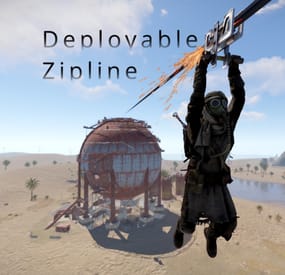
Deployable Zipline
By BlackLightning in Plugins
Features
Allows players to deploy ziplines from a distance using a crossbow Allows bidirectional ziplines Allows adjusting zipline movement speed, optionally based on incline Optionally requires cable to deploy ziplines Extensive configuration options to restrict zipline deployment Integrates with Economics and Server Rewards to allow buying the Zipline Tool Integrates with No Escape to prevent deploying ziplines while Raid blocked or Combat blocked Integrates with Remover Tool to provide an alternate way to pick up ziplines How it works
To deploy a zipline, a player must first obtain a Zipline Tool and some Zipline Cable. By default, the Zipline Tool is a crossbow with a custom skin, and Zipline Cable is rope with a custom skin. Once acquired, the player must shoot the crossbow where they want to start the zipline, then shoot again where they want to end the zipline (no arrows needed). Once the zipline has been deployed, players can ride it just like the vanilla ziplines, by looking up at the top of the start point and interacting with the "Use Zipline" prompt.
Since both the Zipline Tool and Zipline Cable are items, there are many ways you can provide them to players, including via kits, vending machines, and loot tables. The plugin also allows players to purchase them directly with chat commands.
Permissions
This plugin uses the permission system. To assign a permission, use oxide.grant <user or group> <name or steam id> <permission>. To remove a permission, use oxide.revoke <user or group> <name or steam id> <permission>.
Admin permissions
deployablezipline.protect -- Allows the player to run the zipline protect command to toggle protection for any ziplines they deploy. Protected ziplines do not decay, and can only be picked up by players with this permission. Purchase permissions
deployablezipline.buy.tool - Allows buying the Zipline Tool with the zipline buy command. deployablezipline.buy.cable - Allows buying Zipline Cable with the zipline buycable <amount> command. Tool usage permissions
Depending on how you have configured the plugin, there will be additional permissions like deployablezipline.profile.<suffix>, one for each profile. The plugin comes with the following profiles by default. Note: Players must have permission to a profile in order to use the Zipline Tool.
deployablezipline.profile.balanced 4 ziplines max 100m max zipline length 10 uses per Zipline Tool, but can be repaired Allows up to 45 ° decline and 15 ° incline Disallows monuments deployablezipline.profile.fun 6 ziplines max 200m max zipline length Unlimited uses per Zipline Tool Allows up to 45 ° decline and 45 ° incline Allows monuments deployablezipline.profile.unrestricted Unlimited ziplines 10000m max zipline length Unlimited uses per Zipline Tool No angle or location restrictions Speed permissions
The speed that players move along a deployed zipline can be configured according to the permissions of the player riding the zipline (not the player who deployed it). Each speed profile will have a permission like deployablezipline.speed.<suffix>. You can make as many speed profiles as you want in the configuration. The plugin comes with the following speed profiles by default.
deployablezipline.speed.slow 0.25x min uphill speed 0.5x max horizontal speed 0.75x max downhill speed deployablezipline.speed.balanced 0.5x min uphill speed 1x max horizontal speed 1.5x max downhill speed deployablezipline.speed.fast 0.75x min uphill speed 1.5x max horizontal speed 2.25x max downhill speed deployablezipline.speed.ridiculous 5x max speed deployablezipline.speed.ludicrous 10x max speed Commands
This plugin provides both chat and console commands using the same syntax. When using a command in chat, prefix it with a forward slash: /.
zipline buy -- Purchases a Zipline Tool. Requires the deployablezipline.buy.tool permission. By default, it costs 100 scrap. zipline buycable <amount> -- Purchases Zipline Cable. Requires the deployablezipline.buy.cable permission. By default, it costs 1 scrap. zipline toggle -- Enables or disables bidirectional mode for ziplines you deploy after running this command. Alternatively, you can press MMB (middle mouse button) while wielding a Zipline Tool. To use this command, you must have permission to a Zipline Tool profile that allows bidirectional ziplines. zipline protect -- Enables or disables protection of ziplines you deploy after running this command. Requires the deployablezipline.protect permission. A protected zipline does not decay, and can only be picked up by players who have the deployablezipline.protect permission. Configuration
The settings and options can be configured in the DeployableZipline file under the config directory. The use of an editor and validator is recommended to avoid formatting issues and syntax errors.
Zipline tool
Zipline Tool -- Determines which item is considered the Zipline Tool. This item can also be used to pick up ziplines when Pickup restrictions > Require hammer or zipline tool to pick up zipline is set to true. Players may purchase this tool with the zipline buy command if they have the deployablezipline.buy.tool permission. Item short name -- The short name of the Zipline Tool item. Must be an equippable item. Default: "crossbow". Item skin ID -- The skin ID of the Zipline Tool item. Default: 2793006815. Purchase info Cost -- Determines the cost to purchase the Zipline Tool. Item short name -- The short name of the currency item. Default: "scrap". Item skin ID -- The skin ID of the currency item. Set to 0 to require an unskinned currency item. Default: 0. Amount -- The amount of currency required to purchase the Zipline Tool. Default: 100. Use Economics (true or false) -- Set to true to require Economics currency instead of item currency. Default: false. Use Server Rewards (true or false) -- Set to true to require Server Rewards currency instead of item currency. Default: false. Attachment item short names -- Determines which attachments will be added to the Zipline Tool when purchased. Only applies to weapons that can have attachments. Default: ["weapon.mod.holosight", "weapon.mod.lasersight"]. Zipline cable
Zipline Cable -- Determines which item is considered Zipline Cable. Note: You can independently configure the condition loss of the Zipline Tool if you want to consume the tool itself. Item short name -- The short name of the item. Default: "rope". Item skin ID -- The skin ID of the cable item. Default: 2793158547. Cost -- Determines the cost to purchase Zipline Cable. Item short name -- The short name of the currency item. Default: "scrap". Item skin ID -- The skin ID of the currency item. Set to 0 to require an unskinned currency item. Default: 0. Amount -- The amount of currency required to purchase Zipline Cable. Default: 1. Use Economics (true or false) -- Set to true to require Economics currency instead of item currency. Default: false. Use Server Rewards (true or false) -- Set to true to require Server Rewards currency instead of item currency. Default: false. Pickup restrictions
Pickup restrictions -- Determines under which circumstances players may pick up ziplines. Require hammer or zipline tool to pick up zipline (true or false) -- Set to true to require the player to be holding a hammer or the Zipline Tool to pick up a zipline. This only applies to ends of the zipline that use the spear item, since the Tesla Coil end already requires a hammer to pick up. Default: true. Allow pickup while building blocked at other end (true or false) -- Set to true to allow players to pick up a zipline from one end, while they are building blocked at the other end of the zipline. Default: true. Note: Regardless of this option, players may not pick up a zipline from an end where they are building blocked. Effects
Effects -- Determines the effects that are played when using the Zipline Tool, or when trying to pick up a zipline. Tool impact (player only) -- Plays when the player hits a surface with the Zipline Tool. Only the Zipline Tool wielder will witness the effect. This provides feedback to the player so they can see where they hit. Tool failed (player only) -- Plays when the player tries to use the Zipline Tool but experiences an error. Only the Zipline Tool wielder will witness the effect. The wielder may experience an error for many reasons, such as being Building Blocked, or due to having insufficient Zipline Cable. Tool used -- Plays when the player successfully places either end of zipline using the Zipline Tool. Other players will witness the effect. Deploy succeeded -- Plays when the player successfully deploys a zipline using the Zipline Tool. Plays on both ends of the zipline. Other players will witness the effect. Pickup failed (player only) -- Plays when the player fails to pick up a zipline due to being Building Blocked. Only the Zipline Tool wielder will witness the effect. Zipline Tool permission profiles
Zipline Tool permission profiles - Zipline Tool profiles allow you to define complex rulesets depending on a user's Oxide permissions. You may define unlimited profiles, but at most one will be assigned to each player. Profiles toward the end of the list have highest priority. Permission suffix -- Determines the permission that you must grant to assign the profile to a player or group. For example, set this to "fun" to produce the permission deployablezipline.profile.fun. Allow tool while building blocked (true or false) -- Determines whether the player may use the Zipline Tool while they are standing in a location where they are Building Blocked. Allow bidirectional ziplines (true or false) -- Determines whether the player is allowed to place bidirectional ziplines. A bidirectional zipline can be mounted from either end. The player can press MMB (Mouse3) to enable/disable bidirectional mode. Zipline min length -- Determines the minimum zipline length that the player can deploy. Zipline max length -- Determines the maximum zipline length that the player can deploy. Zipline max decline angle -- Determines the maximum downward angle of ziplines that the player can deploy. Set to 90.0 to allow the player to deploy ziplines that go straight downward. Set to 0 to only allow ziplines to go across or upward. Zipline max incline angle -- Determines the maximum upward angle of ziplines that the player can deploy. Set to 90.0 to allow the player to deploy ziplines that go straight upward. Set to 0 to only allow ziplines to go across or downward. Zipline max elevation increase -- Determines the maximum delta between the zipline start position and end position. Set to 0 to only allow ziplines to go across or downward. Tool condition loss percent per zipline deployed -- Determines how much condition the Zipline Tool will lose when the player deploys a zipline. Set to 0 to allow unlimited uses. Set to 100 to allow only one use per Zipline Tool. The Zipline Tool will be destroyed when reaching 0 condition. Tool cooldown seconds -- Determines how long the player must wait after deploying a zipline with the Zipline Tool before they can deploy another one. Max ziplines at once -- Determines the maximum number of ziplines that the player may have in the map at once. Cable cost -- Determines how much Zipline Cable will be consumed when deploying a zipline. Cost per meter -- Determines how much Zipline Cable is required per meter. Set to 0 to not require any Zipline Cable. Set to a fraction such as 0.5 to allow each unit of Cable to cover multiple meters. Refund amount per meter on pickup -- Determines how much Zipline Cable is refunded when the player's ziplines are picked up. Set this to the same value as Cost per meter to allow players to recover all their Zipline Cable when picking up a zipline. Set to less than Cost per meter to effectively impose a penalty by refunding less than what was spent. Start point ruleset -- Determines the locations at which the player can place a zipline start point. Allow while building blocked (true or false) -- Determines whether the player can remotely place this end of the zipline at a location where they are Building Blocked, regardless of whether they are standing in a Building Blocked location. Min height above terrain -- Determines how close to terrain the player can deploy this end of the zipline. Set to 0 to allow placing a zipline at terrain level. Max deploy distance -- Determines the maximum distance away from the player that they can place this end of the zipline. Allowed layers -- (Advanced) Determines the Rust object layers to which the player can attach this end of the zipline. The player will not be able to attach a zipline to objects on other layers. Allowed values: Default, TransparentFX, Ignore_Raycast, Reserved1, Water, UI, Reserved2, Reserved3, Deployed, Ragdoll, Invisible, AI, Player_Movement, Vehicle_Detailed, Game_Trace, Vehicle_World, World, Player_Server, Trigger, Player_Model_Rendering, Physics_Projectile, Construction, Construction_Socket, Terrain, Transparent, Clutter, Debris, Vehicle_Large, Prevent_Movement, Prevent_Building, Tree, Unused2. Disallowed topology -- (Advanced) Determines the types of Terrain Topology to which the player cannot attach this end of the zipline. Set to [] to allow all types of Terrain Topology. Allowed values: Field, Cliff, Summit, Beachside, Beach, Forest, Forestside, Ocean, Oceanside, Decor, Monument, Road, Roadside, Swamp, River, Riverside, Lake, Lakeside, Offshore, Rail, Railside, Building, Cliffside, Mountain, Clutter, Alt, Tier0, Tier1, Tier2, Mainland, Hilltop. End point ruleset -- Determines the locations at which the player can place the zipline end point. Same options as Start point ruleset. Zipline decay settings -- Determines how quickly deployed ziplines decay while outside of Tool Cupboard range. Note: Only one end of the zipline must be within Tool Cupboard range to protect it from decay. Also, instead of taking damage, the zipline will simply disappear when the decay time has elapsed. Enabled (true or false) -- Determines whether decay is enabled. Default: true. Decay minutes -- Determines how long a zipline is protected from decay after being deployed, or after nearby Tool Cupboards are removed. Default: 60. No Escape integration -- Determines whether the player can use the Zipline Tool while Raid Blocked or Combat Blocked, as determined by the No Escape plugin. Allow tool while raid blocked (true or false) -- Set to false to prevent the player from using the Zipline Tool while they are Raid Blocked. Allow tool while combat blocked (true or false) -- Set to false to prevent the player from using the Zipline Tool while they are Combat Blocked. Speed permission profiles
Speed permission profiles -- Speed profiles allow you to configure how quickly players move along ziplines, depending on the Oxide permissions of the player riding it. You may define unlimited speed profiles, but at most one will be assigned to each player. Speed profiles toward the end of the list have highest priority. Permission suffix -- Determines the permission that you must grant to assign the speed profile to a player or group. For example, set this to "balanced" to produce the permission deployablezipline.speed.balanced. Move speed -- Determines the max speed that applies when the player is not holding the forward key. Bonus move speed -- Determines the additional max speed that applies when the player is holding the forward key. This value is added on top of Move speed to determine the total max speed. Acceleration time (seconds) -- Determines how many seconds it will take the player to reach max speed after mounting the zipline. Downhill speed bonus -- Determines how much to increase speed while going downhill. Percent increase per angle degree -- Example: While this is set to 1.0, going downhill at a 45 ° angle will increase max speed to 145%. Max speed percent -- Example: while Percent increase per angle degree is set to 1.0, and while this is set to 130.0, going downhill at a 45 ° angle would increase speed to only 130% instead of to 145%. Uphill speed penalty -- Determines how much to decrease speed while going uphill. Percent decrease per angle degree -- Example: While this is set to 1.0, going uphill at a 45 ° angle will decrease max speed to 55%. Min speed percent -- Example: While Percent decrease per angle degree is set to 1.0, and while this is set to 70.0, going uphill at a 45 ° angle would decrease speed to only 70% instead of 55%. Localization
The default messages are in the DeployableZipline file under the lang/en directory. To add support for another language, create a new language folder (e.g. de for German) if not already created, copy the default language file to the new folder and then customize the messages.
-

$29.99
Sputnik
Sputnik is a server event that allows players to contest fallen sputnik satellite fragments that fall around the map. Players will need to battle their way past patrol helicopters, NPCs, turrets, and mines to gain access to loot locked behind keycards that require 'Space Cards,' which can be added to loot tables or sold in a shop! Alternatively, you can use standard keycards.
Overview
By default, there are five types of debris that can fall in any quantity and combination. The fragment can be guarded by a helicopter, NPCs, turrets, and mines. For each preset, you can configure the location and number of crates. A radiation zone can be created around the fragment. By default, there is a card reader in one of the locations that open a locked crate. It is activated using the "Space card.” For more information, see the "Space card” section.
Space Card
A card reader can be placed on any type of sputnik debris. By default, it is activated using a purple "Space Card." This card reader opens the crates specified in a special section of the config. A custom card can be added to the loot tables of standard crates and crates of this event. It can also be given with the help of a command or sold in the server store. If necessary, the card reader can be removed, and the card can be replaced with any type of standard card.
Location presets
The location preset is specified for each wreckage preset separately. By default, a data file with five types of prefabs is included:
sputnik_1 debris_1 debris_2 debris_3 debris_4 They are shown in pictures 6 - 10. The first location includes a locked crate that opens with the help of a "Space Map."
Chat commands (only for administrators)
/sputnikstart– launches the event in a random configuration /sputnikstart <eventPresetName> – launches the event in the <eventPresetName> configuration /sputnikstop – stops the event /givespacecard – give yourself a "Space Card".
Console commands (RCON only)
sputnikstart– launches the event in a random configuration sputnikstart <eventPresetName> – launches the event in the <eventPresetName> configuration givespacecard <userID> – give a "Space Card" to player
Config
en – example of plugin configuration in English ru – example of plugin configuration in Russian
Dependencies (optional, not required)
True PVE PveMode GUI Announcements Notify DiscordMessages AlphaLoot CustomLoot Economics Server Rewards IQEconomic
Hooks
OnSputnikEventStart () OnSputnikEventStop () OnSputnikEventWin (ulong userID) OnPlayerEnterSputnik{BasePlayer player} OnPlayerExitSputnik{BasePlayer player}
My Discord: Adem#9554
Join the Mad Mappers Discord here!
Check out more of my work here!
-
$14.99
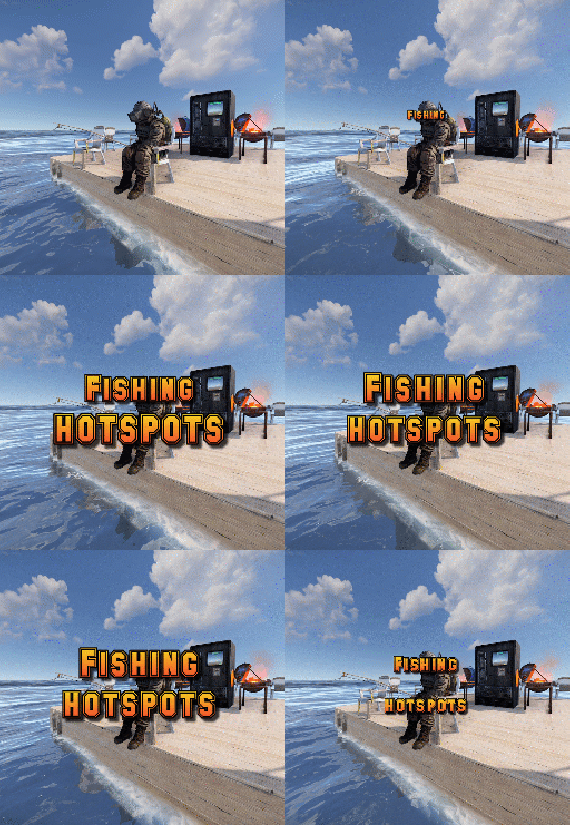
Fishing Hotspots
By imthenewguy in Plugins
Fishing Hot-spots is a plugin that creates hot-spots in random parts of the ocean. These hot-spots have a number of different modifiers to make fishing fast, easier and more enjoyable.
When the hot-spot spawns, it has 5 attributes it will roll:
Fishing yield = Increases how many fish the player catches. Catch time - Decreases the time it takes to hook a fish onto the lure. Rod tension - Increases the strength of the line, lowing the chance for your rod snapping. XP gain modifier - Increases the amount of XP you gain while fishing in the hot-spot [Requires SkillTree]. Casket modifier - Increases the chance of obtaining a fishing casket [Requires FishingTreasure].
These hot-spots have the option to create a platform in their center for players to fish off of. The default platform comes standard with 2 vending machines (the same ones that Fishing Village has), and 2 bbq's that do not require wood.
The plugin is full configurable, allowing the higher and lower values for each attribute to be set or disabled.
It also supports the application of a safe zone at the location, provided you have ZoneManager on your server.
Command (console): spawnhotspot
Description: Spawns a hot-spot randomly around the map.
fishinghotspots.admin fishinghotspots.use
-

$35.00
Ferry Terminal Event
Want to spice up the Ferry Terminal location on your map? Look no further! Captors have taken hostages and are going to execute them if they cannot enslave them. Liberate the hostages while waves of backup arrive Johnny Blaze style on their motorcycles. They will be relentless and merciless. It's recommended that you bring a friend or two for this one!
Description
The event will begin with a notification that captors have taken hostages and will be trying to take them away to enslave them from the Ferry Terminal monument.
First you will want to dispatch as many of the enemies on site as possible without alerting them of your intent or presence. Once you are ready though, alarms will be sounded and they will attempt to call for backup.
Once the backup begins coming on motorcycle they will continue to send units to keep you from liberating the hostages, or execute them as opposed to letting you get them to freedom!
Each hostage will have a small radius and a configurable countdown will begin as you work on releasing them from their shackles. Once freed you will still need to escort them to a ferry nearby, and they will thank you by opening a hackable crate for you.
There are indicators that help highlight important event items such as the hostages. The configuration file gives plenty of options to customize the event, from NPCs, timers, rewards, and plenty of other options like integration with plugins you already own, in game UI, and more!
Dependencies (optional, not required)
True PVE Pve Mode GUI Announcements Notify Discord Messages Alpha Loot Custom Loot NTeleportation Economics Server Rewards IQEconomic XPerience Kits Better Npc Monument Owner
Chat commands (only for administrators)
/ftstart - start the event
/ftstop - end the event
/ftpos - determining the position coordinates for changing the location of NPCs and crates. It should write in the configuration (Attention! The event must be started, the current position of the administrator in relation to the monument is read)
Console commands (RCON only)
ftstart - start the event
ftstop - end the event
Plugin Config
en - example of plugin configuration in English ru - example of plugin configuration in Russian
Hooks
void OnFerryTerminalEventStart(Vector3 pos, float radius) – called when the event starts
void OnFerryTerminalEventEnd() – called when the event ends
void OnFerryTerminalEventWinner(ulong winnerId) – called at the end of the event, where the winnerId is the player who did more actions to complete the event
My Discord: kpuctajl
Join the Mad Mappers Discord here!
Check out more of my work here!
- #ferry terminal
- #ch47
- (and 25 more)
-
$9.99
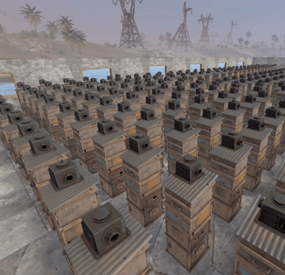
Beehive Storage Adaptor
════════════════════════════════════════════════
BEEHIVE STORAGE ADAPTOR
Industrial Automation for Beehives
v1.8.0
by romzar.games
════════════════════════════════════════════════
DESCRIPTION
-----------
Beehive Storage Adaptor allows players to connect industrial storage adaptors
to beehives, enabling full automation of honey and honeycomb collection through
Rust's industrial system. Players can now integrate beehives into their conveyor
belt systems, electrical grids, and automated factories!
COMPATIBLE WITH BOTH OXIDE/uMOD AND CARBON FRAMEWORKS
KEY FEATURES
------------
✓ Automatic Storage Adaptor Attachment
- Automatically attaches a storage adaptor to every beehive placed by
authorized players
- No player interaction required - completely automatic
✓ Full Industrial System Integration
- Connect conveyors directly to beehives
- Use electrical switches and power to control honey collection
- Build complex automated honey farms
✓ Ideal Conditions System
- Force ideal temperature for beehives (per-player permission)
- Bypass outside placement requirement
- Bypass rain penalty
- Each condition has its own permission for granular control
- Configurable ideal temperature value
✓ Disable Bee Swarms (Optional)
- Option to remove the visual bee swarms around active beehives
- Reduces visual clutter on large honey farms
- Removes both passive and angry bee effects
✓ Permission-Based System
- Control who can have automated beehives
- Perfect for VIP perks or donation rewards
- Separate admin permissions for management commands
✓ Group-Based Limits System
- Configure different beehive limits per permission group
- Perfect for VIP tiers and donation rewards
- Unlimited permission available for admins/special players
- Players get helpful upgrade messages when limit reached
- Data persistence - limits maintained across restarts
✓ Per-Player Reset Command
- Reset and recreate adaptors for a specific player
- Automatically cleans up orphaned data entries
- Does not affect other players' beehives
- Search by SteamID or player name
✓ Server-Wide Sync Command
- Reconcile data files with actual server state
- Remove orphaned entries from all players
- Recreate missing adaptors on tracked beehives
- Add tracking for untracked beehives with adaptors
✓ Admin Global Reset Command
- Reposition all adaptors with a single command
- Perfect for config adjustments
- Works on all existing beehives
✓ Smart Duplicate Prevention
- Never creates duplicate adaptors
- Safe to reload the plugin anytime
- Automatically detects existing adaptors
✓ Dirty Bit Data System
- Data only saves to disk when actually changed
- Randomized auto-save timer (270-330s) to avoid I/O spikes
- Player data removed from memory on disconnect to save RAM
- Proper wipe detection clears all data
✓ Automatic Cleanup
- Removes adaptors when beehives are destroyed
- No orphaned entities
- Clean and optimized performance
✓ Multi-Language Support
- Full English and Portuguese (pt-BR) translations
- All player messages localized automatically
- Easy to add more languages
INSTALLATION
------------
1. Upload BeehiveStorageAdaptor.cs to your plugins folder
2. The plugin will auto-generate its config file on first load
3. Grant permissions to players/groups (see PERMISSIONS section)
4. Reload the plugin if needed
PERMISSIONS
-----------
beehivestorageadaptor.use
- Required for players to have storage adaptors on their beehives
- Without this permission, beehives work normally (no adaptor)
beehivestorageadaptor.admin
- Required to use admin commands (/beehive.reset, /beehive.resetplayer,
/beehive.sync)
- For server administrators only
beehivestorageadaptor.unlimited
- Bypass all beehive limits
- Perfect for admins or special players
- No maximum beehive count
beehivestorageadaptor.idealtemp
- Forces ideal temperature on the player's beehives
- Temperature value configured in config (default: 20°C)
beehivestorageadaptor.bypassoutside
- Beehives always count as "outside" for the player
- Allows indoor beehive placement without production penalty
beehivestorageadaptor.bypassrain
- Removes rain penalty from the player's beehives
- Beehives produce at full rate regardless of weather
beehivestorageadaptor.{group}
- Group-specific limits configured in config file
- Examples: beehivestorageadaptor.default, beehivestorageadaptor.vip,
beehivestorageadaptor.premium
- Players with multiple group permissions get the highest limit
PERMISSION EXAMPLES
-------------------
Grant to all players with default limit (5 beehives):
o.grant group default beehivestorageadaptor.use
o.grant group default beehivestorageadaptor.default
Grant to VIP group with higher limit (10 beehives):
o.grant group vip beehivestorageadaptor.use
o.grant group vip beehivestorageadaptor.vip
Grant to premium group with highest limit (20 beehives):
o.grant group premium beehivestorageadaptor.use
o.grant group premium beehivestorageadaptor.premium
Grant unlimited beehives to admins:
o.grant group admin beehivestorageadaptor.use
o.grant group admin beehivestorageadaptor.unlimited
Grant ideal conditions to VIP:
o.grant group vip beehivestorageadaptor.idealtemp
o.grant group vip beehivestorageadaptor.bypassoutside
o.grant group vip beehivestorageadaptor.bypassrain
Grant admin permissions:
o.grant group admin beehivestorageadaptor.admin
COMMANDS
--------
/beehive.limit (Chat)
- Check your current beehive limit and usage
- Shows how many beehives you have vs your limit
- Available to all players with .use permission
- Example output: "Beehive Adaptors: 3/10"
/beehive.reset (Chat) or beehive.reset (Console)
- Requires: beehivestorageadaptor.admin
- Removes all old adaptors and recreates them with current config settings
- Useful when adjusting adaptor position/rotation or limits
- Shows statistics: beehives found, adaptors removed
/beehive.resetplayer <steamid or name> (Chat) or beehive.resetplayer (Console)
- Requires: beehivestorageadaptor.admin
- Resets adaptors for a specific player only
- Cleans up orphaned data entries (registered IDs that no longer exist)
- Removes old adaptors and recreates them respecting permissions and limits
- Does NOT affect other players' beehives
- Accepts SteamID or partial player name
- Shows: beehives found, adaptors removed, adaptors recreated, orphans removed
/beehive.sync (Chat) or beehive.sync (Console)
- Requires: beehivestorageadaptor.admin
- Synchronizes data files with actual server state
- Removes orphaned entries from all loaded player data
- Adds tracking for untracked beehives that already have adaptors
- Creates missing adaptors on tracked beehives
- Processes all beehives on the map grouped by owner
- Shows: players scanned, orphans removed, missing added, adaptors created
CONFIGURATION
-------------
File Location: config/BeehiveStorageAdaptor.json
Default Configuration:
{
"Enabled": true,
"DisableBeeSwarms": false,
"GroupLimits": {
"default": 5,
"vip": 10,
"premium": 20
},
"AlwaysIdealConditions": {
"Enabled (master switch for ideal conditions patches)": false,
"IdealTemperature (16-28 is optimal range, 20 recommended)": 20.0
},
"AdaptorPosition": {
"x": 0.0,
"y": 1.5,
"z": 0.0
},
"AdaptorRotation": {
"x": 0.0,
"y": 0.0,
"z": 0.0
}
}
Configuration Options:
- Enabled: Set to false to disable the plugin without unloading
- DisableBeeSwarms: Set to true to remove the visual bee swarms around active
beehives. Removes both passive and angry bee effects.
- GroupLimits: Dictionary of group names and their beehive limits
* "default": 5 = Players with beehivestorageadaptor.default get 5 beehives
* "vip": 10 = Players with beehivestorageadaptor.vip get 10 beehives
* "premium": 20 = Players with beehivestorageadaptor.premium get 20 beehives
* Add as many custom groups as you want
* Players with multiple group permissions get the highest limit
* Permissions are automatically registered from this config
- AlwaysIdealConditions: Harmony patch system for beehive conditions
* Enabled: Master switch - must be true for any ideal condition patches to work
* IdealTemperature: Temperature value forced on beehives (16-28 optimal, 20 rec.)
* Each condition requires its own player permission (see PERMISSIONS)
* Patches are applied on load and removed on unload
- AdaptorPosition: Position offset relative to the beehive (X, Y, Z)
* Y: 1.5 = on top of beehive (default)
* Y: -0.4 = below beehive
- AdaptorRotation: Rotation of the adaptor in degrees (X, Y, Z)
HOW IT WORKS
------------
1. Player with 'use' permission places a beehive
2. Plugin checks if player has reached their group limit
3. If within limit, plugin automatically attaches a storage adaptor
4. If limit reached, player receives a message with upgrade information
5. Player can now connect industrial components:
- Conveyors to transport honey/honeycomb
- Power switches to control automation
- Electrical circuits for advanced setups
6. When beehive is destroyed, adaptor is removed and count updated
7. Player data is saved persistently across server restarts
8. On player disconnect, data saves and is removed from memory
ADMIN WORKFLOW
--------------
1. Configure GroupLimits in config file for your server tiers
2. Grant 'use' permission and group limit permissions to players/groups
3. Enable AlwaysIdealConditions and grant condition permissions if desired
4. Adjust position/rotation in config if needed
5. Use /beehive.reset to apply config changes to all existing beehives
6. Use /beehive.resetplayer <name> to fix a specific player's beehives
7. Use /beehive.sync to reconcile data with server state after issues
COMMON SCENARIOS FOR NEW COMMANDS
----------------------------------
Player reports beehive lost its adaptor:
-> /beehive.resetplayer PlayerName
Recreates all adaptors for that player, cleans orphaned data.
Player removed adaptor manually and data is out of sync:
-> /beehive.resetplayer PlayerName
Removes stale entries, re-processes all their beehives.
Server crash or unexpected restart caused data inconsistencies:
-> /beehive.sync
Scans entire map, fixes all mismatches for all players.
Migrated from older plugin version:
-> /beehive.sync
Picks up existing adaptors and adds missing tracking entries.
DATA FILES
----------
Player data is automatically saved to: data/BeehiveStorageAdaptor/{steamid}.json
Each player's file contains:
- Steam ID
- List of beehive network IDs with adaptors
- Last update timestamp
Example data file (76561198012345678.json):
{
"SteamID": 76561198012345678,
"BeehiveIDs": [12345678, 87654321, 11223344],
"LastUpdated": "2025-10-17T10:30:00.0000000Z"
}
Data Features:
- Dirty bit tracking - only writes to disk when data actually changes
- Randomized auto-save interval (270-330s) to prevent I/O spikes
- Player data unloaded from memory on disconnect
- Proper wipe detection via OnNewSave
- Individual files per player for easy management
PERFORMANCE
-----------
- Dirty bit system prevents unnecessary disk writes
- Randomized save timers avoid multiple plugins saving simultaneously
- Player data removed from RAM on disconnect
- Efficient reverse lookup map (beehive ID -> player ID)
- Only processes when beehives are placed or destroyed
- Harmony patches are lightweight prefix overrides
- Safe to use on high-population servers
COMPATIBILITY
-------------
- Works with vanilla Rust
- Compatible with all industrial system items
- No conflicts with other plugins
- Standalone - no dependencies required
- Works with building plugins (CopyPaste, etc.)
- Oxide/uMod Framework - Fully Compatible
- Carbon Framework - Fully Compatible
- Single plugin file works on both frameworks automatically
TROUBLESHOOTING
---------------
Q: Adaptors aren't appearing on beehives
A: Check that players have the 'beehivestorageadaptor.use' permission
Q: Multiple adaptors on one beehive
A: Use /beehive.reset command to clean up and recreate all adaptors
Q: Want to change adaptor position
A: Edit the config file, reload plugin, then use /beehive.reset
Q: Players without permission have adaptors
A: Existing beehives keep adaptors. Remove permission and use /beehive.reset
Q: Want to remove bee swarms from beehives
A: Set "DisableBeeSwarms": true in config and reload the plugin
Q: Player can't place more beehives
A: They've reached their group limit. Check with /beehive.limit command.
Grant them a higher tier permission or .unlimited permission.
Q: Player says beehive came back without adaptor
A: Use /beehive.resetplayer <name> to fix that specific player's beehives
Q: Data seems out of sync after server issues
A: Use /beehive.sync to reconcile all data with actual server state
Q: Ideal conditions not working
A: Check that AlwaysIdealConditions.Enabled is true in config AND the player
has the specific permission (idealtemp, bypassoutside, bypassrain)
Q: How to add custom group limits?
A: Edit config file GroupLimits section, add your group and limit:
"elite": 50
Then grant permission: o.grant group elite beehivestorageadaptor.elite
SUPPORT
-------
For support, questions, or feature requests, please contact:
Discord: romzar
LICENSE
-------
This plugin is provided for use on Rust game servers.
Redistribution or resale of this plugin is prohibited.
© 2025 romzar.games - All rights reserved.
═══════════════════════════════════════════════
Thank you for using Beehive Storage Adaptor!
Enhance your server with industrial automation!
═══════════════════════════════════════════════
- #rust
- #industrial
- (and 12 more)