
BellaaGaming's Wishlist
-
$19.95$11.95Crafts
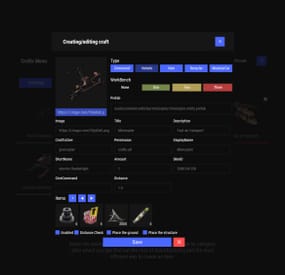
Crafting system that allows you to create items, cars, vehicles, recyclers, etc!
Commands
craft open interface crafts.setwb [categories: cat1 cat2 ...] set new custom workbench
Permissions
You can set permission in config, for example:
"Permission (ex: crafts.use)": "crafts.use", crafts.setworkbench - allows you to use the "crafts.setwb" command (set custom workbenches)
Craft Types
Command Vehicle Item Recycler ModularCar
How to install a custom workbench
1. Spawn the workbench (for example, in RustEdit or a plugin) 2. In the game, go to him and use the command "crafts.setwb" and specify the necessary categories. Example: /crafts.setwb Misc 3. Go to config (oxide/config/Crafts.json) and configure this workbench (use SafeZone, workbench level, etc.)
VIDEO
FAQ
Q: Where can I see an example of a config?
A: Config
-

$3.99
Instant Barrel
Optionally make all barrels and road signs 1 hp, and spawns the barrels / road signs loot in player's inventory when destroyed. Works with tools and optionally weapons, farming distance for weapons can be adjusted via the config file.
Showcase Video
Permission
Give players InstantBarrel.on
Config
{ "Enable farming with weapons": true, "Max farming distance": 3.0, "Make barrels 1 hit to kill": false, "Enable barrel gibs": true } Support and More
Checkout my discord server here. -
$14.99
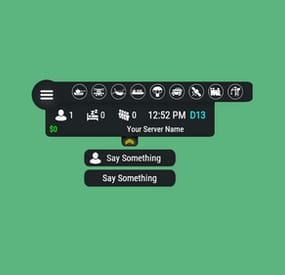
Server Hud
🗒️Features:
You can add any plugin event in the UI (if it has hooks, usually specified in the plugin description) Has ingame UI menu for configure your Hud The time format is adjusted to the player (depending on his language in the game), it checks which time format is used for this language You can also enable an additional menu that opens on the arrow. You can add various buttons to this menu, for example, to open a store, your server menu, etc. Almost all elements are customizable [for example: visibility of each element, Logo, Icons, Color e.t.c (check config down below)]
📕Commands:
/h setup - open UI for ingame config
/h - show all Server Hud UI commands
/h open - open Server Hud UI
/h events - open Events Bar
/h close - close Server Hud UI
/h hide - hide Server Hud UI
Q&A:
Q: Where i can find a base icon for creating my events icons?
A: Take a base icon below this message and using f.e photoshop for create you personal event icon!
Q: Where i can find a ready to use icons?
A: Here some links to ready to use icons packs(1 free, 2 paid):
https://codefling.com/customizations/free-custom-hud-icons
https://codefling.com/customizations/custom-hud-icons-paid
https://codefling.com/customizations/server-hud-custom-icon-pack
API:
string API_PlayerHudState(string id)
CanHudChangeState(BasePlayer player, string currentState, strint nextState)
🗒️Config:
{ "Auto reload [If you change the config and save the file the plugin will reload itself]": true, "Main setup": { "Overall layer [you will see the hud in your inventory]": false, "Size ALL [0% - inf]": 100, "Logo [HUD interact button]": "https://media.discordapp.net/attachments/335512864548847617/1134455399756607549/logo.png", "Events background opacity [0% - 100%]": 100, "Background opacity [0% - 100%]": 100, "Position": { "Align [TopLeft | TopRight | BottomLeft | BottomRight": "TopLeft", "Left | Right - offset": 40, "Top | Bottom - offset": 25 }, "Server name": "Your Server Name", "Active players": { "Icon": "https://cdn.discordapp.com/attachments/335512864548847617/1134455395813965934/active.png", "Color": "#fff", "Enable": true }, "Sleep players": { "Icon": "https://cdn.discordapp.com/attachments/335512864548847617/1134455395138670652/sleep.png", "Color": "#fff", "Enable": true }, "Queue players": { "Icon": "https://cdn.discordapp.com/attachments/335512864548847617/1134455393972654171/line.png", "Color": "#fff", "Enable": true }, "Time": true, "Player position [hide permisson - hud.streamer]": { "Enable": true, "true - grid | false - x,z coordinates": true, "Color": "cyan" }, "Economy plugin [Economics | ServerRewards]": { "Currency": "$", "Value color": "#10ff10", "Enable": true }, "Info messages": { "Update interval [in seconds]": 60, "Align [BottomCenter | TopCenter | TopRight]": "BottomCenter", "Width [in px]": 260, "Offset [top | bottom]": 0, "Offset [right]": 15, "Outline color": "#000", "Overall [you will see messages in your invenotory]": true, "Enable": true, "Messages": [ "Welcome to Your Server Name", "Good luck" ] }, "Additional menu": { "Auto close timer [seconds | 0 - disable]": 60, "Auto close after command use": true, "Open/Close button color": "yellow", "Commands background opacity [0% - 100%]": 100, "Enable": true, "Commands": [ { "Background image": "https://media.discordapp.net/attachments/335512864548847617/1134455392420761671/command.png", "Icon [optional]": "https://media.discordapp.net/attachments/335512864548847617/1134455395813965934/active.png", "Command": "chat.say Hello there", "Text": "Say Something", "Outline color": "#000", "Is Console": true }, { "Background image": "https://media.discordapp.net/attachments/335512864548847617/1134455392420761671/command.png", "Icon [optional]": "", "Command": "/shop", "Text": "Say Something", "Outline color": "#000", "Is Console": false } ] } }, "Base Events": [ { "Name": "Bradley", "Active color": "#10ff10", "Icon": "https://media.discordapp.net/attachments/335512864548847617/1134455316654850049/bradley.png", "Color": "#fff", "Enable": true }, { "Name": "PatrolHeli", "Active color": "#10ff10", "Icon": "https://media.discordapp.net/attachments/335512864548847617/1134455315073597530/heli.png", "Color": "#fff", "Enable": true }, { "Name": "CH47", "Active color": "#10ff10", "Icon": "https://media.discordapp.net/attachments/335512864548847617/1134455317485342803/ch47.png", "Color": "#fff", "Enable": true }, { "Name": "Cargo", "Active color": "#10ff10", "Icon": "https://media.discordapp.net/attachments/335512864548847617/1134455317086879794/cargo.png", "Color": "#fff", "Enable": true }, { "Name": "AirDrop", "Active color": "#10ff10", "Icon": "https://cdn.discordapp.com/attachments/335512864548847617/1134455316143161374/airdrop.png", "Color": "#fff", "Enable": true } ], "Custom Events": [ { "Hook OnEventStart": "OnConvoyStart", "Hook OnEventStop": "OnConvoyStop", "Name": "Convoy", "Active color": "#10ff10", "Icon": "https://media.discordapp.net/attachments/335512864548847617/1134455318030598154/convoy.png", "Color": "#fff", "Enable": false }, { "Hook OnEventStart": "OnSputnikEventStart", "Hook OnEventStop": "OnSputnikEventStop", "Name": "Sputnik", "Active color": "#10ff10", "Icon": "https://cdn.discordapp.com/attachments/335512864548847617/1134455315488854016/sputnik.png", "Color": "#fff", "Enable": false }, { "Hook OnEventStart": "OnArmoredTrainEventStart", "Hook OnEventStop": "OnArmoredTrainEventStop", "Name": "ArmoredTrain", "Active color": "#10ff10", "Icon": "https://cdn.discordapp.com/attachments/335512864548847617/1134455315841155173/train.png", "Color": "#fff", "Enable": false }, { "Hook OnEventStart": "OnHarborEventStart", "Hook OnEventStop": "OnHarborEventEnd", "Name": "Harbor", "Active color": "#10ff10", "Icon": "https://cdn.discordapp.com/attachments/335512864548847617/1134455318332592219/harbor.png", "Color": "#fff", "Enable": false } ] }- #hud
- #interface
- (and 6 more)
-

$14.99
DropBags
By Whispers88 in Plugins
Drop Bags tracks items dropped into the rust world. When there are high-volume drops, they are combined into a single "drop bag.” This method enhances performance by streamlining the handling of item drops and reducing item physics.
Stop server stalls and freezing from item spam Works on craft spam, dropped item spam, gutted shark spam and horse dung! Light weight and easy to use Easy config
DropBags uses one light weight hook to track dropped items. Dependent on how many items are dropped in a given radius those items get placed into a drop bag. This stops mass item spam effecting your server performance.
{ "Area Size - How far away items can be moved into a container": 7, "Max drops before moving items to container": 36, "Time to wait before moving items": 5.0, "Vischeck - checks items are visable before moving to container": true, "Calculate despawntime from drop bag items": true, "Reset dropbag despawn time on loot": false, "Override drop bag despawn time (seconds), 0 = false": 0.0 }
- #dropbags
- #drop bags
- (and 26 more)
-
$4.99
Portable Workbench
By Raul-Sorin Sorban in Plugins
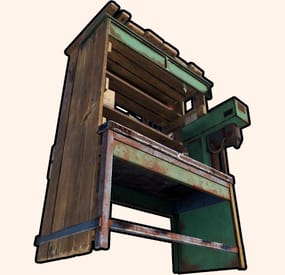
Portable workbench provides you and your population a satisfying addition to the server(s) you're hosting! With high levels of customization, this plugin allows you to access any levels of workbenches from any spot on the map for an amount of time— relative to groups players are in.
FEATURES
Highly customizable and simple-to-use system for admins and/or regular players. Use /workbench 1-3 (by default, can modify in the config) to start accessing a workbench. Craft bench-leveled items from anywhere in the game world! Intuitive config system, allowing custom chat icon and phrases. Option of requiring players to have placed the level of workbench somewhere they're willing to access.
PERMISSIONS
PortableWorkbench.use1: Allows you and the players to "wirelessly" access level 1 workbenches. PortableWorkbench.use2: Allows you and the players to "wirelessly" access level 2 workbenches. PortableWorkbench.use3: Allows you and the players to "wirelessly" access level 3 workbenches.
RULES (NOESCAPE INTEGRATION)
Can('t) use while building blocked. Can('t) use while combat blocked. Can('t) use while raid blocked.
COMMANDS (CONFIGURABLE)
Following commands are chat and console commands.
workbench 1-3: Allows access to specified workbench - if there's no input, it auto-selects level 1 workbench.
CONFIG