
GangstaPichu's Wishlist
-
$39.99
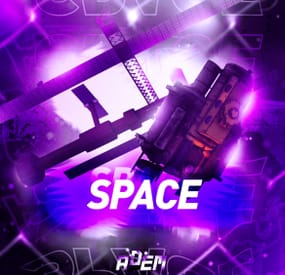
Space
The plugin allows players to visit a cold atmospheric Space void of gravity and oxygen, and visit an International Space Station!
A Space Station appears high in the sky, and is surrounded by Meteorites, Spaceships, and Balloons.
There is no gravity in Space, the temperature is very low and there is no oxygen.
You can get to Space by a Spaceship or by a Balloon which also spawn near roads or in loot tables.
The Space Station is guarded by customizable NPCs and a Space Bradley.
Outer Space
Meteorites, Crates, NPCs, Balloons and Spaceships will spawn in Outer Space near the Space Station, the number of each can be configured and customized.
In order to survive in Outer Space, the player will need a Spacesuit.
A Spacesuit can be customized to be any piece of clothing.
In the config you can customize items that will perform the functions of the Spacesuit in whole or in part.
To make space dark for players at any time of the day, use the NightVision plugin
Space Station
The Space Station consists of several compartments that are separated from each other by doors.
Optionally, the doors can be locked and they will need to be raided.
Inside the station there are crates with loot, NPCs, turrets, and fire turrets.
At the end of the corridor there are two doors that open with blue cards and one door that opens with red.
The spawn of the space station can be disabled. All objects on the space station are configured in the Data file of this station
Spaceship
The plugin includes spaceships that can spawn near roads, in Space, or can be added to loot tables.
The ship has separate settings for flying in the normal atmosphere and in zero gravity in Space.
It can shoot torpedoes, which will help the player in capturing the space station.
There are two seats in each spaceship.
Shuttle Control Guide:
Balloon
A balloon is an ordinary balloon with which you can ride into outer space.
The balloon can spawn near roads, in Space, or can be added to loot tables.
Also, this function can be applied to all balloons on the server.
If the balloon is in zero gravity, it can be used as an escape capsule!
If necessary, the player can enter, press a button, and be taken out of Space into the normal atmosphere.
Dependencies Required
NpcSpawn
Chat commands (only for administrators)
/spacestart – launches the event in a random configuration /spacestart <eventPresetName> – launches the event in the <eventPresetName> configuration /spacestop – stops the event /spawnshuttle – spawn the shuttle in your position /spawnaerostat – spawn the aerostat in your position /spacepoint – creates a custom spawn point of the event in your position (after that, you need to enable custom spawn points in the config)
Console commands (RCON only)
spacestart – launches the event in a random configuration spacestart <eventPresetName> – launches the event in the <eventPresetName> configuration spacestop – stops the event givepurplecard <userId> <amount> – gives a space card to a player giveshuttle <userId> <amount> – gives a shuttle to a player giveaerostat <userId> <amount> – gives a shuttle to a player givespacesuit <space_suit_preset> <userId> <amount> – gives <space_suit_preset> to a player
Config
plugin_en – example of plugin configuration in English station_en – example of station configuration in English plugin_ru – example of plugin configuration in Russian station_ru – example of station configuration in Russian
Dependencies (optional, not required)
True PVE PveMode GUI Announcements Notify DiscordMessages AlphaLoot CustomLoot Economics Server Rewards IQEconomic
Hooks
void OnSpaceEventStop() void OnSpaceEventStart()
API
bool IsPositionInSpace(Vector3 position) float GetMinSpaceAltitude() bool IsEventActive()
My Discord: adem9554
Join the Mad Mappers Discord here!
Check out more of my work here!
-
$45.00
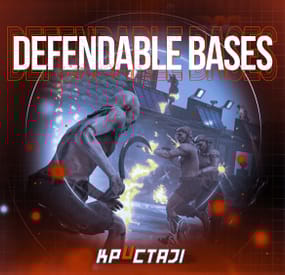
Defendable Bases
This plugin adds a new dynamic zombie event to your server, the appearance of which you can customize in the configuration for any standard and custom monuments
Description
The event begins with a message in chat that the evacuation of the general from the island will begin soon. At the end of the configured timer, a military checkpoint randomly appears on the map and it is said in the chat that the general's guard was killed, and the general himself was seriously wounded
The player and his friends (if you have any) need to arrive at the military checkpoint and call for help for the general with the laptop located at the checkpoint control center
After the player calls for help, waves of zombies will attack the base. During the preparation phase, players can upgrade the base with turrets, purchase ammunition for them, or place it from their inventory through the checkpoint control center. In the doorways, players can install barricades of different types (5 types of barricades, which differ in the amount of Hit Points) to contain the incoming waves of zombies. The player can also use a hammer to repair the barricades. During the attack phase, waves of zombies will be directed at you. You cannot allow zombies to kill the general, otherwise, the event will end. There are several zombie types (in future updates it is planned to add to the list of zombie types). Each type of zombie has its own tasks. After the end of each wave, a room with crates opens, where there will be a reward for you
At the end of the event, a helicopter arrives for the general and picks him up, and you are notified in chat that the event has been successfully completed. When the general dies, the event ends, as will the attack wave, the event, and all hope is lost!
All the necessary settings of zombies, timers, items in crates for each wave, as well as settings for each wave (the number of zombies of each type, the time of the preparation phase and the attack wave, etc.), settings of the military checkpoint (the price of buying something or improving the base, used ammo in turrets, etc.), the price of repairs, barricade options, and many other settings are available in the plugin configuration
Also in the event there are additional missions during the waves of attack, during which you will receive an additional reward (in future updates it is planned to add to the list of additional missions). You can set up additional missions in the settings of each attack wave
The event provides the use of several military base designs. The Mad Mappers team will add to the list of constructions for the event in the future. When an event appears, the plugin randomly selects the construction of the base from those that you have in the data folder, and also randomly selects a place to appear from all those that have been set in the plugin configuration
Also, the Mad Mappers team will begin to offer support in our custom maps for this event and contain files for the appearance of bases in custom monuments and locations on our maps
Constructions of other bases
Defendable Bases (Bundle-1) Defendable Bases (Bundle-2)
Custom Map
Maps that have a configuration for the appearance of bases on their custom monuments
You can also download all these files for all maps here
Deathland Badlands Destroyed World Detroit: Irreparable Damage Oregon 2: Last Hope Oregon: Land of Dead Pandora All files for custom maps are stored in the folder oxide/data/DefendableBases/CustomMap. You don't have to delete files from there, the plugin will understand by itself which map is currently installed on the server and will download only the necessary file if there is one in this folder. The plugin will tell you about this process in the console during the plugin loading. It will write in the console what file works on the current map, and what ones don’t work
If you want to create a custom place for the base to appear on your custom map or on a map that is not in this list, you have to create the ID of this custom map. After that you need to place an item such as a RAND Switch on your map. It must be placed randomly, where it will not be visible to other players. You will get the identifier, if you add up the three coordinates of the position of this object from RustEdit (x, y and z) and write the resulting value in the parameter of your file (an example file can be taken from ready-made files) - ID
As an example, let's take the coordinates (26.896, -456.158, 527.258), then our identifier is 26.896 - 456.158 + 527.258 = 97.996
Then you need to indicate a list of bases that will appear on your map. You need to copy the configuration data block for each base construction. In the database parameters you will specify the name of the base construction and a list of positions where it can appear
The list of positions consists of several parameters. First you need to specify the position and rotation of the appearance of the base on your map, then you can get these values using RustEdit. You need to choose the place for the appearance of the event on the custom monument, where the player has a ban on construction
You have such a parameter as the pursuit radius for such a type of zombie as Blazer. These zombies run around the base along this radius and shoot at the players. Please note! Some object sometimes may be on your map in this radius, for example a fence, and they will not be able to overcome it, because they cannot run inside this circle, and they haven’t a way out for them so you need to leave them a way or adjust it by increasing or decreasing the radius
You have a list of coordinates for the points of appearance of all zombies. It is necessary to indicate these coordinates evenly around the base so that the zombies run from different sides and attack all sides of the base, not just a few ones. So it will be more interesting to play this event. Also note the fact that you can indicate the coordinate where a player can create his house, so it is advisable to specify all the coordinates that are in the construction ban zone, they are in the zone of your custom monument. You can also get the coordinates of the appearance of zombies using RustEdit
Images
You may want to change some parameters during the plugin installation or the base configuration
In the plugin configuration these parameters are:
Custom Barricades => Price for repairs (per hammer hit) => List of items, 3 maximum (if the economy method is 3) In the base configuration, these parameters are:
List of turrets => Price to unlock => List of items, 3 maximum (if the economy method is 3) List of turrets => List of ammo => Price => List of items, 3 maximum (if the economy method is 3) List of barricades to buy => Price => List of items, 3 maximum (if the economy method is 3) A list of items that are in the laptop inventory when the base appears List of attack waves => Additional missions => Reward for completing the mission => List of items If you change items in the current configuration items, you need to upload the image for this item to the oxide/data/Images folder. In order for the plugin to load this image and can use it for display in the player's GUI. If it is a standard Rust item, you need to name this image file by its ShortName. If it is a custom item, you need to name the image file by the SkinID of the item
Then you need to make a few changes to the plugin configuration in the List of paths to GUI images item. You need to add a new image to this list. The name is the ShortName or SkinID of the item. The path to the image will look something like this: Images/{ShortName or SkinID}.png
If you use the economy of some following points on your server as prices, you can change the image with the name Economic to your own with the same name
All images must be used square. Attention! The lower size of the image file will be displayed to the player faster
Dependencies Required
NpcSpawn
Dependencies (optional, not required)
True PVE PveMode GUI Announcements Notify Discord Messages AlphaLoot CustomLoot NTeleportation Economics Server Rewards IQEconomic
Chat commands (only for administrators)
/warstart {name} – start the event ({name} – name of the base)
/warstop - end the event
Console commands (RCON only)
warstart {name} – start the event ({name} – name of the base)
warstop - end the event
givebarricade {steamid} {level} {amount} - a player with a SteamID ({steamid}) is given a certain number of barricades ({amount}) of a certain level ({level})
Plugin Config
en - example of plugin configuration in English ru - example of plugin configuration in Russian
Base Config
en - example of base configuration in English ru - example of base configuration in Russian
Custom Map Config
en - example of custom map configuration in English ru - example of custom map configuration in Russian
My Discord: KpucTaJl#8923
Join the Mad Mappers Discord here!
Check out more of my work here!
Creator of the default configuration and the bases – jtedal
Help in creating a plugin description – Jbird#2022
- #barricade
- #ch47
- (and 27 more)
-
$20.00
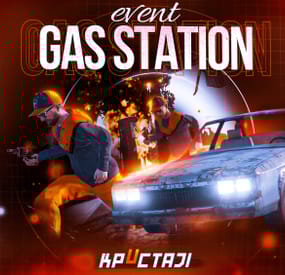
Gas Station Event
In a tense multiplayer event, players are thrust into a violent dispute between two warring gangs, witnessing a high-speed chase and explosive confrontation at Oxum's Gas Station, and then choosing sides or taking all the spoils for themselves, while customization options offer control over NPC settings, loot rooms, and crate contents
Description
The event begins with a message in chat that there has been a dispute between to warring gangs. One gang has taken members from their rivals hostage. A car chase ensues chase where the rival gang is coming to save or avenge their own!
The chase comes to an explosive end at Oxum's Gas Station when the car being pursued crashes into the gas pumps! This is the beginning of the event for your players. Both gangs jump out of their vehicles and a shootout immediately ensues! When a player decides to approach, they will have a few choices.
Will they take up arms with the ruthless gang willing to do anything? Will they stand beside the more honorable outlaws? Or will they simply kill both gangs and take all of the loot? The choice, is theirs!
If the player decides to kill the first gang, the second gang will give the player access to their loot room, a bunker inside the basement of the auto repair shop, as a sign of gratitude.
If the player decides to kill the second gang, then the first gang will give access to their hidden stash in the restroom inside the station, to show their appreciation.
If the player decides to just wipe both gangs out, well then they deserve all of the loot! And regardless of what team the player decides to destroy, the chasing vehicle is always left unattended at the end of the event. The player can grab this as a thank you for cleaning up the servers streets! It's a junker but you can take it for parts, drive to Junkyard to scrap it, or just use it to get home quick and take the parts you want from it.
The configuration file has many customization options, including NPC settings, their numbers, and you can fully customize the loot rooms, the crates and their loot for the event.
Dependencies (optional, not required)
True PVE PveMode GUI Announcements Notify Discord Messages AlphaLoot CustomLoot NTeleportation Economics Server Rewards IQEconomic Kits
Chat commands (only for administrators)
/gsstart - start the event
/gsstop - end the event
Console commands (RCON only)
gsstart - start the event
gsstop - end the event
Plugin Config
en - example of plugin configuration in English ru - example of plugin configuration in Russian
Hooks
void OnGasStationEventStart() – called when the event starts
void OnGasStationEventEnd() – called when the event ends
void OnGasStationEventWinner(ulong winnerId) – called at the end of the event, where the winnerId is the player who did more actions to complete the event
My Discord: KpucTaJl#8923
Join the Mad Mappers Discord here!
Check out more of my work here!
- #gas station
- #crates
- (and 20 more)
-
$14.99
Weather
Weather & time control Own the sky: from a GUI, not a config file Vanilla weather is a coin flip you don't get to influence. This plugin shuts it off and hands you the whole sky: build your own presets, tune every value with plain-English names, chain them on a schedule, or mirror the real weather of any city on Earth. Edit presets in-game and set up night-skip votes with an automatic popup for players.
33 Tunable parameters 24 Schedulable hours 6 Presets preloaded 0 Dependencies ✓ Every parameter named in plain English: no cryptic engine values ✓ Real lightning strikes: not just thunder sounds ✓ Live weather synced from any real location on Earth ✓ Separate day and night length: plus a popup UI for night-skip votes ✓ Personal weather: let chosen players pick their own sky while the server weather stays for everyone else Video See it in action 01: Presets Weather presets you actually control All six vanilla presets are imported automatically on first load, so you start from a working base instead of a blank slate. From there, nothing is off limits.
Everything is a dial Rain, wind, thunder, rainbow and ocean wave height · cloud coverage, size, opacity and scattering · fog density · atmosphere brightness and contrast, day and night separately · full volumetric cloud control Named in plain English "Waves in the sea" instead of "OceanScale" · "Fog density" · "Sun glow size". No guessing what a value does before you drag it. Real lightning, not a sound effect Any preset with Thunder above 0.05 fires actual strike effects for every online player, across three intensity tiers, with frequency scaling off the Thunder value. ✓ Smooth transitions: set a transition time per preset and weather eases in over seconds or minutes instead of snapping ✓ Weighted random: make Storm rare and Clear common with a single number ✓ Duration per preset: when one ends, the next rolls automatically 02: Time Time and nights on your terms Set long days, short nights, or no nights at all. You can also let players decide through a scheduled vote.
Day and night length, separately A 45-minute day with a 10-minute night is one number each. Sunrise and sunset hours are configurable, and /setday and /setnight change time instantly. Skip nights automatically One toggle and nights are skipped the moment they start. Ideal for PvP servers and low-population wipes. Skip-night voting UI A panel appears in the top-right corner when a scheduled vote starts. It shows the required percentage and a Vote to Skip button. Players can press Tab to click it, use /nskip or your configured chat command, or close the panel without voting. Your voting rules Set the vote time, duration, required percentage and maximum consecutive skipped nights. The panel closes after a player votes or when the poll ends. Players who wake up during an active poll see it too. Start and result chat messages and the notification sound are configurable. 03: Automation Automation that runs the sky for you Set it once and never touch it again: either on a schedule you design, or synced to the real world.
Rust-time schedule Assign presets to any of the 24 in-game hours. A preset holds until the next scheduled one, so filling three slots already covers a whole day. No two days alike Put several presets in one slot: "Storm,Dust": and one is picked at random by weight every time that hour comes around. Real-world weather sync Give it coordinates and an OpenWeatherMap key and your server mirrors the live weather of that location, rechecked every in-game hour. Map each real condition: Clear, Rain, Snow, Thunderstorm, Fog: to whichever preset you like. 04: Personal weather Personal weather for the players you choose Give a group its own sky. Anyone with the permission sets weather for themselves alone, while everyone else keeps whatever the server is running. A natural VIP perk that costs the rest of your players nothing.
Their own sky, on command /myweather opens a small menu. The player picks a preset and it applies to them alone, instantly, on top of whatever the server weather is. You pick what they can choose Limit the menu to a handful of presets in the config, or leave it open to all of them. Only the presets you allow ever show up. One click back to normal A Server Weather button drops them back to the shared sky at any time, and their choice is remembered across reconnects and restarts. Reliability Built to be left alone ✓ Weather survives restarts: the active preset and how long it has been running are saved, so a reboot doesn't reset the sky to a random state ✓ Active preset is highlighted in the UI: you always know what's running ✓ Optional console announcement whenever a new preset starts ✓ Clean unload: vanilla weather chances are restored exactly as they were Commands Three admin commands, two for players Admin commands require the weather.use permission. Personal weather requires weather.personal.
/wsetup Open the setup UI /setday Set time to day /setnight Set time to night /nskip Vote to skip the night: configurable, open to all players /myweather Open the personal weather menu: needs weather.personal Hooks & API For plugin developers string API_GetCurrentWeatherPreset() Returns the name of the active preset void OnNewPresetStart(string presetName) Called when a new preset begins Questions Before you buy I scheduled a preset at hour 3, but hours 4–9 are empty. What happens? A preset runs until the next scheduled one. Set Rain at 4 and Dust at 9 and you get rain from 4 to 9, then dust from 9 until hour 4 comes back around. Can I put more than one preset on the same hour? Yes: comma-separated, like "Storm,Dust". One is chosen at random each time, weighted by each preset's chance. How do I know which preset is currently active? Open the UI: every preset is listed and the active one is highlighted. A preset you've only selected to edit is not. What happens when the current preset ends? A new one starts at random, weighted by the chance value you gave each preset. Does the weather reset when the server restarts? No. The active preset and its elapsed time are saved, so the sky picks up where it left off. Can players set their own weather? Yes, if you grant them the weather.personal permission. They open /myweather and pick from the presets you allow, and it applies to them alone while everyone else keeps the server weather. How do I enable the voting panel? Set Enable in SkipNight Setup to true and keep Use time control enabled. The panel opens automatically with each scheduled poll. Voting is open to all players and needs no extra permission. Do I need an API key? Only for real-world weather sync. Everything else works out of the box, and a free OpenWeatherMap key is enough. -
$15.00
Commands Item
By YaMang -w- in Plugins
Add commands to items. Press Unwrap to run the command. And Healing Items And Throw Items (smoke, f1, etc...)
Effect List: Effects | https://umod.org/plugins/effects-panel
Commands:
/cicd - Cooldown Hud
/ci - basic command
Config:
{ "General Settings": { "Prefix": "<color=#5892bf>[Commands-Item]</color>\n", "SteamID": 0, "Commands": "ci", "Use Active Commands": true, "Use Throw Commands": false, "Use Healing Commands": false, "Use Message on used count": false, "Use Map Wipe Data Clear": false, "Debug": false }, "Item Settings (custom name)": { "Supply Space Fanny Drop": { "Item short name": "grenade.smoke", "Item skin": 2867732572, "Commands": [ "ad.dropspace $player.id" ], "Message on use (leave blank for no message)": "Warning Space Drop !!", "Global Cooldown [true | false]": false, "Shared Cooldown": null, "Cooldown (0 for disable - ※second※)": 0, "MaxUsed (0 for unlimited)": 0, "Sound Effect (blink notting)": "", "Effect (blink notting)": "assets/bundled/prefabs/fx/smoke_signal_full.prefab", "Flags": [ "" ] }, "Teleport Granade": { "Item short name": "grenade.smoke", "Item skin": 2814909703, "Commands": [ "teleport.topos $player.id $entity.x $entity.y $entity.z" ], "Message on use (leave blank for no message)": "Teleporting", "Global Cooldown [true | false]": false, "Shared Cooldown": "testshared", "Cooldown (0 for disable - ※second※)": 0, "MaxUsed (0 for unlimited)": 0, "Sound Effect (blink notting)": "", "Effect (blink notting)": "", "Flags": [ "" ] }, "Unwarp Space Drop": { "Item short name": "xmas.present.medium", "Item skin": 2814909703, "Commands": [ "ad.dropspace $player.id" ], "Message on use (leave blank for no message)": "Warning Space Drop !!", "Global Cooldown [true | false]": false, "Shared Cooldown": "testshared", "Cooldown (0 for disable - ※second※)": 0, "MaxUsed (0 for unlimited)": 0, "Sound Effect (blink notting)": "", "Effect (blink notting)": "", "Flags": [ "" ] } }, "items Shared Cooldowns": { "Shard Name | Time (sec)": { "testshared": 5 } }, "Version": { "Major": 2, "Minor": 2, "Patch": 7 } } Permission:
CommandsItem.allow - access command Lang:
{ "NotExist": "<color=#d0d0d0>Item (<color=orange>{0}</color>) could not be found. Please use a valid SkinID!</color>\n<color=#5892bf>Usage: /{1} <skinid></color>", "UsageCI": "<color=red>Usage Sta: /{0} <Name> [Amount]</color>", "InvFull": "<color=#d0d0d0>Inventory is full. Clear some space and try again!</color>", "Received": "<color=yellow>[{0}] Was added to your inventory.</color>", "NoPerm": "<color=#d0d0d0>You dont have permission!</color>", "HasCooldown": "<color=yellow>{0}</color> <color=red>can be used after {1}</color>" }
Flags:
IsBuildingBlock - Unusable while player is build block IsSwimming - Unusable while player is swimming InSafeZone - Unusable while player is in safe zone IsBleeding - Unusable while player is bleeding IsPlayerInZone - Unusable while player is special zone ※Require Zone Manager※ IsPlayerInGrid - Unusable while player is special grid HasTCAuth - Usable while player is Has Tool Cupboard Auth
Format:
pconsole - player input console ex) pconsole chat.say /shop timer_x - Execute the command after x seconds. ex) timer_15 say commandsitem! $player.id - player steam id $player.name - player name $player.x - player x location $player.y - player y location $player.z - player z location $entity.x - entity x location (※Only Throw Items※) $entity.y - entity z location (※Only Throw Items※) $entity.z - entity y location (※Only Throw Items※)
@Azmo idea Thanks 😄 image, text fleids
- #custom item
- #command item
- (and 4 more)