
ARobinhood's Wishlist
-
$19.99
Survival Arena
By imthenewguy in Plugins
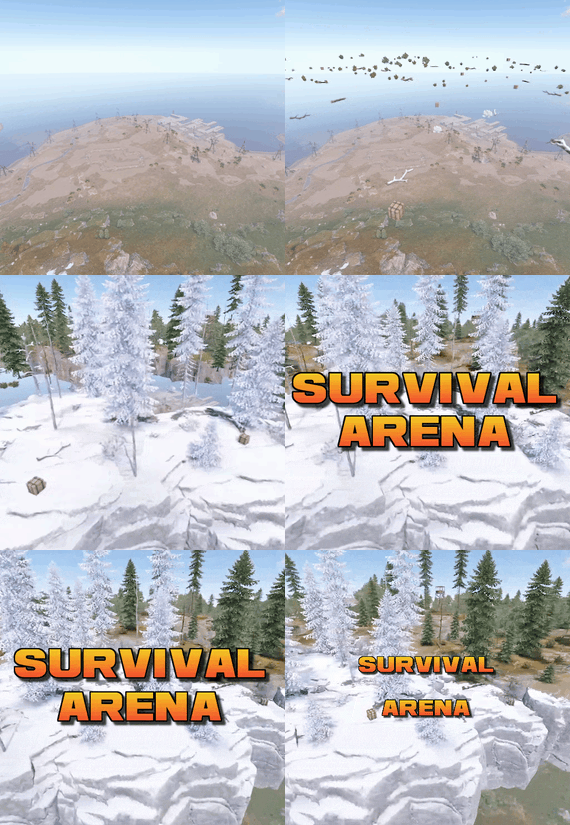
Survival Arena is a plugin that spawns a Battle-royal style game, where players must scavenge for equipment and fight to the death, all while staying inside of a shrinking, non-radiated zone.
The plugin spawns a large play area high in the sky and inherits the biome type from the ground below. This means that if the area is suspended above an arctic biome, all of the rocks, trees, logs and bushes will be spawned mirroring that biome type.
Players are teleported into the center building when they join, and once the game begins, they must loot containers to gear up to survive. Players are returned to their original locations when they leave the event or respawn after dying at the event.
Server owners can change or add loot profiles via the config. The plugin will select a random profile when the arena begins and fill the loot containers based on your specifications.
It comes with 2 default loot profiles:
Primitive - spears, melee weapons, bows, crossbows, burlap equipment, revolvers etc GunLoot - more modern weapons.
The plugin uses EventHelper to run automatically, handle joining and leaving, and will allow players to vote to start the game.
Admins can also add additional trees, bushes, logs and loot spawns to the arena via command.
Type: Chat Command: survivalarena Function: Sends the user the UI to start up the game. Loot profiles, spawn height and lobby time can be adjusted here before starting the game. Type: Chat/Console Command: startarena <heightMod> <lobbytime> <arenaName> <lootProfile> Function: Spawns and starts the game using the specified heightmod and lobbytime parameters. You can simply use the command with no parameters to start it using the default settings and a random arena/lootprofile. Type: Chat/Console Command: endarena Function: Ends any active games and despawns the arena. Type: Chat Command: spawnarena <name> Function: Spawns the arena, but does not start the game. Useful for debugging and development. Type: Chat Command: setcentrepoint Function: Sets the arena's new center point at the players location. Useful if you want to move the spawn so it has more biome variety. Be sure not to make it too high or too close to the ground. Type: Chat Command: survival Function: Used to join the game when the lobby is active. Type: Chat Command: saremove Function: Removes the tree, loot container, log or bush that the player is looking at. This will no longer spawn in future games. Type: Chat Command: addtree Function: adds a tree spawn at the players position. Type: Chat Command: addbush Function: adds a bush spawn at the players position. Type: Chat Command: addlog Function: adds a log spawn at the players position. Type: Chat Command: addloot Function: adds a loot spawn at the players position. Type: Chat Command: saleave Function: Leaves the event Type: Console/Chat Command: wipeoldarena Function: Wipes any entities that are at the same height or higher than the arena.
survivalarena.admin
survivalarena.autojoin
If you wish to create your own arena, you may follow this tutorial here: https://youtu.be/BxmcjHjIJDU
Please note that the map file name needs to contain survivalarena or it will not allow the getarena command to work. Also I will not be offering support for this, so use at your own risk.
API
Hook Calls
void OnSurvivalArenaStart() - Called when the lobby starts. void OnSurvivalArenaEnd() - Called when the game is ending. void OnSurvivalArenaWin(BasePlayer player) - Called when a player wins the game. void OnEventLeave(BasePlayer player, string pluginName) - Called when a player leaves the event. object OnEventJoin(BasePlayer player, string pluginName) - Called when a player is attempting to join the event. Returning a string will prevent the player from joining and will print the string to them. void OnEventJoined(BasePlayer player, string pluginName) - Called when a player has successfully joined the arena. void OnPlayerItemsRestored(BasePlayer player) - called when a players items have been restored.
Hook Methods
bool IsEventPlayer(BasePlayer player) - returns true or null if the player is an EventPlayer.
-
.thumb.png.ac72dca13c4e30a2d2181ddd2b0fdc0a.png)
$29.99$24.99Armored Train
Halloween Update
Have you already prepared your server for Halloween?
On the eve of the Halloween Rust update, I have prepared for customization of all armored train cars.
After installing the update, customization will be automatically applied to all cars in the configuration of the armored train. To disable this, make the "Customization preset" parameter empty in the config.
New Year Update
The New Year is coming and I have prepared for you a new preset customization for the train!After installing the update, customization will be automatically applied to all cars in the configuration of the armored train. To disable this, make the "Customization preset" parameter empty in the config.
You can also disable the customization of certain wagons or change the customization of the NPCs in the file oxide/data/ArmoredTrain/NewYear
New Year's map from the video:
This plugin will add an armored train to your server, which can travel both in the subway and by rail.
It can consist of any number of wagons. A helicopter can accompany it.
Bradley, npc, turrets, simsites can be installed on the train.
The plugin allows you to create any number of train presets, for which the order of wagons, the helicopter preset, the probability of spawn and the duration of patrolling can be specified. Each wagon or locomotive can be configured separately. Any speed can be set by the locomotive.If there is no spawn of trains on the surface on your custom map, read the section "Custom spawn points”
Custom spawn points
If you are using a custom map in which there are no spawn trains on the surface, but there is a railway, then for the train to work on the surface, you need to add custom spawn points of the train.
Instruction:
Stand at the point where you want the train to spawn Enter the command /atrainpoint If you receive a message that a point has been created, enable "Use custom spawn coordinates [true/false]” in config For correct operation, it is recommended to create several spawn points of the train
Chat commands (only for administrators)
/atrainstart– launches the event in a random configuration /atrainstartunderground - forcibly launches an event underground /atrainstartaboveground - forcibly launches an event aboveground /atrainstart <trainPresetName> – launches the event in the <trainPresetName> configuration /atrainstartunderground <trainPresetName> /atrainstartaboveground <trainPresetName> /atrainstop– stops the event /atrainpoint– creates a custom spawn point of the train in your position
Console commands (RCON only)
atrainstart– launches the event in a random configuration atrainstartunderground - forcibly launches an event underground atrainstartaboveground - forcibly launches an event aboveground atrainstart <trainPresetName> – launches the event in the <trainPresetName> configuration atrainstartunderground <trainPresetName> atrainstartaboveground <trainPresetName> atrainstop – stops the event
Config
en – example of plugin configuration in English ru – example of plugin configuration in Russian
Dependencies (optional, not required)
True PVE PveMode GUI Announcements Notify DiscordMessages AlphaLoot CustomLoot Economics Server Rewards IQEconomic Api
bool IsArmoredTrainActive() bool StopArmoredTrain() bool StartArmoredTrainEvent() bool EndArmoredTrainEvent() bool IsTrainBradley(uint netID) bool IsTrainHeli(uint netID) bool IsTrainCrate(uint netID) bool IsTrainSamSite(uint netID) bool IsTrainWagon(uint netID) bool IsTrainTurret(uint netID) Vector3 ArmoredTrainLocomotivePosition()
Hooks
OnArmoredTrainEventStart OnArmoredTrainEventStop
Contact me in Discord: Adem#955
-
$14.99
Server Hud
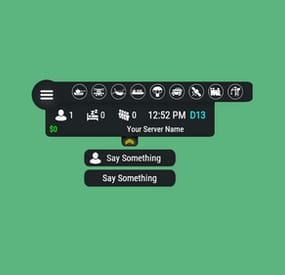
Server HUD · Rust · Oxide · CARBON Your chat is «is heli up?» twelve times an hour Put the answer on screen. Online count, clock, grid square, balance, and a live bar of every event running — Bradley, heli, cargo, airdrop, both oil rigs. Nine events out of the box, set up entirely from a panel in game. How it goes From install to the event you added yourself MINUTE ONE Install and it's on screen It doesn't wait for the next wipe to be useful Install mid-wipe and the heli that's already flying is on the bar. ImageLibrary is the only other plugin you need. Nine events on by default. Bradley, Patrol Heli, CH47, Cargo Ship, Airdrop, Harbor cargo, both Oil Rigs, Deep Sea. Rigs turn red while the crate is being hacked. Players see the fight starting from across the map. Icons are just URLs. Fetched and cached for you. First install reloads once to pick them up — expected, not a fault. No file to edit first. Defaults draw a finished HUD with your server name in it. FROM THEN ON Every player, every day The numbers your chat keeps asking for Updated as they change. A player standing still costs you nothing. K12 or X:-1204 Z:842 Grid square or raw coordinates. Your choice, your colour. Online, sleeping, queue. Admins can be left out of the count. Clock in each player's own format. 12- or 24-hour from their game language, or force one. Two balances, side by side. Economics, ServerRewards or ShoppyStock. Only what's live. One switch hides idle events instead of showing a wall of grey. Info messages on rotation. A random line from your list, any corner, any width. IN THE WAY The player decides Four states, and the choice is remembered Your logo is the button: full panel → events only → hidden. One command removes it entirely. Still set that way after a reconnect. Streamers keep coordinates off camera. One permission drops the position readout. CCTV and drones get a clean screen. Hides on mount, back on dismount, switchable. Any corner, any scale. Pixel offsets, one scale value, and a toggle to show it over the inventory. MONTHS LATER All of it, from in game The config file is optional One command opens an admin panel over every setting there is. Change it, it saves, everyone online sees it. Events from other plugins. A name, an icon, and the hooks it fires. Convoy, Sputnik, Armored Train and Harbor come pre-filled. Adding one rewrites a marked block in the plugin file and reloads it. A drop-down of command buttons. Any chat or console command, own icon, own permission, closes itself after use. Updates don't reset your settings. New events land with defaults; a section you deleted comes back. Or edit the file. Auto reload picks it up the moment you save. The look See it running, then make it yours Every icon is a URL in the config. Take a pack, or draw your own from the blank template. Free custom HUD icons Free Custom HUD icons Paid Server HUD custom icon pack Paid While you're not looking Built to be left alone ✓ A typo in the config won't take the HUD down — it falls back to defaults and says so ✓ Switching a counter off stops the work behind it, not just the display ✓ An economy you enabled but never installed shows 0, and the HUD carries on ✓ Unloading clears every panel off every screen — nothing stuck until relog Reference One chat command, five words after it Setup is admins only. Menu buttons take whatever permission you name in the config. Chat /h Show the command list Chat /h open Full panel — counters, clock, position, balance, events Chat /h events Event bar only Chat /h hide Hide the panels, keep the logo button Chat /h close Remove it entirely Chat /h setup Settings panel — admins only Perm hud.streamer Hides the position readout from whoever holds it Hook object CanHudChangeState(BasePlayer player, string currentState, string nextState) Fires before a state change. Return non-null to stop it. API string API_PlayerHudState(string playerId) Returns full, events, hidden or closed for a player. Straight answers Asked before buying Can players turn it off? Full panel, event bar only, or gone entirely — their choice, and it survives a reconnect. Do I have to edit the config file? No, the in-game panel covers all of it. If you prefer a text editor, auto reload picks the file up as you save. I stream — my coordinates are on screen. Grant yourself the streamer permission. The position readout goes, everything else stays. Can I add an event from another plugin? Yes — name it, give it an icon, and name the hooks it fires. Most plugins list those in their own description. What if I run no economy plugin? Leave it off and the HUD closes the gap. Enable it without the plugin and you get a 0, not a broken HUD. Does it block CCTV and drones? It hides itself in a Computer Station and comes back on dismount. One toggle if you'd rather it stayed. 9 events out of the box 4 states, chosen per player 2 economy balances at once 1 dependency — ImageLibrary -
$19.00
Action Camera
By boostypunk in Plugins
Take your Rust gameplay to the next level with Action Camera!
Want to feel like you're the center of attention? With Action Camera your Rust actions will be available for viewing in real time!
What makes Action Camera special?
You're always in the center of the action. Your friends and viewers can watch your every move, whether it's base building, battles, or raids. Now every moment will be truly unforgettable! Unique experience. Rust has never been like this! With Action Camera, you experience every moment together with other players, because they can see everything that's happening around you. New game situations. Imagine how spectators are watching you in the thick of battle or on a raid. All the tension, every decision - now it's a real performance that unfolds before the eyes of the audience. Creating bright moments. Now your friends can record your most epic moments from completely new angles, creating unique videos of your survival.
Add intrigue and spectacle to your game with Action Camera! Feel the real thrill of knowing you're being watched. Make every Rust session unique and memorable.
Install Action Camera - you'll love it! 💖
Permissions
actioncamera.create – the primary permission for players. It allows the creation of an action camera when wearing a miner's hat.
actioncamera.admin – allows viewing the list of all active cameras on the server using the /cams command.
Chat Commands
/camlock – locks the current camera ID to the player. This specific ID will be assigned every time the player equips the hat in the future.
/camunlock – unlocks the camera ID. The next time the player puts on a miner's hat, they will be assigned a new random ID.
/cams – displays a list of all active action camera IDs and their owners in the chat.
- #creative
- #mechanics
- (and 9 more)
-
$41.95$31.95OPERATION FORTRESS
Introducing OperationFortress, the ultimate PvE base assault event plugin for Rust servers! Experience intense tactical combat as you and your team infiltrate a heavily fortified enemy base at the Airfield monument. With dynamic NPC encounters, strategic tower captures, and epic boss battles, OperationFortress delivers an immersive military operation experience that will challenge even the most skilled players.
⭐ Features of Operation Fortress
Epic Base Assault: Infiltrate a heavily fortified enemy base at the Airfield monument with multiple defensive towers and strategic positions. Dynamic Tower System: Capture 6 strategically placed guard towers, each with unique NPC defenders and electric switches to disable the base's security system. Intelligent NPC Combat: Face off against elite enemy forces with advanced AI, including snipers, assault troops, machine gunners, and grenadiers. Boss Battle: Confront the powerful "Fortress" commander in the main base with enhanced health and elite weaponry. Reinforcement System: Experience dynamic combat as enemy reinforcements spawn after capturing towers, adding intensity to the operation. Rich Loot System: Collect valuable rewards from captured towers, defeated NPCs, and the commander's personal safe. PvE Mode Integration: Seamless integration with PvE mode systems for fair loot distribution and team-based gameplay. Customizable Difficulty: Adjust the number of required towers to access the main base, event duration, and NPC configurations. Visual Markers: Clear map markers show tower status, base location, and event progress for easy navigation. Automatic Scheduling: Set up automatic event scheduling with customizable intervals and preparation times. Team Support: Full support for team-based gameplay with shared loot rights and coordinated assaults. Performance Optimized: Efficient NPC spawning and cleanup systems ensure smooth gameplay even with large player bases.
📊 Event Overview
Operation Fortress transforms the Airfield monument into a hostile military installation controlled by the "Fortress" faction. Players must work together to:
Capture Guard Towers: Infiltrate and secure 6 strategically positioned guard towers, each defended by elite NPC forces. Disable Security System: Activate electric switches in captured towers to disable the base's security system and gain access to the main facility. Assault Main Base: Breach the heavily fortified main base located in one of the Airfield's large hangars. Eliminate Commander: Face off against the powerful "Fortress" commander and his elite bodyguards in an epic final battle. Secure Rewards: Collect valuable loot from defeated enemies, captured positions, and the commander's personal safe.
🖼️ Showcase
🎮 Commands
operation.start - Manually start the Operation Fortress event (requires admin permissions) operation.stop - Stop the current Operation Fortress event (requires admin permissions)
🛡️ Permissions
operationfortress.start - Permission to start Operation Fortress events operationfortress.stop - Permission to stop Operation Fortress events
📚 FAQ
Q: Can players use their own weapons and equipment?
A: Yes! Players use their own weapons, armor, and equipment during the event. No special gear is provided, making it a true test of player preparation and skill.
Q: How does the loot system work?
A: Loot is collected manually from defeated NPCs, captured towers, and the commander's safe. The PvE mode integration ensures fair loot distribution among team members based on damage contribution.
Q: Can the event be played solo?
A: Yes! The event is designed to scale with player count. Solo players can complete the operation, though it will be more challenging. Team play is recommended for optimal experience.
Q: How often does the event occur?
A: The event can be configured to run automatically at customizable intervals, or it can be started manually by administrators using the provided commands.
Q: What happens if players fail to complete the event?
A: If the event timer expires or all players are eliminated, the event ends automatically. Players can attempt the operation again when it becomes available.
Q: Does the event interfere with other Airfield activities?
A: The plugin includes options to disable other NPCs and events at the Airfield during Operation Fortress to prevent conflicts and ensure smooth gameplay.
Q: Can I customize the NPC types and weapons?
A: Yes! The plugin includes extensive NPC configuration options, allowing you to customize health, weapons, behavior patterns, and reinforcement types for each tower and the main base.
Q: How does the PvE mode integration work?
A: The plugin integrates with PvE mode systems to ensure fair loot distribution among team members. Players who contribute more damage to NPCs have priority access to loot, while still allowing team coordination.
📡 Plugin Integration
OperationFortress is designed to work seamlessly with other popular Rust plugins:
PvE Mode: Full integration for fair loot distribution and team-based gameplay NpcSpawn: Utilizes advanced NPC spawning and AI systems for realistic enemy encounters Notify/UINotify: Integrated notification system for event announcements and player updates BetterNpc: Compatible with enhanced NPC systems for improved AI behavior MonumentOwner: Integration with monument ownership systems for enhanced gameplay
🧪 TEST SERVER
Join our test server to experience Operation Fortress firsthand!
Copy the IP Address below to start playing!
connect 155.103.86.38:28015
🛠️ API / Hooks
OnOperationFortressStart()
Triggered when the Operation Fortress event starts. OnOperationFortressStop()
Triggered when the Operation Fortress event stops (ends or is canceled). OnOperationFortressEnter(BasePlayer player)
Triggered when a player enters the event zone. OnOperationFortressLeave(BasePlayer player)
Triggered when a player leaves the event zone or dies inside it. OnOperationFortressWin(BasePlayer player)
Triggered when the boss is defeated and the victory chest is opened. player is the boss killer/owner.- #event
- #rust event
- (and 1 more)