100chilly's Wishlist
-
$30.00
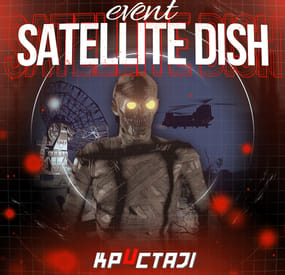
Satellite Dish Event
It’s an event in the Satellite Dish location
Description
The event begins with a chat warning: a bioweapons deal will be in the Satellite Dish.
When the time is up, extra crates, NPCs guarding this location will appear in the Satellite Dish. Then a locked zombie’s cage will appear. A CH47 will fly to this location to make a transaction.
When the CH47 arrives, it will drop the locked crate as a payment for the biological weapon. Then it will land and zombies will begin boarding on the CH47. As soon as the CH47 has picked up all the remaining zombies, it will fly off the map.
If you kill at least one zombie, an alarm will start. The alarm can be ended by answering the phone on the Satellite Dish within 10 seconds.
If you don’t stop the alarm, reinforcements will arrive as Bradley to this location. It will parachute down from the aircraft.
All crates looting, NPCs, zombies, Bradley can be changed by configuration.
It is possible to change the configuration of all NPCs or use the BotSpawn plugin for NPCs.
There is a camera in the location for viewing the event and lighting for night events.
When an event appears, a marker will display on the map (configurable in the configuration file).
It is possible to set up in the configuration the PVP zone for those who use the TruePVE plugin.
All players in the event zone have a timer with countdown to the end of the event
It is possible to set up an automatic event appear on the map. All timers can be set up in the configuration.
Dependencies Required
NpcSpawn
Dependencies (optional, not required)
True PVE PveMode GUI Announcements Notify Discord Messages AlphaLoot CustomLoot NTeleportation Economics Server Rewards IQEconomic Kits
Chat commands (only for administrators)
/satdishstart - start the event
/satdishstop - end the event
/satdishpos - determining the position and rotation coordinates for changing the location of NPCs and crates. It should write in the configuration (Attention! The event must be started, the current position of the administrator in relation to the Satellite Dish is read)
Console commands (RCON only)
satdishstart - start the event
satdishstop - end the event
Plugin Config
en - example of plugin configuration in English ru - example of plugin configuration in Russian
Hooks
void OnSatDishEventStart() – called when the event starts
void OnSatDishEventEnd() – called when the event ends
void OnSatDishEventWinner(ulong winnerId) – called at the end of the event, where the winnerId is the player who did more actions to complete the event
My Discord: KpucTaJl#8923
Join the Mad Mappers Discord here!
Check out more of my work here!
- #alarm
- #biological weapon
- (and 32 more)
-
$25.00
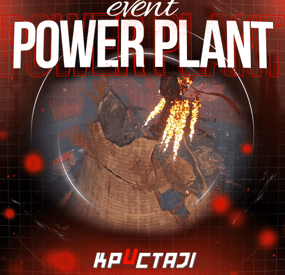
Power Plant Event
It’s an Event in the Power Plant location
Description
The event begins with a chat warning: soon CH47 will get new crates with items for scientists to the Power Plant location.
When the time is up, the NPCs guarding this location will appear in the Power Plant zone. Then a water barrel will appear on the top of the central building. A CH47 will fly to this location to get new crates with items.
When the CH47 arrives in the Event zone, it will fail to control and crash in a cooling tower of the power plant. All the crates from the CH47 will be on the top of the cooling tower. But they will be in the fire. You need put out the fire to get access to the crates.
It is necessary to activate a fire system to put out the fire. A fire system is on the top of the central building. So a Workcart will arrive to the Event area to bring a barrel of water. You need move this water from the Workcart to the empty barrel on the top of the central building. As soon as you do this, you will be able to start the fire system by pressing a button.
When the fire system has activated, the fire in the cooling tower will be out. You will be able to access the crates in the cooling tower.
There is a camera in the location for viewing the event.
When an event appears, a marker will display on the map (it can set up in the configuration file).
All players in the event area have a timer with countdown to the end of the event
Dependencies Required
NpcSpawn
Dependencies (optional, not required)
True PVE PveMode GUI Announcements Notify Discord Messages AlphaLoot CustomLoot NTeleportation Economics Server Rewards IQEconomic Kits
Chat commands (only for administrators)
/ppstart - start the event
/ppstop - end the event
/pppos - determining the position and rotation coordinates for changing the location of NPCs and crates. It should write in the configuration (Attention! The event must be started, the current position of the administrator in relation to the Power Plant is read)
Console commands (RCON only)
ppstart - start the event
ppstop - end the event
Plugin Config
en - example of plugin configuration in English ru - example of plugin configuration in Russian
Hooks
void OnPowerPlantEventStart() – called when the event starts
void OnPowerPlantEventEnd() – called when the event ends
void OnPowerPlantEventWinner(ulong winnerId) – called at the end of the event, where the winnerId is the player who did more actions to complete the event
My Discord: KpucTaJl#8923
Join the Mad Mappers Discord here!
Check out more of my work here!
-
$30.00
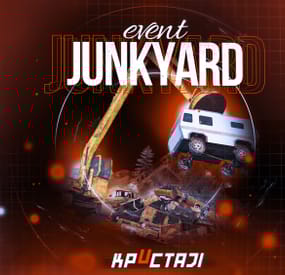
Junkyard Event
This event automatically takes place in the Junkyard location if on the map
Finally, the crane in Junkyard will have a true meaning and be fun again!
Description
The event begins with a notification in the chat that soon scavengers will arrive at Junkyard, who will have a rest there. Next, NPCs appear in the location, whose presets you can configure in the plugin configuration. A message appears in the chat that the scavengers hid a signal grenade in one of the broken cars at the landfill to call for supplies. The player needs to kill all the NPCs and find the rusted car in which the grenade is hidden.
In order to find and activate the signal grenade, use a crane to load rusted cars into a shredder for recycling, it's bound to be in one of them! The number of rusted cars in the landfill is regulated by the value in the configuration. The required car is selected at random from the group. The player needs to recycle the rusted cars one by one until he finds the one in which the signal grenade is located in! After the player recycles the broken car, a plane will fly to the Junkyard location, on board of which there will be a truck with supplies. The plane will drop this truck and it will land in Junkyard via parachute. Once it lands, guards will come out of the truck and guard it. But the truck is closed, it cannot be opened. The player needs to kill these guards to get access to the truck. In order for the player to get access to the crates and the loot within, they need to recycle the truck by using the crane and placing it into the shredder! Next, the crates will travel along the conveyor belt of the shredder and the player will be able to open them. You can configure all the crates, their number and the loot in them, all in the plugin configuration.
Dependencies Required
NpcSpawn
Dependencies (optional, not required)
True PVE PveMode GUI Announcements Notify Discord Messages AlphaLoot CustomLoot NTeleportation Economics Server Rewards IQEconomic Kits
Chat commands (only for administrators)
/jstart - start the event
/jstop - end the event
/jpos - determining the position and rotation coordinates for changing the location of NPCs. It should write in the configuration (Attention! The event must be started, the current position of the administrator in relation to the Junkyard is read)
Console commands (RCON only)
jstart - start the event
jstop - end the event
Plugin Config
en - example of plugin configuration in English ru - example of plugin configuration in Russian
Hooks
void OnJunkyardEventStart() – called when the event starts
void OnJunkyardEventEnd() – called when the event ends
void OnJunkyardEventWinner(ulong winnerId) – called at the end of the event, where the winnerId is the player who did more actions to complete the event
My Discord: KpucTaJl#8923
Join the Mad Mappers Discord here!
Check out more of my work here!
- #broken cars
- #cargoplane
- (and 26 more)
-
$4.99
Gesture to Activate
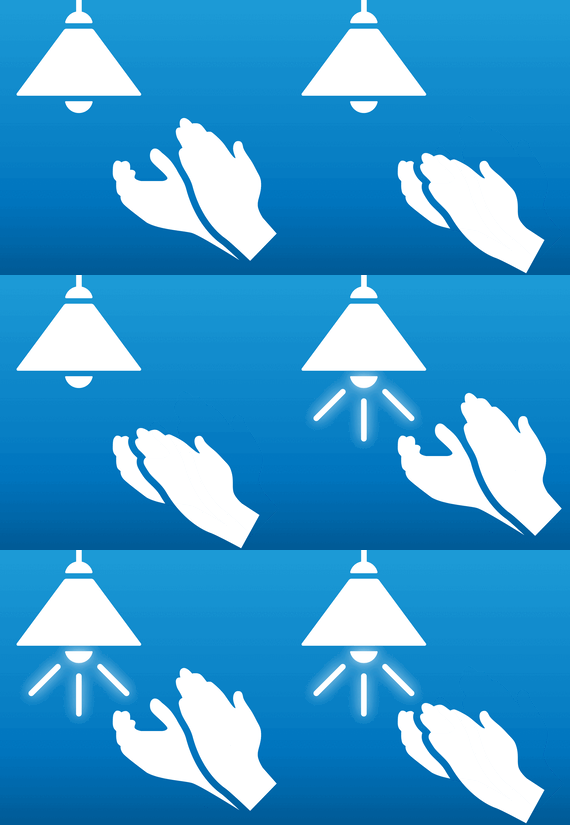
Gives players the option to activate Smart Switches with in game gestures. This allows you do to things like:
Clap to turn the lights on Wave to open a gate Turn on a turret unless you are surrendering! 😈 Whatever else you can think of!
How to Use
Its very simple and intuitive to use this plugin. No clunky commands or complicated setup. However it does require that you have a basic understanding of how to use electricity in Rust.
Make sure you have BOTH permissions. Place a Smart Switch, hook it up with a power source, and an output. You can make the output whatever you like, I recommend a light for an easy example. Hit the newly placed Smart Switch with a hammer, this will open up the new gesture configuration menu. Select whatever gesture(s) you want this switch to activate with. Then at the bottom of the menu, hit the button so that it reads "NO AUTH" (text may differ depending on your localization configuration). This is to ensure that you will not need building rights in order to activate this switch (if you have building rights then you can leave it on "REQUIRE AUTH". Close the menu using the X button in the top right. Open the gesture wheel and perform one of the gestures you configured to activate this switch with. If it is properly wired up, it should turn on! Features
Adds a new UI for Smart Switches that fits in with the Rust UI aesthetic and can be accessed by hitting the Smart Switch with a hammer The Smart Switch can be setup to toggle with ANY combination of Rust gestures Can also be configured to only activate for those who are authed on the tool cupboard (if desired) Permissions
gesturetoactivate.set - required to configure smart switches with gestures gesturetoactivate.use - required to activate an already configured smart switch with a gesture
Note: If you want to test this plugin out you will need BOTH of these! Commands
None! - Okay there is a few, but they are only used by the UI, so you don't need to worry about them (players cannot use them). The only one you might want to know if is: gta.close - this will force close the UI menu in the event that it is stuck and the close button is not working (shouldn't happen) Default Config
Activation Delay - This is the time it takes for the switch to toggle after using a gesture (in seconds). Activation Range - The distance a switch can be activated with a gesture from. Gesture Images - You can change the icon of each of the gestures here (in case these links stop working). Message Avatar ID - If you have Show Messages enabled, you can change the icon in which these messages will be displayed. Put a Player ID or Steam Profile ID here. Show Messages - Set to false if you do not wish to see any of the chat messages displayed by the plugin. UI Open SFX - The sound effect that is played when the gesture menu is opened. Set to "" to disable. UI Updated SFX - The sound effect that is played when the gesture menu is closed. Set to "" to disable. { "Activation Delay (seconds)": 1.0, "Activation Range": 20.0, "Gesture Images": { "Gesture.Clap": "GestureToActivate\\images\\clap.png", "Gesture.Friendly": "GestureToActivate\\images\\surrender.png", "Gesture.Hurry": "GestureToActivate\\images\\hurry.png", "Gesture.Ok": "GestureToActivate\\images\\ok.png", "Gesture.Point": "GestureToActivate\\images\\point.png", "Gesture.Shrug": "GestureToActivate\\images\\shrug.png", "Gesture.ThumbsDown": "GestureToActivate\\images\\thumbsdown.png", "Gesture.ThumbsUp": "GestureToActivate\\images\\thumbsup.png", "Gesture.Victory": "GestureToActivate\\images\\victory.png", "Gesture.Wave": "GestureToActivate\\images\\wave.png" }, "Message Avatar ID": 0, "Show Messages": true, "UI Open SFX": "assets/prefabs/locks/keypad/effects/lock.code.unlock.prefab", "UI Updated SFX": "assets/prefabs/locks/keypad/effects/lock.code.updated.prefab" } Default Localization (English)
{ "Directions": "Select the gestures that can activate this Smart Switch.", "Require Auth": "REQUIRE AUTH", "No Auth": "NO AUTH", "No Perm": "You do not have permission to set gesture activation for this object.", "Set Gestures": "You can setup this Smart Switch to be controlled with gestures. Hit it with a hammer to configure these settings." } Donation Link
Buy me a coffee here!
- #gesture
- #electrical
- (and 1 more)
-
$30.00
Admin Menu
Manage your Rust server easier and more efficiently with the AdminMenu plugin. Track players, interact with them, edit their data and permissions, as well as change server convars and manage plugins.
Features:
Menu retains its state after closing, you won't lose everything you did before. Ability to fully translate the menu into any language. Large range of permissions for each action, will allow you to flexibly customize the admin menu for each group of administrators. Quick menu that allows you to perform quick actions Full list of players with the ability to filter by online, offline, admins and moderators. Also has a frame of different colors depending on the level of authorization. Wide range of information and actions for the selected player. Editing convars with search. Has a complete list of editable convars with descriptions for some of them. Extensive issue menu by category, with easy management of name, skin and amount (manual, +1, +100, +1000, +10000). Plugin management menu. It is possible to reload, unload or load a plugin easily and quickly. Updates occur in real time. Ability to create your own custom buttons that execute several commands Quick Start:
You install the plugin in the plugins folder. Give yourself the adminmenu.fullaccess permission.
Commands, use one of your choice, one for the player and one for the admin group: o.grant user [name or steamid] adminmenu.fullaccess o.grant group admin adminmenu.fullaccess Press the X button (swap seat button) or type adminmenu in the console. Enjoy
Useful stuff:
You can quickly open a player in the admin menu. To do this, point at the player and press X.
You don't have to hover over the player exactly, you will be able to open players within a certain radius of the place you are looking at.
CUSTOM BUTTONS
Custom buttons are buttons that when pressed will execute commands on behalf of the administrator, commands can be several, below will be the details.
At the moment, custom buttons can be created in two places: in the quick menu and in the menu when selecting a player. These places are separated in the config.
Button Fields:
"Execution as server" - Call the command on behalf of the server, not the administrator "Label" - Text that will be on the button, for each such inscription creates a field in the lang file, accordingly you can translate this text into several languages. "Commands" - Array of commands that will be executed on behalf of the administrator. Chat commands require a special entry, see examples. "Permission"- permission to display and use the button. You need to write the permission that will be after "adminmenu.".
Example: if you enter the permission "test" the permission will be adminmenu.test "Position" - The location for the button, the first number is responsible for the row number, the second for the position within the row, starts from 0.There are limits of locations, if you have gone beyond the limit - the button will not be displayed. Common Tags: {adminUID} - administrator's id. {position} - administrator coordinates (underfoot) {view_position} - the position where the administrator is looking (can be used for spawning or something similar) {view_direction_forward} - forward view direction of the administrator {view_direction_backward} - the direction the administrator is looking backwards {view_direction_left} - direction of the administrator’s view to the left {view_direction_right} - administrator’s view direction to the right Tags for target only: {steamid}, {steamID}, {userID}, {STEAMID}, {USERID} - mean the same thing, namely the id of the selected player. {target_position} - target coordinates (underfoot)
Example of commands:
chat.say \"/{chat command}\" vanish ban {steamID} teleport {steamID} {adminUID}
More information about the grant menu:
The grant menu includes the full list of items including hidden items as well as custom items created by the CustomItemDefinitions library.
The menu can be accessed from the navigation or from the menu of the selected player. When issuing itself has categories.
Search works in any registry by any part of the name or short name.
Has a page system at any stage.
More information about the buttons in the Quick Menu:
[Teleport to 0 0 0] - Teleport to coordinates 0 0 0.
Requires adminmenu.quickmenu.teleportto000 permission [Teleport to Deathpoint] - Teleport to your deathpoint.
Requires adminmenu.quickmenu.teleporttodeath permission [Teleport to Spawn point] - Teleport to a random spawn point.
Requires adminmenu.quickmenu.teleporttospawnpoint permission [Kill Self] - Kill Self, kills even when immortal.
Does not require permission. [Heal Self] - Fully heal yourself.
Requires adminmenu.quickmenu.healself permission [Call Heli] - Call Helicopter to yourself (arrives in time).
Requires adminmenu.quickmenu.helicall permission [Spawn Bradley] - Spawn bradley on yourself.
Requires adminmenu.quickmenu.spawnbradley permission More information about the buttons in the menu of the selected player:
[Teleport Self To] - Teleport yourself to the selected player.
Requires adminmenu.userinfo.teleportselfto permission [Teleport To Self] - Teleport the selected player to yourself.
Requires adminmenu.userinfo.teleporttoself permission [Teleport To Auth] - Teleportation to random authorization (TC).
Requires adminmenu.userinfo.teleporttoauth permission [Teleport to Deathpoint] - Teleportation to a player's deathpoint. Requires adminmenu.userinfo.teleporttodeath permission [Heal] - Full healing, including metabolism.
Requires adminmenu.userinfo.fullheal permission [Heal 50%] - Half healing.
Requires adminmenu.userinfo.halfheal permission. [View Inventory] - View and edit player's inventory.
Requires adminmenu.userinfo.viewinv permission [Strip Inventory] - Clear player's inventory.
Requires adminmenu.userinfo.stripinventory permission [Unlock Blueprints] - Unlock all Blueprints.
Requires adminmenu.userinfo.unlockblueprints permission [Revoke Blueprints] - Reset all Blueprints.
Requires adminmenu.userinfo.revokeblueprints permission. [Kill] - Kill a player.
Requires adminmenu.userinfo.kill permission [Kick] - Kick a player.
Requires adminmenu.userinfo.kick permission [Ban] - Ban a player.
Requires adminmenu.userinfo.ban permission More information about the buttons in the menu of the selected group:
[Remove Group] - Remove group, has confirmation.
Requires adminmenu.groupinfo.removegroup permission [Clone Group] - Clone group with the ability to copy users.
Requires adminmenu.groupinfo.clonegroup permission Permissions:
adminmenu.use - Ability to use admin menu with basic set. Open tab quick menu (each button has its own permission, without permissions is present only kill yourself button) and the list of players. adminmenu.fullaccess - Full access to all functions without the need for each permission, includes also adminmenu.use. It is recommended to give only to the main administrators. adminmenu.quickmenu.teleportto000 - Access to the button in the quick menu, teleportation to coordinates 0 0 0 0. adminmenu.quickmenu.teleporttodeath - Access to the button in the quick menu, teleportation to the point of your death. adminmenu.quickmenu.teleporttospawnpoint - Access to the button in the quick menu, teleportation to a random spawn point. adminmenu.quickmenu.healself - Access button in quickmenu, heal yourself completely. adminmenu.quickmenu.helicall - Access to the button in the quick menu, call a helicopter to yourself (arrives in time). adminmenu.quickmenu.spawnbradley - Access button in quickmenu, spawn bradley. adminmenu.userinfo.teleportselfto - Access to the button in the menu of the selected player, teleportation to the selected player. adminmenu.userinfo.teleporttoself - Access to the button in the menu of the selected player, teleport the selected player to himself. adminmenu.userinfo.teleporttoauth - Access to the button in the menu of the selected player, teleportation to random authorization (TC). adminmenu.userinfo.teleporttodeath - Access to the button in the menu of the selected player, teleportation to the place of death of the player. adminmenu.userinfo.fullheal - Access to the button in the menu of the selected player, full healing, including metabolism. adminmenu.userinfo.halfheal - Access to the button in the menu of the selected player, half healing. adminmenu.userinfo.viewinv - Access to the button in the selected player's menu, view and edit the player's inventory. adminmenu.userinfo.stripinventory - Access to the button in the menu of the selected player, clear the player's inventory. adminmenu.userinfo.unlockblueprints - Access the button in the menu of the selected player, unlock all drafts. adminmenu.userinfo.revokeblueprints - Access to the button in the menu of the selected player, reset all drafts. adminmenu.userinfo.kill - Access the button in the selected player's menu to kill the player. adminmenu.userinfo.kick - Access the button in the selected player's menu to kick the player. adminmenu.userinfo.ban - Access to the button in the menu of the selected player, ban the player. adminmenu.groupinfo.removegroup - Access to the button in the menu of the selected group, the ability to remove the group. adminmenu.groupinfo.clonegroup - Access to the button in the menu of the selected group, the ability to clone the group. adminmenu.convars - View and edit convars. adminmenu.permissionmanager - View and edit permissions in groups, player groups, create, delete and clone groups (requires additional permissions from these buttons). adminmenu.pluginmanager - Access to plugin management, reloading, unloading, loading plugins. adminmenu.give - Access to give resources, as well as yourself and the selected player.