
Tikomatura's Wishlist
-
$19.99
Loadout Controller
Loadout controller is made to assist in allowing your Battlefield or even PVE community to thrive with customizable loadouts.
FEATURES
- Supports infinite permission groups - Easy UI system to modify permission groups - PERMISSION GROUP OPTIONS: - Item saving amount per item - Item saving amount per category (Weapons, attire, etc*) - Blacklisted ammo types loaded in weapons - Blacklied skin ID's - Priority settings - Max saves per permission - ETC* - Plyers can easily save their loadouts through the UI or chat commands. - The UI shows players exactly what items they can save, can't save, or can only save part of. - You can easily delete, override, select, or save new loadouts through the UI. - You can see what items are in your currently selected loadout in the UI - Loadouts automatically apply when a player respawns - Extremely performant UI system
- #loadout
- #controller
- (and 5 more)
-
$15.00
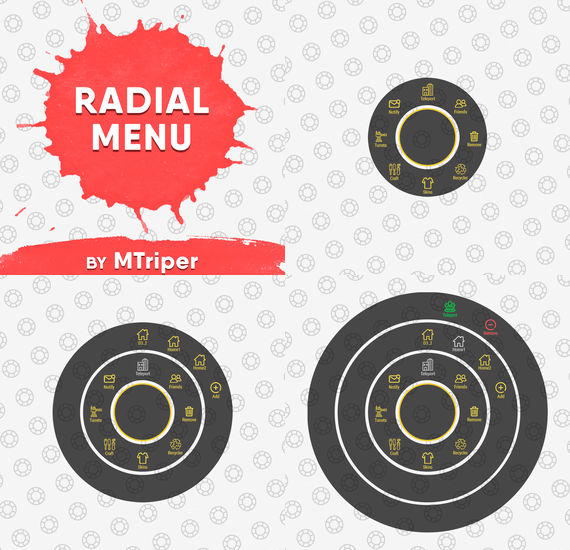
Radial Menu
The radial menu is a customizable quick access panel with all popular and frequently used server commands. It makes it a lot easier and faster to interact with various server mechanics, be it teleportation, trades, setting house points and various panels.
Features
Allows to almost completely eliminate the manual entry of commands by the player. Automatic calculation and arrangement of any number of sections/subsections on a circle. Several display effects. Tracks a press of the MMB or on command (can be keyed to the same MMB). Checks for the privileges of a particular command, before executing it. Ability to use your own panel images. Full customization of the location and scale of icons and panel. Support for popular plugins (NTeleportation, TeleportGUI, Clans, Friends and Rust teams). Executing console or chat commands.
General settings
Track MMB presses to open a radial menu? - if the player has a MMB bind, the plugin will not open the Radial Menu.
The command to open the radial menu - you can use both the command and the MMB tracking. When using MMB tracking and the command at the same time: If a player has a MMB bind, his bind will be executed when he clicks on it, and the Radial Menu will not open. If there is no bind, the player can use both the command and the MMB press.
Upload images to players when they connect? - when a player connects to the server, the plugin will automatically download 3 images of menu rings to his client. This avoids displaying black rectangles when opening the menu while the plugin is downloading the images to the client.
Section/Subsection settings
The plugin has main sections (level 1), subsections at level 1 (level 2) and subsections at level 2 (level 3).
Section name - the name of the section, which is displayed under the icon.
Enable this section? – on/off section.
Section permission [required] - permission required for the plugin to work (without dots). Add "_add" to the end of the name so that the plugin does not register or check permissions for child subsections.
Section icon - direct link to the icon (recommended size 64x64).
Fill icon with color below? - Completely fills the icon with the color set below.
Inactive/active section color [HEX or Unity RGBA] - The plugin supports 2 types of colors: HEX (e.g. "#57de54" or "#57de54ff") and Unity RGBA ("0.34 0.87 0.33 1").
Command executed on behalf of the player - if you do not have subsections in this section, the command (without the "/" if chat) that will be executed for that player is specified here. You can specify multiple commands using commas (e.g. "radar ui, vanish, adminpanel hide"). If there are subsections in this section, the command is not specified. Specify %steamid% or %username% so that the plugin replaces them with the data of the player on whose behalf the command is executed.
Command type - Where to run this command: true - chat, false - console.
Permissions for above command - if the command above is specified, you can specify the privileges of that command in this field (e.g. "removertool.normal, removertool.structure, removertool.external"). The plugin will check if the player has these privileges before executing the command.
Show this section only to those with permissions above? - allows to draw the section automatically (without giving permissions to this plugin) if the player has command permissions.
Show this section even to those who don't have permissions? - forcibly displays the section to all players, even those who do not have privileges to it (if you click on it, a message about lack of permissions will be displayed in chat).
Subsections layout [n - number] - this setting is responsible for how subsections are arranged.
0 - automatically. Suppose you have 10 subsections, then 360 degrees / 10 subsections = 36 degrees. The plugin will automatically position the 10 subsections every 36 degrees (clockwise, starting from the top). n - from the beginning. The plugin will arrange the subsections clockwise, starting from the top, not automatically, but in a certain step. For example, you have 3 subsections, but you do not want them to be automatically scattered all around the circle, you want them to be displayed at the top, with some small step, this step will be calculated due to the conditional number of subsections n (for example, 15). Now 360 degrees / 15 conditional subsections = 24 degrees, then your 3 subsections will be positioned from the beginning and there will be 24 degrees between them. -n - from the active item. The plugin will arrange the subsections relative to the active section. For example, you have 3 subsections, but you don't want them to be automatically scattered all around the circle, and you also don't want them to be arranged in some clockwise, starting from the top. By choosing this type of arrangement, the subsections will be located in the same place as the active section, in the increments you specify. It works the same way as above, only n is specified with a minus sign (for example, -15, the minus is needed for the plugin to understand what type of arrangement to use). All examples of the layout of the subsections are present in the standard config.
Permissions
It may be unclear how permissions work in this plugin. Let's figure it out with a simple example from the standard config.
It's not hard to figure out that this is the home point section of the standard config. To exclude identical names of permissions the plugin converts them to this form.
Because of the large number of permissions generated by the plugin, there are mechanics for reducing them. If you add "_all" to any section, in the "permission" field, the plugin will not register the permissions of child subsections. For example, if the player has the permission "_homes_all", then all displayed houses, all commands (add, remove, etc.), in general everything that belongs to the section "_homes_all" will obey and is checked by the permission "radialmenu._homes_all". The "permission" fields of the child sections still have to be filled in for the plugin to work.
I strongly recommend using the "Permissions Manager" plugin to set privileges for players or groups. It draws a simple interface, through which it is very easy to add or remove permissions.
Teleportation
The plugin supports work with teleportation plugins (set/remove/teleport to home point) NTeleportation, TeleportGUI and Teleportation by OxideBro (for RU server owners).
To do this, in the main section (level 1), you must specify the permission of the "_homes" section, this is necessary for the plugin to understand that it will work with the teleport plugin.
Next, in the subsection "_homes" (level 2) you must add the MAXIMUM number of displayed house points, for example 5. If the player has more house points than this number, then only the first 5 will be displayed, if less, then all of them will be displayed. For each such point, you must set its unique name, which begins with "home_n", where "n" is any unique number or word (e.g. home_1, home_2, etc.). In addition to the house points here you can place a section with the establishment of the house point, its name should be "home_add", and the command "home add {0}" (command your plugin teleport), where {0} - the name of the new house point, the plugin itself will set it relative to the square in which the player at the moment is (for example D3, if there are several in the square, then D3h1, D3h2, etc.).
After that, in the subsections (level 3) of each such house point, you can specify commands relating specifically to it. For example: "home {0}", "home remove {0}" or any other commands, where {0} is the name of the specific house, the plugin itself will substitute it when executing the command.
If you find all of the above complicated, you can take a look at the standard config as an example.
Friends
The plugin supports work with plugins Friends, Clans by k1lly0u and Rust teams.
Here everything is set up similar to Teleportation. But for the plugin to understand what to work with, in the main section (level 1) you must specify one of the three options:
"_teammates" - the plugin will work with Rust teams "_friends" - the plugin will work with the Friends plugin "_clans" - the plugin will work with the Clans plugin In subsections (level 2) you must add the MAXIMUM number of displayed friends, for example 8. If the player has more friends than this number, then only the first 8 will be displayed, if less, then all of them will be displayed. For each friend you must set its unique name, which begins with "friend_n", where "n" is any unique number or word (for example friend_1, friend_2, etc.).
After that, in the subsections (level 3) of each friend you can specify commands specific to him. For example: "tpr {0}", "trade {0}" or any other commands, where {0} is the nickname of the player, the plugin itself will substitute it when executing the command.
An example of the configuration of this section is also present in the standard config.
Plugin Config
Example of plugin configuration in English
Example of plugin configuration in Russian. If you need Russian config, open it (RadialMenu.cs) before loading the plugin, and at the top set the variable "isRus = true". Then save and upload this file to your server.
-
$9.99
Offline Raid Announcer
OFFLINE RAID ANNOUNCER
══════════════════════
Never miss a raid again. Whether your players are online watching it unfold or logging back in to discover what happened while they were away, Offline Raid Announcer keeps everyone informed, engaged, and coming back for more.
▌ WHY SERVER OWNERS LOVE IT
Offline raids are the most frustrating experience in Rust — and the most common reason players quit. This plugin transforms that frustration into engagement by giving raid victims real-time alerts, detailed statistics, and a clear picture of what happened to their base. Players who feel informed stick around. Players who log in to a silent, looted base often don't.
▌ KEY FEATURES
► SMART OFFLINE RAID DETECTION
Automatically identifies raids on offline and recently offline players, with a configurable grace period so players who just logged off still get their base protected by the alert system.
► INTELLIGENT FILTERING
Twig structures are ignored to eliminate false positives from soft-side bashing. A configurable raid threshold prevents alerts from single-door breaks. If any of the owner's teammates are online, the announcement is suppressed — no spam during active defenses.
► REAL-TIME NOTIFICATIONS
Online players, teammates, and admins get instant alerts the moment a raid kicks off. Two independent cooldowns (standard and MLRS-specific) keep things clean during heavy raid sessions.
► DEDICATED MLRS VOLLEY HANDLING
A separate, configurable cooldown specifically for MLRS rockets prevents notification floods when an entire volley lands on the same base.
► CATCH-UP ALERTS ON RECONNECT
Players who were offline during the attack get a full summary the moment they log back in — including grid, raider name, and a multi-raid summary if they were hit more than once.
► TEAM-AWARE SYSTEM
Notifies the raider's teammates as well, keeping group raids coordinated and giving the raider's crew a heads-up that one of their own is mid-raid.
► LIVE MAP MARKERS
Drops a visible red radius marker at the raid location for the configured duration, so allies can rally to defend or investigate.
► PERSISTENT RAID STATISTICS
Tracks every raid event per player. /raidinfo shows total raids, last raid time and grid, the most frequent raider against you, and the most-destroyed entity type. Admins can look up any player's stats.
► DISCORD INTEGRATION (TWO WAYS)
Works with the popular DiscordMessages plugin if you have it installed, or sends rich, fielded embeds directly via webhook with no dependencies. Color-coded, properly formatted, ready for clan channels or admin logs.
► CARBON & OXIDE COMPATIBLE
Auto-detects the framework on startup and uses the correct data handling for each, with built-in fallbacks. No special build required.
► ZONEMANAGER SUPPORT
Exclude safe zones, event arenas, or PvE regions from raid detection.
► FULL LOCALISATION SUPPORT
Every player-facing message is registered in the language file and ready for translation.
► WIPE-FRIENDLY
Optional automatic data clearing on server wipe keeps stats fresh each cycle.
▌ COMMANDS
/raidinfo
View your own raid statistics
Permission: offlineraidannouncer.stats
/raidinfo [player]
View statistics for another player
Permission: offlineraidannouncer.admin
/raidstats
Alias for /raidinfo
Permission: same as /raidinfo
/ofra.clear
Clear all stored raid data
Permission: offlineraidannouncer.admin
▌ PERMISSIONS
offlineraidannouncer.receive
Receive raid notifications (automatically granted to the default group)
offlineraidannouncer.bypasscooldown
Bypass notification cooldowns
offlineraidannouncer.stats
View raid statistics
offlineraidannouncer.admin
Full administrative access
▌ CONFIGURATION
Every aspect of the plugin is fully configurable. The keys below match what you'll see when you open the config file.
Notification Cooldown (seconds) ............... 600
Cooldown before a player can trigger another raid notification for the same base
Include Owner Name ............................ true
Include the base owner's name in alerts
Include Raider Name ........................... true
Include the raider's name in alerts
Wipe Data On Wipe ............................. false
Clear stored data when the server wipes
Notify Raiders Team ........................... true
Alert the raider's teammates that they're raiding
Save Raid Statistics .......................... true
Track and store per-player raid statistics
Notify Offline On Reconnect ................... true
Send a summary to victims when they log back in
Recently Offline Time (seconds) ............... 300
How long after disconnect a player still counts as "recently offline"
Use Discord Webhook ........................... false
Send raid alerts to a Discord webhook
Discord Webhook URL ........................... (your URL)
Your Discord webhook URL
Excluded Zones ................................ []
Zone names to exclude from detection (requires ZoneManager)
Raid Threshold ................................ 3
Minimum raid events on the same base (within roughly 10 minutes) before triggering an alert
Show Map Marker ............................... true
Display a map marker at the raid location
Map Marker Duration (seconds) ................. 300
How long the map marker stays visible
Admin Only Notifications ...................... false
Restrict in-game notifications to admins only
MLRS Volley Cooldown (seconds) ................ 15
Dedicated cooldown for MLRS rocket impacts on the same base
Monitored Entities ............................ (see below)
Entity types tracked for raid detection
Default monitored entities:
BuildingBlock, Door, StorageContainer, ExternalWall, Lock, Trap, Barricade, SleepingBag, Turret, Furnace, Workbench, ToolCupboard, VendingMachine, SamSite, Embrasure, WindowBars, HighExternalGate
▌ DISCORD SETUP
Get raid alerts pushed straight to your Discord server in three steps:
1. Create a webhook in your Discord server settings
(Server Settings → Integrations → Webhooks)
2. Set "Use Discord Webhook" to true in the plugin config
3. Paste your webhook URL into "Discord Webhook URL"
Every detected offline raid will then appear in your chosen Discord channel as a properly formatted embed with owner, grid, raider, and timestamp fields. If you also have the DiscordMessages plugin installed, the plugin will automatically use it instead.
▌ DEPENDENCIES
Optional:
• ZoneManager — required only for zone-based exclusions
• DiscordMessages — used automatically if installed; otherwise the plugin sends webhooks directly
▌ COMPATIBILITY
Works on both Oxide and Carbon. The plugin auto-detects your framework on load.
▌ SUPPORT
Questions, feedback, or feature requests? Drop a message in the support thread and I'll get back to you quickly.
-
$25.00
Power Plant Event
It’s an Event in the Power Plant location
Description
The event begins with a chat warning: soon CH47 will get new crates with items for scientists to the Power Plant location.
When the time is up, the NPCs guarding this location will appear in the Power Plant zone. Then a water barrel will appear on the top of the central building. A CH47 will fly to this location to get new crates with items.
When the CH47 arrives in the Event zone, it will fail to control and crash in a cooling tower of the power plant. All the crates from the CH47 will be on the top of the cooling tower. But they will be in the fire. You need put out the fire to get access to the crates.
It is necessary to activate a fire system to put out the fire. A fire system is on the top of the central building. So a Workcart will arrive to the Event area to bring a barrel of water. You need move this water from the Workcart to the empty barrel on the top of the central building. As soon as you do this, you will be able to start the fire system by pressing a button.
When the fire system has activated, the fire in the cooling tower will be out. You will be able to access the crates in the cooling tower.
There is a camera in the location for viewing the event.
When an event appears, a marker will display on the map (it can set up in the configuration file).
All players in the event area have a timer with countdown to the end of the event
Dependencies Required
NpcSpawn
Dependencies (optional, not required)
True PVE PveMode GUI Announcements Notify Discord Messages AlphaLoot CustomLoot NTeleportation Economics Server Rewards IQEconomic Kits
Chat commands (only for administrators)
/ppstart - start the event
/ppstop - end the event
/pppos - determining the position and rotation coordinates for changing the location of NPCs and crates. It should write in the configuration (Attention! The event must be started, the current position of the administrator in relation to the Power Plant is read)
Console commands (RCON only)
ppstart - start the event
ppstop - end the event
Plugin Config
en - example of plugin configuration in English ru - example of plugin configuration in Russian
Hooks
void OnPowerPlantEventStart() – called when the event starts
void OnPowerPlantEventEnd() – called when the event ends
void OnPowerPlantEventWinner(ulong winnerId) – called at the end of the event, where the winnerId is the player who did more actions to complete the event
My Discord: KpucTaJl#8923
Join the Mad Mappers Discord here!
Check out more of my work here!
-
$30.00
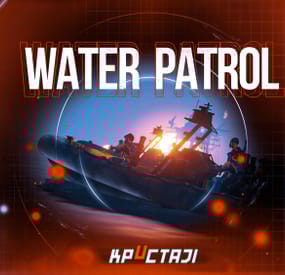
Water Patrol
A plugin that spawns in NPC controlled RHIBS which act as stationary patrols in the ocean and along the coastline waiting and looking for players. Once engaged, players have the choice to attack them for loot or flee for their lives!
Description
This plugin will spawn RHIBs with NPCs on your server that will act as stationary patrols, they will remain in place and search for players that enter their sight, at which point they will pursue the player.
The player has the option of escaping the patrol, or they can fight the NPCs and if successful and victorious, you can take the loot they hold in their boat!
Should the player have a base on the beach, or decide to hide inside anywhere near the waters edge, the NPCs will not hesitate to pull out their rocket launchers and go to work trying to raid their defensive positions!
In the configuration for the plugin you can create several patrol presets, each having their own population on the map. Adjust also the amount of NPCs in the boat, their clothing and weapons, all of their parameters for difficulty and challenge, as well as adjust and customize the loot table for each preset, including custom spawn locations for the stationary patrols.
The best map for the plugin to work is a map with a lot of sea. I can recommend the maps of the Mad Mappers team developers.:
Land Of Enmity Arhipelago
Dependencies Required
NpcSpawn
Plugin Config
en - example of plugin configuration in English ru - example of plugin configuration in Russian
My Discord: KpucTaJl#8923
Join the Mad Mappers Discord here!
Check out more of my work here!
- #boat
- #facepunch
- (and 15 more)