

crash
-
Posts
394 -
Joined
-
Last visited
-
Days Won
3
Content Type
Profiles
Warranty Claims
Downloads
Forums
Store
Services
Downloads Plus Support
DOWNLOADS EXTRA
Reels
Everything posted by crash
-
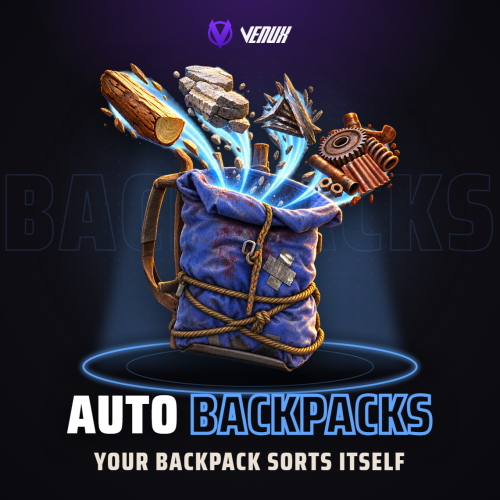 Pushed new version. adding capacity to change backpack spaces between permission tiers
 -
-
Hello Venda! yes, currently facepunch/normal ingame backpack. about sizing i could take a look
-
 Hello, yes! can be done. Send me a friend request on discord to discuss it further craaaash
 -
Version 3.0.0
67 downloads
[ ! ] The zip contains a DLL extension that goes into RustDedicated_Data/Managed. Some hosts do not allow uploading DLLs - check with your host before buying. [ ! ] Auto Backpacks keeps Rust's wearable backpacks organised without players having to open anything. What does not fit the main inventory slips into the backpack they are wearing, priority items go to the belt, the items they never want moved stay where they are, and the backpack sorts itself by category. Permission tiers then add room on top of the small and large backpack: up to 8 tiers and 60 slots, with a separate size for each backpack. When a player loses a tier, the extra items land in a drop bag at their feet instead of vanishing. Players run everything from one in-game window, redesigned in 3.0 (Backpack, Settings, My Items and Capacity Tiers), with a compact HUD that shows used and free slots. Owners get an admin editor, so nobody has to edit the config file. Works on Needs Languages Capacity Oxide and Carbon CrashExtensions 1.12.6+ (included) 8 built in up to 8 tiers, 60 slots Jump to: Features · Screenshots · Trailer · Capacity tiers · Commands · Permissions · Install · Configuration · FAQ Features For players Auto move. An item that reaches a full inventory (gathered, looted, crafted or handed out by a kit) goes into the worn backpack instead of the floor. Priority items. By default wood, stones, metal ore, cloth and leather go to a free belt slot first. Owners can send them to the top of the backpack instead, or keep them in the inventory. Never-move items. Keycards stay where they are by default, and every player can add their own items to either list (24 per list) from a searchable picker with category filters. Smart sort. When a player finishes looting a box or a body with a full inventory, up to 10 items move into the backpack. Category sorting. The backpack keeps itself sorted by category, and one button (or /ab sort) sorts it on demand. Capacity HUD. A compact widget left of the belt (right of it while in a team) shows the backpack, the slots used and the extra slots. Its colour changes at 40, 70 and 90 percent, and it pulses red once when the backpack becomes full. Settings per player. Every feature can be switched off from the Settings tab, and notices can come as a toast, in chat, as a game tip or not at all. For server owners Capacity tiers. Up to 8 tiers and 60 slots, with separate sizes for the large and the small backpack. The highest tier a player has wins, and a tier whose permission belongs to another plugin (a VIP plugin, for example) works as it is. Drop bags. With the default settings, items above a player's capacity (a lost tier, or a dropped backpack holding extra items) go into drop bags at their feet. They last 30 minutes and hold 30 items each, up to 5 bags per drop. Admin editor. /ab admin edits the general settings, the tiers, the server item lists, the drop bags and the notifications in game, and a dialog gives an online player a tier. Changes apply at once. Next-tier panel. Players see every tier, their own and how to get the next one: a chat message or a server console command that you set, such as one that opens your store. 8 languages. English, German, Spanish, French, Italian, Portuguese (Brazil), Russian and Ukrainian are built in, and each player sees the language of their own game. NCP support. With NCP (Notification Center Pro) loaded, notices can go through it instead of the plugin's own toast. Screenshots Every screen below is Auto Backpacks running in Rust. Backpack and capacity Settings My items Capacity tiers Searchable item picker Admin editor Player without a backpack In-game HUD Trailer The Auto Backpacks 3.0 trailer (click to play, 55 seconds) Capacity tiers Tier Permission Large backpack Small backpack Default none (everyone) 28 12 Small autobackpacks.capacity.small 34 18 Medium autobackpacks.capacity.medium 40 24 Large autobackpacks.capacity.large 46 30 Extra autobackpacks.capacity.extra 52 36 Ultimate autobackpacks.capacity.ultimate 58 42 How tiers work: the highest tier a player has wins. Rename them, resize them or add your own in the admin editor, up to 8 tiers and 60 slots. Slots above Rust's own 28 and 12 show in blue in the Backpack tab. Commands Command What it does /ab Open the window /ab backpack, /ab settings, /ab items, /ab tiers Open it on that tab /ab star Add the item in your hand to your priority list /ab never Add the item in your hand to your never-move list /ab sort or /ab organize Sort your backpack by category /ab auto Turn auto move on or off /ab cap or /ab capacity Show your backpack's slots in chat Admin Command What it does /ab admin Open the admin editor (needs autobackpacks.admin) autobackpack.reload Server console: re-read the config file. A broken file is kept as a copy and the running settings stay autobackpack.updatecapacity Server console: apply the capacity tiers to every online player now The chat command can be renamed in the config. The HUD widget opens the window too, and players can bind a key from their F1 console: bind b autobackpacks.open Permissions Permission What it unlocks autobackpacks.use Required for everything below. Without it a player keeps the vanilla backpack autobackpacks.ui The /ab window autobackpacks.automove What does not fit the inventory goes into the backpack autobackpacks.smartsort After looting a box or a body, a full inventory moves into the backpack autobackpacks.priority Priority items and the personal priority list autobackpacks.categorysort The backpack keeps itself sorted by category autobackpacks.organize The sort button and /ab sort autobackpacks.admin The admin editor and tier grants. Staff only The tier permissions (autobackpacks.capacity.*) are in the table above and are configurable. A feature a player has no permission for shows as VIP ONLY on its card in the Settings tab, so permissions double as a natural VIP upsell. A typical setup gives everyone the basics and keeps the extras for your VIPs: oxide.grant group default autobackpacks.use oxide.grant group default autobackpacks.ui oxide.grant group default autobackpacks.automove oxide.grant group default autobackpacks.smartsort oxide.grant group default autobackpacks.categorysort oxide.grant group default autobackpacks.organize oxide.grant group vip autobackpacks.priority oxide.grant group vip autobackpacks.capacity.medium Install Install the extension, once per server. Stop the server, copy Oxide.Ext.CrashExtensions.dll into RustDedicated_Data/Managed (Carbon: carbon/extensions) and start it again. The console prints Loaded extension CrashExtensions with its version. An older copy of the DLL is simply overwritten: it is one shared file for all our plugins. Install the plugin. Copy AutoBackpacks.cs into oxide/plugins (Carbon: carbon/plugins). It compiles on its own and creates its config, data and language files. Grant the permissions above, give yourself autobackpacks.admin and open /ab admin to tune everything else in game. Plugin does not compile? The extension is missing or too old: check the folder and restart again. On a hosting panel, upload the DLL with the file manager or SFTP, and keep a copy in case the panel resets that folder on an update. Updating from 2.x? Install the extension and restart once, then replace AutoBackpacks.cs. Your config moves to the 3.0 layout on the first load (the old file is kept as oxide/config/AutoBackpacks.v2-backup.json), every player's switches and lists carry over, and nobody loses slots on that load. Back up your config and data first. Configuration Everything lives in oxide/config/AutoBackpacks.json, and the admin editor changes the same settings in game. Each player's switches and lists are stored in oxide/data/AutoBackpacks_Users.json. Config sections (click to expand) FAQ Q: Does this create a separate virtual backpack? A: No. It works with the small and large backpack items players wear, and it never gives anyone a backpack. Q: Do players need every permission? A: No. Grant autobackpacks.use and only the features you want. The window needs autobackpacks.ui, and autobackpacks.admin stays with your staff. Q: How much capacity can I configure? A: Up to 8 tiers and 60 slots. Each tier has its own large and small backpack size, and the shipped Ultimate tier is 58 / 42. Q: Does a tier upgrade charge an economy plugin? A: No payment flow is built in. The next-tier button shows a message or runs a server console command that you set, so it can point at your store or your VIP plugin. Q: What happens when a player loses a tier? A: With the default settings, items above the new capacity move into drop bags at their feet. When you update from 2.x, backpacks are not shrunk on the load that migrates the config. Q: Do I need NCP or VenuxUpdater? A: No. NCP is optional, and without it the plugin shows its own toast. VenuxUpdater is an optional extra in the zip that keeps the extension up to date, and it does nothing until you turn it on. Q: Does it contact any outside service? A: Only to download its icons, buttons and art (54 small images) once from cdn.crashplugins.space, which your server then caches. Nothing about your server or your players is sent. Q: Does it work on Carbon? A: Yes. The extension goes into carbon/extensions instead of RustDedicated_Data/Managed, and everything else is the same. Q: How do I translate it? A: Eight languages are built in. Edit oxide/lang/<language>/AutoBackpacks.json, or copy the English file to a new language folder and translate its values. Questions, ideas or bug reports? Use the Support tab of this file or join our Discord.$12.99- 9 comments
-
- 1
-

-
- #backpack
- #backpacks
- (and 7 more)
-
Version 2.0.3
275 downloads
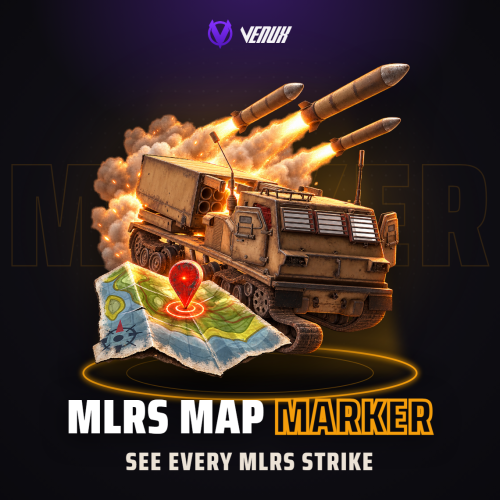
MlrsMapMarker is a plugin that provides real-time MLRS strike information on the in-game map. It uses advanced, non-intrusive Harmony patches to detect when an MLRS is fired, automatically creating a temporary map marker at the target location visible to all players, and broadcasting crucial strike details to the chat. Main Features Automatic Map Markers: Instantly creates a visible marker on the map for all players the moment an MLRS is aimed and fired, showing the exact impact zone. Real-time Strike Alerts: Notifies the entire server via chat about incoming rocket strikes, increasing situational awareness. Impact Time Calculation: Features a sophisticated algorithm to calculate and announce the estimated time until rocket impact, allowing players to react. Customizable Notifications: Server owners can configure marker duration, icon, color, and label. Chat notifications can be toggled and customized to show either grid references or precise coordinates. Grid Reference System: Translates world coordinates into an easy-to-read map grid reference (e.g., H15) for quick communication. Performance Optimized: Built with a lightweight footprint, using an efficient timer to clean up expired map markers and ensure minimal server impact. Harmony-Powered: Utilizes Harmony patching for seamless and reliable integration with the game's core mechanics without altering game files. Permissions mlrsmapmarker.admin: Allows an admin to use the mlrs.clear console command to remove all active markers from the map. Chat Commands /mlrs: Displays a list of all currently active MLRS strikes, including their target grid, the name of the attacker (if enabled), and the time to impact. Console Commands mlrs.clear: Immediately removes all active MLRS markers from every player's map. Config: { "MarkerDuration": 45.0, "MarkerIcon": 4, "MarkerColor": 3, "MarkerLabel": "MLRS Strike!", "ShowChatNotification": true, "ShowPlayerName": true, "CleanupInterval": 10.0, "ShowGridReference": true, "AutoShowToAllPlayers": true } Lang: { "NoActiveStrikes": "<size=14>:yellowpin: <color=#2C3E50>NO ACTIVE MLRS STRIKES</color></size>\n<size=7><color=#7F8C8D>\n</color></size><size=12><color=#ECF0F1>The battlefield is currently clear of incoming rockets</color></size>", "ActiveStrikesHeader": "<size=16>:exclamation: <color=#E74C3C>MLRS STRIKE ALERT</color></size>\n<size=7><color=#7F8C8D>\n</color></size><size=14><color=#F39C12>ACTIVE STRIKES </color><color=#7F8C8D>· </color><color=#ECF0F1>({0}) INCOMING</color></size>", "StrikeInfo": "<size=12>· <color=#3498DB>Grid: </color><color=#2ECC71>{0}</color> <color=#7F8C8D>| </color><color=#3498DB>Operator: </color><color=#ECF0F1>{1}</color></size>\n<size=12>· <color=#3498DB>Impact in: </color><color=#E74C3C>{2}s</color> <color=#7F8C8D>| </color><color=#3498DB>Status: </color><color=#F39C12>INCOMING</color></size>\n<size=7><color=#7F8C8D>\n</color></size>", "StrikeInfoNoPlayer": "<size=12>· <color=#3498DB>Grid: </color><color=#2ECC71>{0}</color> <color=#7F8C8D>| </color><color=#3498DB>Impact in: </color><color=#E74C3C>{1}s</color></size>\n<size=12>· <color=#3498DB>Status: </color><color=#F39C12>INCOMING</color> <color=#7F8C8D>| </color><color=#3498DB>Threat Level: </color><color=#E74C3C>HIGH</color></size>\n<size=7><color=#7F8C8D>\n</color></size>", "IncomingStrikeWithGrid": "<size=16>:skull: <color=#E74C3C>MLRS STRIKE INCOMING</color></size>\n<size=7><color=#7F8C8D>\n</color></size><size=14><color=#F39C12>TARGET </color><color=#7F8C8D>· </color><color=#ECF0F1>GRID COORDINATES</color></size>\n<size=12>· <color=#3498DB>Grid: </color><color=#2ECC71>{0}</color> <color=#7F8C8D>| </color><color=#3498DB>Operator: </color><color=#ECF0F1>{1}</color></size>\n<size=7><color=#7F8C8D>\n</color></size><size=11><color=#E74C3C>:exclamation: SEEK IMMEDIATE SHELTER :exclamation:</color></size>", "IncomingStrikeWithCoords": "<size=16>:skull: <color=#E74C3C>MLRS STRIKE INCOMING</color></size>\n<size=7><color=#7F8C8D>\n</color></size><size=14><color=#F39C12>TARGET </color><color=#7F8C8D>· </color><color=#ECF0F1>COORDINATES</color></size>\n<size=12>· <color=#3498DB>Position: </color><color=#2ECC71>{0}</color> <color=#7F8C8D>| </color><color=#3498DB>Operator: </color><color=#ECF0F1>{1}</color></size>\n<size=7><color=#7F8C8D>\n</color></size><size=11><color=#E74C3C>:exclamation: SEEK IMMEDIATE SHELTER :exclamation:</color></size>", "MarkersCleared": "<size=14>:coffeecan: <color=#2ECC71>MARKERS CLEARED</color></size>\n<size=12><color=#ECF0F1>All MLRS markers have been removed from the map</color></size>", "NoActiveMarkers": "<size=12>:yellowpin: <color=#7F8C8D>No active MLRS markers found</color></size>", "MarkersListHeader": "<size=14>:clipboard: <color=#2ECC71>MLRS TRACKING</color> <color=#7F8C8D>· </color><color=#ECF0F1>({0}) ACTIVE</color></size>", "MarkerListItem": "<size=11>· Grid {0} ({1}) by {2} ({3}s remaining)</size>", "TrackedTargetsHeader": "<size=12>:yellowpin: <color=#3498DB>Tracked MLRS targets: </color><color=#F39C12>{0}</color></size>", "TrackedTargetItem": "<size=11>· MLRS at {0} -> Target: {1}</size>" }Free -
I forgot to pass a variable, fixed in 3.0.3
-
Hello, please reach out in Discord DMs so i can provide different version! craaaash
-
Changed Status from Pending to Fixed Changed Fixed In to Next Version
-
Changed Status from Pending to Fixed Changed Fixed In to Next Version
-
Hello! uMod Update?
-
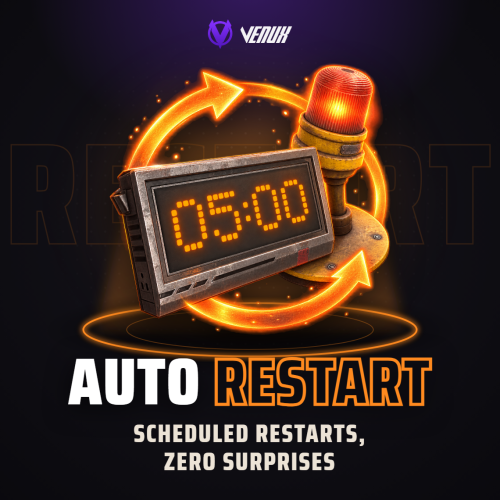 Hola! Actualmente no, puede ser para una actualización esta función! De todos modos puedes modificar el embed a como te guste con /restart config
 -
hello! please disable this option and let me know
-
Version 4.0.0
182 downloads
Ore Spawn Scaler is a professional, high-performance ore generation system designed to give server administrators complete control over the ore population. Replace Rust's unpredictable default spawns with a fully customizable, grid-based engine that ensures balanced and optimized resource distribution across your entire map. [ ! ] PLEASE KEEP IN MIND THAT CERTAIN SERVER HOSTS DO NOT ALLOW YOU [ ! ] [ ! ] TO IMPORT FILES/DLLS, WHICH THIS PLUGIN REQUIRES YOU TO [ ! ] INCLUDED DLL EXTENSIONS REQUIRED Main Features Interactive UI: A sleek, modern, and intuitive in-game UI allows administrators to modify all core spawning parameters in real-time without needing to edit configuration files. Grid-Based Spawning: Distributes ore nodes across the map using a fully configurable grid system for even and predictable placement, with options to add random offsets for a more natural look. Biome-Specific Probabilities: Define unique spawn probabilities for Stone, Metal, and Sulfur in each of Rust's four biomes (Temperate, Arid, Tundra, Arctic), giving you unparalleled control over your server's resource landscape. Advanced Spawn Control: Intelligently prevents ore from spawning in unwanted areas, including in water, near player buildings, inside monuments, on roads, or on excessively steep slopes. High-Performance Engine: Utilizes a highly optimized, queue-based batch spawning system to generate thousands of nodes with minimal impact on server performance, ensuring a smooth experience for your players. In-Game Map Visualization: Administrators can instantly view all spawned ore nodes directly on the in-game map. Nodes are represented by color-coded markers, making it easy to verify spawn densities and patterns at a glance. Full Customization: Control everything from spawn density (grid size) and batch sizes to minimum distances from players and buildings. Permissions orespawnscaler.use: Grants administrative access to the main configuration UI (/oregen) and allows usage of the UI buttons to save, reload, and reset the ore spawns. orespawnscaler.show: Grants access to commands for displaying and hiding the ore node markers on the in-game map. Chat Commands /oregen: Opens the main configuration UI. /oreshow: Displays all custom-spawned ore nodes on the player's map for 30 seconds. /orehide: Clears the ore node markers from the player's map. /orehelp: Shows a list of available commands in chat. Config { "Stone Settings": { "Grid Size": 150.0, "Prefab Path": "assets/bundled/prefabs/autospawn/resource/ores/stone-ore.prefab", "Biome Probabilities": { "Arid Biome": 0.3, "Temperate Biome": 0.4, "Arctic Biome": 0.2, "Tundra Biome": 0.35 }, "Enabled": true }, "Metal Settings": { "Grid Size": 200.0, "Prefab Path": "assets/bundled/prefabs/autospawn/resource/ores/metal-ore.prefab", "Biome Probabilities": { "Arid Biome": 0.25, "Temperate Biome": 0.3, "Arctic Biome": 0.35, "Tundra Biome": 0.25 }, "Enabled": true }, "Sulfur Settings": { "Grid Size": 180.0, "Prefab Path": "assets/bundled/prefabs/autospawn/resource/ores/sulfur-ore.prefab", "Biome Probabilities": { "Arid Biome": 0.4, "Temperate Biome": 0.25, "Arctic Biome": 0.15, "Tundra Biome": 0.3 }, "Enabled": true }, "Debug Mode": false, "Spawn Delay (seconds)": 1.0, "Min Distance From Players": 175.0, "Min Distance From Buildings": 28.0, "Water Buffer Height": 1.5, "Max Slope Angle": 35.0, "Batch Size": 10 }$9.99 -
Changed Status from Work in Progress to Can't Reproduce
-
Hello sir! After checking on investigating and seeing other plugins codes, Restart plugins cannot re-launch windows servers after it was shutdown, because it is not possible. You will need an external solution to that. Maybe https://en.wikipedia.org/wiki/Windows_Task_Scheduler or RSMhttps://www.rustservermanager.com/ ! Something like that.
-
Custom Images Break Discord Notifications and Status Colors
crash replied to SpookyBoo12's Support Report in Support
Changed Status from Work in Progress to Closed Changed Fixed In to 3.0.1 -
Changed Status from Pending to Work in Progress
-
Custom Images Break Discord Notifications and Status Colors
crash replied to SpookyBoo12's Support Report in Support
Changed Status from Pending to Work in Progress -
Changed Status from Pending to Fixed Changed Fixed In to 3.0.0
-
Changed Status from Pending to Work in Progress Changed Fixed In to 3.0.0
-
Changed Status from Pending to Fixed Changed Fixed In to 3.0.0
-
o.grant grouo admin autorestart.use sir, about windows ill take a look tonight for a potential fix.
-
thank you!
-
Nope, not normal. It should pass the "restart" command that is a rust built in command can you show me a picture of your console?