Works with
Optional integrations and compatible files.
About AutoBackpacks
[ ✓ ] Works on any host. [ ✓ ]
The plugin needs the free CrashExtensions library. Can't upload DLLs on your host? No problem: the zip includes a small installer plugin. Drop it in your plugins folder, run crashext.install, restart once, and you're done.

Auto Backpacks keeps Rust's wearable backpacks organised without players having to open anything. What does not fit the main inventory slips into the backpack they are wearing, priority items go to the belt, the items they never want moved stay where they are, and the backpack sorts itself by category.
Permission tiers then add room on top of the small and large backpack: up to 8 tiers and 60 slots, with a separate size for each backpack. Bonus slot permissions stack on top of any tier, so you can give everyone who joins your Discord +4 slots whatever their rank. When a player loses a tier, the extra items land in a drop bag at their feet instead of vanishing.
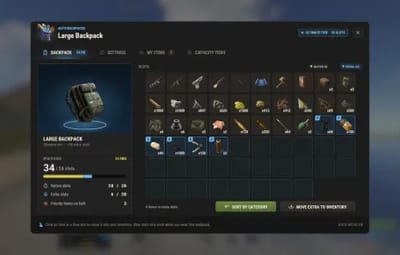
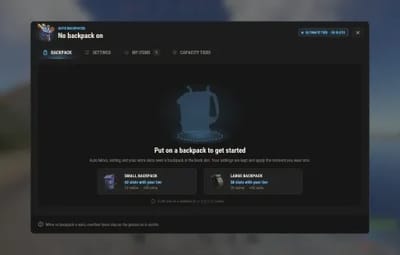
Players run everything from one in-game window, redesigned in 3.0 (Backpack, Settings, My Items and Capacity Tiers), with a compact HUD that shows used and free slots. Owners get an admin editor, so nobody has to edit the config file.
| Works on | Needs | Languages | Capacity |
|---|---|---|---|
| Oxide and Carbon | CrashExtensions 1.12.6+ (1.12.12 included) | 8 built in | up to 8 tiers, 60 slots, bonus slots |
Jump to: Features · Screenshots · Trailer · Capacity tiers · Commands · Permissions · Install · Configuration · Test server · FAQ
 Features
For players
- Auto move. An item that reaches a full inventory (gathered, looted, crafted or handed out by a kit) goes into the worn backpack instead of the floor.
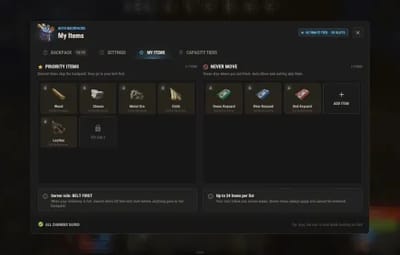
- Priority items. By default wood, stones, metal ore, cloth and leather go to a free belt slot first. Owners can send them to the top of the backpack instead, or keep them in the inventory.
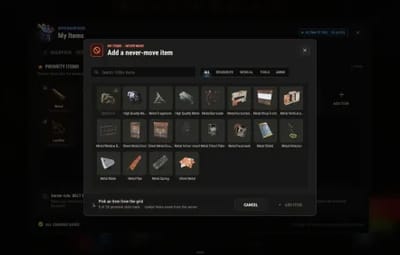
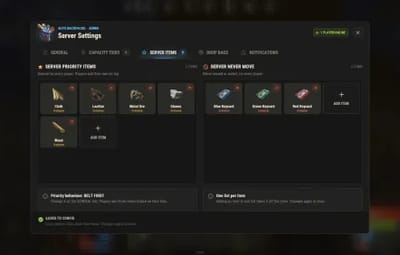
- Never-move items. Keycards stay where they are by default, and every player can add their own items to either list (24 per list) from a searchable picker with category filters.
- Smart sort. When a player finishes looting a box or a body with a full inventory, up to 10 items move into the backpack.
-
Category sorting. The backpack keeps itself sorted by category, and one button (or
/ab sort) sorts it on demand. - Split stacks merge. When the same item sits half in the inventory and half in the backpack, the backpack half joins the inventory stack, so the slot frees up and crafting, building and reloading still see it.
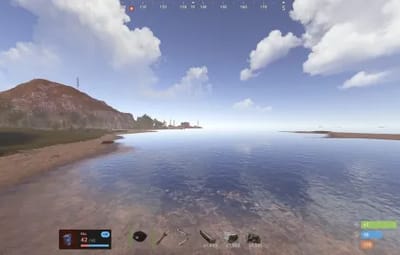
- Capacity HUD. A compact widget left of the belt (right of it while in a team) shows the backpack, the slots used and the extra slots. Its colour changes at 40, 70 and 90 percent, and it pulses red once when the backpack becomes full.
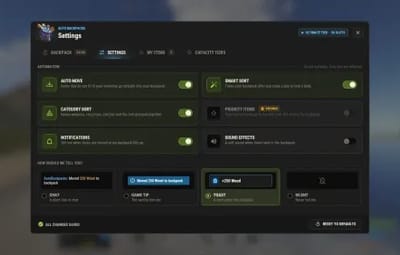
- Settings per player. Every feature can be switched off from the Settings tab, and notices can come as a toast, in chat, as a game tip or not at all.
For server owners
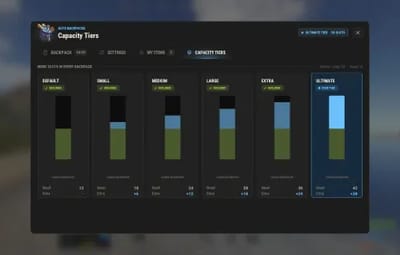
- Capacity tiers. Up to 8 tiers and 60 slots, with separate sizes for the large and the small backpack. The highest tier a player has wins, and a tier whose permission belongs to another plugin (a VIP plugin, for example) works as it is.
-
Bonus slots. Permissions that add slots on top of whatever tier a player has, and add up with each other (60 at most). The default gives
autobackpacks.bonus.discord+4, ready for your Discord link plugin, and players see their bonus on their own tier card. - Drop bags. With the default settings, items above a player's capacity (a lost tier, or a dropped backpack holding extra items) go into drop bags at their feet. They last 30 minutes and hold 30 items each, up to 5 bags per drop.
-
Admin editor.
/ab adminedits the general settings, the tiers, the server item lists, the drop bags and the notifications in game, and a dialog gives an online player a tier. Changes apply at once. - Next-tier panel. Players see every tier, their own and how to get the next one: a chat message or a server console command that you set, such as one that opens your store.
- 8 languages. English, German, Spanish, French, Italian, Portuguese (Brazil), Russian and Ukrainian are built in, and each player sees the language of their own game.
- NCP support. With NCP (Notification Center Pro) loaded, notices can go through it instead of the plugin's own toast.
 Screenshots
Every screen below is Auto Backpacks running in Rust.

|
|---|
| Backpack and capacity |

|

|
|---|---|
| Settings | My items |

|

|
|---|---|
| Capacity tiers | Searchable item picker |

|

|
|---|---|
| Admin editor | Player without a backpack |

|
|---|
| In-game HUD |
 Trailer
The Auto Backpacks 3.0 trailer (click to play, 55 seconds)

 Capacity tiers
| Tier | Permission | Large backpack | Small backpack |
|---|---|---|---|
| Default | none (everyone) | 28 | 12 |
| Small |
autobackpacks.capacity.small
|
34 | 18 |
| Medium |
autobackpacks.capacity.medium
|
40 | 24 |
| Large |
autobackpacks.capacity.large
|
46 | 30 |
| Extra |
autobackpacks.capacity.extra
|
52 | 36 |
| Ultimate |
autobackpacks.capacity.ultimate
|
58 | 42 |
How tiers work: the highest tier a player has wins. Rename them, resize them or add your own in the admin editor, up to 8 tiers and 60 slots. Slots above Rust's own 28 and 12 show in blue in the Backpack tab.
Bonus slots: list a permission and a number of slots under "Bonus slots" in the config, and everyone with that permission gets those slots on top of their tier, on both backpacks. A player with Ultimate (58) and the +4 Discord bonus gets 60, the cap.
 Commands
| Command | What it does |
|---|---|
/ab
|
Open the window |
/ab backpack, /ab settings, /ab items, /ab tiers
|
Open it on that tab |
/ab star
|
Add the item in your hand to your priority list |
/ab never
|
Add the item in your hand to your never-move list |
/ab sort or /ab organize
|
Sort your backpack by category |
/ab auto
|
Turn auto move on or off |
/ab cap or /ab capacity
|
Show your backpack's slots in chat |
Admin
| Command | What it does |
|---|---|
/ab admin
|
Open the admin editor (needs autobackpacks.admin)
|
autobackpack.reload
|
Server console: re-read the config file. A broken file is kept as a copy and the running settings stay |
autobackpack.updatecapacity
|
Server console: apply the capacity tiers to every online player now |
The chat command can be renamed in the config. The HUD widget opens the window too, and players can bind a key from their F1 console: bind b autobackpacks.open
 Permissions
| Permission | What it unlocks |
|---|---|
autobackpacks.use
|
Required for everything below. Without it a player keeps the vanilla backpack |
autobackpacks.ui
|
The /ab window
|
autobackpacks.automove
|
What does not fit the inventory goes into the backpack |
autobackpacks.smartsort
|
After looting a box or a body, a full inventory moves into the backpack |
autobackpacks.priority
|
Priority items and the personal priority list |
autobackpacks.categorysort
|
The backpack keeps itself sorted by category |
autobackpacks.organize
|
The sort button and /ab sort
|
autobackpacks.admin
|
The admin editor and tier grants. Staff only |
autobackpacks.bonus.discord
|
The default bonus: +4 slots on top of any tier (add your own bonuses in the config) |
The tier permissions (autobackpacks.capacity.*) are in the table above and are configurable. A feature a player has no permission for shows as VIP ONLY on its card in the Settings tab, so permissions double as a natural VIP upsell.
A typical setup gives everyone the basics and keeps the extras for your VIPs:
oxide.grant group default autobackpacks.use
oxide.grant group default autobackpacks.ui
oxide.grant group default autobackpacks.automove
oxide.grant group default autobackpacks.smartsort
oxide.grant group default autobackpacks.categorysort
oxide.grant group default autobackpacks.organize
oxide.grant group vip autobackpacks.priority
oxide.grant group vip autobackpacks.capacity.medium
oxide.grant group discord autobackpacks.bonus.discord
 Install
-
Install the extension, once per server. Stop the server, copy
Oxide.Ext.CrashExtensions.dllintoRustDedicated_Data/Managed(Carbon:carbon/extensions) and start it again. The console printsLoaded extension CrashExtensionswith its version. An older copy of the DLL is simply overwritten: it is one shared file for all our plugins. -
Install the plugin. Copy
AutoBackpacks.csintooxide/plugins(Carbon:carbon/plugins). It compiles on its own and creates its config, data and language files. -
Grant the permissions above, give yourself
autobackpacks.adminand open/ab adminto tune everything else in game.
Plugin does not compile? The extension is missing or too old: check the folder and restart again. On a hosting panel, upload the DLL with the file manager or SFTP, and keep a copy in case the panel resets that folder on an update.
Host doesn't allow DLL uploads? Put
CrashExtInstaller.csfrom the zip in your plugins folder and runcrashext.installonce in the server console: it downloads the extension from GitHub, checks it and puts it in place.
Updating from 3.0? Just replace
AutoBackpacks.cs. Your config and data stay, and the new options (Bonus slots, Merge split stacks) are added with their defaults. A tier whose permission name is invalid in the config now applies to nobody until you fix it.
Updating from 2.x? Install the extension and restart once, then replace
AutoBackpacks.cs. Your config moves to the 3.0 layout on the first load (the old file is kept asoxide/config/AutoBackpacks.v2-backup.json), every player's switches and lists carry over, and nobody loses slots on that load. Back up your config and data first.
 Configuration
Everything lives in oxide/config/AutoBackpacks.json, and the admin editor changes the same settings in game. Each player's switches and lists are stored in oxide/data/AutoBackpacks_Users.json.
Config sections (click to expand)
| Section | What it controls |
|---|---|
| Chat command |
The command name, ab by default
|
| Capacity tiers | The tiers, the bonus slot permissions, drop bags when a tier is lost, the capacity message, permission and group watching, the next-tier panel |
| Auto move and sorting | Items moved per smart sort and its cooldown, category sorting and the category order, merging split stacks |
| Priority items | On or off, the behaviour (belt first, top of the backpack or keep in the inventory) and the server's priority items |
| Never move items | The server's never-move items |
| Personal list size | 24 per list |
| Drop bags | On or off, despawn time, items per bag, bags per drop |
| HUD widget | Always, only while extra slots hold items, or off, and its position alone and in a team |
| Capacity colours | The four colours of the capacity bar |
| Notifications | Cooldown, the style for new players, toast seconds, NCP |
| Sounds and animations | The effect played for each action (empty is silent) and each animation on or off |
 Test server
Available on the new Meowcraft test server. Try AutoBackpacks before you buy: join and type /ab in chat.
client.connect 91.229.114.54:28015
 FAQ
FAQ
Q: Does this create a separate virtual backpack?
A: No. It works with the small and large backpack items players wear, and it never gives anyone a backpack.
Q: Do players need every permission?
A: No. Grant autobackpacks.use and only the features you want. The window needs autobackpacks.ui, and autobackpacks.admin stays with your staff.
Q: How much capacity can I configure?
A: Up to 8 tiers and 60 slots. Each tier has its own large and small backpack size, and the shipped Ultimate tier is 58 / 42.
Q: Can I give extra slots for joining Discord or boosting?
A: Yes. Grant autobackpacks.bonus.discord (+4 by default) to the group your Discord link plugin uses, or add your own bonus permissions in the config. Bonuses add up and stack on any tier, up to 60 slots.
Q: Does a tier upgrade charge an economy plugin?
A: No payment flow is built in. The next-tier button shows a message or runs a server console command that you set, so it can point at your store or your VIP plugin.
Q: What happens when a player loses a tier?
A: With the default settings, items above the new capacity move into drop bags at their feet. When you update from 2.x, backpacks are not shrunk on the load that migrates the config.
Q: Do I need NCP?
A: No. NCP is optional, and without it the plugin shows its own toast.
Q: My host doesn't allow DLL uploads. Can I still use it?
A: Yes. CrashExtInstaller.cs in the zip installs the extension with one console command, crashext.install.
Q: Does it contact any outside service?
A: Only to download its icons, buttons and art (54 small images) once from cdn.crashplugins.space, which your server then caches. Nothing about your server or your players is sent.
Q: Does it work on Carbon?
A: Yes. The extension goes into carbon/extensions instead of RustDedicated_Data/Managed, and everything else is the same.
Q: How do I translate it?
A: Eight languages are built in. Edit oxide/lang/<language>/AutoBackpacks.json, or copy the English file to a new language folder and translate its values.

Questions, ideas or bug reports? Use the Support tab of this file or join our Discord.