Works with
Optional integrations and compatible files.
About NCP
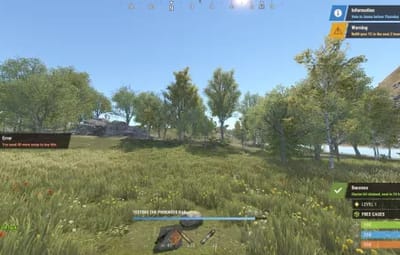
NCP is a free notification system for Rust servers. Your plugins call one method and the player gets a clean toast: a slanted icon tile, a dark card, the title in the type's accent colour and the message under it, sliding in at the corner you choose.
Every notification type has its own corner, colour, icon, sound, timing, animation and UI layer, and toasts that share a corner stack instead of overlapping. Four types ship ready (Information, Warning, Error and Success) and you can add your own. Plugins can also show a timed progress bar and merge repeated messages into one counter.
Everything can be tuned without touching a file: /ncp.edit opens an in-game editor where you drag toasts around your screen, pick icons from a browser and see every change live for all players. Notifications never take the mouse, so the map, the inventory and every other window keep working while they are on screen.

| Works on Oxide & Carbon | Free, CrashExtensions DLL included |
|---|---|
| 4 types ready, up to 50 | All 13 game UI layers, per type |
Jump to: Features · Screenshots · Live editor · Coming from Notify · UI layers · Commands · Permissions · Install · Configuration · FAQ · API
 Features
For players
- Clean toasts. An icon tile, a title and the message with an accent colour per type. Long messages get a taller two-line card by themselves.
- Real icons. Any Rust sprite, any item's own icon, any CUIIcons icon or a picture from a link.
- Never in the way. Notifications are click-through: the map, buttons and every other window keep working while they are on screen.
- No overlap. Toasts in the same corner stack in order and slide smoothly when one leaves. Each type shows up to its own limit at once and the rest wait in a queue.
- A sound per type. Each type can play its own game sound, heard only by the player who gets the notification.
- Your language. English, Spanish, Brazilian Portuguese and Russian built in.
For server owners
-
Drag-and-drop editor.
/ncp.editshows every type's toasts on your screen. Drag one to move its type; it snaps to the edges and the centre lines, and the vitals, team bar, chat, hotbar and compass areas are marked. - Eight anchors. The four corners, top and bottom centre, and middle left and right, with offsets and spacing.
- Smooth animations. Slide in from any side or diagonal, leave with a fade or a slide. They run on the client, so a busy server stays smooth.
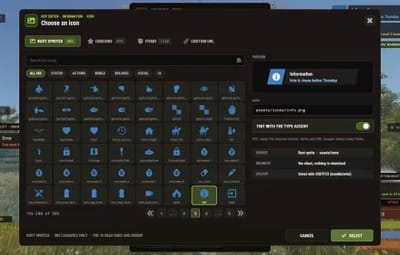
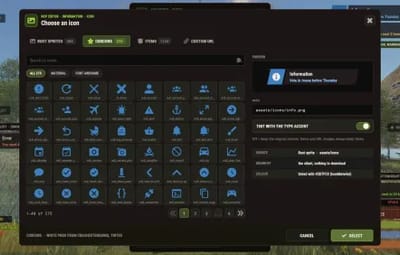
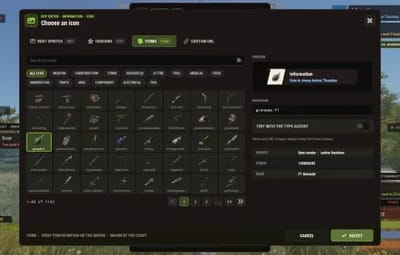
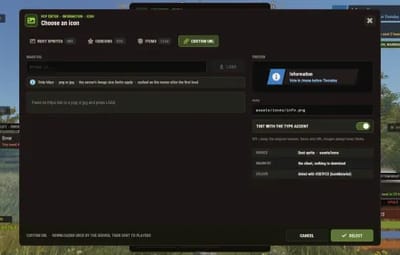
- Icon browser. 385 Rust sprites, the CUIIcons pack, every item and your own https links, with search and recent picks.
- All 13 UI layers, per type. A global default plus an optional layer for each type: over or behind the HUD, over the open map, or only while the inventory, crafting, contacts, clans, tech tree or map is open.
- Import from Notify. One click brings over the titles, colours, images, durations and sounds of Mevent's Notify.
- Chat fallback. If you make seeing toasts a permission, players without it can get the text in chat instead.
- Safe config. 1.4.x configs migrate by themselves with a backup, and a broken file is never saved over.
For developers
-
One call, unchanged.
SendNotifyfor one player (a BasePlayer, a SteamID string or a ulong) andSendNotifyAllPlayersfor everyone, the same as 1.4.x and Mevent's Notify. -
More when you want it.
SendNotifyExfor your own title, icon and a merging counter (x25 -> x50), and a progress bar API:SendProgress,CompleteProgress,CancelProgress,HasProgress. See the API. -
Console and RCON commands.
ncp.playerandncp.allplayerswork from the server console, RCON and other tools.
 Screenshots
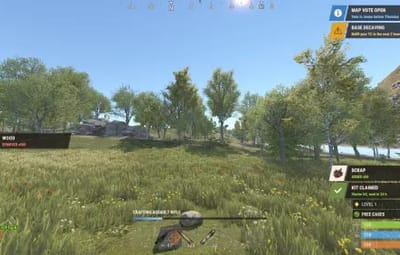
Every screen below is NCP running in Rust.
All four types and the progress bar

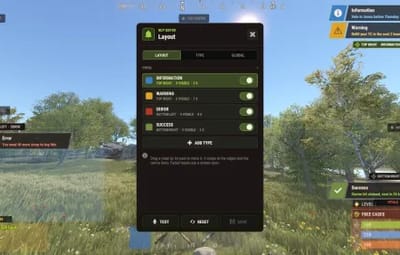
Live layout editor: drag a group, it snaps

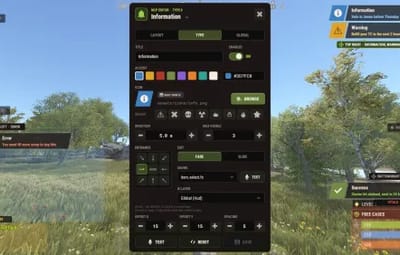
Per type: colour, icon, timing, animation, sound and UI layer

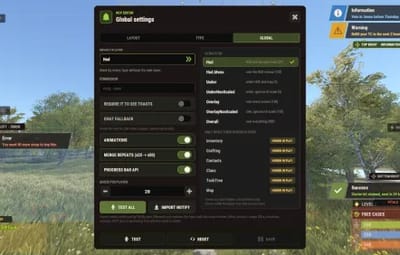
Global settings and the 13 UI layers

Icon browser: 385 Rust sprites

275 CUIIcons

Every item in the game

Or your own https image

 Live Editor
No file editing needed. /ncp.edit opens a panel in the middle of the screen with three tabs:
- LAYOUT - every type's toasts on your screen. Drag a toast by its card to move that type. It snaps to the screen edges and the centre lines, and the vitals, team bar, chat, hotbar and compass areas are marked so nothing hides under them
- TYPE - title, on or off, accent colour, icon (with a browser), duration, max visible, entrance, exit, sound with a test button, UI layer, offsets and spacing
- GLOBAL - the default UI layer, the see permission, chat fallback, animations, merge repeats, the progress bar API, the queue size, TEST ALL and IMPORT NOTIFY
TEST shows the type to you, RESET puts it back to its shipped values and SAVE writes the file. Changes reach every player at once and only go into the config when you save.
Who can open it: players with
ncp.edit, and server owners always. Nothing in the editor works for anyone else, even from the F1 console.
 Coming from Notify
NCP uses the same API as Mevent's Notify, so plugins written for Notify can send through NCP. To bring your Notify look over too, press IMPORT NOTIFY in the editor's GLOBAL tab or run ncp.importnotify in the server console. It reads oxide/config/Notify.json and replaces the NCP types with the same number (titles, colours, image links, durations and sounds), keeps the positions and layers of types you already had, and backs up NCP.json first.
Image links only come over from the console or for staff with
ncp.edit.urls. Without it, those types get the info or close icon.
 UI Layers
The Default UI layer in the config sets where notifications draw, and any type can pick its own. NCP accepts every layer the game offers.
Always shown
- Hud (default) - over the HUD. It shares the open map's drawing order, so either can end up on top
- Hud.Menu - over the HUD, the open map and the inventory screens
- Under - behind the HUD; the open map and the inventory screens cover it
- UnderNonScaled - like Under, ignoring the player's UI scale setting
- Overlay - over the open map and the inventory screens
- OverlayNonScaled - like Overlay, ignoring the player's UI scale setting
- Overall - above every other layer in this list
Only while their screen is open
- Inventory, Crafting, Contacts, Clans, TechTree and Map - over that screen, so notifications show only while the player has it open
Tip: to keep notifications on top of the open map, pick Hud.Menu, Overlay or Overall. To keep them hidden under it, pick Under.
 Commands
-
/ncp.show <type> <message>- show a notification to yourself, to test a type (needsncp.notify) -
/ncp.edit [type]- open the live editor (needsncp.edit, in game only) -
/ncp.player <player> <type> <message>- send a notification to one player (needsncp.player) -
/ncp.allplayers <type> <message>- send a notification to every online player (needsncp.allplayers) -
/ncp.importnotify- import Mevent's Notify config (needsncp.edit)
They also run from the server console and RCON, without the slash. <player> is a SteamID64 or a player name, and <type> is 0 Information, 1 Warning, 2 Error, 3 Success or the number of a custom type.
 Permissions
-
ncp.notify-/ncp.show -
ncp.player-/ncp.player -
ncp.allplayers-/ncp.allplayers -
ncp.edit- the live editor and/ncp.importnotify. Staff only -
ncp.edit.urls- custom icon links in the editor. Nobody has it by default -
ncp.see- seeing notifications, only checked when the config's permission setting is not empty
Server owners and the console can always use every command. A typical setup gives your staff group the commands:
oxide.grant group admin ncp.notify
oxide.grant group admin ncp.player
oxide.grant group admin ncp.allplayers
oxide.grant group admin ncp.edit
 Install
-
Install the extension. Copy
Oxide.Ext.CrashExtensions.dllfrom the zip intoRustDedicated_Data/Managed(Carbon:carbon/extensions) and restart the server. Host blocks DLL uploads? PutCrashExtInstaller.csin your plugins folder and runcrashext.installonce in the console. -
Install the plugin. Copy
NCP.csintooxide/plugins(Carbon:carbon/plugins). It compiles on its own and createsoxide/config/NCP.json. - Grant the permissions above to your staff.
-
Tune the look with
/ncp.editin game.
Updating from 1.4.x? 2.0 now needs CrashExtensions, and the DLL is in the zip. Replace
NCP.csafter installing it. Your config migrates by itself on the first load and the old file is kept asNCP.json.v1-backup. Plugins that call NCP need no change: same API, same commands, same permissions.
 Configuration
Everything lives in oxide/config/NCP.json, and the live editor changes the same settings in game.
- Default UI layer - where notifications draw, see UI layers
-
Permission required to see notifications - leave it empty and every player sees them; put
ncp.seeto make it a permission - Chat fallback - players who can't see toasts get the message in chat
- Animations, Merge repeats, Progress bar API enabled - global switches
- Queue per player - how many toasts can wait per player (1 to 100)
- Notification types - one entry per type number: 0 to 3 ship ready, add your own up to 50
Defaults: Information top right (5 s), Warning top right (7 s), Error bottom left (8 s), Success bottom right (5 s).
Settings of each type (click to expand)
- Enabled, Title - whether the type shows, and its title
- Accent colour, Subtitle colour - hex colours; an empty subtitle colour is worked out from the accent
- Icon, Tint icon - an item shortname, an assets/... sprite, a cuilib.icon.* key or an https link to a png or jpg
- Duration, Max visible - seconds on screen (1 to 120), and how many of this type show at once (1 to 10)
- Anchor - TopLeft, TopCenter, TopRight, MiddleLeft, MiddleRight, BottomLeft, BottomCenter or BottomRight
- Offset X, Offset Y, Spacing between toasts - the distance from the corner and the gap between toasts
- Entrance from, Exit - the side it slides in from (or None), and Fade or Slide to leave
- Sound effect prefab - the game sound played to the player; empty is silent
- UI layer - Global for the default layer, or one of the 13 layers
 FAQ
FAQ
Q: Why does 2.0 need a DLL?
A: The new toasts, animations and editor are built on CrashExtensions, so they stay smooth on busy servers. The DLL is in the zip, and CrashExtInstaller.cs installs it for you if your host blocks DLL uploads.
Q: Will my 1.4.x config and my other plugins keep working?
A: Yes. The config migrates on the first load with a backup (NCP.json.v1-backup), and SendNotify and SendNotifyAllPlayers work exactly as before.
Q: Is it still free?
A: Yes.
Q: Do notifications block the map or other windows?
A: No. Notifications are click-through: the map can be dragged, zoomed and clicked while they are on screen.
Q: Can I keep notifications over the open map, or under it?
A: Yes, with the UI layer: Hud.Menu, Overlay or Overall keep them on top of the map, and Under keeps them hidden under it. Hud, the default, shares the map's drawing order, so either can end up on top.
Q: Can I add my own notification types?
A: Yes, with ADD TYPE in the editor or a new number in the config, up to 50 types. A plugin that asks for a type that does not exist gets type 0's look.
Q: Who sees notifications?
A: Every player while the permission setting is empty. Set it to ncp.see and only players with that permission get them; turn on the chat fallback to send the others the text in chat.
Q: Does it contact any outside service?
A: It downloads three small card and tile pictures once from cdn.crashplugins.space through CrashExtensions, and any https icon link you set yourself. Nothing about your server or your players is sent anywhere.
Q: Can the titles be translated?
A: The commands and the editor come in English, Spanish, Brazilian Portuguese and Russian. Type titles are config values, so write them in your language. The message text comes from the plugin or command that sends it.
 API
API
[PluginReference] private Plugin NCP;

NCP?.Call("SendNotify", player, 0, "Welcome to the server!");          // BasePlayer
NCP?.Call("SendNotify", "76561198000000000", 1, "Low health!");        // SteamID as string
NCP?.Call("SendNotify", 76561198000000000UL, 2, "Access denied.");      // SteamID as ulong
NCP?.Call("SendNotifyAllPlayers", 3, "Event starting in 5 minutes!");  // every online player

NCP?.Call("SendNotifyEx", player, 3, "Gathered", "Wood", "wood", 25);   // own title and item icon, x25 merges into x50
NCP?.Call("SendProgress", player, "craft", "Crafting...", 10f, true);  // 10 s bar with a timer
NCP?.Call("CompleteProgress", player, "craft", null);                   // ends it green (CancelProgress ends it red)
NCP?.Call("HasProgress", player, "craft");                              // true while it runs
Types: 0 Information, 1 Warning, 2 Error, 3 Success, or any custom type number from the config. The new calls return false when nothing was shown.

Questions, ideas or bug reports? Use the Support tab of this file or join our Discord.