


-
Posts
101 -
Joined
-
Last visited
Content Type
Profiles
Warranty Claims
Downloads
Forums
Store
Services
Downloads Plus Support
DOWNLOADS EXTRA
Reels
Everything posted by Meowhuh
-
@idkrocky Can you please DM me on Discord? I want to send you an API key for translation to make the plugin work properly. My Discord ID: meowhuh43
-
Changed Status from Work in Progress to Fixed
-
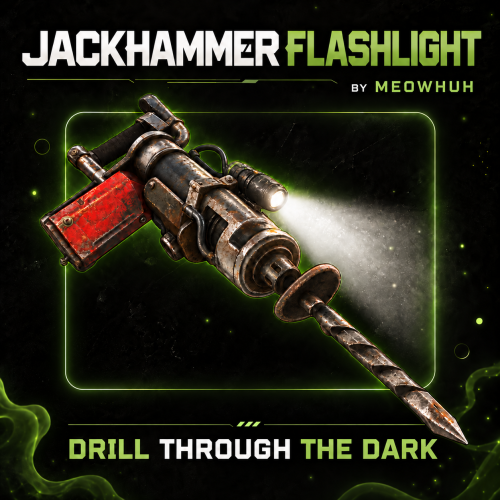 Glad it’s working well! Existing jackhammers keep their saved battery settings, so unlimited ones stay unlimited. Changing the configured duration applies to newly created ones. Thanks for the review, it helps me a lot!
-
Hi! The new version is now available! I've added the recharge system, and the flashlight should now work properly with the Item Perks plugin without removing or affecting any existing perks. Please update and give it a try, and let me know if everything works as expected!
- 9 comments
-
- 1
-

-
- #jackhammer
- #light
- (and 5 more)
-

Getting some heavy lag on server saves I don't know why
Meowhuh replied to SlayersRust's Support Report in Support
Hi, thanks for letting me know and for providing the logs and files! I'll look into what's causing these performance issues and work on fixing them. -
Getting some heavy lag on server saves I don't know why
Meowhuh replied to SlayersRust's Support Report in Support
Changed Status from Pending to Work in Progress -
I’ll check with the Item Perks developer to see how I can make the flashlight work without affecting your perks, then get back to you
- 9 comments
-
- 1
-
-
- #jackhammer
- #light
- (and 5 more)
-
Yeah Don't worry i will add something to look good
-
Currently, the battery can't be recharged once it's empty. However, you can set the battery duration in the config, including setting it to 0 for unlimited battery life. I'm also working on a recharge system that will include multiple options, such as recharging with resources, automatic recharging, workbench recharging, a recharge command, and replaceable batteries. Server owners will be able to choose their preferred recharge method in the config or disable recharging entirely. The update should be available tonight, in approximately 3/4 hours
- 9 comments
-
- 1
-
-
- #jackhammer
- #light
- (and 5 more)
-
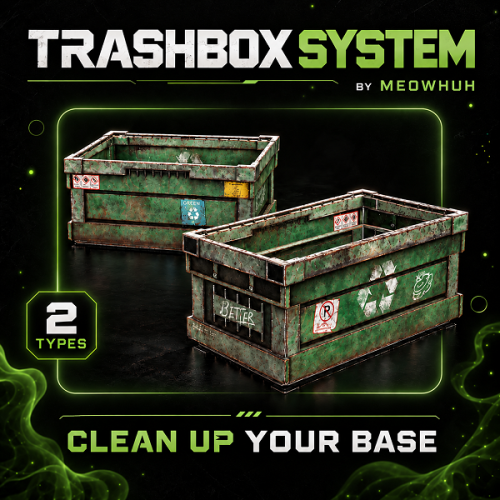
Version 1.0.0
7 downloads
Automatic item disposal with customizable trash boxes for Rust servers. Getting rid of unwanted items should not mean dropping everything on the ground or filling storage boxes with useless loot. TrashBoxSystem lets players dispose of unwanted items using special trash boxes that automatically delete their contents. Server owners can control how quickly items are deleted, require boxes to be closed before deletion, protect specific items from being discarded, and manage who can use trash boxes. With configurable box skins, permission-based access, item protection, and simple admin commands, TrashBoxSystem provides an easy way to manage item disposal without affecting normal storage boxes. Perfect for PvE, PvP, Vanilla+, modded, RPG/RP, survival, and high-population Rust servers. Features Automatically deletes unwanted items placed inside special trash boxes. Uses Large Wooden Boxes with a configurable skin ID to identify trash boxes. Normal storage boxes remain unaffected by the plugin. Instantly deletes eligible items when the deletion cooldown is disabled. Optional cooldown allows items to be deleted one stack at a time. Configurable deletion cooldown in seconds. Optional setting to delete items only when the trash box is closed. Supports combining close-only deletion with a configurable deletion cooldown. Block specific items from being placed inside trash boxes using their Rust item shortnames. Checks items inside other items to prevent protected contents from being discarded. Optional permission requirement for placing, opening, and picking up trash boxes. Admin permission automatically bypasses trash box usage restrictions. Admin command to give trash boxes to yourself or other online players. Supports giving multiple trash boxes with a single command. Players can be selected by name or Steam ID when giving trash boxes. Admin command to spawn a trash box directly at the surface you are looking at. Configurable maximum distance for spawning trash boxes. Automatically recognizes existing deployed trash boxes when the plugin initializes. English and Russian plugin messages included. Deletion Modes TrashBoxSystem provides several configurable options to control when and how items are removed. Mode Description Instant Deletion Automatically deletes eligible items without a configured cooldown. Cooldown Deletion Deletes one item stack at a time using a configurable delay. Delete on Close Waits until the trash box is closed before deleting its contents. Cooldown + Delete on Close Waits for the box to close, then deletes item stacks using the configured cooldown. Tip Example: Enable the deletion cooldown and set it to 1 second to remove one item stack every second. You can also enable Delete items only when the box is closed to let players finish managing the contents before deletion begins. Protected Items Server owners can prevent specific items from being discarded by adding their shortnames to the blocked items list. Blocked items cannot be placed inside trash boxes. Items containing blocked items are also protected. The plugin checks nested item contents for protected items. Blocked items are excluded from the deletion process. Add or remove item shortnames directly in the configuration. Note Example: Adding rifle.ak to the blocked items list prevents AK-47 rifles from being placed inside trash boxes. This also protects items containing a blocked item in their internal contents. Admin Commands /givetrashbox - Gives yourself one trash box. /givetrashbox <amount> - Gives yourself the specified number of trash boxes. /givetrashbox <player name or Steam ID> - Gives one trash box to the selected online player. /givetrashbox <player name or Steam ID> <amount> - Gives the specified number of trash boxes to the selected online player. /spawntrashbox - Spawns a trash box at the surface you are looking at within the configured maximum distance. Command Examples /givetrashbox /givetrashbox 5 /givetrashbox PlayerName /givetrashbox PlayerName 3 /givetrashbox "Player Name" 5 /spawntrashbox Note Command Notes All commands require trashboxsystem.admin. Player names containing spaces must be placed inside quotation marks. Giving trash boxes to another player requires that player to be online. The /spawntrashbox command uses the configured maximum spawn distance. Permissions trashboxsystem.admin - Allows access to all TrashBoxSystem admin commands and bypasses trash box usage restrictions. trashboxsystem.use - Allows players to place, open, pick up, and use trash boxes when the permission requirement is enabled. Tip Permission Settings By default, the permission requirement is disabled, allowing players to use trash boxes without needing trashboxsystem.use. Enable Require permission to place, open and pick up trash boxes in the configuration to restrict access to permitted players. Players with trashboxsystem.admin can use trash boxes regardless of the usage permission setting. Example Configuration { "[Box] Skin ID": 3526139942, "[Usage] Require permission to place, open and pick up trash boxes": false, "[Items] Blocked item shortnames": [ "rifle.ak" ], "[Deletion] Enable cooldown between item stacks": false, "[Deletion] Cooldown (seconds)": 1.0, "[Deletion] Delete items only when the box is closed": false, "[Spawn] Maximum distance (meters)": 25.0, "Config Version": { "Major": 1, "Minor": 0, "Patch": 0 } } Note Configuration Notes Box Skin ID: Determines which Large Wooden Boxes are recognized as trash boxes. Require Permission: Enables or disables permission-based trash box access. Blocked Items: Prevents specified items and items containing protected contents from being discarded. Enable Cooldown: Controls whether item stacks are deleted individually with a delay. Cooldown: Sets the number of seconds between item stack deletions when enabled. Delete on Close: Prevents deletion while a trash box is open. Spawn Distance: Sets the maximum distance for the /spawntrashbox admin command. Warning Important: Items deleted by TrashBoxSystem are permanently removed from the trash box. Use the blocked items list to protect valuable items, or enable deletion on close to give players more control over when disposal begins. Why Choose TrashBoxSystem? Managing unwanted items should be simple without forcing players to drop everything on the ground or use normal storage boxes as temporary trash containers. TrashBoxSystem provides automatic item deletion, configurable deletion timing, protected items, permission-based access, and simple admin management in one lightweight plugin. Whether you want instant item disposal or a more controlled trash system with deletion delays and protected items, TrashBoxSystem gives server owners the flexibility to configure item disposal around their server's needs$10.00 -
Version 1.0.1
17 downloads
Add a fully functional flashlight to jackhammers in Rust. Mining in dark caves or at night should not mean constantly switching between your jackhammer and a separate light source. JackhammerFlashlight adds a toggleable flashlight to jackhammers, allowing players to mine while illuminating the area in front of them. Players can turn the flashlight on or off using the normal Rust flashlight key or simple chat commands, while server owners can configure battery duration, multiple recharge methods, replaceable batteries, support for normal jackhammers, custom item skins, loot container drops, and optional battery status displays. Perfect for PvE, PvP, Vanilla+, modded, survival, mining, and custom progression Rust servers. Features Adds a fully functional flashlight to supported jackhammers. Players can toggle the flashlight using the normal Rust flashlight key (F). Chat commands to toggle the flashlight, turn it on or off, and check battery charge. Flashlight follows the player's aim direction while holding the jackhammer. Special Jackhammer Flashlight item with a configurable display name and skin ID. Optional support for enabling flashlights on normal Rust jackhammers. Configurable battery duration with support for unlimited battery life. Battery charge decreases automatically while the flashlight is enabled. Battery consumption pauses when the flashlight is turned off. Remaining battery charge is preserved when the player switches items or puts the jackhammer away. Flashlight automatically turns off when its battery runs out. Players can check their remaining battery charge using a chat command. Recharge batteries using configurable Rust items and resource costs. Configure multiple recharge items with separate amounts, skin IDs, and charge percentages. Optional automatic battery recharging with configurable charge percentage per minute. Optional workbench recharging with separate rates for Level 1, Level 2, and Level 3 Workbenches. Configurable workbench recharge radius. Recharge batteries using /jf recharge with optional item selection. Optional recharge command cooldown, permission requirement, and item cost settings. Optional free recharge command with a configurable charge percentage. Replace empty batteries using configurable Rust items. Optional automatic battery replacement when the flashlight runs out of charge. Battery capacity is preserved separately from remaining charge to support recharging. Configurable fallback battery capacity for older jackhammers. Optional SimpleStatus integration to display battery information while holding the jackhammer. Optional AdvancedStatus integration with battery countdown support. Battery display supports remaining time, paused charge, unlimited battery, and empty battery states. Configurable command aliases for player flashlight controls. Admin command to give special Jackhammer Flashlight items to online players. Supports giving multiple jackhammers with a single command. Admins can specify a custom battery duration when giving jackhammers. Optional automatic Jackhammer Flashlight drops from configured loot containers. Configurable loot container prefabs, drop chances, and minimum/maximum item amounts. Separate battery duration overrides for individual loot drop configurations. Automatically restores active flashlight functionality when players equip supported jackhammers. English and Russian plugin messages included. Flashlight Controls Players can control their jackhammer flashlight using the regular Rust flashlight key or chat commands. Control Description F Key Toggles the flashlight on or off while holding a supported jackhammer. /jf Toggles the flashlight on or off. /jf on Turns the flashlight on. /jf off Turns the flashlight off. /jf battery Shows the remaining battery charge. /jf recharge Recharges the battery using the configured recharge settings. /jf recharge <item shortname> Attempts to recharge using a matching configured item. /jf replace Replaces an empty battery using the configured replacement item. Tip Example: Hold a Jackhammer Flashlight and press F to turn on the light. Press F again to turn it off. The flashlight follows your aim direction, allowing you to see where you are mining without switching tools. Battery System JackhammerFlashlight includes a configurable battery system that allows server owners to control how long flashlights can remain active and how players restore their charge. Battery Setting Description Unlimited Battery Flashlight can remain enabled without running out of charge. Limited Battery Flashlight operates for the configured number of seconds. Battery Pause Battery consumption stops when the flashlight is turned off. Battery Depletion Flashlight automatically turns off when its remaining charge reaches zero. Battery Capacity Stores the maximum charge separately from the remaining battery time. Battery Recharge Restores charge through enabled recharge methods without exceeding maximum capacity. Battery Status Players can check their remaining charge using /jf battery. Tip Example: Set Battery Duration (seconds, 0 = unlimited) to 600 to give newly created Jackhammer Flashlight items 10 minutes of battery usage. Set the duration to 0 for unlimited battery life. With a 600-second battery, a recharge that restores 50% capacity adds 300 seconds of charge, up to the battery's maximum capacity. Recharge System JackhammerFlashlight includes multiple configurable recharge methods, allowing server owners to choose how players restore their flashlight batteries. Recharge Method Description Item Recharge Consume configured Rust items to restore a percentage of battery capacity. Automatic Recharge Gradually recharge batteries over time while the flashlight is off. Workbench Recharge Recharge batteries near Workbenches with configurable rates for each level. Recharge Command Configure command-based recharging with optional permissions, cooldowns, and item requirements. Replaceable Batteries Consume a configured item to replace a completely empty battery. Automatic Replacement Automatically replace an empty battery when the required replacement item is available. Recharge methods can be enabled or disabled separately. Item Recharge Players can recharge their flashlight battery using configurable Rust items. Configure one or multiple items that can be used for recharging. Set a separate item amount for each recharge option. Configure how much battery capacity each item restores. Optional skin ID requirements for recharge items. Players can recharge using /jf recharge. Players can specify a recharge item using /jf recharge <item shortname>. Required items are consumed from the player's inventory. Recharging cannot exceed the battery's maximum capacity. Tip Example: Configure 10 Low Grade Fuel to restore 50% of the battery's maximum capacity. A jackhammer with a 600-second battery receives up to 300 additional seconds of charge when the player uses the configured fuel cost. The default item recharge configuration already includes 10 Low Grade Fuel for 50% charge. Automatic Recharge Automatically restore battery charge over time without requiring players to use items or commands. Enable or disable automatic recharging. Configure the battery percentage restored per minute. Recharges supported jackhammers in the player's inventory. Only recharges batteries while their flashlight is turned off. Stops automatically when the battery reaches full capacity. Recharging is processed at regular intervals. Tip Example: Set Charge Percent per Minute to 20 to recharge 20% of maximum battery capacity per minute while the flashlight is off. A completely empty battery can reach full charge after approximately 5 minutes when this rate is active without a faster workbench recharge rate. Workbench Recharge Allow players to recharge flashlight batteries by staying near Rust Workbenches. Workbench Default Recharge Rate Level 1 Workbench 20% battery capacity per minute. Level 2 Workbench 40% battery capacity per minute. Level 3 Workbench 60% battery capacity per minute. Enable or disable workbench recharging. Configure the maximum recharge distance. Set separate charging rates for each workbench level. Supports deployed Workbenches and supported static Workbenches. Recharges eligible jackhammers in the player's inventory while their flashlight is off. Uses the highest available recharge rate when multiple workbenches or automatic recharge apply. Automatically stops charging when the battery is full. Tip Example: Set the recharge radius to 3 meters. Players standing near a Level 3 Workbench can recharge at 60% battery capacity per minute using the default Level 3 rate. Workbench recharging is disabled by default and must be enabled in the configuration. Recharge Command The /jf recharge command lets players restore battery charge using the enabled recharge settings. Recharge the jackhammer currently held by the player. Optional permission requirement using jackhammerflashlight.recharge. Configurable recharge command cooldown. Choose whether recharge command usage requires items. Configure the recharge percentage when item costs are not required. Supports selecting a specific configured recharge item. Prevents recharging while the flashlight is turned on. Prevents recharging batteries that are already full or have unlimited charge. Note Recharge Command Behavior Item-based recharging can work with /jf recharge when Item Recharge is enabled, even if the separate Recharge Command setting is disabled. Enabling Recharge Command activates its additional permission, cooldown, and optional no-item recharge settings. When Require Items is disabled under Recharge Command, players can use the configured no-item recharge percentage. Specifying an item shortname still selects an item-based recharge. Replaceable Batteries JackhammerFlashlight also supports replacing completely empty batteries using configurable Rust items. Enable or disable battery replacement. Configure which Rust item is required for replacement. Set the number of items consumed per replacement. Optional skin ID requirement for replacement items. Players can manually replace an empty battery using /jf replace. Replacing a battery restores its full configured capacity. Optional automatic battery replacement when the flashlight runs out. Automatic replacement can restore the light without requiring the player to manually run a command. Tip Example: Configure weapon.mod.flashlight as the replacement item with an amount of 1. When the jackhammer battery becomes empty, the player can use /jf replace to consume one Weapon Flashlight item and restore the battery to full capacity. Enable Automatically Replace When Empty to let the plugin attempt replacement automatically when the battery runs out or the player tries to turn on an empty flashlight. Warning Important Recharge Notes Recharge functionality must be enabled in the main Recharge Settings. Batteries with unlimited charge do not need recharging or replacement. Item and command recharging require the flashlight to be off. Automatic and workbench recharging only affect eligible jackhammers with their flashlights turned off. Manual battery replacement requires the battery to be completely empty. Automatic battery replacement requires the replacement feature and automatic replacement setting to be enabled. Automatic recharge, workbench recharge, recharge command options, and battery replacement are disabled by default. Battery Status Integration JackhammerFlashlight supports optional integration with SimpleStatus and AdvancedStatus to display battery information while players hold supported jackhammers. SimpleStatus Displays battery information while holding a supported jackhammer. Shows a countdown when the flashlight is running on limited battery. Displays the remaining charge when the flashlight is turned off. Supports unlimited and depleted battery states. Updates when the battery is recharged or replaced while the jackhammer is held. AdvancedStatus Displays battery information using an AdvancedStatus bar. Supports a countdown for remaining battery duration. Updates the battery display depending on whether the flashlight is enabled or disabled. Reflects battery changes after recharging or replacement. Automatically removes the status when the player stops holding the supported jackhammer. Note Integration Notes SimpleStatus and AdvancedStatus are optional integrations. Both integrations can be enabled or disabled in the configuration. When both are enabled and available, SimpleStatus takes priority. Players can still use /jf battery without either status plugin installed. Loot Container Drops Server owners can optionally configure special Jackhammer Flashlight items to appear inside Rust loot containers. Setting Description Enabled Enables or disables the configured loot drop entry. Prefab Specifies the loot container prefab. Chance Sets the chance of adding Jackhammer Flashlight items to the container. Min Amount Minimum number of jackhammers added when the drop succeeds. Max Amount Maximum number of jackhammers added when the drop succeeds. Battery Duration Sets a custom battery duration for jackhammers generated by this entry. Multiple loot drop entries can be configured for different loot container types. Tip Example: Enable a loot drop entry for assets/bundled/prefabs/radtown/crate_normal.prefab and set its chance to 10 to give matching crates a 10% chance of receiving the configured Jackhammer Flashlight items when their loot spawns. Note Loot Battery Settings -1 - Uses the default battery duration from the main configuration. 0 - Gives generated jackhammers unlimited battery life. Any positive value - Sets a custom battery duration in seconds for that loot entry. Loot container drops are disabled by default. Commands /jf - Toggles the flashlight on or off while holding a supported jackhammer. /jf on - Turns the flashlight on. /jf off - Turns the flashlight off. /jf battery - Shows the remaining battery charge. /jf recharge - Recharges the currently held jackhammer using the configured recharge method. /jf recharge <item shortname> - Recharges using a matching configured recharge item. /jf replace - Replaces the empty battery using the configured replacement item. Player flashlight command aliases are fully configurable. Admin Commands /jfgive <player name or Steam ID> - Gives one Jackhammer Flashlight to the selected online player. /jfgive <player name or Steam ID> <amount> - Gives the specified number of Jackhammer Flashlights. /jfgive <player name or Steam ID> <amount> <battery seconds> - Gives Jackhammer Flashlights with a custom battery duration. Command Examples /jfgive PlayerName /jfgive PlayerName 5 /jfgive "Player Name" 3 /jfgive PlayerName 1 600 /jfgive PlayerName 2 0 Note Admin Command Notes Player names containing spaces must be placed inside quotation marks. The target player must be online and alive. The default amount is 1. Battery duration uses the main configuration unless explicitly specified. Use 0 as the battery duration for unlimited charge. If the target player's inventory is full, additional jackhammers are dropped at their feet. The /jfgive command is available to Rust admins and players with the required permission. Permissions jackhammerflashlight.give - Allows non-admin players to use /jfgive to give Jackhammer Flashlight items to online players. jackhammerflashlight.recharge - Required to use /jf recharge when Recharge Command is enabled and its permission requirement is enabled. No permission is required for normal flashlight controls. Item-based recharging can be used without the recharge permission when the separate Recharge Command permission requirement is not active. Rust admins can use /jfgive without being granted the give permission separately. Example Configuration { "Commands": [ "jf" ], "Enable Flashlight on Normal Jackhammers": false, "Item Name": "Jackhammer Flashlight", "Skin ID": 0, "Battery Duration (seconds, 0 = unlimited)": 0.0, "Recharge Settings": { "Enabled": true, "Fallback Capacity for Legacy Batteries (seconds)": 300.0, "Item Recharge": { "Enabled": true, "Items": [ { "Item Shortname": "lowgradefuel", "Skin ID (0 = any)": 0, "Amount": 10, "Charge Percent": 50.0 } ] }, "Automatic Recharge": { "Enabled": false, "Charge Percent per Minute": 20.0 }, "Workbench Recharge": { "Enabled": false, "Radius (meters)": 3.0, "Level 1 Charge Percent per Minute": 20.0, "Level 2 Charge Percent per Minute": 40.0, "Level 3 Charge Percent per Minute": 60.0 }, "Recharge Command": { "Enabled": false, "Require Permission (jackhammerflashlight.recharge)": false, "Cooldown (seconds, 0 = none)": 60.0, "Require Items": true, "Charge Percent without Items": 100.0 }, "Replaceable Batteries": { "Enabled": false, "Automatically Replace When Empty": false, "Item Shortname": "weapon.mod.flashlight", "Skin ID (0 = any)": 0, "Amount": 1 } }, "[SimpleStatus] Show Battery While Holding": false, "[AdvancedStatus] Show Battery While Holding": false, "Drop Settings": [ { "Enabled": false, "Prefab": "assets/bundled/prefabs/radtown/crate_normal.prefab", "Chance": 10, "Min Amount": 1, "Max Amount": 1, "Battery Duration (seconds, -1 = use default, 0 = unlimited)": -1.0 } ], "Config Version": { "Major": 1, "Minor": 0, "Patch": 1 } } Note Configuration Notes Commands: Configurable aliases for flashlight controls. Normal Jackhammers: Enables flashlight functionality for regular Rust jackhammers instead of only specially created Jackhammer Flashlight items. Item Name: Custom display name for generated Jackhammer Flashlight items. Skin ID: Custom skin ID applied to generated Jackhammer Flashlight items. Battery Duration: Sets the default battery duration in seconds. Use 0 for unlimited charge. Recharge Enabled: Enables or disables the entire recharge system. Legacy Battery Capacity: Sets the fallback maximum battery capacity for older jackhammers without stored capacity information. Item Recharge: Configure item shortnames, amounts, optional skin IDs, and charge percentages. Automatic Recharge: Configure passive battery recharging and the percentage restored per minute. Workbench Recharge: Configure charging distance and different recharge speeds for Level 1, Level 2, and Level 3 Workbenches. Recharge Command: Configure optional recharge command permissions, cooldowns, item requirements, and no-item charging. Replaceable Batteries: Configure the replacement item, required amount, optional skin ID, and automatic replacement behavior. SimpleStatus: Enables battery display integration with SimpleStatus. AdvancedStatus: Enables battery display integration with AdvancedStatus. Drop Settings: Configures optional loot container drops, item amounts, chances, and battery overrides. Warning Important: When normal jackhammer support is disabled, flashlight functionality is limited to special Jackhammer Flashlight items created by the plugin. Enable Flashlight on Normal Jackhammers in the configuration if you want regular Rust jackhammers to support the flashlight feature as well. For rechargeable gameplay, configure a positive battery duration. Unlimited batteries do not need recharging. Item-based recharging is enabled by default, while automatic recharge, workbench recharge, additional recharge command options, and replaceable batteries must be enabled separately. Why Choose JackhammerFlashlight? Mining at night or inside dark caves should not require constantly switching between your tools and a separate light source. JackhammerFlashlight combines a practical, aim-following flashlight, simple controls, configurable battery duration, multiple recharge methods, replaceable batteries, optional battery status integration, customizable jackhammer items, and loot container drops in one focused plugin. Whether you want unlimited flashlights for everyday mining, rechargeable batteries that consume resources, automatic charging near workbenches, or replaceable batteries for custom progression, JackhammerFlashlight gives server owners full control over how players use and maintain their mining lights$12.99 -
Hi, sorry for the delay. I've looked into the issue, and it seems MyMemory is having trouble detecting languages correctly, which is causing some translations to fail. I'm planning to set up my own translation server to replace MyMemory and hopefully fix this issue. Unfortunately, I can't afford the VPS right now, but I should be able to get it within the next 1–2 weeks. Once it's ready, I'll test everything and let you know. Sorry for the inconvenience, and thank you for your patience!
-
Changed Status from No Response to Work in Progress
-
Changed Status from Pending to No Response
-
Changed Status from Pending to Work in Progress
-
Changed Status from Work in Progress to Closed
-

Version 1.0.0
4 downloads
Make headshots more satisfying with realistic helmet drops in Rust. Getting a headshot should do more than just damage or kill another player. Seeing their helmet fly off adds an extra detail to combat. HeadshotDrop automatically removes and drops a player's equipped helmet or other supported head armor when they receive a qualifying headshot. Server owners can choose whether helmets drop on fatal headshots, one-hit kills, or headshots that deal a configurable amount of damage. Perfect for PvP, Vanilla+, modded, hardcore, and custom combat Rust servers. Features Automatically drops equipped helmets and supported head armor when the configured headshot conditions are met. Three configurable drop modes: Fatal Headshot, One-Hit Fatal Headshot, and Headshot Damage. Fatal Headshot mode drops head armor when a player dies from a headshot. One-Hit Fatal Headshot mode only triggers when a headshot kills a player who was at full health and was not wounded before the hit. Headshot Damage mode allows helmets to drop from qualifying headshots even when the player survives. Configurable minimum headshot damage requirement for Headshot Damage mode. Exclude specific headwear items from dropping using their Rust item shortnames. Supports dropping multiple eligible pieces of equipped head armor. Dropped head armor is physically tossed upward from the player's position. Permission-based bypass allows selected players to keep their head armor. Respects Rust items that are marked as non-droppable. Ignores NPCs and only processes real players. Works automatically without requiring players to use commands. Drop Modes HeadshotDrop includes three different modes to control when equipped head armor should drop. Mode Description 1 - Fatal Headshot Drops head armor when a player dies from a headshot. 2 - One-Hit Fatal Headshot Drops head armor when a headshot kills a player who was at full health and not wounded before the hit. 3 - Headshot Damage Drops head armor when a headshot meets the configured minimum damage requirement, even if the player survives. Tip Example: Set the drop mode to 3 and the minimum headshot damage to 75 to make helmets drop when a qualifying headshot deals at least 75 damage. Permissions headshotdrop.bypass - Prevents the player's equipped head armor from being dropped by HeadshotDrop. Example Configuration { "Drop mode (1 = FatalHeadshot, 2 = OneHitFatalHeadshot, 3 = HeadshotDamage)": 1, "Minimum headshot damage": 75.0, "Blocked items (shortnames)": [ "hat.boonie", "hat.cap" ], "Config Version": { "Major": 1, "Minor": 0, "Patch": 0 } } Note Configuration Notes Drop mode: Choose 1, 2, or 3 to control when head armor drops. Minimum headshot damage: Sets the required damage for Headshot Damage mode. Blocked items: Add Rust item shortnames to prevent specific headwear from dropping. Why Choose HeadshotDrop? HeadshotDrop adds another satisfying detail to Rust combat by making helmets and supported head armor fly off when players land qualifying headshots. With three different drop modes, customizable damage requirements, excluded items, and bypass permissions, server owners can easily adjust the behavior to suit their server without complicated mechanics or player commands$5.99 -
Hi, could you please open a support ticket in the Mevent Team Discord or DM me directly so I can take a look and see what's causing the issue? Also, are you getting any errors in your server console when it stops working?
-
Please DM me on Discord, and I'll check what's causing the problem.
-
Hi, do you mean that translating from English to Russian isn't working? If so, could you please DM me on Discord so I can look into it? Discord: meowhuh43 Also, regarding the commands, could you clarify what you mean by making them permanent?
-
That's weird. Could you DM me on Discord so we can figure out what's causing this issue? My Discord username: meowhuh43
-
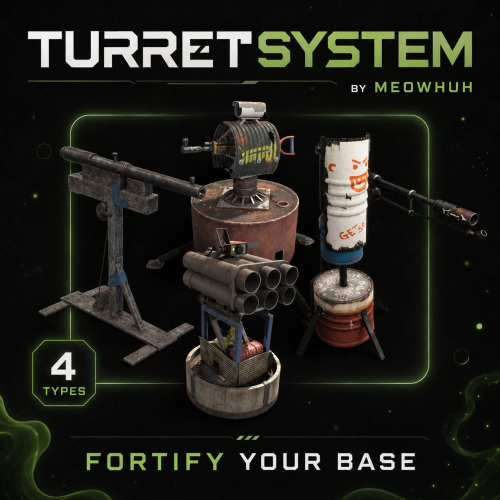 Yes, there is an option in the config: "[Physical Switch/Button] Enable on deployed turrets/traps": false When you set this to false, the physical switch will no longer appear on deployed turrets. You can also keep it enabled and control access through permissions. Everything is configurable. If there are any problems, let me know!
-
Hi! I'm not sure if you're still looking for a chat translator plugin, but I've made exactly what you're looking for! It supports pretty much any language and also has a free API option, so you don't need to pay anything extra for translations. You can check it out here if you're interested! https://codefling.com/plugins/translatesystem
-
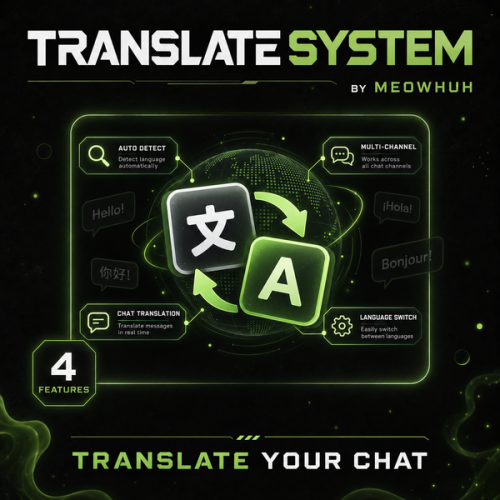
Version 1.0.4
96 downloads
Automatic chat translation for Rust servers. Running an international Rust server should not mean players have to copy messages into external translators just to understand each other. TranslateSystem automatically translates chat messages into each player's selected language while keeping the normal Rust chat experience. Players can use their Rust client language automatically or choose their own language, while server owners can control chat channels, translation services, preserved Rust terms, caching, message filters, permissions, and request limits. Perfect for PvE, PvP, Vanilla+, modded, RPG/RP, international servers, or any server with players speaking different languages. Features Automatically translates chat messages separately for each player's language. Uses the player's Rust client language automatically or allows players to select their own language. Supports Global, Team, Local, Clan, and Card Game chat channels. Enable or disable translation separately for each supported chat channel. Supports MyMemory, Google Cloud Translation, Microsoft Translator, Yandex Cloud, LibreTranslate, and OpenAI. MyMemory is available as the default translation service and fallback if another configured provider fails. BetterChat and IQChat support while keeping their chat formatting. Players can enable or disable translations for themselves at any time. Optional permission requirement for receiving translations. Option to translate the sender's own messages. Option to show the original message underneath the translated message. Automatic source-language detection. Custom language selection for individual players. Preserved Rust terms prevent configured words such as TC, Oil Rig, Cargo, Bradley, AK, sulfur, HQM, Workbench, monument names, and other terms from being translated. Built-in translation cache reuses recent translations and reduces unnecessary API requests. Configurable cache lifetime and maximum stored translations. Message filters can ignore messages without letters, very short messages, and colon emoji codes such as :heartrock:. Optional per-player rate limiting. Configurable maximum simultaneous translation requests. Configurable API timeout, failed-request cooldown, and rate-limit cooldown. Optional server console chat logging. Configurable command aliases. Player translation settings and selected languages are saved automatically. English and Russian plugin messages included. Supported Languages TranslateSystem supports all 25 Rust client languages, allowing players to communicate across different languages without manually translating chat messages. Players can automatically use their Rust client language or manually select their preferred translation language. Language Language Code English en Russian ru German de French fr Spanish (Spain) es Spanish (Latin America) es-419 Italian it Turkish tr Arabic ar Czech cs Danish da Greek el Polish pl Ukrainian uk Japanese ja Korean ko Chinese (Simplified) zh-cn Chinese (Traditional) zh-tw Dutch nl Norwegian no Swedish sv Finnish fi Portuguese (Portugal) pt-pt Portuguese (Brazil) pt-br Vietnamese vi Tip Example: A German player can use /translate lang de to receive translated messages in German, while a Russian player can use /translate lang ru to receive messages in Russian. Players can also use /translate auto to automatically follow their Rust client language without selecting a language manually. Commands /translate - Shows your current translation status and available commands. /translate on - Enables automatic chat translations for yourself. /translate off - Disables automatic chat translations for yourself. /translate auto - Uses your Rust client language for translations. /translate lang <code> - Sets your translation language manually. /translate status - Shows whether translation is enabled and which language is currently being used. Command aliases are fully configurable. Command Examples /translate /translate on /translate off /translate auto /translate lang en /translate lang de /translate lang ru /translate lang fr /translate lang es-419 /translate lang zh-cn /translate status Note Language Selection Use /translate auto to automatically follow the player's Rust client language. Use /translate lang <code> to select a preferred language manually. Language preferences are saved automatically. Players can enable or disable translations whenever they want. Admin Command /translate stats - Shows the current translation cache size and active translation requests. Permissions translatesystem.use - Required to use TranslateSystem commands and receive translations when the permission requirement is enabled in the configuration. translatesystem.admin - Allows access to /translate stats. Tip Permission Settings By default, the permission requirement for receiving translations is disabled. Enable Require permission to receive translations in the configuration if you want to restrict translation functionality to selected players or permission groups. Translation Services TranslateSystem supports multiple translation providers, allowing server owners to select the service that best fits their server. Service Description MyMemory Default translation service without requiring your own API key. Google Google Cloud Translation using your API key. Microsoft Microsoft Translator using a subscription key and optional resource region. Yandex Yandex Cloud Translation using your API key. LibreTranslate Connect to a LibreTranslate server with optional API-key support. OpenAI OpenAI API translation with configurable API key, model, and token limit. MyMemory Available as the default translation service. Does not require server owners to configure their own translation API key. Can serve as a fallback when another configured translation provider fails. Google Supports Google Cloud Translation. Requires a Google Cloud Translation API key. Can be selected as the main translation provider. Microsoft Supports Microsoft Translator. Requires a Microsoft Translator subscription key. Supports an optional resource region. Yandex Supports Yandex Cloud Translation. Requires a Yandex Cloud service account API key. LibreTranslate Supports LibreTranslate servers. Configurable server address. Optional API key for servers requiring authentication. OpenAI Supports translation using the OpenAI API. Configurable API key. Configurable model. Configurable maximum completion token limit. Note Translation Service Notes MyMemory is the default translation service. Other translation providers require their respective API credentials or server settings. API request timeouts and cooldowns are configurable. Translation availability for specific language codes can depend on the selected provider. Chat Channels TranslateSystem supports multiple Rust chat channels, with separate configuration options for each channel. Chat Channel Description Global Translates messages sent in global chat. Team Translates messages between team members. Local Translates messages in nearby-player chat. Clan Translates supported clan chat messages. Card Games Translates messages in supported card game chat. Each supported chat channel can be enabled or disabled separately. Tip Example: Enable translation for Global, Team, and Clan chat while disabling translation for Local and Card Game chat. This allows server owners to control where automatic translation is applied. Preserved Rust Terms TranslateSystem allows server owners to configure words and phrases that should remain unchanged during translation. This is useful for preserving commonly used Rust terminology, weapon names, monument names, and abbreviations. Examples of preserved terms: Building and resources: TC, HQM, Workbench, scrap, sulfur. Weapons: AK, AK-47, LR, L96, M2, M249, MP5, SAR, DB, Tommy, Thompson. Monuments and events: Oil Rig, Large Oil, Small Oil, Cargo, Cargo Ship, Bradley, Outpost, Bandit Camp, Launch Site, Airfield, Dome, Train Yard, Power Plant, Military Tunnels. Tip Example: A player sends a message containing AK, TC, or Oil Rig. These configured terms remain unchanged in translated messages, helping players recognize familiar Rust terminology regardless of their selected language. Translation Cache & Request Controls TranslateSystem includes configurable caching and request controls to help manage translation API usage. Setting Description Translation Cache Reuses recently translated messages to avoid unnecessary translation requests. Cache Lifetime Controls how long cached translations are kept. Maximum Cached Translations Limits the number of translations stored in the cache. Maximum Simultaneous Requests Controls how many translation requests can run at the same time. API Timeout Sets the maximum time allowed for translation requests. Failed Request Cooldown Configures a delay after failed API requests. Rate Limit Cooldown Configures a delay when the translation provider reports rate limiting. Player Rate Limit Optionally limits how frequently individual players can submit messages for translation. Note Default Cache Settings Translation caching is enabled. Cached translations are kept for 60 minutes. Maximum cached translations: 5000. Maximum simultaneous translation requests: 1. These values can be changed in the configuration. Message Filters TranslateSystem includes optional message filters to reduce unnecessary translation requests. Skip messages that do not contain letters. Skip short messages below the configured minimum length. Skip colon emoji codes such as :heartrock:. Configure a minimum message length. Optionally limit translation requests per player. Configure the number of messages allowed within a specified time window. Tip Example: Set the minimum message length to 2 and enable the colon emoji code filter to avoid unnecessary translation processing for very short messages and messages such as :heartrock:. Example Configuration { "Commands": [ "translate" ], "[Chat] Require permission to receive translations": false, "[Chat] Translate sender's own message": false, "[Chat] Show original message under translation": false, "[Chat] Automatically detect the message language": true, "Chat Channels": { "[Chat] Global": true, "[Chat] Team": true, "[Chat] Local (nearby players)": true, "[Chat] Clan": true, "[Chat] Card games": true }, "Translation": { "[API] Selected service (choose MyMemory, LibreTranslate, Google, Microsoft, Yandex or OpenAI)": "MyMemory", "[OpenAI] API key": "", "[OpenAI] Model": "", "[OpenAI] Maximum completion tokens": 500, "[Google] Cloud Translation API key": "", "[Microsoft] Translator subscription key": "", "[Microsoft] Resource region (empty for global)": "", "[Yandex] Cloud service account API key": "", "[LibreTranslate] Server address": "", "[LibreTranslate] API key (if required)": "", "[API] Request timeout (seconds)": 10.0, "[API] Wait after a failed request (seconds)": 30.0, "[API] Wait after rate limit (seconds)": 300.0 }, "Message Filters": { "[Filter] Skip messages without letters": true, "[Filter] Skip colon emoji codes such as :heartrock:": true, "[Filter] Minimum message length (characters)": 2 }, "Cache": { "[Cache] Reuse recent translations": true, "[Cache] Keep translations for (minutes)": 60, "[Cache] Maximum saved translations": 5000 }, "Requests": { "[Requests] Maximum requests at the same time": 1 }, "Player Rate Limit": { "[Rate Limit] Limit messages per player": false, "[Rate Limit] Messages allowed per player": 8, "[Rate Limit] Count messages over this period (seconds)": 10.0 }, "[Chat] Log chat to server console": false, "[Chat] Words and Rust terms to leave untranslated": [ "TC", "Oil Rig", "Large Oil", "Small Oil", "Cargo", "Cargo Ship", "Bradley", "Bradley APC", "AK", "AK-47", "LR", "L96", "M2", "M249", "MP5", "SAR", "DB", "Tommy", "Thompson", "scrap", "sulfur", "HQM", "Workbench", "Outpost", "Bandit Camp", "Launch Site", "Airfield", "Dome", "Train Yard", "Power Plant", "Military Tunnels" ], "Config Version": { "Major": 1, "Minor": 0, "Patch": 1 } } Note Configuration Notes Commands: Configurable chat command aliases. Require Permission: Controls whether players need permission to receive translations. Translate Sender: Optionally translates the sender's own messages. Show Original: Displays the original message underneath the translated message. Language Detection: Automatically detects the source language of messages. Chat Channels: Controls translation separately for Global, Team, Local, Clan, and Card Game chat. Translation Service: Selects MyMemory, Google, Microsoft, Yandex, LibreTranslate, or OpenAI. API Settings: Configure service credentials, request timeouts, and cooldowns. Message Filters: Configure minimum message length, non-letter message filtering, and emoji code filtering. Cache: Configure translation caching, cache lifetime, and maximum cached translations. Requests: Controls the maximum number of simultaneous translation requests. Player Rate Limit: Optionally limits translation requests per player. Chat Logging: Enables or disables server console chat logging. Preserved Terms: Defines words and Rust terminology that should not be translated. Warning Important: Some translation services require valid API credentials and may have their own usage limits or costs. Check the selected provider's supported languages, pricing, and request limits before enabling it on a busy server. MyMemory is available as the default translation service without requiring your own API key. Why Choose TranslateSystem? Language differences can make communication difficult on Rust servers with players from different countries. TranslateSystem handles translation automatically for each player while still giving them control over whether translations are enabled and which language they want to use. With support for all 25 Rust client languages, multiple translation services, BetterChat and IQChat compatibility, configurable chat channels, preserved Rust terms, caching, message filters, and request controls, TranslateSystem makes it easier for players speaking different languages to communicate naturally in the same chat. Whether you run a small international server or a large multilingual community, TranslateSystem helps remove language barriers without requiring players to leave the game or use external translation tools$13.99- 3 reviews
-
- 3
-

-
-
- #translate
- #system
- (and 8 more)
-
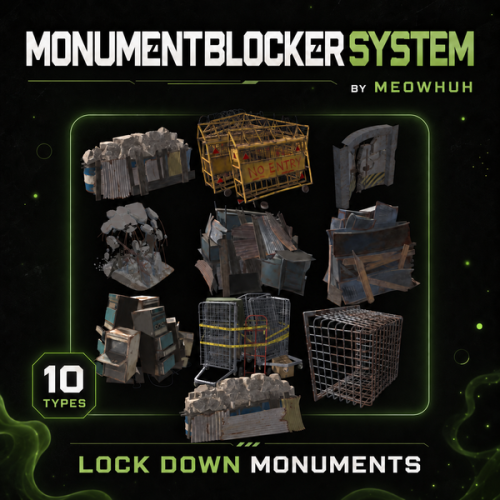
Version 1.0.0
11 downloads
Complete monument blocker management for Rust servers. Managing monument blockers should not mean being stuck with the same health, damage, destruction, and respawn behavior on every server. MonumentBlockerSystem lets server owners manage Rust monument blockers from one clean UI. Remove blocker types from the map, customize their health, control respawning, adjust damage by type, and create custom damage multipliers for individual Rust items. Perfect for PvE, PvP, Vanilla+, modded, RPG/RP, custom progression, and custom monument servers. Features Clean in-game admin UI for managing all supported monument blocker types. Remove individual monument blocker types from the map. Set custom maximum health for each blocker type. Enable or disable blocker respawning with a configurable respawn delay. Configure a global damage multiplier for each blocker type. Separate damage multipliers for Blunt, Bullet, Explosion, Heat, Slash, and Stab damage. Custom damage multipliers for individual Rust item shortnames, managed directly from the UI. Changes are applied immediately to existing and newly spawned monument blockers. Supports Lockers, Desks, Trolley, Vent Cage, Collapse, Blast Door, Terminals, Barricades, and both monument barrel blocker sizes. Commands /monumentblockers or /mbs → Open the MonumentBlockerSystem management UI. Command are fully configurable. Permissions monumentblockersystem.admin → Full access to the MonumentBlockerSystem UI and all monument blocker settings. Example Configuration Why Choose MonumentBlockerSystem? Because monument blockers should not have the same fixed behavior on every Rust server. MonumentBlockerSystem combines a clean admin UI, custom health, configurable respawning, blocker removal, damage-type scaling, and item-specific damage multipliers in one focused plugin, giving server owners full control over monument blockers without manually managing entities across the map.$12.49-
- 1
-
-
- #monument
- #monumentblocker
- (and 6 more)