
Lady Mia's Wishlist
-

$19.99
Monument Events (All in One Events)
By Iftebinjan in Plugins
The Monument Events plugin creates amazing events on the monument from preconfigured presets from config. It creates CustomNPCs around the monument which will roam the monument during the event. Then it will spawn CH47 Helicopter which will drop Hackable crates & spawn configured Patrol Helicopters which will roam the monument vicinity. When players try to unlock the Hackable Crate there will be a CH47 Helicopter which will carry NPC and drop on the monument and will give players an amazing raged experience.
⭐ Key Features
10+ Monument preset preconfigured (Radtown, Oxum's Gas Station, Abandoned Supermarket, Water Treatment Plant, Power Plant, Ferry Terminal, Small Harbor, Large Harbor, Junkyard, The Dome, Airfield, Train Yard, Satellite Dish, Sewer Branch, Launch Site) PVE/PVP support Easy setup everything is pre-configured, so drag and drop and it will auto start from the selected time Massive configure option for individual monuments (Except a few not added) Monument Owner control based on damage Editable Monument Setting, Npc Settings, Npc Loottable Amazing event for engaging players with monuments 📌 Commands
/mestart Preset_Name | monumentID - Starts any specific event (Console & Chat command) /mestop Preset_Name | monumentID - Stops the event (Console & Chat command) /melist - Shows all available monument events on the map /mestartrandom - Starts a random from presets (Console & Chat command) /meadd edit PRESET_NAME - Select a monument for editing spawn points (Chat command) /meadd npcspawn - Creates NPC spawn points for the selected monument (Chat command) /meadd wavespawn - Creates Wave Npc spawn points for the selected monument (Chat command) /meadd cratespawn - Creates Crates spawn points for the selected monument (Chat command) /meadd stopedit - Deselect the current editing monument (Chat command) 📜 Permissions
MonumentEvents.admin - Permission required for using commands 🎬 Video Showcase
⚙️ Configuration
🗃️Monument Settings
🗃️Npc Setting
🗃️Npc Loottable
🗃️Lang
🚀 API & Hooks
💬 Support
-
$40.00
Loot Table & Stacksize GUI
By The_Kiiiing in Plugins
Say goodbye to configuration and data files. This plugin lets yo edit the loot of (almost) every lootable object directly over a custom UI. It also includes a graphical stack size editor thus making it ideal for anyone who is not familiar with editing config files.
Do not use in combination with any other stack size controller or loot plugin.
Russian lang file (файл русского языка)
You can now enjoy the interface of Loottable in Russian. Just download the file and place it in the /oxide/lang/ru/ folder
Loottable.json
DISCLAIMER: Translations are provided by the community and I can not guarantee for their accuracy
NEW with version 2.2.7:
You can now add new items to all your configurations with the click of a button on the settings page. This only works for items that have been newly added with the last rust update. Amount and drop chance will be set to the vanilla values. This can also be done via command loottable add_new_items
NEW with version 2.1.16:
Improved item search
You can now search for hidden items by adding h: to the start of your search (e.g. the search h:cable will show the cable tunnel item which is hidden by default). This works in both item editor and stack size controller. Full support for CustomItemDefinitions
NEW with version 2.1.7: Direct Loot Refresh
Players with the permission loottable.test can use a button to directly refresh the loot in the crate they are currently looting.
Features:
User friendly GUI - no need to edit config files Loot configuration for every prefab in the game Stack size controller supports individual stack sizes for every prefab Support for custom items Support for third party plugins Fully backwards compatible with version 1.x.x Default config included for every prefab Configuration for Smelting Speed, Recycler Speed and Efficiency Supply Drop configuration
Supported prefabs:
Crates, Barrels NPCs Trees, Ores, Animal corpses Excavator, Quarries Christmas Presents, Eggs, Loot Bags Collectables like Hemp, Corn, etc.
Additional Configuration:
Smelting Speed Supply Drop Recycler Speed / Efficiency
Commands:
loottable - Open the Loottable UI loottable reload - Manually refresh loot loottable remove_dlc_items - Remove all DLC items from your loot configs. This action can not be undone loottable add_new_items - Add all new items from this months rust update to your configurations. This action can not be undone
Permission:
loottable.edit - Required to use the Loottable UI
Required Dependencies (Oxide only):
Image Library: https://umod.org/plugins/image-library
Translations:
This plugin fully supports translation. Out of the box only english is included. For item names to be translated, the plugin https://umod.org/plugins/rust-translation-api is required. English translations are located in /oxide/lang/en/Loottable.json
For Developers:
Loot Api:
Developers can use the Loot Api to register loot profiles for custom NPCs or other plugin related loot.
It is highly recommended to use the provided wrapper to access the API. Documentation is also included:
https://gist.github.com/TheKiiiing/53a37e8bbb48d8a24c8e8b21b9da37ac
Loot Api Example:
void OnLoottableInit() { LoottableApi.ClearPresets(); LoottableApi.CreatePresetCategory(this, "Crates"); LoottableApi.CreatePreset(this, "c_locked", "Locked Crate", "crate_hackable"); LoottableApi.CreatePreset(this, "c_elite", "Elite Crate", "crate_elite"); LoottableApi.CreatePreset(this, "c_military", "Military Crate", "crate_military"); LoottableApi.CreatePreset(this, "c_normal", "Normal Crate", "crate_normal"); LoottableApi.CreatePresetCategory(this, "NPCs"); LoottableApi.CreatePreset(this, true, "npc_cargo", "Cargo Ship NPC", "npc_militunnel"); LoottableApi.CreatePreset(this, true, "npc_control", "Control Center NPC", "npc_militunnel"); } void SpawnNpc() { // Spawn NPC here ScientistNPC npc; // Assign a loot preset to the NPC LoottableApi.AssignPreset(this, scientist, "npc_control"); } void SpawnCrate() { // Spawn crate here LootContainer crate; // Assign a preset to the crate if (LoottableApi.AssignPreset(this, container, "c_locked")) { // The container has been filled with loot return; } else { // The container is not handled by Loottable // Default loot logic goes here } } The resulting configuration page would look like this:
Custom Items API:
Developers can use the Custom Items Api to add a custom item to the Loottable item list. If an item is marked as persistent it will remain in the custom item list until it is removed by ClearCustomItems. All non-persistent items will be removed after the plugin that registered them has been unloaded.
(void) AddCustomItem(Plugin plugin, int itemId, ulong skinId) (void) AddCustomItem(Plugin plugin, int itemId, ulong skinId, bool persistent) //(v1.0.27 or higher) (void) AddCustomItem(Plugin plugin, int itemId, ulong skinId, string customName) (void) AddCustomItem(Plugin plugin, int itemId, ulong skinId, string customName, bool persistent) //(v1.0.27 or higher) (void) ClearCustomItems(Plugin plugin) //(v1.0.27 or higher)
Hooks:
(void) OnLoottableInit() This hook is called when Loottable is ready to receive API calls. This happens either on server boot or when the plugin is loaded. Use this hook to register custom items and loot presets.
(object) OnContainerPopulate(LootContainer container) This hook is called every time a loot container is about to be populated with loot. Returning a non-null value prevents the plugin from spawning loot into that crate.
(object) OnCorpsePopulate(LootableCorpse corpse) This hook is called every time an npc corpse is about to be populated with loot. Returning a non-null value prevents the plugin from spawning loot into that corpse.
(object) OnCustomAirdrop(SupplySignal signal) This hook is called every time a custom supply drop is about to be delivered. Returning a non-null value will cancel the custom supply drop.
Outdated documentation for Version 1:
New with version 1.0.27:
Custom Items can now be created and edited directly in the GUI. They can be created from any existing item and modified in the Item Select menu
You can now create and load backups of your configuration. Commands (F1 or Server Console):
loottable.backup load <name> - Load backup with the given name from the backups folder (will wipe your current configuration) loottable.backup create <name> - Create backup of everything with the given name Backups will be created in the data/Loottable/backups folder. To load a backup, the backup file needs to be present in that folder. When creating backups in the in-game console, the permission loottable.debug is required.
IMPORTANT: DO NOT LOAD BACKUPS FORM SOURCES YOU DO NOT TRUST, they might cause harm to your server
New with version 1.0.16:
Custom Items:
Now you can add custom items used by other plugins directly to your loot table. Other plugins can can register these items using the api (documentation below).
Screenshots:
Overview of crates and their current loot table
Stacksize Editor
Commands:
loottable - Open the editor loottable refresh - Manually refresh crate loot loottable flags - List available flags (explained below) loottable flags <name> <1|0> - Enable / disable a certain flag loottable reload_vanilla_profiles - Manually re-download vanilla loot profiles (only for debuging)
Permission:
loottable.edit - Required to use the editor
Flags:
There are flags to disable some limits in the editor. Only enable these flags if you really need to as they might cause unexpected behavior of the editor. There are currently 3 flags available:
Debug If enabled, the Debug flag provides more detailed information about errors and other actions in the editor. Don't enable this flag unless you want your console full of spam.
UnlockGatherMultiplier allows you to use gahter multipliers less than one and higher than 1000. Note that multipliers less than one might lead to unexpected results in some cases.
DisableItemLimit Probably the safest flag to use is DisableItemLimit as it simply lets you set stack sizes and every other item amount in the editor as high as 2,147,483,647 which is the biggest possible value of a 32-bit integer.
UnlockFurnaceMultiplier lets you use any value as the furnace speed multiplier. Don't enable this flag unless you know what you are doing, since the default value range from 0.1 to 100 should cover most use cases and larger values might impact server performance.
UnlockItemMultiplier unlocks the multiplier when multiplying a loot table.
DisableStackingHooks will disable all stacking related hooks. Enable if you encounter problems when stacking items.
RefreshLootOnExit controls if all crates get refreshed after closing the editor or when reloading the plugin. Enable this only for testing, there might be an increase in entities.
Refer to the Commands section for more information about enableing flags.
Vanilla Configurations:
Since version 1.0.7 there are vanilla loot profiles available for most crates and NPCs. These profiles can be loaded using the "Load default loot table" button at the top center of the editor.
DISCLAIMER:
The vanilla loot profiles in the editor might not exactly match the vanilla loot distribution of the game as it uses a completely different loot distribution system than Rust. These profiles rather serve as a reference point for custom loot profiles.
Important for Carbon users:
In order for this plugin to work with carbon, Harmony references need to be enabled. This can be done with the following command:
c.harmonyreference 1
Required Dependencies (Oxide only):
Image Library: https://umod.org/plugins/image-library
Custom Items API:
Add a custom item to the item list. If an item is marked as persistent it will remain in the custom item list until it is removed by ClearCustomItems. All non-persistent items will be removed after the plugin that registered them has been unloaded.
(void) AddCustomItem(Plugin plugin, int itemId, ulong skinId) (void) AddCustomItem(Plugin plugin, int itemId, ulong skinId, bool persistent) //(v1.0.27 or higher) (void) AddCustomItem(Plugin plugin, int itemId, ulong skinId, string customName) (void) AddCustomItem(Plugin plugin, int itemId, ulong skinId, string customName, bool persistent) //(v1.0.27 or higher) (void) ClearCustomItems(Plugin plugin) //(v1.0.27 or higher) Example:
Its recommended to delay the call a little bit to make sure Loottable is loaded
private void Init() { timer.In(1f, () => { Loottable?.Call("AddCustomItem", this, -946369541, 2664651800, "High Quality Fuel"); }); }
Hooks:
(object) OnContainerPopulate(LootContainer container) This hook is called every time a loot container is about to be populated with loot. Returning a non-null value prevents the plugin from spawning loot into that crate.
(object) OnCorpsePopulate(LootableCorpse corpse) This hook is called every time an npc corpse is about to be populated with loot. Returning a non-null value prevents the plugin from spawning loot into that corpse.
(object) OnCustomAirdrop(SupplySignal signal) This hook is called every time a custom supply drop is about to be delivered. Returning a non-null value will cancel the custom supply drop.
- #loot
- #customloot
- (and 13 more)
-

$9.99
Auto Chicken Coop
════════════════════════════════════════════════════
AUTOCHICKENCOOP
Full Industrial Automation for Chicken Coops
by romzar.games
════════════════════════════════════════════════════
DESCRIPTION
-----------
AutoChickenCoop transforms chicken coops into fully automated industrial
production units! Automatically attach storage adaptors and fluid splitters to
chicken coops, enabling complete integration with Rust's industrial system.
Features automatic water transfer, egg hatching, chicken breeding optimization,
and advanced chicken protection systems.
✅ COMPATIBLE WITH BOTH OXIDE/uMOD AND CARBON FRAMEWORKS
KEY FEATURES
------------
✓ Automatic Storage Adaptor Attachment
- Automatically attaches industrial storage adaptor to every chicken coop
- Connect conveyors directly to collect eggs and feathers
- Full industrial automation integration
- No player interaction required - completely automatic
✓ Automatic Fluid Splitter System
- Fluid splitter automatically attached to every coop
- Automatic water transfer from connected industrial sources
- Smart IO chain detection for water sources
- Configurable transfer rates based on IO setup
- Never manually fill water again!
✓ Auto-Hatch System
- Automatically hatches eggs when chicken count is below max
- Configurable max chickens per coop
- Perfect for automated breeding farms
✓ Chicken Love & Sunlight Control
- Force max love (100%) for constant breeding readiness
- Force max sunlight (100%) for optimal health
- Separate permissions for love and sunlight control
- Works on all chickens in automated coops
- Automatic attribute updates
✓ Advanced Chicken Protection
- Protect chickens from unauthorized damage
- Only owner and team/clan/friends can damage chickens
- Integrates with: Friends API, Clans, BetterTeams
- Configurable protection options
- Perfect for PvE servers
✓ Group-Based Limits System
- Configure different coop limits per permission group
- Perfect for VIP tiers and donation rewards
- Unlimited permission available for admins/special players
- Players get helpful upgrade messages when limit reached
- Data persistence - limits maintained across restarts
✓ Smart Water Transfer System
- Automatic detection of water in connected IO chains
- Supports multiple water sources (tanks, pumps, etc.)
- Transfer rate based on IO configuration
- Prevents water duplication and exploits
- Efficient batch processing for multiple coops
✓ Fully Configurable
- Adjust adaptor and splitter position/rotation
- Configure auto-hatch settings (max chickens, interval)
- Configure love/sunlight update intervals
- Configure chicken protection rules
- Fine-tune all aspects to match your server
✓ Admin Management Tools
- Reset command to reposition all adaptors/splitters
- Debug command for water transfer troubleshooting
- Check water status for specific coops/splitters
- Limit check command for players
- Comprehensive logging
✓ Automatic Cleanup & Optimization
- Removes adaptors/splitters when coops are destroyed
- No orphaned entities
- Automatic cleanup of old data (30 days)
- Dirty bit tracking for efficient saves
- Randomized auto-save to reduce I/O spikes
✓ Data Persistence
- Per-player data files for optimal performance
- Tracks all coops, adaptors, splitters, and chickens
- Automatic save on server save, player disconnect, and interval
- Backup system for corrupted data
- Clean and optimized performance
INSTALLATION
------------
1. Upload AutoChickenCoop.cs to oxide/plugins/
2. The plugin will auto-generate its config file on first load
3. Grant permissions to players/groups (see PERMISSIONS section)
4. Reload the plugin if needed: o.reload AutoChickenCoop
PERMISSIONS
-----------
autochickencoop.use
- Required for players to have automated chicken coops
- Without this permission, coops work normally (no automation)
autochickencoop.love.max
- Forces 100% love on all chickens in automated coops
- Ensures constant breeding readiness
- Updates automatically at configured interval
autochickencoop.autohatch
- Enables automatic egg hatching in chicken coops
- Automatically moves eggs to hatching slot
- Maintains configured max chicken count
autochickencoop.sunlight
- Forces 100% sunlight on all chickens in automated coops
- Ensures optimal health regardless of actual sunlight
- Perfect for indoor farms
autochickencoop.unlimited
- Bypass all chicken coop limits
- Perfect for admins or special players
- No maximum coop count
autochickencoop.admin
- Required to use admin commands
- For server administrators only
autochickencoop.{group}
- Group-specific limits configured in config file
- Examples: autochickencoop.default, autochickencoop.vip,
autochickencoop.premium
- Players get the highest limit from all their group permissions
PERMISSION EXAMPLES
-------------------
Grant to all players with basic automation (3 coops):
o.grant group default autochickencoop.use
o.grant group default autochickencoop.default
Grant VIP with auto-hatch and more coops (6 coops):
o.grant group vip autochickencoop.use
o.grant group vip autochickencoop.vip
o.grant group vip autochickencoop.autohatch
Grant premium with full automation (12 coops):
o.grant group premium autochickencoop.use
o.grant group premium autochickencoop.premium
o.grant group premium autochickencoop.autohatch
o.grant group premium autochickencoop.love.max
o.grant group premium autochickencoop.sunlight
Grant unlimited coops to admins:
o.grant group admin autochickencoop.use
o.grant group admin autochickencoop.unlimited
o.grant group admin autochickencoop.autohatch
o.grant group admin autochickencoop.love.max
o.grant group admin autochickencoop.sunlight
Grant admin permissions:
o.grant group admin autochickencoop.admin
COMMANDS
--------
/chickencoop.limit (Chat)
- Check your current chicken coop limit and usage
- Shows how many automated coops you have vs your limit
- Available to all players with .use permission
- Example output: "Automated Chicken Coops: 2/6"
/autochickencoop.reset (Chat) or autochickencoop.reset (Console)
- Requires: autochickencoop.admin permission
- Removes all old adaptors/splitters and recreates them
- Useful when adjusting position/rotation or limits in config
- Shows statistics: coops found, adaptors removed, splitters removed,
entities created
- Respects player limits when recreating automation
/chickencoop.debug (Chat) - Admin Only
- Requires: autochickencoop.admin permission
- Shows comprehensive water transfer debug information
- Displays total coops/chickens tracked
- Shows coops with water, splitter configs, active splitters
- Shows water transfer timer status
- Perfect for troubleshooting water issues
/chickencoop.checkwater (Chat) - Admin Only
- Requires: autochickencoop.admin permission
- Look at a chicken coop or fluid splitter
- Shows detailed water status for that specific entity
- Displays water amount, transfer calculations, IO connections
- Shows water source chain and transfer rates
- Best tool for diagnosing individual coop issues
CONFIGURATION
-------------
File Location: oxide/config/AutoChickenCoop.json
Default Configuration:
{
"Enabled": true,
"StorageAdaptorPosition": {
"x": -0.5,
"y": 1.45,
"z": -1.0
},
"StorageAdaptorRotation": {
"x": -15.0,
"y": 0.0,
"z": 0.0
},
"FluidSplitterPosition": {
"x": 0.1,
"y": 0.9,
"z": -1.0
},
"FluidSplitterRotation": {
"x": 0.0,
"y": 90.0,
"z": 0.0
},
"LoveSystem": {
"UpdateInterval": 30.0,
"ForceUpdateOnPet": true
},
"AutoHatch": {
"Enabled": true,
"MaxChickens": 4,
"CheckInterval": 30.0
},
"ChickenProtection": {
"Enabled": true,
"OnlyOwnerAndTeamCanDamage": true,
"CheckFriends": true,
"CheckClans": true,
"CheckBetterTeams": true
},
"GroupLimits": {
"default": 3,
"vip": 6,
"premium": 12
}
}
Configuration Options:
- Enabled: Set to false to disable the plugin without unloading
- StorageAdaptorPosition: Position offset relative to the coop (X, Y, Z)
* Default values position adaptor on upper back of coop
* Adjust to match your server's aesthetic preferences
- StorageAdaptorRotation: Rotation of the adaptor in degrees (X, Y, Z)
* Default: -15° pitch for proper alignment
- FluidSplitterPosition: Position offset relative to the coop (X, Y, Z)
* Default values position splitter on side of coop
* Must be positioned to allow IO connections
- FluidSplitterRotation: Rotation of the splitter in degrees (X, Y, Z)
* Default: 90° yaw for proper IO orientation
- LoveSystem:
* UpdateInterval: Seconds between love/sunlight updates (default: 30)
* ForceUpdateOnPet: Force update when chicken is pet (default: true)
- AutoHatch:
* Enabled: Enable/disable auto-hatch system (default: true)
* MaxChickens: Maximum chickens per coop before stop hatching (default: 4)
* CheckInterval: Seconds between auto-hatch checks (default: 30)
- ChickenProtection:
* Enabled: Enable/disable chicken protection (default: true)
* OnlyOwnerAndTeamCanDamage: Only owner/team can damage (default: true)
* CheckFriends: Check Friends API (default: true)
* CheckClans: Check Clans plugin (default: true)
* CheckBetterTeams: Check BetterTeams plugin (default: true)
- GroupLimits: Dictionary of group names and their coop limits
* "default": 3 = Players with autochickencoop.default get 3 coops
* "vip": 6 = Players with autochickencoop.vip get 6 coops
* "premium": 12 = Players with autochickencoop.premium get 12 coops
* Add as many custom groups as you want
* Players with multiple group permissions get the highest limit
* Permissions are automatically registered from this config
HOW IT WORKS
------------
1. Player with 'use' permission places a chicken coop
2. Plugin checks if player has reached their group limit
3. If within limit, plugin automatically attaches:
- Storage adaptor (for eggs/feathers collection)
- Fluid splitter (for automatic water supply)
4. If limit reached, player receives message with upgrade information
5. Player connects industrial components:
- Water source (tank, pump) to fluid splitter INPUT
- Conveyors to storage adaptor OUTPUT for egg/feather collection
6. Water automatically transfers to coop every 10 seconds
7. If auto-hatch enabled and player has permission:
- Eggs automatically move from storage to hatching slot
- System maintains max chicken count
8. If love.max permission: Chickens always at 100% love (breeding ready)
9. If sunlight permission: Chickens always at 100% sunlight (healthy)
10. Chicken protection prevents unauthorized damage
11. When coop destroyed, all automation removed and count updated
12. Player data saved persistently across server restarts
CHICKEN PROTECTION SYSTEM
-------------------------
Advanced protection prevents unauthorized damage:
Protection Levels:
1. Owner: Always allowed to damage their own chickens
2. Team: Rust team members allowed (if OnlyOwnerAndTeamCanDamage = true)
3. Friends: Friends API integration (if CheckFriends = true)
4. Clans: Clans plugin integration (if CheckClans = true)
5. BetterTeams: BetterTeams plugin integration (if CheckBetterTeams = true)
How It Works:
- OnEntityTakeDamage hook intercepts all chicken damage
- Checks if chicken is in an automated coop (has parent coop)
- Gets coop owner ID
- Checks if attacker is authorized (owner/team/friend/clan)
- Blocks damage if unauthorized
- Returns null (allows damage) if authorized
Configuration:
- Enabled: Turn entire protection system on/off
- OnlyOwnerAndTeamCanDamage: Core protection toggle
- CheckFriends/Clans/BetterTeams: Individual integration toggles
- Disable specific integrations if you don't have those plugins
ADMIN WORKFLOW
--------------
Initial Setup:
1. Configure GroupLimits in config file for your server tiers
2. Configure auto-hatch settings (max chickens, interval)
3. Configure love/sunlight update intervals
4. Configure chicken protection rules
5. Adjust adaptor/splitter positions if needed
Permission Setup:
6. Grant 'use' permission and group limit permissions to players/groups
7. Grant auto-hatch permission to VIP+ tiers
8. Grant love.max and sunlight to premium tiers
9. Grant 'unlimited' permission to admins or special players
10. Grant 'admin' permission to administrators
Maintenance:
11. Use /autochickencoop.reset command to apply config changes
12. Use /chickencoop.debug to monitor water transfer system
13. Use /chickencoop.checkwater to diagnose specific coops
14. Monitor player limits and upgrade requests
15. Enjoy players' creative automated chicken farms within balanced limits!
PERFORMANCE
-----------
• Lightweight and optimized
• Efficient per-player data file system
• Batch processing for entity initialization
• Safe to use on high-population servers
COMPATIBILITY
-------------
• Works with vanilla Rust
• Compatible with all industrial system items
• Integrates with: Friends API, Clans, BetterTeams
• No conflicts with other plugins
• Standalone - no dependencies required (friends/clans optional)
• Works with building plugins (CopyPaste, etc.)
• ✅ Oxide/uMod Framework - Fully Compatible
• ✅ Carbon Framework - Fully Compatible
• Single plugin file works on both frameworks automatically
TROUBLESHOOTING
---------------
Q: Adaptors/splitters aren't appearing on coops
A: Check that players have the 'autochickencoop.use' permission
Q: Multiple adaptors on one coop
A: Use /autochickencoop.reset command to clean up and recreate
Q: Want to change adaptor/splitter position
A: Edit the config file, reload plugin, then use /autochickencoop.reset
Q: Water isn't transferring to coops
A: Use /chickencoop.checkwater while looking at coop to diagnose
Verify IO connections from water source to fluid splitter
Check that water source has water in it
Ensure fluid splitter is properly connected
Q: Eggs aren't auto-hatching
A: Verify player has autochickencoop.autohatch permission
Check that coop has eggs in slot 3
Verify chicken count is below MaxChickens config value
Check AutoHatch.Enabled = true in config
Q: Chickens not at max love/sunlight
A: Verify player has autochickencoop.love.max and/or autochickencoop.sunlight
Check LoveSystem.UpdateInterval in config (default: 30s)
Wait for next update cycle
Q: Players without permission have automation
A: Existing coops keep automation. Remove permission and use
/autochickencoop.reset
Q: Chickens being damaged by other players
A: Enable ChickenProtection in config
Verify OnlyOwnerAndTeamCanDamage = true
Check that protection integrations are enabled
Q: Player can't place more coops
A: They've reached their group limit. Check with /chickencoop.limit
Grant them a higher tier permission or .unlimited permission
Q: How do I change a player's limit?
A: Grant them the permission for a higher tier group:
o.grant user PlayerName autochickencoop.vip
Q: Player data not saving
A: Check oxide/data/AutoChickenCoop/ folder exists and has write permissions
Data saves automatically when coops are placed/destroyed
Check server console for error messages
Q: Want to reset all player data
A: Delete files in oxide/data/AutoChickenCoop/ folder and use
/autochickencoop.reset
Q: How to add custom group limits?
A: Edit config file GroupLimits section, add your group and limit:
"elite": 20
Then grant permission: o.grant group elite autochickencoop.elite
Q: Water transfer rate too slow/fast
A: Transfer rate is calculated based on IO chain configuration
Add more pumps or tanks to increase rate (10 per pump/tank)
Maximum rate is 100 water per 10 seconds
Use /chickencoop.checkwater to see current transfer calculations
Q: Auto-hatch too fast/slow
A: Adjust AutoHatch.CheckInterval in config
Lower value = checks more often (faster response)
Higher value = checks less often (lower CPU usage)
Default: 30 seconds is balanced
Q: Love/Sunlight updates not frequent enough
A: Adjust LoveSystem.UpdateInterval in config
Lower value = updates more often
Higher value = updates less often (lower CPU usage)
Default: 30 seconds is balanced
SUPPORT
-------
For support, questions, or feature requests, please contact:
Discord: romzar
LICENSE
-------
This plugin is provided for use on Rust game servers.
Redistribution or resale of this plugin is prohibited.
© 2025 romzar.games - All rights reserved.
══════════════════════════════════════════════════════
Thank you for using AutoChickenCoop!
Build the ultimate automated chicken farm on your server!
══════════════════════════════════════════════════════
- #industrial
- #automation
- (and 12 more)
-
$15.00
BoatControl
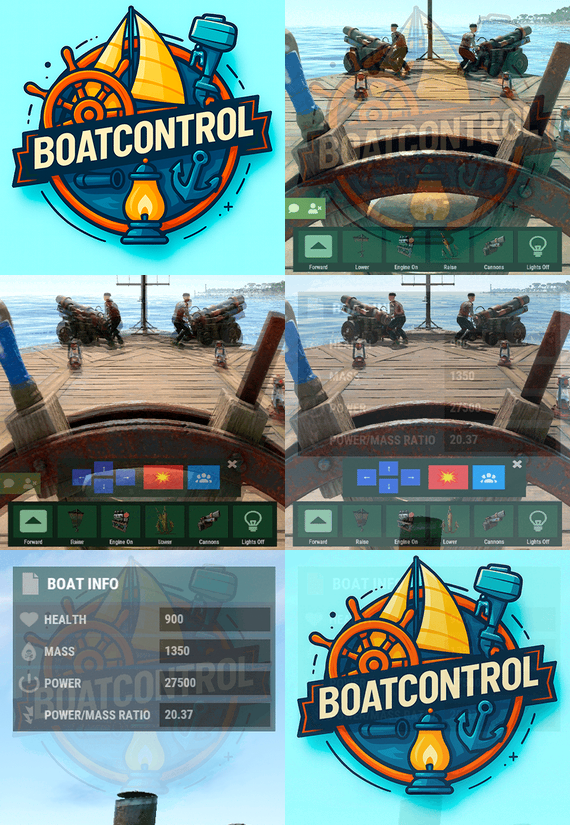
BoatControl is a Rust server plugin that completely enhances boat handling. When taking the helm, a user-friendly CUI interface appears, allowing players to raise/lower sails and anchors, start/stop engines, and switch navigation direction forward or backward.
The plugin also supports automatic reloading when the player has ammunition, cannon firing with configurable cooldown (or bypass via permission), and toggling all torches and lanterns without fuel consumption. Additionally, players can control navigation using W/S and fire cannons with the left mouse click.
Want to try it before you buy it?
You can try it by accessing the Staging server: connect staging.rustspain.com (provided the server is online, as it's my test server).
Video Update 1.0.0
Features
Displays a CUI interface when taking the helm that allows you to:
Raise / lower sails. Raise / lower anchors. Turn engines on / off. Change the navigation direction forward / backward (engines and sails reverse accordingly). Reload (if the player has ammunition in their inventory, with a permission to bypass this). Fire cannons with a cooldown (or without it if you have the bypass permission).
Turn all torches and lamps on/off (In the settings you can decide whether you want them to consume fuel or not).
Allows enabling boat editing anywhere.
Blocks edit mode within safe zones.
Blocks the ability to activate the anchor within safe zones.
Allows you to view the list of authorized players (similar to BetterTC).
Sail Configuration System: Displays a window similar to the config menu showing all sails placed on the boat. Each sail shows its health amount below it. Added a button that allows upgrading sails by levels (thrust power). Everything is configurable, including upgrade costs (in-game resources, RP, or Economy). This allows admins to add as many levels as they want in the config.
Engine Configuration System: Displays a window similar to the config menu showing all engines placed on the boat. Each engine shows its fuel amount and health below it. Added the ability to refuel engines using fuel from the player’s inventory. Added another button that allows upgrading engines by levels (fuel efficiency and engine power). Everything is configurable, including upgrade costs (in-game resources, RP, or Economy). This allows admins to add as many levels as they want in the config. Important: There is a maximum speed limit in the game. I have been testing ways to increase the speed, but I still need to continue researching and testing to find the best way to increase it.
Automatic repair system: If damage is received during repair, it will stop. If the player runs out of materials in their inventory, it will stop. If the player disconnects, it will also stop. Note: The boat health system is unusual and does not work like a normal building, so the system simulates repairs at different points on the boat depending on the percentage of health lost. That is why you will not hear the actual damaged entity being repaired.
BetterTC Integration: If you have BetterTC installed with version 1.6.2 or higher, the automatic Wallpaper placement system will be enabled. Facepunch will add wallpaper support for Boats starting in March; you can test it meanwhile on staging.
You can also change the navigation direction using the W and S keys, and fire the cannons with the left mouse click.
I'm open to further improving this plugin over time. If you'd like to see any features integrated, please mention them in the discussion section.
Ideas I've tried but haven't been able to implement:
Modifying the build area (net size) to make it larger. It doesn't seem possible to change this. Making the engines work without fuel consumption. I managed to do this in an initial test, but then FacePunch changed something and it's no longer possible. I'll try to see if I can adjust fuel consumption to make it more economical. The maximum number of engines and sails cannot be increased. Or at least not easily; it could be done with commands and strange contraptions, but it wouldn't be entirely convenient.
Permissions
boatcontrol.use – Enables the functionality for the player when mounting the boat’s helm. boatcontrol.bypassammo – Allows you to fire cannons without using real ammunition from your inventory. Free ammo! (not recommended to give to regular players) boatcontrol.bypasscannoncooldown – Allows you to fire cannons with no cooldown. Maximum bombardment! boatcontrol.edit allows enabling boat editing anywhere. boatcontrol.cannonuse If the player doesn’t have it enabled, the option to control cannons won’t appear in the interface. Not having this permission will not block manual/vanilla use. boatcontrol.authlist Shows the list of players authorized to the Boat, similar to BetterTC. boatcontrol.deleteauth Allows authorized players to remove player permissions individually. boatcontrol.sailconfig Allows players to open and manage the Sail Configuration menu for boats. boatcontrol.sailupgrade Allows players to upgrade sails (thrust power) according to the configured upgrade levels. boatcontrol.engineconfig Allows players to open and manage the Engine Configuration menu for boats. boatcontrol.engineupgrade Allows players to upgrade engines (fuel efficiency and engine power) according to the configured upgrade levels. boatcontrol.wallpaper Allows players to use the wallpaper placement system on boats. (Requires BetterTC version 1.6.2 or higher.) boatcontrol.repair Allows players to use the automatic boat repair system. boatcontrol.repair.nocost Allows players to repair boats without consuming materials Dynamic repair permissions (speed adjustment) Allows admins to grant specific permissions defined in the config to adjust boat speed limits.
Commands
It currently has no chat or console commands.
Configuration
DEFAULT CONFIGURATION
{ "Enable WASD Direction": true, "Enable Cannon Fire Key (Left Mouse Button)": true, "Cannon Aim Step (degrees per click)": 5.0, "Cannon Fire Cooldown": 5.0, "Cannon Crew": { "Enable": true, "Names": [ "Seaman", "Deckhand", "Bosun", "Gunner", "Quartermaster", "Navigator", "Sailor", "Crewman", "Mate", "Boatswain", "Cannoneer", "Buccaneer", "Mariner", "Sea Dog", "Old Salt" ], "Health": 100.0, "MaxCannons": 0, "Wear": { "burlap.shirt": 1380044819, "burlap.trousers": 1380047706, "burlap.shoes": 2215057317, "hat.boonie": 965553937 }, "RequireOperate": true, "ToggleCrewCooldown": 30.0, "NoCorpse": true }, "Lights": { "Enable Light Toggle Key (R)": true, "Light Toggle Cooldown": 1.0, "Require Fuel For Lights": false, "Light Items (shortnames)": [ "tunalight", "lantern", "torchholder", "largecandles", "smallcandles", "jackolantern.angry", "jackolantern.happy", "chineselantern", "chineselanternwhite" ] }, "Impact Force Physics": { "Enable Impact Physics": true, "Impact Force (default: 100, range: 50-500)": 100.0, "Enable Debug Logging": false }, "Alert Chat": true, "Alert Notify Plugin": false, "Notify: select what notification type to be used": { "error": 0, "info": 0 }, "Color Prefix Chat": "#f74d31", "GUI": { "GUI Windows Belt": { "BG Color Primary": "0.10 0.15 0.10 1", "BG Color Secundary": "0.2 0.30 0.2 0.80", "Button Active Color": "0.2 0.6 0.2 0.80", "Button Inactive Color": "0.2 0.30 0.2 0.80", "OffsetMin": "-200 15", "OffsetMax": "181 79", "AnchorMin": "0.5 0", "AnchorMax": "0.5 0" }, "GUI Windows Info": { "BG Color Primary": "0.10 0.10 0.10 0.8", "BG Color Secundary": "0.2 0.30 0.2 0.80", "Button Active Color": "0.2 0.6 0.2 0.80", "Button Inactive Color": "0.2 0.30 0.2 0.80", "OffsetMin": "-115 -100", "OffsetMax": "115 100", "AnchorMin": "0.902 0.8104", "AnchorMax": "0.902 0.8104" }, "GUI Windows Cannons Menu": { "BG Color Primary": "0.10 0.15 0.10 1", "BG Color Secundary": "0.2 0.30 0.2 0.80", "Button Active Color": "0.2 0.6 0.2 0.80", "Button Inactive Color": "0.2 0.30 0.2 0.80", "OffsetMin": "-140 85", "OffsetMax": "140 185", "AnchorMin": "0.5 0", "AnchorMax": "0.5 0" } }, "Show Info Window": true, "Boat Edit Damage Cooldown (seconds)": 30.0, "Block Anchor in Safe Zone": true, "Block Boat Edit in Safe Zone": true, "Config Version": "1.2.0", "Repair Cooldown After Recent Damage (seconds)": 30.0, "Cooldown Frequency Repair (larger number is slower)": { "boatcontrol.use": 2.0, "boatcontrol.vip": 1.0 }, "Repair Costs (ItemShortName: Amount per block/component)": { "lowgradefuel": 4, "wood": 75 }, "Engine Upgrades": { "Enable Engine Upgrades": true, "Upgrade Levels": [ { "Level": 1, "Display Name": "Tier 1", "Fuel Efficiency Multiplier (1.0 = normal, 0.5 = half fuel consumption)": 0.9, "Power Multiplier (1.0 = normal, 2.0 = double power)": 2.0, "Upgrade Cost": { "Resource Costs (ItemShortName: Amount)": { "scrap": 100, "lowgradefuel": 50 }, "ServerRewards Points": 0, "Economics Money": 0.0 } }, { "Level": 2, "Display Name": "Tier 2", "Fuel Efficiency Multiplier (1.0 = normal, 0.5 = half fuel consumption)": 0.8, "Power Multiplier (1.0 = normal, 2.0 = double power)": 4.0, "Upgrade Cost": { "Resource Costs (ItemShortName: Amount)": { "scrap": 250, "lowgradefuel": 100, "metal.fragments": 300 }, "ServerRewards Points": 0, "Economics Money": 0.0 } }, { "Level": 3, "Display Name": "Tier 3", "Fuel Efficiency Multiplier (1.0 = normal, 0.5 = half fuel consumption)": 0.65, "Power Multiplier (1.0 = normal, 2.0 = double power)": 8.0, "Upgrade Cost": { "Resource Costs (ItemShortName: Amount)": { "scrap": 500, "lowgradefuel": 200, "metal.fragments": 500, "metal.refined": 25 }, "ServerRewards Points": 0, "Economics Money": 0.0 } }, { "Level": 4, "Display Name": "Tier 4", "Fuel Efficiency Multiplier (1.0 = normal, 0.5 = half fuel consumption)": 0.65, "Power Multiplier (1.0 = normal, 2.0 = double power)": 16.0, "Upgrade Cost": { "Resource Costs (ItemShortName: Amount)": { "scrap": 1000, "lowgradefuel": 300, "metal.fragments": 1500, "metal.refined": 100 }, "ServerRewards Points": 0, "Economics Money": 0.0 } } ], "Currency Type (Resources, ServerRewards, Economics)": "Resources" }, "Sail Upgrades": { "Enable Sail Upgrades": true, "Upgrade Levels": [ { "Level": 1, "Display Name": "Tier 1", "Thrust Multiplier (1.0 = normal, 2.0 = double thrust)": 1.5, "Upgrade Cost": { "Resource Costs (ItemShortName: Amount)": { "scrap": 75, "cloth": 100 }, "ServerRewards Points": 10, "Economics Money": 0.0 } }, { "Level": 2, "Display Name": "Tier 2", "Thrust Multiplier (1.0 = normal, 2.0 = double thrust)": 2.0, "Upgrade Cost": { "Resource Costs (ItemShortName: Amount)": { "scrap": 150, "cloth": 200, "leather": 50 }, "ServerRewards Points": 15, "Economics Money": 0.0 } }, { "Level": 3, "Display Name": "Tier 3", "Thrust Multiplier (1.0 = normal, 2.0 = double thrust)": 2.5, "Upgrade Cost": { "Resource Costs (ItemShortName: Amount)": { "scrap": 300, "cloth": 300, "leather": 100, "metal.fragments": 200 }, "ServerRewards Points": 20, "Economics Money": 0.0 } }, { "Level": 4, "Display Name": "Tier 4", "Thrust Multiplier (1.0 = normal, 2.0 = double thrust)": 3.0, "Upgrade Cost": { "Resource Costs (ItemShortName: Amount)": { "scrap": 600, "cloth": 500, "leather": 200, "metal.fragments": 500 }, "ServerRewards Points": 30, "Economics Money": 0.0 } } ], "Currency Type (Resources, ServerRewards, Economics)": "ServerRewards" } } For any problem, doubt, suggestion or assistance do not hesitate to contact me by Discord ninco90
- #boat
- #controller
- (and 8 more)
-
.thumb.gif.bc4c90f2bbe81c697c930552f09e0dcf.gif)
$15.00
Smart Kill Log
By NINJA WORKS in Plugins
Smart Kill Log
✅Features
- Global Kill Log: Server-wide kill feed displayed to all connected players
- Smooth Animations: Professional slide-in and slide-out effects with easing (FPS depends on the server)
- Personal Notifications: Center-screen zoom notifications when you kill or down someone
- Sound Effects: Audio feedback for kills and downs
- Customizable Position: Display on left or right side of screen, adjustable vertical position
- Opacity Fade: Older entries gradually fade out for cleaner visuals
- NPC Support: Tracks kills involving NPCs (scientists, animals, etc.)
- Multi-language Support: English, Japanese, Chinese (Traditional), Russian (auto-detected)
- Custom Background Images: Fully customizable UI backgrounds via ImageLibrary
✅Kill Log Display
The kill log shows detailed information for each event:
- Attacker name (gold color for players, white for NPCs)
- Action type: killed (red), downed (blue), died (purple)
- Victim name
- Weapon used
- Distance in meters
✅Personal Notifications
When you kill or down another player, a centered notification appears with:
- Zoom-in animation effect
- The victim's name highlighted
- Action type (Killed/Downed)
- Sound effect feedback
✅Dependencies
ImageLibrary (for custom background images)
If ImageLibrary is not installed, the plugin works without background images.
✅Commands
/killlog Toggles the display of the kill log on/off.
/killlog notif Toggles the display of kill notifications on/off.
- These settings persist even after restarting the server.
✅Configuration
{ "Kill Log Settings": { "Enabled": true, "Max Logs": 8, "Display Duration (seconds)": 10.0, "Position (Right or Left)": "Right", "Position Y (0.0-1.0, 0.5=center)": 0.83, "Font Size": 12, "Fade Opacity": true, "Show Weapon and Distance": true, "Show Player vs NPC Kills": true, "Show NPC vs Player Kills": true, "Show NPC vs NPC Kills": true, "Show Suicide Kills": true }, "Kill Notification Settings": { "Enabled": true, "Display Duration (seconds)": 1.5, "Position Y (0.0-1.0, 0.5=center)": 0.4, "Font Size": 14 }, "Image Settings": { "Kill Log Background Image URL (Right)": "https://www.dropbox.com/scl/fi/phjuyg4zcm3f0w4maaupi/.png?rlkey=woo4to4ree1taaly5z6euahup&st=a47ypflv&dl=1", "Kill Log Background Image URL (Left)": "https://www.dropbox.com/scl/fi/27x7nr9y77eoaq40ybvgb/.png?rlkey=392e8qmzgdmadu9812y1f1psm&st=0j6yvfyv&dl=1", "Kill Notification Background Image URL (Center)": "https://www.dropbox.com/scl/fi/y0j8alca59m7eqnluwhr0/.png?rlkey=u8mk5qajmr6oqnb41dulorpz5&st=9ocyqggb&dl=1" }, "Color Settings": { "Player Name Color (hex)": "#ffd700", "NPC Name Color (hex)": "#ffffff", "Weapon/Distance Color (hex)": "#f5f5f5", "Killed Action Color (hex)": "#f08080", "Downed Action Color (hex)": "#87cefa", "Died Action Color (hex)": "#dda0dd", "Notification Player Name Color (hex)": "#ff8c00", "Notification NPC Name Color (hex)": "#ff8c00", "Notification Action Text Color (hex)": "#EAE2DA" } }
Kill Log Settings:
- Max Logs: Maximum number of entries displayed at once (default: 😎
- Display Duration: How long each entry stays visible (default: 10 seconds)
- Position: Screen side for the kill log (Right or Left)
- Position Y: Vertical position (0.0 = bottom, 1.0 = top, 0.5 = center)
- Fade Opacity: Gradually fade older entries
- Show Settings : Display settings for NPC and player kill events
Kill Notification Settings:
- Display Duration: How long the center notification shows (default: 1.5 seconds)
- Position Y: Vertical position for the notification
Image Settings:
- Provide URLs to custom PNG images for backgrounds
- Separate images for left/right positioning and center notification
✅Contact
VOID / NINJA WORKS
DISCORD : https://discord.gg/U8uxePjSyA
MADE IN JAPAN