


Works with
Compatible add-ons, packages, or tools that pair well with this resource.
-
 Server Panel Optional
 -
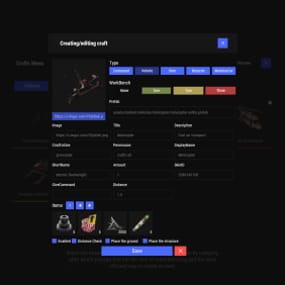
 SEA CASES / PSD Optional
 -
 PIXEL CASES / PSD Optional
 -
 Jungle Cases / PS Optional
 -
 Lang API Optional
 -
 Notify Optional
 -
.thumb.gif.5b7a21f32bdf3a3f4a2215e39136d274.gif) Kits Optional
Kits Optional -
 WipeBlock Optional
 -
 No Escape Optional
 -
 Duelist Optional
 -
 Arena Tournament Optional
About Ultimate Cases
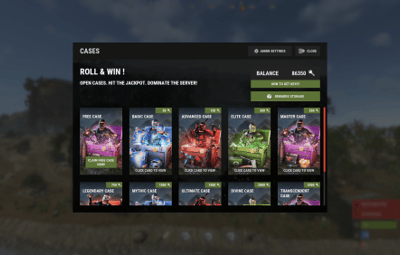
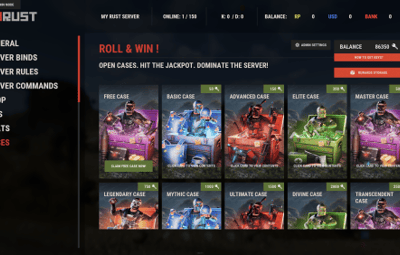
UltimateCases is a case opening plugin for Rust servers. Players unbox items through a roulette animation, you create as many custom cases with their own rewards as you want, and a key exchange lets players turn currency into keys. You can hand out free cases to active players, sell premium cases, or do both with UltimateCases.


 ️ Why choose UltimateCases?
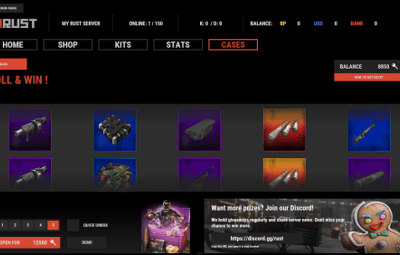
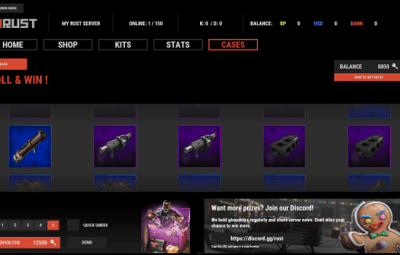
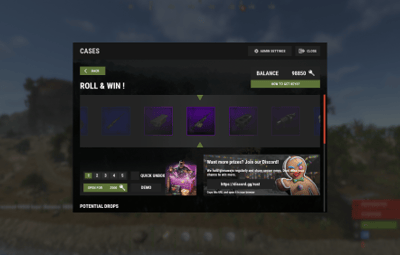
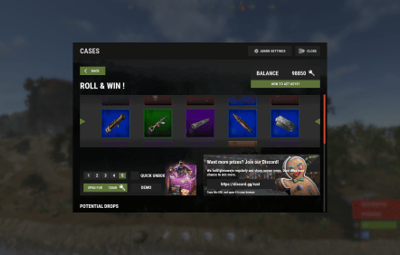
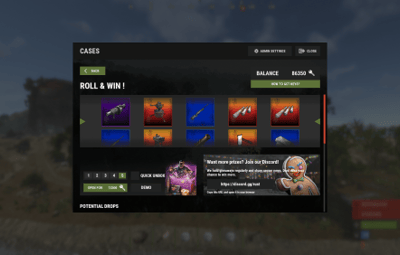
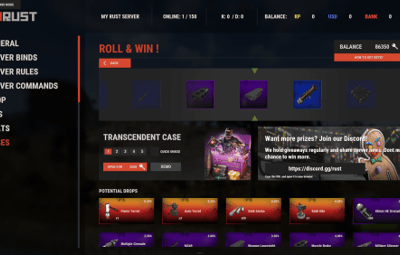
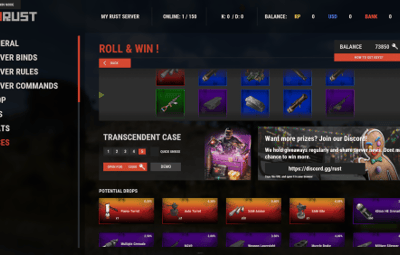
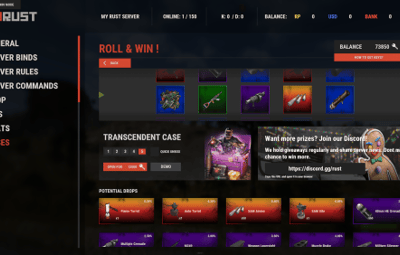
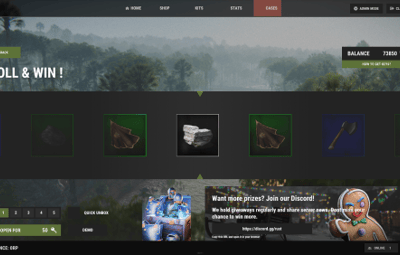
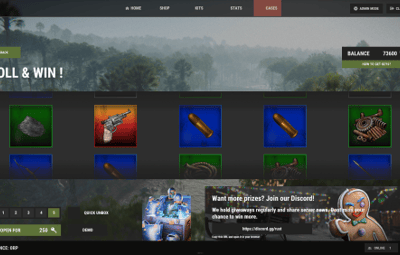
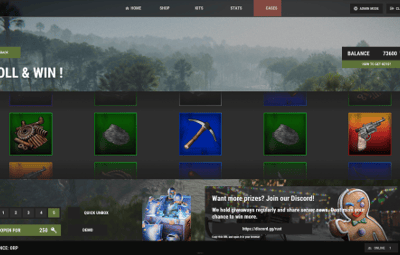
- Roulette Unboxing - Players spin a roulette to get their reward. Animations, rarity backgrounds, and sound effects are customizable.
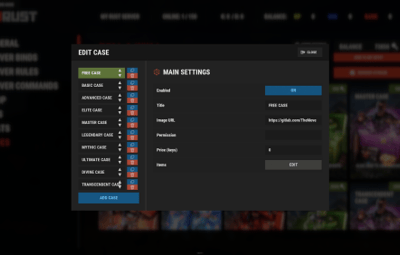
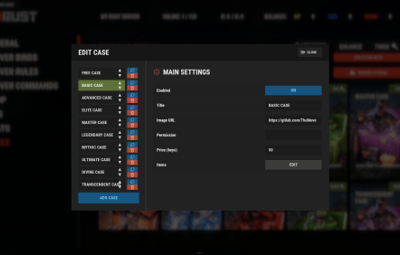
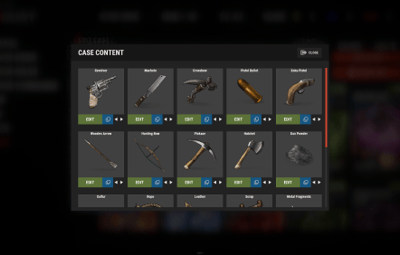
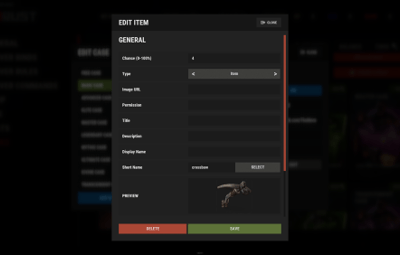
- Easy Case Creation - Create cases, add items, set prices, and configure the rest in the in-game visual editor. You edit cases on the fly, with no code and no configuration files.
- Monetize Your Server - Players buy keys through the key exchange with any currency (Economics, ServerRewards, scrap, etc.), and you control the economy.
- Reward Active Players - Give out free cases with playtime requirements and cooldowns, so they go to the players who spend the most time on your server.
- Protect Your Economy - Limits and restrictions prevent abuse. Set daily limits, lifetime limits, minimum playtime requirements, and block case opening during combat or raids.
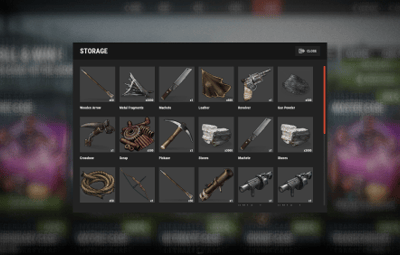
- Store Rewards Safely - A built-in inventory stores all case rewards. Players take items out when they're ready, and you can keep items across wipes.
- Announce Rare Wins - Post rare wins to chat and Discord, with customizable logging and webhook support.
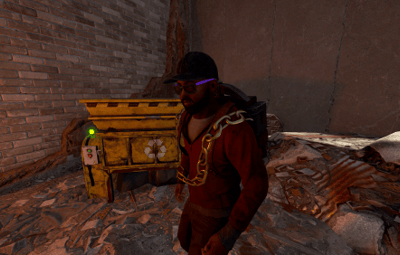
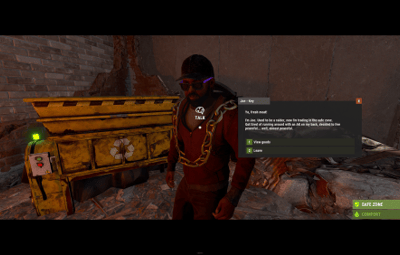
- NPC Traders at Monuments - Spawn NPCs at monuments where players exchange keys for currency. Monuments become trading spots that players travel to.
- VIP Benefits - Give your supporters discounts on case opening and key exchange, with several VIP tiers and customizable benefits.
- Integrations - Works with ServerPanel, the major economy plugins, and ImageLibrary for images.
 Key Exchange System
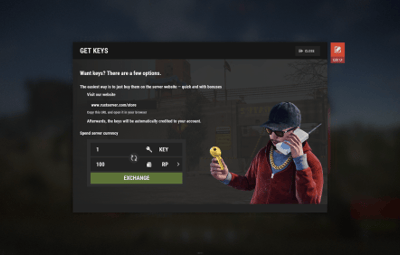
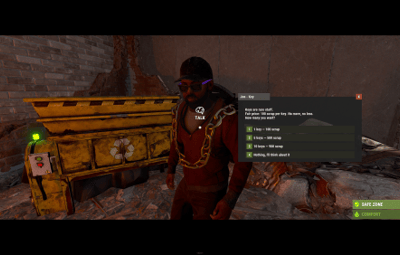
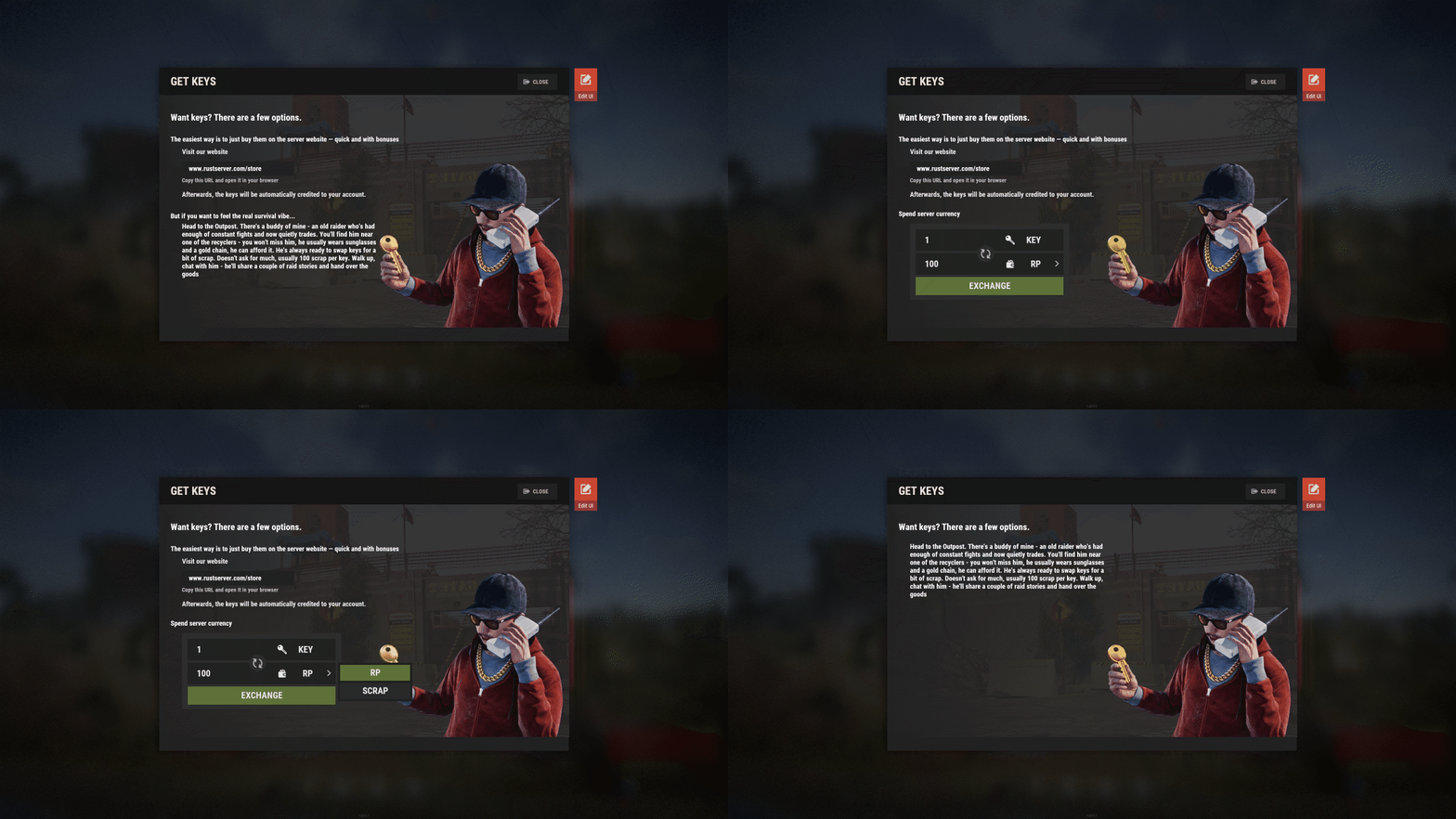
Players exchange currency for case keys. The exchange supports:
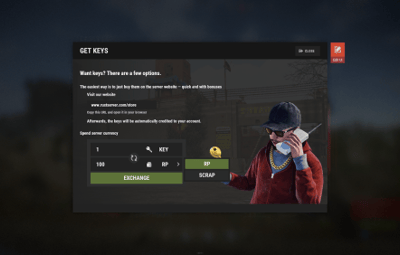
- Multiple Currencies - Use Economics, ServerRewards, BankSystem, IQEconomic, or any item (scrap, sulfur, etc.) as currency for key exchange.
- Bulk Discounts - The more keys a player exchanges, the less they pay. Automatic discounts: 5% off for 10+ keys, 10% off for 25+ keys, 15% off for 50+ keys, 20% off for 100+ keys.
- VIP Discounts - Configure permission-based discounts (5%, 10%, 15%, 20%) with custom daily limits.
- Daily Limits - Limit how many keys a player can exchange per day to keep the server economy under control and prevent abuse.
- Monument NPCs - Spawn traders at monuments. Players visit NPCs at the lighthouse, outpost, or any other monument to exchange keys. Appearance and rates are customizable.
 Inventory System
The inventory keeps every case reward:
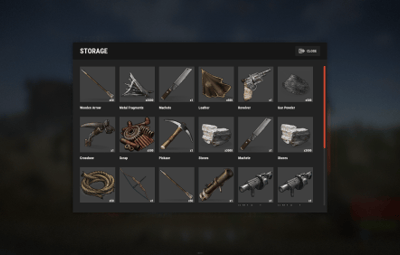
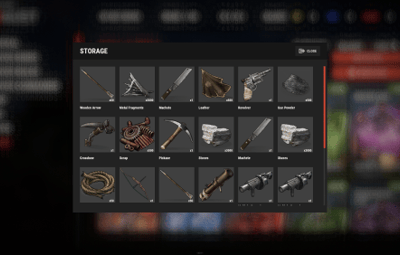
- Secure Storage - All case rewards are automatically stored in your personal inventory, accessible anytime through the UI.
- Wipe Protection - Choose whether items persist across server wipes or are cleared automatically. Useful for seasonal rewards.
- Safe Retrieval - Items can't be retrieved during combat, raids, or while building blocked.
- Post-Wipe Cooldown - Optional cooldown after a wipe before items can be retrieved, for server balance.
 Video Overview
 Showcase
Templates
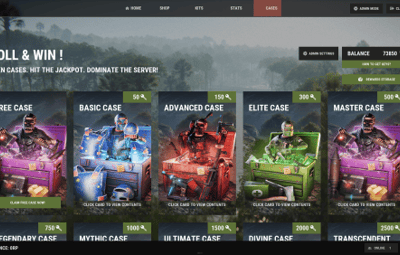
- Fullscreen Template
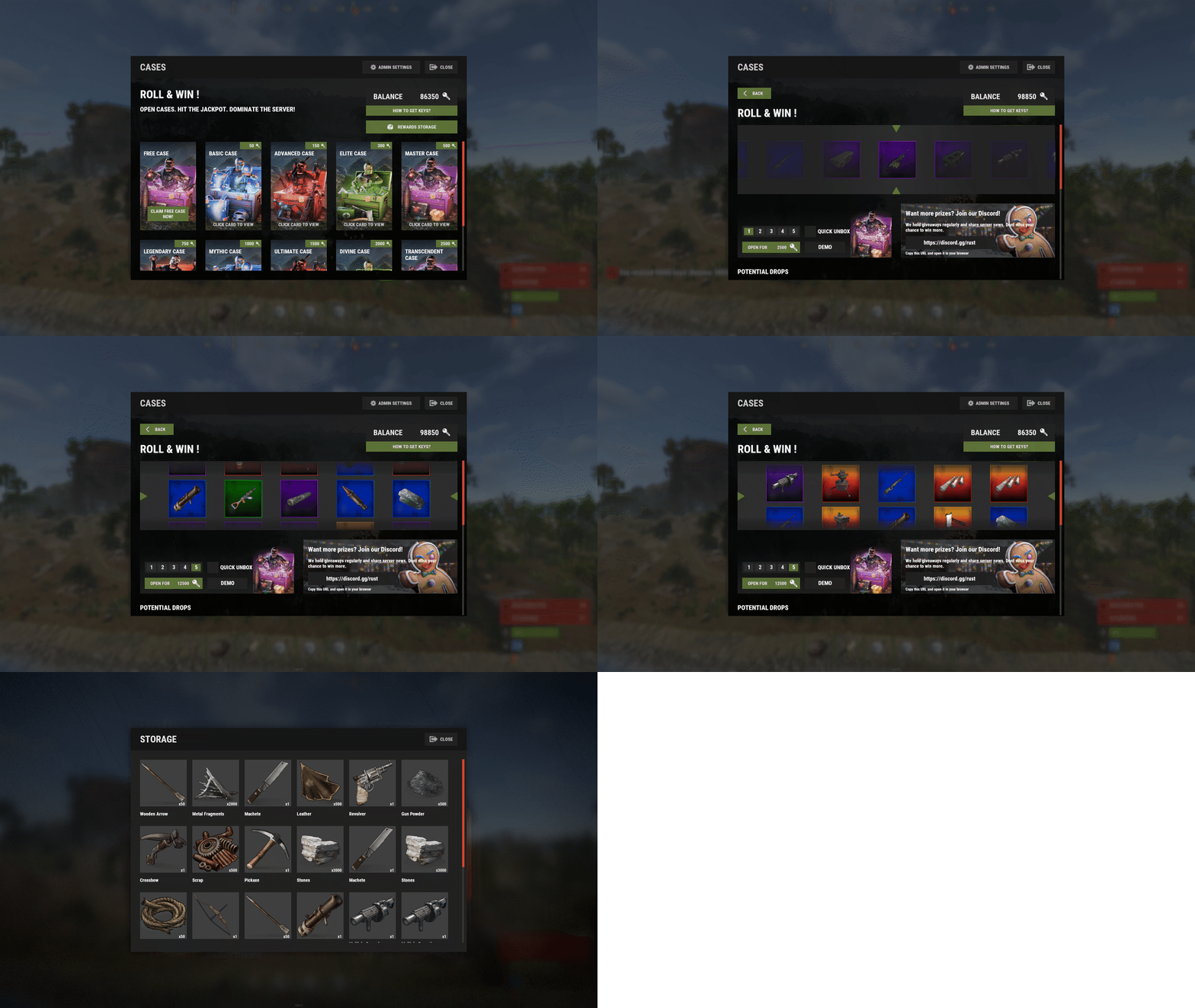
- ServerPanel V1 Template

- ServerPanel V2 Template

- ServerPanel V4 Template

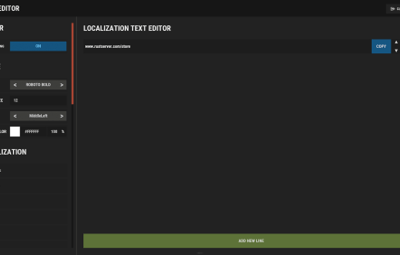
In-Game Editor
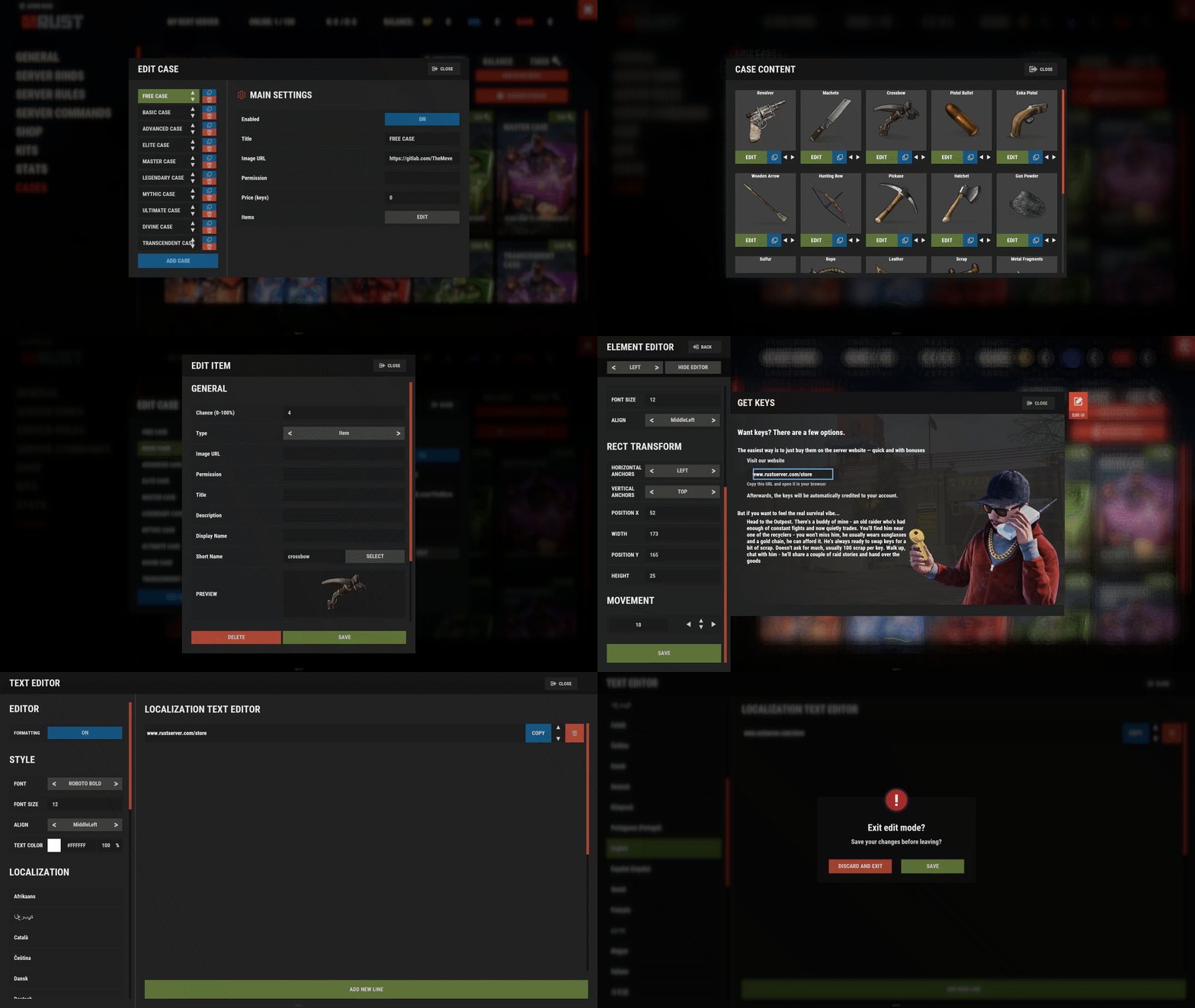
Monument Trader

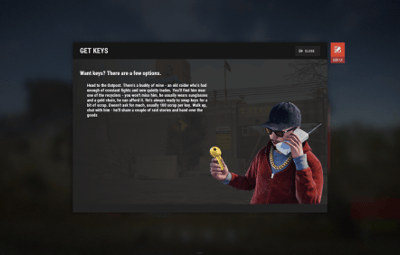
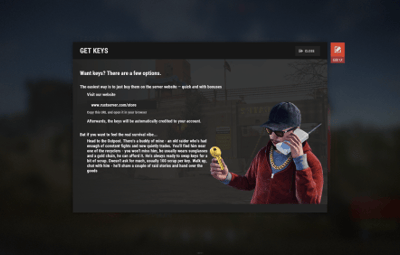
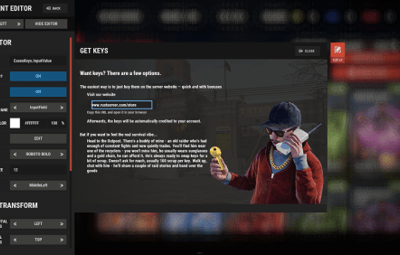
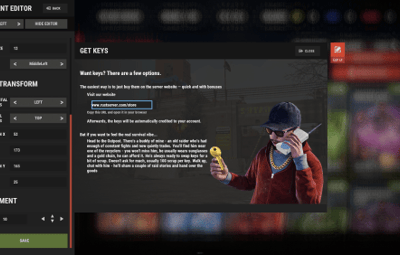
How to get Keys?
 Commands
- /opencases or /cases - Opens the cases interface for players
-
/cases.trader - Chat command for managing Monument Traders (requires ultimatecases.edit permission)
- /cases.trader create [currencyID] [defaultKeys] [prefab] - Create a new trader bot
- /cases.trader start <botIndex> <monumentIndex> - Enter edit mode for a trader
- /cases.trader move - Update trader position (requires edit mode)
- /cases.trader rotate <angle> - Set trader rotation (requires edit mode)
- /cases.trader save - Save and reload trader (requires edit mode)
- /cases.trader cancel/stop - Cancel edit mode
- /cases.trader delete <botIndex> - Delete a trader bot (indices of the bots after it shift down by one)
- /cases.trader list - Show all configured trader bots
- /cases.trader teleport <botIndex> <monumentIndex> - Teleport to a trader bot location
- /cases.trader help - Show help for trader commands
-
cases.give - Console/Rcon command for giving keys or cases to players (admin only)
- cases.give <player> keys <amount> - Give keys to a player
- cases.give <player> case <caseID> [amount] - Give case(s) to a player
- Examples: cases.give PlayerName keys 100 or cases.give 76561198000000000 case 0 5
-
cases.convert - Console command for converting cases from old Cases plugin (requires UltimateCasesConverter plugin, admin only)
- cases.convert - Convert all cases and add them to existing UltimateCases data
- cases.convert true - Clear existing UltimateCases data before converting (fresh start)
 Permissions
- ultimatecases.edit - Permission to edit cases, items, and modals using the in-game editor. Required to access all editor functions and manage Monument Traders.
- ultimatecases.discount1 - 5% discount on case opening
- ultimatecases.discount2 - 10% discount on case opening
- ultimatecases.discount3 - 15% discount on case opening
- ultimatecases.vip1 - 5% discount on key exchange, with optional custom daily limit
- ultimatecases.vip2 - 10% discount on key exchange, with optional custom daily limit
- ultimatecases.vip3 - 15% discount on key exchange, with optional custom daily limit
- ultimatecases.vip4 - 20% discount on key exchange, with optional custom daily limit
Note: Additional permissions can be configured in the config file for demo mode and quick unbox mode. These are optional and can be left empty to disable the features.
 Web Config Editor
Manage the UltimateCases settings in our web config editor. You change the config in a browser form instead of editing files on the server by hand.
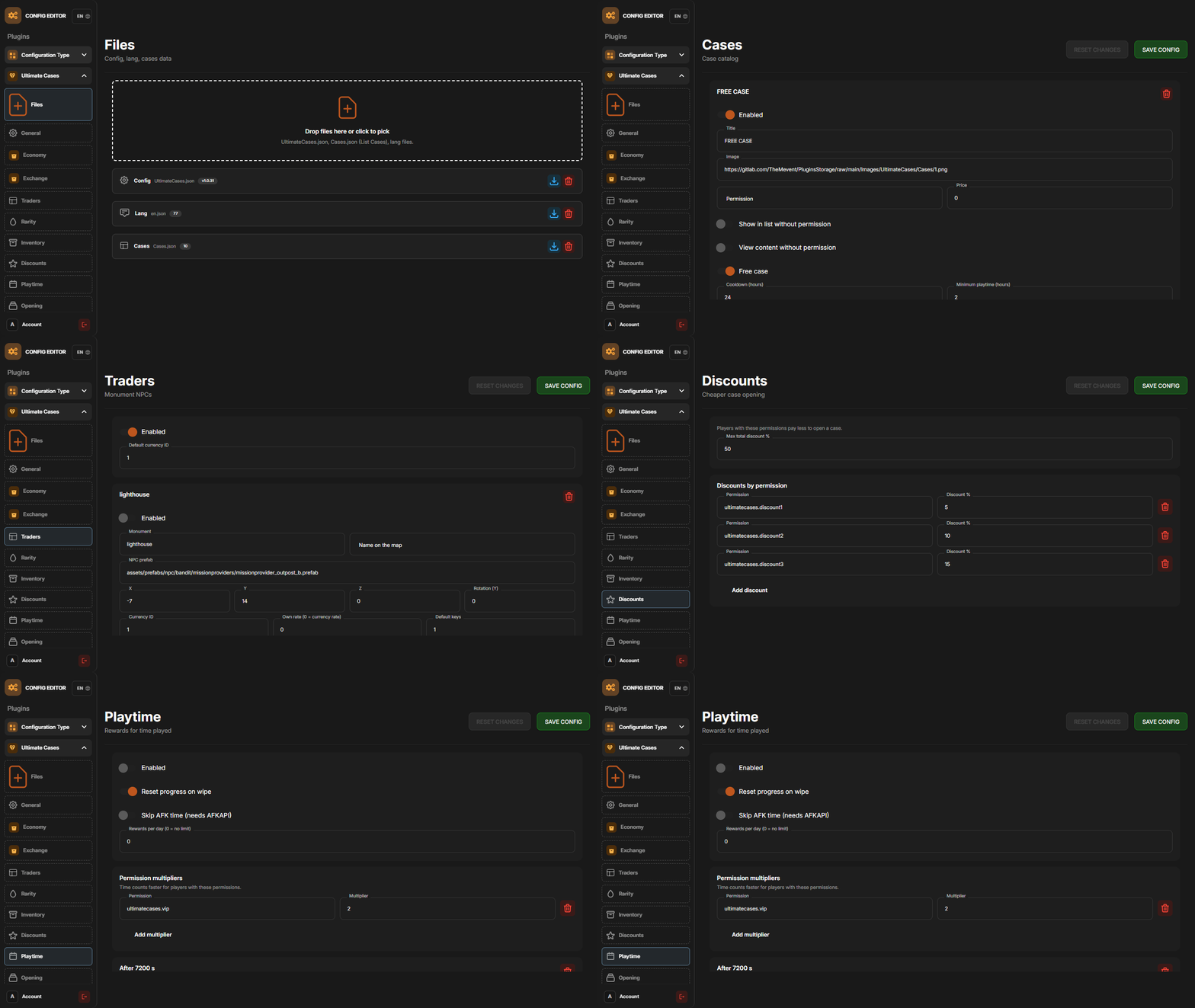
P.S. The web config editor is open to members of the "UltimateCases" group in our Discord server. Join at https://discord.gg/mevent and ask for the group.
 FAQ
FAQ
Q: How do I open the Case Editor?
A: To open the Case Editor:
-
Make sure you have the
ultimatecases.editpermission -
Open the cases menu using
/opencasesor/cases - Look for the "EDIT" button in the header of the interface (usually in the top-right area)
- Click the "EDIT" button to open the Case Editor
- From here you can create new cases, edit existing cases, add items, configure prices, permissions, and all case settings
Q: How do I open the Item Editor?
A: To open the Item Editor:
- First, open the Case Editor (see instructions above)
- Select a case from the list or create a new case
- In the case editor, you'll see a section for items
- Click "ADD ITEM" or click on an existing item to edit it
- The Item Editor will open where you can configure item type, chance, image, title, description, permissions, and all item-specific settings (weapons, contents, genes, etc.)
Q: How do I open the Modal Editor?
A: To open the Modal Editor:
-
Make sure you have the
ultimatecases.editpermission - Open the cases menu and navigate to any modal window (like the keys exchange modal)
- Look for the "EDIT" button that appears on modal windows when you have edit permission
- Click the "EDIT" button to open the Modal Editor
- From here you can edit modal content, text elements, images, buttons, and all modal settings
Q: How do I create a case?
A: Open the cases menu in-game, click the "EDIT" button in the header, then click "ADD CASE" in the Case Editor. Configure the case title, image, price, permission, and add items. No file editing needed!
Q: Can players get free cases?
A: Yes! Enable Free Case Settings for any case. Set minimum playtime (e.g., 2 hours) and cooldown (e.g., 24 hours). Players meeting requirements can open the case for free once per cooldown period.
Q: How do I set up key exchange?
A: Go to Exchange Settings in the config. Add currencies (Economics, ServerRewards, scrap, etc.), set exchange rates and configure discounts. Players can then exchange currency for keys instantly.
Q: What can I put in cases?
A: Almost anything. Add items (weapons with attachments, containers with contents, blueprints, plant seeds with genes), or run commands when a case is opened. Every reward type is customizable.
Q: How do Monument Traders work?
A: Configure NPCs in Exchange Settings to spawn at monuments. Players can visit these NPCs to exchange keys for currency. Set the monument (lighthouse, outpost, etc.), NPC appearance, position, and exchange rate.
Q: Can I limit how many cases players can open?
A: Yes. Set daily limits (e.g., 5 cases per day), total lifetime limits (e.g., 50 cases total), minimum playtime requirements, and block opening for a period after server wipe.
Q: How does the inventory system work?
A: When players open cases, rewards go to their inventory automatically. Players can access inventory through the UI and retrieve items when ready. Configure whether items persist across wipes.
Q: Can I announce rare wins?
A: Yes. Enable chat announcements and Discord webhooks, set a rarity threshold (e.g., only announce items with 5% or lower chance), and customize the message format.
Q: How do I add UltimateCases to ServerPanel?
A: In ServerPanel, create a new category with Type: "Plugin", Plugin Name: "UltimateCases", Plugin Hook: "API_OpenPlugin".
Q: Can I give VIP players discounts?
A: Yes! Configure permission-based discounts in Case Opening Discounts and Exchange Privilege Settings. Set different discount percentages for different VIP tiers.
Q: How do I configure the plugin config file?
A: The config file is located at oxide/config/UltimateCases.json (or carbon/config/UltimateCases.json for Carbon). Here's how to configure key settings:
-
Template Selection: Set
"Template"to"Fullscreen","V1","V2", or"V4" -
Commands: Modify
"Open UI Commands"array to add custom command aliases -
Key Exchange: Configure
"Exchange Settings"→"Currencies"to add currencies (Economics, ServerRewards, items, etc.) -
Roulette Duration: Set
"Roulette Settings"→"Default Duration (seconds)"and"Quick Unbox Mode Duration (seconds)" -
Sound Effects: Enable/disable sounds in
"Sound Effects"section and set effect prefab paths -
Logging: Configure console, file, chat, and Discord logging in
"Logging Settings" -
Restrictions: Enable/disable case opening restrictions in
"Case Opening Restrictions Settings" -
Inventory: Configure inventory settings in
"Inventory settings"section
After editing, reload the plugin: o.reload UltimateCases (Oxide) or c.reload UltimateCases (Carbon).
Q: How do I set up LangAPI for multi-language support?
A: To enable LangAPI support:
- Make sure LangAPI plugin is installed and loaded on your server
-
In UltimateCases config, set
"Work with LangAPI?"totrue -
Create language files in
oxide/lang/UltimateCases/(orcarbon/lang/UltimateCases/for Carbon) -
Create files like
en.json,ru.json, etc. with translation keys - Use LangAPI's translation system to translate all plugin messages
- Reload the plugin to apply changes
Example translation key structure:
{
  "UI_Header_Title": "Ultimate Cases",
  "UI_Content_ButtonOpen": "OPEN CASE",
  "UI_Content_ButtonOpenFREE": "FREE",
  ...
}
Q: How do I set up Monument Traders using commands?
A: To create and configure Monument Traders:
-
Make sure you have
ultimatecases.editpermission - Go to the monument where you want to spawn a trader (e.g., lighthouse, outpost)
-
In chat, use:
/cases.trader create [currencyID] [defaultKeys] [prefab]-
currencyID- ID of the currency from Exchange Settings (0, 1, 2, etc.) -
defaultKeys- Default number of keys per exchange (e.g., 1) -
prefab- NPC prefab path (e.g., "assets/prefabs/npc/bandit/missionproviders/missionprovider_outpost_b.prefab")
-
-
Enter edit mode:
cases.trader start <botIndex> <monumentIndex>(usecases.trader listto see bot indices) - Position yourself where you want the NPC to spawn
-
Update position:
cases.trader move -
Set rotation:
cases.trader rotate <angle>(0-360 degrees) -
Save:
cases.trader save - The NPC will spawn automatically at the configured monument
-
To remove a trader, use
cases.trader delete <botIndex>
Q: How do I configure custom economy plugins?
A: To use a custom economy plugin:
-
In config, find
"Custom Economy Settings" -
Set
"Use Custom Economy"totrue -
Set
"Type (Plugin/Item)"to"Plugin" -
Enter
"Plugin name"(exact name as it appears in plugins list) -
Configure hooks:
-
"Balance add hook"- Hook name for adding balance (e.g., "AddPoints", "Deposit") -
"Balance remove hook"- Hook name for removing balance (e.g., "TakePoints", "Withdraw") -
"Balance show hook"- Hook name for checking balance (e.g., "CheckPoints", "Balance")
-
- Test the hooks work correctly by checking plugin documentation
- Reload the plugin
Q: How do I configure rarity backgrounds?
A: To set up rarity backgrounds:
-
In config, find
"Rarity Settings"→"Rarity Backgrounds" -
Add entries with chance ranges and images:
-
"Chance From (%)"- Minimum chance percentage (e.g., 0) -
"Chance To (%)"- Maximum chance percentage (e.g., 1) -
"Background Image"- Background image URL for case display -
"Roulette Item Background Image"- Background image URL for roulette item display
-
- Example: Legendary (0-1%), Epic (1-5%), Rare (5-15%), Uncommon (15-50%), Common (50-100%)
- Items with drop chances within each range will display the corresponding background
Q: How do I configure Discord webhook logging?
A: To set up Discord webhook logging:
- Create a Discord webhook in your Discord server (Server Settings → Integrations → Webhooks → New Webhook)
- Copy the webhook URL
-
In config, find
"Logging Settings"→"Discord Webhook" -
Set
"Enabled"totrue -
Paste webhook URL in
"Webhook URL" -
Configure options:
-
"Only Rare Items (Chance <= X%) (0 = all)"- Only log items with chance ≤ X% (0 = log all items) -
"Embed Color (Decimal)"- Decimal color code (e.g., 15844367 for gold) -
"Title"- Embed title -
"Show Player Avatar"- Display player avatar in embed -
"Show Item Icons"- Display item icons in embed -
"Group Items in Single Message"- Group multiple items in single message -
"Include Statistics"- Add statistics to embed
-
- Reload the plugin
Q: How do I configure item rewards with weapons and attachments?
A: In the Item Editor:
-
Set
"Type"to"Item" -
Enter the weapon
"ShortName"(e.g., "rifle.ak") -
In
"Weapon"section, set"Enabled"totrue -
Set
"Ammo Type"(e.g., "ammo.rifle.explosive") -
Set
"Ammo Amount"(e.g., 128) -
In
"Content"section, set"Enabled"totrue -
Add attachments in
"Contents"array:-
"ShortName"- Mod shortname (e.g., "weapon.mod.lasersight") -
"Condition"- Item condition (0-100) -
"Amount"- Usually 1 for mods -
"Position"- Slot index (-1 for auto-assignment)
-
- Save the item
Q: How do I configure command rewards in cases?
A: To add command rewards:
-
In Item Editor, set
"Type"to"Command" -
In
"Command (%steamid%)"field, enter your command -
Use placeholders:
-
%steamid%- Player's Steam ID -
%username%- Player's display name -
%player.x%- Player's X coordinate -
%player.y%- Player's Y coordinate -
%player.z%- Player's Z coordinate
-
-
Multiple commands can be separated by
|or line breaks -
Example:
"inventory.giveto %steamid% rifle.ak 1|oxide.usergroup add %steamid% vip"
Q: How do I enable Offline Image Mode?
A: To use local images instead of downloading from internet:
-
In config, set
"Enable Offline Image Mode"totrue -
Create folder
"TheMevent"inoxide/data(orcarbon/datafor Carbon) - Download PluginsStorage (click "CODE" → "Download ZIP")
-
Extract the ZIP and copy all contents to the
"TheMevent"folder -
Reload the plugin:
o.reload UltimateCases(Oxide) orc.reload UltimateCases(Carbon)
Note: For custom images, place them in the "TheMevent" folder and reference them with the "TheMevent/" prefix (e.g., "TheMevent/MyImage.png").
Q: How do I configure demo mode and quick unbox mode?
A: Demo mode allows testing cases without spending keys, and quick unbox mode speeds up animations:
-
In config, find
"Roulette Settings" -
For demo mode: Set
"Demo Mode Permission (empty = disabled)"to a permission name (e.g., "ultimatecases.demo") or leave empty to disable -
For quick unbox: Set
"Quick Unbox Permission (empty = disabled)"to a permission name (e.g., "ultimatecases.quick") or leave empty to disable -
Set
"Quick Unbox Mode Duration (seconds)"- how long the quick animation should last - Grant the permissions to players who should have access
- Reload the plugin
Q: How do I configure case opening restrictions?
A: To prevent case opening in certain situations:
-
In config, find
"Case Opening Restrictions Settings" -
Set
"Enabled"totrue -
Enable/disable specific restrictions:
-
"Block During Combat"- Requires NoEscape plugin -
"Block During Raid"- Requires NoEscape plugin -
"Block in Building Blocked"- Blocks when player can't build -
"Block While Swimming"- Blocks when player is swimming -
"Block When Player is Wounded"- Blocks when player is wounded -
"Block During Duel"- Requires Duel/Duelist plugin -
"Block During Helicopter Flight"- Blocks when in helicopter -
"Block When Player is Sleeping"- Blocks when player is sleeping
-
- Reload the plugin
 TEST SERVER
Try UltimateCases on our test server.
Copy the IP address below to connect.
connect 155.103.86.38:28015
With UltimateCases you can reward players and monetize your server with cases.



.thumb.gif.30bb4fb1ad6b9cbba98fad72b9533086.gif)
.thumb.png.bcb832e22f0a48b6833fee517e444bff.png)
.thumb.gif.4707aef13cba7c3b9ad410f5f982b71c.gif)



.thumb.gif.3c9c0e18006368d634273095544fb983.gif)