

About ObjectStacks
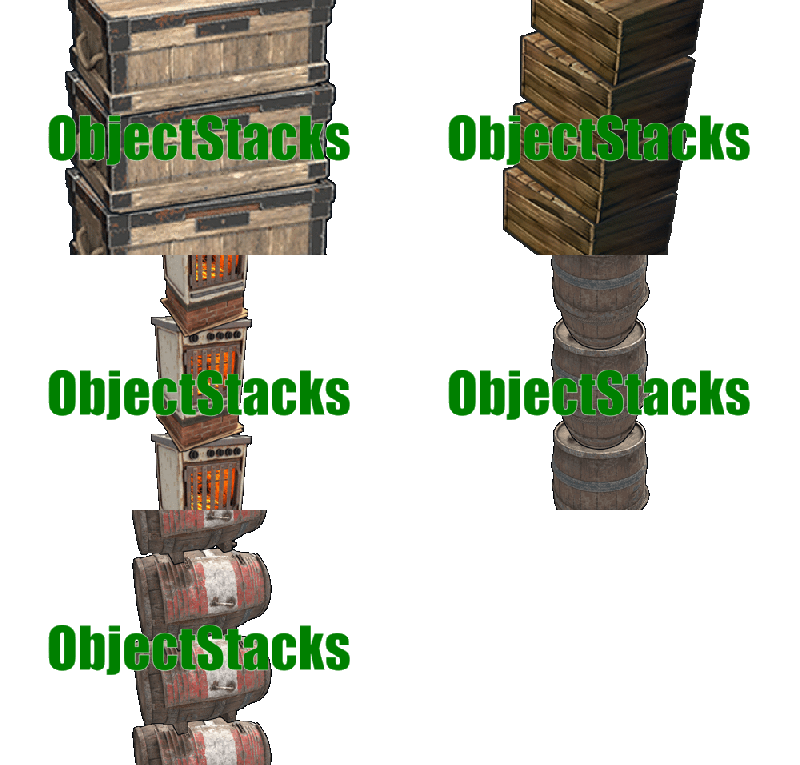
Tired of cluttered bases? ObjectStacks allows players to stack deployable objects vertically, creating organized, space-efficient storage areas and base layouts. Simply right-click while holding a deployable item to stack it on top of an existing object of the same type. Perfect for organizing furnaces, storage containers, generators, and more!

 Features of ObjectStacks
- One-Click Stacking: Right-click to stack objects - no commands needed, just intuitive gameplay
- Precise Vertical Spacing: Customizable Y-Offset for each object type ensures perfect alignment and prevents clipping
- Permission-Based Stacking Limits: Control how many objects each player group can stack (e.g., regular users: 2, VIPs: 4)
- Building Privilege Restriction: Optional restriction to Tool Cupboard zones to maintain game balance
- Smart Stability System: Automatic stability checking prevents floating structures and ensures realistic placement
- Skin Blacklist System: Prevent stacking of specific item skins that might cause visual or gameplay issues
- Tugboat Integration: Full support for stacking on tugboats with automatic parenting and stability bypass
- Ground Protection: Prevents stacked objects from falling when base objects are removed, maintaining structural integrity
- Automatic Permission Management: All permissions are automatically registered based on your configuration
- Comprehensive Logging: Optional logging system with multiple levels (None, File, Console, All) for debugging
- Wide Compatibility: Supports storage containers, electrical items, composters, and many more deployable objects
- Easy Configuration: Simple JSON configuration file - add new objects in minutes
 Usage
Usage
To stack an object:
- Hold the deployable item you want to stack in your hands
- Look at an existing object of the same type (must be within 3 meters)
- Press right-click (secondary fire button)
- The item will be automatically placed on top at the correct height
Cooldown: There's a 0.5 second cooldown between stacking attempts to prevent spam-clicking.
 Permissions
Permissions follow the format: objectstacks.<shortname>.<group>
Permission Format Explanation:
-
objectstacks- Plugin prefix -
<shortname>- The shortname defined in the object's configuration (e.g., "box_wooden", "electric_furnace") -
<group>- Your custom group name (e.g., "use", "vip", "premium")
Examples:
-
objectstacks.storage_barrel_b.use- Regular users can stack up to 2 storage barrels (limit set in config) -
objectstacks.storage_barrel_b.vip- VIP users can stack up to 4 storage barrels -
objectstacks.electric_furnace.use- Regular users can stack up to 2 furnaces -
objectstacks.electric_furnace.vip- VIP users can stack up to 4 furnaces
Important: The plugin uses the highest limit among all permissions the player has. If a player has both objectstacks.box_wooden.use (limit: 2) and objectstacks.box_wooden.vip (limit: 4), they will be able to stack up to 4 boxes.
 Supported Objects
Storage Containers:
- Wooden Box (small)
- Large Wooden Box
- Storage Barrel B
- Storage Barrel C
- Coffin Storage
- Medieval Large Wooden Box
- Bamboo Barrel
- Wicker Barrel
- Abyss Barrel (Vertical and Horizontal)
Electrical Items:
- Electric Furnace
- Small Generator
- Small Fuel Generator
- Rechargeable Battery (Small, Medium, Large)
Other:
- Composter
Note: You can add any deployable object to the configuration. Simply find its prefab path and configure the Y-Offset and permissions.
 Configuration Guide
Logging Level:
-
None- Disable all logging -
File- Log to files inoxide/logs(orcarbon/logs) -
Console- Log to server console -
All- Log to both files and console
Can stack only in Building Privileged zones?: When set to true, players can only stack objects within Tool Cupboard zones (or on tugboats). This prevents excessive stacking in public areas and maintains game balance. Set to false to allow stacking anywhere.
Blacklisted Skins: Array of skin IDs that cannot be used for stacking. Add skin IDs here to prevent stacking of problematic skins. Example: [123, 1223]
Permissions & their amount of stacked objects allowed: Dictionary mapping permission names to stacking limits. The limit represents the maximum number of objects that can be stacked in a single stack.
Objects and offsets: Dictionary mapping object prefab paths to their configuration:
-
YOffset- Vertical spacing between stacked objects (in meters) -
Shortname- Used for permission names (format: objectstacks.<shortname>.<group>)
 Web Config Editor
Easily manage your ObjectStacks settings with our web-based configuration editor. This tool allows you to adjust plugin configurations through a user-friendly interface, eliminating the need to manually edit files on your server.

P.S. To access the web config editor, you must be part of the "ObjectStacks" group in our Discord server. Join us at https://discord.gg/mevent and request the group to get started.
 FAQ
FAQ
Q: How do I stack objects?
A: Hold the item in your hands, look at an existing object of the same type (within 3 meters), and right-click. The item will be automatically stacked on top.
Q: Why isn't stacking working for me?
A: Check these requirements:
- The object type must be configured in the plugin
-
You need the appropriate permission (e.g.,
objectstacks.box_wooden.use) - You must not have exceeded your stacking limit
- If "Only in Building Privileged zones" is enabled, you must be in a Tool Cupboard zone
- The item skin must not be blacklisted
- There must be enough stability at the placement location
- You must be looking at the object (within 3 meters)
- The object you're looking at must be the same type as the item in your hands
Q: How do I add a new object to the configuration?
A: Follow these steps:
-
Find the object's prefab path (use
spawncommand in F1 console or check Rust documentation) - Add an entry to "Objects and offsets":
"assets/prefabs/path/to/object.prefab": {
  "YOffset": 1.0,
  "Shortname for permissions (objectstacks.THISNAME.[use/vip/etc.])": "my_object"
}
- Add permissions with limits:
"objectstacks.my_object.use": 2,
"objectstacks.my_object.vip": 4
-
Reload the plugin:
o.reload ObjectStacks(Oxide) orc.reload ObjectStacks(Carbon)
Q: What is Y-Offset and how do I determine the right value?
A: Y-Offset is the vertical spacing between stacked objects, measured in meters. To determine the right value:
- Check the object's height in-game or in Unity
- Set Y-Offset slightly larger than the object's height to prevent clipping
- Common values: 0.5-0.7 for small objects, 1.0-1.5 for medium objects, 1.5-2.0 for large objects
- Test and adjust as needed - you can see the spacing immediately when stacking
Q: How do stacking limits work?
A: Limits control the maximum number of objects that can be stacked in a single stack. The plugin counts all objects of the same type in the vertical column and prevents stacking beyond the limit. The plugin uses the highest limit from all permissions the player has.
Q: Can I stack objects outside Tool Cupboard zones?
A: Yes, if you set "Can stack only in Building Privileged zones?": false in the config. By default, this is set to true to maintain game balance.
Q: Does stacking work on tugboats?
A: Yes! ObjectStacks fully supports tugboats. When stacking on a tugboat:
- Stability checks are bypassed
- Objects are automatically parented to the tugboat
- Building privilege restrictions don't apply
Q: What happens if I remove a base object from a stack?
A: The plugin includes ground protection via the OnEntityGroundMissing hook. If you remove a base object, stacked objects above will check if there's another object of the same type below them. If found within the Y-Offset range, they won't fall, preventing accidental destruction.
Q: How do I find the prefab path for an object?
A: Several methods:
-
Use
spawncommand in F1 console - it shows prefab paths as you type - Check the default config for examples of similar objects
- Look up Rust prefab documentation online
- Use server console commands that list prefabs
Q: Can I prevent specific skins from being stacked?
A: Yes! Add the skin ID to the "Blacklisted Skins" array in the config. For example: "Blacklisted Skins": [123, 1223, 4567]
Q: What does the error message "Building blocked!" mean?
A: This means "Can stack only in Building Privileged zones?" is enabled, and you're trying to stack outside a Tool Cupboard zone. Either move to a TC zone, or disable this setting in the config.
Q: What does "Not enough stability to place the entity" mean?
A: The plugin checks if the placement location has enough structural support. If you see this message, try stacking in a different location or ensure there's proper foundation below.
Q: Where can I see an example configuration?
A: The default config file generated by the plugin contains comprehensive examples of all supported objects. You can use it as a template when adding new objects.



.thumb.gif.30bb4fb1ad6b9cbba98fad72b9533086.gif)
.thumb.png.bcb832e22f0a48b6833fee517e444bff.png)
.thumb.gif.4707aef13cba7c3b9ad410f5f982b71c.gif)



![More information about "Build Tools [grade/remove/skins]"](https://codefling.com/cdn-cgi/image/width=285,height=285,quality=80,fit=cover,format=webp/https://codefling.com/uploads/monthly_2024_02/v4final.thumb.gif.47c01c6bcae439a1dad6cea581e5ec41.gif)