

 New Release: Ultimate Quests


Works with
Optional integrations and compatible files.
-
 Image Library Optional
 -
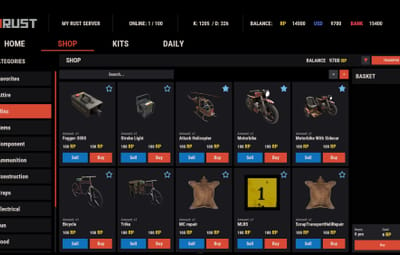
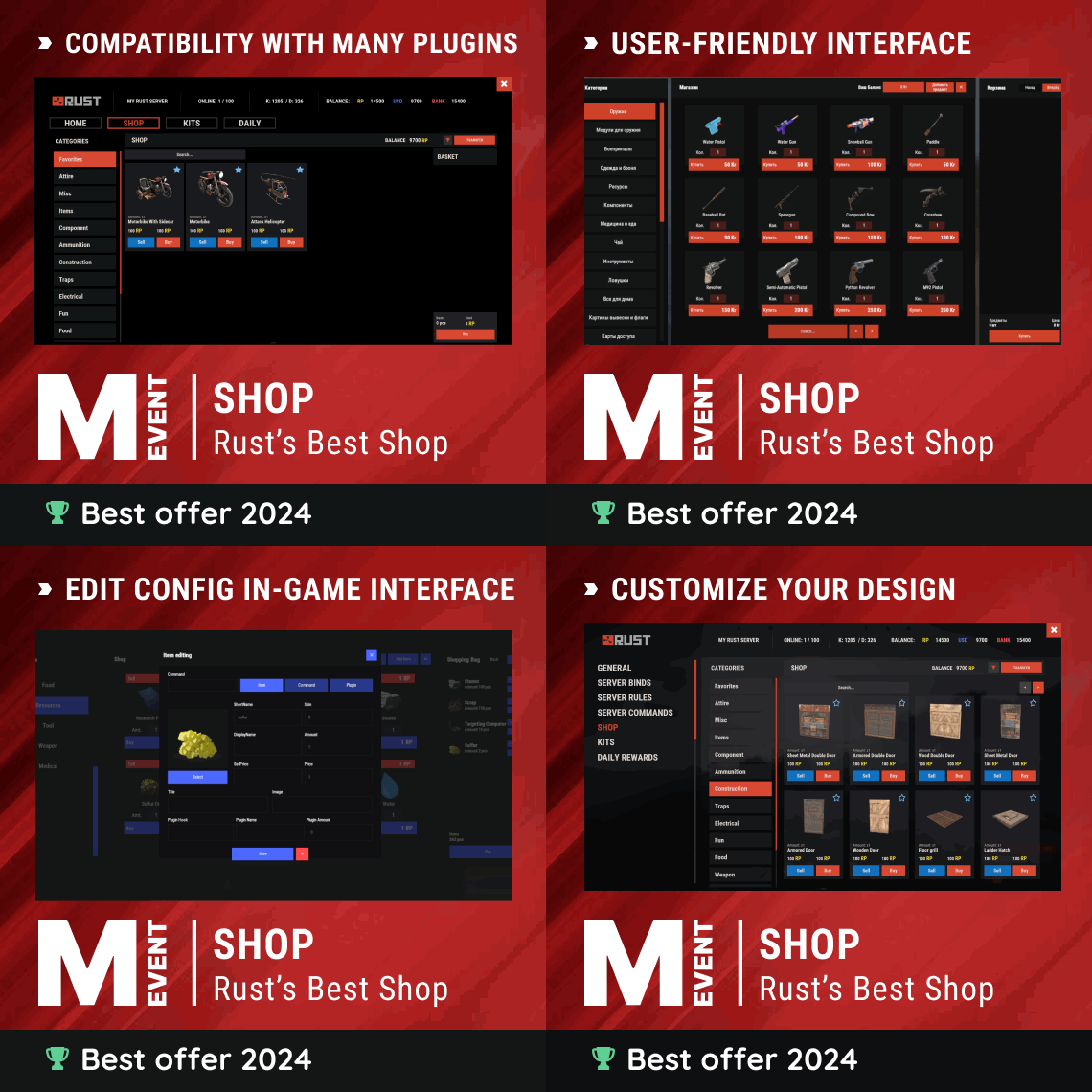 Shop Optional
 -
 Ultimate Quests Optional
 -
 Clans Optional
 -
 Bank System Optional
 -
 Ultimate Leaderboard Optional
 -
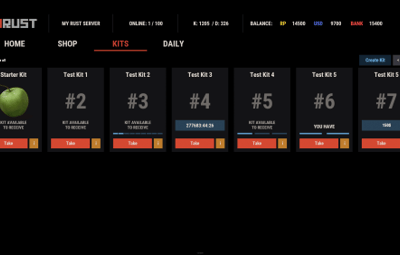
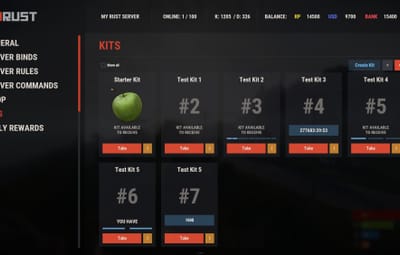
.thumb.gif.30bb4fb1ad6b9cbba98fad72b9533086.gif) Kits Optional
Kits Optional -
 Multi Events Optional
 -
 Linking System Optional
 -
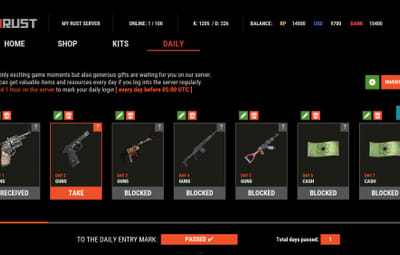
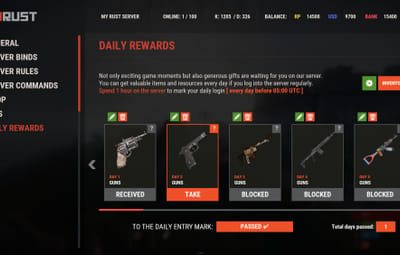
.thumb.gif.4707aef13cba7c3b9ad410f5f982b71c.gif) Daily Rewards Optional
Daily Rewards Optional -
 Wipe Schedule Optional
 -
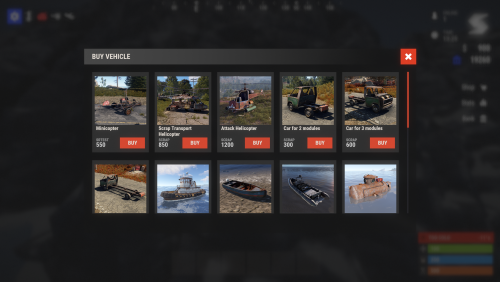 Vehicle Buy Optional
 -
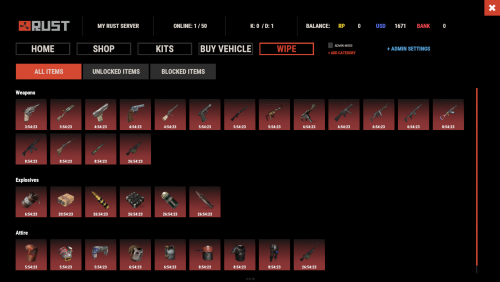 WipeBlock Optional
 -
 Kill Records Optional
 -
 TradeItem Optional
 -
 License Wallet Optional
 -
 Mercenary Ranks Optional
 -
 The Offering Optional
 -
 Blue Theme for Server Panel Optional
 -
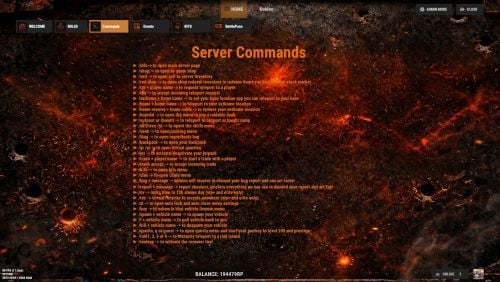 Template Design (Mevent server panel) Optional
About Server Panel
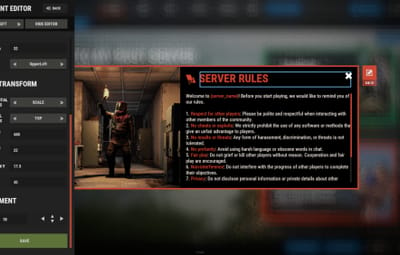
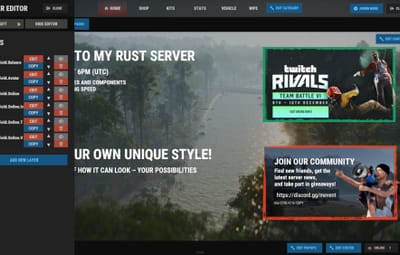
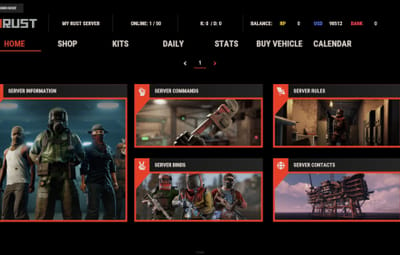
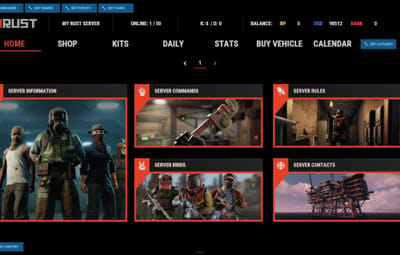
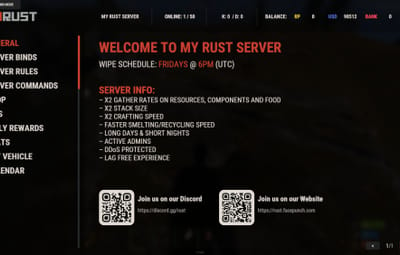
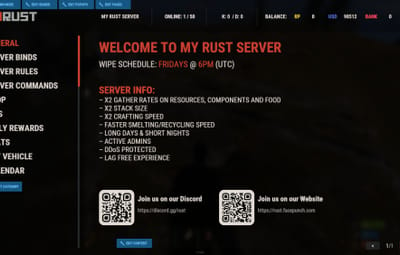
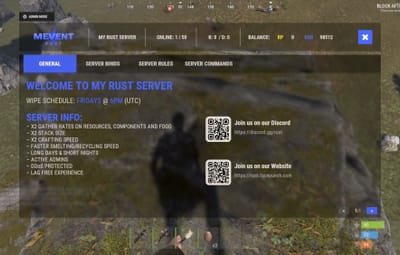
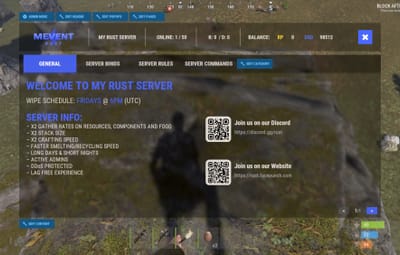
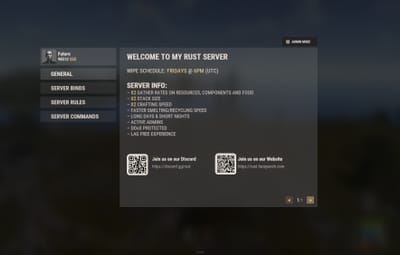
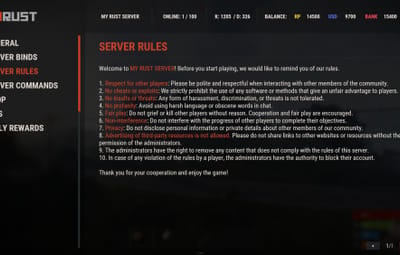
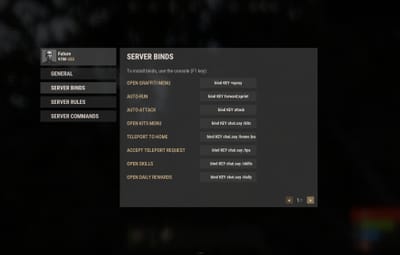
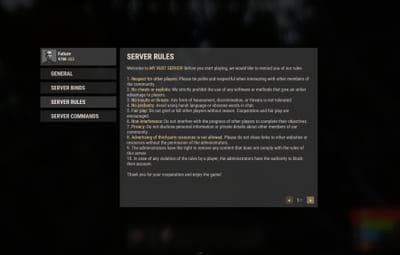
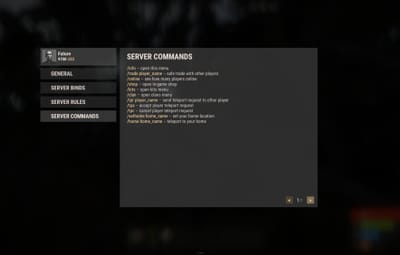
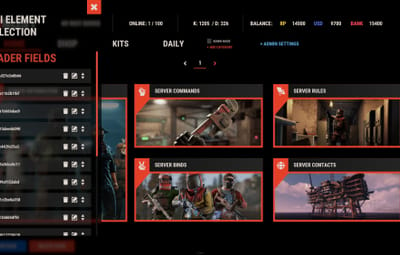
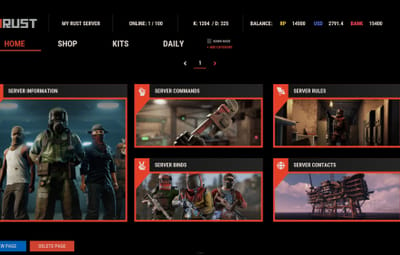
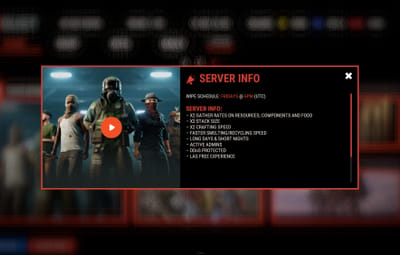
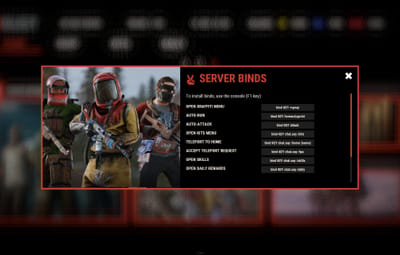
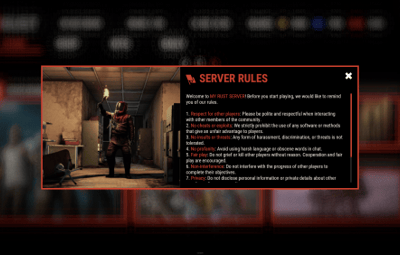
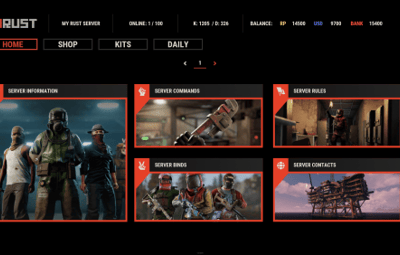
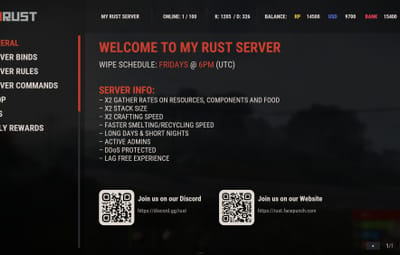
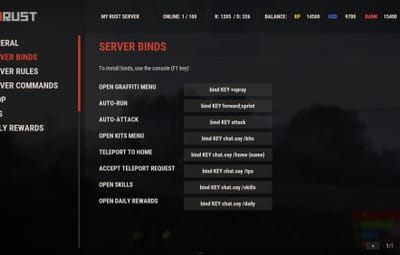
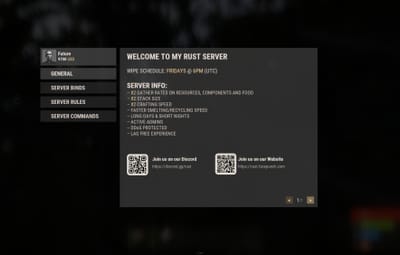
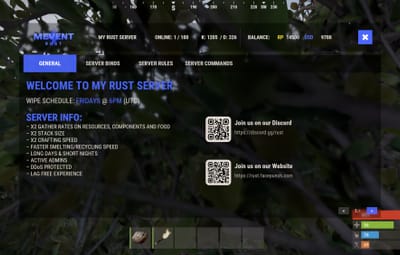
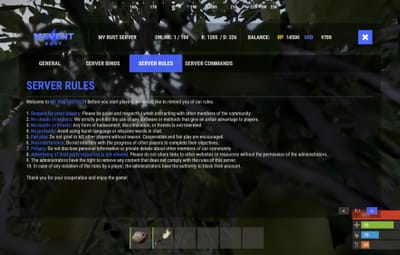
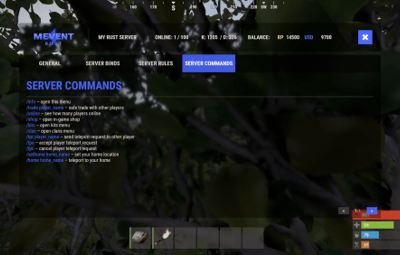
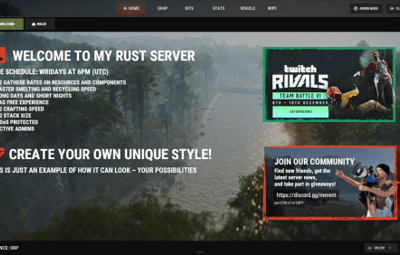
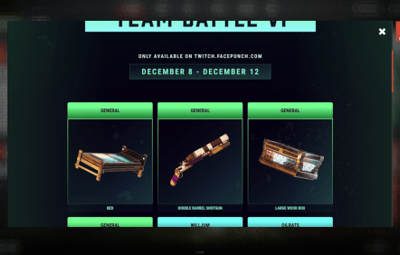
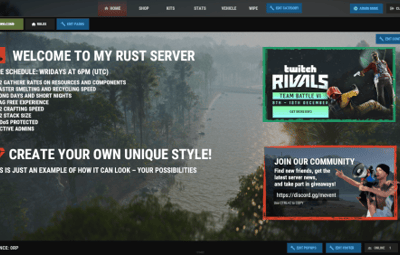
ServerPanel adds a player information menu to your server. Use it to share useful information with your players and to integrate your plugins into it.

 Features
- User-Friendly Interface: A GUI that is easy to navigate.
- Economy Integration: Works with different economy plugins.
- Dynamic Menu Categories: Group features into categories you can customize.
- Extensive Configuration Options: Almost every part of the plugin can be customized, including messages, colors, sizes and fonts.
- Auto-Open Menu: Opens the menu automatically when a player connects (configurable in the settings).
- Block Settings: Block the menu while a player is building, raiding or in combat.
- Multiple Economy Head Fields: Show several economy values, such as balance, server rewards and bank information.
- Permission Management: Set permissions for different user roles to control who can use which features.
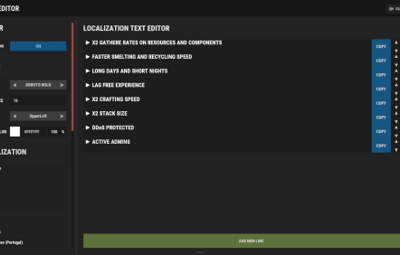
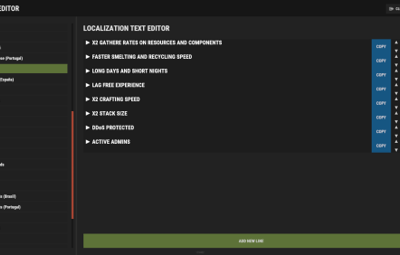
- Localization Support: Translate and edit all messages for different languages.
- Performance Optimized: Built to keep server lag to a minimum.
- Customizable Hooks: Connect existing economy systems through configurable hooks for adding, removing and showing balances.
-
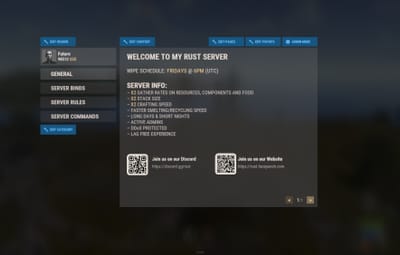
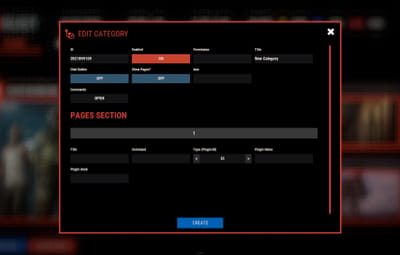
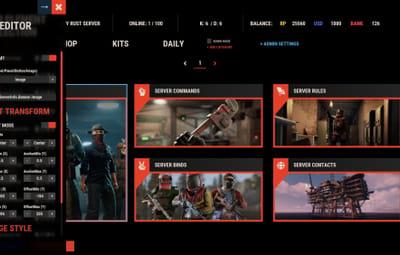
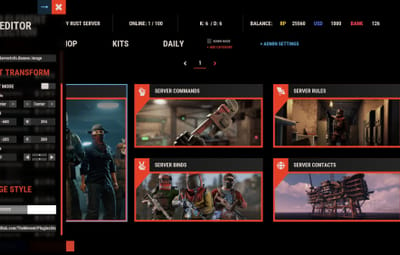
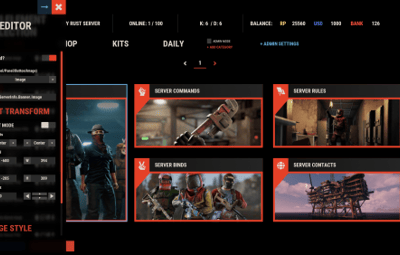
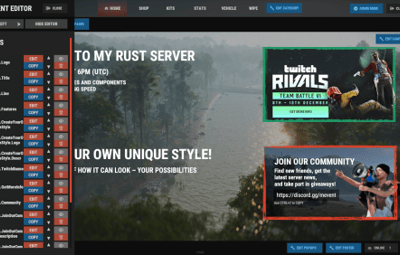
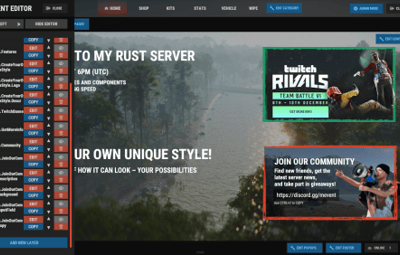
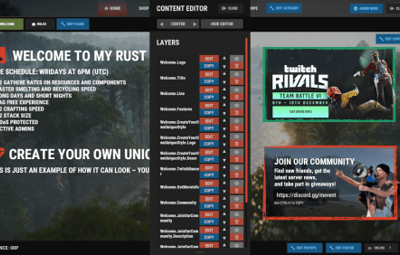
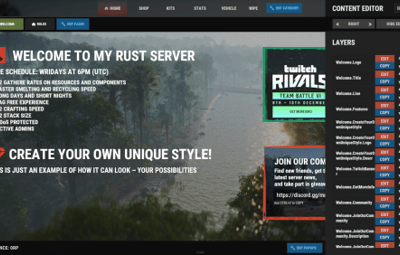
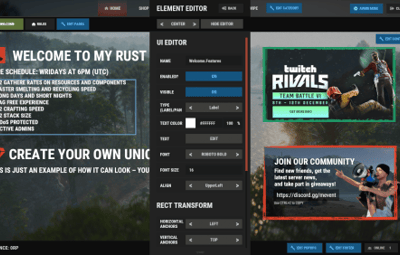
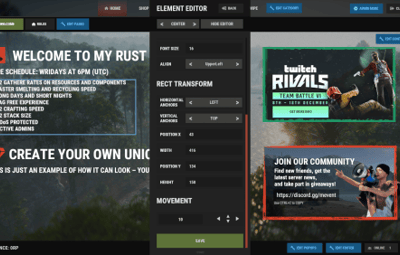
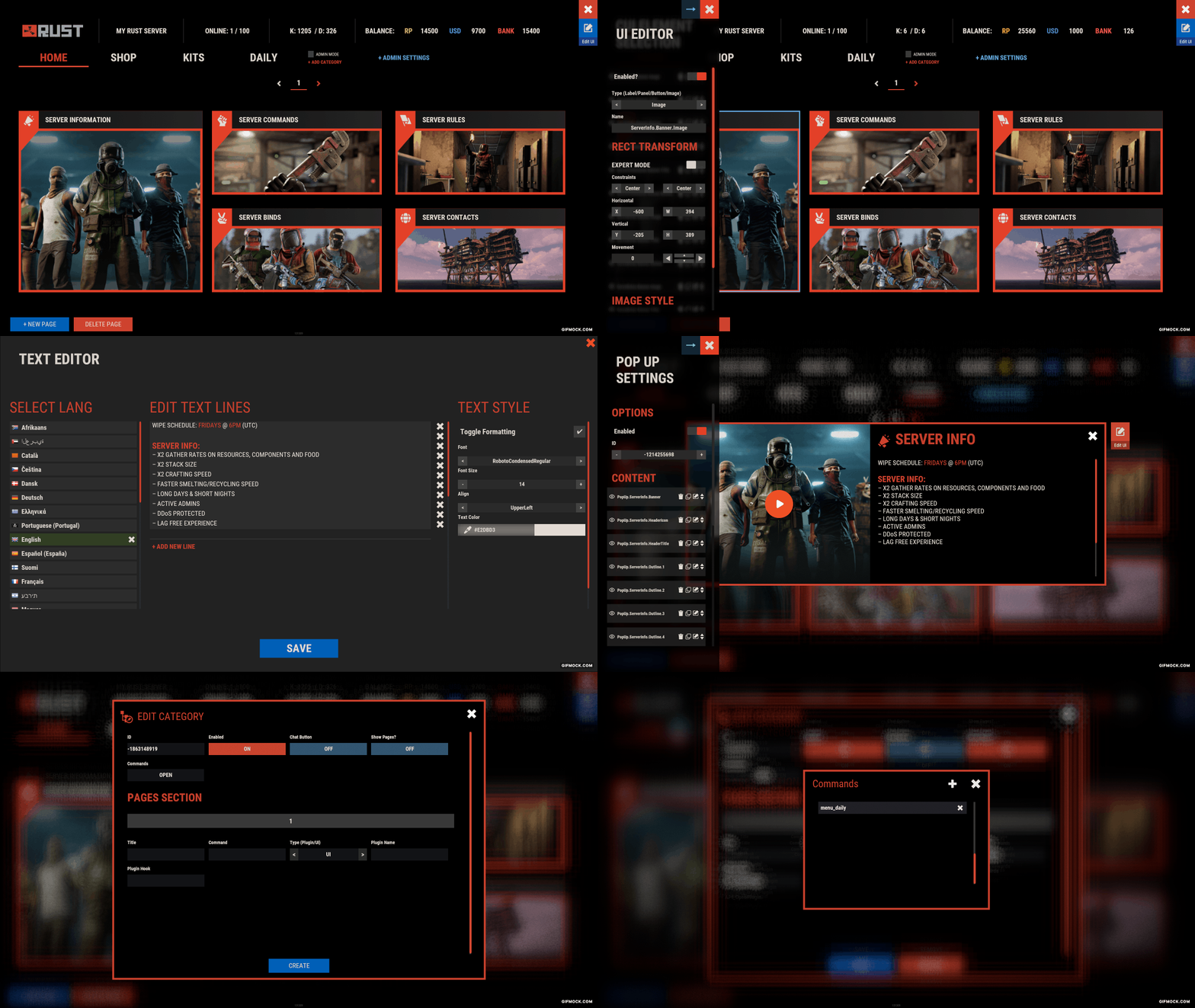
Editor Position Change: Admins can move the editor to the left, center or right with one click.
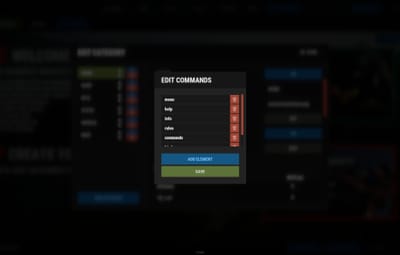
- Command Enhancements: Commands accept multiple arguments separated by "|", so several commands can run at once.
 Commands
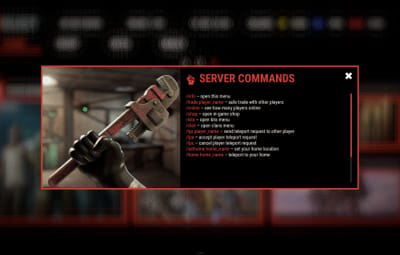
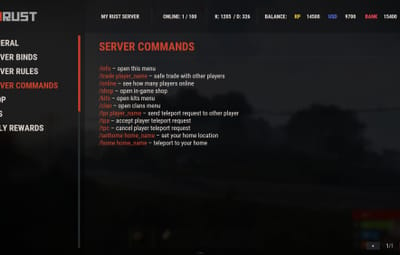
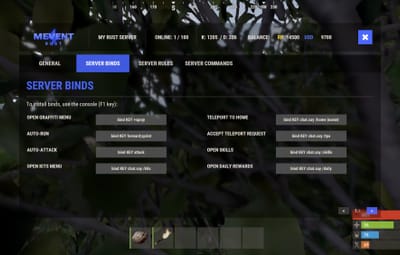
- /info: open menu
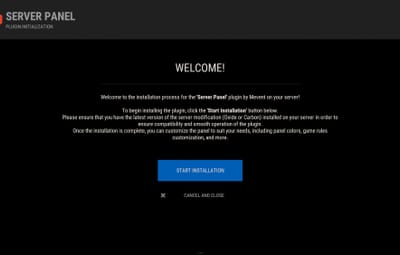
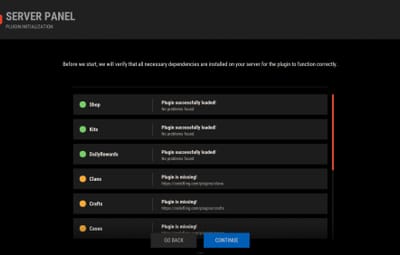
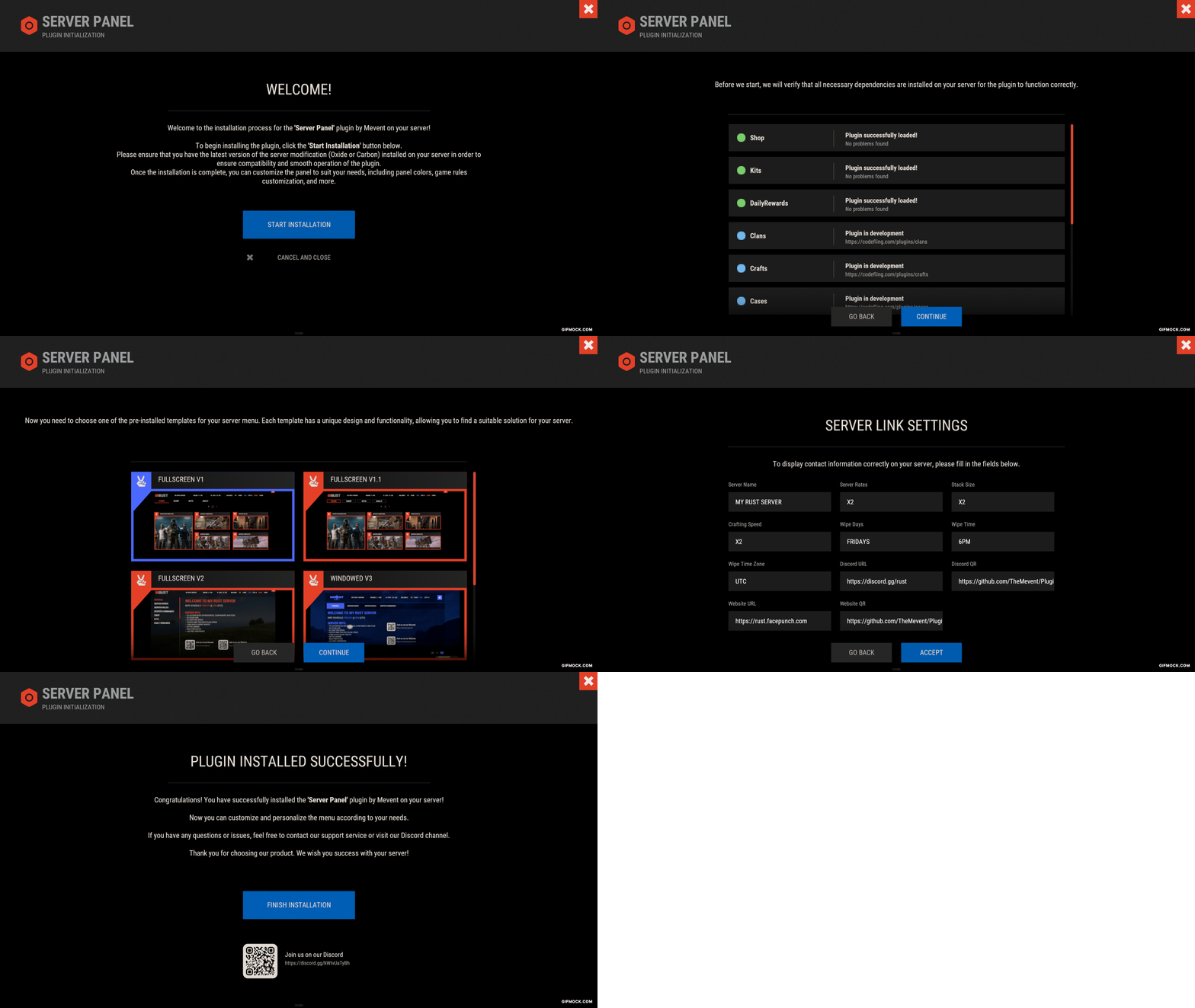
- /sp.install (or) /welcome.install: open installer menu
-
sp.migrations: console command that updates the plugin data structure when you upgrade to a new version. It creates backups before making any changes.
- sp.migrations list: shows available migrations and whether they need to run
- sp.migrations run <version>: runs specific migration (e.g., "1.3.0")
- sp.migrations run <version> force: forces migration even if not detected as needed
 Permissions
- serverpanel.edit: allows players to edit the plugin settings and open the edit menu
- serverpanelinstaller.admin: required to access the plugin installation functions
 Video
Video
 Showcase
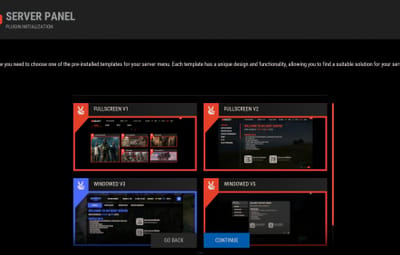
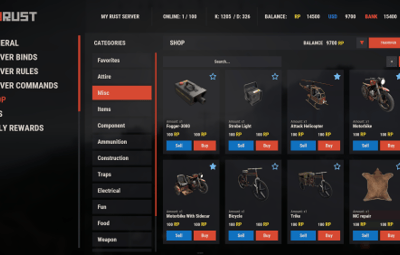
Templates
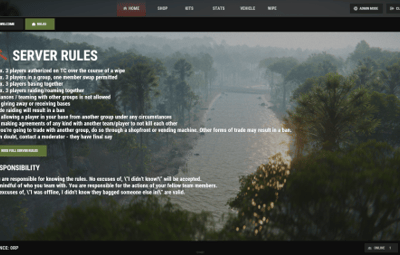
- Template V1
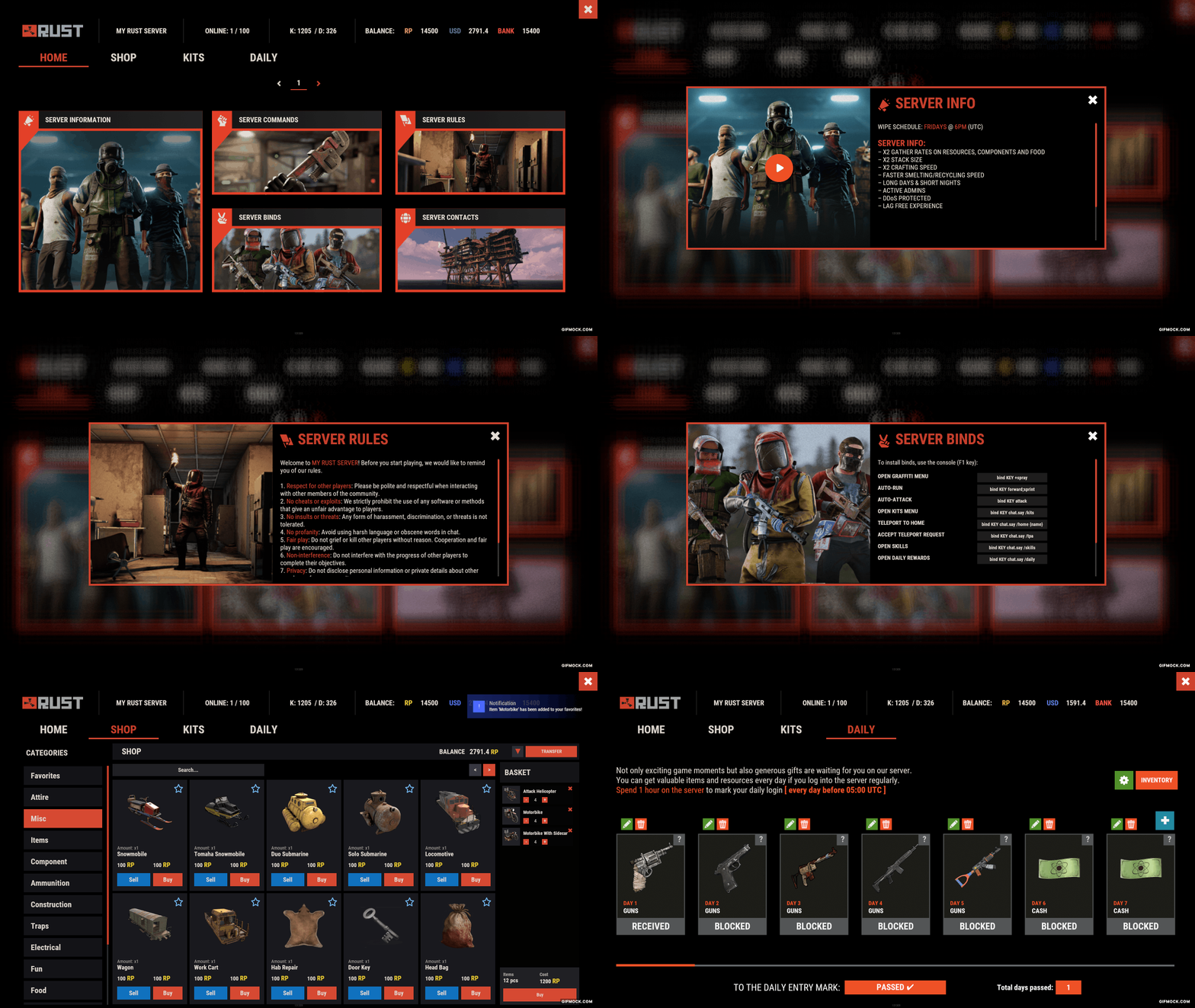
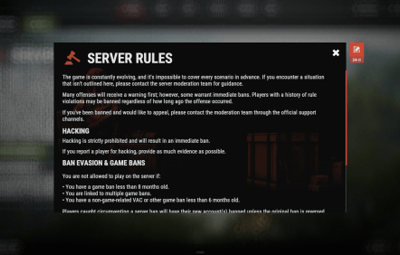
- Template V2
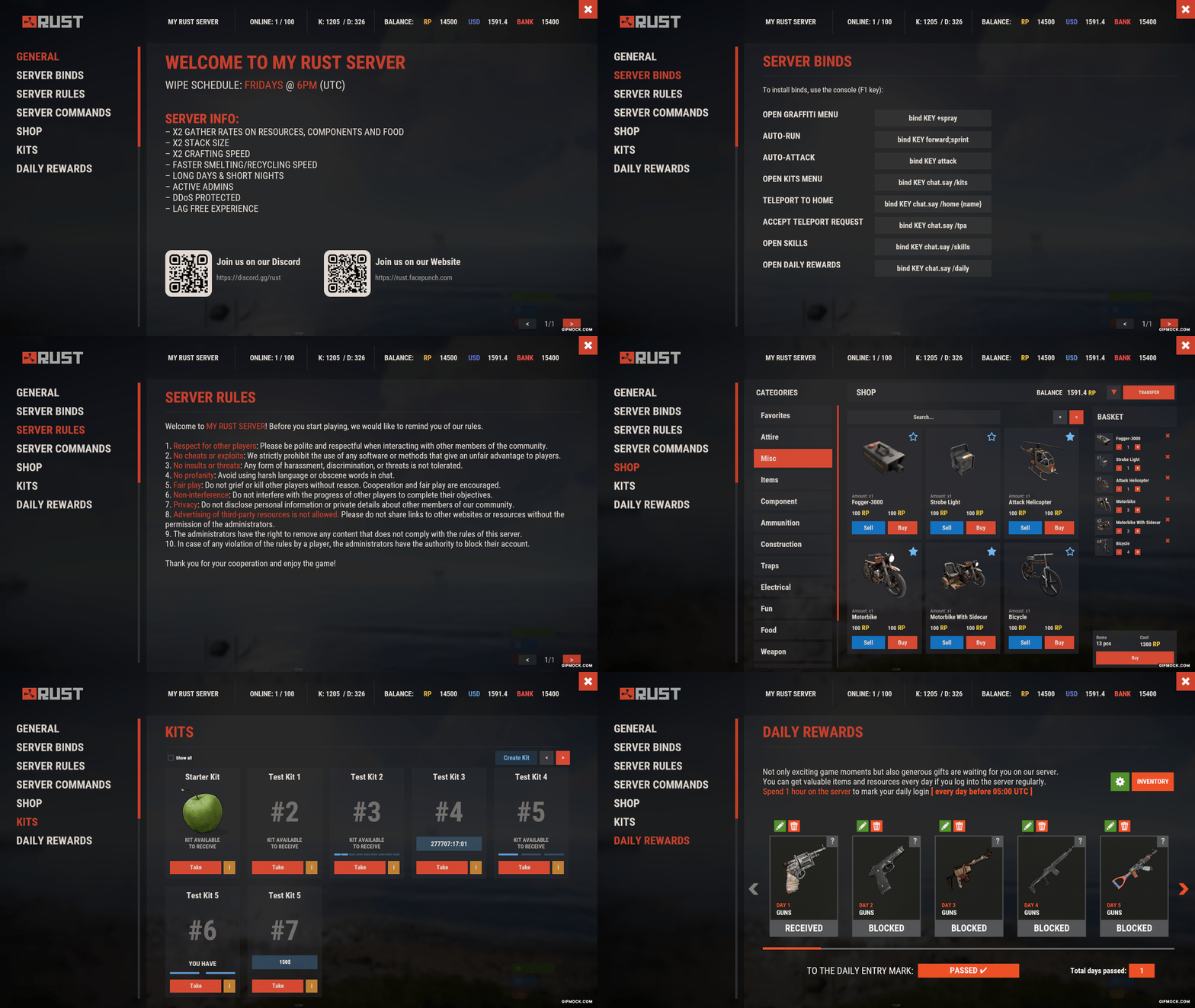
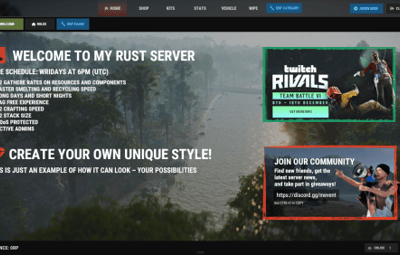
- Template V3
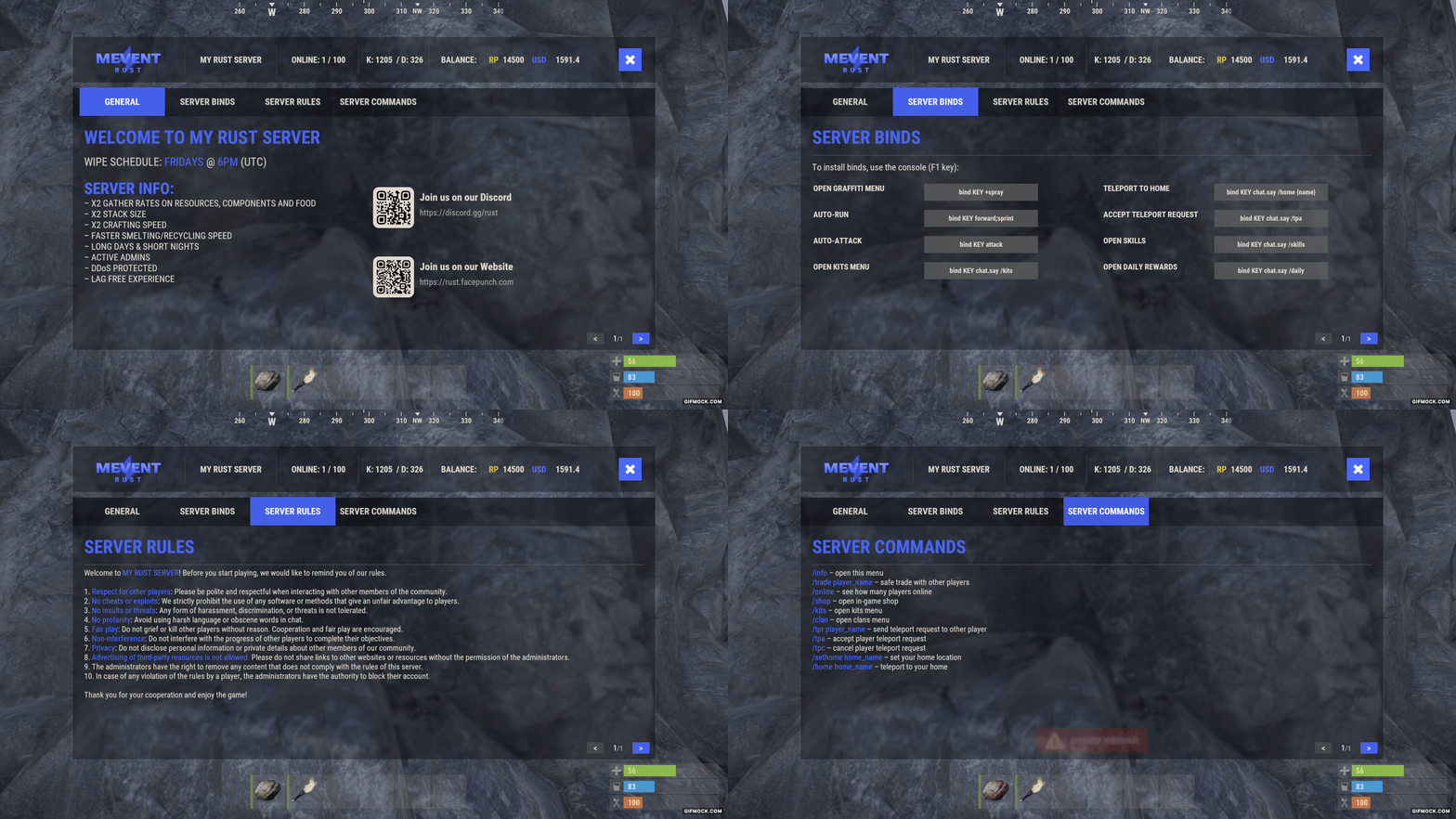
- Template V5
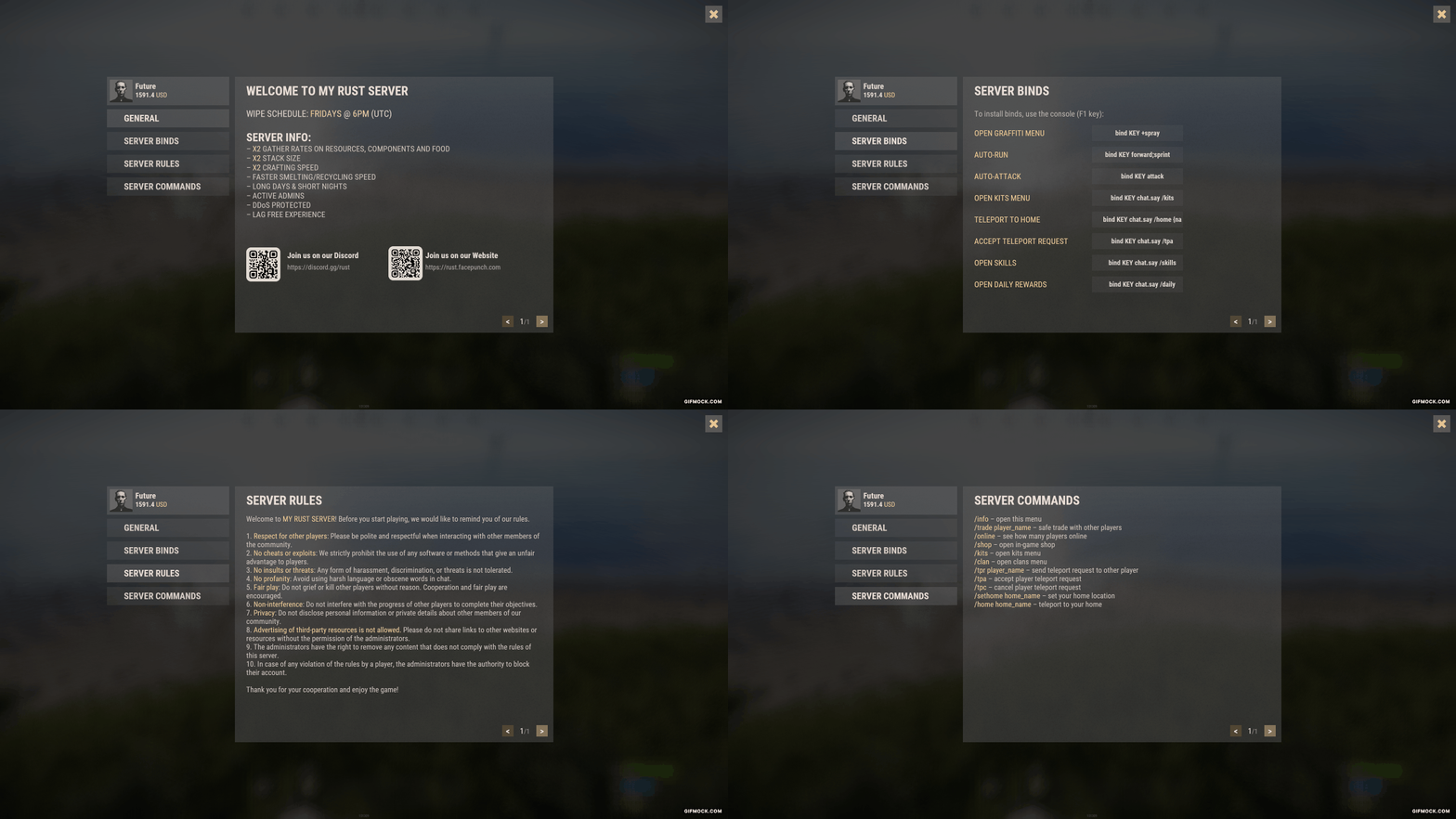
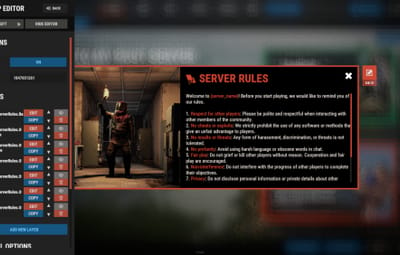
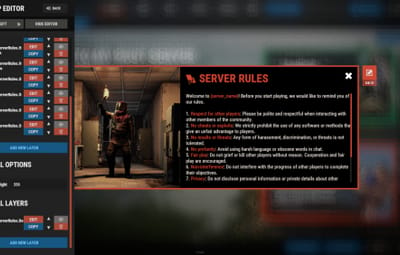
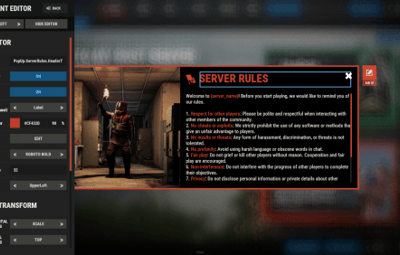
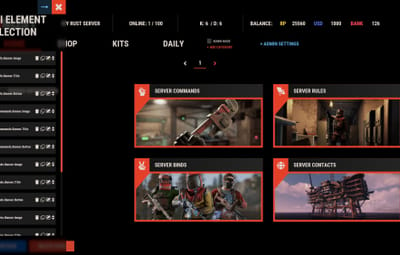
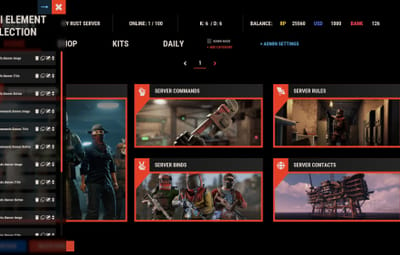
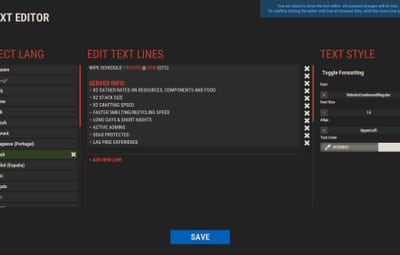
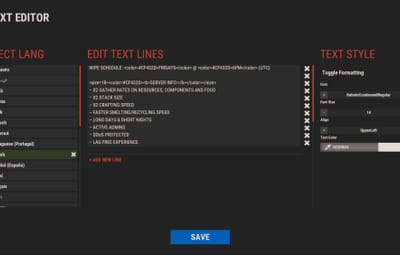
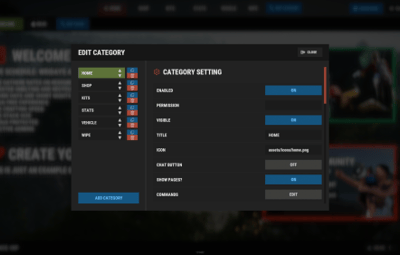
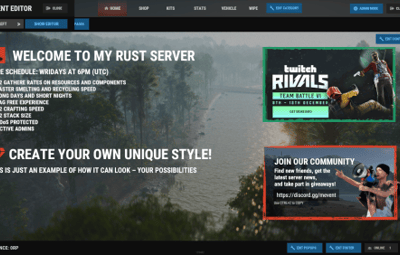
Editor
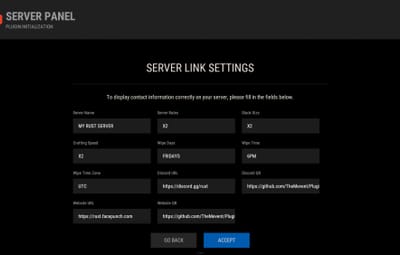
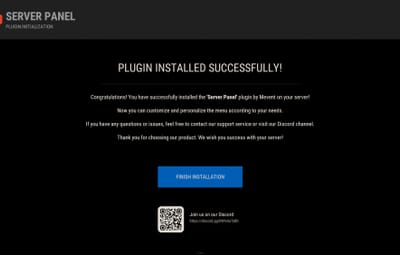
Installer
 TEST SERVER
Join our test server to try all the features yourself.
Copy the IP address below to start playing.
connect 155.103.86.38:28015
 Update Fields
ServerPanel supports update fields: placeholders for your templates that show live information. They update automatically and work in text components, headers and other interface elements.
Player Information
- {online_players}: Number of currently online players
- {sleeping_players}: Number of sleeping players
- {all_players}: Total number of players (online + sleeping)
- {max_players}: Maximum server capacity
- {player_kills}: Player's kill count (requires KillRecords, Statistics, or UltimateLeaderboard)
- {player_deaths}: Player's death count (requires KillRecords, Statistics, or UltimateLeaderboard)
- {player_username}: Player's display name
- {player_avatar}: Player's Steam ID for avatar display
Economy
- {economy_economics}: Economics plugin balance
- {economy_server_rewards}: ServerRewards points
- {economy_bank_system}: BankSystem balance
Note: Economy fields can be customized in "oxide/config/ServerPanel.json" under "Economy Header Fields". You can add support for any economy plugin by configuring the appropriate hooks (Add, Balance, Remove). Custom keys can be created and used in templates just like the default ones.
Server Information
- {server_name}: Server hostname
- {server_description}: Server description
- {server_url}: Server website URL
- {server_headerimage}: Server header image URL
- {server_fps}: Current server FPS
- {server_entities}: Number of entities on server
- {seed}: World seed
- {worldsize}: World size
- {ip}: Server IP address
- {port}: Server port
- {server_time}: Current server time (YYYY-MM-DD HH:MM:SS)
- {tod_time}: Time of day (24-hour format)
- {realtime}: Server uptime in seconds
- {map_size}: Map size in meters
- {map_url}: Custom map URL
- {save_interval}: Auto-save interval
- {pve}: PvE mode status (true/false)
Player Stats
- {player_health}: Current health
- {player_maxhealth}: Maximum health
- {player_calories}: Calorie level
- {player_hydration}: Hydration level
- {player_radiation}: Radiation poisoning level
- {player_comfort}: Comfort level
- {player_bleeding}: Bleeding amount
- {player_temperature}: Body temperature
- {player_wetness}: Wetness level
- {player_oxygen}: Oxygen level
- {player_poison}: Poison level
- {player_heartrate}: Heart rate
Player Position
- {player_position_x}: X coordinate
- {player_position_y}: Y coordinate (height)
- {player_position_z}: Z coordinate
- {player_rotation}: Player rotation (degrees)
Player Connection
- {player_ping}: Connection time in seconds
- {player_ip}: Player's IP address
- {player_auth_level}: Authorization level (0=Player, 1=Moderator, 2=Admin)
- {player_steam_id}: Steam ID
- {player_connected_time}: Connection start time
- {player_idle_time}: Idle time (HH:MM:SS)
Player States
- {player_sleeping}: Is sleeping (true/false)
- {player_wounded}: Is wounded (true/false)
- {player_dead}: Is dead (true/false)
- {player_building_blocked}: Is building blocked (true/false)
- {player_safe_zone}: Is in safe zone (true/false)
- {player_swimming}: Is swimming (true/false)
- {player_on_ground}: Is on ground (true/false)
- {player_flying}: Is flying (true/false)
- {player_admin}: Is admin (true/false)
- {player_developer}: Is developer (true/false)
Network & Performance
- {network_in}: Network input (currently shows 0)
- {network_out}: Network output (currently shows 0)
- {fps}: Server FPS
- {memory}: Memory allocations
- {collections}: Garbage collections count
Usage Example:
Use these fields in any text component, for example: "Welcome {player_username}! Server has {online_players}/{max_players} players online."
 API Documentation for Developers
ServerPanel provides an API for plugin developers to integrate their plugins into the menu system.
Required Methods
- API_OpenPlugin(BasePlayer player): Main integration method that returns CuiElementContainer
- OnServerPanelClosed(BasePlayer player): Called when panel closes (cleanup)
- OnServerPanelCategoryPage(BasePlayer player, int category, int page): Called when category changes (cleanup)
- OnReceiveCategoryInfo(int categoryID): Receives your category ID
Integration Example
[PluginReference]
private Plugin ServerPanel;
private int _serverPanelCategoryID = -1;

private void OnServerInitialized()
{
    ServerPanel?.Call("API_OnServerPanelProcessCategory", Name);
}

private void OnReceiveCategoryInfo(int categoryID)
{
    _serverPanelCategoryID = categoryID;
}

private void OnServerPanelCategoryPage(BasePlayer player, int category, int page)
{
    // Cleanup when player switches categories
}

private CuiElementContainer API_OpenPlugin(BasePlayer player)
{
    var container = new CuiElementContainer();

    // Create base panels (required structure)
    container.Add(new CuiPanel()
    {
        RectTransform = {AnchorMin = "0 0", AnchorMax = "1 1"},
        Image = {Color = "0 0 0 0"}
    }, "UI.Server.Panel.Content", "UI.Server.Panel.Content.Plugin", "UI.Server.Panel.Content.Plugin");

    container.Add(new CuiPanel()
    {
        RectTransform = {AnchorMin = "0 0", AnchorMax = "1 1"},
        Image = {Color = "0 0 0 0"}
    }, "UI.Server.Panel.Content.Plugin", "YourPlugin.Background", "YourPlugin.Background");

    // Add your plugin's UI elements here
    container.Add(new CuiLabel
    {
        RectTransform = {AnchorMin = "0.1 0.8", AnchorMax = "0.9 0.9"},
        Text = {Text = "Your Plugin Interface", FontSize = 16, Align = TextAnchor.MiddleCenter, Color = "1 1 1 1"}
    }, "YourPlugin.Background", "YourPlugin.Title");

    // Add buttons, panels, etc. using "YourPlugin.Background" as parent

    return container;
}

private void OnServerPanelClosed(BasePlayer player)
{
    // Cleanup when panel closes
}
Header Update Fields
-
API_OnServerPanelAddHeaderUpdateField(Plugin plugin, string updateKey, Func<BasePlayer, string> updateFunction): Registers a per-player string provider for a header placeholder. Returns
trueon success. -
API_OnServerPanelRemoveHeaderUpdateField(Plugin plugin, string updateKey = null): Unregisters a specific
updateKeyfor your plugin, or all keys for your plugin whenupdateKeyisnull. Returnstrueon success.
Usage Example
[PluginReference]
private Plugin ServerPanel;

private void OnServerInitialized()
{
    // Register a dynamic header field for each player
    ServerPanel?.Call("API_OnServerPanelAddHeaderUpdateField", this, "{player_kdr}", (Func<BasePlayer, string>)(player => GetKdr(player)));
}

private string GetKdr(BasePlayer player)
{
    // Compute and return the value to display in the header for this player
    return "1.23";
}
Using in UI: Place your key (e.g., {player_kdr}) directly in Header Field texts. Your function updates the value for each player.
 FAQ
FAQ
Q: Why can't I open the menu?
A: Make sure that the plugin is installed and activated on your server. If the problem persists, contact the server administrator.
Q: How do I enable Expert Mode? (disables automatic template updates)
A: In the data file "Template.json", turn on the "Use an expert mod?" option:
"Use an expert mod?": true,
P.S. "Template.json" is located in the "oxide/data/ServerPanel" directory (if you use Oxide) or in the "carbon/data/ServerPanel" directory (if you use Carbon)
Q: I see black images with Rust logo or get error 429 when loading images. What should I do?
A: This happens when images fail to download from the internet. To fix it, enable Offline Image Mode, which uses local images instead:
-
Enable the mode in config:
- Open "oxide/config/ServerPanel.json" (or "carbon/config/ServerPanel.json" for Carbon)
-
Set
"Enable Offline Image Mode": true
-
Set up the images:
- Create folder "TheMevent" in "oxide/data" (or "carbon/data" for Carbon)
- Download PluginsStorage (click "CODE" → "Download ZIP")
- Extract the ZIP and copy all contents to the "TheMevent" folder
-
Reload the plugin:
-
Type
o.reload ServerPanel(Oxide) orc.reload ServerPanel(Carbon)
-
Type
Note: If using a hosting service, you may need to use their file manager or FTP to upload the files.
Q: Does ServerPanel work only with Mevent's plugins?
A: Currently, ServerPanel integrates with Mevent's plugins (Shop, Kits, Daily Rewards, etc.). Other developers can use the API to add their own plugins to the menu.
Q: Why do integrated plugins (Shop, Kits) have different window sizes?
A: Different plugins may use different templates for integration. Make sure all your integrated plugins use the same template version (V1, V2, etc.) that matches your ServerPanel template. Update the template in each plugin so the sizes match.
Q: The panel displays differently for different players. How can I make it show the same on everyone's screen?
A: This happens when players have different UI scale settings. To make it look the same for everyone:
- Open the "Template.json" file located in "oxide/data/ServerPanel" (or "carbon/data/ServerPanel" for Carbon)
- Find the "Parent (Overlay/Hud)" setting in the "Background" section
-
Change the value from
"Overlay"to"OverlayNonScaled" - Save the file and restart your server or reload the plugin
Q: How can I change the video displayed in the ServerPanel interface to my own custom video?
A: You can replace the default video with your own using this command:
serverpanel_broadcastvideo [your_video_url]
Replace [your_video_url] with the direct link to your video. For best compatibility, we recommend hosting your video on imgur.com.
Q: My custom images are not loading or show as blank/question marks. What image hosting should I use?
A: For custom images, we recommend using imgbb.com for image hosting. Avoid Imgur and services without direct access to the image. The most reliable option is Offline Image Mode with local images.
Q: How can I make plugin UIs open outside of the ServerPanel menu instead of inside categories?
A: You can configure buttons to execute chat commands that open plugin UIs independently. To do this:
-
In your button configuration, set
"Chat Button": true -
Set the
"Commands"field to"chat.say /command"(replace "command" with the actual plugin command)
Example: To open the Cases plugin outside the menu:
  "Chat Button": true
  "Commands": "chat.say /cases"
The command runs as if the player typed it in chat, and the plugin's interface opens on its own, outside the ServerPanel menu.
Q: Text in V4 template is shifting or sliding out of place. How can I fix this?
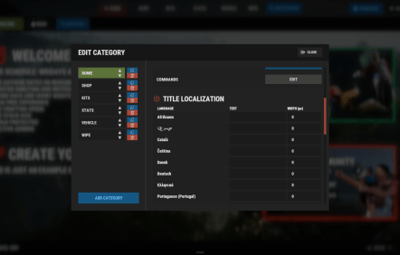
A: This happens when the text width is not set correctly. The "TITLE LOCALIZATION" settings in ServerPanel control text width for categories and pages:
- Open the ServerPanel editor (click the "ADMIN MODE" button to open the edit menu)
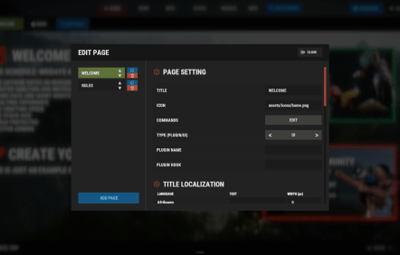
- Select the category or page you want to edit (click to "EDIT CATEGORY" or "EDIT PAGE" button)
- In the editor, find the "TITLE LOCALIZATION" section
-
For each language (en, ru, etc.), you'll see three columns:
- LANGUAGE: The language code
- TEXT: The localized text content
- WIDTH (px): The width setting in pixels
- Adjust the "WIDTH (px)" value to match your text length. Longer text requires larger width values
- Save your changes and test in-game
Tip: Start with a width value around 100-150 pixels for short text, and increase it for longer titles. You can adjust this value until the text displays correctly without shifting.



.thumb.gif.30bb4fb1ad6b9cbba98fad72b9533086.gif)
.thumb.png.bcb832e22f0a48b6833fee517e444bff.png)
.thumb.gif.4707aef13cba7c3b9ad410f5f982b71c.gif)


.thumb.gif.3c9c0e18006368d634273095544fb983.gif)
![More information about "Build Tools [grade/remove/skins]"](https://codefling.com/cdn-cgi/image/width=285,height=285,quality=80,fit=cover,format=webp/https://codefling.com/uploads/monthly_2024_02/v4final.thumb.gif.47c01c6bcae439a1dad6cea581e5ec41.gif)