
Vinni_TV_'s Wishlist
-

$15.00
VIP Tokens
By imthenewguy in Plugins
Monetize and fund your server!
This plugin will allow players to purchase a token that represents a current group on your server, such as VIP, which can be traded/sold/gifted to other players in-game.
It is functionally similar to bonds in Runescape, Plex in Eve Online and WOW tokens in WOW.
The main benefit of this plugin is that it will allow your more generous donators to purchase tokens and sell them in game for items/resources etc to players who otherwise would not financially support the server.
The RP server I run has been a shining success for this, increasing our VIP count by almost 50%.
Customizable tokens to suit most servers monetary requirements. Scalable quantities of VIP perks. A GUI to manage the show the players token balance, perks that each token provides, and end date of their subscription, all of which is configurable. Supports automatic payments via platforms such as Tebex, allowing for complete automation of purchasing. Automatically adds and removes the player from the designated oxide group. Days are completely configurable via the config file. Fail safes to prevent abuse, restrict the amount of VIP time for each token (configurable), and prevent overlapping of existing group access (configurable). Can optionally run a console command in addition to/instead of adding a player to an oxide group.
Update (not mentioned in the video):
Added the ability to run a command in addition to/instead of adding a player to a VIP group. Added the option to trigger a hook when a token is consumed (for developers). You will need to delete your old config and load the new config in order to use these new features.
Command: givetoken
Arguments: <token id> <optional: quantity>
Example: /givetoken vip 10 -this would give you 10x tokens called "vip"
Permissions: viptoken.admin
Command: removevip
Arguments: <player name/id> <token id>
Example: /removevip "new guy" vip - would remove the vip token from a player matching the name "new guy". Use quotation marks when inputting names with spaces, otherwise they aren't required.
Permissions: viptoken.admin
Command: tokenmenu
Arguments: none
Example: /tokenmenu
Permissions: none
Watch the video for more information on the plugin, how it works and how to set it up on a platform such as Tebex.
Token links from my video:
Thumbs up - https://steamcommunity.com/sharedfiles/filedetails/?id=2544603563 Recycler token - https://steamcommunity.com/sharedfiles/filedetails/?id=2544601457 VIP T1 - https://steamcommunity.com/sharedfiles/filedetails/?id=2529344523 VIP T2 - https://steamcommunity.com/sharedfiles/filedetails/?id=2529343385 VIP T3 - https://steamcommunity.com/sharedfiles/filedetails/?id=2529344741 Bitcoin - https://steamcommunity.com/sharedfiles/filedetails/?id=2530111676 The skin ID is the numbers at the end of each URL.
Command syntax for your payment platform:
addtoken <password> <steam ID> <tier> An example of a basic vip setup for tebex would be:
This function can be triggered if the configuration has hook = true. It will fire when the token is successfully consumed.
void OnTokenConsumed(BasePlayer player, string tokenKey) { Puts($"{player.displayName} consumed a {tokenKey} token"); }
- #vip
- #monetization
- (and 2 more)
-
$24.00
Radtown Event
By The_Kiiiing in Plugins
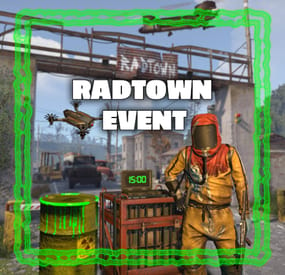
This plugin adds a high-risk, high-reward element to the newly introduced Radtown Monument. This dynamic event spawns a hazardous shipping container filled with valuable loot but surrounded by dangerous radioactive material. The challenge is twofold: not only must players manage the intense radiation levels, but they must also defend the container from relentless attack drones that aim to destroy it.
New with version 1.1.0: Drones can now target players with a configurable chance
Key Features:
Valuable Loot: The container holds rare and powerful resources, making it a highly coveted prize.
Multiple drone attack waves: Drones attack in mul
Intense Radiation: High levels of radiation require careful planning and protective gear to approach safely.
Drone Defense: As players attempt to claim the loot, AI-controlled drones will attack the container. Players must defend it until the crate unlocks.
Catastrophic Explosion: If players fail to protect the container or take too long, it will trigger a massive explosion, devastating the area and killing any nearby players.
Configuration options:
Drone wave count, drone count per wave Drone health and damage Container health Crate Loot and much more ...
This plugin enhances the Radtown Monument with intense, timed gameplay, rewarding those who can outlast both the environment and the drones—but punishing failure with explosive consequences!
Permissions:
radtownevent.admin - Required to run admin commands
Commands:
radtown start - Start the event radtown stop - Stop the event
Developer Api:
void OnRadtownEventContainerDelivered() // Called when the container has been delivered and the event is ready to start void OnRadtownEventStart() // Called when the locked crate inside the container has been hacked void OnRadtownEventWin(ulong steamId) // Called when the event was successfully completed by a player void OnRadtownEventEnd(bool success) // Called when the event is over. Success is false when the container exploded
Configuration:
{ "Custom chat prefix": null, "Use Notify instead of chat messages": false, "Notify notification type": 0, "Time between events (minutes)": 60, "Crate hack time (seconds; drone waves will spawn until the crate is fully hacked)": 600, "Container health": 8000, "Container position": { "x": 0.0, "y": 0.0, "z": 0.0 }, "Container rotation": { "x": 0.0, "y": 30.0, "z": 0.0 }, "Time before despawn after event has been completed (seconds)": 300, "Time before despawn if event is not started (minutes)": 30, "Make event zone visible": false, "Radiation duration after the event failed in seconds (this also affects the fog duration)": 60, "Radiation amount per second after the event failed": 100, "Drone damage scale factor (damage increases by this multiplier every time a drone deals damage)": 1.3, "Drone wave configuration": [ { "Wave number": 1, "Preparation time before drones spawn (seconds)": 5, "Maximum number of concurrent drones": 3, "Explosive drone configuration": { "Number of attack drones to spawn (0 to disable)": 20, "Drone health": 100, "Damage per shell": 40, "Player targeting chance (1 = always target players, 0 = never target players)": 0.0 }, "Kamikaze drone configuration": { "Number of kamikaze drones to spawn (0 to disable)": 0, "Drone health": 100, "Damage on explosion": 60, "Player targeting chance (1 = always target players, 0 = never target players)": 0.3 } }, { "Wave number": 2, "Preparation time before drones spawn (seconds)": 20, "Maximum number of concurrent drones": 4, "Explosive drone configuration": { "Number of attack drones to spawn (0 to disable)": 20, "Drone health": 150, "Damage per shell": 50, "Player targeting chance (1 = always target players, 0 = never target players)": 0.2 }, "Kamikaze drone configuration": { "Number of kamikaze drones to spawn (0 to disable)": 30, "Drone health": 150, "Damage on explosion": 60, "Player targeting chance (1 = always target players, 0 = never target players)": 0.4 } }, { "Wave number": 3, "Preparation time before drones spawn (seconds)": 20, "Maximum number of concurrent drones": 5, "Explosive drone configuration": { "Number of attack drones to spawn (0 to disable)": 40, "Drone health": 200, "Damage per shell": 40, "Player targeting chance (1 = always target players, 0 = never target players)": 0.3 }, "Kamikaze drone configuration": { "Number of kamikaze drones to spawn (0 to disable)": 40, "Drone health": 200, "Damage on explosion": 60, "Player targeting chance (1 = always target players, 0 = never target players)": 0.5 } }, { "Wave number": 4, "Preparation time before drones spawn (seconds)": 20, "Maximum number of concurrent drones": 8, "Explosive drone configuration": { "Number of attack drones to spawn (0 to disable)": 40, "Drone health": 250, "Damage per shell": 70, "Player targeting chance (1 = always target players, 0 = never target players)": 0.4 }, "Kamikaze drone configuration": { "Number of kamikaze drones to spawn (0 to disable)": 40, "Drone health": 250, "Damage on explosion": 80, "Player targeting chance (1 = always target players, 0 = never target players)": 0.6 } }, { "Wave number": 5, "Preparation time before drones spawn (seconds)": 20, "Maximum number of concurrent drones": 8, "Explosive drone configuration": { "Number of attack drones to spawn (0 to disable)": 40, "Drone health": 250, "Damage per shell": 70, "Player targeting chance (1 = always target players, 0 = never target players)": 0.5 }, "Kamikaze drone configuration": { "Number of kamikaze drones to spawn (0 to disable)": 40, "Drone health": 250, "Damage on explosion": 80, "Player targeting chance (1 = always target players, 0 = never target players)": 0.7 } } ], "Locked crate loot table": { "Enabled": false, "Minimum items": 4, "Maximum items": 8, "Item list": [ { "Short name": "scrap", "Min amount": 12, "Max amount": 48, "Chance (1 = 100%)": 1.0, "Skin id": 0, "Custom name": "" } ] }, "Chance for drone to drop loot box (%)": 100.0, "Drone loot table": { "Enabled": true, "Minimum items": 1, "Maximum items": 4, "Item list": [ { "Short name": "gunpowder", "Min amount": 10, "Max amount": 30, "Chance (1 = 100%)": 0.2, "Skin id": 0, "Custom name": "" }, { "Short name": "sulfur", "Min amount": 10, "Max amount": 30, "Chance (1 = 100%)": 0.4, "Skin id": 0, "Custom name": "" }, { "Short name": "charcoal", "Min amount": 20, "Max amount": 60, "Chance (1 = 100%)": 0.7, "Skin id": 0, "Custom name": "" }, { "Short name": "metal.fragments", "Min amount": 10, "Max amount": 60, "Chance (1 = 100%)": 0.5, "Skin id": 0, "Custom name": "" }, { "Short name": "explosives", "Min amount": 1, "Max amount": 2, "Chance (1 = 100%)": 0.08, "Skin id": 0, "Custom name": "" } ] }, "Disable map marker": false }
NEW: Halloween Update
The Halloween update adds pumpkin drones and spooky decorations to the container
-
.thumb.png.a7c2fd7605e0c7715440826ab59f53db.png)
$10.99$8.99Shop Config
By fullwiped in Customizations
Warning: To use this config file, you need to purchase the Shop plugin developed by Mevent: https://codefling.com/plugins/shop
We prioritize keeping this configuration updated to deliver a smooth and enjoyable experience.
In this optimized configuration, item prices have been manually adjusted to offer balanced gameplay.
This Shop Config file is versatile and can be applied to any server, whether it's 1x, 2x, 3x, 5x, 10x, or even 100x gather rates.
Simply align the RP rewards provided by the Playtimereward plugin to suit your server's rate. For example, we use a 20 RP reward for every 30 minutes on our 3x servers, which works well with this configuration.
Features:
- Manually Adjusted Prices: A large number of items with carefully set RP values.
Note: Due to the new TOS rules, items such as skins, DLC content, and other cosmetic elements are no longer included.
- Extensive Testing: Successfully used and positively received by players across +100 servers.
- Versatile Application: Compatible with any gather rate, from 1x to 100x.
- Continuous Updates: We strive to keep this configuration up-to-date to ensure the best experience.
- Positive Player Feedback: Excellent reception and feedback from players.
- Enjoy using this optimized setup!
Installation Instructions:
1) Extract the RAR file you downloaded. There will be three folders: lang, data, and config.
2) Drag and drop these folders into the specified directory: /home/rustserver/serverfiles/oxide.
3) After that, upload the latest version of the Shop plugin to the plugins folder.
If the Shop plugin is already installed, restart the server or use the following command in the RCON admin console to reload the plugin:
o.reload Shop This will ensure the plugin is restarted properly.
-

$15.00
Raid Zones
By BlazingSteel in Plugins
Overview:
The Ultimate automatic raid management system for Clan/Team raiding.
Commands:
These commands require RaidZones.Use
/set - Sets the center of the Raid Zone/Detection Zone and Enables active listening for explosions. /removezone (ClanTag) - Removes the Raid Zone listener from clans base. Config:
The default Config file :
Bubble Duration - The amount of time that the Zone will be active for once an explosion is detected. Raid Bubble Radius - The size of the zone that Attackers/Defenders need to hold to win the raid, also the size of the visible bubble. Damage Detection Radius - The size of the zone that will listen for explosive damage to activate a raid zone. Defender Hold Time - The amount of time that the defenders need to maintain control of their base to win the raid. Attacker Hold Time - The amount of time that the raiders(attackers) need to maintain control of the zone to win the raid. Color of Zone - Sets the color of the Visible bubble currently available in Red, Blue, Gray, Green, and Purple. Announce raids to server - Determines if announcements should be sent on raid start and if raid winners should be displayed in chat. Entity Search Radius - The radius around the TC that will be checked to insure the assigned clan has building permission. *Defender Hold Time and Attacker Hold Time are on sperate timers, only needing their teams timer to complete to win.
*Defending and Attacking timers change based on team members in the zone. If one team has more members than the other, their timer will progress while the opposing teams will not.
Demonstration Video:
-
$11.99
Permission Manager + Timed Permission
By xNullPointer95 in Plugins
xPermissionManager
A modern, intuitive, and powerful permission management tool for Rust servers.
xPermissionManager provides a complete visual interface for managing user and group permissions directly ingame. No more console commands, guesswork, or digging through permission lists. Everything is organized, accessible, and easy to control through an straight forward UI.
Whether you're adjusting a single permission, overseeing full group structures, or assigning temporary access, xPermissionManager gives server owners a fast and efficient possibility to do so.
📷 Plugin Preview (Video)
✅ Full Permission Control
Grant or revoke any permission from groups or individual players. ✅ Timed Permission System
Assign temporary permissions that automatically expire (e.g., 30m, 1h, 1d, 1w, custom durations). ✅ Timed Group Memberships
Add players to groups for a limited time - Perfect for kits, VIP, special events or whatever. ✅ Comprehensive UI
A clean and intuitive interface for browsing permissions, switching groups, managing users, and applying timed access. ✅ User & Group Browsing
View all available groups, check individual player permissions, and toggle them instantly. ✅ Clear Feedback
Every change is acknowledged with clear messages to help admins avoid mistakes.
🔒 Permission
xpermissionmanager.use // Allows a player to open and use the xPermissionManager UI
💬 Chat Commands
/xpm /xpmuser <name or steamID> /xpmtimed /xpmgroups /xpm [Opens the Permission Manager UI] PERMISSION OR ADMIN REQUIRED
/xpmuser <name or steamID> [Opens the UI for managing a specific player’s permissions/groups] PERMISSION OR ADMIN REQUIRED
/xpmtimed [Shows all active timed permissions for a player. Includes remaining duration and whether they came from a group]
/xpmgroups [Shows all active timed group memberships for a player]
📟 Console Commands
🔌 </> API
- #permission
- #manager
- (and 20 more)