
Vinni_TV_'s Wishlist
-

$7.00
MBDrops
By Barry_Allenn in Plugins
MBDrops — Advanced Drops & Player Activity Ranking System
MBDrops is a modern, fully customizable drop & ranking system for Rust servers.
It turns player activity into points, automatically builds a TOP leaderboard, distributes rewards at wipe, and presents everything through a polished, animated UI.
⭐ Key Features
🎁 Customizable Drop System
Create unlimited drops — each with:
Title Custom image (URL) Reward command executed for the winner after wipe Perfect for seasonal competitions and wipe reward systems.
🏆 Player Activity Ranking
Players automatically earn points for various in-game actions:
Mining resources (stone, metal ore, sulfur, wood) Collecting berries Destroying barrels Looting Oil Rig / Chinook crates Killing NPCs Destroying the Bradley APC …and more All point values are fully configurable.
🔄 Automatic Wipe Detection & Reward Distribution
Upon detecting a new wipe, the plugin will:
Automatically reward the TOP players Send a detailed Discord webhook embed Reset all points and begin a new season No manual actions required — the system works on its own.
💬 Discord Webhook Integration
Sends a clean, professionally formatted embed containing:
Player names Points Placement Reward title Drop item image (URL) Great for transparency and community engagement.
🖼 Modern, Stylish UI
Player avatar display Drop list (scrollable) TOP leaderboard (scrollable) Smooth layout & animation Local image caching for faster loading Multi-language support 🔧 Commands
Player Command
/drops 📦 Configuration
Below is the full configuration structure used by MBDrops.
All values are fully customizable.
{ "NPC Image URL": "https://i.ibb.co/r2Ft9sJQ/MBNPC.png", "Discord Webhook URL": "", "Drops": [ { "Title": "Drop #1", "Item Image URL": "https://site.com/item1.png", "Reward Command": "give {steamid} scrap 500" }, { "Title": "Drop #2", "Item Image URL": "https://site.com/item2.png", "Reward Command": "spawn sedan" }, { "Title": "Drop #3", "Item Image URL": "https://site.com/item3.png", "Reward Command": "oxide.grant user {steamid} some.permission" } ], "Points per barrel destroyed": 0.1, "Points per berry collected": 0.05, "Points per bot kill": 0.2, "Points per Chinook crate opened": 5.0, "Points per full metal ore mined": 0.06, "Points per full stone mined": 0.03, "Points per full sulfur ore mined": 0.05, "Points per Oil Rig crate opened": 5.0, "Points per tank destroyed": 10.0, "Points per tree chopped": 0.05 } ⚙️ Requirements
ImageLibrary -

$20.00
Christmas Tale
Map Description
Christmas is getting closer, and on this unique holiday-themed map you’ll be able to experience it in a whole new way.
Hidden across its magical locations are valuable gift crates, nighttime roads glow with festive garlands, and every monument has been transformed into a beautifully decorated holiday zone filled with warmth and winter charm.
Everyone who visits this place will feel the spirit of the season — this map will stay in players’ memories and become a world they’ll want to return to again and again.
Map size 4500 Prefab count ~59000 I can help with editing the map for your server Monuments
Warehouse Gas Station Supermarket Satellite Dish Harbor x2 Train Yard Giant Excavator Lounch Site Water Treatment Missle Silo Airfield Oilrig Small Oilrig Big Water well x2 Fishing Village x4 Outpost Bandit Camp Ranch x2 There are custom crate spawn points on the map. So, install /serverroot/RustDedicated_Data/Managed/Oxide.Ext.RustEdit.dll
P.S. Thanks @Uncle Theodore , your prefabs made my map even better.
- #christmas
- #christmas map
- (and 17 more)
-
$1.00
Tech Shop
Radio Outpost Shop Prefab
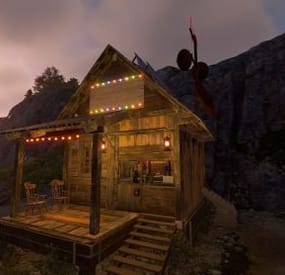
Radio Outpost shop prefab this cozy roadside shack gives your world a lived-in, frontier-survival feel while still being practical for gameplay.
The structure features:
Functional shop interior perfect for vendors, RP elements,
Front porch seating area with rocking
Colorful string-lights along the roofline for nighttime ambiance
Solar panels and custom radio tower array, giving the build a unique scientific/scavenged aesthetic
Compact, plug-and-play footprint ideal for roadside placement, RP towns, or remote outposts
This prefab is fully optimized, includes proper socketing, and drops into any map cleanly. Ideal for map creators who want to add immersive, story-rich points of interest that feel authentic and hand-built.
-
$25.00
Maze Spawnable
By Iftebinjan in Plugins
⭐ What's Maze Spawnable?
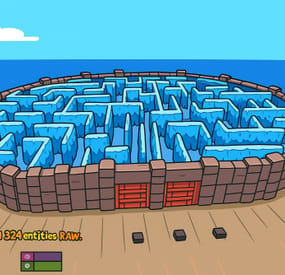
The Maze spawnable plugin adds intensive pvp combat within a maze environment. Players navigate through the maze, engaging in intense battles to eliminate opponents and be the last man standing.
Spawnable Maze Arena (No need for RustEdit to spawn the arena in the map) A Spawnable Maze Arena is included with the plugin for free Support for Both Solo & Team maze Configuration options for the maze Multiple arena setup Automatic schedule setup Setup winning rewards Spawns all the dead player's loot after the maze ends (Winner takes all) Discord Webhook Notification Just plug and play 📌 Commands
Start & Stop Commands: /mazestart <ArenaName> - Starts the arena if it is available. /mazestop - Force stops the arena if it’s running (be cautious). Maze Admin Commands: /maze_admin create <ArenaName> - Creates a new arena with the specified name. /maze_admin edit <ArenaName> - Starts editing the specified arena. /maze_admin list - Shows all available arenas from data. /maze_admin remove <ArenaName> - Removes the arena from data. /maze_admin stopedit - Stops editing the current arena. /maze_admin copyarena <radius> - Copies entities around your position within the given radius to the selected arena. /maze_admin pastecopyraw - Pastes the copied arena data at your current position. /maze_admin pasterawclear - Clears all pasted entities from the world. /maze_admin drawarena_on - Draws the visual debug markers and outlines of the current arena. /maze_admin drawarena_off - Stops drawing the arena visualization. /maze_admin radius <value> - Sets the main arena radius (for visualization and bounds). /maze_admin wallradius <value> - Sets the wall radius around the arena center. /maze_admin meshheight <value> - Sets the vertical mesh height used for visualization and structure height. 📜 Permissions
- MazeSpawnable.admin - Required to Start maze or editing arena ⚙️ Configuration
🎬 Video Showcase
💬 Support
-

$4.99
Rust Wipe Info Plus
By DarkSilver in Plugins
🧭 RustWipeInfoPlus
A complete wipe tracking and server information plugin for Rust — automatically updates your hostname, map name, and Discord announcements whenever a wipe occurs.
🧩 Main Features
🔁 Automatic wipe detection (detects map, seed, or level changes)
🕒 “Time since wipe” counter for hostname and map name
⚙️ Manual override system (ManualStartISO or ManualStartUnix)
🗺️ Custom map labels (show your own map name or brand)
💬 Discord webhook notifications with rich embeds and color
🎨 Customizable embed color, title, and content (@everyone support)
🧾 Message placeholders:
{level}, {size}, {seed}, {iso}, {age}, {days}, {hostname}, {serverip}, {port},
⚡ Auto-update loop that keeps your info fresh in real time
🧰 Works with both Carbon and uMod (Oxide)
🧱 Installation
Upload RustWipeInfoPlus.cs to your oxide/plugins/ folder.
Reload the plugin:
oxide.reload RustWipeInfoPlus Edit your generated config in oxide/config/RustWipeInfoPlus.json.
Add your Discord webhook URL and optional message ID.
⚙️ Example Config
"General": { "CustomLabel": "Isla Rustalia 3700 — testing.com", "PrependMapInfo": false, "MaxLength": 70 }, "HostnameTag": { "Enable": true, "Format": "Wiped: {0} ago", "Separator": " | ", "Position": "suffix", "BaseHostname": "testing [LATAM] PVE" }, "Webhook": { "Enable": true, "Url": "https://discord.com/api/webhooks/XXXX/XXXX", "MessageTemplate": "TESTING [PVE] Wipeo!\n\nMapa: {level} {size} (Seed {seed})\nWipe time: {iso}\nIP: {serverip}:{port}", "UseEmbed": true, "ContentTemplate": "@everyone", "EmbedTitle": "TESTING WIPEO BIENVENIDOS", "EmbedColor": 16711680, "AllowEveryone": true, "EditInsteadOfPost": true, "MessageId": "123456789012345678" } 🧩 Commands
| Command | Permission | Description | | ------------------------------------- | ---------------------- | ------------------------------------ | | `/mapname.info` | rustwipeinfoplus.admin | Shows current wipe info and hostname | | `/mapname.resetage` | rustwipeinfoplus.admin | Resets wipe timer to now | | `/mapname.setdate <YYYY-MM-DD HH:mm>` | rustwipeinfoplus.admin | Manually set wipe start | | `/mapname.clearmanual` | rustwipeinfoplus.admin | Clears manual override | | `/mapname.forceapply` | rustwipeinfoplus.admin | Forces reapply of mapname/hostname | | `/mapname.dstest` | rustwipeinfoplus.admin | Sends a test Discord message |