
Lady Mia's Wishlist
-

$19.99
Bradley Drops
NEW for 1.3.0:
Please make sure you are updating from version 1.2.7, or your config may be corrupted.
New completely custom Bradley AI for a much more immersive and real experience! Each battle is different and fun! No more cheesing the event or hiding from Bradley!
PLEASE CHECK OUT THE NEW CONFIG STRUCTURE AND OPTIONS!
Bradley can now dynamically path find, re-path when stuck and actively hunt players who try and hide or retreat. New Fireball config options for damage, lifetime, chance to spread, etc Many new CH47 options, such as health, homing missile actions, can now use flares to counter homing missiles! Can now also specify Hackable crates to drop when destroyed. CH47 Scientist gunner options, such as health, damage, aimcone, kits, etc. Bradley can now counter high risk targets with smoke grenades, making it harder for them to target, with cooldown options in config. (players with rocket launchers, timed explosives, satchels etc) Bradley can now damage more obstacles by ramming, which is fully configurable in the config file Crate loot capacity is now resizable and can take up to 48 items for both Bradley and Hackable crates. Please carefully check config options for "Allow Players to Call Bradleys at Monuments". This config option has changed slightly. You can set allow at monuments true or false, then the monument list is to either block selected monuments when allowed is true, or allow when use at monuments is false. The monuments list is therefore now an exception to allow exception to the "Allow Players to Call Bradleys at Monuments" rule. Check this still works as you require. If you are unsure, reach out to me for help.
Bradley Drops allows players with permission to call a Bradley APC to their location with a custom Supply Signal, where it will patrol a set distance for a set time, allowing players to fight it to win the valuable Bradley crates.
A cargo plane will deliver and drop the APC via parachutes. The APC can be configured in different ways and there are many config options to suit all servers.
The plugin comes with 4 default settings for Bradley Drops, Easy, Medium, Hard and Elite, each with their own custom supply signal skin. But server owners can add as many options as they like in the config by copying and pasting an existing profile within the config. This would however require the server owner to create their own custom skin for the inventory item. (I will add more custom skins in the near future for this.)
BotReSpawn compatibility, with the option to specify a BRS spawn profile at the Bradley kill site.
IMPORTANT:
Each bradley profile or wave profile in the config MUST have its own unique name and skin ID, otherwise you will have issues.
NOTE ABOUT SHOPS:
The profile name in the config should match the Custom Supply Signal name which the shop gives the player. The Bradley Name is now separate and can be set independently.
Plugin default Supply Signal Skin ID's to add items to various shops, loot plugins, kits etc are:
Bradley Drop (Easy) : 2905355269 Bradley Drop (Medium) : 2905355312 Bradley Drop (Hard) : 2905355296 Bradley Drop (Elite) : 2911864795 Bradley Drop (Expert) : 3361673979 Bradley Drop (Nightmare) : 3361674045
Bradley Drop Wave (Normal): 3502926194 Bradley Drop Wave (Hard): 3502926112
Default Permissions:
bradleydrops.admin (to use give|hsclearcd command) bradleydrops.buy (to use /bdbuy command) bradleydrops.bypasscooldown bradleydrops.easy bradleydrops.medium bradleydrops.hard bradleydrops.elite
Commands (Prefix with / to use in game):
bdgive <Profile ShortName> <Steam64ID> <Amount> bdbuy <Profile Shortname> bdbuy list bdreport (list all active Bradleys and their state) bddespawn (Despawn all Bradleys called by a player or their team, no refunds) bdclearcd (clear all cooldowns) bdclearcd <SteamID|Name> (clear cooldown for player) (Buy, Report and Despawn command can be customised in the config)
Please note correct use in config file for supply signal name and Bradley APC display name. These values CAN be different if you wish:
Custom Loot:
Check out the example loot items in the default config below to see how to add custom loot items to crates.
How to Add Custom Loot Table Item:
Config:
API: For Other Developers:
The following hook is available to use in your plugins to check custom Supply Signals, Cargo Planes and Supply Drops to avoid conflict with your plugins:
object IsBradleyDrop(ulong skinID)
This will return true if the item is a Bradley Drop item/entity, or null if not.
Call it directly without referencing the plugin:
if (Interface.Call("IsBradleyDrop", skinID) != null) return true; // IsBradleyDrop Or reference my plugin and call like this:
[PluginReference] Plugin BradleyDrops; if (BradleyDrops.Call("IsBradleyDrop", skinID) != null) return true; // IsBradleyDrop To return some basic info about a Bradley Drop object:
object GetBradleyDropData(BradleyAPC bradley)
Returns object as Dictionary<string, object>.
Returned data is:
["apcProfile"] // string - Actual bradley profile (from config) ["apcName"] // string - Bradley display name ["skinId"] // ulong ["bradleyId"] // ulong (Net.ID.Value) ["owner"] // BasePlayer ["lastAttacker"] // BasePlayer ["calledPosition"] // Vector3 ["callingTeam"] // List ["ch47"] // CH47Helicopter ["plane"] // CargoPlane ["balloon"] // HotAirBalloon ["currentState"] // enum BradleyState (PATROL, ENGAGE, HUNT, MOVETOENGAGE) Example usage:
var bdata = BradleyDrops.Call("GetBradleyDropData", bradley) as Dictionary<string, object>; string _apcProfile = bdata["apcProfile"]; string _apcName = bdata["apcName"]; string _apcName = bdata["apcName"]; string _owner = bdata["owner"]; etc
- #bradley
- #bradleyapc
- (and 14 more)
-
$49.99
Shoppy Stock
By ThePitereq in Plugins
RUST Plugin Test Server
TEST MY PLUGINS THERE!
connect play.thepitereq.ovh:28050
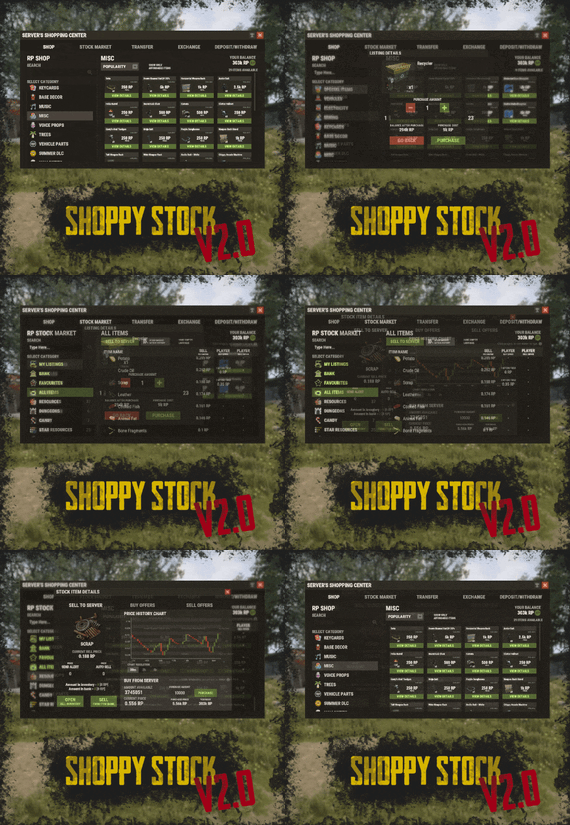
Shoppy Stock is a powerful and versatile economy system designed to enrich your Rust server with shops, stock markets, transfers, exchanges, and deposit features.
This plugin makes it easy to create multiple shops with unique currencies, set up dynamic stock markets with item listings, and manage a fully customizable server selling center—plus many more advanced options.
Plugin package (zip) contains:
ShoppyStock plugin ShoppyConverter plugin (Converts 1.x config to 2.0 config)
Global
Includes over 17 detailed Rust-themed GUI windows. Optimized for performance—actions are lightweight and won’t burden your server. Highly expandable, limited only by your imagination. Fully customizable popup messages through the PopUp API. Comprehensive command and API support for currency management. Full language support for all messages and items. Supports NoEscape integration. Complete UI color customization. NPC interaction support for shops and stock markets. Page memory feature remembers your position in the shop when reopened. Deposit and withdraw currencies to and from items. Currency exchange between different types. Built-in currency leaderboard. Shops
Create multiple shops, each using different currencies. Easily import your old currency from other economy plugins. Organize items into categories with custom icons for seamless browsing. Unified search bar across all categories. Buy exactly the amount of items you need. Full custom item support. If currency is item-based, allow deposits into the shop as virtual currency and withdrawals back to items. Granular permission system configurable for each action. Daily or wipe purchase limits. Purchase cooldowns. Configurable discount system. Random offer rotations with customizable listings. Progressive pricing — prices can increase by set values or multipliers on each purchase. Stock Market
Create multiple markets with different currencies. Favorite items tab for quick access. Automatic listing of all vanilla Rust items with blacklist support. Multiple sorting options for better market management. Buy and sell request creation. Configurable server sell price history. Permission-based limits on how many listings each player can create. Listings can be canceled, refunded, or returned to the market at no cost. Customizable taxes on market actions. Support for extra item info like durability and plant genes. Timed price rolls to adjust prices at set hours. Demand-based pricing that adjusts based on item popularity (DiscordCore required for messages). Advanced selling center with a price calculator using over 15 variables (e.g., amount sold, online player count). Stock Market Broker system—players can store or refund items, set alert prices, and even auto-sell resources while offline. Custom categories and full custom item support. Web API support for price checks or integration into server tools (requires web server). Statistics module for fine-tuning your economy. Timed listings with configurable availability durations. Ability to buy back resources sold to the market. Listing taxes based on listing time. Dynamic price history graphs. Individual configuration for server buy/sell offers per item. Generation of historical price data. Transfer
Send currencies to other players, whether they’re online or offline. Configurable transfer limits and taxes.
The following core permission is static and cannot be changed. However, the configuration files include hundreds of customizable permissions covering nearly every action.
shoppystock.admin - Grants full access to admin commands and management tools.
All commands can be fully customized in the configuration. Below are the default commands included with the plugin:
/shop or /s — Opens the main Shoppy Stock interface. /adminshop — Opens the admin shop management panel. (Available in version 2.1) /deposit — Opens the currency deposit inventory. /mshop or /goldshop — Opens a specific shop. /market — Opens the stock market interface for a specific currency (defaults to “money”). /sell — Opens the sell inventory to sell items directly to the server (defaults to “money”). /list — Opens the interface to list a new item on the stock market (defaults to “money”). /bank — Opens the bank interface for a specific stock market (defaults to “money”). /stockcode <code> — Displays a private listing using a code shared by the listing owner. updateprices — Console command showing details on rolling or updating item prices in the stock market.
Shoppy Stock is packed with powerful features, and configuring everything the first time can feel overwhelming.
This guide provides a quick walkthrough to help you get started and understand key parts of the plugin.
Optional Supported Currency Plugins
Economics ServerRewards BankSystem IQEconomic
Moving from V1 to V2.
Shoppy Stock V2 has been almost completely rewritten from scratch, reusing less than 10% of the old code.
The new configuration is redesigned to be more intuitive and feature-rich.
To help you migrate, use the provided ShoppyConverter, which can convert about 95% of your old configs and data files to the new format.
After converting, always review your new configs carefully — V2 includes dozens of new options that won’t automatically adjust to your preferred settings.
How to convert:
Place ShoppyConverter.cs in your plugins folder. Follow console instructions to move files to the required location. Run the conversion command as instructed. Once converted, place the new files in the correct folders as indicated.
Configuration Files
The plugin’s extensive features are divided across several files and folders:
/config/ShoppyStock.json
Main config containing default settings for currencies, shops, stock markets, and global options. /data/ShoppyStock/playersData.json
Stores global plugin data and player currencies. /data/ShoppyStock/Shops/Configs/<shopName>.json
Shop configs, including available categories and items. /data/ShoppyStock/Shops/Statistics/
Data on daily limits, unique purchases, and more. /data/ShoppyStock/StockMarkets/Configs/<stockName>.json
Stock market configs. /data/ShoppyStock/StockMarkets/Listings/
Player buy and sell offers. /data/ShoppyStock/StockMarkets/PlayerData/
Alert data, favorites, banked items, etc. /data/ShoppyStock/StockMarkets/PriceCache/
Historical price data and current server sell prices. /data/ShoppyStock/StockMarkets/Statistics/
Data on items sold to the server and total currency earned.
Main Config Highlights
Web API
You can use the Web API to show market prices on your website.
Requires web hosting with PHP support.
Download apiupdate.php by CLICKING HERE.
Place it in the directory set by your “Web Price API - Link” config.
Make sure it has permission to create api.html.
The generated file will be accessible at <Web Price API - Link>/api.html.
Server-Selling Items → Default Sell Amount Calculation (DSAC)
DSAC helps define the average number of items sold in a period, based on your server’s player activity. The period is an one price roll time.
Example: a PvE x10 server with ~20–30 players might set wood’s DSAC to 1,800,000 — based on my some calculations, but adjust based on your own stats and server needs.
Always Run Timer on Hour Minute
Controls when the plugin rolls stock prices.
For example:
Values: 0, 30, 60 → rolls at x:00 or x:30. Values: 0, 20, 40, 60 → rolls at x:00, x:20, or x:40.
Stock Market - Default Categories
By default, the stock market includes these categories:
Favourites MyListings Bank AllItems Use these codenames in your configs to customize display order.
Items - Custom Detail Info (skinId: languageKey)
You can add custom info tags in listings (similar to showing tool condition or clone genes).
For example, tag certain items as “Upgrade Ingredients.”
Redeem Inventory Name
Make sure to create a storage with this name in RedeemStorageAPI — otherwise, items from certain actions could disappear, and errors may occur.
Generating Shop Config With All Vanilla Items
To automatically add all vanilla RUST items to a shop:
In /config/ShoppyStock.json, set Generate Config With All Default RUST Items to true in the desired shop section. Delete the existing shop config file in /data/ShoppyStock/Shops/Configs/. Reload the plugin—this will generate a new config containing all default items.
Shop Data Config Highlights
Shop Items - Commands
Supports few types of dynamic variables in commands:
{userId} → buyer’s Steam ID {userName} → buyer’s nickname {userPosX}, {userPosY}, {userPosZ} → buyer’s coordinates
A collection of answers to common questions about demand systems, price multipliers, stock market trends, and developer API.
Multiplier Events & Demand System
Q: How does the demand system work? What is “weight”?
A: The demand system uses “Multiplier Events” defined in the main config. Each event has a weight that determines its chance to be chosen during a price roll. How often demands appear is configured in your stock market file at: /data/ShoppyStock/StockMarket/Configs/<shopName>.json. Make sure names in the main config and stock market config match exactly.
Q: How do “minimal” and “maximal” work?
A: These define a range for random price multipliers.
Example: if minimal is 1.4 and maximal is 1.8, and the original price is 1.4, the final rolled multiplier might be ~1.685 → final price becomes ≈ 2.359.
If the random roll goes above max or below min, it’s clamped to min/max.
Stock Market - Timestamps & Trends
Q: What are timestamps used for?
A: The plugin stores historical price data which appears in charts for players with the correct permission.
Tip: set a reasonable timestamp retention value even if you don't plan to show players now—this lets you start collecting useful data early.
Data Folder, Stock Market Config
Q: Blocked Multiplier Listing Keys
A: Certain items you want excluded from permission price multipliers.
Price Calculator
Q: Price Change - Price Fluctuation Percentage
A: Adds random small price changes to keep the market realistic when no other events run.
Q: Price Change - Same Price Actions Min/Max
A: Controls how many rolls prices must go up or down in sequence, making trends look more natural.
Q: Price Change - Chances To Increment Based On Current Price Percentage
A: It's the chance to run the action listed above. It's made in "<price percentage>": <price increase chance (percentage)> format. It's made to make prices go higher more easily when they are low and harder when they are high.
Q: Price Drop - Amount Sell Values Penalty Multiplier
A: When many items are sold fast, price roll becomes negative × penalty multiplier, making it drop quicker.
Q: Price Drop - Amount Sold Max Price Penalty
A: If a huge amount of an item (e.g., 10000% of DSAC) is sold, price is locked to e.g., 25% of original value for a period (e.g., 24 price rolls).
Q: Price Increase - DSAC Not Achieved
A: When item demand is too low (<100% DSAC sold), price increases faster to encourage farming, e.g., by x1.5.
Q: Default Sell Amount Calculation - Players Online Multiplier
A: Automatically scales DSAC based on current player count (checked each price roll). Useful if online population varies greatly.
Q: Price Multipliers - Minimal Time Distance Between Events
A: Sets a cooldown between multiplier events to avoid price spikes.
Q: Price Multipliers - Chance To Appear Based On Sold Amount
A: Lets multipliers trigger more often when few or many items are sold.
Q: Price Multiplier Events
A: Defines how many price rolls the price-increase/decrease event should last.
Server Sell Items
Q: What is the price parent system?
A: Lets you set base items (e.g., Metal Ore) and refined items (e.g., Metal Fragments) so that fragments always stay more valuable than ore by a set difference, encouraging refining.
int GetCurrencyAmount(string shopName, BasePlayer player) - Returns player's balance rounded down to integeer. If not found returns 0. int GetCurrencyAmount(string shopName, ulong userId) - Returns player's balance rounded down to integeer. If not found returns 0. float GetCurrencyAmountFloat(string shopName, BasePlayer player) - Returns player's balance. If not found returns 0. float GetCurrencyAmountFloat(string shopName, ulong userId) - Returns player's balance. If not found returns 0. bool TakeCurrency(string shopName, BasePlayer player, int amount) - Takes player currency. Returns true if taken and false if not. bool TakeCurrency(string shopName, BasePlayer player, float amount) - Takes player currency. Returns true if taken and false if not. bool TakeCurrency(string shopName, ulong userId, int amount) - Takes player currency. Returns true if taken and false if not. bool TakeCurrency(string shopName, ulong userId, float amount) - Takes player currency. Returns true if taken and false if not. void GiveCurrency(string shopName, ulong sellerId, int amount) - Gives player currency. void GiveCurrency(string shopName, ulong sellerId, float amount) - Gives player currency. string FormatCurrency(string shopName, BasePlayer player) - Returns player's formatted balance.
Video Configuration
Contains all configuration files shown on video.
My private configuration created for my purposes.
Note: many custom item features won’t work directly on your server—they're specific to the author’s private setup.
Example Configuration.zip
Default Main Config
CLICK HERE!
Default Shop Data Config
CLICK HERE!
Default Stock Market Data Config
CLICK HERE!
-

$39.99
Simple Symmetry
Effortlessly create symmetrical base designs with support for Vanilla servers and Creative ones, All features can be done with or without the UI.
Key Features:
Magical symmetrical building supporting, Foundation Squares and Triangles 2 Sided, 3 Sided, 4 Sided, 6 Sided, and Mirrored 2 and 4 sided for The Most Inclusive Experience! Optional UI for streamlined control. Simple commands to toggle, configure, and customize symmetry. Multiple Symmetry Types
Permission:
Players must have SimpleSymmetry.use to use this.
Commands:
/sym ui – Toggle UI on or off /sym toggle – Enable or disable symmetry /sym show – Display the current Symmetry Center /sym set – Define the Symmetry Center /sym delete – Remove the Symmetry Center /sym {type} – Select the Symmetry Type (options listed below)
Symmetry Types:
N2S - Normal 2-Sided N3S - Normal 3-Sided N4S - Normal 4-Sided N6S - Normal 6-Sided M2S - Mirrored 2-Sided M4S - Mirrored 4-Sided
NOTE:
Demo Video Discord: Shady14u -
$9.99
Deployable Zipline
By BlackLightning in Plugins
Features
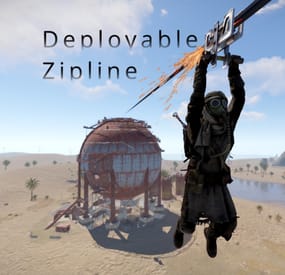
Allows players to deploy ziplines from a distance using a crossbow Allows bidirectional ziplines Allows adjusting zipline movement speed, optionally based on incline Optionally requires cable to deploy ziplines Extensive configuration options to restrict zipline deployment Integrates with Economics and Server Rewards to allow buying the Zipline Tool Integrates with No Escape to prevent deploying ziplines while Raid blocked or Combat blocked Integrates with Remover Tool to provide an alternate way to pick up ziplines How it works
To deploy a zipline, a player must first obtain a Zipline Tool and some Zipline Cable. By default, the Zipline Tool is a crossbow with a custom skin, and Zipline Cable is rope with a custom skin. Once acquired, the player must shoot the crossbow where they want to start the zipline, then shoot again where they want to end the zipline (no arrows needed). Once the zipline has been deployed, players can ride it just like the vanilla ziplines, by looking up at the top of the start point and interacting with the "Use Zipline" prompt.
Since both the Zipline Tool and Zipline Cable are items, there are many ways you can provide them to players, including via kits, vending machines, and loot tables. The plugin also allows players to purchase them directly with chat commands.
Permissions
This plugin uses the permission system. To assign a permission, use oxide.grant <user or group> <name or steam id> <permission>. To remove a permission, use oxide.revoke <user or group> <name or steam id> <permission>.
Admin permissions
deployablezipline.protect -- Allows the player to run the zipline protect command to toggle protection for any ziplines they deploy. Protected ziplines do not decay, and can only be picked up by players with this permission. Purchase permissions
deployablezipline.buy.tool - Allows buying the Zipline Tool with the zipline buy command. deployablezipline.buy.cable - Allows buying Zipline Cable with the zipline buycable <amount> command. Tool usage permissions
Depending on how you have configured the plugin, there will be additional permissions like deployablezipline.profile.<suffix>, one for each profile. The plugin comes with the following profiles by default. Note: Players must have permission to a profile in order to use the Zipline Tool.
deployablezipline.profile.balanced 4 ziplines max 100m max zipline length 10 uses per Zipline Tool, but can be repaired Allows up to 45 ° decline and 15 ° incline Disallows monuments deployablezipline.profile.fun 6 ziplines max 200m max zipline length Unlimited uses per Zipline Tool Allows up to 45 ° decline and 45 ° incline Allows monuments deployablezipline.profile.unrestricted Unlimited ziplines 10000m max zipline length Unlimited uses per Zipline Tool No angle or location restrictions Speed permissions
The speed that players move along a deployed zipline can be configured according to the permissions of the player riding the zipline (not the player who deployed it). Each speed profile will have a permission like deployablezipline.speed.<suffix>. You can make as many speed profiles as you want in the configuration. The plugin comes with the following speed profiles by default.
deployablezipline.speed.slow 0.25x min uphill speed 0.5x max horizontal speed 0.75x max downhill speed deployablezipline.speed.balanced 0.5x min uphill speed 1x max horizontal speed 1.5x max downhill speed deployablezipline.speed.fast 0.75x min uphill speed 1.5x max horizontal speed 2.25x max downhill speed deployablezipline.speed.ridiculous 5x max speed deployablezipline.speed.ludicrous 10x max speed Commands
This plugin provides both chat and console commands using the same syntax. When using a command in chat, prefix it with a forward slash: /.
zipline buy -- Purchases a Zipline Tool. Requires the deployablezipline.buy.tool permission. By default, it costs 100 scrap. zipline buycable <amount> -- Purchases Zipline Cable. Requires the deployablezipline.buy.cable permission. By default, it costs 1 scrap. zipline toggle -- Enables or disables bidirectional mode for ziplines you deploy after running this command. Alternatively, you can press MMB (middle mouse button) while wielding a Zipline Tool. To use this command, you must have permission to a Zipline Tool profile that allows bidirectional ziplines. zipline protect -- Enables or disables protection of ziplines you deploy after running this command. Requires the deployablezipline.protect permission. A protected zipline does not decay, and can only be picked up by players who have the deployablezipline.protect permission. Configuration
The settings and options can be configured in the DeployableZipline file under the config directory. The use of an editor and validator is recommended to avoid formatting issues and syntax errors.
Zipline tool
Zipline Tool -- Determines which item is considered the Zipline Tool. This item can also be used to pick up ziplines when Pickup restrictions > Require hammer or zipline tool to pick up zipline is set to true. Players may purchase this tool with the zipline buy command if they have the deployablezipline.buy.tool permission. Item short name -- The short name of the Zipline Tool item. Must be an equippable item. Default: "crossbow". Item skin ID -- The skin ID of the Zipline Tool item. Default: 2793006815. Purchase info Cost -- Determines the cost to purchase the Zipline Tool. Item short name -- The short name of the currency item. Default: "scrap". Item skin ID -- The skin ID of the currency item. Set to 0 to require an unskinned currency item. Default: 0. Amount -- The amount of currency required to purchase the Zipline Tool. Default: 100. Use Economics (true or false) -- Set to true to require Economics currency instead of item currency. Default: false. Use Server Rewards (true or false) -- Set to true to require Server Rewards currency instead of item currency. Default: false. Attachment item short names -- Determines which attachments will be added to the Zipline Tool when purchased. Only applies to weapons that can have attachments. Default: ["weapon.mod.holosight", "weapon.mod.lasersight"]. Zipline cable
Zipline Cable -- Determines which item is considered Zipline Cable. Note: You can independently configure the condition loss of the Zipline Tool if you want to consume the tool itself. Item short name -- The short name of the item. Default: "rope". Item skin ID -- The skin ID of the cable item. Default: 2793158547. Cost -- Determines the cost to purchase Zipline Cable. Item short name -- The short name of the currency item. Default: "scrap". Item skin ID -- The skin ID of the currency item. Set to 0 to require an unskinned currency item. Default: 0. Amount -- The amount of currency required to purchase Zipline Cable. Default: 1. Use Economics (true or false) -- Set to true to require Economics currency instead of item currency. Default: false. Use Server Rewards (true or false) -- Set to true to require Server Rewards currency instead of item currency. Default: false. Pickup restrictions
Pickup restrictions -- Determines under which circumstances players may pick up ziplines. Require hammer or zipline tool to pick up zipline (true or false) -- Set to true to require the player to be holding a hammer or the Zipline Tool to pick up a zipline. This only applies to ends of the zipline that use the spear item, since the Tesla Coil end already requires a hammer to pick up. Default: true. Allow pickup while building blocked at other end (true or false) -- Set to true to allow players to pick up a zipline from one end, while they are building blocked at the other end of the zipline. Default: true. Note: Regardless of this option, players may not pick up a zipline from an end where they are building blocked. Effects
Effects -- Determines the effects that are played when using the Zipline Tool, or when trying to pick up a zipline. Tool impact (player only) -- Plays when the player hits a surface with the Zipline Tool. Only the Zipline Tool wielder will witness the effect. This provides feedback to the player so they can see where they hit. Tool failed (player only) -- Plays when the player tries to use the Zipline Tool but experiences an error. Only the Zipline Tool wielder will witness the effect. The wielder may experience an error for many reasons, such as being Building Blocked, or due to having insufficient Zipline Cable. Tool used -- Plays when the player successfully places either end of zipline using the Zipline Tool. Other players will witness the effect. Deploy succeeded -- Plays when the player successfully deploys a zipline using the Zipline Tool. Plays on both ends of the zipline. Other players will witness the effect. Pickup failed (player only) -- Plays when the player fails to pick up a zipline due to being Building Blocked. Only the Zipline Tool wielder will witness the effect. Zipline Tool permission profiles
Zipline Tool permission profiles - Zipline Tool profiles allow you to define complex rulesets depending on a user's Oxide permissions. You may define unlimited profiles, but at most one will be assigned to each player. Profiles toward the end of the list have highest priority. Permission suffix -- Determines the permission that you must grant to assign the profile to a player or group. For example, set this to "fun" to produce the permission deployablezipline.profile.fun. Allow tool while building blocked (true or false) -- Determines whether the player may use the Zipline Tool while they are standing in a location where they are Building Blocked. Allow bidirectional ziplines (true or false) -- Determines whether the player is allowed to place bidirectional ziplines. A bidirectional zipline can be mounted from either end. The player can press MMB (Mouse3) to enable/disable bidirectional mode. Zipline min length -- Determines the minimum zipline length that the player can deploy. Zipline max length -- Determines the maximum zipline length that the player can deploy. Zipline max decline angle -- Determines the maximum downward angle of ziplines that the player can deploy. Set to 90.0 to allow the player to deploy ziplines that go straight downward. Set to 0 to only allow ziplines to go across or upward. Zipline max incline angle -- Determines the maximum upward angle of ziplines that the player can deploy. Set to 90.0 to allow the player to deploy ziplines that go straight upward. Set to 0 to only allow ziplines to go across or downward. Zipline max elevation increase -- Determines the maximum delta between the zipline start position and end position. Set to 0 to only allow ziplines to go across or downward. Tool condition loss percent per zipline deployed -- Determines how much condition the Zipline Tool will lose when the player deploys a zipline. Set to 0 to allow unlimited uses. Set to 100 to allow only one use per Zipline Tool. The Zipline Tool will be destroyed when reaching 0 condition. Tool cooldown seconds -- Determines how long the player must wait after deploying a zipline with the Zipline Tool before they can deploy another one. Max ziplines at once -- Determines the maximum number of ziplines that the player may have in the map at once. Cable cost -- Determines how much Zipline Cable will be consumed when deploying a zipline. Cost per meter -- Determines how much Zipline Cable is required per meter. Set to 0 to not require any Zipline Cable. Set to a fraction such as 0.5 to allow each unit of Cable to cover multiple meters. Refund amount per meter on pickup -- Determines how much Zipline Cable is refunded when the player's ziplines are picked up. Set this to the same value as Cost per meter to allow players to recover all their Zipline Cable when picking up a zipline. Set to less than Cost per meter to effectively impose a penalty by refunding less than what was spent. Start point ruleset -- Determines the locations at which the player can place a zipline start point. Allow while building blocked (true or false) -- Determines whether the player can remotely place this end of the zipline at a location where they are Building Blocked, regardless of whether they are standing in a Building Blocked location. Min height above terrain -- Determines how close to terrain the player can deploy this end of the zipline. Set to 0 to allow placing a zipline at terrain level. Max deploy distance -- Determines the maximum distance away from the player that they can place this end of the zipline. Allowed layers -- (Advanced) Determines the Rust object layers to which the player can attach this end of the zipline. The player will not be able to attach a zipline to objects on other layers. Allowed values: Default, TransparentFX, Ignore_Raycast, Reserved1, Water, UI, Reserved2, Reserved3, Deployed, Ragdoll, Invisible, AI, Player_Movement, Vehicle_Detailed, Game_Trace, Vehicle_World, World, Player_Server, Trigger, Player_Model_Rendering, Physics_Projectile, Construction, Construction_Socket, Terrain, Transparent, Clutter, Debris, Vehicle_Large, Prevent_Movement, Prevent_Building, Tree, Unused2. Disallowed topology -- (Advanced) Determines the types of Terrain Topology to which the player cannot attach this end of the zipline. Set to [] to allow all types of Terrain Topology. Allowed values: Field, Cliff, Summit, Beachside, Beach, Forest, Forestside, Ocean, Oceanside, Decor, Monument, Road, Roadside, Swamp, River, Riverside, Lake, Lakeside, Offshore, Rail, Railside, Building, Cliffside, Mountain, Clutter, Alt, Tier0, Tier1, Tier2, Mainland, Hilltop. End point ruleset -- Determines the locations at which the player can place the zipline end point. Same options as Start point ruleset. Zipline decay settings -- Determines how quickly deployed ziplines decay while outside of Tool Cupboard range. Note: Only one end of the zipline must be within Tool Cupboard range to protect it from decay. Also, instead of taking damage, the zipline will simply disappear when the decay time has elapsed. Enabled (true or false) -- Determines whether decay is enabled. Default: true. Decay minutes -- Determines how long a zipline is protected from decay after being deployed, or after nearby Tool Cupboards are removed. Default: 60. No Escape integration -- Determines whether the player can use the Zipline Tool while Raid Blocked or Combat Blocked, as determined by the No Escape plugin. Allow tool while raid blocked (true or false) -- Set to false to prevent the player from using the Zipline Tool while they are Raid Blocked. Allow tool while combat blocked (true or false) -- Set to false to prevent the player from using the Zipline Tool while they are Combat Blocked. Speed permission profiles
Speed permission profiles -- Speed profiles allow you to configure how quickly players move along ziplines, depending on the Oxide permissions of the player riding it. You may define unlimited speed profiles, but at most one will be assigned to each player. Speed profiles toward the end of the list have highest priority. Permission suffix -- Determines the permission that you must grant to assign the speed profile to a player or group. For example, set this to "balanced" to produce the permission deployablezipline.speed.balanced. Move speed -- Determines the max speed that applies when the player is not holding the forward key. Bonus move speed -- Determines the additional max speed that applies when the player is holding the forward key. This value is added on top of Move speed to determine the total max speed. Acceleration time (seconds) -- Determines how many seconds it will take the player to reach max speed after mounting the zipline. Downhill speed bonus -- Determines how much to increase speed while going downhill. Percent increase per angle degree -- Example: While this is set to 1.0, going downhill at a 45 ° angle will increase max speed to 145%. Max speed percent -- Example: while Percent increase per angle degree is set to 1.0, and while this is set to 130.0, going downhill at a 45 ° angle would increase speed to only 130% instead of to 145%. Uphill speed penalty -- Determines how much to decrease speed while going uphill. Percent decrease per angle degree -- Example: While this is set to 1.0, going uphill at a 45 ° angle will decrease max speed to 55%. Min speed percent -- Example: While Percent decrease per angle degree is set to 1.0, and while this is set to 70.0, going uphill at a 45 ° angle would decrease speed to only 70% instead of 55%. Localization
The default messages are in the DeployableZipline file under the lang/en directory. To add support for another language, create a new language folder (e.g. de for German) if not already created, copy the default language file to the new folder and then customize the messages.
-
$20.00
ObjectLimiter
ObjectLimiter is a plugin for the game Rust designed to limit the number of objects a player can build on the server. The plugin provides a convenient and intuitive interface (UI) that allows the server administrator to set individual limits for different user groups.
Main features of the plugin:
Limit Settings: The administrator can set the maximum number of each type of object that a player can place on the map. Limits can be configured for all players (Default group) as well as for specific groups like VIP and Admin. Flexible Privilege System: The plugin allows you to create new privilege groups and copy settings from existing groups for easier configuration. The ability to set different limits for each group enables a diverse gameplay experience for different categories of players. Object Management: The plugin's interface allows easy enabling or disabling of restrictions on specific objects. The option to quickly enable or disable all objects for a specific user group. Optimization: ObjectLimiter is highly optimized, allowing the plugin to run without significant load on the server. This ensures stable performance even on servers with a large number of players and objects. Team limits support: Plugin contains implementation for some clans plugins and rust teams Tool cupboard limits support: limit the number of objects for a particular cupboard
Config (tap me)
Profiling:
*build 51 twig foundation
server fps limit = 30
PC spec: i5 11400f, 32gb ddr4 ram
Commands:
/ol - open main ui(requires permission objectlimiter.admin
This plugin is ideal for administrators who want to control construction on their server, ensuring balance and preventing the excessive use of certain objects.