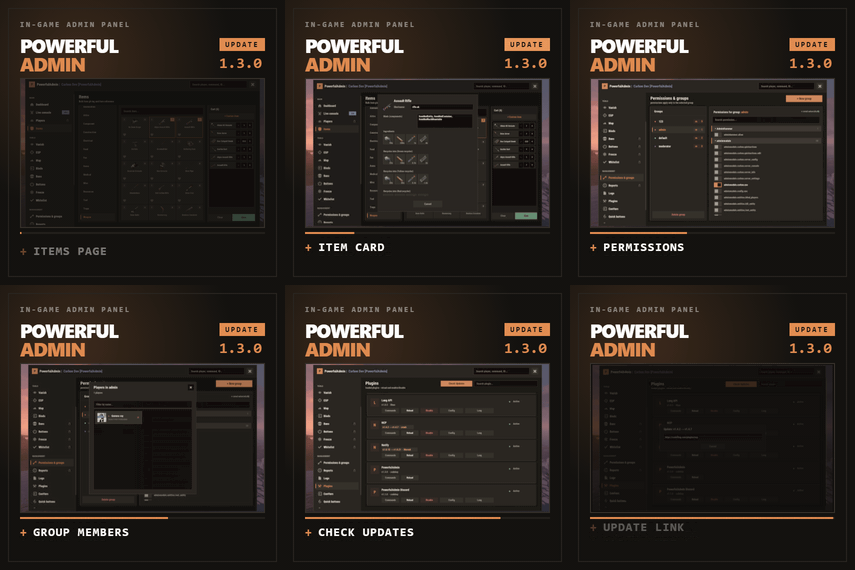
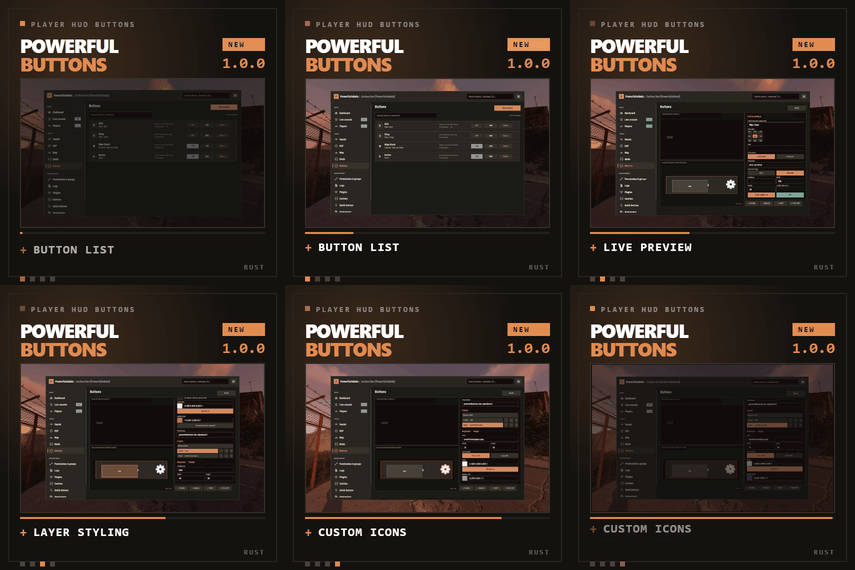
Set a hard cap on every placeable object.
ObjectLimiter gives you practical control over furnaces, turrets, workbenches, building blocks, and anything else players can place. Manage limits per permission group, globally and per tool cupboard, from one in-game panel.
|
/ol
|
Open the limits panel. Changes apply immediately, with no reload.
|
|
Global budgets stop at the cupboard door.
The two layers solve different problems. A global limit counts everything a player owns across the map. A cupboard limit adds a cap for objects standing within a single tool cupboard zone.
Global limits
Count every owned object on the map. Use them to set a player or group budget across all of their bases.
|
|
Cupboard limits
Cap one base at a time. A VIP with a large global budget still cannot stack forty furnaces in one cupboard zone.
|
|
|
One panel for every placeable object.
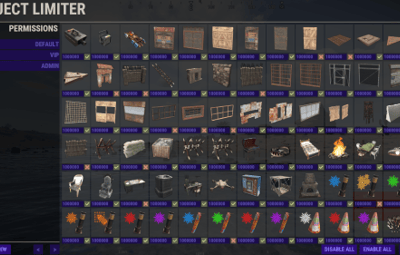
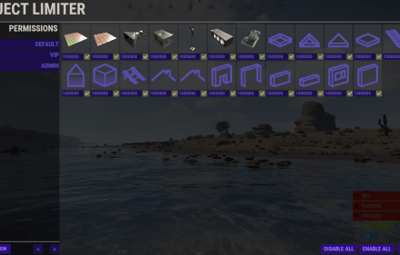
Open the panel with /ol when you have objectlimiter.admin or the Rust admin flag. The object grid uses real item icons, and every edit is saved to the data files immediately.
Switch limit layers
GLOBAL LIMITS and CUPBOARD LIMITS tabs keep each layer clear while you work.
|
|
Edit by privilege
Page through limit privileges, create a new one, and copy values from an existing privilege.
|
|
Make broad changes quickly
Click an object to enable or disable counting, set its maximum, or use ENABLE ALL and DISABLE ALL.
|
|
Inspect grouped objects
An overlay shows every prefab that counts as a grouped object, so aliases stay visible.
|
|
|
|
03 - Permission-aware limits
|
Set a policy without editing configuration files.
Use the generated default privileges or create your own in the panel. If a player holds several privileges, ObjectLimiter uses the highest limit for each object. Going over a limit blocks placement and tells the player what the limit is.
|
Step
|
How it works
|
|
1. Create
|
Use the UI to create a privilege, or start with objectlimiter.default, objectlimiter.vip, or objectlimiter.admin, plus their cupboard variants.
|
|
2. Grant
|
Grant the privilege as you would any permission: o.grant group vip objectlimiter.vip
|
|
3. Tune
|
Generated defaults begin at 100 for default, 500 for VIP, and effectively unlimited for admin. Every value is editable in the UI.
|
|
|
04 - Counting that holds up
|
Close the easy loopholes without extra work.
Optional team and clan counting prevents a group from multiplying its budget by passing the hammer around. Skinned items count as their base item, and prefab aliases can group related prefabs under one object type, such as counting a railroad planter as a large planter.
Team and clan aware
Optionally count the objects of the whole Rust team or clan against the same limit.
|
|
Warnings that players understand
Configure threshold warnings. The defaults are 50, 20, and 10 remaining, with messages in chat or through Notify.
|
|
|
Cache once. Keep it current.
|
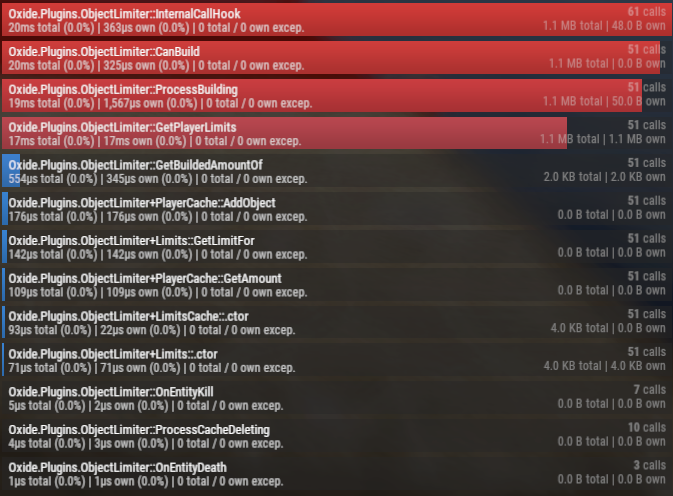
Every owned object is cached once when the server starts, with a typical map taking milliseconds. The cache stays current on build, deploy, pickup, and death. There is no map scan on every placement and no lag spike when a base goes up.
|
|
Commands and permissions.
The panel, cache tools, and permission pattern at a glance.
|
Commands
|
|
/ol
|
Open the limits panel.
|
|
/ol.cacheinfo
|
Show cache statistics.
|
|
/ol.validatecache
|
Clean up stale cache entries.
|
|
/ol.sync
|
Rebuild the whole cache from server entities.
|
|
Permissions
|
|
objectlimiter.admin
|
Open the panel and use the cache commands.
|
|
objectlimiter.<privilege>
|
Apply that privilege's global limits.
|
|
objectlimiter.<privilege>cupboard
|
Apply that privilege's per-cupboard limits. Privileges created in the UI register themselves automatically.
|
|
|









 1
1