
.png.480b14359906bf70d6e22e3e9d3579ef.png)

Sigilo
-
Posts
142 -
Joined
-
Last visited
Content Type
Profiles
Warranty Claims
Downloads
Forums
Store
Services
Downloads Plus Support
DOWNLOADS EXTRA
Reels
Everything posted by Sigilo
-
I dont think you can pass a timer to the destination server from the origin server. But it should not make any damage it they connect and reconnect between servers since this action is already delayed by the connection process.
-

Version 1.0.1
24 downloads
The OneTimeRewards plugin is designed to provide a one-time reward system for players. It allows server administrators to define a reward group and assign a specific item as a reward to the members of this group. The reward can be claimed by the players using a specific command. Once a player claims their reward, they are removed from the group, ensuring that the reward can only be claimed once. This works well with tebex or other store integration. Just add: When the package is purchased = o.usergroup add {id} groupname For example, you can offer 5 airdrops for x dollars. After the purchase, the player can claim it once via a command. If they buy another, they can claim it again. The plugin is configurable, allowing the server administrators to set the group name, item name, item amount, command name, and the success and failure messages. Usage Instructions Configuration: Configure the plugin by setting the following parameters in the oxide/config file: - GroupName: The name of the group that is eligible for the reward. - ItemName: The name of the item to be given as a reward. - ItemAmount: The quantity of the item to be given. - ItemSkinID: The Skin ID of the item to be given as a reward. - CommandName: The command that players need to use to claim the reward. - SuccessMessage: The message displayed to the player upon successful reward claim. - FailureMessage: The message displayed to the player if they are not eligible for the reward.$2.99 -
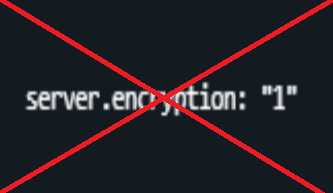 If your server for any reason gets disconected from the network for some secconds/minutes (netywork instability, ddos, etc), when you log back in with your admin account, many commands will be disabled like teleport or spectate, and you wont be able to see the server info pressing F1. The solution is to restart the server, or lower the server.encryption to 1, then log in with your admin account and turning it back to 2. Today I had one of my servers in this state, loaded the plugin, reconnected back and it works as intended. This problem that ocasionally interferes with admin work is completely negated by this plugin. Been running it for some hours on a live server, working as intended, no issues on my side.
 -
wow, nice work. I will add it to all my servers to test it out and return to you with any issues, if any.
-
 yes, you can change the timer to 1 if you want it to be instantaneous when they enter the server.
 -
 Your purchase gets you something that works smoothly, tested on populated servers and reflecting a preferred developer's style, as I begin sharing my work publicly. As a long time admin, I lean towards simplicity and functionality, valuing servers that operate effectively over ones with unnecessary extras. This philosophy extends to my plugins as well.
 -
not the same. this one is simpler, cooler, nice leaderboard and stats system. tested, etc. it's a lot closer to what you see in servers that use private plugins.
-
Version 1.0.3
61 downloads
The KillStreak plugin adds a killstreak system to your server. It tracks players consecutive kills, provides rewards at certain milestones, and maintains a personal and server-wide ranking system. 1. Configuration: Install in your oxide/plugins folder and customize the rewards and killstreak milestones in the configuration file in oxide/config. You can specify the items and quantity for each reward, the message displayed, and whether the kill streak announcement is broadcasted server-wide. If not, it will be sent only to the killer. You can also choose to count npc kills or only pvp kills (default: false) SkinID is supported for the reward items. (see default config below) 2. Permissions: Register the permission killstreak.use to control who can use the killstreak system. 3. Commands: Use the chat commands /ks and /kstop to check your personal killstreaks (current and best) and the server's top 10 killstreaks, respectively. Combines beautifully with https://codefling.com/plugins/kdr-kill-death-ratio Example configuration: { "CountNpcKills": false, "KillsToRestoreHealth": 5, "RewardCommands": { "10": { "BroadcastToServer": true, "Items": [], "Message": "<color=#ff686b>Decimation!</color>" }, "100": { "BroadcastToServer": true, "Items": [], "Message": "<color=#ff686b>PVP GOD!!!!!</color>" }, "15": { "BroadcastToServer": true, "Items": [], "Message": "<color=#ff686b>Deadly!</color>" }, "2": { "BroadcastToServer": false, "Items": [], "Message": "<color=#ff686b>Double Kill!</color>" }, "20": { "BroadcastToServer": true, "Items": [], "Message": "<color=#ff686b>Monsterkill!</color>" }, "3": { "BroadcastToServer": false, "Items": [], "Message": "<color=#ff686b>Triple Kill!</color>" }, "30": { "BroadcastToServer": true, "Items": [], "Message": "<color=#ff686b>Megakill!</color>" }, "40": { "BroadcastToServer": true, "Items": [], "Message": "<color=#ff686b>Superkill!</color>" }, "5": { "BroadcastToServer": true, "Items": [], "Message": "<color=#ff686b>Pentakill!</color>" }, "50": { "BroadcastToServer": true, "Items": [], "Message": "<color=#ff686b>Unstoppable!</color>" }, "60": { "BroadcastToServer": true, "Items": [], "Message": "<color=#ff686b>Ultrakill!</color>" }, "70": { "BroadcastToServer": true, "Items": [], "Message": "<color=#ff686b>Annihilation!</color>" }, "80": { "BroadcastToServer": true, "Items": [], "Message": "<color=#ff686b>Epic!</color>" }, "90": { "BroadcastToServer": true, "Items": [], "Message": "<color=#ff686b>Godlike!</color>" } }, "Version": 1 } If you have any questions or comments contact me via this site or message me directly.$4.99 -
 FP is currently working on this, I will wait for their final version of nexus before moving forward with the inventory, vehicles, etc transfers.
 -
When using a travel command you should be at your base, or naked without anything valuable, because your body will remain in that place the same way that when you manually disconnect from the server. An offline player body depot sounds bad regarding performance. On a normal weekly wipe I receive arround 3k of unique players per server. If 10% of them use this method to travel between servers, keeping 300+ player bodies in a safe zone could be bad. Additionally, you could use this commands to escape pvp, or to fill your inventory with loot when being raided and travel to another server to keep it safe. Anyways if you have some special requirement to fit your particular server, I'm always willing to do some custom work.
- 34 comments
-
- 1
-

-
- #connect
- #connection
- (and 6 more)
-
I have not received a single ticket because of this, just explain that this is not for traveling with your gear between servers, its just the equivalent of finding the server on the search list and connecting to it. I operate 10 servers all linked via this plugin.
-
in this case I recommend using version 1.0.0 which has no timer before teleport
-
It's done (=, version updated to 1.0.1, thanks for your feedback!
-
I like to keep my code and the functionality it provides as simple as possible. I also run high pop servers so I try to optimize everything as much as I can.
- 34 comments
-
- 1
-

-
- #connect
- #connection
- (and 6 more)
-
no problem at all, and keep the good fight (=
-
if you want it just for vips (replace vip with your oxide vip group): o.grant group vip xtravel.use if you want it for everyone: o.grant group default xtravel.use
- 34 comments
-
- 1
-
-
- #connect
- #connection
- (and 6 more)
-
Hi, no, this is only for connecting. The same effect as if you connect to another server from the game menu. No inv is changed or transfered during the process.
- 34 comments
-
- 1
-
-
- #connect
- #connection
- (and 6 more)
-
This is an example config file for multiple servers: { "Servers": { "server1": { "IP": "155.155.155.155", "Port": 28015 }, "server2": { "IP": "155.155.155.155", "Port": 28025 }, "vanilla": { "IP": "155.155.155.155", "Port": 28035 }, "modx2": { "IP": "12.12.12.12", "Port": 28015 }, "modx5": { "IP": "12.12.12.12", "Port": 28025 } } } as a result, in game you can write: /server1 /server2 /vanilla /modx2 /modx5 to travel to the different servers.
-
is not the same, the one you posted just displays a message that tells you where to reconnect, that wont work for 100% of your clients. Mine reconects you to the destination server after a timer you can set. It also displays a message informing you that you will be reconected. The most important part is that the plugin handles the reconnection, you dont need to write anything on console.
- 16 comments
-
- 1
-
-
- #connect
- #connection
- (and 3 more)
-
Version 1.0.2
143 downloads
XTravel: Travel and redirect players to other servers using the Rust Nexus System XTravel is a plugin that allows you to travel between servers using the nexus system with a simple custom chat command. You can configure an unlimited number of destinations in an easy-to-use config file. Just enter the command name (which should be the name of your server), the IP, and the port. Configuration The configuration for the servers can be done in the config file. Here is an example of how to add a server: { "Servers": { "myservername": { "IP": "0.0.0.0", "Port": 28015 } } } In this example, myservername is the command that will be used to travel to this server. Usage instructions To allow a player to use this command, add the following Oxide permission: xtravel.use. In the in-game chat, type: /myservername. For example: /vanilla, /x2, or /coolserverx10. Upon entering the command, a 10-second timer will start, and a message will inform the player that the travel is about to commence. You can cancel the travel during this period by typing /canceltravel. Important note: Player inventories or BP's will not be transferred to the destination server. Admin commands First, add the admin permission: xtravel.admin - /myservername all: It will transport all players in the current server to the destination server. The cooldown cannot be cancelled by players (ex: /serverx2 all). - /myservername steamid: It will transport the specified player to the destination server (ex: /vanillaserver 76561198396973221). The steamid is a 17 digit number. Language files Language files for all messages can be edited in the oxide/lang/en directory. Support If you have any questions or comments, please post them here or contact me directly. Updates The plugin is regularly updated and tested live on multiple servers to ensure flawless operation. Please check the version number in the XTravel.cs file to ensure you are using the latest version.$4.99- 34 comments
- 3 reviews
-
- 2
-
-
- #connect
- #connection
- (and 6 more)
-
Version 1.0.1
106 downloads
ServerRedirect automatically redirect your players to another server of your choice on login. Usefull for when you change IP or merge servers. The plugin handles the reconnection, no action is needed by the players. It's 100% automatic. When they log in to the old server, a message will be displayed and they will be redirected to the new IP and port after the timer runs out. No need for permissions, just load the plugin, edit the config with your ip, port, message and timer (seconds) and reload the plugin so it starts redirecting players to your new ip. Example of config file: { "RedirectDelay": 10, "RedirectMessage": "This server has moved IP, you will be redirected in {0} seconds.", "TargetServerIP": "0.0.0.0", "TargetServerPort": 0 }$4.99- 16 comments
-
- 1
-

-
- #connect
- #connection
- (and 3 more)
-
 when obtaining a title, the plugin will add the steamid to an oxide group, but when this title is lost it will not remove it from that group. is there a way to remove the user from the group when the title is lost?
- 462 comments
-
- 1
-
-
- #statistics
- #leaderboard
- (and 12 more)