
Aussie4life's Wishlist
-
$49.99
Shoppy Stock
By ThePitereq in Plugins
RUST Plugin Test Server
TEST MY PLUGINS THERE!
connect play.thepitereq.ovh:28050
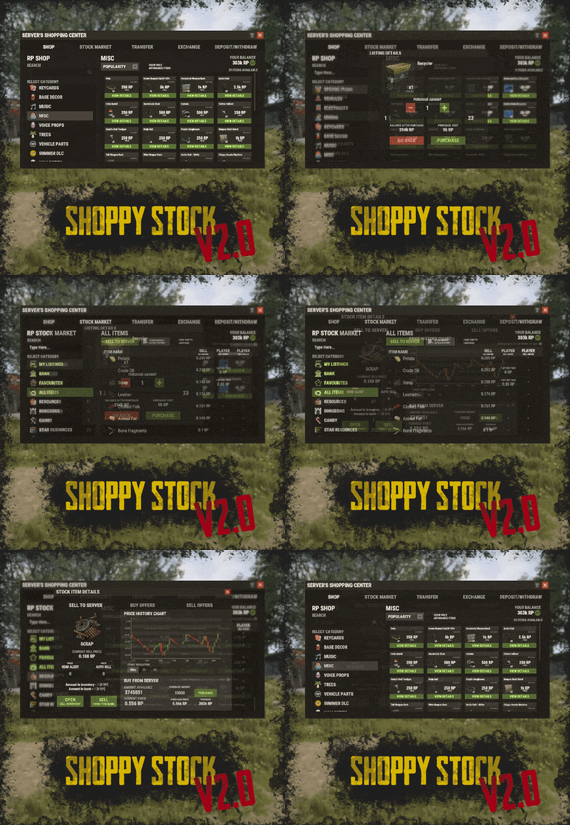
Shoppy Stock is a powerful and versatile economy system designed to enrich your Rust server with shops, stock markets, transfers, exchanges, and deposit features.
This plugin makes it easy to create multiple shops with unique currencies, set up dynamic stock markets with item listings, and manage a fully customizable server selling center—plus many more advanced options.
Plugin package (zip) contains:
ShoppyStock plugin ShoppyConverter plugin (Converts 1.x config to 2.0 config)
Global
Includes over 17 detailed Rust-themed GUI windows. Optimized for performance—actions are lightweight and won’t burden your server. Highly expandable, limited only by your imagination. Fully customizable popup messages through the PopUp API. Comprehensive command and API support for currency management. Full language support for all messages and items. Supports NoEscape integration. Complete UI color customization. NPC interaction support for shops and stock markets. Page memory feature remembers your position in the shop when reopened. Deposit and withdraw currencies to and from items. Currency exchange between different types. Built-in currency leaderboard. Shops
Create multiple shops, each using different currencies. Easily import your old currency from other economy plugins. Organize items into categories with custom icons for seamless browsing. Unified search bar across all categories. Buy exactly the amount of items you need. Full custom item support. If currency is item-based, allow deposits into the shop as virtual currency and withdrawals back to items. Granular permission system configurable for each action. Daily or wipe purchase limits. Purchase cooldowns. Configurable discount system. Random offer rotations with customizable listings. Progressive pricing — prices can increase by set values or multipliers on each purchase. Stock Market
Create multiple markets with different currencies. Favorite items tab for quick access. Automatic listing of all vanilla Rust items with blacklist support. Multiple sorting options for better market management. Buy and sell request creation. Configurable server sell price history. Permission-based limits on how many listings each player can create. Listings can be canceled, refunded, or returned to the market at no cost. Customizable taxes on market actions. Support for extra item info like durability and plant genes. Timed price rolls to adjust prices at set hours. Demand-based pricing that adjusts based on item popularity (DiscordCore required for messages). Advanced selling center with a price calculator using over 15 variables (e.g., amount sold, online player count). Stock Market Broker system—players can store or refund items, set alert prices, and even auto-sell resources while offline. Custom categories and full custom item support. Web API support for price checks or integration into server tools (requires web server). Statistics module for fine-tuning your economy. Timed listings with configurable availability durations. Ability to buy back resources sold to the market. Listing taxes based on listing time. Dynamic price history graphs. Individual configuration for server buy/sell offers per item. Generation of historical price data. Transfer
Send currencies to other players, whether they’re online or offline. Configurable transfer limits and taxes.
The following core permission is static and cannot be changed. However, the configuration files include hundreds of customizable permissions covering nearly every action.
shoppystock.admin - Grants full access to admin commands and management tools.
All commands can be fully customized in the configuration. Below are the default commands included with the plugin:
/shop or /s — Opens the main Shoppy Stock interface. /adminshop — Opens the admin shop management panel. (Available in version 2.1) /deposit — Opens the currency deposit inventory. /mshop or /goldshop — Opens a specific shop. /market — Opens the stock market interface for a specific currency (defaults to “money”). /sell — Opens the sell inventory to sell items directly to the server (defaults to “money”). /list — Opens the interface to list a new item on the stock market (defaults to “money”). /bank — Opens the bank interface for a specific stock market (defaults to “money”). /stockcode <code> — Displays a private listing using a code shared by the listing owner. updateprices — Console command showing details on rolling or updating item prices in the stock market.
Shoppy Stock is packed with powerful features, and configuring everything the first time can feel overwhelming.
This guide provides a quick walkthrough to help you get started and understand key parts of the plugin.
Optional Supported Currency Plugins
Economics ServerRewards BankSystem IQEconomic
Moving from V1 to V2.
Shoppy Stock V2 has been almost completely rewritten from scratch, reusing less than 10% of the old code.
The new configuration is redesigned to be more intuitive and feature-rich.
To help you migrate, use the provided ShoppyConverter, which can convert about 95% of your old configs and data files to the new format.
After converting, always review your new configs carefully — V2 includes dozens of new options that won’t automatically adjust to your preferred settings.
How to convert:
Place ShoppyConverter.cs in your plugins folder. Follow console instructions to move files to the required location. Run the conversion command as instructed. Once converted, place the new files in the correct folders as indicated.
Configuration Files
The plugin’s extensive features are divided across several files and folders:
/config/ShoppyStock.json
Main config containing default settings for currencies, shops, stock markets, and global options. /data/ShoppyStock/playersData.json
Stores global plugin data and player currencies. /data/ShoppyStock/Shops/Configs/<shopName>.json
Shop configs, including available categories and items. /data/ShoppyStock/Shops/Statistics/
Data on daily limits, unique purchases, and more. /data/ShoppyStock/StockMarkets/Configs/<stockName>.json
Stock market configs. /data/ShoppyStock/StockMarkets/Listings/
Player buy and sell offers. /data/ShoppyStock/StockMarkets/PlayerData/
Alert data, favorites, banked items, etc. /data/ShoppyStock/StockMarkets/PriceCache/
Historical price data and current server sell prices. /data/ShoppyStock/StockMarkets/Statistics/
Data on items sold to the server and total currency earned.
Main Config Highlights
Web API
You can use the Web API to show market prices on your website.
Requires web hosting with PHP support.
Download apiupdate.php by CLICKING HERE.
Place it in the directory set by your “Web Price API - Link” config.
Make sure it has permission to create api.html.
The generated file will be accessible at <Web Price API - Link>/api.html.
Server-Selling Items → Default Sell Amount Calculation (DSAC)
DSAC helps define the average number of items sold in a period, based on your server’s player activity. The period is an one price roll time.
Example: a PvE x10 server with ~20–30 players might set wood’s DSAC to 1,800,000 — based on my some calculations, but adjust based on your own stats and server needs.
Always Run Timer on Hour Minute
Controls when the plugin rolls stock prices.
For example:
Values: 0, 30, 60 → rolls at x:00 or x:30. Values: 0, 20, 40, 60 → rolls at x:00, x:20, or x:40.
Stock Market - Default Categories
By default, the stock market includes these categories:
Favourites MyListings Bank AllItems Use these codenames in your configs to customize display order.
Stock Market Item Text Info Display Method
If your server supports item.text, you can toggle this option to show listed item text info.
Currently plugin supports two ways of displaying data. You can enable them based on the config number:
0 - Disabled 1 - Reads raw item.text field and shows on screen 2- Reads item.text as Dictionary<string, string> and supports key translation, currently experimental. If your plugin works on item.text info and any of the solutions above doesn't fit you, feel free to message me to create another implementation!
Items - Custom Detail Info (skinId: languageKey)
You can add custom info tags in listings (similar to showing tool condition or clone genes).
For example, tag certain items as “Upgrade Ingredients.”
Redeem Inventory Name
Make sure to create a storage with this name in RedeemStorageAPI — otherwise, items from certain actions could disappear, and errors may occur.
Generating Shop Config With All Vanilla Items
To automatically add all vanilla RUST items to a shop:
In /config/ShoppyStock.json, set Generate Config With All Default RUST Items to true in the desired shop section. Delete the existing shop config file in /data/ShoppyStock/Shops/Configs/. Reload the plugin—this will generate a new config containing all default items.
Shop Data Config Highlights
Shop Items - Commands
Supports few types of dynamic variables in commands:
{userId} → buyer’s Steam ID {userName} → buyer’s nickname {userPosX}, {userPosY}, {userPosZ} → buyer’s coordinates
A collection of answers to common questions about demand systems, price multipliers, stock market trends, and developer API.
Multiplier Events & Demand System
Q: How does the demand system work? What is “weight”?
A: The demand system uses “Multiplier Events” defined in the main config. Each event has a weight that determines its chance to be chosen during a price roll. How often demands appear is configured in your stock market file at: /data/ShoppyStock/StockMarket/Configs/<shopName>.json. Make sure names in the main config and stock market config match exactly.
Q: How do “minimal” and “maximal” work?
A: These define a range for random price multipliers.
Example: if minimal is 1.4 and maximal is 1.8, and the original price is 1.4, the final rolled multiplier might be ~1.685 → final price becomes ≈ 2.359.
If the random roll goes above max or below min, it’s clamped to min/max.
Stock Market - Timestamps & Trends
Q: What are timestamps used for?
A: The plugin stores historical price data which appears in charts for players with the correct permission.
Tip: set a reasonable timestamp retention value even if you don't plan to show players now—this lets you start collecting useful data early.
Data Folder, Stock Market Config
Q: Blocked Multiplier Listing Keys
A: Certain items you want excluded from permission price multipliers.
Price Calculator
Q: Price Change - Price Fluctuation Percentage
A: Adds random small price changes to keep the market realistic when no other events run.
Q: Price Change - Same Price Actions Min/Max
A: Controls how many rolls prices must go up or down in sequence, making trends look more natural.
Q: Price Change - Chances To Increment Based On Current Price Percentage
A: It's the chance to run the action listed above. It's made in "<price percentage>": <price increase chance (percentage)> format. It's made to make prices go higher more easily when they are low and harder when they are high.
Q: Price Drop - Amount Sell Values Penalty Multiplier
A: When many items are sold fast, price roll becomes negative × penalty multiplier, making it drop quicker.
Q: Price Drop - Amount Sold Max Price Penalty
A: If a huge amount of an item (e.g., 10000% of DSAC) is sold, price is locked to e.g., 25% of original value for a period (e.g., 24 price rolls).
Q: Price Increase - DSAC Not Achieved
A: When item demand is too low (<100% DSAC sold), price increases faster to encourage farming, e.g., by x1.5.
Q: Default Sell Amount Calculation - Players Online Multiplier
A: Automatically scales DSAC based on current player count (checked each price roll). Useful if online population varies greatly.
Q: Price Multipliers - Minimal Time Distance Between Events
A: Sets a cooldown between multiplier events to avoid price spikes.
Q: Price Multipliers - Chance To Appear Based On Sold Amount
A: Lets multipliers trigger more often when few or many items are sold.
Q: Price Multiplier Events
A: Defines how many price rolls the price-increase/decrease event should last.
Server Sell Items
Q: What is the price parent system?
A: Lets you set base items (e.g., Metal Ore) and refined items (e.g., Metal Fragments) so that fragments always stay more valuable than ore by a set difference, encouraging refining.
int GetCurrencyAmount(string shopName, BasePlayer player) - Returns player's balance rounded down to integeer. If not found returns 0. int GetCurrencyAmount(string shopName, ulong userId) - Returns player's balance rounded down to integeer. If not found returns 0. float GetCurrencyAmountFloat(string shopName, BasePlayer player) - Returns player's balance. If not found returns 0. float GetCurrencyAmountFloat(string shopName, ulong userId) - Returns player's balance. If not found returns 0. bool TakeCurrency(string shopName, BasePlayer player, int amount) - Takes player currency. Returns true if taken and false if not. bool TakeCurrency(string shopName, BasePlayer player, float amount) - Takes player currency. Returns true if taken and false if not. bool TakeCurrency(string shopName, ulong userId, int amount) - Takes player currency. Returns true if taken and false if not. bool TakeCurrency(string shopName, ulong userId, float amount) - Takes player currency. Returns true if taken and false if not. void GiveCurrency(string shopName, ulong sellerId, int amount) - Gives player currency. void GiveCurrency(string shopName, ulong sellerId, float amount) - Gives player currency. string FormatCurrency(string shopName, BasePlayer player) - Returns player's formatted balance.
Video Configuration
Contains all configuration files shown on video.
My private configuration created for my purposes.
Note: many custom item features won’t work directly on your server—they're specific to the author’s private setup.
Example Configuration.zip
Default Main Config
CLICK HERE!
Default Shop Data Config
CLICK HERE!
Default Stock Market Data Config
CLICK HERE!
-
$24.99
Smart Sorter
Transform your Rust server's storage experience with intelligent automation, overflow chains, and PvP-safe raid protection.
🎯 Why SmartSorter?
For Players:
Stop manually sorting hundreds of items after raids, monuments and roams Never lose loot to overflowing boxes again Create custom filter categories for your skinned gear sets Set up once, automate forever
For Server Owners:
Reduce player frustration and improve retention Performance-optimized for high-pop servers PvP-friendly with raid/combat blocking Admin-defined custom item categories for skinned items Zero dependencies - works out of the box
🌟 What Makes It Unique?
🤖 Drop Box Automation
Mark any container as a "Drop Box" - toss items in and watch them automatically route to nearby filtered containers. No manual sorting needed.
🔗 Sorting Chains (Overflow System)
Link unlimited containers together. When one fills up, items automatically overflow to the next in the chain. Perfect for massive loot rooms.
🧩Custom Item Categories
Admins define custom categories for skinned items like "Raid Gear", "VIP Kits", or "Event Loot". Players filter containers by these categories just like vanilla ones. Category definitions persist across wipes while templates let players reapply setups instantly.
🛡️ Raid & Combat Protection
Full integration with RaidBlock, NoEscape, and CombatBlock - prevent sorting abuse during raids with granular control over what gets disabled. Essential for PvP servers.
🎯 Defense Auto-Fill
One-click filling of turrets, SAM sites, flame turrets, and shotgun traps. Set your preferred ammo/fuel amounts once and forget it.
📋 Smart Template System
Save filter configurations as templates, load them onto any container, and share setups across your base in seconds.
⚡ Core Features
Automatic Sorting
🎯 Drop Box system for hands-free organization 🔍 Category and item-specific filters (granular control) ✳️Custom item categories for skinned items (admin-defined) 📦 Works with 50+ container types ⚙️ Intelligent handling of furnaces, refineries, recyclers, and vending machines 🔄 Smart routing with sorting chains Manual Control Tools
📡 Send Near - Distribute inventory to nearby filtered containers within radius 📥 Send to Box - Fill the specific container you're looting 🚚 Dump All - Empty your entire inventory instantly 🎒 Loot All - Grab everything from a container (supports backpacks!) 📊 In-Container Sort - Organize by name or category with one click 🪄 Inventory and backpack Sorting
Sorting Chains (Overflow System)
🔗 Link unlimited containers for automatic overflow routing 👁️ Visual chain inspection with in-game colored lines and spheres 🛡️ Cycle detection prevents infinite loops 👤 Per-player chain ownership 🎨 Configurable visualization duration and appearance Custom Item Categories
🏷 Admins create categories via /sscustomcat (e.g. "Custom Currency", "Custom Fuel", "Event Items") 🎨 Add specific skinned items by skin ID and display name 🔘 Players access custom categories through the "Custom" button in the filter panel 🔀 Toggle entire categories or individual items on/off 💡 Custom button reflects active state (green when filtering, gray when inactive) 💾 Category definitions stored in config and persist across wipes 📋 Per-container selections included in template save/load Defense Management
🔫 Auto-fill Auto Turrets, SAM Sites, Flame Turrets, Shotgun Traps ⚙️ Customizable ammo/fuel amounts per defense type 📡 Radius-based batch filling 🔧 Automatic weapon mounting for turrets 💾 Per-player preferences saved Raid & Combat Protection
🛡️ Integrates with RaidBlock, NoEscape, and CombatBlock 🎚️ Granular control - disable specific features during raids/combat 💬 Optional chat notifications when actions are blocked ✅ Essential for PvP servers - prevents sorting abuse Template System
💾 Save filter configurations by name 📋 Load templates onto any container instantly 🔄 Share setups between boxes 👤 Per-player template ownership with admin override 🗑️ Easy template management (delete, rename) Player Preferences
🎛️ Toggle auto-opening of filter panels (/ssautofilters) 📏 Minimize UI to compact button mode ⚙️ Per-player defense ammo/fuel settings 💾 Settings persist across sessions Visual Interface
🎨 Dynamic context-aware UI (changes based on container type) 📖 Built-in help system with full-color image guides 🎨 Fully customizable layouts, colors, and button positions 📱 Responsive design adapts to 1-column or 2-column layout 🖼️ ImageLibrary support for item icons 🔧 Technical Specifications
Supported Containers (50+)
Storage boxes, large boxes, coffins, barrels, fridges, lockers, tool cupboards, vending machines, furnaces (all types), refineries, recyclers, BBQs, campfires, lanterns, mannequins, drop boxes, wall cabinets, beehives, chicken coops, composters, cauldrons, stashes, and all defense entities.
Performance Optimized
⚡ Configurable processing intervals 🔢 Batch processing limits (MaxDirtyBoxesPerTick) 🚀 Optimization mode for high-population servers 💾 Efficient memory pooling throughout 🧹 Automatic cleanup of deleted container data Framework Compatible
✅ Full support for uMod/Oxide ✅ Native Carbon framework support ✅ No external dependencies required ✅ Works out of the box Safety Features
🔒 Wall-check system (prevent looting through walls) 🏗️ Building privilege requirement 📝 Configurable item blacklist/whitelist 🗑️ Automatic cleanup of old container data (configurable grace period) 🔐 Permission-based access control ⚙️ Configuration Highlights
1000+ Customization Options
🎨 UI Customization: Every color, position, size, and text label 🎛️ Button Layouts: 4 preset layouts (Default, DropBox, Awaiting, HasChain) ⏱️ Timing: Sort delays, cooldowns, debounce intervals 📏 Distances: Default radius, visualization settings 🎯 Category Overrides: Reclassify any item into any category ☣️Custom Items: Define skinned item categories with skin ID and display name 🔧 Furnace/Refinery: Custom fuel and smeltable item lists
🆘 Support & Updates
📖 Documentation: Built-in visual help system 🔄 Active Development: Regular updates and improvements 🐛 Bug Reports: Fast response on CodeFling 💡 Feature Requests: Always welcome 📦 What's Included
✅ Plugin file (.cs) ✅ Default configuration ✅ Built-in help system with images ✅ Full permissions setup ✅ 50+ container support ✅ Custom item categories system ✅ Raid/combat block integration ✅ Template system ✅ Performance optimization ✅ Extensive customization options 🎯 Perfect For:
🏰 Large Base Builders - Automate loot rooms with chains ⚔️ PvP Servers - Raid block integration prevents abuse 👥 High-Pop Servers - Performance optimized 🎮 Casual Servers - Quality of life improvement 🏆 Modded Servers - Works with custom items
PLAYER COMMANDS
/ss or /smartsorter Opens the visual help guide UI
/sshelp Opens the visual help guide UI (same as /ss)
/sscommands Shows a list of all available chat commands
/sstoggle Shows or hides the SmartSorter UI completely
/ssremovechains Removes ALL sorting chains you own
/ssautofilters [on|off] Toggles whether the filters panel auto-opens when looting filtered containers
/ssrefresh Refreshes the UI if it gets stuck or doesn't display properly
/ssshowchains Visually displays your sorting chains for 15 seconds using colored lines and spheres
/ssdefense Opens the defense configuration panel to set ammo/fuel amounts for turrets and traps
ADMIN COMMANDS
/sscustomcat Opens the custom item category admin UI
/ssdebug on|off Enables or disables debug logging in console
/ssreloadconfig Reloads the configuration file from disk
/ssclearfilters <containerID> Clears all filters on a specific container by NetworkID
/ssconfig [setting] [value] Opens the config UI, or sets a specific config value
━━━━━━━━━━━━━━━━━━━━━━━━━━━━━━━━━
smartsorter.use - Required for all features
smartsorter.admin - Admin commands and config access
━━━━━━━━━━━━━━━━━━━━━━━━━━━━━━━━━
DEPENDENCIES
None required. Optional ImageLibrary support for enhanced item icons.
━━━━━━━━━━━━━━━━━━━━━━━━━━━━━━━━━
Give your players the gift of time. Install Smart Sorter today.
- #sorting
- #auto-sort
- (and 67 more)
-
$40.00
Terminal
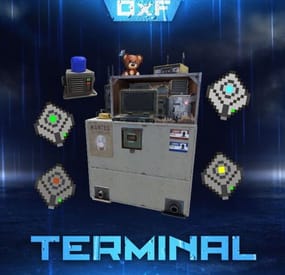
Terminal is an indispensable item that will allow players to manage the resources of the house in one place! Just as importantly, it is not just a conditional button on the screen or something similar, but a complete new item that is placed in the house, which gives a nice user experience to any player that likes interaction. Its multifunctionality will allow the player to use it for a variety of purposes, from simple resource management to building a terminal-only resource factory. Interested? Then let's get to the details.
Examples of uses:
Getting remote access to resources, the ability to take resources from several storages at once, as well as put them in them. The ability to use the terminal as one big chest thanks to the cells of different levels, available import and export pipes will allow to realize the delivery of resources to the production tools Building a plant powered by terminal alone Many other clever uses, like a chest in the buffer of the house connected to the terminal. Combining uses Features:
Similar type items are displayed combined in one slot, where you can see the total quantity and take the required quantity. Two modes of operation: wireless and cellular. Full-featured new placeable item Works with industrial pipes Ability to create different cells (by standard there are 4 levels) Cells have their own stack size just for them. Intelligent movement that will not allow you to store more items in the boxes than allowed The terminal has a convenient search for items in the user's language, not only in English
Demo Video:
Installation instructions
Installing dependencies CustomEntities. Go to Github, click Clone -> Download ZIP, then transfer CustomEntities.cs to the folder with plugins.
CustomItemDefinitions. Go here, download and install in the plugins folder. Download purchased this plugin and install it in the plugins folder the same way. Done
Quick Start:
Prompt commands: give terminal give storage_cell.level1 give storageadaptor.wireless Place terminal, put the cell in the cell storage, install the adapter on the chest, enjoy. More about items:
[Terminal]
Terminal is a placeable item, with the ability to be placed both outside and in the house, serves for convenient management of all resources in the house. It has a certain amount of health (default 500), as well as the ability to pick up with a loss of strength. It has 2 modes of operation, wireless and cell, can work with industrial, by means of pipes to import and export items from cells.
The server owner can decide where to get this item from, it has its own short name and can be used in all plugins, the best option is to craft it.
The shortname of the item - terminal
Command to give:
give terminal
How to pick up a terminal?
For this we must have authorization in the cabinet.
Holding a mallet in your hand, point at the part of the terminal where the inscription Authorize appears, press the R button and select Turn.
How to switch modes of operation?
It is possible to do this by pressing the switch on the left side of the laptop, it looks like this:
What is needed to work in wireless mode?
To start working you need the item "Wireless Storage Adapter”, this item is part of the plugin. Can be obtained by any method of the server owner's choice.
The short name of the item - storageadapter.wireless.
Command to give out:
give storageadaptor.wireless Next, install the wireless storage adapter on the storage item you need. Such as: chests, furnaces, refineries, etc.
Next, select the wireless mode on the terminal by pressing the switch.
After entering the laptop, it will display all the items that are connected to the adapter in the range of the wireless mode of the terminal (customizable).
What is needed to work in the cell mode?
The first thing you need are the cells themselves, they can be obtained in any way the server owner chooses.
The short name of the item - storage_cell.{name from the config, by default it is level1-4}
Command to give out:
give storage_cell.level1 Cells should be put in the terminal cell storage, it looks like this:
It is recommended to put any kind of lock on the cell storage, otherwise they can be stolen!
Next, select the cell mode on the terminal by pressing the switch.
After entering the laptop, where you can now see what is in the cells, how many slots are available and you can put things there.
[Wireless Storage Adaptor]
Used for the wireless mode of the terminal. Installed on all storage items for which a regular storage adapter is available. Does not require additional connection.
The server owner can decide where to get this item from, it has its own short name and can be used in all plugins, the best option is to craft it.
The short name of the item - storageadapter.wireless.
Command to give out:
give storageadapter.wireless
[Storage Cells]
Cells hold items, have a certain number of slots and a maximum stack in each slot. These are special slots and only in them items can be stacked to their maximum. The maximum stack works on the principle of 1 type - 1 slot. That is, if the maximum stack is 5000 and the player puts there 10 new machine guns, they will occupy 1 slot and such can be put another 4990, if he puts a slightly broken machine gun, it will take another slot and will store the same machine guns. This is how it works with all items.
Another example; a level 1 cell has a maximum stack of 5000 and 8 slots, and if you store only sulfur in it, you can eventually store 40000 sulfur in it. Higher level cells have more stacks and slots.
Don't worry, the configured max stack won't be knocked down, items will unstack when they are laid down and taken out of the cell.
The server owner can decide where to get this item from, it has its own short name and can be used in all plugins, the best option is to craft it.
The short name of the item - storage_cell.{name from the config, by default it is level1-4}
Command to give out:
give storage_cell.level1
-

$24.99
Item Perks
By imthenewguy in Plugins
Item Perks is a plugin that enhances everyday weapons, tools and armour with over 50 different types of perks.
Items with perks can be obtained a variety of ways, including:
Finding them randomly in crates or barrels during your morning scrap farm. Randomly crafting an enhanced version of your equipment while you roof camp noobs from your base. Recycling enhanced equipment and finding enhancement kits stuck in the teeth of the recycler. Using a console or chat command that can be ran through seedy plugin traders like GUIShop.
The plugin gives a large amount of control to server owners when it comes to implementation. You can:
Enable/disable perks, or modify the minimum and maximum values that they roll when applied to gear. Blacklist or whitelist items to each perk, so they will be exclusively excluded or included (based on the list you choose). Adjust the weight of each perk, so it is more or less likely to be seen on gear., or adjust the chances amount of perks that items can potentially have. Fully adjust or disable the chance for item drops to be found, or enable the enhancement kit system so players can recycle gear. So much more (watch the configuration section of the video below to see the full extent).
There are over 50 perks included with the plugin. The following list will describe briefly what each perk does.
Name: Prospector Description: This perk increases your mining yield when mining stone, metal and sulfur nodes. Name: Lumberjack Description: This perk increases your woodcutting yield when chopping living or dead trees. Name: Butcher Description: This perk increases the resources gained from skinning humans and animals. Name: Horticulture Description: This perk increases the amount of resources gained when harvesting grown plants. Name: Forager Description: This perk increases the amount of resources gained when picking up map generated collectibles. Name: Angler Description: This perk increases the amount of fish you receive upon a successful catch. Name: BeastBane Description: This perk increases the damage dealt to animals. Name: ScientistBane Description: This perk increases the damage dealt to scientists. Name: FlakJacket Description: This perk reduces the damage received from explosions. Name: Elemental Description: This perk reduces damage from received from cold and heat sources. Name: Scavenger Description: This perk provides you with a chance to find additional scrap from crates and barrels. Name: Manufacture Description: This perk increases the speed of your crafting. Name: Durable Description: This peark reduces the durability damage of all equipped items. Name: BeastWard Description: This perk reduces the damage received from animals. Name: ScientistWard Description: This perk reduces the damage received from scientists. Name: Builder Description: This perk provides you with a chance for your building upgrades to be free. Name: Thrifty Description: This perk provides you with a chance for your crafting components to be refunded upon a successful craft. Name: Fabricate Description: This perk provides you with a chance to duplicate an item upon a successful craft. Name: Pharmaceutical Description: This perk increases the amount of healing received from all sources. Name: MeleeWard Description: This perk reduces the damage received from melee weapons. Name: Academic Description: This perk provides you with a chance to receive a scrap refund when researching an item at the research bench. Name: FallDamage Description: This perk reduces the impact damage received from falling. Name: Lead Description: This perk reduces the damage from radiation. Name: Smasher Description: This perk will provide you with a chance to instantly destroy barrels with any amount of damage. Name: Environmentalist Description: This perk will increase the speed of recyclers that you activate. Name: Smelter Description: This perk will increase the smelting speed of furnaces you activate. Name: Paramedic Description: This perk provides players that you revive with additional health. Name: Prepper Description: This perk provides you with a chance to not consume food when eating. Name: Regeneration Description: This perk will passively regenerate you. Name: SharkWard Description: This perk will reduce the amount of damage received from sharks. Name: SharkBane Description: This perk will increase the amount of damage dealt to sharks. Name: Deforest Description: This perk provides you with a chance to cut down nearby trees when successfully cutting a tree down. Name: BlastMine Description: This perk provides you with a chance to mine out nearby nodes when successfully mining out a node. Name: Tanner Description: This perk provides you with a chance to skin nearby corpses when successfully skinning out a corpse. Name: Vampiric Description: This perk will heal you for a percentage of the damage dealt to certain enemies. Name: Reinforced Description: This perk will reduce the the amount of damage that your vehicles receive when mounted. Name: ComponentLuck Description: This perk will provide you with a chance to receive additional components when looting barrels and crates. Name: ElectronicsLuck Description: This perk will provide you with a chance to receive additional electronics when looting barrels and crates. Name: UncannyDodge Description: This perk provides you with a chance to dodge incoming damage, reducing it to 0. Name: LineStrength Description: This perk increases the tensile strength of your fishing line. Name: HealShare Description: This perk will share healing effects with nearby players. Name: Attractive Description: This perk will provide you with a chance to automatically pick up components when destroying barrels. Name: WoodcuttingLuck Description: This perk provides you with a chance to find a random item when you cut down a tree. Name: MiningLuck Description: This perk provides you with a chance to find a random item when you mine out a node. Name: SkinningLuck Description: This perk provides you with a chance to find a random item when you skin out a corpse. Name: FishingLuck Description: This perk provides you with a chance to find a random item when you catch a fish. Name: Sated Description: This perk will increase the amount of calories and hydration you receive from food and water sources. Name: IronStomach Description: This perk provides you with a chance to negate negative effects when consuming food. Name: TreePlanter Description: This perk will provide a chance for a tree to instantly regrow when cut down. Name: RockCycler Description: This perk will provide a chance for a node to instantly respawn when mined out. Name: BradleyDamage Description: This perk increases the damage dealt to Bradley Tanks. Name: HeliDamage Description: This perk increases the damage dealt to Patrol Helicopters. Name: Thorns Description: This perk reflects a % of the damage done back to the attacker
Command: ipgive
Type: console/chat
Parameters: <target ID/Name> <optional: shortname> <optional: perks>
Description: Gives the target player an enhanced item. If shortname is specified, it will base the enhancement off of that item. If perks are specified, it will add only those perks to the item.
Command: ipgivekit
Type: console/chat
Parameters: <target ID/Name> <perk>
Description: Gives an enhancement kit to the target.
itemperks.use - Required to receive any benefit from enhanced items. itemperks.loot - Required to loot enhanced items from crates and barrels. itemperks.craft - Required for a chance to received enhanced versions of crafted gear. itemperks.admin - Required to use admin commands. itemperks.enhance - Required to add enhancement kits to items via the workbench. itemperks.recycle - Required to receive enhancement kits from recycling enhanced items.
IPAPI_CreateItem - creates and returns an enhanced item using the details fed into the method. If shortname is left blank, it will pick a random valid item. If api_perks is null it will pick random perk(s) and add them.
Returns Item
[HookMethod("IPAPI_CreateItem")] public object IPAPI_CreateItem(string shortname = null, ulong skin = 0, Dictionary<string, float> api_perks = null) { List<KeyValuePair<Perk, float>> perks = Pool.GetList<KeyValuePair<Perk, float>>(); foreach (var perk in api_perks) { Perk _perk; if (parsedEnums.TryGetValue(perk.Key, out _perk)) perks.Add(new KeyValuePair<Perk, float>(_perk, perk.Value)); } var result = CreateItem(shortname, skin, perks); Pool.FreeList(ref perks); // Returns an Item class return result; } Example usage:
[ChatCommand("testipapi")] void TestIPAPI(BasePlayer player) { Dictionary<string, float> perks = new Dictionary<string, float>() { ["Prospector"] = 1f, ["Lumberjack"] = 1f, ["Butcher"] = 1f, ["Horticulture"] = 0.5f }; var item = (Item)ItemPerks.Call("IPAPI_CreateItem", "hammer.salvaged", (ulong)2830083288, perks); if (item == null) { Puts("Failed"); return; } item.name = "tool of the trade"; player.GiveItem(item); }
- #items
- #enhancement
- (and 6 more)
-
$5.00
Base Insight
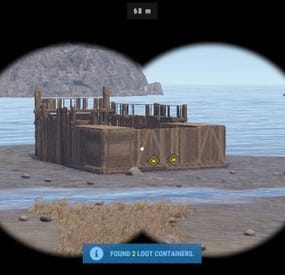
Base Insight provides players with the ability to ping loot containers and tool cupboards inside buildings. This allows players to quickly identify valuable loot containers and strategic tool cupboards within a specified radius.
Features
• Loot Container Pinging – Ping supported storage containers inside a base including large wooden boxes, coffins, barrels, fridges, lockers, vending machines, wall cabinets, drop boxes, and weapon racks.
• Tool Cupboard Pinging – Locate Tool Cupboards inside a scanned base.
• Allowed Container List – Choose exactly which storage containers can be pinged using the allowed container list in the config.
• Loot-Only Pinging – Optionally only ping supported containers that currently contain loot.
• Raidable Bases Only Option – Optionally restrict the scanner so it can only be used on **Raidable Bases**.
• Customizable Scanner Settings – Adjust scan radius, max distance, ping delay, ping duration, scanner skin, scanner display name, ping types, and more.
• Permission-Based Cooldowns – Set a default scan cooldown and override it with permission-based cooldowns.
• Chat and Console Distribution – Give the scanner to players through chat command aliases or via console command.
• Loot Support – Optionally add the scanner item into supported loot containers with configurable chances and min/max amounts.
Permissions
•
baseinsight.use – Required to use the Base Insight scanner.
•
baseinsight.give – Required to use the chat command to receive a scanner.
Commands
Chat Commands
• /bis – Gives the Base Insight scanner item to the player.
Console Commands
• bis [SteamID] – Gives the Base Insight scanner item to the target player.
• bi_wipe – Manually wipe the cooldown data file *(automatically wipes on new wipes)*.
Configuration Options
Scanner Settings
• Scanner Display Name – Display name of the Base Insight scanner item.
• Scanner Skin ID – Skin ID used for the scanner item.
• Enable Storage Containers – Enable or disable storage container pinging.
• Enable Tool Cupboard – Enable or disable tool cupboard pinging.
• Only Use On RaidableBases – Restrict scanner use to Raidable Bases only.
• Only Ping Containers with Loot – Only ping supported containers that currently contain loot.
• Destroy Scanner After Use – Destroy the scanner item after one successful use.
• Max Distance from Base – Maximum distance the player can be from the base they are scanning.
• Scan Radius – Radius around the targeted base used for scanning.
• Ping Delay – How long the player must hold before the scan completes.
• Ping Duration – How long pings remain visible.
• Ping Type – Loot Containers – Ping type used for storage containers.
• Ping Type – Tool Cupboard – Ping type used for tool cupboards.
• Ping Types – List of available ping types included in the config for reference.
Allowed Storage Containers Settings
• Allowed Storage Container List – List of storage container prefab names that the scanner is allowed to ping.
Permissions & Cooldown Settings
• Chat Command Cooldown – Cooldown for receiving a scanner via chat command.
• Default Scan Cooldown – Default cooldown between scans.
• Scan Cooldowns By Permission – Permission-based scan cooldown overrides.
Chat Command Settings
• Chat Command Aliases – List of chat commands that give the scanner item.
Loot Settings
• Add Scanner To Loot Containers – Enable or disable adding the scanner item into loot containers.
• Min Scanners Per Container – Minimum number of scanners that can be added.
• Max Scanners Per Container – Maximum number of scanners that can be added.
• Loot Containers List – Loot container prefab names and the chance for the scanner to be added.
Default Configuration
{ "Scanner Settings": { "Scanner Display Name": "Base Insight Scanner", "Scanner Skin ID": 3242988854, "Enable Storage Containers": true, "Enable Tool Cupboard": true, "Only Use On RaidableBases": false, "Only Ping Containers with Loot": true, "Destroy Scanner After Use": false, "Max Distance from Base": 100, "Scan Radius": 50, "Ping Delay": 5, "Ping Duration": 20, "Ping Type - Loot Containers": 3, "Ping Type - Tool Cupboard": 2, "Ping Types": { "Hostile": 0, "GoTo": 1, "Dollar": 2, "Loot": 3, "Node": 4, "Gun": 5, "Build": 6 } }, "Allowed Storage Containers Settings": { "Allowed Storage Container List": [ "abyss_barrel_horizontal", "abyss_barrel_vertical", "bamboo_barrel", "box.wooden.large", "coffinstorage", "component.box.ammo.large", "component.box.armor.large", "component.box.charcoal.large", "component.box.clothing.large", "component.box.comps.large", "component.box.explosives.large", "component.box.food.large", "component.box.guns.large", "component.box.meds.large", "component.box.metal.large", "component.box.ore.large", "component.box.scrap.large", "component.box.stone.large", "component.box.sulfur.large", "component.box.tools.large", "component.box.wood.large", "dropbox.deployed", "electric.wallcabinet.deployed", "fridge.deployed", "krieg_storage_horizontal", "krieg_storage_vertical", "locker.deployed", "medieval.box.wooden.large", "minifridge.deployed", "pilot_hazmat_woodbox_deployed", "storage_barrel_b", "storage_barrel_c", "twitch_dropbox.deployed", "vendingmachine.deployed", "weaponrack_horizontal.deployed", "weaponrack_single1.deployed", "weaponrack_single2.deployed", "weaponrack_single3.deployed", "weaponrack_stand.deployed", "weaponrack_tall.deployed", "weaponrack_wide.deployed", "wicker_barrel", "woodbox_deployed" ] }, "Permissions & Cooldown Settings": { "Chat Command Cooldown": 3600, "Default Scan Cooldown": 60, "Scan Cooldowns By Permission": { "baseinsight.vip": 30, "baseinsight.elite": 10 } }, "Chat Command Settings": { "Chat Command Aliases": [ "bis", "givebis" ] }, "Loot Settings": { "Add Scanner To Loot Containers": false, "Min Scanners Per Container": 1, "Max Scanners Per Container": 1, "Loot Containers List": { "crate_elite": 0.2, "heli_crate": 0.8, "bradley_crate": 0.8, "codelockedhackablecrate": 0.5, "codelockedhackablecrate_oilrig": 0.5 } }, "Version": { "Major": 2, "Minor": 0, "Patch": 1 } }
Language
{ "Cooldown": "Scan cooldown. Please wait {0} seconds.", "ChatCooldown": "You need to wait {0} seconds to use this command!", "ScanResult": "Found {0} loot containers and {1} Tool Cupboards.", "ScanResultLootOnly": "Found {0} loot containers.", "ScanResultTCOnly": "Found {0} Tool Cupboards.", "NoPerm": "You do not have permission for this command!", "RaidableBasesOnly": "Only Usable On RaidableBases!", "ItemReceived": "You Received A {0}", "NoPermission": "You Don't Have Permission To Use {0}", "TooFar": "Too far away from base! Max distance is {0}m.", "Error": "ERROR: No scannable targets are enabled in the config." }