ninco90
-
Posts
775 -
Joined
-
Last visited
-
Days Won
5
Content Type
Profiles
Warranty Claims
Downloads
Forums
Store
Services
Downloads Plus Support
DOWNLOADS EXTRA
Reels
Everything posted by ninco90
-
 That's quite strange because the building block only allows one color. I'd say something is definitely bugged, which is why they appear as two colors. Does this also happen with any non-floating bases? I mean, a normal base on the ground, without any plugins that might affect it.
 -
 It might be a little confusing for you, even though I've tried to simplify it... Let me know if you have any questions.
- 19 comments
-
- 1
-

-
- #apartments
- #rooms customs
- (and 4 more)
-
How are you trying to place the oven? You need to use something like Ubertool or manual spawning in the entity's console. Then, once it's placed, you need to use the command to save the object. Yes, you need to purchase one room of each size to edit it, so to speak. Then, if you need to edit another room in the same category, you can duplicate the file and rename it with the room number, or simply save the edits by default, and they will apply to the entire category.
-
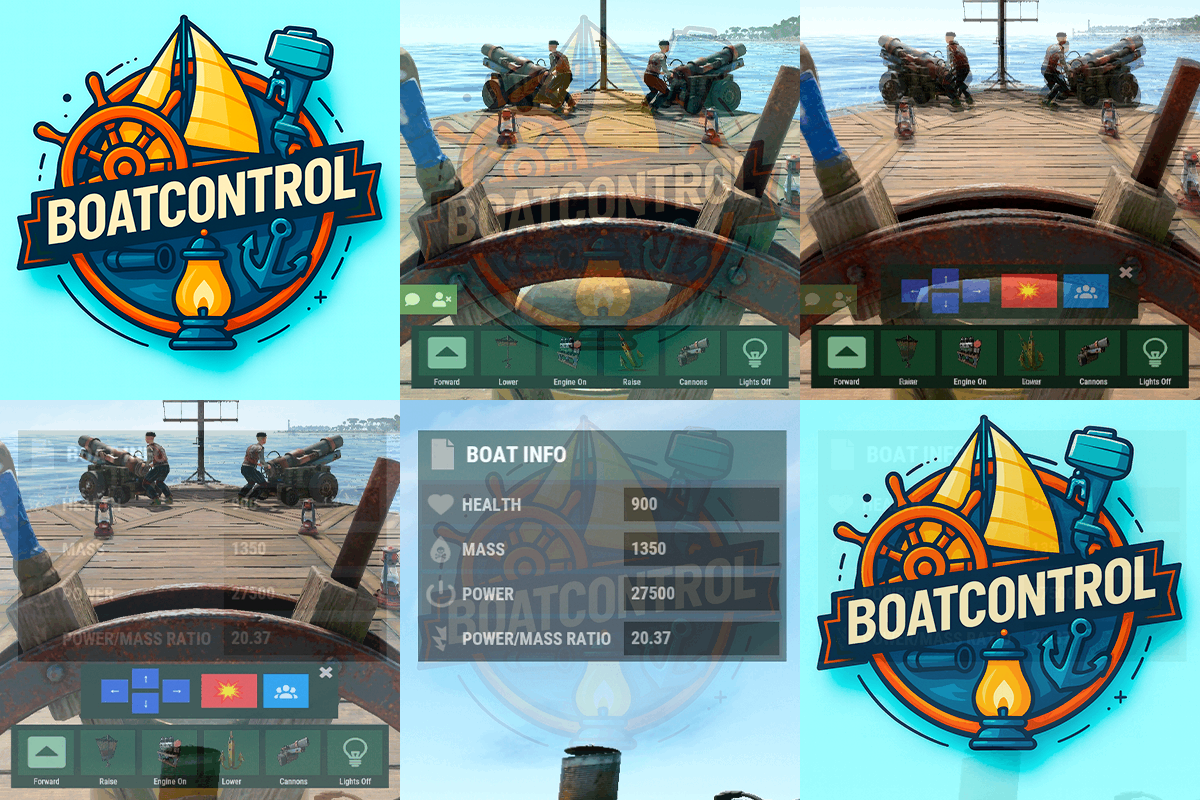 Yes, this happens when changing direction occasionally, because the candlesticks need to wait for the animation to change, and it's possible they'll become desynchronized with the buttons. In this case, the best solution is to check the plugin's orientation and manually flip the incorrect candlesticks; at least, that's how I fix it. In fact, this is the reason there's a delay between direction changes...
- 59 comments
-
- 1
-
-
- #boat
- #controller
- (and 8 more)
-
Currently it applies to everyone; there is no permission check, but I can add it in a future update.
-
Creo que es un poco complejo pues puede joder el sistema del funcionamiento de alquileres, pero lo anoto para ver si puedo hacer algo al respecto.
-
I'll see if it can be done
- 19 comments
-
- 1
-
-
- #apartments
- #rooms customs
- (and 4 more)
-
Hi! What's not working for you? I'll see if I can go and change the room prices.
-
https://store.steampowered.com/itemstore/252490/detail/10520/ This one? I added it in the last update. I haven't bought it yet, but the wallpapers should appear.
-
When they're blocked by the NoEscape plugin, does it allow them to start the upgrade, or does the ongoing upgrade simply not stop? These are two different things. Because if it lets you start the upgrade while NoEscape is active, then the problem lies in how NoEscape.Call<bool>("IsRaidBlocked") is handled. However, if the problem you're seeing is that an upgrade is active and NoEscape suddenly triggers, preventing the upgrade from stopping, then it's because the OnRaidBlock() hooks aren't being captured correctly. Or is it the case in both situations?
-
Changed Status from Pending to Fixed Changed Fixed In to 1.6.5
-
Thank you so much for letting me know! It was my mistake, it's fixed now.
-
Yes, I also saw that I need to add the wallpapers from the Industrial DLC. I'll add them in the next plugin update.
- 451 comments
-
- 1
-
-
- #builder
- #automation
- (and 9 more)
-
You can use it now in Staging, or you'll have to wait for today's update. It doesn't require that plugin. However, it does require the RustEdit extension to make vendors work, and I recommend using ubertool to place objects inside rooms for later saving with /ap ent. Although you can also spawn it wherever you want using the console, it's more complicated to customize that way.
- 19 comments
-
- 1
-
-
- #apartments
- #rooms customs
- (and 4 more)
-
Version 1.0.5
65 downloads
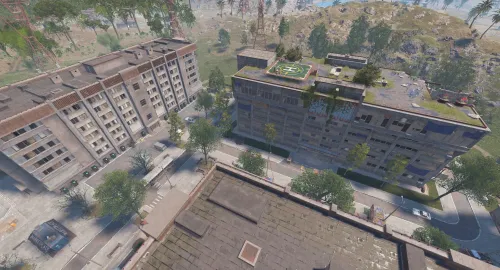
Rust / Server Plugins ApartmentsPlus Custom Apartment LayoutsAdmin & Staff Tools One monument. Your rooms. A complete rental experience. Customize Rust’s apartment monument with saved room layouts, additional deployables and monument-wide services. Bring Outpost, Bandit Camp, stables and apartments together in one location with the included setup and optional additions. Individual rooms Unique designs by room number Shared layouts Defaults for each room type Monument extras Vendors, horses and casino setups 01 / Video demo See ApartmentsPlus in action Explore the apartment setup and customization possibilities. Watch on YouTube 02 / Installation Upload the included data folder The purchase ZIP includes data/ApartmentsPlus/. Upload this folder and all its files to your server’s data directory. These files contain the included monument additions and room-type layouts. Without them, the plugin can load, but the ready-made layouts and monument additions supplied with the purchase will not be applied. Run the plugin on a Rust server with Oxide or Carbon. The RustEdit extension is required for helicopter vendors, stable vendors and horse spawners; the room editing and layout features do not require it. 03 / Room layouts Design one apartment or an entire category Individual room profiles Save a layout for a specific room number when you want that apartment to have its own furniture, decorations and deployables. Room type defaults Create shared default layouts for small, medium or large apartment types. Individual room profiles take priority over the room-type default. The included layouts add storage, furnaces, workbench changes and workshop skins. Edit them to suit your server’s rental experience. Configured extras are applied when a room is rented. When it becomes unrented, the plugin cleans up its managed extras. 04 / In-game editing Build and save your layouts from inside Rust Select the room you are standing in with /ap edit, or target an exact room with /ap edit 602. Look at an entity and save it as an extra. Move the last edited room extra by local offsets and rotate it by yaw. Apply a skin to an identifiable saved room extra, including an existing extra already present in the apartment. Remove saved extras, then save and reapply the individual room layout or its room-type default. Room editing supplies add and remove hammers. Hit entities with the appropriate hammer to capture them or remove their saved extra. Automatic saving is configurable. Building-piece profiles can also capture the building grade and wallpapers on the internal and external sides, including wallpaper rotation. Use free or custom workshop skins for the included layouts. Do not use the customization tools to grant players paid, Facepunch-approved skins or DLC they do not own. 05 / Extra entities Save deployables relative to the room Add boxes, lockers, furnaces, lights, decorations and other supported deployables. Profiles store the prefab, enabled state, local position, local rotation and skin ID. Local transforms keep the layout relative to its room or monument, so it can be reapplied after restarts and reused after wipes when the saved data is retained. Automatic IO power Enable automatic power for compatible electrical extras as they spawn. Configure the power amount for lights and other IO deployables that should operate without a complete wiring setup. Storage-container note: custom storage extras in rooms can interfere with vanilla apartment upgrades, including crashes during container transfer. The configuration allows room storage-container extras to be disabled. 06 / Monument services Add more reasons to visit the apartments Save global entities as monument extras separately from apartment room layouts. These additions are reapplied to each matching apartment monument instance. Helicopter vendor Optionally spawn a helicopter vendor and a helicopter spawn point at configured local positions and rotations. Requires the RustEdit extension. Stable vendor and horse spawns Add a stable shopkeeper, its linked invisible vending machine and configured horse spawn points. Optionally populate the stable’s default sales, including saddles, horse armor, horseshoes and plant exchange orders. Requires the RustEdit extension. Functional casino setups Save the big wheel and betting terminals as monument extras. ApartmentsPlus connects terminals to the nearest wheel and can automatically create their static chairs at a fixed offset. The casino and automatic chair creation can be configured. Use /ap ent monument to explicitly capture a monument extra, even while editing a selected room. Casino linking requires both the wheel and betting terminals to be saved as monument extras. 07 / Permission & commands A toolset for administrators and staff Grant apartmentsplus.admin to access all ApartmentsPlus commands. Players experience the configured apartments; editing is controlled by staff. Command Purpose /ap Show command help. /ap here Show information about the current apartment room. /ap edit Select the current room for editing and receive the editing hammers. /ap edit <room number> Select a specific room, for example /ap edit 602. /ap ent Save the looked-at entity as a room extra, or a monument extra when no room is resolved. /ap ent monument Explicitly save the looked-at entity as a monument extra. /ap move <x> <y> <z> Move the last edited room extra by local offset, for example /ap move 0 0.1 0. /ap rot <yaw> Rotate the last edited room extra, for example /ap rot 90. /ap skin <skinid> Apply and save a skin on the looked-at saved room extra, for example /ap skin 2843382048. /ap remove Remove the looked-at saved extra from its configuration. /ap save Save and reapply the current individual room layout. /ap save default Save and reapply the default layout for the current room size/type. The chat command defaults to /ap and can be changed in the configuration. 08 / Data & configuration Keep your room designs and monument additions Keep the included data/ApartmentsPlus/ files on the server. Room profiles are stored by individual room number or room type/size; monument extras use a separate data file. Configure the chat command, look distance, automatic saving and add/remove hammer skin IDs. Configure storage-container support, automatic IO power, vendors, horse spawn points, casino linking and automatic chairs. Entity data records local transforms and skins; building profiles can additionally preserve grade and wallpaper data. Edit the configuration generated by your installed version and retain the data files when moving the setup to another server or carrying it across a wipe. 09 / Gallery Take a closer look at the included setup Original gallery from the ApartmentsPlus listing. Select an image to open the full-size version. 10 / Support Make the apartments fit your server For questions, suggestions or assistance, contact ninco90 on Discord. Custom configuration tailored to your server is also available for an additional fee.$12.00- 19 comments
-
- 1
-
-
- #apartments
- #rooms customs
- (and 4 more)
-
Let me know what's wrong. I had a problem and sent the wrong version in the last update, so it should be fixed in this latest one. At least I tested it and it didn't give me any more than it should.
-
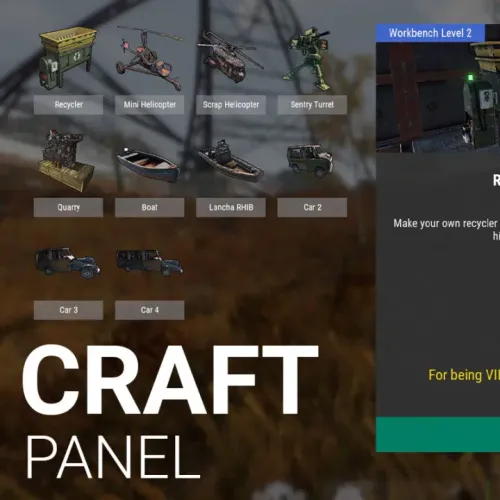 Done! It should be working now, check it when you can
 -
Thanks for letting me know! My mistake, I'll fix it soon!
- 21 comments
-
- 1
-
-
- #craft
- #craft menu
- (and 4 more)
-
Did you try this latest version? Not the one I sent you privately, that one still had a bug.
-
Changed Status from Work in Progress to Fixed