
About Extra Music Player
Extra Music Player
Bring a full in-game music player to your Rust server !
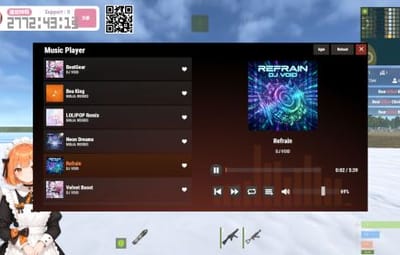
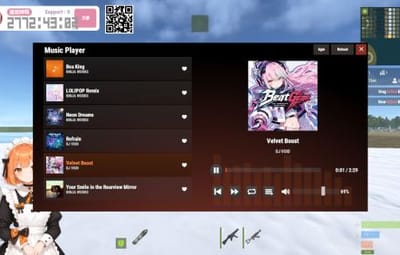
Extra Music Player adds a beautiful, fully interactive music player UI to Rust. Players can browse tracks, play music in stereo, seek through songs, adjust volume with a draggable knob, bookmark favorites, and enjoy a real-time sound visualizer.
Music is streamed through Rust's built-in voice system, so every player can hear it with zero downloads or client installs required.
Additionally, it includes developer hooks for music playback, enabling the development of more original plugins.
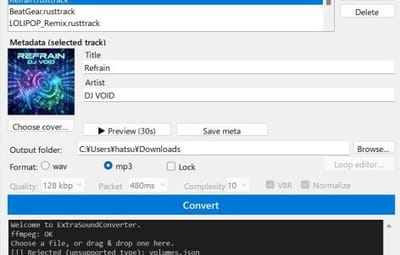
To add music, you need to use the included application, 'ExtraSoundConverter', to convert MP3 or WAV files into data that can be played on the server.
Note: ExtraSoundConverter is only compatible with Windows 64-bit systems.
Note: Please exercise caution regarding the handling of existing music, including songs, from a legal standpoint. If you plan to monetize music content through shop plugins or similar means, we recommend using automatically generated music such as SunoAI. https://suno.com/


In-Game Music Player UI
- Full playlist menu with album art, track title, and artist display
- Play / Pause / Stop / Restart / Next controls
- Clickable seek bar — jump to any point in a song
- Draggable volume knob with live percentage display (volume is saved per player)
- Repeat toggle
- "Like" button — players can bookmark songs into their own personal playlist
- Track list automatically sorted by folder, then by name — organize your library with subfolders
True Stereo Playback
- You can play music in stereo. (Playback via certain dev hooks is not supported.)
- Automatic synchronization keeps stereo tight even when players teleport, warp long distances, spin their camera, or experience ping spikes
Real-Time Sound Visualizer
- Animated spectrum visualizer rendered in the UI, synced to the music
Per-Player Track Access Control
- `Show all tracks` config option: when disabled, players only see tracks granted to their SteamID
- Grant/revoke tracks with `addtrack` / `removetrack` console commands
- Sell songs in your server shop, use them as rewards.
Protected Track Files
- Tracks use a dedicated encrypted format (.rusttrack) with embedded title, artist, cover art, spectrum data, and loop points
- Your audio library can't simply be copied out as ordinary audio files
Multi-Language Support
- Built-in translations: English, Japanese, Simplified Chinese, Traditional Chinese, Russian, French, and Ukrainian
Developer API
- Simple hooks to play, pause, resume, and stop music from your own plugins
- TTS/speech API — feed external Opus frames (e.g. from a TTS service) and play them to a player
- Loop support and per-call volume control

1. Install the plugin
place `ExtraMusicPlayer.cs` into your `oxide/plugins` folder.
2. Add music
put your `.rusttrack` files into `oxide/data/ExtraMusicPlayer/`. Subfolders are supported and are used to group/sort the track list.
Creating track files: `.rusttrack` files are created from your own audio files using the included ExtraSoundConverter.exe.
Sample Music Pack 138 Song Free Download https://hstorage.jp/dl/gg3vufqfsg6O.zip
You can download the Sample Music Pack and add 138 music tracks to your server for free. Please give it a try.
Download the "Sample Music Pack," move the folder containing the `rusttrack` data to `oxide/data/ExtraMusicPlayer/`, and reload the plugin.
3. Open the player
players type /music to open the music player and press play.
How to convert music data using ExtraSoundConverter
Requirements
Windows x64, no .NET needed, ffmpeg required.
Requires ffmpeg. Easy install on Windows: open PowerShell and run
winget install --id=Gyan.FFmpeg -e
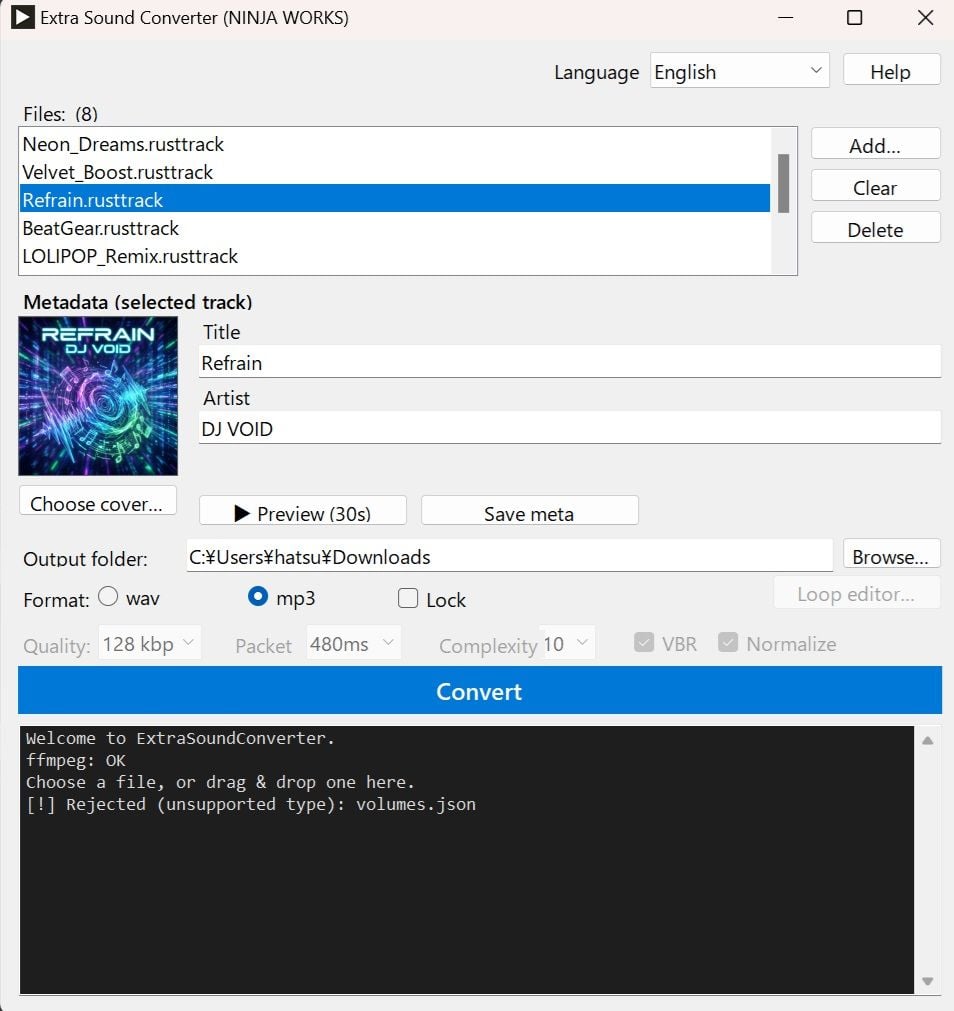
1. Add audio
drag & drop mp3/wav/ogg/flac/m4a/aac (or click Add). Unsupported types are rejected. Title/Artist/cover are auto-read from tags.
2. Select format:
.rusttrack = music player (spectrum + 2s silence pad). Title/Artist/cover stored.
.rustbgm = developer-hook BGM (no spectrum); use the Loop editor to set loop points.
3. Convert
Pick quality (kbps) and the output folder, then Convert. Output files are named after the Title (spaces → _); if the Title is empty, the original filename is used.
Reverse: a data file
wav or mp3 (pick in Format). mp3 embeds the Title, Artist and cover art into the single file; wav keeps Title/Artist only. No separate image file.
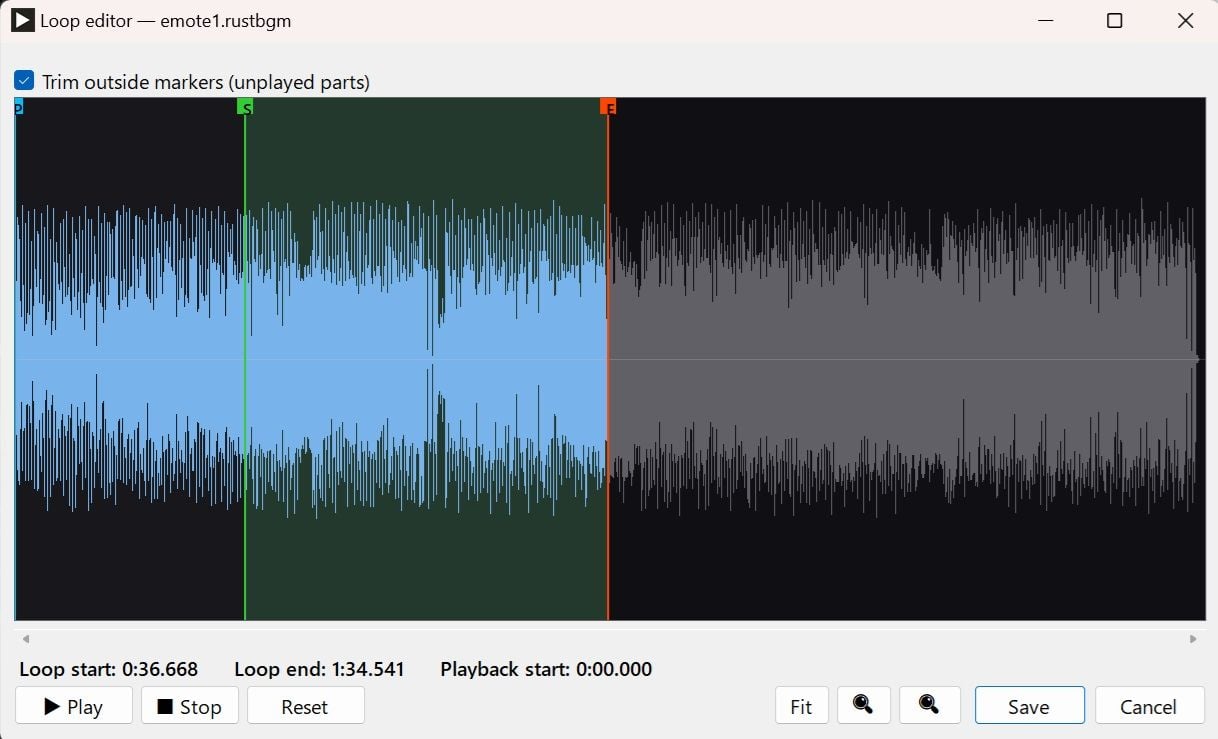
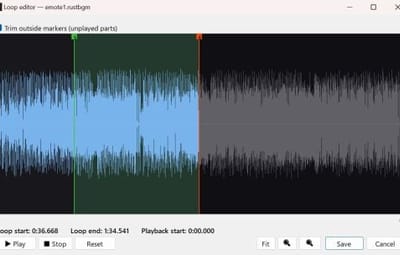
Loop editor (.rustbgm only)
three markers — P (blue) = playback start (where the server FIRST begins), S (green) = loop start, E (red) = loop end (the playhead jumps from E back to S). P and E are always present and placed automatically on load (P at the very start, E at the very end); move them by dragging. S is set by LEFT-clicking the waveform. They are always kept in order P ≤ S ≤ E (a marker won't move if you try to drag it out of order). A loop is exported only once you place S — it then loops S→E (E defaults to the track end, so the whole tail loops; drag E earlier to fold sooner). RIGHT-click anywhere = play from there; ▶ Play previews the loop seamlessly. Playback always stops at E (the part after E is never played, even with no loop start). The waveform outside the played range (before P / after E) is shown dimmed in gray. Zoom with the buttons or the mouse wheel, scroll with the bar. Points are quantized to chunk boundaries on export. No loop start (or Reset) = the whole track loops. "Trim outside markers" drops audio before P and after E on export — the result sounds identical.

Chat Commands (permission: `extramusicplayer.use`)
/music - Open Music Player
Server Console Commands
addtrack <SteamID> <trackFileName> - Grant a track to a player. (used with `Show all tracks: false`)
removetrack <SteamID> <trackFileName> - Revoke a granted track.

extramusicplayer.use - Allow the music player to open.

{
  "Selected track color (R G B)": "1 0.55 0.30",
  "Gauge color (R G B A)": "0.79 0.34 0.16 1",
  "Spectrum / visualizer color (R G B)": "0.90 0.45 0.20",
  "Selected button color (R G B A)": "1 0.62 0.28 1",
  "Volume knob color (R G B A)": "1 1 1 0.75",
  "Time & volume % text color (R G B A)": "0.9 0.9 0.9 1",
  "Image - background": "https://i.imgur.com/FqQPPki.jpg",
  "Image - list row box": "https://i.imgur.com/h1dQNSB.png",
  "Image - button": "https://i.imgur.com/JNZDC27.png",
  "Image - play": "https://i.imgur.com/V02YZLb.png",
  "Image - pause": "https://i.imgur.com/IGnNjXC.png",
  "Image - volume": "https://i.imgur.com/GjEauMr.png",
  "Image - repeat": "https://i.imgur.com/VmdWTpQ.jpg",
  "Image - restart": "https://i.imgur.com/hUpU119.jpg",
  "Image - next": "https://i.imgur.com/kYpQ8Tt.jpg",
  "Image - playlist": "https://i.imgur.com/xDlj1pT.jpg",
  "Image - like": "https://i.imgur.com/kxPSF85.png",
  "Sound visualizer enabled": true,
  "Visualizer framerate (updates per second)": 30.0,
  "Playback gauge framerate (updates per second)": 10.0,
  "Show all tracks (false = only tracks granted per-SteamID via addtrack)": true
}
Developer API
Please call the following APIs from your custom plugins.
// Plays the track to the player (loop playback and volume adjustment are optional)
bool ok = (bool)ExtraMusicPlayer.Call("ExtraMusicPlay", player, "MyTrack", true, 80);

// Controls player playback
// Pause
ExtraMusicPlayer.Call("ExtraMusicPause", player);
// Resume
ExtraMusicPlayer.Call("ExtraMusicResume", player);
// Stop
ExtraMusicPlayer.Call("ExtraMusicStop", player);

// Play from the entity's position.Duplicate playback is not possible.
ExtraMusicPlayer.Call("ExtraMusicArea", sourceEntity, "MyTrack", false, 100);

// AI Voice/TTS — Plays raw Opus frames to the player.Only audio compatible with Opus, such as Open AI and FishAudio, can be played.
// Play
ExtraMusicPlayer.Call("ExtraMusicSpeak", player, opusFrames, 20, 24000, 80);

// Stop
ExtraMusicPlayer.Call("ExtraMusicSpeakStop", player);

// Check if the player is playing
bool playing = (bool)ExtraMusicPlayer.Call("ExtraMusicIsPlaying", player);

// Check if AI voice/TTS is playing
bool speaking = (bool)ExtraMusicPlayer.Call("ExtraMusicIsSpeaking", player);
Implementation example

Q: What audio formats can I use?
A: The plugin plays `.rusttrack` files, created from your own audio using the included converter tool. The format embeds the title, artist, cover art, and visualizer data, and is encrypted to protect your library.
Q: Where do I put the music files?
A: In `oxide/data/ExtraMusicPlayer/`. Subfolders are supported — the track list is sorted by folder, then by file name.
Q: The sound becomes distorted when the player quickly switches the viewpoint while music is playing.
A: Phenomena resembling the Doppler effect are part of the vanilla game mechanics. We are currently working on improvements to mitigate this issue.
Q: Can I sell individual songs to players?
A: Yes. Set `"Show all tracks"` to `false`, then grant songs per SteamID with `addtrack <SteamID> <file>`. Integrate the console command with your shop or reward plugin.
Q: I added new files but they don't show up.
A: Reload the plugin to refresh the track list.
Q: Is Image Library required?
A: No. The plugin caches its UI images by itself. No dependencies are required.
Q: Will the visualizer hurt performance?
A: The visualizer's update rate is configurable, and it can be disabled entirely. UI updates are throttled and pooled to stay lightweight.
Q: What languages are supported?
A: English, Japanese, Simplified Chinese, Traditional Chinese, Russian, French, and Ukrainian.

 VOID / NINJA WORKS
DISCORD : https://discord.gg/U8uxePjSyA
 MADE IN JAPAN
.thumb.gif.85db1086c3a89ac3c74d631b5eb77942.gif)






.thumb.gif.629f3cf0f35f0b36244b72d6fb72788d.gif)