
Paws4Luv's Wishlist
-

$49.99$39.99Dynamic Monuments
DynamicMonuments is a groundbreaking plugin for Rust servers that breathes new life into your maps!
Say goodbye to tedious manual map editing or relying on RustEdit.
With just a few clicks, your server will be transformed, featuring 18 unique monuments that blend seamlessly into any environment.
Key Features:
Dynamic Spawning:
- Monuments can spawn randomly during wipes or with each server restart (optional)
- Customize spawn frequency and zones through the plugin's configuration
- A variety of monument complexities, ranging from cozy hideouts to sprawling fortresses
18 Unique Monuments:
- Water Monuments
- Coastal Monuments
- River Monuments
- Roadside Monuments
- Modifications for Standard Monuments: (Metro entrances, power line towers, substations, quarries, and more).
Personalization:
- Give players personal monuments
Versatility:
- Compatible with both custom and procedural maps.
- Automatically adapts to terrain, water, and roads.
- No RustEdit required! Everything is managed through the plugin's configuration.
Giving a monument to a player
9 out of 18 monuments can be given to players for personal placement.
The dynamic monument is represented as a flare with a unique skin, which can be given to players in any way, such as through an in-game store.
To spawn the monument, the player must hold the flare and find a suitable location, receiving instructions in the chat and notifications.
Once placed, the monument is locked to the player, and only they can loot it.
Chat commands (admin only)
/killmonument - destroys the DynamicMonument you're looking at /replacecrate NewCratePresetName - replaces the crate you're looking at on the location with NewCratePresetName /spawnmonument PresetName - spawns a monument in a random position /spawnmonumentmypos PresetName - spawns the monument in your position /killallmonuments - destroys all DynamicMonuments on the server /respawnmonuments - forcibly launches automatic respawn of DynamicMonuments /givemonument PresetName - give the monument to yourself /addprefabspawnpoint PresetName — adds a crate or static NPC spawn point to a monument at your current position (only for Static Npc and crates) /removemonumententity command — removes entity spawn point you're looking at. (only for StaticNpc/crates/Entities for respawn) Console commands (RCON only)
spawnmonument PresetName - spawns a monument in a random position killallmonuments - destroys all DynamicMonuments on the server respawnmonuments - forcibly launches automatic respawn of DynamicMonuments givemonument PresetName userID - give the DynamicMonument to the player Plugin Config
en – example of plugin configuration in English ru – example of plugin configuration in Russian
Check out the rest of my work: Adem's Codefling Library
You can reach out to me in Discord: Adem's Discord Profile
Join the Mad Mappers Discord!
-
$16.99
Custom Event Manager
📝 Description:
Custom Event Manager is a lightweight Rust plugin that automatically manages and rotates through server events. Instead of manually starting events, this plugin will periodically trigger them for you, picking randomly from multiple event lists and ensuring they don't repeat until all events have been cycled through. Disable timer starts in your plugins, and use the start command in the config, to avoid having multiple events run at the same time.
This keeps gameplay fresh and dynamic for your players without requiring constant admin attention, and now includes Discord webhook integration to notify your community when events start!
NEW in v2.3.0: Take full control of Rust's vanilla events! Disable automatic spawns of patrol helicopters, cargo planes, cargo ships, CH47s, Bradley APCs, and supply drops. Then optionally schedule them manually through the plugin's rotation system for complete server event control.
✨ Features
Multiple event lists with independent rotation schedules Configurable delays between different event lists to prevent overlap Automatic event rotation at configurable intervals Smart rotation logic ensures no event repeats until all have been used Discord webhook integration with customizable notifications Vanilla event control - Enable/disable individual vanilla Rust events Manual vanilla event scheduling - Schedule vanilla events through the rotation system when disabled Admin commands to start, stop, and check the rotation status Simple JSON configuration for adding your own events Full permission system support Configuration ⚙️ Configuration
The config file will be generated at: oxide/config/CustomEventManager.json
Example:
{ "EnableOnServerStart": true, "PreventDuplicateEvents": true, "MaxRerollAttempts": 5, "EventCooldownSeconds": 60, "DiscordWebhookUrl": "https://discord.com/api/webhooks/YOUR_WEBHOOK_URL", "DiscordSettings": { "EnableNotifications": true, "BotName": "Event Manager", "BotAvatarUrl": "", "EmbedColor": 3447003, "NotifyOnEventStart": true, "NotifyOnRotationStart": true, "NotifyOnRotationStop": true, "NotifyOnCycleComplete": true }, "VanillaEventSettings": { "EnablePatrolHelicopter": true, "EnableCargoPlane": true, "EnableCargoShip": true, "EnableCH47": true, "EnableBradleyAPC": true, "EnableSupplyDrop": true }, "EventLists": [ { "Name": "MainEvents", "IntervalMinutes": 30, "RandomizeOrder": true, "DelayAfterMainEvent (minutes)": 0, "Enabled": true, "Events": [ { "Name": "extraevents", "Command": "extraevents start", "Enabled": true }, { "Name": "guardedcrate", "Command": "gcrate start", "Enabled": true }, { "Name": "guessthenumber", "Command": "gtn start", "Enabled": true } ] }, { "Name": "SecondaryEvents", "IntervalMinutes": 45, "RandomizeOrder": true, "DelayAfterMainEvent (minutes)": 5, "Enabled": true, "Events": [ { "Name": "roamtasks", "Command": "RoamTask start", "Enabled": true }, { "Name": "skilltreexpevents", "Command": "startxpevent", "Enabled": true }, { "Name": "convoy", "Command": "convoystart", "Enabled": true } ] }, { "Name": "VanillaEvents", "IntervalMinutes": 60, "RandomizeOrder": true, "DelayAfterMainEvent (minutes)": 0, "Enabled": false, "Events": [ { "Name": "PatrolHelicopter", "Command": "spawnheli", "Enabled": true }, { "Name": "CargoPlane", "Command": "spawnplane", "Enabled": true }, { "Name": "CargoShip", "Command": "spawncargoship", "Enabled": true }, { "Name": "CH47", "Command": "spawnch47", "Enabled": true } ] } ] } Options
General Settings
EnableOnServerStart → Automatically start event rotation when the server starts. Default: true PreventDuplicateEvents → Prevents the same event from running across different event lists simultaneously. Default: true MaxRerollAttempts → Number of attempts to find a non-duplicate event before giving up. Default: 5 EventCooldownSeconds → Time (in seconds) before an event is removed from the global active list. Default: 60 DiscordWebhookUrl → Your Discord webhook URL for notifications. Leave empty to disable Discord integration. Discord Settings
EnableNotifications → Master switch for all Discord notifications. Default: true BotName → The name displayed for the webhook bot. Default: "Event Manager" BotAvatarUrl → URL to an avatar image for the bot (optional) EmbedColor → Decimal color code for Discord embeds. Default: 3447003 (blue) NotifyOnEventStart → Send notification when an event starts. Default: true NotifyOnRotationStart → Send notification when rotation starts. Default: true NotifyOnRotationStop → Send notification when rotation stops. Default: true NotifyOnCycleComplete → Send notification when all events in a list complete. Default: true Vanilla Event Settings
Control whether vanilla Rust events spawn automatically:
EnablePatrolHelicopter → Allow automatic patrol helicopter spawns. Default: true EnableCargoPlane → Allow automatic cargo plane spawns. Default: true EnableCargoShip → Allow automatic cargo ship spawns. Default: true EnableCH47 → Allow automatic CH47 spawns. Default: true EnableBradleyAPC → Allow automatic Bradley APC spawns. Default: true EnableSupplyDrop → Allow automatic supply drop spawns. Default: true Important: When you disable a vanilla event (set to false), the plugin will block its automatic spawns. To schedule these events manually, enable the "VanillaEvents" list in your EventLists configuration and customize the interval and events as needed.
Event List Settings
Each event list supports:
Name → Friendly name for the event list IntervalMinutes → Time (in minutes) between each event in this list. Default: 30 RandomizeOrder → Whether to randomize event selection. Default: true DelayAfterMainEvent (minutes) → Additional delay before starting this list's events (useful for preventing overlap). Default: 0 Enabled → Whether this event list is active. Default: true Events → Array of event definitions: Name → Friendly name for the event (used in status tracking and Discord notifications) Command → The console command to trigger the event Enabled → Whether this specific event is active. Default: true
🛠️ Permissions
customeventmanager.admin Required to use the admin commands.
💻 Commands
/cem start - Starts the event rotation /cem stop - Stops the event rotation /cem status - Shows current status, how many events have run, and when the next one is scheduled /cem reload - Reloads the configuration and restarts rotation /cem list - Lists all configured event lists and their events /cem active - Shows currently active events globally /cem vanilla - shows the status of vanilla event settings ⌨️ Console Commands
All chat commands can also be used from the F1 console by replacing /cem with cem:
cem start cem stop cem status cem reload cem list cem active cem vanilla 🔧 How it works
Multiple Event Lists: You can configure multiple independent event lists (e.g., "MainEvents" and "SecondaryEvents") that run on their own schedules Smart Scheduling: Each list tracks its interval and optional delay to prevent events from overlapping No Repeats: Events won't repeat until all events in that list have been triggered Discord Integration: Get real-time notifications in your Discord server when events start, cycles complete, or rotation status changes Duplicate Prevention: Prevents the same event from running simultaneously across different lists Vanilla Event Control: Block automatic vanilla event spawns and optionally schedule them through the plugin's rotation system
🔧 Vanilla Event Scheduliing
To take full control of vanilla Rust events:
Disable automatic spawns by setting the vanilla events to false in VanillaEventSettings: "VanillaEventSettings": { "EnablePatrolHelicopter": false, "EnableCargoPlane": false, "EnableCargoShip": false, "EnableCH47": false, "EnableBradleyAPC": false, "EnableSupplyDrop": false } 2. Enable manual scheduling by setting the VanillaEvents list to true
{ "Name": "VanillaEvents", "IntervalMinutes": 60, "RandomizeOrder": true, "DelayAfterMainEvent (minutes)": 0, "Enabled": true, "Events": [...] } 3. Customize the schedule by adjusting IntervalMinutes, adding/removing events, or changing the order
This gives you complete control over when and how often vanilla events occur on your server!
📌 Tips
Disable built-in timers in your event plugins to prevent conflicts Use the DelayAfterMainEvent setting to stagger different event lists Set RandomizeOrder to false if you want events to run in a specific sequence Customize Discord notifications to match your server's style with the EmbedColor and BotAvatarUrl settings Use PreventDuplicateEvents to avoid the same event running twice at once across different lists Disable vanilla events and use the VanillaEvents list for complete control over server events Use /cem vanilla to quickly check which vanilla events are enabled or disabled
-
$30.00
BetterTC
Fed up with the need to use multiple addons on my server for functions that players could execute from within the game, and considering the constant increase of new Skins for builds, I found myself dissatisfied with the limited supply of automatic upgrades on the market.
For this reason, I have reworked the most used TC-related features on my server into a single plugin, which has been enriched with ideas contributed by players and other Rust administrators.
All this under an attractive graphical interface, inspired by the item store of the game itself.
Video Update 1.5.0
Video Update 1.4.9
Video Update 1.4.0
Old Video
Features
AUTOMATIC CONSTRUCTION SKINS
With BetterTC your players will be able to improve their builds to any level of improvement, but they will also be able to choose their favorite Skin (if you enable it) completely free of charge or offering it to the VIPS on your server. Update system: I have added a small system that checks for new skins to automatically add them to the configuration. When you install the plugin for the first time and once you obtain permission from bettertc.admin, you must click on "Check Update" so that it performs an internal check and adds all the skins and options that exist to date.
LIST OF AUTHORIZED PLAYERS
It allows players or simply the rest of the Staff to easily see which players are authorized in the locker. Except for the administrators themselves, if you activate it in the config. (I don't think any player needs to know that the admin was authorized in their locker to check something) You can also allow authorizations to be deleted individually.
AUTOMATIC IMPROVEMENT SYSTEM
Allows your players to upgrade the grade of their bases automatically by obtaining resources directly from the TC. As long as they don't have RaidBlock (if you use NoEscape/RaidBlock plugin of course). You can configure different speed levels and costs depending on the player's permission from the plugin's own settings. That is, you can have players improve a building every 5 seconds for free and VIPs can improve every 2 or 1... Use your imagination! In addition, you can also calculate the cost of materials that will be required to carry out said improvement by clicking on the info button.
A new setting has been added to disable the Container skin's multi-color option. Disabling this option, which is enabled by default, will slightly improve frame rates in builds using this skin: Fewer colors = Better performance (FPS Client).
AUTOMATIC RESKIN OF EXTERNAL WALLS
The plugin also includes an automatic reskin system for external walls.
Previously, it was only compatible with standard stone external walls and their adobe variant. Now, it also includes the ability to switch wooden walls to Frontier and vice versa. Ice walls have also been added as a variant for stone.
If you place regular stone external walls (the usual ones), you can change their appearance to adobe or ice by clicking on the corresponding wall icon.
When changing the skin, the original wall's health will be preserved, so if it’s damaged, it won’t be fully restored. This prevents players from abusing the system.
Important:
I recommend using the system for external walls as an appearance modification system, not as an upgrade system. In other words, with the following configuration: "Only reskin on wall of the same grade": true
If you disable this parameter, you will be able to change from wood to stone, or vice versa, completely free of charge. Since the wall system doesn’t have a cost mechanism for players, I recommend keeping this option enabled.
AUTOMATIC REPAIR SYSTEM
Allows your players to repair their bases automatically by obtaining resources directly from the TC. As long as they don't have RaidBlock (if you use NoEscape of course). Now since version 1.4.0 it will also repair damaged objects such as doors, trapdoors, windows, boxes!
With configurable cooling system to prevent repair abuse during raids. ("Repair Cooldown After Recent Damage (seconds)": 30.0)
AUTOMATIC CONSTRUCTION DEGRADATION
It allows players to regret upgrading their huge base to metal and not being able to afford it anymore. Of course, it will charge them resources as if they improved it from 0. However, if you do not want to allow downgrade you can disable it from the config.
AUTOMATIC WALLPAPER PLACEMENT
Allows your players to place any available wallpaper in the game automatically based on the building type. Support for wallpapers on walls, ceilings, and floors.
Wallpapers are always kept up-to-date automatically. So if FacePunch adds new wallpapers, they will be instantly added to the list.
You'll also enjoy my exclusive wallpapers. Since update 1.5.0, you can also add and remove custom wallpapers with the following commands.
Chat Command:
Usage: /addwp <skinid> <Wall|Floor|Ceiling>, Example: /addwp 3356517390 Wall, Usage: /wpb (It allows you to place wallpapers on boats. To do this, you must first sit at the boat’s steering wheel.) Console Command:
Usage: addwp <skinid> <Wall|Floor|Ceiling>, Example: addwp 3356517390 Wall I've added a new parameter to the config: "Wallpaper Damage": true Setting this parameter to false prevents wallpapers from being broken in melee or with ammunition. However, you can still break them with C4 or missiles. Blocking damage completely is more complex and, in my opinion, unnecessary.
In addition, with BetterTC you can place wallpapers on both sides of the walls, even if they are on the outside of the building, as it includes an option in the configuration to force this placement.
TC SKINS
Give your players the ability to change the appearance of their TC.
ALLOWS TO SAVE OLD ITEMS
A new configuration option has been added to allow saving items back to the TC.
"Allow items in TC inventory": { "gunpowder": false, "sulfur": false, "sulfur.ore": false, "explosives": false, "diesel_barrel": false, "cctv.camera": false, "targeting.computer": false }
CONSTRUCTION EFFECTS
Allows players to disable auto-build buff effects and reduces headaches.However, if you do not want to allow them to disable this, you can disable it from the config.
BETTER GUI
The plugin's interface has been programmed so that it maintains its size regardless of the interface scaling settings of each player. It has also been taken into account that perhaps not everyone wants to enable all options for their players. Therefore, the buttons that appear at the top of the TC have been programmed so that if a player does not have permission for a specific function, instead of leaving the space empty, the buttons adapt their position automatically. The player list GUI and construction SKINS have also been prepared with a pagination system if necessary. 95% of the images used in the plugin are loaded directly from the client side, thus optimizing the loading and rendering of the interface and reducing the use of Image Library. Carbon Image Module support. If your server is running Carbon instead of Oxide, it will now use the built-in module instead of the Image Library.
Permissions
bettertc.admin Exclusive for Admin. It allows you to check if there are new skins to add. You will not appear in the list of authorized players if the option in the settings is activated. bettertc.authlist Shows a button at the top of the TC to check which players are authorized. bettertc.deleteauth Allows you to individually revoke an authorized player. You can give this permission to players if you want them to be able to delete individually. bettertc.use It is the basic degree of use found in the configuration. bettertc.vip It is the level of use for advanced that is found in the configuration. Depending on how you configure it, it makes players with this permission improve/repair/change skin faster. Or it simply costs them less resources. bettertc.repair Displays a button on top of the TC to repair the build automatically. bettertc.repair.nocost No explanation needed I think. (USE WITH CAUTION) bettertc.reskin Allows players to change the skin of their build automatically. Imagine one day you upgrade your entire foundation to container and the next day you regret losing FPS and would like to leave it on normal metal. bettertc.reskin.nocost No explanation needed I think. bettertc.updefault Shows players the default upgrade options. Without SKINS. bettertc.upskin Show players upgrade options with SKINS. bettertc.upwall Allows players to change the skin of external walls. bettertc.upgrade Permission to evade blocking of all items. bettertc.upgrade.nocost No explanation needed I think. (USE WITH CAUTION) bettertc.wallpaper Allows players to place Wallpaper. bettertc.wallpaper.nocost No explanation needed I think. (USE WITH CAUTION) bettertc.wallpaper.custom Display custom wallpapers to players with this permission. bettertc.tcskinchange Allows players to change the TC skin. bettertc.tcskindeployed Allows players to place TC with Skin.
Commands
Chat Command:
Usage: /addwp <skinid> <Wall|Floor|Ceiling>, Example: /addwp 3356517390 Wall, Console Command:
Usage: addwp <skinid> <Wall|Floor|Ceiling>, Example: addwp 3356517390 Wall
Configuration
DEFAULT CONFIGURATION
{ "Check for updates when loading": true, "Bypass DLC ownership check (⚠ only allowed on creative/test servers per Facepunch rules)": false, "Use NoEscape Plugin": false, "Use RaidBlock Plugin": true, "GUI Buttons TC - Color Default": "0.3 0.40 0.3 0.60", "GUI Buttons TC - Color Active": "0.90 0.20 0.20 0.50", "GUI Buttons TC - OffsetMin": "280 621", "GUI Buttons TC - OffsetMax": "573 643", "GUI Buttons TC - AnchorMin": "0.5 0", "GUI Buttons TC - AnchorMax": "0.5 0", "Alert Gametip": true, "Alert Chat": true, "Alert Notify Plugin": false, "Notify: select what notification type to be used": { "error": 0, "info": 0 }, "Color Prefix Chat": "#f74d31", "Show Admin Auth List": false, "Show SteamID Auth List": true, "Upgrade Effect": true, "Colour Selection MultiColor Option": false, "Reskin Enable": true, "Reskin Wall Enable": true, "Only reskin on wall of the same grade": true, "Reskin Wall TC Distance (Default: 100)": 100.0, "Deployables Repair": true, "Repair Cooldown After Recent Damage (seconds)": 30.0, "Downgrade Enable": true, "Downgrade only Owner Entity Build": false, "Upgrade only Owner Entity Build": false, "Upgrade / Downgrade only Owner and Team": true, "Wallpaper Enable": true, "Wallpaper placement Cost (Cloth)": 5, "Wallpaper Damage": true, "Wallpaper both sides": true, "Force both sides including external sides": true, "Cooldown Frequency Upgrade (larger number is slower)": { "bettertc.use": 2.0, "bettertc.vip": 1.0 }, "Cooldown Frequency Reskin (larger number is slower)": { "bettertc.use": 2.0, "bettertc.vip": 1.0 }, "Cooldown Frequency Repair (larger number is slower)": { "bettertc.use": 2.0, "bettertc.vip": 1.0 }, "Cooldown Frequency Wallpaper (larger number is slower)": { "bettertc.use": 2.0, "bettertc.vip": 1.0 }, "Cost Modifier for repairs": { "bettertc.use": 1.5, "bettertc.vip": 1.0 }, "Allow Items in TC Inventory": { "gunpowder": false, "sulfur": false, "sulfur.ore": false, "explosives": false, "diesel_barrel": true, "cctv.camera": true, "targeting.computer": true }, ... ] }
Bonus
KNOWN ISSUES
Random spawn of default (blue) wallpapers in constructions. If this happens on your server, it's likely because you have the TruePVE plugin or a similar one installed. Make sure to disable the configuration option that protects wallpaper damage in that plugin.
Instead, enable wallpaper damage protection in BetterTC. While it won't prevent 100% of the damage to wallpapers, it will significantly reduce it—especially from melee weapons.
For any problem, doubt, suggestion or assistance do not hesitate to contact me by Discord ninco90#6219
If you need me to configure everything from scratch, according to your tastes, for your server I can also do it for an additional fee. Although you should be able to configure everything yourself 😊
- #builder
- #automation
- (and 9 more)
-
$19.99
Injuries And Diseases
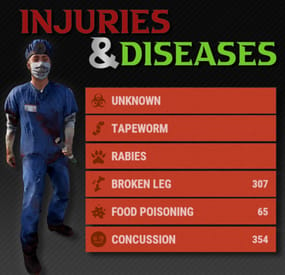
What kind of survival game doesn't let you break your leg? With this plugin, players can sustain injuries and become infected with diseases. Currently there are 6 status conditions, each fully customizable through the plugin's configuration file.
Status Conditions
/inflict <player> concussion /cure <player> concussion Periodically blurs the player's vision. Chance to occur when a player is headshot. More likely to occur with more powerful weapons.
/inflict <player> foodpoisoning /cure <player> foodpoisoning Forces the player to vomit occasionally which damages their food and thirst levels. Caused by eating spoiled meat. Can be cured by drinking healing tea.
/inflict <player> brokenleg /cure <player> brokenleg Prevents sprinting and causes damage when moving. Can happen when taking fall damage, chance increases the greater the height. Can also occur when being shot in the leg, this is more likely to happen the more powerful the weapon is.
/inflict <player> rabies /cure <player> rabies Periodically deals damage to the victim and flashes their screen red. Can be rarely contracted from the bites of wild animals. There is no cure, it's best to put the victim out of their misery.
/inflict <player> tapeworm /cure <player> tapeworm The effect of food and water consumption is greatly reduced. Can occur from consuming raw or uncooked meat. Easily treatable with anti-biotics (anti-rad pills).
/inflict <player> z13virus /cure <player> z13virus Not much is known about this disease, however it is often mistaken for rabies. Something terrible occurs when the victim dies... Seems to occur when a player is bitten by a zombie (scarecrow).
Customization
Each status condition has properties that can be customized through the plugin config. Here is a quick description of each of the properties.
Enabled - Set to false to disable this condition.
Likeliness - The chance (0 - 1.0) of this condition occurring through any means. For some conditions, like concussion or broken leg, this will be the MINIMUM chance for this to occur, and it will become more likely depending on how much damage is taken. This is only relevant for some conditions, other conditions may use items/entities to inflict players.
Icon - The url of the icon for this condition.
From Legshots - (Broken Leg Only) Set to false to disable this from occurring when a player is shot in the leg.
From Falling - (Broken Leg Only) Set to false to disable this from occurring when a player takes fall damage.
Damage Scale - The damage effect multiplier for the status condition. This will modify the damage taken for all types (hunger, thirst, ect.) not just health. For example, a value of 0.5 will do half damage while a value of 2.0 will do double damage.
Show Duration - Set to false if you do not want player's to see how many seconds are remaining for this condition. There is a slight performance cost for this being set to true.
Show Indicator - Set to false if you do not want a custom status framework indicator to show up for this condition.
Cure Items - Item short names with corresponding chances from 0-1.0. The items listed will have a chance to cure the condition when consumed/used by the player. An item skin can optionally be specified, see Item Skins section.
Interval Min Seconds - The minimum amount of time in seconds between a condition's symptom from occurring. Only relevant for some conditions.
Interval Max Seconds - The maximum amount of time in seconds between a condition's symptom from occurring. Only relevant for some conditions.
Duration Min Seconds - The minimum number of seconds a condition will last for.
Duration Max Seconds - The maximum number of seconds a condition will last for.
Move Items to Zombie - (Z13 Virus Only) Set to false to disable moving items from a corpse to the newly spawned zombie. The items will instead be left in a backpack.
Reanimation Seconds - (Z13 Virus Only) The number of seconds before an infected player's corpse is reanimated into a zombie.
Infliction Entities - Entity short names with corresponding chance of inflictions from 0-1.0. The entities listed will have a chance to inflict the condition when dealing damage to a player.
Infliction Items - Item short names with corresponding chance from 0-1.0. The items that are listed will have a chance to inflict the condition when consumed/used by the player. An item skin can optionally be specified, see Item Skins section.
Infliction Damage Action - Determined the way that an infliction entity must deal damage in order to inflict a condition. The allowed values are "melee", "ranged" or "any".
Item Skins
You can optionally specify that only an item with a certain skin will count for Cure and Infliction items. To do so just append #<skin id here> to the end of the item shortname. If both a skinned item and a non skinned item definition are specified, then the skinned definition will take priority if applicable. For example if your config looks like this then...
If Anti-Rad Pills with the Skin 12345 are consumed, then it has a 100% cure chance. Anti-Rad Pills with any other skin (including default) only have a 50% cure chance. Only Apples with the 67890 skin have a 100% cure chance. All other Apples have 0% cure chance (because they are not listed). "Cure Items": { "antiradpills": 0.5, "antiradpills#12345": 1.0, "apple#67890": 1.0 }, Creating Your Own Custom Status Conditions
Please note, this is a WIP feature, there may be some bugs, please report them if you find them!
As of v1.2.0 you can use the API method "CreateCondition" to create your own plugin that can register custom status conditions through Injuries and Diseases. But what if you're not a developer? No problem! I have created a plugin for you with a ton of configurable options for you to create your own status conditions. In either case, here are some guides for what you need to do to create your own status conditions.
For Non-Developers
If you are not a plugin developer and you would like to create your own custom status conditions then you can download this plugin file and edit the config that it generates to customize the status conditions how you like. Currently there is a limited amount of things you can do for a status condition. If there is a specific condition, trigger, or effect you would like included, please open a support ticket and make a suggestion! Or, if you want full freedom, you can see the developer section to create your own status condition plugin exactly how you would like.
For Developers
If you are a plugin developer and would like to create a plugin that adds some custom status conditions, then you can make use of the "CreateCondition" API method (see API section) to register any custom conditions you would like to add. To see a code example of how this will work you can refer to the plugin file download like mentioned in the "For Non-Developers" section above. That plugin contains some hints on how the plugin must operate to work with Injuries and Diseases. When creating a custom condition, there are certain aspects that Injuries and Diseases will handle, and others that your plugin will need to take care of. Here is a breakdown of some of those things:
Injuries and Diseases will handle...
Showing status indicators Status duration and countdowns Showing infliction, cure and diagnosis messages (they need to be in YOUR plugin's localization file though) The effect that occurs on intervals and when the condition is first inflicted (you pass these methods into the CreateCondition method) Whether your conditions duration/indicator is shown (pass this into the CreateCondition method) Your plugin should handle...
Registering conditions using the API Means of inflicting your condition (entity attack, item consumed, ect) Means of curing your condition Localization (Injuries and Diseases will reference some of these) Adding images to image library Any configuration options pertaining to your custom conditions Permissions
injuriesanddiseases.admin
Required for admin commands
injuriesanddiseases.doctor Designates a player as a doctor Required for doctor commands
injuriesanddiseases.immune Player cannot be affected by any conditions Will also cure the player of any current conditions when granted Admin Commands
/inflict <player> <condition> <revealed?> Inflicts the player with the specified condition (see status conditions section). Optionally, you can set if the status will be revealed or not. Default value is set in the config.
/cure <player> <condition?> Cures the player from all conditions. If the condition is specified, the player will be cured of just that condition.
/conditions <player> Returns a list of all the conditions a player is suffering from and includes the remaining duration.
/reveal <player> <condition> Reveals the condition to the player if it has no already been revealed.
Doctors (Optional)
As an optional feature, you can assign a player as a doctor. Doctors can diagnose players, which will reveal to the player the condition that their are afflicted with. By default, this isn’t necessary, as players will automatically be notified of what their condition is. However, in the config, you can set it so that conditions are unknown to players until they get a doctor to diagnose them. Once they have diagnosed a player, the doctor will also be informed of how to cure the condition. Doctors can be assigned with the doctor perm, and have access to the following command:
/diagnose Will diagnose any undiagnosed conditions of the player they are looking at. Will also recommend treatment if available.
Supported Plugins
Injuries and Diseases has built in support for the following plugins:
ZombieHorde The default config values contain support for ZombieHorde zombies to inflict the Z13 Virus The keyword in the config for zombie horde entities is "zombie" WalkingDead The default config values contain support for Walking Dead zombies to inflict the Z13 Virus The Walking Dead plugin uses the "scarecrow" entity for their zombies, which is already included BotReSpawn If you want BotReSpawn entities to inflict a condition, use the keyword "botrespawn" in the infliction entities section of the condition config. Configuration
Death Removes Conditions - Set to false if you want conditions to persist even when a player dies.
Pause on Disconnect - Set to false if you want the condition timer to continue even when a player is sleeping. Set to true if you want it to pause when they are sleeping.
Require Diagnosis - Set to false if you want conditions to be automatically revealed to player's when they are inflicted. Set to true if you want them to appear as unknown until a doctor diagnoses them.
Show Doctor Indicator - Set to true if you want an indicator to appear for player's with the doctor permission.
Messages Enabled - Set to false if you do not want messages to appear in the chat for player's when their conditions status is updated.
Message Icon ID - The steam ID of the player portrait you want to appear for all chat messages from this plugin.
Images - A list of image urls for various images used in this plugin.
Status Conditions - Configuration for status conditions (see customization section).
Version - Keeps track of what version your configuration was generated for, do not edit manually.
Developer API
With these developer API tools you can extend the functionality of existing conditions through code. You can add additional effects by making use of the various hooks for each condition.
/* * Returns a list of all enabled conditions. */ List<string> GetConditions(); /* * Returns a list of conditions a player is inflicted with. */ List<string> GetPlayerConditions(ulong userId); /* * Returns true if the player has the specified condition. */ bool HasCondition(ulong userId, string conditionNameId); /* * Inflicts the player with the specified condition. */ void SetCondition(ulong userId, string conditionNameId, bool revealed); /* * Removes the condition for the player. */ void RemoveCondition(ulong userId, string conditionNameId, bool cured); /* * Removes all conditions for the player. */ void RemoveAllConditions(ulong userId, bool cured); /* * Reveals the condition to the player if it is not already revealed. */ void RevealCondition(ulong userId, string conditionNameId); /* * Create a custom condition. BETA */ void CreateCondition(Plugin plugin, string conditionNameId, string imageLibraryIconName, int minIntervalSeconds, int maxIntervalSeconds, int minDurationSeconds, int maxDurationSeconds, bool showDuration, bool showIndicator, Action<BasePlayer> beginEffect = null, Action<BasePlayer> intervalEffect = null);
-
$7.50
Custom Buttons
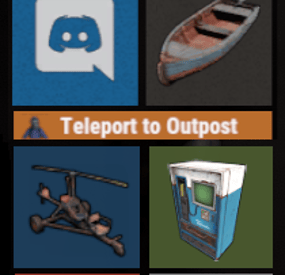
Create your own UI buttons for your rust server!
Plugin comes with built ingame editor which makes creating proccess so much easier!
• Features
- Create as many buttons as you want.
- Attach Images or Text to buttons.
- Set chat commands to each button.
- UI Editor ingame
- Toggle hide function to create small gui menu.
• Commands
• Permissions
• Config Example
• Cui Data Example
Special thanks to @SinKohhfor contributing and testing plugin before release.