
Sephisticate's Wishlist
-
$24.99
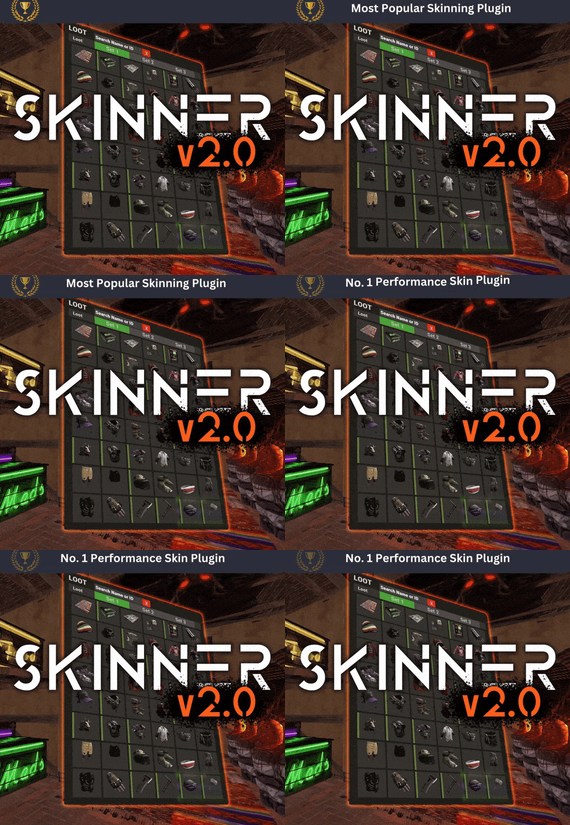
Skinner
By Whispers88 in Plugins
Premium Item Skinning · Oxide + Carbon SKINNER v3.1.6 Skin every item like it’s worth keeping — 60x faster, 200x leaner.
The unrivalled no.1 performance skinning plugin. Skin any item in the game with a unique skinbox — live skinning, auto skinning, and skin sets.
The numbers, not the noise Measured, not marketed
Skinner 2.0 delivers unrivalled efficiency. In standard testing versus the closest performing plugin, runtime was 60x faster and memory use 200x more efficient.
What’s new in 3.0 Skinner 3.0 is here — a full visual overhaul with dynamic, permission-based UI menus.
✓Visual overhaul with dynamic, permission-based UI menus ✓Automatic skin filtering and dev modes for the new TOS ✓Permission-based skin sets ✓Team-share skins ✓Auto-unlock owned skins Features Everything skinner does
Live skinning Skin items in place without moving them. Auto import Automatically import and use all game-approved skins. Skin sets Create a variety of skin sets for any item. Skin requests Players request skins; admins approve them in game. Auto skins Apply selected skins to every item that enters your inventory. Team share Skin your whole team’s inventory from your own sets. See it running Live demo
Live-skin any item in your inventory. Skin deployables you’re looking at. Commands Every command
Skin menu
/skin /s, /skinbox, /sb Live-skin any item in your inventory by picking a skin. /skincraft /sc Build skin sets used by the auto, team, and base commands. /skinitem /si, /skindeployed, /sd Skin a deployable you are looking at. Args: 1, 2 or 3 to use a skin set. Automatic
/skincon /scon Skin every item in the container you are looking at. Args: 1/2/3 (optional). /skininv /sinv Skin every item in your inventory. Args: 1/2/3 (optional). /skinauto /sauto Auto-skin every item as it enters your inventory. Args: 1/2/3 (optional). /skinteam /st Skin your inventory and your team’s. Args: 1/2/3. Use /skinteam toggle to opt in or out. /skinbase /skinbuilding Skin all deployables in your base. Args: item filter, e.g. /skinbase sleepingbag. /skinall /sa Skin all items in every container in your base. Args: shortname, e.g. /skinall rifle.ak. /skinset /ss Set your currently selected skin set. Import & requests
/skinimport /sip Import a custom workshop skin. Args: WorkshopID, e.g. /skinimport 2397648701. /colimport /cip Import a workshop collection. Args: Collection ID, e.g. /colimport 2921147807. /skinrequest /sr Request a skin be added — shows in the requests box. Args: WorkshopID. /skinrequests /srs Open the approval box. Try = copy the item, Approve = add the skin, Deny = remove it. Permissions Grant exactly what you want
Player
skinner.default /skin skinner.items /skinitem skinner.craft /skincraft skinner.skinauto /skinauto skinner.skincon /skincon skinner.skininv /skininv skinner.skinbase /skinbase skinner.skinteam /skinteam skinner.skinall /skinall skinner.skinrequest /skinrequest Admin
skinner.import Enables /skinimport, /colimport, and /skinrequests. skinner.bypassauth Skips the building-auth check when using /skinitem. skinner.permskintry Enables Try in /skinrequests. Trying a skin copies the item — admins only. Auto-assigned
skinner.skinautotoggled A player disables skinauto. skinner.skinteamblock A player opts out of team skins. Cooldowns Grant skinner.<command><seconds> (e.g. skinner.default30) to enforce the cooldowns set in the config. No cooldown permission = no cooldown. If a player has several, the shortest wins. Importing skins Five ways to add skins
Via config Add workshop IDs to the Imported Skins List; reload and shortnames/display names auto-populate. Via collections Add whole workshop collection IDs; every skin imports automatically on load. Via commands /skinimport <WorkshopID> and /colimport <CollectionID> from chat, the F1 console, or RCON. Via skin requests Players /skinrequest; admins Try/Approve/Deny in the requests box. Requests log to a Discord webhook. From other plugins Convert data from SkinBox, xSkins, and SkinController with the SkinDataConverter tool, then paste into the config. Get the converter → Configuration Tune every behaviour
{ "Auto import approved skins": true, "Remove player data after inactivity (days)": 14, "Apply names of skins to skinned items": true, "Add Search Bar UI": true, "Override spraycan behaviour": false, "Use spraycan effect when holding spraycan and skinning deployables": true, "Blacklisted Skins (skinID)": [], "Blacklisted Items (itemID)": [], "Import Skin collections (steam workshop ID)": [], "Imported Skins List": { "861142659": {}, "2617744110": {} } } Developer API Hook into Skinner
A small, stable surface for reading the cached skin data and resolving redirect items from your own plugin.
//Get all cached skins public Dictionary<int, List<ulong>> GetAllCachedSkins() => _cachedSkins; //Check if a skin is a redirect item public bool IsRedirectID(ulong uID) => HasMask(uID); //Convert a redirect ID to its item ID public int RedirectIDtoItemID(ulong uID) => (int)UnsetMask(uID); //Get the list of skins for an item public List<ulong>? GetSkinsItemList(int itemid) { _cachedSkins.TryGetValue(itemid, out List<ulong>? cachedSkins); return cachedSkins; } Watch See Skinner in action
http://youtu.be/ewKlNILTwv8
Skin every item like it’s worth keeping.
The unrivaled no.1 performance skinbox for Rust — 60x faster, 200x leaner. Oxide + Carbon.
Join the Discord → Skinner v3.1.6 · by Whispers88 · Oxide + Carbon · 5/5 from 50 reviews · 69 versions · on Codefling since March 2022 -
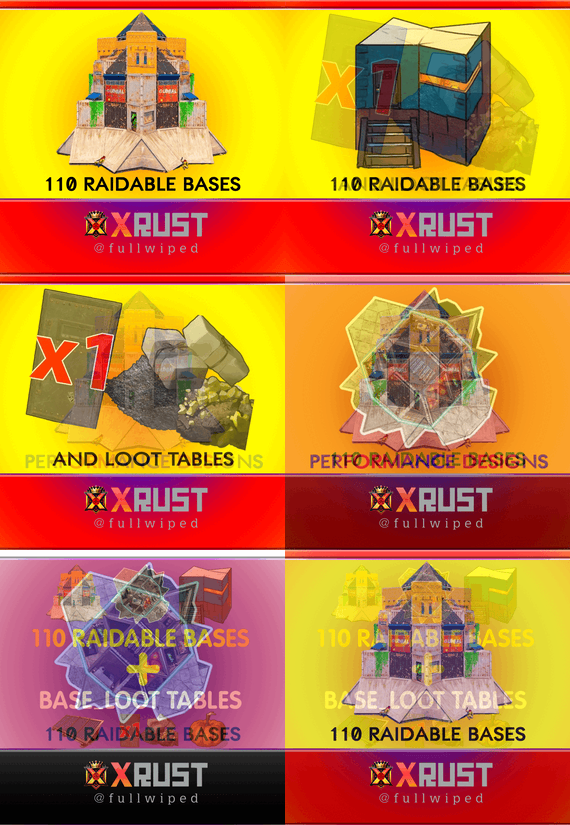
$61.99$49.99Raidable Bases Pack & Loot Tables (Easy to Nightmare 110 Bases)
This is a custom package created by us, featuring 110 unique bases and a specialized loot setup tailored for five difficulty levels, ranging from Easy to Nightmare.
Note: The building skins in the package showcase images may differ from the spawned bases or use the default building skin.
Warning: The Raidable Bases plugin requires the Copy Paste plugin to function. You must install both for this bases pack to work.
🔗 Raidable Bases (Paid): https://codefling.com/plugins/raidable-bases
🔗 Copy Paste (Free): https://umod.org/plugins/copy-paste
This Raidable Bases Pack & Loot Tables package includes:
🏡30 Easy Bases +🗡️Base_Loot Tables (Easy "Vanilla" and "Enhanced" tables included)
🏡30 Medium Bases +🗡️Base_Loot Tables (Medium "Vanilla" and "Enhanced" tables included)
🏡30 Hard Bases +🗡️Base_Loot Tables (Hard "Vanilla" and "Enhanced" tables included)
🏡10 Expert Bases +🗡️Base_Loot Tables (Expert "Vanilla" and "Enhanced" tables included)
🏡10 Nightmare Bases +🗡️Base_Loot Tables (Nightmare "Vanilla" and "Enhanced" tables included)
Beware: Our loot table package includes only the 5-tier loot tables within the Base_loot folder, ranging from easy to nightmare.
It does not include the loot tables from the Difficulty_Loot or Weekday_Loot folders.
With a total of 110 bases, this package focuses on simplicity and optimization.
Most bases are protected by turrets and traps, and each base is designed with player PC performance and server stability in mind.
VANILLA AND ENHANCED LOOT TABLES FOR RAIDABLE BASES
This package includes 10 different base loot table files, ensuring a well-structured and advanced configuration for every difficulty level, from Easy to Nightmare.
5 loot files for the Vanilla setup (Easy, Medium, Hard, Expert, Nightmare), offering a balanced loot experience with some junk items, staying close to a 1x rate.
5 loot files for the Enhanced setup (Easy, Medium, Hard, Expert, Nightmare), designed for modded servers with 2x, 3x, or higher gather rates, featuring cleaner loot tables with minimal junk and more valuable rewards.
📁 Installation Path:
All loot table files are intended for the /oxide/data/RaidableBases/Base_Loot directory.
⚠️ Setup Requirement: You must choose and install only one loot table setup at a time—either Vanilla or Enhanced. If you want to switch, you can replace the current files with the other set, but both cannot be active simultaneously.
For those exclusively seeking the loot table, we offer it as a standalone product: https://codefling.com/customizations/raidable-bases-loot-tables-pack
(Note: If you've purchased our Raidable Bases Pack & Loot Tables (110 Bases) package, there is no need to buy this separately.)
WARNING: TWO DIFFERENT INSTALLATION METHODS
(PLEASE READ BOTH AND APPLY ONLY THE ONE THAT FITS YOUR NEEDS)
INSTALLATION GUIDE 1:
(If you do not have a custom configuration and are not a professional in server configurations, choose this option. However, if you already have your own configuration and profile settings and do not wish to use the optional configs we provide—in other words, if you only need the bases and loot tables—use the second installation guide instead.)
Step 1: Place the Config File
From the extracted ZIP files, locate the config folder and find the RaidableBases.json file. Move it to the following directory:
📁 /serverfiles/oxide/config
Step 2: Place the Bases
From the extracted ZIP files, locate the copypaste folder and move it to the following directory:
📁 /serverfiles/oxide/data
Step 3: Place the Base_Loot Tables
From the extracted ZIP files, locate the Base_Loot folder and move it to the following directory:
📁 /serverfiles/oxide/data/RaidableBases
Important: If there are any existing JSON files inside this folder that are not part of our loot tables, delete them to ensure proper functionality.
Choose between Vanilla or Enhanced loot tables based on your preference.
If the folder is named "Base_Loot (Enhanced loot)", remove the text in parentheses so that the correct folder name is simply: "Base_Loot" (Otherwise, the loot tables will not work properly.)
Step 4: Place the Profiles Folder
From the extracted ZIP files, locate the profiles folder and move it to the following directory:
📁 /serverfiles/oxide/data/RaidableBases
Why Are Profiles Important?
The profiles folder contains crucial settings that allow you to:
✔️ Enable/disable the dome
✔️ Enable/disable NPCs
✔️ Adjust the number of lootable items
These are just a few examples—there are dozens of important settings that directly affect how raid bases function. The config file alone is not enough—these files play a major role in customizing your raid bases.
⚠️ I strongly recommend reviewing each difficulty setting (Easy to Nightmare) inside the profiles folder and adjusting them based on your needs.
Step 5: Restart the plugin via RCON:
o.reload RaidableBases
INSTALLATION GUIDE 2:
(Use this installation method if you do not want to use our configurations and instead prefer to use your own config files and your own /oxide/data/RaidableBases/Profiles configurations.)
In this case, you only need to add the bases. To do this, use the following commands in RCON:
Step 1:
You can add bases one by one or in bulk.
After executing the commands in RCON, the bases will be registered inside the Profiles configuration.
If you do not want to deal with these adjustments, it is recommended to use Installation Guide 1 instead.
A- Example RCON commands:
rb.config add "Easy Bases" fullwipedeasy1 rb.config add "Hard Bases" fullwipedhard1 B- Commands to Integrate Raid Bases in Bulk via RCON:
rb.config add "Easy Bases" fullwipedeasy1 fullwipedeasy2 fullwipedeasy3 fullwipedeasy4 fullwipedeasy5 fullwipedeasy6 fullwipedeasy7 fullwipedeasy8 fullwipedeasy9 fullwipedeasy10 fullwipedeasy11 fullwipedeasy12 fullwipedeasy13 fullwipedeasy14 fullwipedeasy15 fullwipedeasy16 fullwipedeasy17 fullwipedeasy18 fullwipedeasy19 fullwipedeasy20 fullwipedeasy21 fullwipedeasy22 fullwipedeasy23 fullwipedeasy24 fullwipedeasy25 fullwipedeasy26 fullwipedeasy27 fullwipedeasy28 fullwipedeasy29 fullwipedeasy30 rb.config add "Medium Bases" fullwipedmed1 fullwipedmed2 fullwipedmed3 fullwipedmed4 fullwipedmed5 fullwipedmed6 fullwipedmed7 fullwipedmed8 fullwipedmed9 fullwipedmed10 fullwipedmed11 fullwipedmed12 fullwipedmed13 fullwipedmed14 fullwipedmed15 fullwipedmed16 fullwipedmed17 fullwipedmed18 fullwipedmed19 fullwipedmed20 fullwipedmed21 fullwipedmed22 fullwipedmed23 fullwipedmed24 fullwipedmed25 fullwipedmed26 fullwipedmed27 fullwipedmed28 fullwipedmed29 fullwipedmed30 rb.config add "Hard Bases" fullwipedhard1 fullwipedhard2 fullwipedhard3 fullwipedhard4 fullwipedhard5 fullwipedhard6 fullwipedhard7 fullwipedhard8 fullwipedhard9 fullwipedhard10 fullwipedhard11 fullwipedhard12 fullwipedhard13 fullwipedhard14 fullwipedhard15 fullwipedhard16 fullwipedhard17 fullwipedhard18 fullwipedhard19 fullwipedhard20 fullwipedhard21 fullwipedhard22 fullwipedhard23 fullwipedhard24 fullwipedhard25 fullwipedhard26 fullwipedhard27 fullwipedhard28 fullwipedhard29 fullwipedhard30 rb.config add "Expert Bases" fullwipedexp1 fullwipedexp2 fullwipedexp3 fullwipedexp4 fullwipedexp5 fullwipedexp6 fullwipedexp7 fullwipedexp8 fullwipedexp9 fullwipedexp10 rb.config add "Nightmare Bases" fullwipednight1 fullwipednight2 fullwipednight3 fullwipednight4 fullwipednight5 fullwipednight6 fullwipednight7 fullwipednight8 fullwipednight9 fullwipednight10 Step 2: Place the Base_Loot Tables
From the extracted ZIP files, locate the Base_Loot folder and move it to the following directory:
📁 /serverfiles/oxide/data/RaidableBases
Important: If there are any existing JSON files inside this folder that are not part of our loot tables, delete them to ensure proper functionality.
Choose between Vanilla or Enhanced loot tables based on your preference.
If the folder is named "Base_Loot (Enhanced loot)", remove the text in parentheses so that the correct folder name is simply: "Base_Loot" (Otherwise, the loot tables will not work properly.)
Step 3: Restart the plugin via RCON:
o.reload RaidableBases
EXTRA IMPORTANT INFORMATIONS:
We do not use a dome, NPCs, or arena walls around raid bases on our servers, and in the ZIP file we provided, these features are also disabled by default. If you want to enable them, you will need to adjust the settings accordingly.
For example, to enable the dome, follow the steps below:
Navigate to:
/oxide/data/RaidableBases/Profiles
Open the files inside the Profiles folder with a text editor.
Locate the following settings:
(This is already set to false because it is required for markers to appear on the map.)
"Spawn Silently (No Notification, No Dome, No Map Marker)": false,
"Create Dome Around Event Using Spheres (0 = disabled, recommended = 5)": 0,
Change the value from 0 to 5 as shown below:
"Create Dome Around Event Using Spheres (0 = disabled, recommended = 5)": 5,
Additionally, the loot amount for bases varies depending on the difficulty level (easy, medium, hard, expert, and nightmare). You can adjust this setting in the same Profiles location according to your needs:
"Amount Of Items To Spawn": 210, For example, in medium bases, this value is set to 210, which determines the total number of items that will appear in crates, furnaces, and the cupboard.
Our current configuration is specifically adjusted to prevent players from feeling overwhelmed by massive buildings right after a wipe. We have configured Maintained Events accordingly to ensure a balanced experience.
In our setup:
- Timed events and purchasable events are disabled.
- After a wipe, easy bases will start spawning 30 minutes later.
- Nightmare bases will begin spawning 48 hours (2 days) later.
Imagine starting the game with just a torch in hand and immediately encountering a nightmare base on the shore.
You’d likely quit the game right away—this setting is crucial for us to avoid such scenarios.
Configuration Example: serverfiles/oxide/config
"Maintained Events": {
"Always Maintain Max Events": true,
"Max Maintained Events": 30,
"Enable X Hours After Wipe (0 = immediately)": {
"Easy": 0.5,
"Medium": 1.0,
"Hard": 3.0,
"Expert": 24.0,
"Nightmare": 48.0
All of our bases from Easy to Nightmare are equipped with turret protection.
If you do not want turrets to spawn in your raidable bases on your server, you can use the following method.
Go to the file path /data/RaidableBases/Profiles, open the JSON files inside with a text editor, and apply the following:
"Kill These Prefabs After Paste": [ "assets/prefabs/npc/autoturret/autoturret_deployed.prefab", "autoturret_deployed" ],
If you are satisfied with this package, you can support us by leaving a 5-star review on the site where you purchased it. Your feedback motivates us to continue improving and providing even better configurations for dedicated server owners like you.
Please leave a review here: https://codefling.com/bases/raidable-bases-pack-loot-tables-110-bases?tab=reviews
Thank you! ❤️
Support: FULLWIPED DISCORD
-
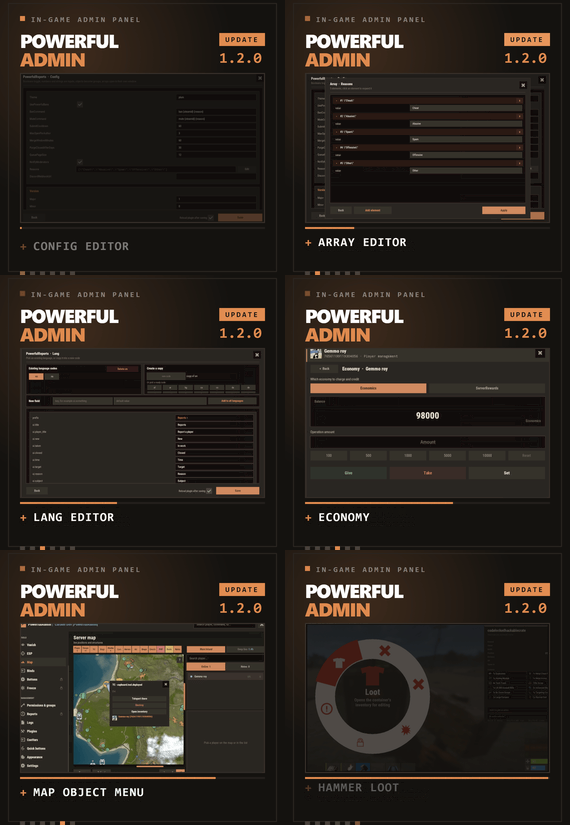
$39.99$33.99PowerfulAdmin - Best admin panel
In-game admin panel Oxide & Carbon Our Discord Everything you open RCON for,
without leaving the game. PowerfulAdmin is an admin panel that lives inside Rust. Fourteen pages in the sidebar cover players, permissions, plugins, the live console, ConVars, a working server map and your own buttons. Four more tools work out in the world, on whatever you happen to be looking at. Every page and every action has a permission of its own, so a junior moderator gets what you hand them and nothing else.
/padmin opens it. After that it is point and click, or a key you bound yourself. 00 New in 1.2.0 Five things this version adds Config editor Open any plugin from the Plugins page and edit its config as a form. Booleans become switches, numbers and strings become fields, an object becomes a group, an array opens in its own window. Save writes the file and can reload the plugin for you. Lang editor The same form for language files. Copy the open language into a new code to start a translation, delete one you no longer need, or add a key and push it into every localization at once. Map objects Cupboards, bags and stashes on the map used to be dots. Click one and a menu opens with the owners and their avatars, a teleport, a remote inventory, and a destroy behind a confirmation. Economy If you run Economics, ServerRewards or IQEconomic, the player card shows the balance and lets you add to it, take from it or set it. Reading and changing are separate permissions. Hammer & hints The hammer edits container contents instead of only listing them, its action menu moved to a radial you open by holding E, and its HUD can be dragged. Tooltips were added across the sidebar, the actions and the toggles. 01 The sidebar Fourteen pages, plus whatever docks in The panel reopens on the page you left. Add-ons appear in the same sidebar, use the same permission system and follow the theme the admin picked.
Dashboard Live console Players Vanish ESP Server map Binds Permissions Logs Plugins ConVars Quick buttons Appearance Settings Bans DLC Freeze DLC Whitelist DLC Your own sections land here too, through the API at the bottom of this page 02 Out in the world Walk up to it and deal with it Most moderation starts with you standing in front of a base, a player or a locked crate, not in a menu. Four tools cover that, and none of them asks the admin to install anything on their client.
Vanish You leave the world properly: networking, colliders, entity queries and the game's own AI target list. NPCs stop shooting and forget you were standing there. Radiation, cold, wetness, hunger, thirst and drowning stop touching you, and everything is restored the way it was when you switch Vanish off. A silhouette for other admins, auto vanish on connect, opening locks and noclip riding along are all optional, and each has a permission. Admin hammer Hold a hammer, look at anything, and the HUD reads out the owner, position, health, upkeep, power, who is authorized, the code lock codes and what is in the container. Hold E to pick an action from the radial menu, then Shift+LMB runs it: delete, delete with gibs, delete the whole linked structure, edit the container contents, or on a hackable crate unlock it now and set its timer to any value you type. Inspect Look at a player and act on them without typing a name. E opens their inventory, RMB opens their full card. A hint on screen keeps telling you which key does what. Server ESP The server draws it with the engine's own debug draw and sends it only to admins who hold the permission. Players and sleepers carry their name, HP and held item. Loot, boxes, cupboards, bags, traps, stashes, NPCs, scientists, turrets and vehicles each get their own colour. You set the radius, the opacity and the text size, and enemy, team and admin are coloured apart. 03 The player card One card per player, awake or asleep A searchable, paginated roster of everyone the server has ever seen. The card holds the SteamID, live status, current session and total playtime, total Rust hours from the Steam API, groups, first and last seen, the balance if you run an economy plugin, and the IP behind a permission of its own. Under that sit the actions.
Heal Kill Strip Kick Ban Freeze Mute Teleport Inventory Spectate Give Blueprints Modifiers Vitals Permissions Notes Show on map Each of these has its own permission Give is a cart, not a single item. Search the item list, stack up what you want, edit any quantity by clicking the number, then send the lot. Vitals reads the real limits off the prefab, so a raised max HP or a frozen metabolism survives death, respawn, reconnect and wipe. 04 The map The server map, drawn inside the panel The island and the Deep Sea, with zoom. Layers go on one at a time, so you look at what you came for and nothing else.
Layers Players, sleepers, cupboards, bags, stashes, cars, horses, air, shops, events and map notes. Cars, boats, submarines, trains, horses and player helicopters each have their own icon and an arrow showing where they are heading. The cargo ship, the cargo plane and the chinook are on the map with the rest. Click an object Cupboards, bags and stashes open a menu that names the owners and shows their Steam avatars. From there you can teleport to it, open its inventory from where you are standing, or destroy it behind a confirmation. Each of the three actions has a separate permission, so a moderator can be allowed to look without being allowed to delete. Heat PVP and raid heat build up from kills that actually happened and explosive damage that actually landed, over a window you set. It shows where the server is loud right now rather than guessing. Side panel A player search next to the map, and a card for whoever you picked with the same actions as the full player card. Hold Shift and place a map note to teleport straight to it. 05 Server control The parts you used to need RCON for Live console Server output as it happens, filtered by category, with a command line and history. It can be switched off entirely for everyone in Settings. Permissions Every permission on the server, grouped under the plugin that owns it. Toggle per user or per group, create and delete groups, set a parent group, and search across thousands of entries. PowerfulAdmin's own permissions can be locked so nobody edits them from inside the panel. Plugins Load, unload and reload anything on the server, then open its config and language files as a form and edit them without touching the filesystem. Editing is a separate permission from reloading, so an admin can restart a plugin without being able to rewrite it. ConVars Edit the server ConVars that matter, grouped and searchable. The panel keeps them in its own cfg file and applies them again on boot, so a restart does not quietly undo your work. Logs Commands, chat, joins, leaves, errors and warnings, colour coded and capped at a number you choose. Companion plugins write into the same log through the API. 06 Make it yours Bend it to how your team works Quick buttons Your own console commands as buttons, each with an icon, a colour, an optional confirmation and a permission of its own. You decide where a button shows up: the player card, the map, the dashboard or the floating widget. Binds Ready bind lines for the panel, Vanish, god mode, noclip, ESP, the hammer, inspect and the map. Type the key you want, select the generated line, Ctrl+C, paste into F1. One key toggles both ways. Appearance Three themes, Rust, Midnight and Plum, chosen per admin. Fonts are picked per slot, the window can be dragged, and the ESP text size is adjustable. Fonts without Cyrillic are marked in the picker. Notifications Panel messages go through Notify or NCP if you have either installed, or through chat, or nowhere at all. You pick the provider in Settings and the add-ons follow it. Storage SQLite by default, and it needs no setup. MySQL is there for networks that share data between servers, JSON for people who prefer files. Moving between them is one click in Settings and the data comes along. Discord An optional companion plugin ships in the same archive. Two way chat relay, feeds for bans, actions and errors, a bot with a live status line, and roles that decide who may run commands from Discord. It is set up in game, not in a config file. 07 Permissions Twenty seven of them, and that is the point A trial moderator can be given Vanish, the player card and nothing else. A head admin gets the lot. The panel greys out what an admin cannot reach instead of hiding it, so nobody has to guess why a page is missing.
powerfuladmin.use Open the panel at all powerfuladmin.players Player page and player cards powerfuladmin.map Map page powerfuladmin.map.teleport Teleport to an object on the map powerfuladmin.map.loot Open an object's inventory from the map powerfuladmin.map.remove Destroy an object from the map powerfuladmin.esp ESP page and the overlay itself powerfuladmin.vanish Vanish powerfuladmin.vanish.unlock Open locked doors and boxes while vanished powerfuladmin.hammer Admin hammer powerfuladmin.hammer.codes See code lock codes in the hammer HUD powerfuladmin.hammer.loot Edit container contents with the hammer powerfuladmin.plugins Plugin page, load and reload powerfuladmin.plugins.edit Edit plugin configs and language files powerfuladmin.economy See a player's balance powerfuladmin.economy.edit Change a player's balance powerfuladmin.console Live console page powerfuladmin.perms Permission manager powerfuladmin.logs Logs page powerfuladmin.convars ConVar editor powerfuladmin.quickbuttons Create and edit quick buttons powerfuladmin.settings Settings, storage and Discord powerfuladmin.godmode God mode toggle powerfuladmin.noclip Noclip toggle powerfuladmin.viewip Reveal player IP addresses powerfuladmin.candisablevitals Edit player vitals and metabolism powerfuladmin.countableondashboard Counts toward the admins online figure On top of that, every action in the player card carries powerfuladmin.player.NAME, and every quick button you create carries powerfuladmin.quickbtn.NAME. You do not have to grant them one by one on day one: pa.setup <steamid or name> in the server console hands a player the whole set at once. 08 Commands One in chat, three in console There is nothing else to memorise. The console ones exist mainly so you can bind them to keys.
/padmin Open the panel pa.open <page> Open the panel straight on a page, for example pa.open map pa.toggle <feature> Flip vanish, god, noclip, ESP, hammer or inspect. Called without a value it toggles, so one key does both directions pa.setup <steamid|name> Grant the full permission set to a player, once, on install Install 1 Drop the plugin into your scripts folder. It loads and writes a clean config on its own. Oxide and Carbon both work. 2 Run pa.setup with your name or steamid once in the server console. 3 Type /padmin in game. You are in. 4 Optional, later, in Settings: switch to MySQL, connect Discord, add a Steam API key for Rust hours, and copy your binds out of the Binds page. 09 Add-ons Bans, Freeze and Whitelist, sold separately Three companion plugins drop into the sidebar and share the card, the permissions and the storage backend. They are extras rather than missing pieces: everything above this line works without them.
PowerfulBans Timed and permanent bans in their own database, reason templates, per role duration caps, ban history and login enforcement. Runs standalone too. PowerfulFreeze Freeze a player where they stand while you talk to them, from the card, the map or the world, with live countdowns and three freeze modes. PowerfulWhitelist Closed server whitelisting with JSON, SQLite or MySQL storage and its own standalone commands. 10 Before you buy The questions that actually get asked Will it lag my server? It is built not to. Objects are pooled and buffers reused, only the element that changed repaints instead of the whole panel, saves are debounced, state is cached behind signatures, and ESP, inspect and the map run on intervals you can tune. Nothing runs for an admin who is not looking at it. Is the ESP a cheat? There is no client mod involved. The server draws it through the engine's own debug draw and sends it only to admins holding powerfuladmin.esp. Take the permission away and it stops existing for that admin. Can a junior moderator abuse it? Only as far as you let them. Every page has a permission, every action in the player card has one, every quick button you make has one, and the plugin's own permissions can be locked so they cannot be edited from inside the panel. Do I need a database? No. SQLite is the default and needs no configuration. MySQL is there for networks that want shared data, JSON for people who like plain files, and moving between them is one click in Settings. Do I have to set up Discord or a Steam API key? Neither. Discord is optional and configured in game when you want it. The Steam key only fills in the total Rust hours figure on player cards. Without it that one line reads n/a and nothing else changes. Can I manage players who are offline? Yes. Teleport to a sleeper, heal them, strip them, edit the inventory, mute, change permissions. Only the actions that need a live connection are disabled while a player is away. Oxide or Carbon? Both. On Carbon the panel's internal commands are protected on top of that, so nothing outside the panel can call them, while the public ones stay open for your binds. What language does it speak? English and Russian out of the box, and every string lives in a language file. Adding another locale is a translation rather than a code change, and you can now do it from inside the panel. I write plugins. Can I hook into it? Yes, and the section below shows how. 11 For developers Your plugin, inside the panel Any plugin can register its own sidebar section and draw inside the panel, in the player's language and in whichever theme the admin picked. Bans, Freeze and Whitelist are built on this same public API, so it gets exercised on every release.
[PluginReference] private Plugin PowerfulAdmin;
var definition = new Dictionary<string, object>
{
["id"] = "mystats",
["icon"] = "assets/icons/star.png",
["category"] = "nav.cat.tools",
["permission"] = "myplugin.view",
["title"] = (Func<BasePlayer, string>)(p => "My Stats"),
["hint"] = (Func<BasePlayer, string>)(p => "Kills, deaths, playtime"),
["open"] = (Action<BasePlayer>)OpenSection,
["cardRows"] = (Func<string, List<string[]>>)CardRows,
["settings"] = (Action<BasePlayer, CuiElementContainer, string, int>)DrawSettings,
["settingsHeight"] = (Func<BasePlayer, int>)(p => 180),
["popupActions"] = new Dictionary<string, Action<BasePlayer, ulong, string>>
{
["ban"] = OnBan
}
};
PowerfulAdmin.Call("API_AddSection", definition); Only id is required. Every other key is optional, and the permission is registered for you if no plugin has claimed it yet. Read API_SectionContext on every render to get the parent layer, the body size, the padding, the player's language and the full theme palette, because the admin can switch themes while your page is open.
API_AddSection(def) Register or replace a section API_RemoveSection(id) Unregister, call it in Unload API_OpenSection(player, id) Send a player to your section API_SectionContext(player) Geometry, language and palette for rendering API_ReopenPanel(player) Reopen the panel where it was API_RefreshPlayerCard(steamId) Repaint a player card after your data changes API_RefreshSettings(player) Repaint the settings page after saving a value API_Notify(player, message, isError) Notify through the admin's chosen provider API_Log(message, category) Write a line into the Logs page API_KnownPlayers() Every player the server has seen API_RustHours(steamId) Total Rust playtime from the Steam API, cached Support, updates and feature requests Bugs get fixed and requests get read. LR Development Discord- #admin
- #adminpanel
- (and 14 more)