| Buttons on the player HUD | Drag and drop editor | Our Discord |
placed by dragging them there.
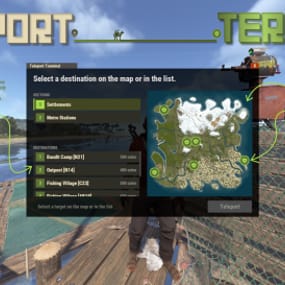
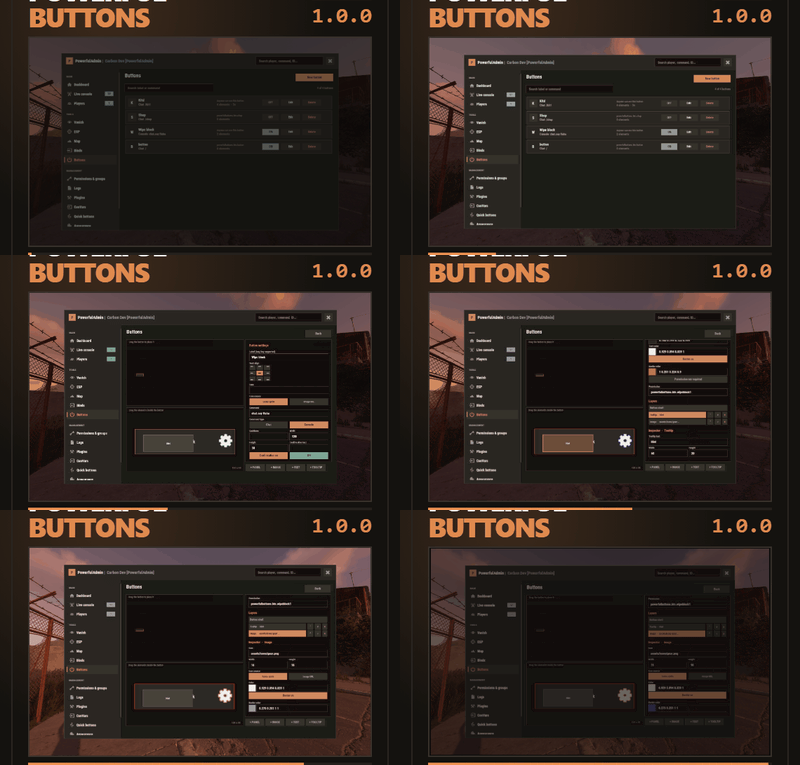
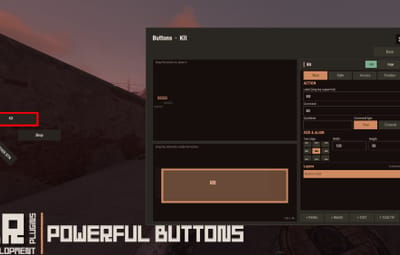
PowerfulButtons puts clickable buttons on the HUD. A kit, a shop, a teleport home, a link to your rules. Each one runs a command when a player clicks it. You build them from inside the game: grab the button in a live preview of the screen, drop it where it belongs, and it is there for every player who has its permission the moment you let go.
| /buttons opens the editor. With PowerfulAdmin installed the editor becomes a section in the panel instead and picks up your theme. |
|
00
The editor
|
A list, and three panels behind it
The list holds every button you have made, with its label, its command, who is allowed to use it and how many extra pieces it carries. Search narrows the list by label, command or ID, and a switch turns any button off without deleting it. Copy duplicates a button with everything inside it and drops the duplicate just below the original, so a second kit button is one click rather than a rebuild. Open one and the editing view comes up.
|
|
01
Placing it
|
Drag it there instead of guessing a corner
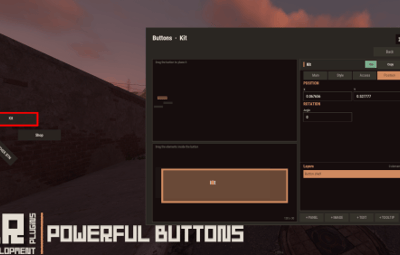
Drag the outline in the preview and the button moves with it. You never type a Pos value and reload to find out whether you guessed the right corner. A second after you stop dragging the position is written to disk and the permissions are registered again. Every other button you have is drawn in the same preview, dimmed, so you always see what the screen already holds. Drop a button near one of them and it snaps onto its row or column. When you want them lined up exactly, click a dimmed button and pick Align X or Align Y. |
|
02
The button
|
Every piece is its own drag handle
On the canvas the label and every piece you add is dragged one at a time. Four buttons under the canvas add a piece, and each piece keeps its own position, size, color and font.
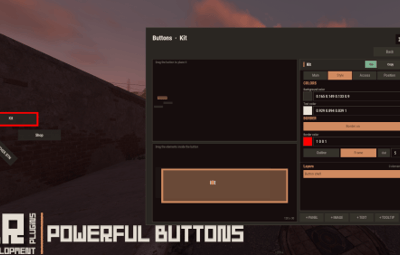
An icon is an Image piece, drawn from a built-in Rust sprite or from an image URL and dragged into place like anything else. A label is plain text or a lang key, so the same button can read in each player's own language, including keys that belong to your other plugins. Color fields take RGBA, and under Carbon the swatch opens the native color picker and writes the value back for you. |
|
03
The player
|
Click, confirm, cool down
A click runs the command. Chat commands go through the player's chat, console commands run under that player's own authorization, so a button never hands out more than the player already has.
|
|
04
Permissions
|
One per button, registered for you
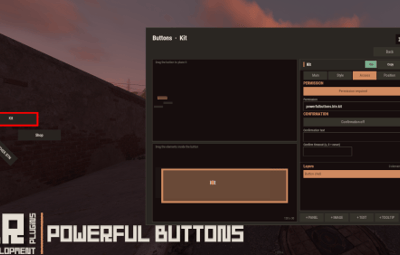
A button can carry a permission name of your own instead of the generated one, or drop the requirement and show up for everybody. |
|
05
Setup
|
Drop it in and drag
Buttons live in PowerfulButtons.json, but every field in that file is a control in the inspector, so there is little reason to open it. PowerfulAdmin is optional: without it the editor opens in its own window, with it the same editor sits in the panel and follows your theme. English and Russian are included, and every string is in the language files. |
|
Support, updates and feature requests
Bugs get fixed and requests get read. LR Development Discord
|