
MARKUS's Wishlist
-
$15.00
Radial Menu
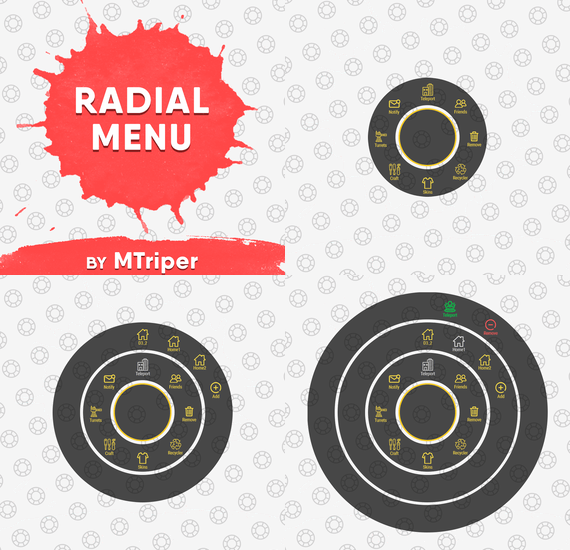
The radial menu is a customizable quick access panel with all popular and frequently used server commands. It makes it a lot easier and faster to interact with various server mechanics, be it teleportation, trades, setting house points and various panels.
Features
Allows to almost completely eliminate the manual entry of commands by the player. Automatic calculation and arrangement of any number of sections/subsections on a circle. Several display effects. Tracks a press of the MMB or on command (can be keyed to the same MMB). Checks for the privileges of a particular command, before executing it. Ability to use your own panel images. Full customization of the location and scale of icons and panel. Support for popular plugins (NTeleportation, TeleportGUI, Clans, Friends and Rust teams). Executing console or chat commands.
General settings
Track MMB presses to open a radial menu? - if the player has a MMB bind, the plugin will not open the Radial Menu.
The command to open the radial menu - you can use both the command and the MMB tracking. When using MMB tracking and the command at the same time: If a player has a MMB bind, his bind will be executed when he clicks on it, and the Radial Menu will not open. If there is no bind, the player can use both the command and the MMB press.
Upload images to players when they connect? - when a player connects to the server, the plugin will automatically download 3 images of menu rings to his client. This avoids displaying black rectangles when opening the menu while the plugin is downloading the images to the client.
Section/Subsection settings
The plugin has main sections (level 1), subsections at level 1 (level 2) and subsections at level 2 (level 3).
Section name - the name of the section, which is displayed under the icon.
Enable this section? – on/off section.
Section permission [required] - permission required for the plugin to work (without dots). Add "_add" to the end of the name so that the plugin does not register or check permissions for child subsections.
Section icon - direct link to the icon (recommended size 64x64).
Fill icon with color below? - Completely fills the icon with the color set below.
Inactive/active section color [HEX or Unity RGBA] - The plugin supports 2 types of colors: HEX (e.g. "#57de54" or "#57de54ff") and Unity RGBA ("0.34 0.87 0.33 1").
Command executed on behalf of the player - if you do not have subsections in this section, the command (without the "/" if chat) that will be executed for that player is specified here. You can specify multiple commands using commas (e.g. "radar ui, vanish, adminpanel hide"). If there are subsections in this section, the command is not specified. Specify %steamid% or %username% so that the plugin replaces them with the data of the player on whose behalf the command is executed.
Command type - Where to run this command: true - chat, false - console.
Permissions for above command - if the command above is specified, you can specify the privileges of that command in this field (e.g. "removertool.normal, removertool.structure, removertool.external"). The plugin will check if the player has these privileges before executing the command.
Show this section only to those with permissions above? - allows to draw the section automatically (without giving permissions to this plugin) if the player has command permissions.
Show this section even to those who don't have permissions? - forcibly displays the section to all players, even those who do not have privileges to it (if you click on it, a message about lack of permissions will be displayed in chat).
Subsections layout [n - number] - this setting is responsible for how subsections are arranged.
0 - automatically. Suppose you have 10 subsections, then 360 degrees / 10 subsections = 36 degrees. The plugin will automatically position the 10 subsections every 36 degrees (clockwise, starting from the top). n - from the beginning. The plugin will arrange the subsections clockwise, starting from the top, not automatically, but in a certain step. For example, you have 3 subsections, but you do not want them to be automatically scattered all around the circle, you want them to be displayed at the top, with some small step, this step will be calculated due to the conditional number of subsections n (for example, 15). Now 360 degrees / 15 conditional subsections = 24 degrees, then your 3 subsections will be positioned from the beginning and there will be 24 degrees between them. -n - from the active item. The plugin will arrange the subsections relative to the active section. For example, you have 3 subsections, but you don't want them to be automatically scattered all around the circle, and you also don't want them to be arranged in some clockwise, starting from the top. By choosing this type of arrangement, the subsections will be located in the same place as the active section, in the increments you specify. It works the same way as above, only n is specified with a minus sign (for example, -15, the minus is needed for the plugin to understand what type of arrangement to use). All examples of the layout of the subsections are present in the standard config.
Permissions
It may be unclear how permissions work in this plugin. Let's figure it out with a simple example from the standard config.
It's not hard to figure out that this is the home point section of the standard config. To exclude identical names of permissions the plugin converts them to this form.
Because of the large number of permissions generated by the plugin, there are mechanics for reducing them. If you add "_all" to any section, in the "permission" field, the plugin will not register the permissions of child subsections. For example, if the player has the permission "_homes_all", then all displayed houses, all commands (add, remove, etc.), in general everything that belongs to the section "_homes_all" will obey and is checked by the permission "radialmenu._homes_all". The "permission" fields of the child sections still have to be filled in for the plugin to work.
I strongly recommend using the "Permissions Manager" plugin to set privileges for players or groups. It draws a simple interface, through which it is very easy to add or remove permissions.
Teleportation
The plugin supports work with teleportation plugins (set/remove/teleport to home point) NTeleportation, TeleportGUI and Teleportation by OxideBro (for RU server owners).
To do this, in the main section (level 1), you must specify the permission of the "_homes" section, this is necessary for the plugin to understand that it will work with the teleport plugin.
Next, in the subsection "_homes" (level 2) you must add the MAXIMUM number of displayed house points, for example 5. If the player has more house points than this number, then only the first 5 will be displayed, if less, then all of them will be displayed. For each such point, you must set its unique name, which begins with "home_n", where "n" is any unique number or word (e.g. home_1, home_2, etc.). In addition to the house points here you can place a section with the establishment of the house point, its name should be "home_add", and the command "home add {0}" (command your plugin teleport), where {0} - the name of the new house point, the plugin itself will set it relative to the square in which the player at the moment is (for example D3, if there are several in the square, then D3h1, D3h2, etc.).
After that, in the subsections (level 3) of each such house point, you can specify commands relating specifically to it. For example: "home {0}", "home remove {0}" or any other commands, where {0} is the name of the specific house, the plugin itself will substitute it when executing the command.
If you find all of the above complicated, you can take a look at the standard config as an example.
Friends
The plugin supports work with plugins Friends, Clans by k1lly0u and Rust teams.
Here everything is set up similar to Teleportation. But for the plugin to understand what to work with, in the main section (level 1) you must specify one of the three options:
"_teammates" - the plugin will work with Rust teams "_friends" - the plugin will work with the Friends plugin "_clans" - the plugin will work with the Clans plugin In subsections (level 2) you must add the MAXIMUM number of displayed friends, for example 8. If the player has more friends than this number, then only the first 8 will be displayed, if less, then all of them will be displayed. For each friend you must set its unique name, which begins with "friend_n", where "n" is any unique number or word (for example friend_1, friend_2, etc.).
After that, in the subsections (level 3) of each friend you can specify commands specific to him. For example: "tpr {0}", "trade {0}" or any other commands, where {0} is the nickname of the player, the plugin itself will substitute it when executing the command.
An example of the configuration of this section is also present in the standard config.
Plugin Config
Example of plugin configuration in English
Example of plugin configuration in Russian. If you need Russian config, open it (RadialMenu.cs) before loading the plugin, and at the top set the variable "isRus = true". Then save and upload this file to your server.
-
$24.99$19.99Advanced Apartment
Advanced Apartment transforms Rust official apartment system into a complete room progression experience while preserving the look and feel of the original game.
Players interact with the existing apartment concierge to rent a room, check their room number, manage rent, move to a larger apartment, purchase upgrades, and manage apartment access.
No additional NPCs, player commands, or external dependencies are required.
Apartment Upgrades
Every apartment tier has its own upgrade selection based on its available space and intended progression.
Take Your Rust Server to the Next Level
Premium performance, lightning-fast support, and an exclusive 30% OFF using code KHALED
Basement
Industrial Wall Shelves Two integrated Wooden Storage Boxes Furnace replacement for the original storage box Workbench Level 2 and Level 3 Standard
Salvaged Industrial Shelves fitted around the original furniture Up to three permanently powered Electric Furnaces Recycler Workbench Level 2 and Level 3 Penthouse
Research Table Mixing Table Recycler Up to four permanently powered Electric Furnaces Workbench Level 2 and Level 3 Upgrade availability is automatically filtered by apartment type. Players only see upgrades that are compatible with their current room.
Integrated Rental System
The plugin takes control of the official apartment workflow without replacing the original apartment building or concierge.
Apartment Access:
Apartment owners can authorize additional players directly from the upkeep interface. Authorized players can access the apartment, and optional guest sleeping bags are created for them using the player’s name.
Access slots are configurable per apartment tier, allowing server owners to control how many additional players can share each apartment type.
Players can:
Rent any available apartment View their current room number Check daily upkeep information Purchase room upgrades Move to a larger apartment tier Check out and release their apartment Manage apartment access Authorize other players to use their apartment Provide guest sleeping bags for authorized players
Configured purchase and upkeep prices are displayed directly in the conversation, ensuring the amount shown to the player always matches the actual amount charged.
When moving to a different apartment tier, stored items are transferred safely while upgrades from the previous room are removed because each apartment layout uses different placements and available space.
Fully Configurable
Server owners can configure:
Apartment purchase prices Daily upkeep costs Individual upgrade prices Upgrade availability Required permissions VIP access Apartment access slots Guest sleeping bags Shop prices Security camera price Master key price and cooldown Concierge text and interaction range
Every upgrade and optional feature can be enabled or disabled separately. Disabled options are automatically removed from the interface.
Reliable Placement and Persistence
All upgrade positions are built directly into the plugin and calculated relative to the apartment itself. They do not depend on world coordinates or editable data files.
This allows apartment buildings to be placed in different locations or rotations across map wipes while keeping every upgrade correctly positioned inside its room.
Player purchases and access data are stored automatically and restored after:
Server restarts Plugin reloads Entity reloads The plugin also detects expired or changed apartment leases and removes outdated records safely.
Advanced Apartment delivers a natural extension to Rust’s apartment system, giving players meaningful room progression while giving server owners full control over pricing, upgrades, access, and apartment-related services.
- #apartment
- #rent
- (and 3 more)
-

$24.99
Optimize - Player FPS Optimization for Rust
15+ settings Oxide & Carbon English · Russian Community servers toggled one by one same single file per-player language works without UI Note
Depending on the hardware, client FPS either goes up or becomes noticeably more stable. Every choice is saved per player and restored on the next connect.
Goals
Before developing any plugin, we define the goals it should achieve when running on your game server.
☑ Improve players FPS ☑ Make your project stand out ☑ Improve the overall quality What you get
Feature Details Polished interface One menu with every option, a draw distance slider and a live FPS counter. Extensive customization You decide which options players may enable, which are on for new players, and the cooldown of each one. Low FPS notification Shown once, exactly when it matters: the player is offered the menu right after a drop is detected. 15+ settings Each toggled on its own, saved automatically and restored after relog. Optimization settings
Players enable exactly what they need — every option is toggled individually.
World around you
Setting What it does Draw distance The server stops sending buildings, boxes and other objects that are far away. Distant trees Trees load only around you instead of the whole map — as you move, they stream in on their own. Saves memory and speeds up joining the server. Images and drawings Drawings on signs, photos, paintings and spray art stop loading. Saves memory and bandwidth. Unapproved skins Disables skins that have not been accepted into the game but may still be used by other players. Fire, light and animations
Setting What it does Flames Furnaces, campfires and torches no longer display flames. The difference is especially noticeable in large, heavily built-up bases. Lights Lamps and searchlights no longer emit light. The difference is especially noticeable in large, heavily built-up bases. Destruction debris No debris flies around when walls and structures collapse. The difference is most noticeable during raids. Falling trees A chopped tree simply disappears — no falling animation, no cracking sounds. Construction smoke Smoke and effects from placing, upgrading and repairing structures are no longer shown. Wind turbine rotation Wind turbines stop spinning. They generate power just like before. Turret lasers Laser sights on turrets and SAM sites are turned off. Electricity and industrial
Setting What it does Items in industrial pipes Item animation inside industrial conveyors and pipes is turned off. The conveyors themselves keep working as usual. Recyclers and quarries Recyclers, quarries and pumpjacks stop shaking and animating. They keep on working. Water flow Water inside hoses and pipes is no longer rendered. Sprinklers and water supply work as usual. Effects and sounds
Setting What it does Distant effects Explosions, muzzle flashes and smoke from other players' distant fights are hidden. Everything happening near you stays visible as usual. Voice chat You won't hear other players' voice chat, or will hear it only at a reduced range. Community servers
Tip
Some community servers are not allowed to use custom interfaces. Switch the plugin to chat only mode and players get the same optimizations through commands, with no UI at all.
Command What it does /fps Opens the menu, or prints the current status in chat only mode /fps list Lists every option with its state /fps <option> Turns one option on or off /fps radius 1-4 Sets the draw distance preset Permissions and commands
Type Name Description Permission optimize.use Grants players access to the plugin Chat command /fps Opens the plugin menu Console command optimize.wipe Clears the player settings database[2] Frequently Asked Questions
We have anticipated your questions and answered the most common ones below.
You can ask any additional questions in the plugin's discussion section.
Does the plugin require a powerful game server?
No. The plugin is well optimized and will not place a significant load on your server, even on low-end hardware or with a high player count.
Does hiding an effect change how the game works?
No. Hiding is purely visual and per player. A furnace a player hid the flames of still smelts, a wind turbine that stopped spinning still generates power, and a conveyor without item animation still moves items.
Can I keep some options disabled for everyone?
Yes. Every option has its own switch in the config, so you choose which ones appear in the menu. You can also set which options are enabled for new players by default.
Do you accept suggestions for improving the plugin?
Sure! To submit an idea, join our Discord server, obtain the required role, and post your suggestion in the #suggestions channel.
What should I do if the plugin is not working?
Create a support ticket on our Discord server and we will help you resolve the issue.
Tip
Join our Discord server for support, updates and announcements.
Developed in Hustle Industries · Code by @DezLife · Design by @Illumination
Everything a player hides keeps working on the server — only the picture is hidden for that player. Other players see the world as usual. ↩︎
Available from the server console, RCON or as an admin in game. The first call opens a 30 second confirmation window. ↩︎
- #rust
- #rust plugin
- (and 14 more)