codeboy
-
Posts
97 -
Joined
-
Last visited
Content Type
Profiles
Warranty Claims
Downloads
Forums
Store
Services
Downloads Plus Support
DOWNLOADS EXTRA
Everything posted by codeboy
-
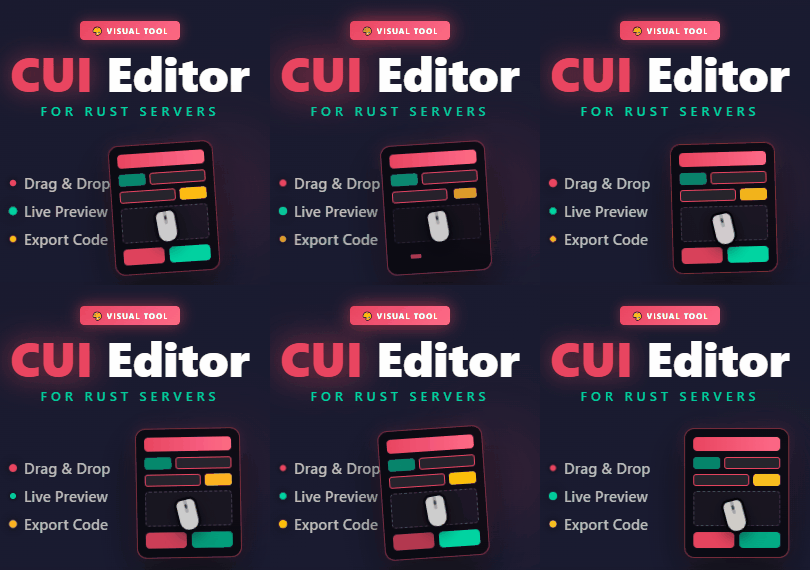 This tool is #1 in the Rust Community (I doubt even proprietary tools that aren't sold anywhere have this level of quality). The developer responds fairly quickly and continues to develop the code just as quickly and efficiently. The program is already usable, and what's to come is fantastic!
- 11 comments
-
- 1
-

-
- #cui
- #cui editor
- (and 2 more)
-
 Sorry for the long delay, personal issues
 -
 hello! it will be implemented. A Standalone binding solution without third-party services will also be implemented. You can use it to deploy the binding service on your hosting.
 -
 Hi! Plugin not requires update. If you have any errors - create ticket please
- 6 comments
-
- 1
-
-
- #spawnpoint
- #spawn
- (and 4 more)
-
Looking for reliable and high-quality development services? I’ve got you covered! Rust Plugins I create complex and custom plugins for Rust servers using Oxide and Carbon frameworks. Whether it’s unique game mechanics, process automation, or enhancing server functionality, I’ll bring your ideas to life. Extensions (.dll files) I develop and integrate custom .dll extensions to expand the capabilities of Rust servers and other projects. These solutions enable unique functionalities and boost performance. Telegram and Discord Bots I design versatile bots for Telegram and Discord, tailored to your needs. Whether they’re connected to Rust or serve entirely different purposes, I can create automation, server management tools, interactive systems, notifications, and more. Support Terms: Adding new features beyond the original technical specification is available at an additional cost. Fixing bugs caused by updates from Rust developers is provided free of charge. Fixing bugs that are due to my own mistakes during development is also free of charge. Why Choose Me? Personalized approach to every project. Strict adherence to deadlines and requirements. Ongoing support even after the development is complete. Collaborating with me means guaranteed results and a professional implementation of your ideas! Additional information: Minimal offer cost - $30
-
Version 1.1.5
86 downloads
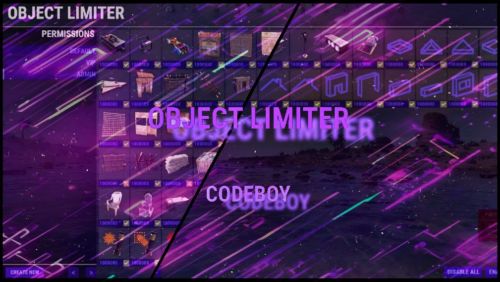
ObjectLimiter is a plugin for the game Rust designed to limit the number of objects a player can build on the server. The plugin provides a convenient and intuitive interface (UI) that allows the server administrator to set individual limits for different user groups. Main features of the plugin: Limit Settings: The administrator can set the maximum number of each type of object that a player can place on the map. Limits can be configured for all players (Default group) as well as for specific groups like VIP and Admin. Flexible Privilege System: The plugin allows you to create new privilege groups and copy settings from existing groups for easier configuration. The ability to set different limits for each group enables a diverse gameplay experience for different categories of players. Object Management: The plugin's interface allows easy enabling or disabling of restrictions on specific objects. The option to quickly enable or disable all objects for a specific user group. Optimization: ObjectLimiter is highly optimized, allowing the plugin to run without significant load on the server. This ensures stable performance even on servers with a large number of players and objects. Team limits support: Plugin contains implementation for some clans plugins and rust teams Tool cupboard limits support: limit the number of objects for a particular cupboard Config (tap me) Profiling: *build 51 twig foundation server fps limit = 30 PC spec: i5 11400f, 32gb ddr4 ram Commands: /ol - open main ui(requires permission objectlimiter.admin This plugin is ideal for administrators who want to control construction on their server, ensuring balance and preventing the excessive use of certain objects.$20.00 -
greetings! great idea, will be added in the next update
- 6 comments
-
- 1
-
-
- #spawnpoint
- #spawn
- (and 4 more)
-
Version 1.0.1
304 downloads
OneTimeSpawn is a plugin for the game Rust that allows server administrators to set a one-time spawn location for players when they first join the server. After the initial spawn, players will respawn at the standard random locations on the map. Key Features: One-Time Spawn: Players will spawn at a specific location set by the administrator when they first join the server. Normal Respawn: After the first spawn, all subsequent respawns will occur at the usual random locations on the map. Setup Command: Administrators can set the spawn location using the command /spawnpos. Wipe Support: The plugin configuration allows for automatic resetting of the spawn position and clearing of spawned player data when the map is wiped. Wipe Spawn Position: If enabled, the spawn position will reset with each map wipe, allowing administrators to set a new spawn point for the new session. Wipe Spawned Players: If enabled, the list of players who have already spawned will be cleared upon a map wipe, ensuring all players spawn at the initial point again when they first join after the wipe. Usage: The OneTimeSpawn plugin is perfect for servers where administrators want to give all players an equal start, such as spawning them near a specific point of interest, a settlement, or a starting area. Configuration { "Spawn position": { "x": 0.0, "y": 0.0, "z": 0.0 }, "Wipe already spawned players on map wipe?": false, "Delete spawn position on map wipe?": false, "Link to monument (requires MonumentFinder plugin). If not empty, Spawn position will be set as offset from monument center": "" }Free- 6 comments
- 1 review
-
- 2
-

-
- #spawnpoint
- #spawn
- (and 4 more)
-
Version 1.2.2
281 downloads
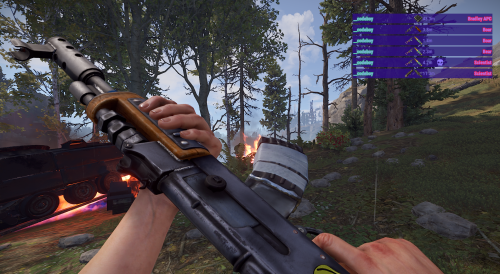
KillFeed is a fully customizable Rust plugin that instantly broadcasts real-time kill and death notifications, fueling your server with immediate combat insights and intensifying the multiplayer experience for every player. Key Features Killer Settings: Text Format: Customize which data is displayed (e.g., killer's nickname). Font: Choose the font (e.g., robotocondensed-bold.ttf). Font Size: Adjust the text size. Color: Precisely set the text color using RGBA values. Distance Settings: Text Format: Display the distance to the target (e.g., {0}m). Font: Choose the font (e.g., robotocondensed-regular.ttf). Font Size: Adjust the text size. Color: Precisely set the text color using RGBA values. Target Settings: Text Format: Configure the display of the target's nickname. Font: Choose the font and its parameters. Font Size and Color: Similar to killer settings. Images: Customize images for various events (e.g., default death image and headshot icon). Other Settings: Offsets: Adjust the position of the text on the screen. Lifetime: Set the duration for which the notification is visible. Max Kills on Screen: Set the number of events displayed simultaneously. Background Color: Adjust the background color of the notifications. Commands: /killfeed — Enable/disable the kill feed. /kf.edit — Open the admin panel. Permissions: killfeed.use — View kills. killfeed.admin — Access the admin panel. Images for FileManager mode: Link Configuration { "Which method of download images use? (ImageLibrary, Internal, FileManager)": "Internal", "Add bots deaths to killfeed?": true, "Add animals deaths to killfeed?": true, "Add BradleyAPC deaths to killfeed?": false, "Add patrol helicopter deaths to killfeed?": false, "Kill lifetime in UI": 10, "Default death image (types - Sprite, URL, Shortname)": { "If type = shortname, enter here ItemId": "assets/icons/skull.png", "Type": "Sprite" }, "UI Settings": { "Element conditions": { "EnableTargetNickname": true, "EnableKillerNickname": true, "EnableWeapon": true, "EnableAmmo": true, "EnableDistance": true, "EnableHeadshot": true, "FromUpToDown": true }, "Fadein": 1.0, "Background color": "0.177 0.0658 0.481 0", "Max kills panels in UI": 3, "Main panel settings": null, "Anchor settings": { "AnchorMin": "1 1", "AnchorMax": "1 1" }, "Offset settings": { "OffsetMinX": -361.4165, "OffsetMaxX": -4.899963, "OffsetMinY": -29.91622, "OffsetMaxY": -5.100018, "Indent": 3.0 }, "Killer settings": { "TextFormat": "{0}", "FontSize": 12, "Font": "robotocondensed-bold.ttf", "Color": "0.5499007 0.4764151 1 1", "OutlineDistance": "-1 1", "OutlineColor": "0 0 0 1" }, "Target settings": { "TextFormat": "{0}", "FontSize": 12, "Font": "robotocondensed-bold.ttf", "Color": "0.5499007 0.4764151 1 1", "OutlineDistance": "-1 1", "OutlineColor": "0 0 0 1" }, "Distance settings": { "TextFormat": "{0}m", "FontSize": 12, "Font": "robotocondensed-regular.ttf", "Color": "0.5499007 0.4764151 1 1", "OutlineDistance": "-1 1", "OutlineColor": "0 0 0 1" }, "Headshot image (types - URL, Sprite, Shortname)": { "If type = shortname, enter here ItemId": "assets/icons/skull.png", "Type": "Sprite" }, "Elements (do not touch if you know what are you doing)": { "kill_panel": { "Width": 350.0, "Height": 25.0, "X": -180.0, "Y": -20.5 }, "killer_div": { "Width": 116.0, "Height": 25.0, "X": -59.0, "Y": -12.5 }, "weapon_icon": { "Width": 23.0, "Height": 23.0, "X": -22.0, "Y": 0.0 }, "ammo_icon": { "Width": 23.0, "Height": 23.0, "X": 0.5, "Y": 0.0 }, "distance_text": { "Width": 45.0, "Height": 25.0, "X": 45.0, "Y": 0.0 }, "headshot_icon": { "Width": 17.0, "Height": 17.0, "X": 54.0, "Y": 0.0 }, "killer_text": { "Width": 30.0, "Height": 20.0, "X": -20.0, "Y": 0.0 }, "target_text": { "Width": 30.0, "Height": 20.0, "X": 20.0, "Y": 0.0 } } }, "Entity -> Image (U can enter URL, Sprite and item shortname)": { "banditguard": "banditguard.png", "bear": "bear.png", "Bleeding": "assets/icons/bleeding.png", "boar": "boar.png", "bradleyapc": "bradleyapc.png", "chicken": "chicken.png", "Cold": "assets/icons/cold.png", "ColdExposure": "assets/icons/cold.png", "Drowned": "assets/icons/drowning.png", "dweller": "dweller.png", "Fall": "assets/icons/fall.png", "heavyscientist": "heavyscientist.png", "Hunger": "assets/icons/eat.png", "patrolhelicopter": "patrolhelicopter.png", "peacekeeper": "peacekeeper.png", "polarbear": "polarbear.png", "Radiation": "assets/icons/radiation.png", "scarecrow": "scarecrow.png", "scientist": "scientist.png", "scientistnvg": "scientistnvg.png", "shark": "shark.png", "stag": "stag.png", "Suicide": "assets/icons/skull.png", "underwaterdweller": "underwaterdweller.png", "wolf": "wolf.png", "wolf2": "wolf.png" }, "Entity -> Name": { "bear": { "de": "Bär", "en": "Bear", "ru": "Медведь" }, "Bleeding": { "de": "Blutung", "en": "Bleeding", "ru": "Кровотечение" }, "boar": { "de": "Wildschwein", "en": "Boar", "ru": "Кабан" }, "bradleyapc": { "de": "Bradley-Schützenpanzer", "en": "Bradley APC", "ru": "БТР Брэдли" }, "chicken": { "de": "Huhn", "en": "Chicken", "ru": "Курица" }, "Cold": { "de": "Erfrieren", "en": "Freezed", "ru": "Замерзание" }, "ColdExposure": { "de": "Kälteschaden", "en": "Freezed", "ru": "Переохлаждение" }, "Drowned": { "de": "Ertrunken", "en": "Crashed", "ru": "Утонул" }, "Fall": { "de": "Sturz aus der Höhe", "en": "Fall from high", "ru": "Падение с высоты" }, "horse": { "de": "Pferd", "en": "Horse", "ru": "Лошадь" }, "Hunger": { "de": "Verhungert", "en": "Died of starvation", "ru": "Умер от голода" }, "patrolhelicopter": { "de": "Patrouillenhubschrauber", "en": "Patrol helicopter", "ru": "Патрульный вертолет" }, "Radiation": { "de": "Strahlenvergiftung", "en": "Radiation poison", "ru": "Радиационное отравление" }, "scientistnpc": { "de": "Wissenschaftler", "en": "Scientist", "ru": "Ученый" }, "stag": { "de": "Hirsch", "en": "Stag", "ru": "Олень" }, "Suicide": { "de": "Selbstmord", "en": "Suicide", "ru": "Самоубийство" }, "wolf": { "de": "Wolf", "en": "Wolf", "ru": "Волк" } }, "Version": { "Major": 1, "Minor": 0, "Patch": 5 } }$20.00 -
Version 1.0.1
34 downloads
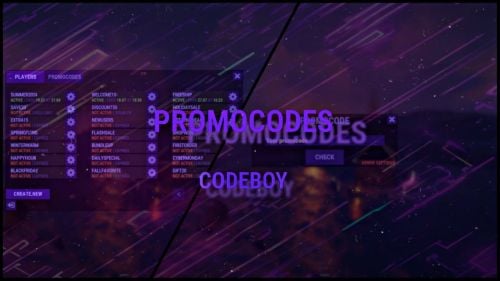
The promo code plugin for Rust game provides the ability to reward players for entering a code word. This plugin includes a variety of settings and functionality for easy management and configuration of promo codes in the admin panel. Main Features Creation and Configuration of Promo Codes: Promo Code: The administrator can create unique promo codes. Item Configuration: The administrator can determine which items will be given when the promo code is activated. Item Parameters Shortname: The code word for issuing a specific item. SkinID: The skin identifier of the item. DisplayName: The displayed name of the item. Amount: The number of items given by the promo code. Flexible Settings Promo Code Duration: Ability to set an end date until which the promo code will be active. Usage Limit: Setting a limit on the number of times the promo code can be used. Command Configuration Ability to replace item issuance with the execution of a specific server command when the promo code is activated. Example Usage Admin usage Give admin permission - promocodes.admin Open UI with command (can be changed in config, default: /p) Creating a Promo Code: Create the promo code "SUMMER21". Set its expiration date to July 31. Set a usage limit of 100 times. Player usage Open UI with command (can be changed in config, default: /p) Enter promocode Press CHECK button Item Configuration Add an item: shortname - "rifle.ak", skinid - "123456", displayname - "AK-47 Elite", amount - 1. Add an item: shortname - "ammo.rifle", skinid - "0", displayname - "Rifle Ammo", amount - 100. Command Replacement Set the command "give %STEAMID% some_reward" to be executed when the promo code is activated instead of issuing items. Configuration file { "Cooldown for promocode": 65, "Commands to open UI": [ "promocode", "promo", "code", "pc", "p" ] }$9.99