
FeniexGaming's Wishlist
-
$8.00
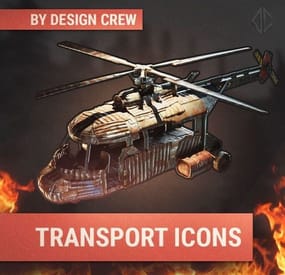
TRANSPORT ICONS / PNG
By DesignCrew in Graphics
▌ Design studio · Est. 2015 · Transport icons
About the product
A PNG pack of 18 transport icons for all the vehicles in Rust: helicopters, boats, cars, motorbikes, snowmobiles, submarines and a balloon, with transparent backgrounds.
Table of contents
Jump to any section of this page
01 Overview 02 Features 03 Gallery 04 What's included 05 Changelog ▌ Transport icons
Overview
Can't find beautiful transport icons? Or want them to be beautiful and unique? We have prepared 18 icons for all the transport in Rust. They can be used in the store or on the server. Always choose quality!
PNG 18 icons Transparent background Compressed icons What you need
▸ No special software needed
What is included
▸ 18 transport icons
▸ Compressed icons
Highlights
▸ Helicopters, boats, cars, motorbikes
▸ Snowmobiles, submarines, balloon
▸ Ready for the store and server
▌ Why it stands out
Built to look great
FEATURE 01
Air and sea
Helicopters, boats, tugboats and a balloon.
FEATURE 02
Land vehicles
Cars, motorbikes, bicycles, snowmobiles and submarines.
FEATURE 03
Compressed icons
Ready to use in the store or on the server.
▌ Full gallery
Every vehicle in one place
▸ White style
The classic look of the icons.
Bicycle
Truck
Helicopter
Snowmobile
Tugboat
▸ Red style
New red style from update v1.5.
Bicycle
Truck
Helicopter
Snowmobile
Tugboat
▌ Contents
What's included
Item Details Format PNG Background Transparent Icons 18 transport icons Archive size 42.93 MB Price $7.00 ▌ Updates
Changelog
1.6.0 August 15, 2025 — Latest update. ▌ Stay in touch
Questions, custom work, new releases
Discord · DesignCrew ↗ Discord · MadMappers ↗ VK · DesignCrew ↗ Telegram · DesignCrew ↗ DESIGN CREW · DESIGN STUDIO SINCE 2015 · THANK YOU FOR YOUR SUPPORT -
$24.00
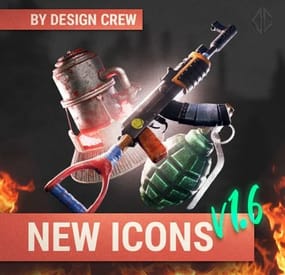
IMPROVED ICONS / PNG
By DesignCrew in Graphics
▌ Design studio · Est. 2015 · Improved icons
About the product
An improved set of 3D Rust icons: weapons and gear, juicy items for the store, and crates, all redrawn in the new style. PNG files for your store and server.
Table of contents
Jump to any section of this page
01 Overview 02 Features 03 Gallery 04 What's included 05 Changelog ▌ Improved icons
Overview
We have prepared 3D icons for every category of items in Rust. They can be used in the store or on the server. Always choose quality!
PNG Weapons Juicy items Crates What you need
▸ No special software needed
What is included
▸ Weapon icons
▸ Juicy item icons
▸ Crate icons
▸ PNG files
Highlights
▸ Weapons and gear
▸ Juicy items and food
▸ Crates and barrels
▌ Why it stands out
Built to look great
FEATURE 01
Weapons and gear
Rifles, pistols, rocket launcher, saps, helmets, gears and more.
FEATURE 02
Juicy items
Berries, corn, pots, backpacks, wolf head and other items.
FEATURE 03
Crates and barrels
Cages, wooden and rusty crates, toolbox, barrels and chests.
▌ Full gallery
A few of the icons
▌ Contents
What's included
Item Details Format PNG Icons Weapons, juicy items, crates Update v1.6 Archive size 33.71 MB Price $24.00 ▌ Updates
Changelog
1.6.0 June 29, 2025 — Latest update. ▌ Stay in touch
Questions, custom work, new releases
Discord · DesignCrew ↗ Discord · MadMappers ↗ VK · DesignCrew ↗ Telegram · DesignCrew ↗ DESIGN CREW · DESIGN STUDIO SINCE 2015 · THANK YOU FOR YOUR SUPPORT -

$10.00
3D CASES ICONS | PS
Enhance your projects with our new 3D case icons, created using Blender and Photoshop. This includes four custom renders, providing a high-quality visual upgrade for your applications. The PSD file contains comprehensive instructions for modifying text and adjusting light sources, making customization straightforward and efficient.
Key Features:
4 Custom 3D Renders: Unique and professionally designed case icons. Editable PSD File: Easily change text and light sources with detailed instructions. Professional Design: Created with industry-standard tools like Blender and Photoshop.
For personalized assistance or queries about modifying the PSD file, our experienced designers are available to help. Reach out to us on your preferred social network for prompt support.
-
$30.00
BetterTC
Rust / Server Plugins
BetterTC
Tool Cupboard ManagementRust Plugin
Upgrade. Repair. Reskin. Make your base your own.
Bring your most-used Tool Cupboard features together in one interface inspired by Rust’s item store. Automate building upgrades and repairs, manage authorizations, and personalize buildings, external walls, wallpapers and your TC.
Automated upkeep tasks
Upgrade and repair with TC resources
Personalized buildings
Skins, wallpapers and external walls
Permission profiles
Configure access, speed and costs
01 / Video demo
See BetterTC in action
Take a look at BetterTC’s interface and building management features.
Watch on YouTube
02 / Skin ownership
Compatibility with Facepunch’s server policy
Facepunch’s policy prohibits granting paid skins or DLC to players who do not legitimately own them. BetterTC includes ownership validation for building skins, TC skins and wallpapers.
Building skins: all available choices remain visible, but players can only apply skins they own or skins that are free. Wallpapers: only free, custom and owned wallpapers are visible. More custom wallpapers are planned. TC skins: only owned skins are visible and selectable. Read Facepunch’s official server policy
Ownership checks are enabled with the following bypass option set to false:
"Bypass DLC ownership check (⚠ only allowed on creative/test servers per Facepunch rules)": false ⚠ Very important
Keep the bypass disabled on ordinary public PvP and PvE servers. Facepunch only permits temporary exceptions on servers specifically set up to test game mechanics, for testing purposes. A creative or training label alone is not an exemption. Misuse may result in delisting or other sanctions.
03 / Building management
Let the TC do the work
Automatic upgrades
Upgrade building grades using resources directly from the TC. Select the default appearance or an eligible building skin, and use the information button to estimate the materials required. Configure upgrade speed and costs through permission profiles.
Automatic repairs
Repair the building and supported deployables, including doors, trapdoors, windows and boxes, with resources from the TC. Configure a cooldown after recent damage to help prevent repair abuse during raids.
Automatic reskinning
Change a building’s appearance without manually replacing each piece. Players can switch from a skinned grade back to its default appearance when they prefer. The Container skin’s multicolor selection can also be disabled to reduce client rendering load.
Building downgrades
Allow players to return to a lower building grade when their base becomes too expensive to maintain. Downgrading charges resources as a fresh upgrade to the selected grade; it is not a free conversion. Disable this feature if it does not fit your server, or retain a separate administrator-only downgrade override.
Configure NoEscape or RaidBlock integration to stop automatic upgrades, repairs, building reskinning, wallpaper placement and external wall reskinning when a raid block starts. Ownership and team restrictions are also configurable. 04 / Building skins
Keep the available skins up to date
The skin update checker adds newly available construction skins and their options to the configuration.
After installing BetterTC, grant yourself bettertc.admin and click Check Update to populate the available skins and options. Applying paid content remains subject to ownership checks. 05 / External walls
Change the look. Preserve the damage.
Reskin stone external walls with their adobe or ice variants, or switch wooden external walls to Frontier and back. Supported external gates can also be reskinned to their available variants. The original wall’s health is preserved, so reskinning a damaged wall does not repair it.
Recommended setting:
"Only reskin on wall of the same grade": true Keep this enabled to use external wall reskinning as an appearance change. Disabling it allows wood-to-stone and stone-to-wood changes without a resource charge, because this wall system has no cost mechanism.
06 / Wallpapers & TC skins
Personalize the details
Automatically place eligible wallpapers on walls, ceilings and floors. New game wallpapers are added to the list automatically. Use included custom wallpapers and add your own through the admin wallpaper commands. Configure placement on both sides of walls, including exterior sides. Apply wallpapers to both sides of a wall, including the exterior side when configured.
Place wallpapers on boats with /wpb after sitting at the boat’s steering wheel. Let players change their TC’s appearance or deploy a TC with a skin, according to their permissions and ownership. Tool Cupboard skin selection
Choose an eligible TC skin from the interface, or deploy a TC using the selected skin. BetterTC carries over the cupboard’s authorizations, contents and lock when replacing its appearance.
Manual wallpaper tool menu
Hold the wallpaper tool and open BetterTC’s selector with /wp or the configured input button. The default input is the middle mouse button. This menu must be enabled in the configuration and requires bettertc.wallpaper.toolmenu.
Wallpaper rotation hammer
Administrators can obtain a special wallpaper hammer with /wphammer. Hit a wallpapered floor or foundation with this hammer to rotate its wallpaper: 90° on square pieces and 120° on triangles.
Configure the cloth cost of automated wallpaper placement. Building placement uses cloth from the TC; boat placement uses cloth from the player’s inventory. The no-cost wallpaper permission waives placement resource costs.
Set "Wallpaper Damage": false to protect wallpapers from melee and ammunition damage. C4 and rockets can still damage them.
07 / Authorization & inventory
Manage access from the cupboard
Authorized player list
Show who is authorized on the TC, optionally including Steam IDs and Online, Sleeping or Offline status through the player-status permission. Hide administrators with the configured option and allow individual authorization removal with a separate permission.
Automatic TC locks
Use separate permissions to automatically attach a locked key lock or code lock when a TC is deployed. Code locks use a generated code, authorize the deploying player and notify them of the code; the notification masks it in streamer mode. The code-lock permission takes priority when both lock permissions are assigned.
Additional TC storage
Configure which additional item types the TC accepts: gunpowder, sulfur, sulfur ore, explosives, diesel barrels, CCTV cameras and targeting computers. Each item type has its own switch. Select a general inventory filter: Resources, ResourcesAndComponents or All. The ResourcesAndComponents mode also accepts supported building and utility tools.
08 / Interface & integrations
A panel that adapts to your players
The panel keeps a consistent size across player UI scaling settings. Buttons rearrange automatically according to the functions the player can access. Authorization lists and construction skins support pagination. Building options can be automatically sorted by grade, or retain the configured order. Configure whether players can disable automatic construction effects. Most interface images load directly from the game client. Carbon servers use the built-in Image Module; Oxide servers use ImageLibrary. Configure game tip, chat and optional Notify or UINotify alerts, plus button colors and positioning. TiersMode and TCLevels
When TiersMode is installed, BetterTC reads its maximum unlocked building grade for the upgrade menu. When TCLevels is installed, BetterTC adds a button to open its Tool Cupboard level-upgrade menu.
09 / Permissions
Choose the functions each player can use
Assign feature permissions and configure the standard and advanced profiles to match your server. Grant the no-cost permissions carefully.
Permission Purpose bettertc.admin Admin update checks; also used to hide administrators from the authorization list when configured. bettertc.authlist Show the authorized-player list button. bettertc.playerstatus Show each authorized player's status next to their name in the TC authorization list: Online (green) when connected, Sleeping (light blue) when disconnected with a sleeping character in the server, or Offline (red) when registered but no active or sleeping character is found. Without this permission, only the player name is shown. This permission only displays status; it does not grant authorization or removal rights. bettertc.deleteauth Revoke individual player authorizations. bettertc.use Use the standard speed and cost profile defined in the configuration. bettertc.vip Use the advanced speed and cost profile defined in the configuration. bettertc.repair Access automatic building repair. bettertc.repair.nocost Repair without resource costs. bettertc.reskin Access automatic building reskinning. bettertc.reskin.nocost Reskin without resource costs. bettertc.upskin Show building upgrade options with skins. bettertc.upwall Access external wall reskinning. bettertc.upgrade Access building upgrades. bettertc.upgrade.nocost Upgrade without resource costs. bettertc.wallpaper Access wallpaper placement. bettertc.wallpaper.nocost Place wallpapers without resource costs. bettertc.wallpaper.custom Show custom wallpapers. bettertc.wallpaper.toolmenu Access the manual wallpaper tool selector when enabled. bettertc.tcskinchange Change the TC skin. bettertc.tcskindeployed Deploy a TC with a skin. bettertc.autolock Automatically add a locked key lock when deploying a TC. bettertc.autocodelock Automatically add a locked code lock with a generated code when deploying a TC. Skin-related permissions do not replace paid-content ownership checks.
10 / Commands
Add custom wallpapers
Command Purpose /addwp <skinid> <Wall|Floor|Ceiling> Chat: add a custom wallpaper for the selected surface type. addwp <skinid> <Wall|Floor|Ceiling> Console: add a custom wallpaper for the selected surface type. /wpb Chat: place wallpapers on boats; first sit at the boat’s steering wheel. /wp Chat: open the manual wallpaper menu while holding the wallpaper tool; requires bettertc.wallpaper.toolmenu. /wphammer Chat: give yourself the wallpaper rotation hammer; requires bettertc.admin. wphammer Player console: give yourself the wallpaper rotation hammer; requires bettertc.admin. wphammer <playername or steamid> Server console: give the wallpaper rotation hammer to a selected player. Adding wallpapers from chat or a player console requires bettertc.admin. Example for a wall wallpaper:
/addwp 3356517390 Wall Console equivalent: addwp 3356517390 Wall 11 / Configuration
Selected configuration options
This excerpt covers the settings supplied with this description, including ownership checks, raid blocking, repairs, wallpapers and permission profiles. It is not the complete configuration file, and these supplied example values may differ from the defaults in your installed version. Edit the configuration generated by your installed BetterTC version.
{ "Check for updates when loading": true, "Bypass DLC ownership check (⚠ only allowed on creative/test servers per Facepunch rules)": false, "Use NoEscape Plugin": false, "Use RaidBlock Plugin": true, "GUI Buttons TC - Color Default": "0.3 0.40 0.3 0.60", "GUI Buttons TC - Color Active": "0.90 0.20 0.20 0.50", "GUI Buttons TC - OffsetMin": "280 621", "GUI Buttons TC - OffsetMax": "573 643", "GUI Buttons TC - AnchorMin": "0.5 0", "GUI Buttons TC - AnchorMax": "0.5 0", "Alert Gametip": true, "Alert Chat": true, "Alert Notify Plugin": false, "Notify: select what notification type to be used": { "error": 0, "info": 0 }, "Color Prefix Chat": "#f74d31", "Show Admin Auth List": false, "Show SteamID Auth List": true, "Upgrade Effect": true, "Colour Selection MultiColor Option": false, "Reskin Enable": true, "Reskin Wall Enable": true, "Only reskin on wall of the same grade": true, "Reskin Wall TC Distance (Default: 100)": 100.0, "Deployables Repair": true, "Repair Cooldown After Recent Damage (seconds)": 30.0, "Downgrade Enable": true, "Downgrade only Owner Entity Build": false, "Upgrade only Owner Entity Build": false, "Upgrade / Downgrade only Owner and Team": true, "Wallpaper Enable": true, "Wallpaper placement Cost (Cloth)": 5, "Wallpaper Damage": true, "Wallpaper both sides": true, "Force both sides including external sides": true, "Cooldown Frequency Upgrade (larger number is slower)": { "bettertc.use": 2.0, "bettertc.vip": 1.0 }, "Cooldown Frequency Reskin (larger number is slower)": { "bettertc.use": 2.0, "bettertc.vip": 1.0 }, "Cooldown Frequency Repair (larger number is slower)": { "bettertc.use": 2.0, "bettertc.vip": 1.0 }, "Cooldown Frequency Wallpaper (larger number is slower)": { "bettertc.use": 2.0, "bettertc.vip": 1.0 }, "Cost Modifier for repairs": { "bettertc.use": 1.5, "bettertc.vip": 1.0 }, "Allow Items in TC Inventory": { "gunpowder": false, "sulfur": false, "sulfur.ore": false, "explosives": false, "diesel_barrel": true, "cctv.camera": true, "targeting.computer": true }, "Downgrade Admin": true, "Use BetterTC Wallpaper Tool Menu (requires bettertc.wallpaper.toolmenu permission)": true, "BetterTC Wallpaper Tool Menu input button (FIRE_THIRD = middle mouse button)": "FIRE_THIRD", "Item Category Filter (Resources, ResourcesAndComponents, All)": "Resources", "Auto Sort Items by Grade": true } 12 / Known issue
Unexpected default blue wallpapers
If default blue wallpapers appear randomly, check whether TruePVE or a similar plugin is protecting wallpaper damage. Disable that wallpaper protection in the other plugin and use BetterTC’s own wallpaper protection instead.
BetterTC’s protection reduces damage, especially from melee attacks, but does not block all damage.
13 / Support
Questions, ideas or a problem to report?
Contact ninco90 on Discord for questions, suggestions or assistance.
Custom server configuration is also available for an additional fee if you would like the plugin set up around your preferences.
- #builder
- #automation
- (and 9 more)
-

$29.99
Website Template - Outpost
A feature-packed, fully customizable Rust server template that comes ready to go out of the box! Features include mobile responsiveness, server auto-discovery, and compatibility with the outpost Tebex theme!
Features
Rust Themed - The template is heavily inspired by the Rust in-game UI, so people will instantly recognize what they’re used to. It is kept in a darkish style to stand out from all the other default-white templates out there! Server Auto-Discovery - No need to manually add server information anymore. The inbuilt auto-discovery automatically updates your server information every 10 minutes and caches it (for website performance). It is automatically connecting information about the map, the player amount, server name, your banner, the description, and the tags used in game. All you have to do is add your IP + Ports to the config file! Fully Customizable - The template was developed with non-developer server owners in mind. Even if you have no idea about web development you can easily edit the most important parts of the template. This includes the links in the navigation, the servers (via auto-discovery), rules, and your social links. All from a single configuration file! Mobile Responsve & Extremely Fast - The template doesn’t only look good on the desktop. If you have someone checking out your site from a mobile phone, rest assured, it is mobile-ready! In addition to that, it has extremely fast loading times. Your site will not take longer than 200ms to load, once the server information is cached. Comes ready to use - The rust server website template comes with example values in the configuration file, including a basic ruleset. Setting up your website will not take longer than 15 minutes! Compatible with the Tebex Rust Output template! - If you do not run your own shop, do not wait! This template looks amazing in combination with the Tebex Outpost Theme, which I made as well. Thats the perfect combo of both Shop and Content!
Demo
https://promeus.dev/rust-template
Webspace Requirements
You can see all the requirements on our Discord
Recommended Webhoster
If you are not with a hosting company yet, I recommend using Hetzner (https://www.hetzner.com/webhosting). They offer great and cheap hosting with all the requirements. You can go with their cheapest plan without an issue. Buy the website, edit the config.php, get the FTP information from their cotnrol panel, upload all the files (on Hetzner: into the public_html folder, delete any existing files in that folder) – now you’re ready to go!
Installation Instructions
Installation instructions can be found on our Discord
Troubleshooting
Additional information and help to troubleshoot issues can be found on our Discord
Contact and Support
If you need additional assistance or got any open questions before purchasing, join us on our Discord: https://promeus.dev/discord