
Chill Roleplay's Wishlist
-
$14.99
Techtree
⚠️ If you use Oxide, Carbon Aliases if required ! Else ignore this.
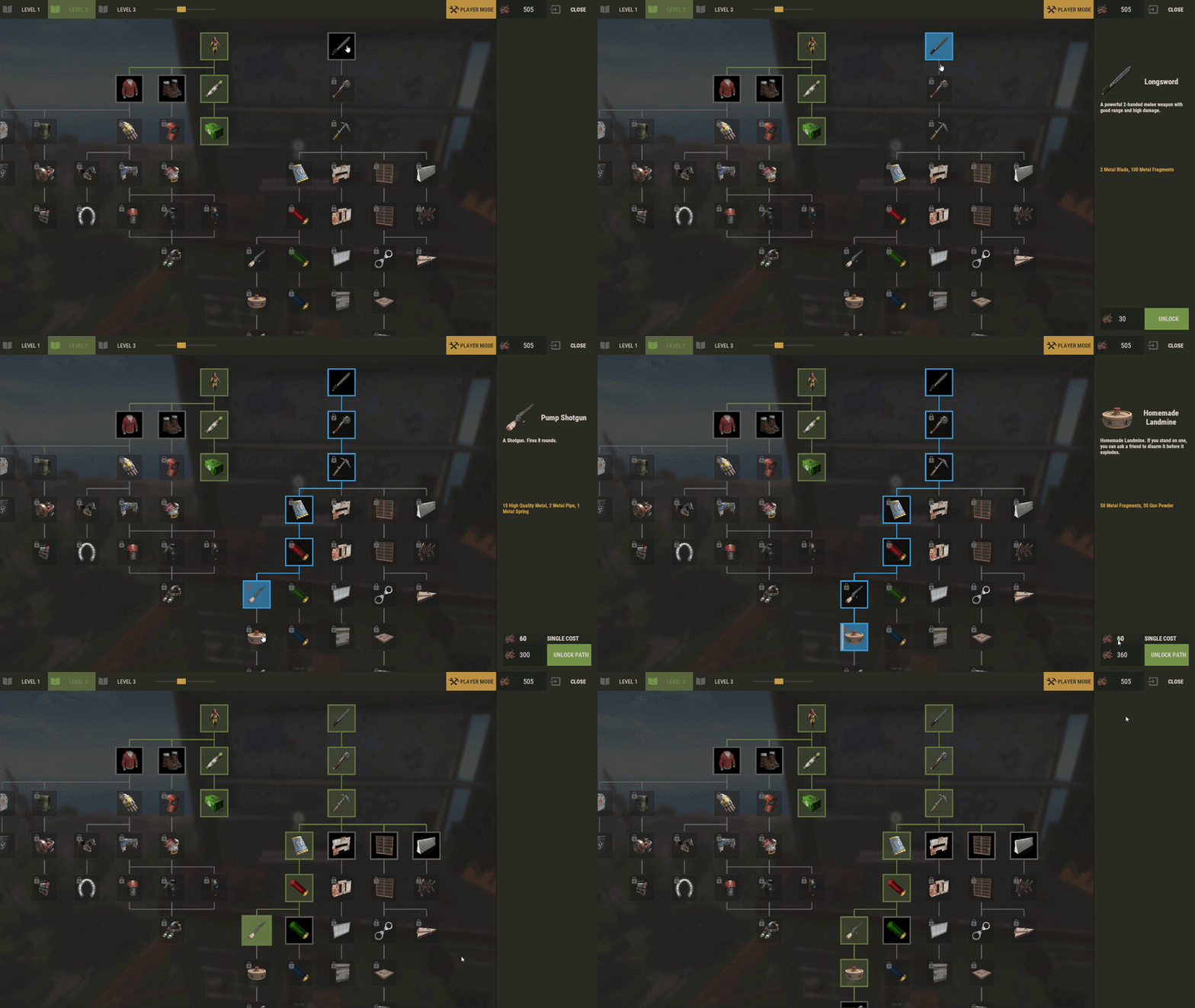
TechTree is a complete custom techtree system for Rust servers.
It can replace the vanilla workbench tech tree, or it can be used as a custom progression layer opened near a workbench. The goal is simple: give server owners a clean in-game way to control progression without spending their life editing giant JSON files by hand.
You can keep a mostly vanilla progression, build something fully custom, or mix both: vanilla nodes, custom branches, permissions, rewards, custom prices, custom currencies.
Replaces the vanilla workbench tech tree by default. Optional mode where players open the tree with R near a workbench. Supports Workbench Level 1, Level 2, Level 3, and Engineering. Includes an in-game CUI editor for admins. Lets you add, modify, move, and remove nodes directly in game. Supports custom node prices and custom currency items. Supports item icons and custom URL images. Supports localized node names and descriptions. Supports node rewards: ConsoleCommand, ChatCommand, and Economics. Supports branch permissions for restricted progression paths. Supports free unlock and instant unlock permissions. Can recover vanilla nodes after Rust updates. Can freeze a tree so Facepunch updates do not modify your custom layout. Includes a theme editor with palette and node style settings. Provides hooks and API methods for other plugins.
Players use TechTree from a workbench.
If vanilla replacement is enabled, opening the workbench tech tree opens TechTree instead.
If vanilla replacement is disabled, players stand near a workbench and press R to open the TechTree UI.
Available tree tabs depend on the workbench:
Level 1 workbench: Level 1 tree Level 2 workbench: Level 1 and Level 2 trees Level 3 workbench: Level 1, Level 2, and Level 3 trees Engineering workbench: Engineering tree Nodes clearly show their state: locked, unlockable, unlocked, or restricted by permission. When a player selects a node, the right panel shows the cost, currency, required path cost when relevant, and unlock action.
Admins can switch from player mode to edit mode directly from the TechTree UI.
The editor works with a draft session:
Changes are previewed immediately. Nothing is permanently written until you press Save. Closing or cancelling edit mode discards unsaved edits. Admins can:
Add a node on an empty grid cell. Modify an existing node. Remove a node. Move nodes on the grid. Set parent nodes. Set a branch permission. Change item icon or URL image. Set name and description. Set price and currency. Add rewards. Edit the grid size. Reset a tree to vanilla. Recover missing vanilla nodes. Exclude vanilla nodes from a frozen/custom tree. Edit and save themes. This means you can build or adjust a progression tree without leaving the server.
TechTree supports local images for node icons.
You can place your image files inside the TechTree Images folder and select them directly from the editor.
Local images support folders and subfolders, so you can organize icons by category, for example:
In the editor, paths are handled relative to the Images folder.
Example:
is used as:
A reload action is available to refresh the image database after adding, removing, or reorganizing image files.
This updates the available local images without requiring a full plugin reload.
Local images are supported on Carbon and Oxide.
On first load, TechTree creates its default data from Rust's vanilla workbench tech trees.
Quick difference between vanilla nodes and custom nodes:
Vanilla nodes
Vanilla nodes come from Rust's original Facepunch tech tree. They have a vanilla ID, which allows TechTree to recognize them later.
Because they are linked to Rust's vanilla data, TechTree can synchronize them, recover them, update missing vanilla entries after Rust changes, or exclude them when you intentionally remove them.
You can still fully edit vanilla nodes. You can move them, change their price, change their currency, adjust their unlock path, add permissions, add rewards, or remove them from the tree.
Use vanilla nodes when you want to keep the familiar Rust progression but customize how it behaves on your server.
Custom nodes
Custom nodes are created by you inside the TechTree editor. They do not come from Rust's vanilla tree and they do not have a vanilla ID.
Because they are fully plugin-side nodes, vanilla synchronization does not restore, recover, or replace them. They belong only to your custom TechTree data.
Custom nodes can use the same kind of options as vanilla nodes: price, currency, parents, permissions, rewards, commands, image, name, and description.
A custom node can even reproduce a vanilla unlock if you really want to build it that way, although this is usually not the main reason to use them.
Custom nodes are mostly useful when you want to create progression that does not exist in the default Rust tech tree, such as custom items, plugin rewards, special server progression, profession branches, VIP paths, economy rewards, command unlocks, or server-specific content.
You can mix both types in the same tree. For example, you can keep most vanilla nodes, remove a few unwanted vanilla unlocks, then add custom nodes with rewards or branch permissions.
The important rule:
Only vanilla nodes need vanilla exclusion logic. If you remove a custom node, it is simply removed from your custom data. If you remove a vanilla node and want it to stay removed, you must exclude it correctly so vanilla synchronization does not bring it back later.
There are three important controls:
Auto Vanilla Synchronization
Useful when you want to keep a tree close to vanilla. Missing vanilla nodes can be imported and conflicts can be handled automatically.
Excluded Vanilla IDs
Marks vanilla nodes that were intentionally removed from a custom/frozen tree.
Disable Future Vanilla Imports
Freezes the current workbench tree. Future vanilla additions will not be imported automatically.
Important:
Exclude from vanilla sync must be used together with Disable Future Vanilla Imports.
If Disable Future Vanilla Imports is not enabled, vanilla synchronization can import removed vanilla nodes again later.
Safe workflow:
Open the TechTree at the correct workbench. Switch to Edit Mode. Open Excluded Nodes. Enable Disable Future Vanilla Imports. Select the vanilla node you want to remove. Click Modify. Enable Exclude from vanilla sync. Confirm. Select the same node again. Click Remove. Press Save. For a fully custom tree:
Open Edit Mode. Open Excluded Nodes. Enable Disable Future Vanilla Imports. Click Exclude All. Remove the vanilla nodes you do not want. Build your custom tree. Save. If you want to keep receiving future Facepunch additions, keep Auto Vanilla Synchronization enabled and avoid permanently removing vanilla nodes.
The config option "Use Permissions ?" enables TechTree permission checks.
This includes the global permissions listed below and the custom branch permissions set on nodes.
When "Use Permissions ?" is false:
Players can open TechTree without techtree.use. techtree.unlock.free does not apply. techtree.unlock.instant does not apply. Branch permissions are not enforced. When "Use Permissions ?" is true:
Players need techtree.use to open TechTree. Players with techtree.unlock.free unlock nodes for free. Players with techtree.unlock.instant skip the unlock timer. Branch permissions are enforced when a node has a custom permission set. Registered global permissions:
techtree.use
Allows the player to open/use TechTree when "Use Permissions ?" is enabled.
techtree.unlock.free
Allows the player to unlock nodes for free when "Use Permissions ?" is enabled.
techtree.unlock.instant
Allows the player to unlock nodes instantly when "Use Permissions ?" is enabled.
Branch permissions are custom node permissions.
They are not the same thing as techtree.use, techtree.unlock.free, or techtree.unlock.instant, but they still require "Use Permissions ?" to be enabled.
A branch permission is a custom permission typed directly on a node in the editor. If a player does not have that permission, the node and its child branch are locked for that player.
Example:
Recommended workflow:
Open the TechTree editor. Select the first node of the restricted branch. Click Modify. Enter your custom permission in the Permission field. Confirm. Save. Grant the permission to the correct player or group. Good examples:
Common mistake:
Typing the permission in the node editor but never granting it. In that case, the branch stays locked for everyone.
Rewards are executed when a player unlocks a node.
You can add multiple rewards to the same node.
Reward types:
ConsoleCommand
Runs a server command from the server console.
Use this for server/admin actions such as granting permissions, giving items, or running plugin commands.
Examples:
ChatCommand
Runs a command from the player's client.
Use this only when the command should be executed by the player.
Example:
Economics
Deposits money into the player's Economics balance.
Example value:
Important:
Most reward actions should use ConsoleCommand. If a command needs server authority, do not use ChatCommand.
The playerID placeholder is automatically replaced with the unlocking player's Steam ID.
Default configuration:
{ "Settings": { "Wipe Player Data at Wipe": true, "Time For Unlock Node": 1.0, "Selected Theme": "Default", "Use Permissions ?": false, "Use Economics ?": false, "Replace tree vanilla ? Open with [R] if false": true } } Config notes:
Wipe Player Data at Wipe
Deletes TechTree player unlock data on a new save.
Time For Unlock Node
Unlock progress duration in seconds.
Selected Theme
Active theme loaded from Themes.json.
Use Permissions ?
Enables the global TechTree permission checks.
Use Economics ?
The config value exists, but Economics integration is handled through the Economics reward type.
Replace tree vanilla ? Open with [R] if false
When true, TechTree replaces the vanilla workbench tech tree. When false, players open it with R near a workbench.
TechTree creates separate data files for each workbench tree:
Player progression is saved separately per player and per workbench.
TechTree includes API methods and hooks for other plugins.
API methods:
API_GetPlayerData(BasePlayer player) // Returns: Dictionary<string, object>
Return format:
{ "workbench": { "Workbench_1": [123, 456], "Workbench_2": [789], "Workbench_3": [], "Engineering": [] } }
API_SetPlayerData(BasePlayer player, Dictionary<string, object> apiData) // Returns: bool
The plugin cleans invalid node IDs before saving.
API_ClearPlayerWorkbenchData(BasePlayer player, Workbench workbench) // Returns: bool
Clears the player's TechTree data only for the workbench category matching the provided Workbench.
API_ClearPlayerData(BasePlayer player) // Returns: bool
Clears all TechTree unlock data for that player.
Example API usage:
[PluginReference] Plugin TechTree; var playerData = TechTree?.Call("API_GetPlayerData", player) as Dictionary<string, object>; if (playerData != null) { var workbenchData = playerData["workbench"] as Dictionary<string, object>; }
Node dictionary format used by hooks:
{ "id": 123456, "vanillaId": 84, "price": 250, "parents": [111111], "isVanilla": true, "currency": { "itemId": -932201673, "skinId": 0 } }
Tree dictionary format:
{ "workbench": Workbench, "nodes": [ nodeDictionary, nodeDictionary, ... ] } Plugin hooks:
// Called before a node is unlocked. OnNodeUnlock(Workbench workbench, Dictionary<string, object> node, BasePlayer player) // Return false to block the unlock. // Return null or true to allow it. // Alternative hook format with the full tree dictionary. OnNodeUnlock(BasePlayer player, Dictionary<string, object> node, Dictionary<string, object> tree) // Return false to block the unlock. // Return null or true to allow it. // Called after a node has been unlocked. OnNodeUnlocked(Workbench workbench, Dictionary<string, object> node, BasePlayer player) // Called after multiple nodes were unlocked through a path unlock. OnPathNodeUnlocked(Workbench workbench, List<object> nodes, BasePlayer player) // The nodes list contains node dictionaries.
Example hook:
private object OnNodeUnlock(Workbench workbench, Dictionary<string, object> node, BasePlayer player) { int nodeId = Convert.ToInt32(node["id"]); if (nodeId == 123456 && !permission.UserHasPermission(player.UserIDString, "myplugin.allow")) { player.ChatMessage("You cannot unlock this node yet."); return false; } return null; }
Example after-unlock hook:
private void OnNodeUnlocked(Workbench workbench, Dictionary<string, object> node, BasePlayer player) { int nodeId = Convert.ToInt32(node["id"]); Puts($"{player.displayName} unlocked TechTree node {nodeId}"); } Vanilla-compatible hooks are also called for vanilla nodes where possible:
OnTechTreeNodeUnlock(Workbench workbench, TechTreeData.NodeInstance node, BasePlayer player) OnTechTreeNodeUnlocked(Workbench workbench, TechTreeData.NodeInstance node, BasePlayer player, List<ItemDefinition> unlockedItems)
More detail : https://github.com/Gdkenni/TechTree-Doc
Place TechTree.cs in your server plugins folder. Make sure the file is named exactly TechTree.cs. Load the plugin. Let it generate the config and data files. Open a workbench in game. As an admin, switch to edit mode. Customize the tree. Press Save.
Always press Save after editing. Back up oxide/data/TechTree before major progression changes. If you remove vanilla nodes, use Disable Future Vanilla Imports first. If a branch permission locks everyone out, check that the permission was granted. If techtree.use blocks players, check that "Use Permissions ?" is enabled and the permission was granted. Use ConsoleCommand for most rewards. Use ChatCommand only for commands that should be executed by the player. If upgrading from very old versions (before v2), older data files may not be compatible with the revamped system.
TechTree is built for servers that want progression to feel intentional.
You can keep the familiar Rust workbench flow while changing how players unlock items, what path they follow, what they pay, and what they receive along the way.
It works well for:
Modded progression servers. Economy servers. Roleplay servers with professions. VIP or group-based branches. Servers that want to reorganize, delay, or remove vanilla unlocks.
Send me a private message on Codefling. Send me a message on Discord: gd.kenni
-

$20.00
ZForum
Communication interface for players!
– Forum
– Voting
– Private messages
– Global / Team chat log
– Report system
Connecting a community of players.
Forum:
- Admin can create / lock Category -> Lock = can add Topic / Comment with Admin permission
- Players can create Topics in Category if not locked (players can lock theirs Topics)
- If not locked Topics and Category, players can write comments
- Like / Dislike function (cannot be withdrawn)
- send discord function (config)
Vote:
- With Admin permission can create New Vote
- Vote title: Vote name
- 2 answers are required ( A – B ) -> must be filled out
- if option A, B, C or D starts with “http”, it inserts an image (if the link is available)
- itemID: reward item id number you can find here
- skinID: reward item skin, if default: 0 -> must be filled out
- amount: reward item amount, minimum 1 -> must be filled out
- Number of days of validity: minimum 1 -> must be filled out
- Closing after the specified number of votesminimum 1 -> must be filled out
- send discord function (config)
Message:
- players can send private message each other
- included private messages plugin, also works for the /pm command (configuration)
- you cannot delete messages and block players
- reply function added
- send discord function (config)
Chat history:
- global chat messages
- team chat messages (if you have team / depends on team ID)
- online player list
- team players list
- player informations from: AdminTrollToolZ (if loaded) (Video)
- send discord function (config)
Report:
- Communication with Administrators
- with admin permission you can see all reports
- send discord function (config)
Config
{ "[UI]Command": "f", - UI open command "[UI] Default Window size: (0 = small, 1 = large)": 0, "[UI] Default theme color number: (1=purple, 2=black, 3=blue, 4=orange, 5=pink, 6=green)": 1, "[UI] Players LIMIT / Server restart or plugin reload-> Change UI Size and Color": 8, "[FORUM] Max input lenght in titles or comments etc:": 200, "[FORUM] Max comment in 1 topics": 50, - for example, over 50 it automatically deletes the oldest "[FORUM] -> List category names, where only Admins can write new Topic/Comments (USE ADMINS IN-GAME UI)": [ Administrator can lock in game UI "Rules", "News" ], "[FORUM Discord] hook (empty = disable)": "", "[FORUM Discord] hex color": "#ff00ff", "[FORUM Discord message] create category": "Created a new Category", "[FORUM Discord message] create topic": "Created a new Topic", "[FORUM Discord message] create comment": "Commented", "[FORUM Discord message] delete category": "Deleted Category ", "[FORUM Discord message] delete topic": "Deleted Topic", "[FORUM Discord message] Closed topic": "Closed topic", "[FORUM Discord message] Closed Category": "Closed Category", "[FORUM Discord message] Opened Category": "Opened Category", "[FORUM Players LIMIT / Server restart or plugin reload] -> Create Topic": 4, "[FORUM Players LIMIT / Server restart or plugin reload] -> Add Comment": 15, "[FORUM Players LIMIT / Server restart or plugin reload] -> Like/Dislike": 50, "[Messages] Limit of messages": 50, - for example, over 50 it automatically deletes the oldest "[Messages / Report] Limit of messages length in char": 150, "[Messages Discord] hook (empty = disable)": "", - private messages "[Messages Discord] hex color": "#ff5599", "[CHAT] Max stored messages count": 100, - for example, over 100it automatically deletes the oldest "[CHAT Discord GLOBAL] hook (empty = disable)": "", "[CHAT Discord GLOBAL] hex color": "#ffffff", "[CHAT Discord TEAM] hook (empty = disable)": "", "[CHAT Discord TEAM] hex color": "#66ff66", "[PLUGIN] Include PrivateMessages plugin?": true, "[PLUGIN] [PrivateMessages] plugin command": "pm", "[REPORT Discord] hook (empty = disable)": "", "[REPORT Discord] hex color": "#ff5500", "[VOTE Discord] hook (empty = disable)": "", "[VOTE Discord] hex color": "#ffbb00", "[VOTE] Max votes": 10 - for example, over 10 vote automatically deletes the oldest } Chat command
/f - set in config
/pm - private message
Language: 31 file
Permissions
- ZForum.Admin – Can Open / Edit / Control the plugin.
- ZForum.CanOpenUI – Players can open ZForum UI.
- ZForum.Forum_Only_Read – Players can only read the forum.
Build-in Discord embed sender
– Forum activity
– Global / Team / Private messages
– Report messages
Works with (plugin):
* AdminTrollToolZ
* Private Messages
* ImageLibrary
I guarantee the functionality of the plugin as described. However, I cannot take responsibility for conflicts or issues arising from incompatibility with third-party plugins or themes. Please take this into account before purchasing. I will list all known compatibility details in the product description.