

About ServerPad
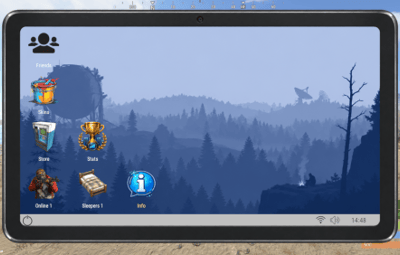
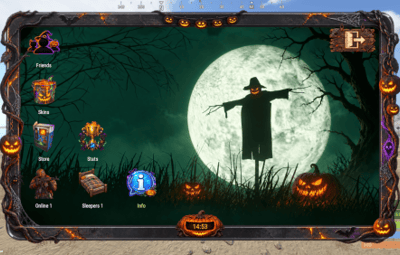
ServerPad adds a customizable virtual tablet to your Rust server, giving players a convenient desktop for accessing server commands and information.
Features
- Custom applications: configure each application's name, icon, position, command, permission, and enabled state.
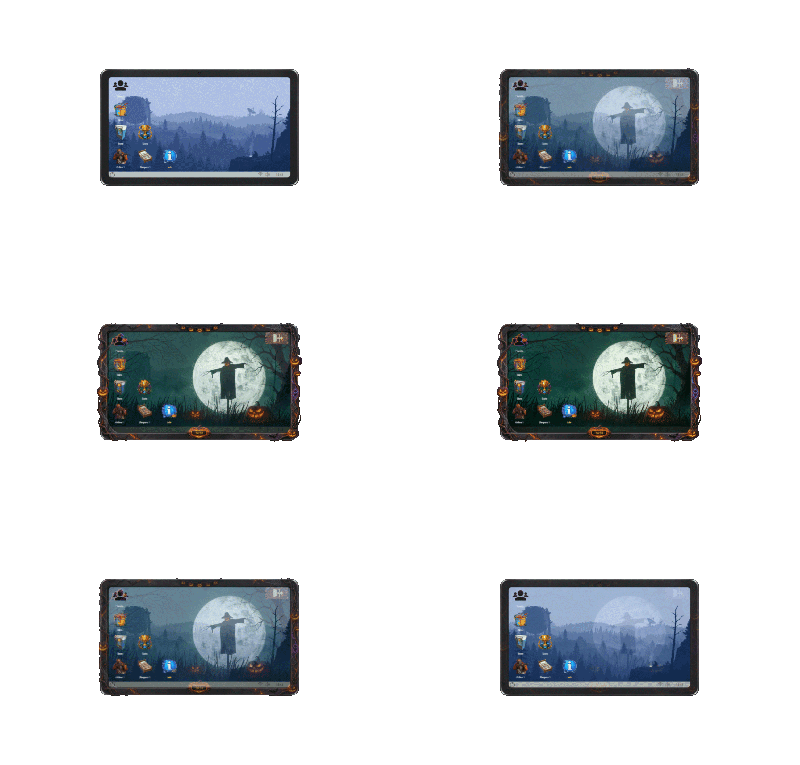
- Appearance presets: switch between the included Default and Halloween designs, or create your own.
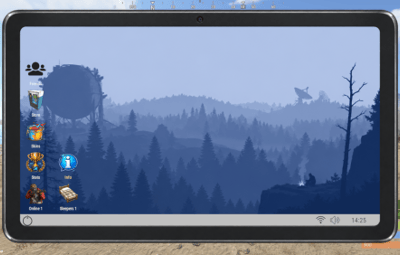
- Three application sizes: choose Small, Middle, or Big to adjust icon and button sizes.
- Numbered admin grid: display cell numbers to help arrange applications in the configuration.
- Access permissions: control access to the entire tablet and individual applications.
- In-game clock: display Rust game time with configurable formatting and appearance.
- Player counters: show online or sleeping player counts in application labels.
- Local images: use PNG files stored on your server. ImageLibrary and external image hosting are not required.
Included
- ServerPad.cs plugin.
- Two ready-to-use presets: Default and Halloween, with tablet frames, wallpapers, application icons, and preset settings.
- Four additional tablet frame images for customizing your presets.
How applications work
Applications are shortcuts to commands configured by the server owner. For example, setting an application's command to chat.say /store makes it execute the player's /store chat command.
Selecting a command shortcut closes the tablet and runs the command as that player. Existing permission checks in the target plugin still apply.
ServerPad provides the tablet interface; features such as shops, statistics, skins, and friends systems are supplied by separate plugins. Install and configure any plugins your shortcuts require. They are not included with ServerPad and may have their own costs.
Installation — Oxide/uMod
- Extract the archive.
-
Copy the included
oxide/data/ServerPad/folder into your server'soxide/data/directory. -
Copy
ServerPad.csintooxide/plugins/. -
Open the generated
oxide/config/ServerPad.jsonfile and configure your applications, preset, and access settings. -
After making changes, run
oxide.reload ServerPad. -
Use
/tabletin chat to open the tablet.
Copy the preset files before loading the plugin. Keep their folder names and image filenames intact.
Commands
| Command | Purpose |
|---|---|
/tablet
|
Open the tablet. The chat command can be changed in the configuration. |
tablet open
|
Open the tablet from the player's F1 console. |
tablet close
|
Close the tablet from the player's F1 console. |
tablet grid
|
Toggle the numbered grid while the tablet is open. Requires administrator status and the grid option enabled in the configuration. |
Enabling the administrator grid option also adds a GRID button to the tablet.
Permissions
By default, the tablet is available to all players.
To restrict access, set the main permission to serverpad.use, reload the plugin, and grant it to the desired users or groups. For example:
oxide.grant group vip serverpad.use
Each application can also require its own permission. Applications are hidden from players who do not have that permission.
Customizing presets
Each preset has its own folder under oxide/data/ServerPad/, containing:
-
tablet_frame.png— tablet frame. -
wallpaper_desktop.png— desktop background. - Application icon PNG files.
-
preset.json— clock and close-button settings.
The clock and close button support configurable text, text size, text color, font, alignment, and position. The clock also has a configurable time format.
To create a preset, copy an existing preset folder, give it a new name, replace the images, adjust its settings, and select it in the main configuration. Applications share the same configuration across presets, so provide matching icons in each preset you use.
Configuration notes
- Small supports 66 cells, Middle supports 45, and Big supports 28.
- Larger sizes reduce the available positions. Use the numbered grid to choose valid positions; applications outside the available area are hidden and are not moved automatically.
- The grid is a placement guide. Application positions are edited in JSON.
- Player counters refresh when the tablet is opened.
- The clock shows Rust game time, not real-world time.