

-
Posts
141 -
Joined
Content Type
Profiles
Warranty Claims
Downloads
Forums
Store
Services
Downloads Plus Support
DOWNLOADS EXTRA
Everything posted by ZH3LL
-
Custom gates or default?
-
Can you send me your config file in pm?
-
I tested it and if it is set to: "2 Way Player Teleport? (Both Side?)": false Then it will always spawn on one side.
-
If you enter the door, you will reach all the spawned doors. To not delete the Custom Gate, you need to modify the plugin's data storage, currently it is created after a configuration in which monument gates and custom gates are stored in the same place. As a feature, it is a good idea, but I can't promise a date when I will create it. ""2 Way Player Teleport? (Both Side?)": false," -> I will test and fix the two-way blocking option soon if necessary.
-
-
Version 1.2.2
7 downloads
Are you tired of conventional, unnoticeable server messages? Transform your Rust server’s communication into a striking, professional experience! ZAutomatedMessages is a premium Oxide plugin specifically engineered to revolutionize the visual communication on Rust servers. Forget chat spam! Your messages will now appear on stylish, customizable UI elements, complete with gradients, frames, and dynamic placement. Key Features - Custom UI Messaging: Messages appear on a unique, visually appealing panel on the screen instead of the standard chat box. - Stunning Color Gradients: Utilize two- or even three-color gradients to color your messages and sender names for maximum visibility and impact. - Dynamic Stacking: New messages neatly stack on top of existing ones, preventing overlap. - Fully Customizable Appearance: Configure the message position, width, background color, transparency, and font sizes. - ImageLibrary Support: Use custom frame images around your messages for an even more professional look. - Automated, Admin & Connection Messages: Manage all crucial communications in one place with a signature style. Detailed Configuration Guide All settings are managed within the ZAutomatedMessages.json configuration file. General SettingsDescription Messages position -> Where the messages should appear: “center”, “left”, or “right”. Top space -> Vertical offset from the top of the screen (on a scale of 1000). UI width in percent -> The width of the message panel as a percentage of the screen width. Sender text size -> Font size for the sender’s name (e.g., Server, Admin). Message text size -> Font size for the actual message text. Server messages convert to ZAutomatedMessages format? -> If true, standard server messages will also be displayed in the custom Admin UI format. Disable gave messages in Server messages? -> Only applies if server message conversion is enabled. If true, server “gave” messages will not show up in the UI. Enable Connect/Disconnect message? -> Enable custom UI notifications for player connection and disconnection. Blacklisted player ID’s -> A list of Steam IDs that will not trigger connect/disconnect messages (e.g., bots, admin accounts). Automated messages SettingDescription Message -> The text of the message to be displayed. FrameImage -> The filename of the frame image (from ImageLibrary), e.g., “frame_info.png”. Leave blank for no frame. TextColorMode_single_double_triple -> Type of color gradient: “single”, “double” (two-color gradient), or “triple” (three-color gradient). SingleColor -> The message color if mode is “single”. (Hex code: #ffffff). DoubleStartColor, DoubleEndColor -> Start and end colors for the gradient if mode is “double”. (Hex code). MessageStartColor, MessageCenterColor, MessageEndColor -> Start, center, and end colors for the gradient if mode is “triple”. (Hex code). Sender -> The name of the message sender (can be colored with a gradient). SenderStartColor, SenderEndColor -> Two-color gradient for the sender’s name. AppearTime -> How long the message stays visible on the screen (in seconds). DelayTime -> The waiting period between the message’s full cycle (appearance + delay) (in seconds). BackgroundColor -> The background color of the panel. (Hex code: #000000). BackgroundTransparency -> The transparency of the background (0-100%). Default Config { "Messages position": "center", "Top space": 50.0, "UI width in percent": 50, "Sender text size": 20, "Message text size": 14, "Server messages convert to ZAutomatedMessages Admin format?": true, "Disable gave messages in Server messages?": true, "Enable Connect/Disconnect message?": true, "Blacklisted player ID's (no appear in Connect / Disconnect messages)": [ 1000000000001, 1000000000002 ], "Automated messages": [ { "Message": "Welcome to the server!", "FrameImage": "frame_welcome.png", "TextColorMode_single_double_triple": "triple", "SingleColor": "#ffffff", "DoubleStartColor": "#ff0000", "DoubleEndColor": "#0000ff", "MessageStartColor": "#ff0000", "MessageCenterColor": "#00ff00", "MessageEndColor": "#0000ff", "Sender": "Server", "SenderStartColor": "#ff0000", "SenderEndColor": "#00ff00", "AppearTime": 4.0, "DelayTime": 7.0, "BackgroundColor": "#000000", "BackgroundTransparency": 50 }, { "Message": "Remember to join our Discord!", "FrameImage": "frame_info.png", "TextColorMode_single_double_triple": "double", "SingleColor": "#ffffff", "DoubleStartColor": "#ffff00", "DoubleEndColor": "#ff8800", "MessageStartColor": "#ff0000", "MessageCenterColor": "#0000ff", "MessageEndColor": "00ff00", "Sender": "Info", "SenderStartColor": "#ffff00", "SenderEndColor": "#ff8800", "AppearTime": 5.0, "DelayTime": 10.0, "BackgroundColor": "#000000", "BackgroundTransparency": 50 }, { "Message": "Read the rules!", "FrameImage": "frame_rules.png", "TextColorMode_single_double_triple": "single", "SingleColor": "#ffffff", "DoubleStartColor": "#ff0000", "DoubleEndColor": "#0000ff", "MessageStartColor": "#ff0000", "MessageCenterColor": "#0000ff", "MessageEndColor": "00ff00", "Sender": "", "SenderStartColor": "#aaaaaa", "SenderEndColor": "#ffffff", "AppearTime": 6.0, "DelayTime": 8.0, "BackgroundColor": "#000000", "BackgroundTransparency": 50 } ], "Connect message settings": { "FrameImage": "ZAM_online.png", "TextColorMode_single_double_triple": "double", "SingleColor": "#ffffff", "DoubleStartColor": "#00ff00", "DoubleEndColor": "#66ff66", "MessageStartColor": "#00ff00", "MessageCenterColor": "#00ff00", "MessageEndColor": "#66ff66", "SenderStartColor": "#00ff00", "SenderEndColor": "#66ff66", "AppearTime": 5.0, "BackgroundColor": "#000000", "BackgroundTransparency": 50 }, "Disconnect message settings": { "FrameImage": "ZAM_online.png", "TextColorMode_single_double_triple": "double", "SingleColor": "#ffffff", "DoubleStartColor": "#ff0000", "DoubleEndColor": "#ff6666", "MessageStartColor": "#ff0000", "MessageCenterColor": "#ff0000", "MessageEndColor": "#ff6666", "SenderStartColor": "#ff0000", "SenderEndColor": "#ff6666", "AppearTime": 5.0, "BackgroundColor": "#000000", "BackgroundTransparency": 50 }, "Admin / Console message settings": { "FrameImage": "ZAM_admin.png", "TextColorMode_single_double_triple": "triple", "SingleColor": "#ffffff", "DoubleStartColor": "#ff0000", "DoubleEndColor": "#ff6666", "MessageStartColor": "#ff00ff", "MessageCenterColor": "#ff33ff", "MessageEndColor": "#ff66ff", "SenderStartColor": "#ff00ff", "SenderEndColor": "#ff66ff", "AppearTime": 10.0, "BackgroundColor": "#000000", "BackgroundTransparency": 50 } } Connect / Disconnect / Admin Message Configurations The Connect message settings, Disconnect message settings, and Admin / Console message settings blocks contain similar, separate settings for these specific message types. This allows you to style connection messages green, disconnection messages red, and admin messages purple, each with its own separate frame image. Permission: ZAutomatedMessages.Admin -> can use /zm <message> // chat command with configured Admin style Console command: zm <message> // in Admin style I guarantee the functionality of the plugin as described. However, I cannot take responsibility for conflicts or issues arising from incompatibility with third-party plugins or themes. Please take this into account before purchasing. I will list all known compatibility details in the product description.$14.00 -
Version 2.2.1
14 downloads
Corpse call back RUST plugin preview It can be customized, you can choose a payment method and amount, and the cooldown time can also be set. Great plugin for PVP or even PVE servers! Detailed properties: – Permission for Vip players (Vip cost in config) – Added Shop and Kit payback value – Added Economic and Serverrewards payments – It examines Corpses after the plugin is loaded – Permission to free call back – Permission for no cooldown time – Selectable item and amount + setting cooldown time in the config – The command can be disabled for players so that it is only available in a shop or kit! – It can also be used with the Admin command, where there is no payment or cooldown time! – The recall cost is all owned corpse and body on the map! – Chat message after respawn! – You can change the command in config – Added permission to use – not recall: large backpack, small backpack, in-hand dropped item – discord notification function added Config { "Cost type: (1=Scrap, 2=Economics, 3=ServerRewards)": 12, "Recall price default cost:": 500.00, "Recall price VIP cost:": 500.00, "Economics": "$", "ServerRewards": "SR", "Cooldown time in second": 30.0, "Players can use command in chat?": true, "Send message to player after death?": true, "Disable multicolor message?": true, "Corpsecallback command:": "cback", "Send back buy price options (if run from console command, + no body was found ) / true/false / -> useful if you put in Shop or Kit": true, "[Discord] hook (empty = disable)": "", "[Discord] hex color": "#aa00aa" } Console command mycorpse playername/steamid (you can change the command in config) Chat command /mycorpse (or you can change in config) Language: 31 file Permissions CorpseCallback.no.cooldown CorpseCallback.no.cost CorpseCallback.use CorpseCallback.VIP I guarantee the functionality of the plugin as described. However, I cannot take responsibility for conflicts or issues arising from incompatibility with third-party plugins or themes. Please take this into account before purchasing. I will list all known compatibility details in the product description.$15.00 -
Version 1.0.0
2 downloads
Lock the NPCs so that no one else can take the loot! Npc Lock Rewiew: - Quick and easy configuration in the ingame UI window - Lock Npc for the time specified in the ingame UI window+ for team members - It is mainly useful for Custom NPCs of PVE servers - Setting non-owner damage in the ingame UI window - Discord notify setting in config Config { "Admin UI Command": "npcd", "Damage declaration in % if not owner ( example: 1 = 100% || 0.1 = 10%)": 0.1, "Cooldown in second": 300.0, "NPC name, cooldown time": [ "NPC name 1", "NPC name 2" ], "Discord Hook (empty = disable)": "", "Discord embed hex color": "#f900f9" } Chat command /npcd set in config Language: 31 file I guarantee the functionality of the plugin as described. However, I cannot take responsibility for conflicts or issues arising from incompatibility with third-party plugins or themes. Please take this into account before purchasing. I will list all known compatibility details in the product description.$9.99 -
Version 1.1.1
3 downloads
CommandsZ plugin review Easy management of commands on the server, only for which the player has authorization. – Two types of UI window sizes – Selectable description: either read from the config (in 1 language) or from the lang file (multi language) – Easy handling: group list colors, add command, remove command – Customizable display command in config – Auto find group list Config: { "UI command:": "command", // in-game command "Description use lang file? If false plugin use config description. if true write the lang file link in description (example: description_001)": false, "Full screen UI?": true, "Lang file description length number (start: description_001 -> end your configured number)": 20, // number of lines in lang file "Close UI after click the command??": true, // after command usage, still on UI or close "Enable quick command menu for players?": true, "UI quick button color:": "0.3 0.3 0.3 0.5", "UI quick button X position:": 100.0, "UI quick button Y position:": 100.0, "UI quick button title:": "↑", "Command list": [ { "Name": "Remover tool", "Is Admin Command": false, "Command": "remove", //maximum 3 commands, without a separator space : , "Description:": "You can remove your entitys", "ImageSrc": "https://assets.umod.org/images/icons/plugin/5f69e0b028169.png", "Group": "default" //the color of the last listed group will always be active display mode, enter several groups: without a separating space: , }, { "Name": "Sign Artist", "Is Admin Command": false, "Command": "sil,silt", "Description:": "Insert a picture or write text in the frame.", "ImageSrc": "https://assets.umod.org/images/icons/plugin/5b6774e6e22df.jpg", "Group": "default,VIP" //the color of the last listed group will always be active display mode, enter several groups: without a separating space: , }, { "Name": "Nightvision", "Is Admin Command": false, "Command": "nv,nv 8,nv 16", //maximum 3 commands, without a separator space : , "Description:": "See in the dark with this item.", "ImageSrc": "https://static.wikia.nocookie.net/play-rust/images/e/ee/Night_Vision_Goggles_icon.png", "Group": "VIP" //the color of the last listed group will always be active display mode, enter several groups: without a separating space: , }, { "Name": "Radar", "Is Admin Command": false, "Command": "radar", //maximum 3 commands, without a separator space : , "Description:": "Radar for admins.", "ImageSrc": "https://assets.umod.org/images/icons/plugin/5b7e1bc17d769.png", "Group": "admin" } ], "Group Colors": { "default": { "Background Color": "0.3 0.3 0.3 1", "Text Color": "#ffffff", "Button Color": "0.3 1 0.3 1" }, "admin": { "Background Color": "0.5 0.2 0.2 1", "Text Color": "#ff9999", "Button Color": "1 0.2 0.2 1" } } } Language: 31 file Config: Description use lang file? IF FALSE: The description of the command is read from the config file Config: Description use lang file? IF TRUE: The command description is read from the lang library. EXAMPLE: { "Name": "Sign Artist", "Is Admin Command": false, "Command": "sil,silt", "Description:": "description_001", // write here the label of the line to be read from the lang file "ImageSrc": "https://assets.umod.org/images/icons/plugin/5b6774e6e22df.jpg", "Group": "default,VIP" }, Permissions CommandsZ.Admin //can edit commands CommandsZ.CanUse //can open UI Required plugin: Imagelibrary.cs I guarantee the functionality of the plugin as described. However, I cannot take responsibility for conflicts or issues arising from incompatibility with third-party plugins or themes. Please take this into account before purchasing. I will list all known compatibility details in the product description.$10.00 -
Version 1.0.0
6 downloads
ZGlobalSmallBoxes is a premium Rust plugin that allows players to remotely access designated Small Wood Boxes from anywhere on the map. No more running back to your base just to grab a spare tool or supplies! Key Features: - Box Conversion: Players can upgrade standard small wooden boxes into "Global Boxes" with a single click. - Remote Access: Interactive visual UI icons appear on the side of the screen, allowing players to open their storage regardless of their location. - Dynamic Visuals: The UI automatically displays the current skin of the box, making it easy to identify which container holds specific loot. - Customizable Costs: Server owners can define the conversion price using different methods: - Item Based: Pay with any in-game item (e.g., Scrap, HQM). - Economy Systems: Full support for Economics ($) and ServerRewards (RP). - Player Limits: Configure the maximum number of global boxes a player can own (default: 2). - Auto-Maintenance: If a global box is destroyed in-world, it is automatically removed from the database and the player's UI. Permissions: Permission: ZGlobalSmallBoxes.Use (Required to use the system). Usage: Simply look at a small wooden box and use the on-screen UI button to convert it! I guarantee the functionality of the plugin as described. However, I cannot take responsibility for conflicts or issues arising from incompatibility with third-party plugins or themes. Please take this into account before purchasing. I will list all known compatibility details in the product description.$24.99 -
-
Version 2.1.0
2 downloads
WipeZ plugin This plugin helps you after WIPE, delete logos, data, and take away permissions or groups from players! Let the plugin do the work for you! What can this plugin do? – add permissions / groups to the player until WIPE – deletes log files from the oxide/logs folder based on the config list -> after WIPE – deletes data files from the oxide/data folder based on the config list -> aftter WIPE – Send messages to Discord when adding permission or group. – Added Admin command for instant WIPE files, permissions (/wipez) Be careful when deleting data, you may run into problems when deleting the wrong files! How it works? When you start the server with a new map after WIPE, it performs the necessary deletions when loading the server, removing permissions and groups from the players When does this detect WIPE? WIPE = none of the loaded map data entities have an Owner when starting the server. Commands (console / shop) - zperm {playerID} {perm name} Example: zperm 76561199015717405 Nightvision.Allowed // this command adds the player to the Nightvision plugin Allowed permission. It lists this in the data file and deletes it from the players after WIPE. - zgroup {playerID} {group name} Example: zgroup 76561199015717405 VIP // this command adds the player to the VIP group. It lists this in the data file and deletes it from the players after WIPE. These commands are useful when you want to give privileges to players until WIPE, and they are automatically deleted when a new map is detected. Config { "Enable plugin": true, "Delete all log file after wipe?": true, "Delete data file (in data folder) -> (Plugin name.cs, file name.json) Example: ZBoxesPack.cs, ZBoxesPack.json": { "pluginName1.cs": "pluginName1.json", "pluginName2.cs": "pluginName2.json" }, "Delete data folder all contents: (in data folder) -> (Plugin name.cs, directory name) Example: ZForum.cs, ZForum/Chat": { "pluginfolder.cs": "pluginfolder/pluginfolder", "pluginfolder2.cs": "pluginfolder2/pluginfolder2" }, "Delete log file": [ "logfile.txt", "logfile2.txt" ], "Delete log folder all contents": [ "logfolder", "logfolder2" ], "Discord WebHook:": "" } Chat command /wipez // only Admin can use (instant wipe Permissions, Logs, Data, what configured) Works with AdminTrollToolZ plugin I guarantee the functionality of the plugin as described. However, I cannot take responsibility for conflicts or issues arising from incompatibility with third-party plugins or themes. Please take this into account before purchasing. I will list all known compatibility details in the product description.$12.99 -
-
-
Version 1.3.1
4 downloads
Make item exchange between players faster! ZVendingMachine features - Blockable shop names - You can access every shop on the map from a Vending Machine - Add transaction tax Players can remove their Vending Machine from the global list: – empty list – empty inventory – full inventory – disable broadcasting Players cant open Shop UI: – if player inventory full – if shop inventory full Added Discord information sender part Config { "[UI] Show all Vending Machine? (false = if have owner)": true, "[UI] Players can open UI in Owned Vending Machine?": true, //if true players can open their Vending Machine "[TAX] Tax system on? (every transaction)": true, //1 transaction extra cost "[TAX] item ID": 1588492232, //Item ID LIST "[TAX] item skin ID": 0, "[TAX] item amount": 1, "[Discord] hook (empty = disable)":"", //if empty no send message "[Discord] hex color": "#3344AA", "[Discord] message success rename": "Renamed Vending Machine:", "[Discord] message fail rename": "Tried rename Vending Machine:", "Blacklisted words": [ "word1", "word2", "word3", "word4" ], "[Discord] image link": "" } Language: 31 file Permissions - ZVendingMachine.can.use //players can open UI 1.2.0 UPDATE 1# Added vendingchange chat command (need permission ZVendingMachine.admin) Function: If you look at VendingMachine and type the chat command, it will give you a list of what NPVCendingMachine you can convert it to. For example: /vendingchange 15 = resources NPVCendingMachine Only works: VendingMachine to NPVCendingMachine type. 2# Adden 2 new background pictures handling configuration: - VendingMachine Main Background link (if empty == default->load pictures from data directory) - VendingMachine InventoryBackground link (if empty == default->load pictures from data directory) I guarantee the functionality of the plugin as described. However, I cannot take responsibility for conflicts or issues arising from incompatibility with third-party plugins or themes. Please take this into account before purchasing. I will list all known compatibility details in the product description.$20.00 -
Version 1.0.0
5 downloads
A plugin that quickly prepared me for the fight, collects the items from the boxes in configured radius to the Locker! Detailed properties: - permission to use - set UI position in config - turn on/off skin change for moved items - 31 lang file uploaded - set cooldown time in config - set blocked skin id's in config Config { "Need permission to use?": false, "Cooldown time is second (default)": 60, "Cooldown time is second (VIP)": 10, "Blocked skin IDs": [ 3171493217, 3090732154, 3144201633, 3137708597, 3084640228, 3084640228 ], "Works with empty slots only?": true, "Item scan radius from owners boxes:": 50.0, "UI Position: ( 0=Bottom / 1=Top)": 0 } Language: 31 file { "CD": "Cooldown: {0} seconds", "S2": "SLOT #2", "S3": "SLOT #3", "Help": "HELP", "Helpline": "Put the <color=#00ff00>items</color> you are looking for into the topmost <color=orange>SLOT #1</color>, then by pressing the <color=#0055ff>SLOT #2 or #3 button</color>, you can move them from your own boxes. <color=#ff0000>Important:</color> you only scan your own boxes!", "SNO": "SKIN ON", "SNOF": "SKIN OFF", "Back": "Back", "empty": "SLOT #{0} must be empty!" } Permissions LockerSorterZ.use LockerSorterZ.vip I guarantee the functionality of the plugin as described. However, I cannot take responsibility for conflicts or issues arising from incompatibility with third-party plugins or themes. Please take this into account before purchasing. I will list all known compatibility details in the product description.$12.00 -
Version 1.0.0
4 downloads
Industrial Blueprint Block Z Plugin Players can no longer avoid crafting prohibited items with Industrial Crafting! There are 2 categories! – In the default config list, you can use the short names of the items to list the default prohibited blueprintsthat players cannot insert into Industrial Crafting. – The other category list in the config is for VIP players, who with VIP permission unlock some Blueprint block in Crafter. The plugin checks the Crafter’s owner when putting a blueprint, not the currently active player! Config { "Blacklisted itemlist shortname": [ "smg.thompson", "rifle.ak", "smg.2", "shotgun.double" ], "Blacklisted allow list for VIP: itemlist shortname": [ // this unlock items in: "Blacklisted itemlist shortname" for VIP "smg.thompson", "rifle.ak", ] } Permissions IndustrialBlueprintBlockZ.VIP I guarantee the functionality of the plugin as described. However, I cannot take responsibility for conflicts or issues arising from incompatibility with third-party plugins or themes. Please take this into account before purchasing. I will list all known compatibility details in the product description.$8.00 -
Version 1.1.0
6 downloads
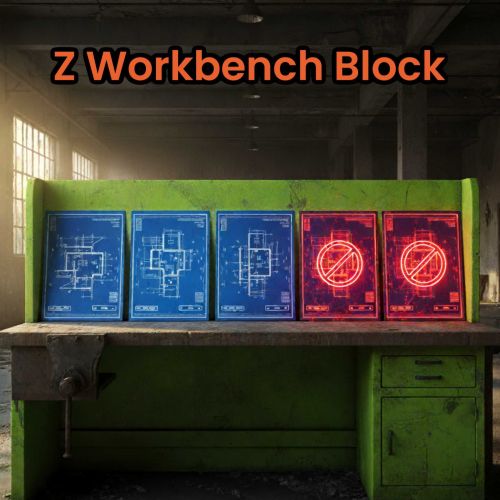
The Game-Changer for Tech Tree Progression Control! ZWorkbenchBlock is an essential plugin for any Rust server looking to limit players’ early access to higher-tier crafting items. Instead of simply hiding the Workbenches, this plugin introduces a sophisticated permission-based system. How It Works: The plugin checks the player’s permissions when they attempt to interact with the Workbench’s tech-tree interface. If the Workbench is configured to be blocked AND the player does not possess the corresponding permission, access is denied. Core Benefits for Your Server: Tiered Gameplay: Enforce progression! Only players who have earned or purchased access through your store/ranking system can research and unlock items. Revenue Generation: Sell access permissions (e.g., Workbench Tier 3 Unlock) via ranks or direct purchases in your store. This is a premium in-game advantage! Flexible Configuration: Individually select which Workbenches are blocked (WB1, WB2, WB3, Electrical WB). Professional Feedback: The customizable gradient message (Red-Yellow transition) instantly and conspicuously informs the player why they cannot open the menu. Permissions ZWorkbenchBlock.CanOpen.Workbench.1 ZWorkbenchBlock.CanOpen.Workbench.2 ZWorkbenchBlock.CanOpen.Workbench.3 ZWorkbenchBlock.CanOpen.Engineer.Workbench Config { "Block Workbench 1?": true, "Block Workbench 2?": true, "Block Workbench 3?": true, "Block Electrical Workbench?": true } 31 Lang file I guarantee the functionality of the plugin as described. However, I cannot take responsibility for conflicts or issues arising from incompatibility with third-party plugins or themes. Please take this into account before purchasing. I will list all known compatibility details in the product description.$3.00 -
Version 1.2.1
6 downloads
Medkit Plus You can upgrade the Medkit and Medical Syringe items on your server. Review - The Medkit and Medical Syringe items received + 2 types separately. - It can be set in the configuration to spawn automatically in the Containers. (can be switched off) - Added Revive Medkit: Works only if player Wounded and revival item is in inventory, it will use automatically. Config { "[Medical syringe Yellow] Healing multiplier": 1.5, "[Medical syringe Yellow] Loot Chance to Put into loot container (0=disable)": 40, "[Medical syringe Yellow] Loot Amount": 2, "[Medical syringe Yellow] Name": "Yellow syringe+", "[Medical syringe Red] Healing multiplier": 2.0, "[Medical syringe Red] Loot Chance to Put into loot container (0=disable)": 30, "[Medical syringe Red] Loot Amount": 1, "[Medical syringe Red] Name": "Red syringe++", "[Medkit Yellow] Healing multiplier": 1.5, "[Medkit Yellow] Loot Chance to Put into loot container (0=disable)": 30, "[Medkit Yellow] Loot Amount": 1, "[Medkit Yellow] Name": "Yellow Medkit+", "[Medkit Red] Healing multiplier": 2.0, "[Medkit Red] Loot Chance to Put into loot container (0=disable)": 20, "[Medkit Red] Loot Red Amount": 1, "[Medkit Red] Name": "Red Medkit++", "[Revive Medkit] Loot Chance to Put into loot container (0=disable)": 100, "[Revive Medkit] Loot Revive Medkit Amount": 1, "[Revive Medkit] Enable revived icon in chat?": true, "[Revive Medkit] Healing value": 75, "[Revive Medkit] Name": "Revival MEDKIT", "[Lootcontainer] Shortnames for custom spawns": [ "bradley_crate", "heli_crate", "codelockedhackablecrate", "crate_normal_2_medical" ] } I guarantee the functionality of the plugin as described. However, I cannot take responsibility for conflicts or issues arising from incompatibility with third-party plugins or themes. Please take this into account before purchasing. I will list all known compatibility details in the product description.$10.00 -
Version 1.4.0
4 downloads
Timed quick quest for players, competition for rewards. ZQuest Review - 11 Quests - Mining, Gather, Pick up, Kill - Quest duration and time between Quests can be set in Config - A minimum number of players can be specified to start - Several rewards can be set in Config, which are randomly selected at the start of the Quest - Discord notify option in config Config { "Quest start time in second after plugin loaded: (0=disable)": 10.0, "Minimum online players to start Quest": 1, "Quest time in second": 300.0, "Time in second between Quests": 1800.0, "UI set Y position (+value = up || -value = down)": 0.0, "Reward itemlist": [ { "Item id": -932201673, "DisplayName": "", "Amount": 1500, "Skin ID": 0 }, { "Item id": 317398316, "DisplayName": "", "Amount": 1000, "Skin ID": 0 }, { "Item id": 1545779598, "DisplayName": "", "Amount": 1, "Skin ID": 2992001812 } ], "Discord Hook (empty = disable)": "", "Discord embed hex color": "#ff8888" } Language: 31 file I guarantee the functionality of the plugin as described. However, I cannot take responsibility for conflicts or issues arising from incompatibility with third-party plugins or themes. Please take this into account before purchasing. I will list all known compatibility details in the product description.$15.00 -
Version 1.0.3
4 downloads
Add storages for your Motorbikes and Pedaltrike, upgrade your Bikes. You can add easily configurable storages to Motorcycles and PedalTrikes. Config { "Enable plugin?": true, "Spawned storages count for Motorbike: (0-2) / 0 = disable": 2, "Spawned storages count for Motorbike Sidecar: (0-2) / 0 = disable": 2, "Spawned storages count for Pedaltrike: (0-2) / 0 = disable": 2, "Need permission to spawn? (spawn only bike owners = true | global spawn = false)": false } Permissions MotorStorageZ.Use I guarantee the functionality of the plugin as described. However, I cannot take responsibility for conflicts or issues arising from incompatibility with third-party plugins or themes. Please take this into account before purchasing. I will list all known compatibility details in the product description.$5.00 -
Version 1.0.8
6 downloads
Notify players of upcoming TC decays. How does it work? The server calculates the TC decay time and writes it in a list. It sends the notification according to the conditions specified in the configuration. In-game notifications can be turned off per Tc. It only applies to those TCs where there is an owner! Features: – player notification ingame if online – Discord notifications: ( 1 upcoming decay, 2 ongoing decay, 3 destroyed TCs ) with map positions and registered names - Decay calculation is done by Rust if you build or are near it! In the absence of these, there is no calculation, no notification! Sends 1 message after each calculation, at the specified time and place! - Decay calculation is done by Rust if you build or are near it! - In the absence of these, there is no calculation, no notification! - Sends 1 message after each calculation, at the specified time and place! Config { "Discord webhook (empty = disable)": "", "CheckInterval (second)": 60.0, "Enable chat message to players?": false, "Enable player names in message": true, "Discord warning timer (under decay hour / 0 = disable)": 24, "Discord maintitle": "TC Info", "Discord title (destroyed TC)": "Destroyed Tool cupboards", "Discord title (decayTC)": "Decaying Tool cupboards", "Discord title (close to decay time message)": "Decaying TC in {time} hours", "Discord embed hex color": "#ff00ff", "Enable turn on / off decay message in TC?": true, "Discord image": "" } Language: 31 file I guarantee the functionality of the plugin as described. However, I cannot take responsibility for conflicts or issues arising from incompatibility with third-party plugins or themes. Please take this into account before purchasing. I will list all known compatibility details in the product description.$10.00