
Depends on
Required for this file to work correctly.

About Azuriom Outpost Theme
Azuriom Outpost Theme
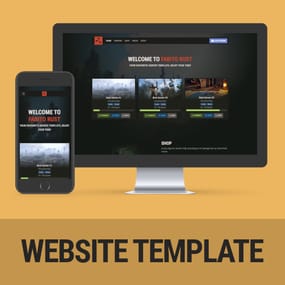
Experience the best of our popular Outpost Website Template, now seamlessly integrated with Azuriom.
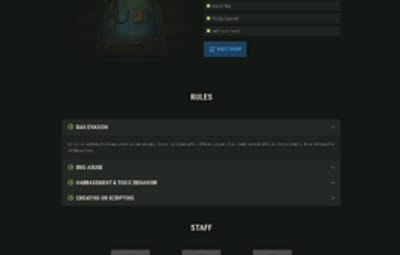
The Azuriom Outpost Theme is your all-in-one solution for displaying server cards, shop details, rules, staff profiles, and FAQs—all in one place. A built-in configuration panel makes it simple to enable, disable, and personalize every section on the homepage, ensuring a tailored fit for your community. Enjoy a sleek, modern design backed by the ease of Azuriom, and create an inviting experience for your players with minimal setup required.
### 1. Place the theme in the directory
1. On your server (or local environment), locate your Azuriom installation folder.
2. Inside that folder, you should find a `resources/themes/` directory.
3. Unzip the downloaded file to the /promeus folder with its contents. Place this folder inside `resources/themes/`.
> **Example path:**
> `azuriom-installation/resources/themes/promeus`
### 2. Activate the theme in Azuriom’s admin panel
1. Log into your Azuriom admin dashboard.
2. Go to **Extensions** -> **Themes**.
3. You should see the newly placed theme listed.
4. Click "Enable” for the theme you just uploaded.
### 3. Customize or configure the theme
- Upload any required assets (like logos, background images, etc.) to the theme/assets/ folder.
- After activation, you can configure the theme’s settings using the **Edit Config** button on the Themes page..